
Sony CPD-E400P: Step 2:Connect the power cord Step 3:Turn on the monitor and computer
Step 2:Connect the power cord Step 3:Turn on the monitor and computer: Sony CPD-E400P
Table of contents
- Owner’s Record
- Table of Contents
- Precautions
- Identifying parts and controls
- Setup Step 1:Connect your monitor to your computer
- Step 2:Connect the power cord Step 3:Turn on the monitor and computer
- Selecting the on-screen menu Customizing Your Monitor language (LANG) Navigating the menu
- Using the control button Displaying the current input signal Resetting the adjustments
- Adjusting the brightness and Adjusting the centering of the contrast picture (CENTER) Adjusting the size of the picture (SIZE) Enlarging or reducing the picture (ZOOM)
- Adjusting the shape of the picture Adjusting the color of the picture (GEOM) (COLOR)
- Adjusting the convergence (CONV) Additional settings (OPTION)
- Helpful hints and information (HELP)
- Resetting the adjustments
- Technical Features Troubleshooting
- Trouble symptoms and remedies Symptom Check these items
- Symptom Check these items
- Self-diagnosis function Specifications
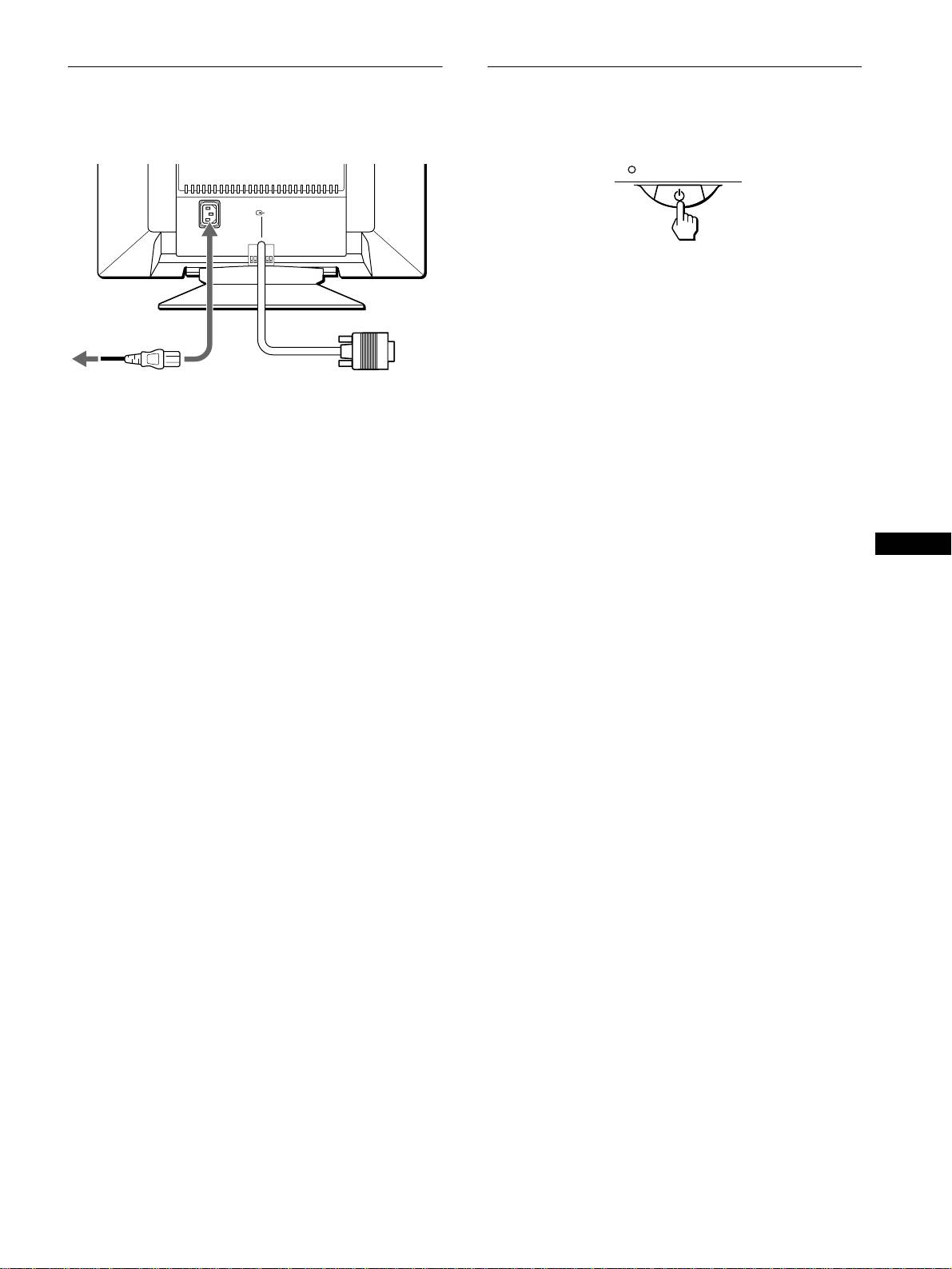
Step 2:Connect the power cord
Step 3:Turn on the monitor and
computer
With the monitor and computer switched off, first connect the
power cord to the monitor, then connect it to a power outlet.
First turn on the monitor, then turn on the computer.
(
HD15
)
1
AC IN
The installation of your monitor is complete.
If necessary, use the monitor’s controls to adjust the picture.
If no picture appears on your screen
to AC IN
• Check that the monitor is correctly connected to the computer.
to a power outlet
• If NO INPUT SIGNAL appears on the screen, confirm that the
video signal cable is properly connected and all plugs are firmly
seated in their sockets.
power cord (supplied)
• If MONITOR IS IN POWER SAVE MODE appeared on the
screen, try pressing any key on the keyboard or moving the
mouse.
• If you are replacing an old monitor with this model and OUT
OF SCAN RANGE appears on the screen, reconnect the old
monitor. Then adjust the computer’s graphic board so that the
horizontal frequency is between 30 – 96 kHz, and the vertical
frequency is between 48 – 120 Hz.
GB
For more information about the on-screen messages, see “Trouble
symptoms and remedies” on page 16.
Setup on various OS (Operating System)
This monitor complies with the “DDC” Plug & Play standard and
automatically detects all the monitor’s information. No specific driver
needs to be installed to the computer.
If you connect the monitor to your PC, and then boot your PC for the first
time, the setup Wizard may be displayed on the screen. Click on “Next”
several times according to the instructions from the Wizard until the Plug
& Play Monitor is automatically selected so that you can use this monitor.
For customers using Windows NT4.0
Monitor setup in Windows NT4.0 does not use the display driver. Refer
to the Windows NT4.0 instruction manual for further details on adjusting
the resolution, refresh rate, and number of colors.
7
