
Sony CPD-E400P: Adjusting the brightness and Adjusting the centering of the contrast picture (CENTER) Adjusting the size of the picture (SIZE) Enlarging or reducing the picture (ZOOM)
Adjusting the brightness and Adjusting the centering of the contrast picture (CENTER) Adjusting the size of the picture (SIZE) Enlarging or reducing the picture (ZOOM): Sony CPD-E400P
Table of contents
- Owner’s Record
- Table of Contents
- Precautions
- Identifying parts and controls
- Setup Step 1:Connect your monitor to your computer
- Step 2:Connect the power cord Step 3:Turn on the monitor and computer
- Selecting the on-screen menu Customizing Your Monitor language (LANG) Navigating the menu
- Using the control button Displaying the current input signal Resetting the adjustments
- Adjusting the brightness and Adjusting the centering of the contrast picture (CENTER) Adjusting the size of the picture (SIZE) Enlarging or reducing the picture (ZOOM)
- Adjusting the shape of the picture Adjusting the color of the picture (GEOM) (COLOR)
- Adjusting the convergence (CONV) Additional settings (OPTION)
- Helpful hints and information (HELP)
- Resetting the adjustments
- Technical Features Troubleshooting
- Trouble symptoms and remedies Symptom Check these items
- Symptom Check these items
- Self-diagnosis function Specifications
Adjusting the brightness and
Adjusting the centering of the
contrast
picture (CENTER)
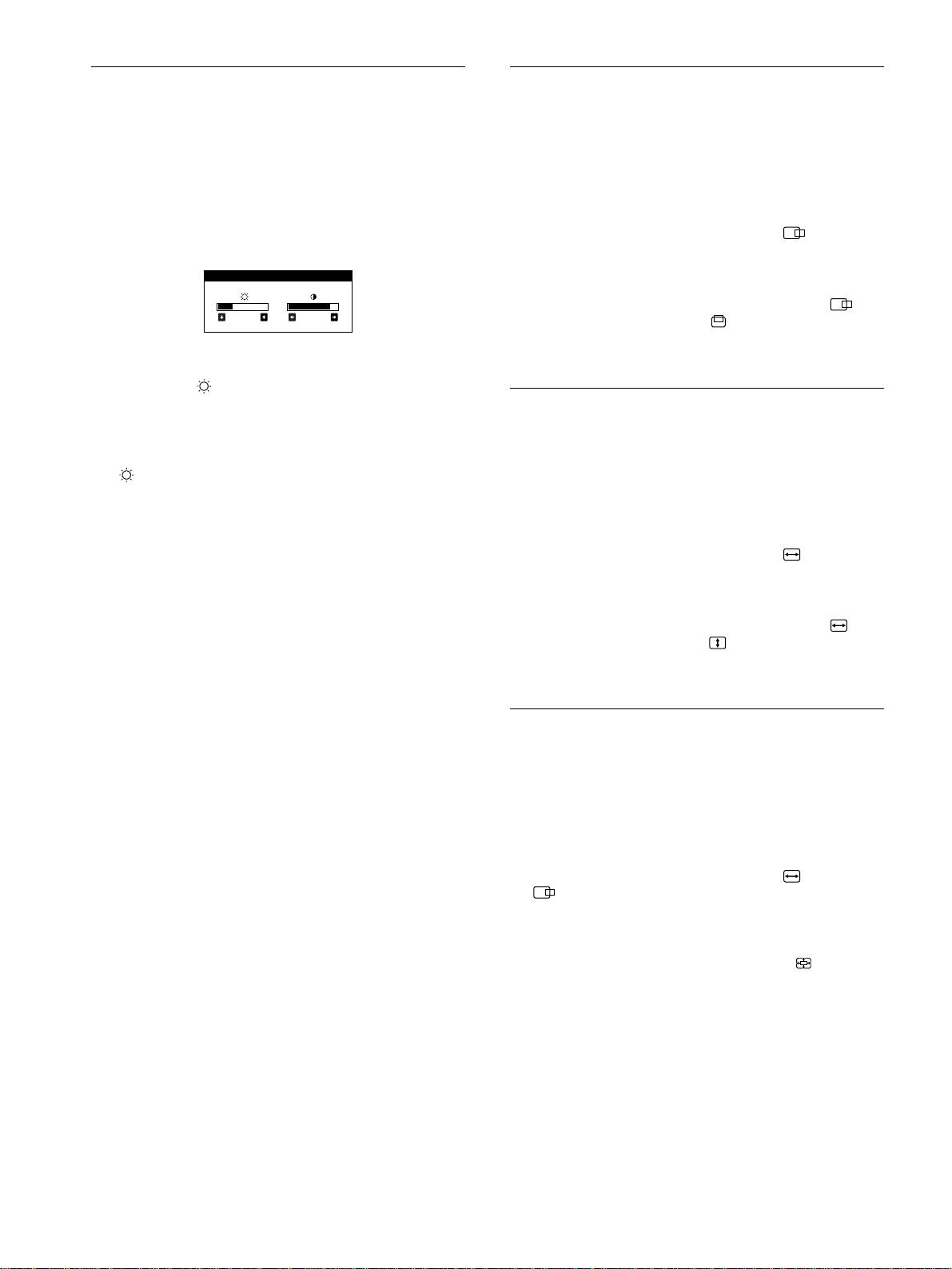
Brightness and contrast adjustments are made using a separate
This setting is stored in memory for the current input signal.
BRIGHTNESS/CONTRAST menu.
These settings are stored in memory for all input signals.
1
Press the center of the control button.
The main MENU appears on the screen.
1
Move the control button in any direction.
The BRIGHTNESS/CONTRAST menu appears on the
2
Move the control button to highlight CENTER
screen.
and press the center of the control button again.
The SIZE/CENTER menu appears on the screen.
BRIGHTNESS/CONTRAST
3
First move the control button
m
/
M
to select for
31 85
horizontal adjustment, or for vertical
adjustment. Then move the control button
<
/
,
to
adjust the centering.
2
Move the control button
m
/
M
to adjust the
brightness ( ), and
<
/
,
to adjust the contrast
(
6
).
Adjusting the size of the picture
The menu automatically disappears after about 3 seconds.
(SIZE)
If you set sRGB to “ON” on the color setting, the brightness
This setting is stored in memory for the current input signal.
( ) and contrast (6) are automatically set to “31” and “85”
respectively.
1
Press the center of the control button.
For more information about sRGB, see “Adjusting the color
The main MENU appears on the screen.
of the picture (COLOR)” on page 11.
2
Move the control button to highlight SIZE and
press the center of the control button again.
The SIZE/CENTER menu appears on the screen.
3
First move the control button
m
/
M
to select for
horizontal adjustment, or for vertical
adjustment. Then move the control button
<
/
,
to
adjust the size.
Enlarging or reducing the picture
(ZOOM)
This setting is stored in memory for the current input signal.
1
Press the center of the control button.
The main MENU appears on the screen.
2
Move the control button to highlight SIZE or
CENTER and press the center of the control
button again.
The SIZE/CENTER menu appears on the screen.
3
Move the control button
m
/
M
to select (zoom),
and move
<
/
,
to enlarge or reduce the picture.
Notes
• Adjustment stops when either the horizontal or vertical size reaches its
maximum or minimum value.
• The horizontal adjustment value is not displayed in the menu.
10
