
Sony CPD-E400P: Adjusting the convergence (CONV) Additional settings (OPTION)
Adjusting the convergence (CONV) Additional settings (OPTION): Sony CPD-E400P
Table of contents
- Owner’s Record
- Table of Contents
- Precautions
- Identifying parts and controls
- Setup Step 1:Connect your monitor to your computer
- Step 2:Connect the power cord Step 3:Turn on the monitor and computer
- Selecting the on-screen menu Customizing Your Monitor language (LANG) Navigating the menu
- Using the control button Displaying the current input signal Resetting the adjustments
- Adjusting the brightness and Adjusting the centering of the contrast picture (CENTER) Adjusting the size of the picture (SIZE) Enlarging or reducing the picture (ZOOM)
- Adjusting the shape of the picture Adjusting the color of the picture (GEOM) (COLOR)
- Adjusting the convergence (CONV) Additional settings (OPTION)
- Helpful hints and information (HELP)
- Resetting the adjustments
- Technical Features Troubleshooting
- Trouble symptoms and remedies Symptom Check these items
- Symptom Check these items
- Self-diagnosis function Specifications
Adjusting the convergence (CONV)
Additional settings (OPTION)
The CONV settings allow you to adjust the quality of the picture
You can manually degauss (demagnetize) the monitor, adjust the
by controlling the convergence. The convergence refers to the
moire cancellation level, change the menu position, and lock the
alignment of the red, green, and blue color signals.
controls.
If you see red or blue shadows around letters or lines, adjust the
convergence.
1
Press the center of the control button.
These settings are stored in memory for all input signals.
The main MENU appears on the screen.
1
Press the center of the control button.
2
Move the control button to highlight OPTION and
The main MENU appears on the screen.
press the center of the control button again.
The OPTION menu appears on the screen.
2
Move the control button to highlight CONV and
press the center of the control button again.
3
Move the control button
m
/
M
to select the desired
The CONVERGENCE menu appears on the screen.
adjustment item.
Adjust the selected item according to the following
3
First move the control button
m
/
M
to select for
instructions.
horizontal adjustment, or for vertical
adjustment. Then move the control button
<
/
,
to
Degaussing the screen
adjust the convergence.
The monitor is automatically demagnetized (degaussed) when the
power is turned on.
To manually degauss the monitor, first move the
control button
m
/
M
to select (DEGAUSS). Then move
the control button
,
.
The screen is degaussed for about 5 seconds. If a second degauss
cycle is needed, allow a minimum interval of 20 minutes for the
best result.
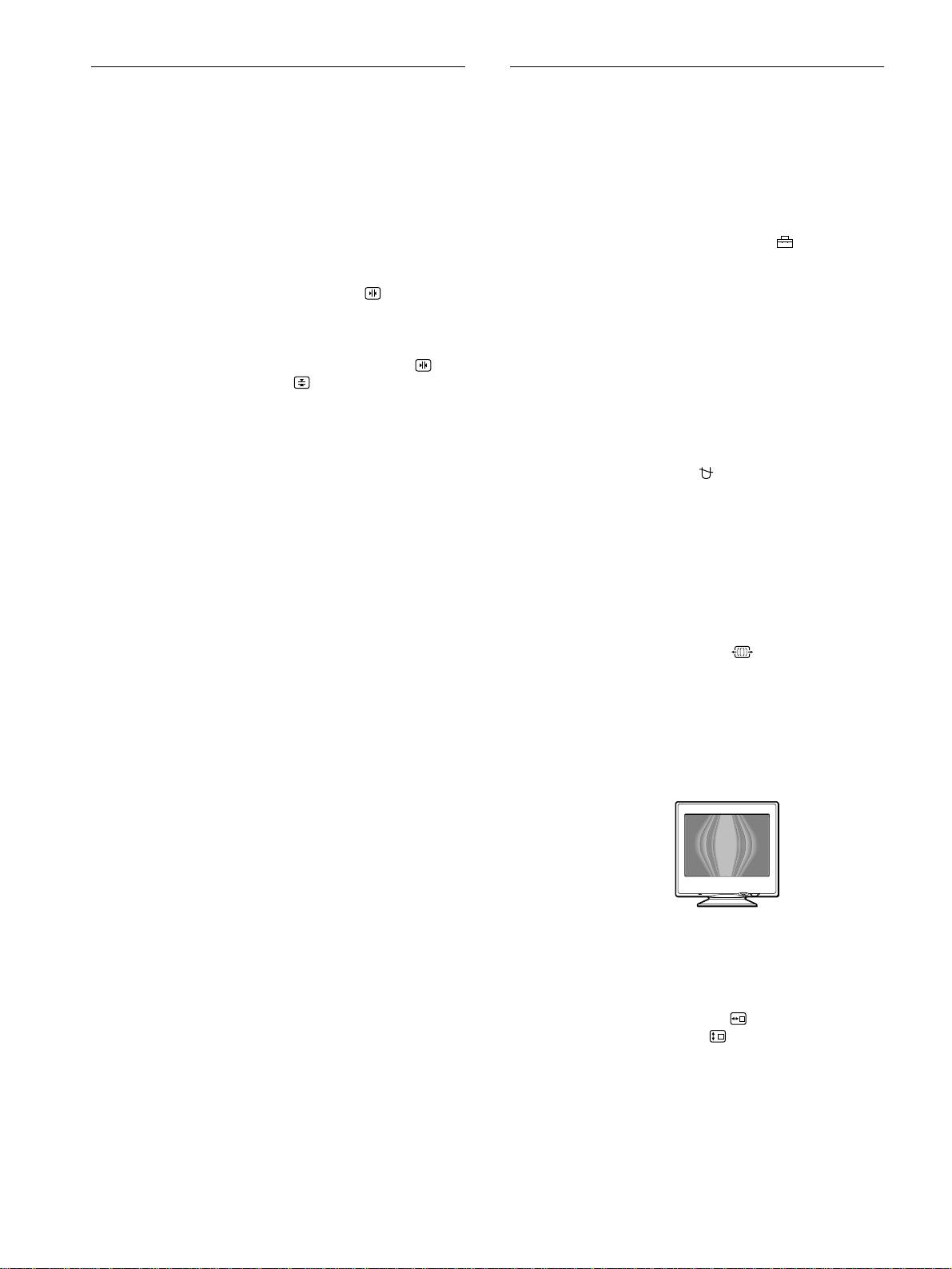
Adjusting the moire
*
If elliptical or wavy patterns appear on the screen, adjust the
moire cancellation level.
To adjust the amount of moire cancellation, first move
the control button
m
/
M
to select (MOIRE ADJUST).
Then move the control button
<
/
,
until the moire
effect is at a minimum.
* Moire is a type of natural interference which produces soft, wavy lines
on your screen. It may appear due to interference between the pattern
of the picture on the screen and the phosphor pitch pattern of the
monitor.
Changing the menu’s position
Change the menu’s position if it is blocking an image on the
screen.
To change the menu’s on-screen position, first move
the control button
m
/
M
to select (OSD H POSITION)
for horizontal adjustment, or (OSD V POSITION) for
vertical adjustment. Then move the control button
<
/
,
to shift the on-screen menu.
12
Example of moire
