
Sony CDX-GT50UI: Changing the sound settings Adjusting setup items — SET Adjusting the sound characteristics — BAL/FAD/SUB Customizing the equalizer curve — EQ3
Changing the sound settings Adjusting setup items — SET Adjusting the sound characteristics — BAL/FAD/SUB Customizing the equalizer curve — EQ3: Sony CDX-GT50UI
Table of contents
- Table of Contents
- Welcome ! Resetting the unit Preparing the card remote commander
- Setting the clock Attaching the front panel Detaching the front panel
- Location of controls and basic operations Main unit
- wg Number buttons 7
- CD Radio Storing and receiving stations Display items Storing automatically — BTM Storing manually Repeat and shuffle play Receiving the stored stations Tuning automatically
- Setting AF and TA RDS Overview Display items
- Playing back USB devices Selecting PTY Display items Setting CT
- Listening to music on a Mass Storage Class type audio device Playing back iPod Playing tracks Listening to music on “Walkman” (ATRAC Audio Device)
- Repeat and shuffle Play Scan Selecting Album, Artist or Playlist
- Changing the sound settings Adjusting setup items — SET Adjusting the sound characteristics — BAL/FAD/SUB Customizing the equalizer curve — EQ3
- Using optional equipment Auxiliary audio equipment CD/MD changer
- Precautions Notes on discs
- About USB devices Playback order of MP3/WMA/AAC files
- About MP3 files About ATRAC files About WMA files About iPod About AAC files
- Cleaning the connectors Maintenance Replacing the lithium battery of the card remote commander Removing the unit Fuse replacement
- Specifications
- CD/MD playback Troubleshooting General Radio reception
- RDS USB playback Error displays/Messages
With the card remote commander
Other functions
In step 3, to adjust the selected item, press <, M, ,
or m.
Changing the sound settings
Adjusting setup items — SET
Adjusting the sound
1 Press and hold the select button.
characteristics — BAL/FAD/SUB
The setup display appears.
You can adjust the balance, fader, and subwoofer
volume.
2 Press the select button repeatedly
until the desired item appears.
1 Press the select button repeatedly
3 Rotate the volume control dial to
until “BAL,” “FAD” or “SUB” appears.
select the setting (example “ON” or
The item changes as follows:
“OFF”).
1
1
1
LOW*
t MID*
t HI*
t
4 Press and hold the select button.
BAL (left-right) t FAD (front-rear) t
2
3
The setup is complete and the display returns
SUB (subwoofer volume)*
t AUX*
to normal play/reception mode.
*1 When EQ3 is activated (page 13).
Note
*2 When the audio output is set to “SUB”
Displayed items will differ, depending on the source
(page 13).
and setting.
“ATT” is displayed at the lowest setting, and can
be adjusted up to 20 steps.
With the card remote commander
*3 When AUX source is activated (page 14).
In step 3, to select the setting, press < or ,.
2 Rotate the volume control dial to
The following items can be set (follow the page
adjust the selected item.
reference for details):
After 3 seconds, the setting is complete and
“z” indicates the default settings.
the display returns to normal play/reception
mode.
CLOCK-ADJ (Clock Adjust) (page 5)
With the card remote commander
CT (Clock Time)
In step 2, to adjust the selected item, press <, M, ,
To set “CT-ON” or “CT-OFF” (z) (page 9, 10).
or m.
BEEP
To set “BEEP-ON” (z) or “BEEP-OFF.”
Customizing the equalizer curve
1
AUX-A*
(AUX Audio)
— EQ3
To turn the AUX source display “AUX-A-ON”
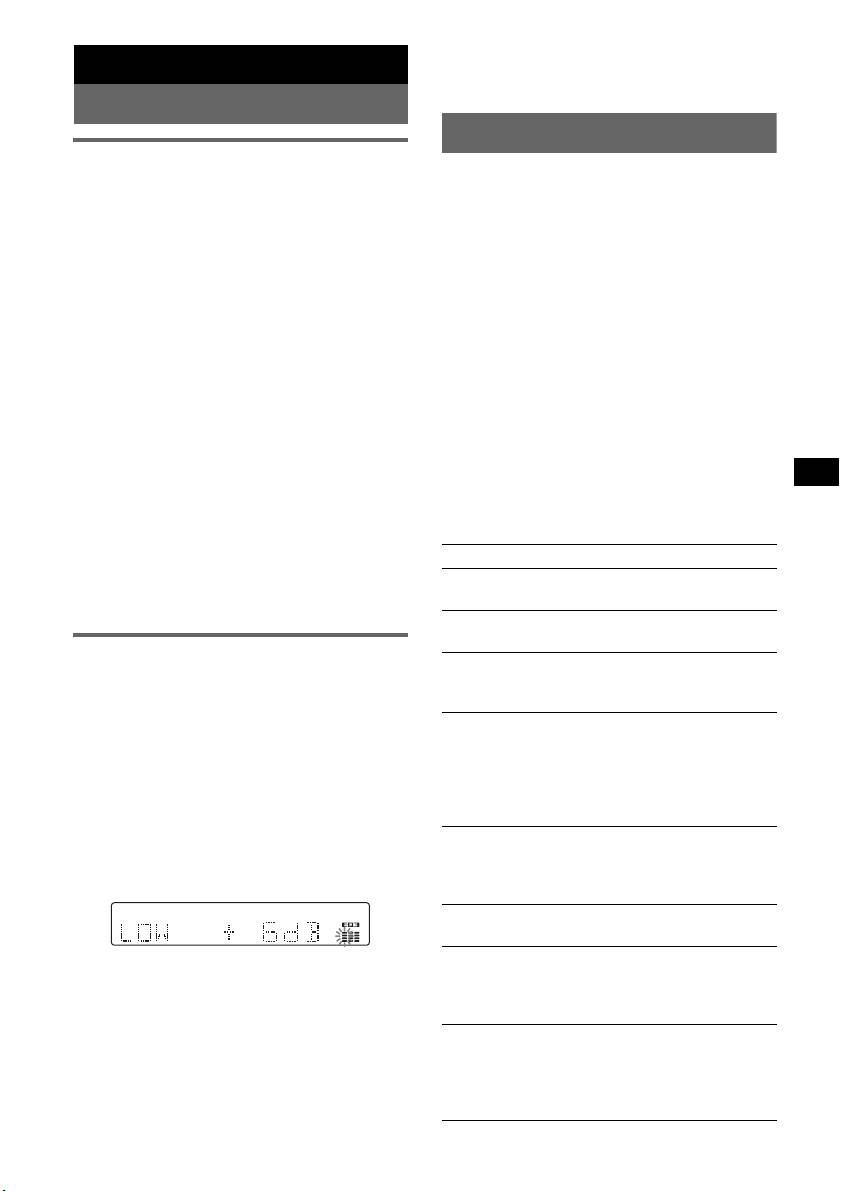
“CUSTOM” of EQ3 allows you to make your
(
z) or “AUX-A-OFF” (page 14).
own equalizer settings.
A.OFF (Auto Off)
1 Select a source, then press (EQ3)
To shut off automatically after a desired time
repeatedly to select “CUSTOM.”
when the unit is turned off.
– “A.OFF-NO” (
z), “A.OFF-30S (Seconds),”
2 Press the select button repeatedly
“A.OFF-30M (Minutes)” or “A.OFF-60M
until “LOW,” “MID” or “HI” appears.
(Minutes).”
3 Rotate the volume control dial to
1
SUB/REAR*
adjust the selected item.
To switch the audio output.
The volume level is adjustable in 1 dB steps,
– “SUB-OUT” (
z): to output to a subwoofer.
from –10 dB to +10 dB.
– “REAR-OUT”: to output to a power amplifier.
1
DEMO*
(Demonstration)
To set “DEMO-ON” (z) or “DEMO-OFF.”
DIM (Dimmer)
Repeat steps 2 and 3 to adjust the equalizer
To change the brightness of the display.
curve.
– “DIM-ON”: to dim the display.
To restore the factory-set equalizer curve,
– “DIM-OFF” (
z): to deactivate the dimmer.
press and hold the select button before the
setting is complete.
A.SCRL (Auto Scroll)
After 3 seconds, the setting is complete and
To scroll long displayed item automatically
the display returns to normal play/reception
when the disc/album/track is changed.
mode.
– “A.SCRL-ON” (
z): to scroll.
– “A.SCRL-OFF”: to not scroll.
Tip
Other equalizer types are also adjustable.
continue to next page t
13


