
Sony Bravia KDL-26U25xx: Sound Channels General
Sound Channels General: Sony Bravia KDL-26U25xx
Table of contents
- Trademark information Introduction Disposal of the TV set Notice for Digital TV function
- Table of Contents
- 1: Checking the 2: Connecting an aerial/ accessories VCR
- 3: Bundling the cables 4: Preventing the TV from toppling over 5: Selecting the language and country/region
- 6: Auto-tuning the TV
- Safety information Installation/Set-up Mains lead
- Precautions Prohibited Usage Broken pieces: When not in use For children If the following problems occur...
- Overview of the remote
- Overview of the TV buttons and indicators Watching TV
- Additional operations To access Text Picture Freeze PIP in PC Mode (Picture in Picture)
- Checking the Digital Electronic Programme Guide (EPG) To Do this
- Using the Favourite list To Do this
- Navigating through menus
- Picture Adjustment menu
- Sound Adjustment menu
- Features menu
- Timer Set-up menu
- Sound Offset Manual Programme Preset
- Digital Set-up menu
- Connecting optional equipment Connecting to the TV (side)
- Connecting to the TV (rear)
- Viewing pictures from connected equipment
- Specifications
- Troubleshooting Picture Problem Cause/Remedy
- Sound Channels General
010COV.book Page 26 Tuesday, June 26, 2007 12:18 PM
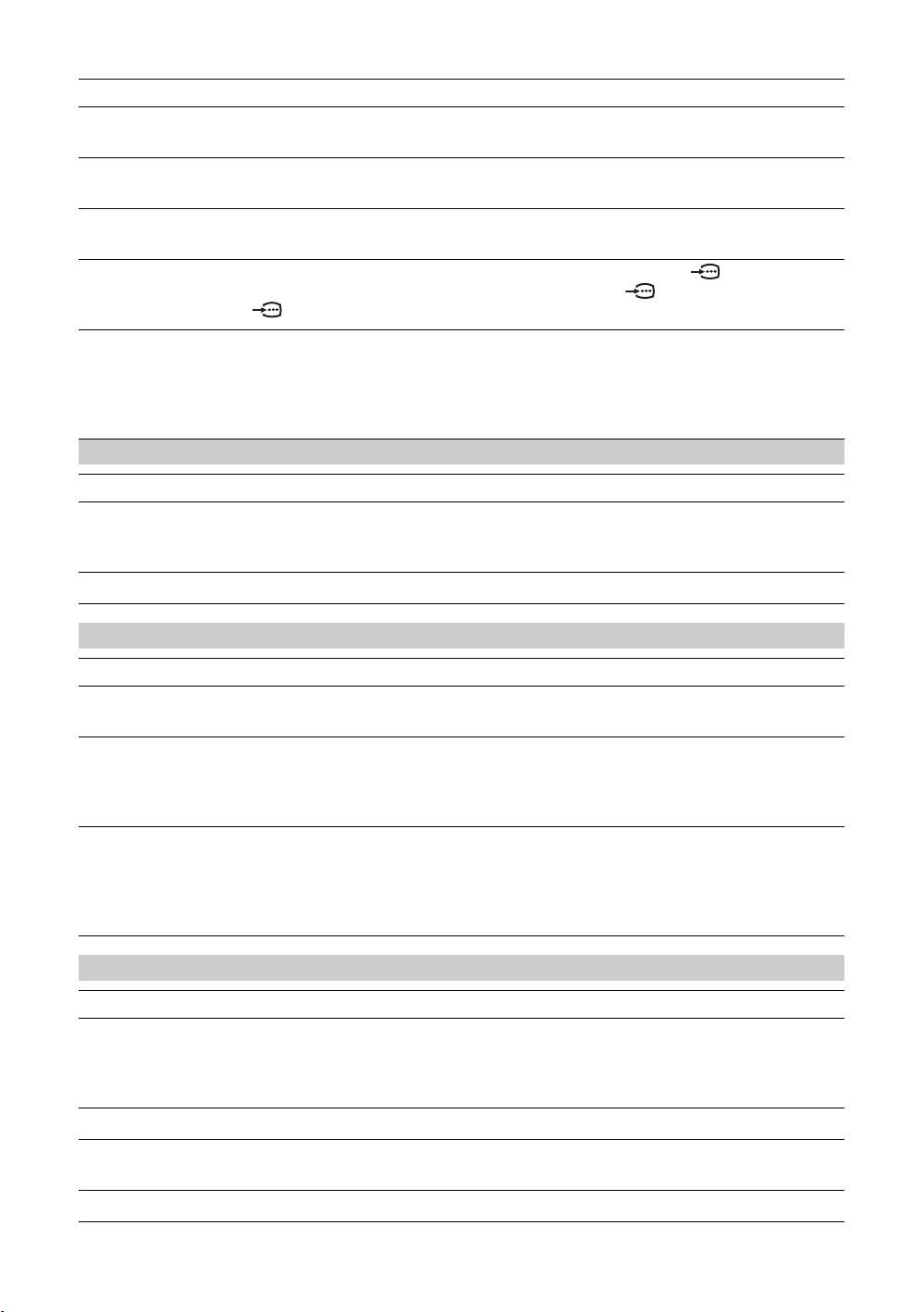
Problem Cause/Remedy
Picture noise when viewing a
• Select “Manual Programme Preset” in the “Set-Up” menu and adjust “AFT”
TV channel
(Automatic Fine Tuning) to obtain better picture reception (page 19).
Some tiny black points and/or
• The picture of a display unit is composed of pixels. Tiny black points and/or
bright points on the screen
bright points (pixels) on the screen do not indicate a malfunction.
No colour on programmes
• Select “Reset” in the “Picture Adjustment” menu to return to the factory
settings (page 15).
No colour or irregular colour
• Check the connection of the Y, PB/CB, PR/CR jacks of 3.
when viewing a signal from the
• Make sure that the Y, P
B/CB, PR/CR jacks of 3 are firmly seated in their
Y, P
B/CB, PR/CR jacks of 3
respective sockets.
Irregular picture when viewing
• Check PC input socket connection.
a signal from PC
• Connect to PC input socket instead of HDMI IN 6, 7 socket.
• If the connection is only available through HDMI socket, change the screen
resolution to 720p and adjust horizontal and vertical screen size in the
display properties settings of PC.
Sound
Problem Cause/Remedy
No sound, but good picture
•Press 2 +/– or % (Mute).
• Check that “TV Speakers” is set to “On” in the “Sound Adjustment” menu
(page 16).
Noisy sound
• See the “Picture noise” causes/remedies on page 26.
Channels
Problem Cause/Remedy
The desired channel cannot be
• Switch between digital and analogue mode and select the desired digital/
selected
analogue channel.
Some channels are blank
• Scrambled/Subscription only channel. Subscribe to the Pay Per View
service.
• Channel is used only for data (no picture or sound).
• Contact the broadcaster for transmission details.
Digital channel is not displayed
• Check that the aerial is plugged directly into the TV (not through other
equipment).
• Contact a local installer to find out if digital transmissions are provided in
your area.
• Upgrade to a higher gain aerial.
General
Problem Cause/Remedy
The TV turns off automatically
• Check if the “Sleep Timer” is activated, or confirm the setting of “Off
(the TV enters standby mode)
Time” (page 18).
• If no signal is received and no operation is performed in the TV mode for
10 minutes, the TV automatically switches to standby mode.
The TV turns on automatically
• Check if the “On Time” is activated (page 18).
Some input sources cannot be
• Select “AV Preset” in the “Set-up” menu and cancel “Skip” of the input
selected
source (page 18).
The remote does not function
• Replace the batteries.
GB
26
