
Sony Bravia KDL-26U25xx: Additional operations To access Text Picture Freeze PIP in PC Mode (Picture in Picture)
Additional operations To access Text Picture Freeze PIP in PC Mode (Picture in Picture): Sony Bravia KDL-26U25xx
Table of contents
- Trademark information Introduction Disposal of the TV set Notice for Digital TV function
- Table of Contents
- 1: Checking the 2: Connecting an aerial/ accessories VCR
- 3: Bundling the cables 4: Preventing the TV from toppling over 5: Selecting the language and country/region
- 6: Auto-tuning the TV
- Safety information Installation/Set-up Mains lead
- Precautions Prohibited Usage Broken pieces: When not in use For children If the following problems occur...
- Overview of the remote
- Overview of the TV buttons and indicators Watching TV
- Additional operations To access Text Picture Freeze PIP in PC Mode (Picture in Picture)
- Checking the Digital Electronic Programme Guide (EPG) To Do this
- Using the Favourite list To Do this
- Navigating through menus
- Picture Adjustment menu
- Sound Adjustment menu
- Features menu
- Timer Set-up menu
- Sound Offset Manual Programme Preset
- Digital Set-up menu
- Connecting optional equipment Connecting to the TV (side)
- Connecting to the TV (rear)
- Viewing pictures from connected equipment
- Specifications
- Troubleshooting Picture Problem Cause/Remedy
- Sound Channels General
010COV.book Page 11 Tuesday, June 26, 2007 12:18 PM
In digital mode
3 Press to cancel.
An information banner appears briefly. The
following icons may be indicated on the banner.
Tip
The sound is output from the small picture.
: Radio service
: Scrambled/Subscription service
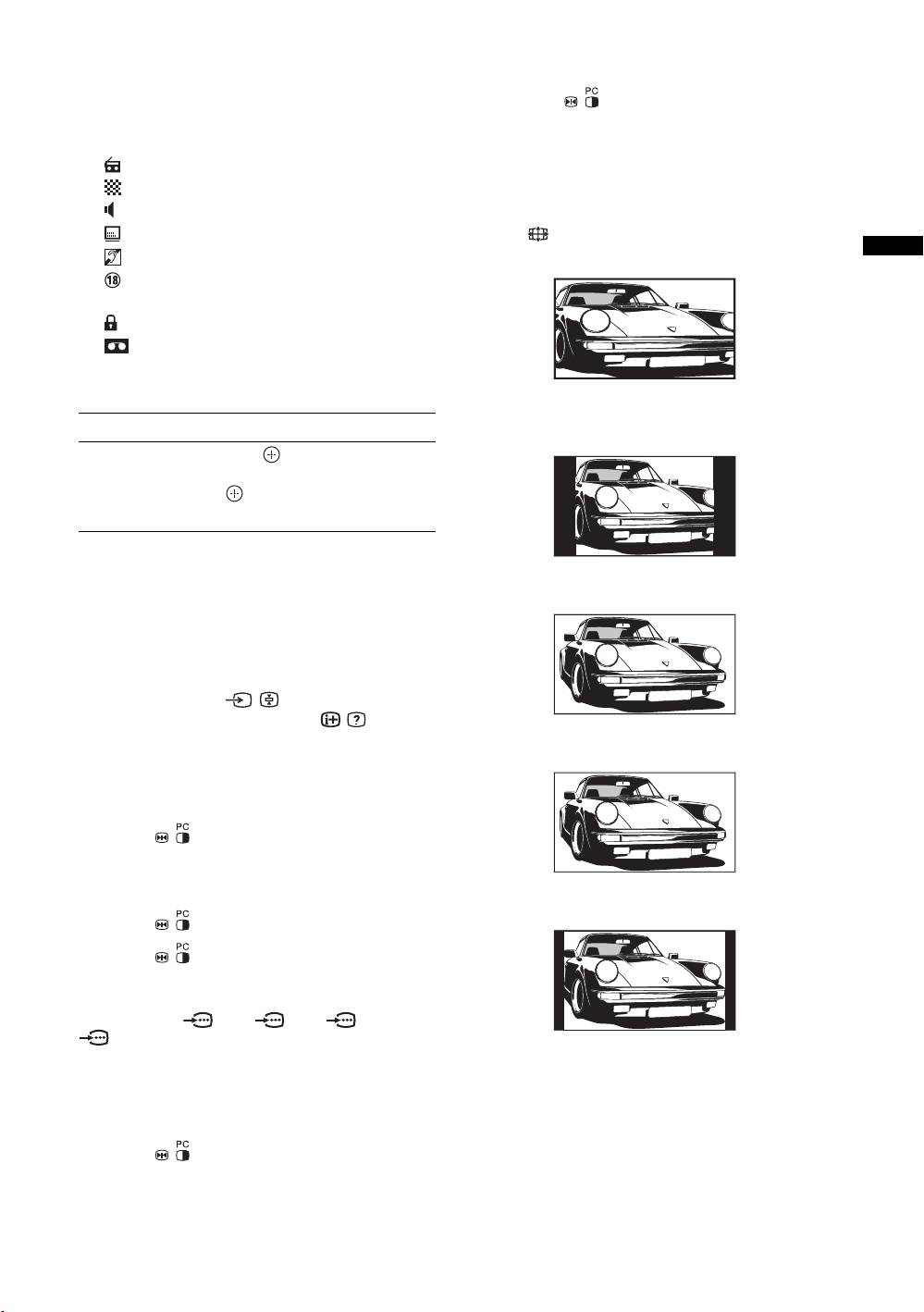
To change the screen mode manually to
: Multiple audio languages available
suit the broadcast
: Subtitles available
Press repeatedly to select Smart, 4:3, Wide,
: Subtitles available for the hearing impaired
Zoom, or 14:9.
Watching TV
: Recommended minimum age for current
Smart*
programme (from 4 to 18 years)
: Parental Lock
: Current programme is being recorded
Additional operations
Displays conventional 4:3 broadcasts with an
imitation wide screen effect. The 4:3 picture is
To Do this
stretched to fill the screen.
Access the
Press . To select an analogue
4:3
Programme index
channel, press
F/f, then press
table (in analogue
.
mode only)
To access Text
Displays conventional 4:3 broadcasts (e.g., non-wide
Press /. Each time you press /, the display changes
screen TV) in the correct proportions.
cyclically as follows:
Text t Text over the TV picture (mix mode) t No
Wide
Text (exit the Text service)
To select a page, press the number buttons or PROG
+/-.
To hold a page, press / .
To reveal hidden information, press / .
Displays wide screen (16:9) broadcasts in the correct
proportions.
Picture Freeze
Zoom*
Freezes the TV picture (e.g. to make a note of a
telephone number or recipe).
1 Press on the remote control.
2 Press F/f/G/g to adjust the position of the
Displays cinemascopic (letter box format) broadcasts
window.
in the correct proportions.
3 Press to remove the window.
14:9*
4 Press again to return to normal TV
mode.
Tip
Not available for AV3, AV5, AV6 and
AV7.
Displays 14:9 broadcasts in the correct proportions. As a
result, black border areas are visible on the screen.
PIP in PC Mode (Picture in Picture)
* Parts of the top and bottom of the picture may be cut off.
In PC mode, displays a small picture of the last
Tips
channel selected.
• Alternatively, you can set “Auto Format” to “On”. The TV
will automatically select the best mode to suit the
1 Press on the remote control.
broadcast (page 17).
2 Press F/f/G/g to adjust the position of the
• You can adjust the position of the picture when selecting
Smart, 14:9, or Zoom. Press
F/f to move up or down
window.
(e.g., to read subtitles).
GB
11
