
Sony Bravia KDL-26U25xx: 6: Auto-tuning the TV
6: Auto-tuning the TV: Sony Bravia KDL-26U25xx
Table of contents
- Trademark information Introduction Disposal of the TV set Notice for Digital TV function
- Table of Contents
- 1: Checking the 2: Connecting an aerial/ accessories VCR
- 3: Bundling the cables 4: Preventing the TV from toppling over 5: Selecting the language and country/region
- 6: Auto-tuning the TV
- Safety information Installation/Set-up Mains lead
- Precautions Prohibited Usage Broken pieces: When not in use For children If the following problems occur...
- Overview of the remote
- Overview of the TV buttons and indicators Watching TV
- Additional operations To access Text Picture Freeze PIP in PC Mode (Picture in Picture)
- Checking the Digital Electronic Programme Guide (EPG) To Do this
- Using the Favourite list To Do this
- Navigating through menus
- Picture Adjustment menu
- Sound Adjustment menu
- Features menu
- Timer Set-up menu
- Sound Offset Manual Programme Preset
- Digital Set-up menu
- Connecting optional equipment Connecting to the TV (side)
- Connecting to the TV (rear)
- Viewing pictures from connected equipment
- Specifications
- Troubleshooting Picture Problem Cause/Remedy
- Sound Channels General
010COV.book Page 6 Tuesday, June 26, 2007 12:18 PM
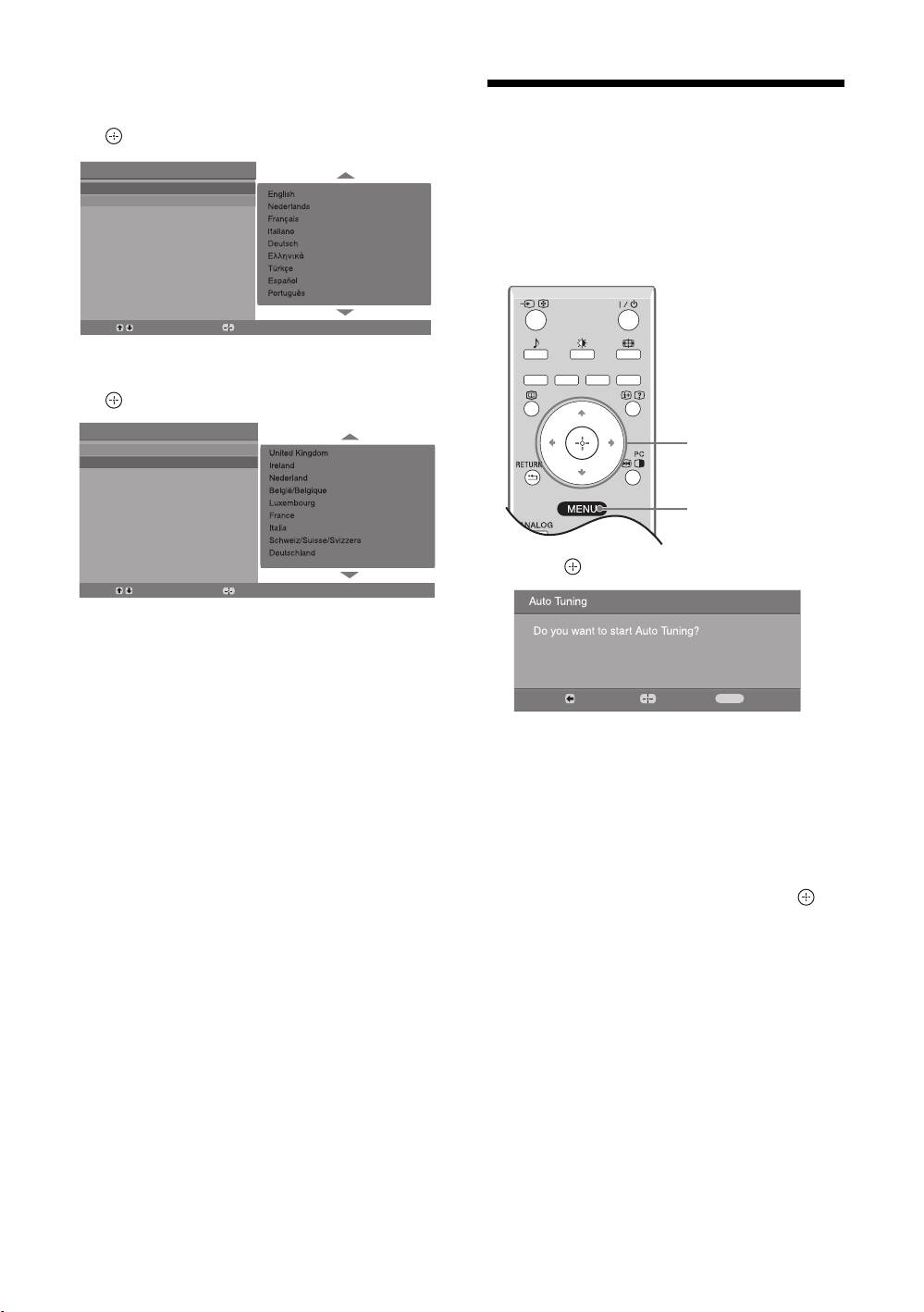
3 Press F/f to select the language
displayed on the menu screens, then press
6: Auto-tuning the TV
.
After selecting the language and country/region, a
Auto Start Up
message confirming the TV start auto-tuning appears
Language
Country
on the screen.
The TV will now search for and store all available TV
channels.
Select:
Confirm:
4 Press F/f to select the country/region in
which you will operate the TV, then press
.
Auto Start Up
Language
1
Country
3
1 Press .
Select:
Confirm:
If the country/region in which you want to use the
TV does not appear in the list, select “-” instead of
a country/region.
The message confirming the TV start auto-tuning
appears on the screen, then go to “6: Auto-tuning
Back:
Start:
Cancel:
MENU
the TV”.
The TV starts searching for all available digital
channels, followed by all available analogue
channels. This may take some time, please be
patient and do not press any buttons on the TV or
remote.
If a message appears for you to confirm the aerial
connections
No digital or analogue channels were found.
Check all the aerial connections and press to
start auto-tuning again.
2 When the Programme Sorting menu
appears on the screen, follow the steps of
“Programme Sorting” (page 18).
If you do not wish to change the order in which the
analogue channels are stored on the TV, go to step
3.
3 Press MENU to exit.
The TV has now tuned in all the available
channels.
GB
6
