
Sony Bravia KDL-26U25xx: Features menu
Features menu: Sony Bravia KDL-26U25xx
Table of contents
- Trademark information Introduction Disposal of the TV set Notice for Digital TV function
- Table of Contents
- 1: Checking the 2: Connecting an aerial/ accessories VCR
- 3: Bundling the cables 4: Preventing the TV from toppling over 5: Selecting the language and country/region
- 6: Auto-tuning the TV
- Safety information Installation/Set-up Mains lead
- Precautions Prohibited Usage Broken pieces: When not in use For children If the following problems occur...
- Overview of the remote
- Overview of the TV buttons and indicators Watching TV
- Additional operations To access Text Picture Freeze PIP in PC Mode (Picture in Picture)
- Checking the Digital Electronic Programme Guide (EPG) To Do this
- Using the Favourite list To Do this
- Navigating through menus
- Picture Adjustment menu
- Sound Adjustment menu
- Features menu
- Timer Set-up menu
- Sound Offset Manual Programme Preset
- Digital Set-up menu
- Connecting optional equipment Connecting to the TV (side)
- Connecting to the TV (rear)
- Viewing pictures from connected equipment
- Specifications
- Troubleshooting Picture Problem Cause/Remedy
- Sound Channels General
070MEN.fm Page 17 Tuesday, July 3, 2007 5:16 PM
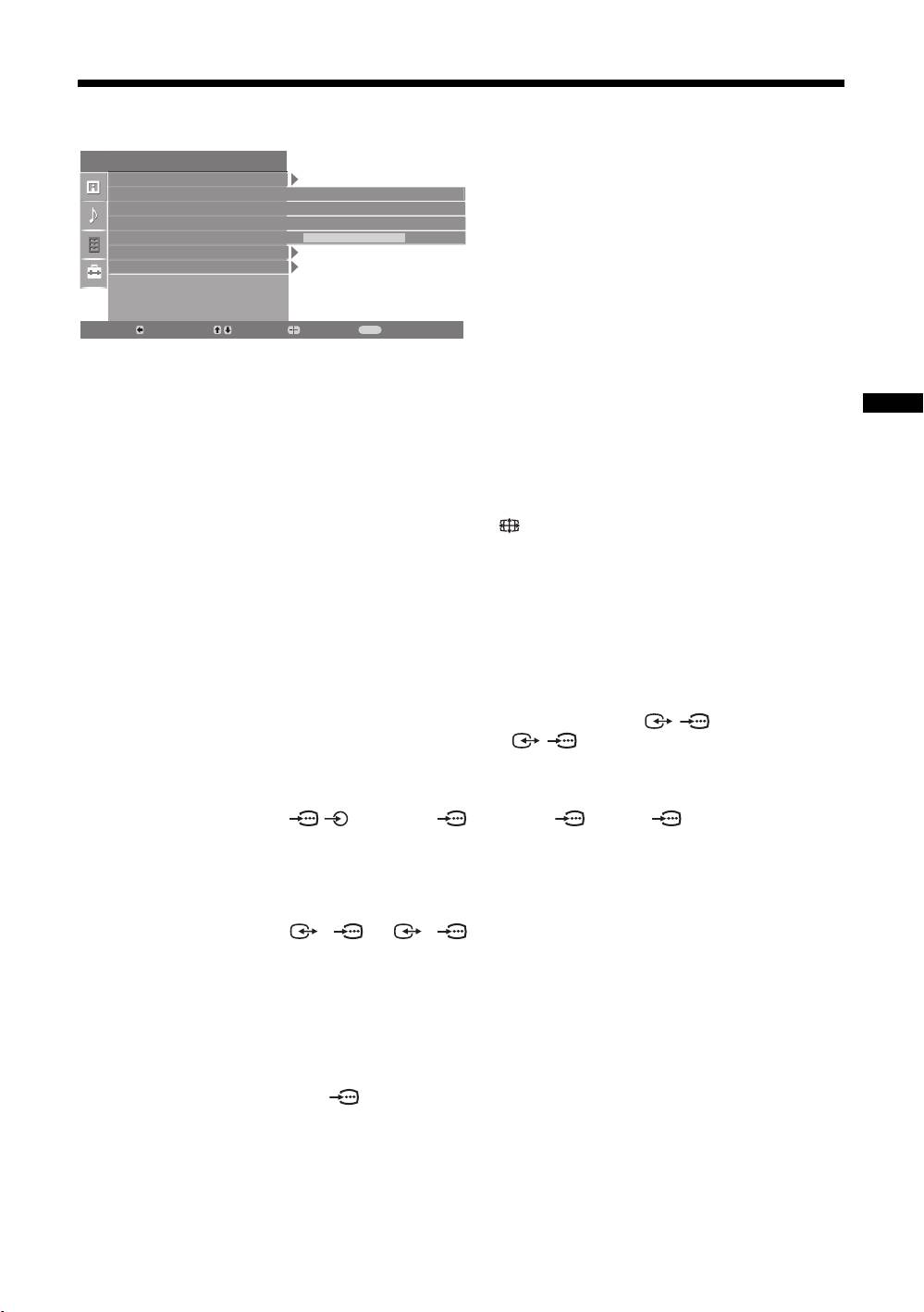
Features menu
You can select the options listed below on the
Features
Features menu. To select options in “Settings”,
Screen
Power Saving
Standard
see “Navigating through menus” (page 14).
Adv. Contrast Enhancer
On
AV2 Output
TV
RGB Center
0
PC Adjustment
Timer
Back:
Select:
Enter:
Exit:
MENU
Screen
Changes the screen format.
• “Auto Format”: Automatically changes the screen format according to the
broadcast signal.
• “Screen Format”: For details about the screen format, see page 11
Using MENU Functions
• “Vertical Size”: Adjusts the vertical size of the picture when the screen format is
set to Smart.
Tips
• Even if you have selected “On” or “Off” in “Auto Format”, you can always modify the
format of the screen by pressing repeatedly.
• “Auto Format” is available for PAL and SECAM signals only.
Power Saving
Selects the power saving mode to reduce the power consumption of the TV.
• “Standard”: Default settings.
• “Reduce”: Reduces the power consumption of the TV.
• “Picture Off”: Switches off the picture. You can listen to the sound with the picture
off.
Adv. Contrast
Automatically adjusts "Backlight" to the most suitable settings judging from the
brightness of the picture. It will increase the contrast distinction of the picture.
Enhancer
AV2 Output
Sets a signal to be output through the socket labelled / 2 on the rear of the
TV. If you connect a VCR to the / 2 socket, you can then record from the
equipment connected to other sockets of the TV.
• “TV”: Outputs a broadcast.
“Auto”: Outputs whatever is being viewed on the screen (except signals from the
/ 3, HDMI IN 6, HDMI IN 7 and PC sockets).
RGB Center
Adjusts the horizontal picture position so that the picture is in the middle of the
screen.
Tip
This option is only available if an RGB source has been connected to the Scarts connectors
1/ 1
or 2/ 2 on the rear of the TV.
PC Adjustment
Customizes the TV screen as a PC monitor.
Tip
This option is only available if you are in PC Mode.
• “Phase”: Adjust the screen when a part of a displayed text or image is not clear.
• “Pitch”: Enlarges or shrinkes the screen size horizontally.
• “H Center”: Moves the screen to the left or to the right.
• “V Lines”: Corrects the picture lines while viewing an RGB input signal from the
PC connector.
• “Power saving”: Turns to standby mode if no PC signal is received.
• “Reset”: Resets to the factory settings.
GB
17
