
Sony KDL-40V3000 – page 10
Manual for Sony KDL-40V3000
Table of contents
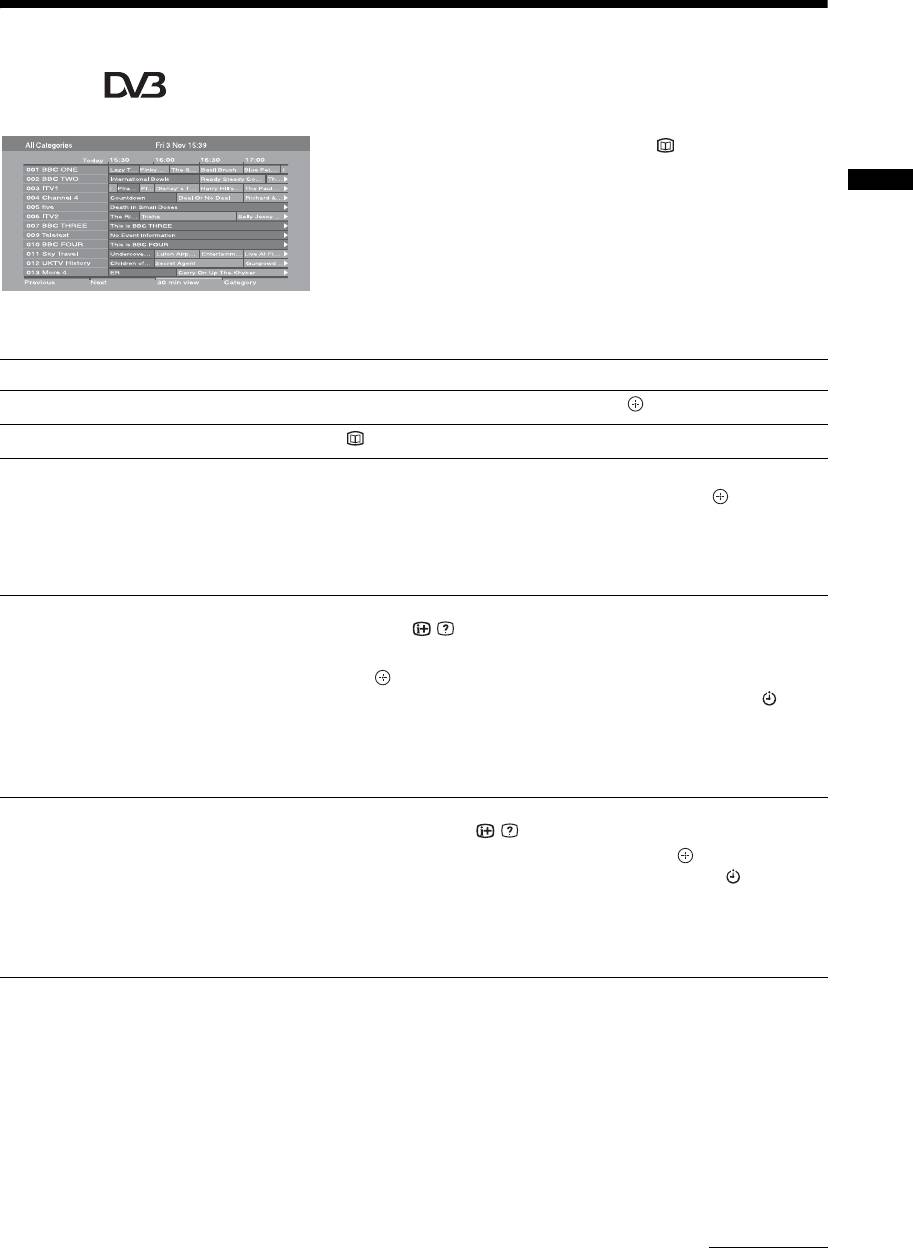
Checking the Digital Electronic Programme Guide
(EPG) *
1 In digital mode, press .
2 Perform the desired operation as shown in
the following table or displayed on the
Watching TV
screen.
Digital Electronic Programme Guide (EPG)
* This function may not be available in some countries/regions.
To Do this
Watch a programme Press F/f to select the programme, then press .
Turn off the EPG Press .
Sort the programme information by
1 Press the blue button.
category
2 Press
F/f/G/g to select a category, then press .
– Category list
The categories available include:
“All Categories”: Contains all available channels.
Category name (e.g. “News”): Contains all channels corresponding to the
selected category.
Set a programme to be recorded
1 Press F/f/G/g to select the programme you want to record,
– Timer REC
then press
/ .
2 Press
F/f to select “Timer REC”.
3 Press to set the TV and your VCR timers.
A red c symbol appears by that programme’s information. The
indicator on the TV front panel lights up in orange.
z
The above procedure can be used even if the programme to be recorded has already
started.
Set a programme to be displayed
1 Press F/f/G/g to select the future programme you want to
automatically on the screen when it
display, then press / .
starts
2 Press
F/f to select “Reminder”, then press .
– Reminder
A c symbol appears by that programme’s information. The indicator on
the TV front panel lights up in orange.
~
If you switch the TV to standby mode, it will automatically turn itself on
when the programme is about to start.
Continued
GB
15
To Do this
Set the time and date of a programme
1 Press / .
you want to record
2 Press
F/f to select “Manual timer REC”, then press .
– Manual timer REC
3 Press
F/f to select the date, then press g.
4 Set the start and stop time in the same way as in step 3.
5 Press
F/f to select the programme, then press .
6 Press to set the TV and your VCR timers.
The indicator on the TV front panel lights up in orange.
Cancel a recording/reminder
1 Press / .
– Timer list
2 Press
F/f to select “Timer list”, then press .
3 Press
F/f to select the programme you want to cancel, then
press .
4 Press
F/f to select “Cancel Timer”, then press .
A display appears to confirm that you want to cancel the programme.
5 Press G/g to select “Yes”, then press to confirm.
~
• You can set VCR timer recording on the TV only for SmartLink compatible VCRs. If your VCR is not SmartLink compatible,
a message will be displayed to remind you to set your VCR timer.
• Once a recording has begun, you can switch the TV to standby mode, but do not turn off the TV completely or the recording
will be cancelled.
• If an age restriction for programmes has been selected, a message asking for a PIN code will appear on the screen. For details,
see “Parental Lock” on page 37.
GB
16
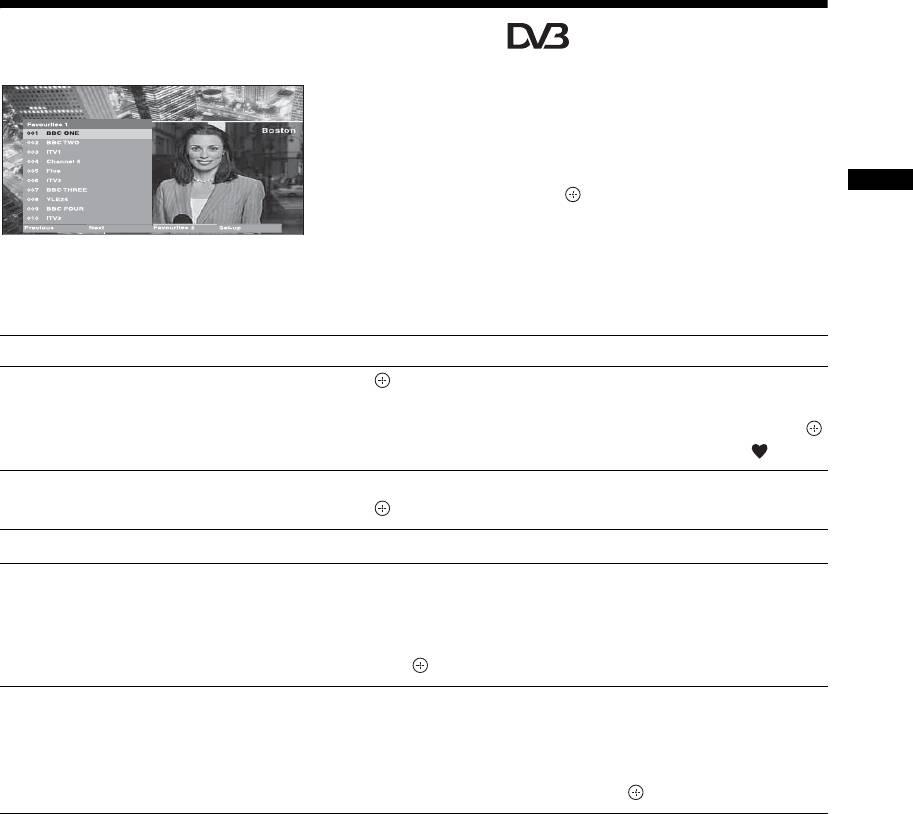
Using the Digital Favourite list *
The Favourite feature allows you to specify up to four
lists of your favourite programmes.
1 Press MENU.
2 Press F/f to select “Digital Favourites”,
then press .
Watching TV
3 Perform the desired operation as shown in
Digital Favourite list
the following table or displayed on the
* This function may not be available in some countries/
screen.
regions.
z
Up to 999 channels can be stored in the Favourite list.
To Do this
Create your Favourite list for the first
1 Press to select “Yes”.
time
2 Press the yellow button to select the Favourite list.
3 Press
F/f to select the channel you want to add, then press .
Channels that are stored in the Favourite list are indicated by a symbol.
Watch a channel
1 Press the yellow button to navigate through your Favourite lists.
2 Press while selecting a channel.
Turn off the Favourite list Press RETURN.
Add or remove channels in the currently
1 Press the blue button.
edited Favourite list
2 Press the yellow button to select the Favourite list you want to
edit.
3 Press
F/f to select the channel you want to add or remove,
then press .
Remove all channels from the current
1 Press the blue button.
Favourite list
2 Press the yellow button to select the Favourite list you want to
edit.
3 Press the blue button.
4 Press
G/g to select “Yes”, then press to confirm.
GB
17
Using Optional Equipment
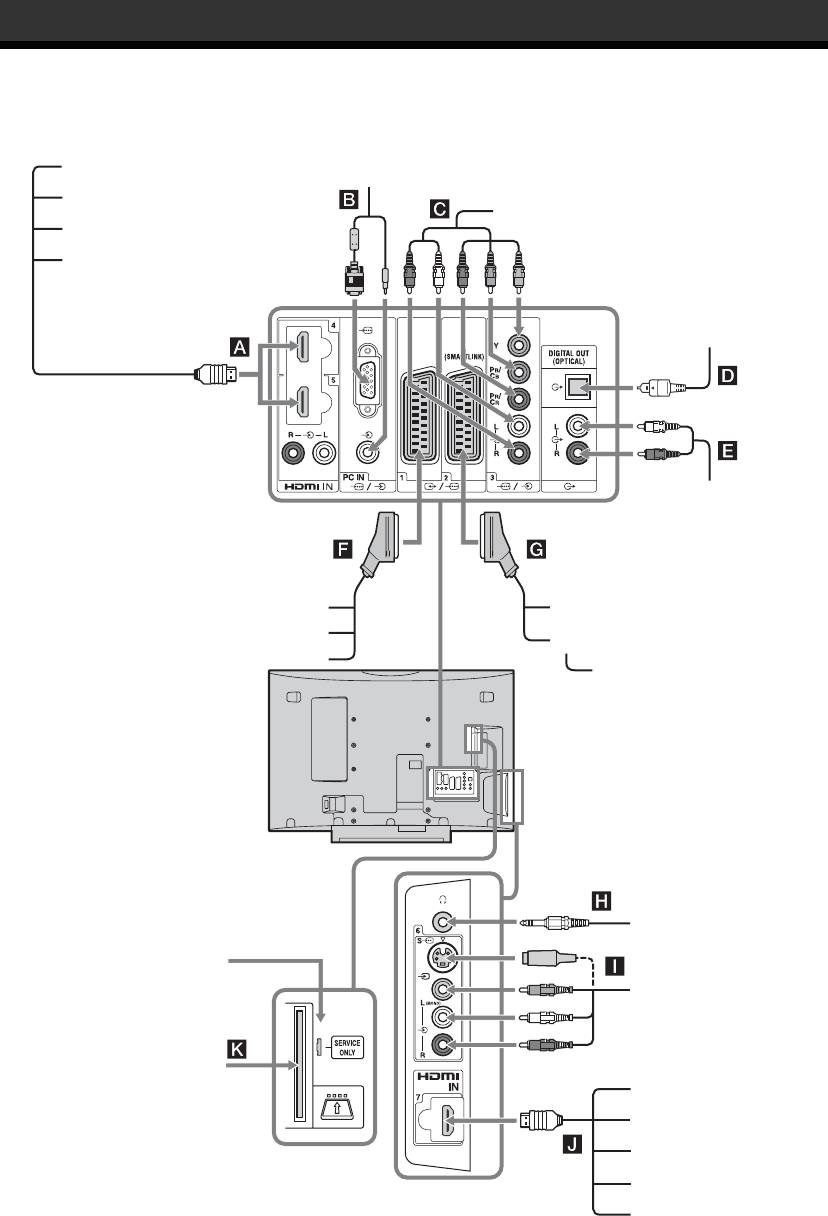
Connecting optional equipment
You can connect a wide range of optional equipment to your TV.
Audio system
PC
DVD player
DVD player with component output
PC (HDMI output)
Blu-ray disc player
Digital audio (PCM)
component
Hi-Fi audio
equipment
Video game equipment
DVD recorder
DVD player
VCR
Decoder
Decoder
Headphones
For service use only
Camcorder
CAM Card
PC (HDMI output)
Blu-ray disc player
Camcorder
Audio system
DVD player
GB
18
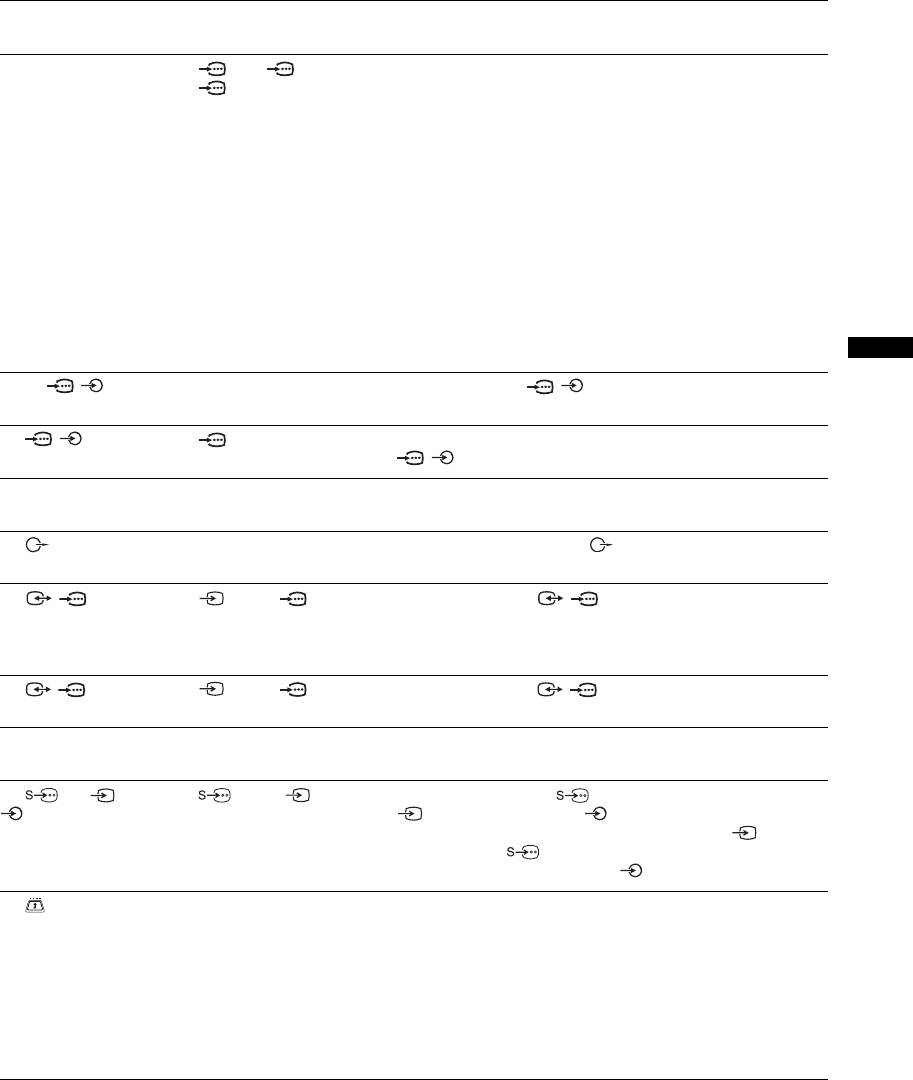
Sockets Input symbol on
Description
screen
A HDMI IN 4 or 5
AV4, AV5 or
Connect to the HDMI IN 4, 5 or 7 socket if the equipment has a
J HDMI IN 7
AV 7
HDMI socket. The digital video and audio signals are input
from the equipment. In addition, when HDMI control
compatible equipment is connected, communication with the
connected equipment is supported. Refer to page 30 to set up
this communication. If the equipment has a DVI socket,
connect the DVI socket to the HDMI IN 5 socket through a
DVI - HDMI adaptor interface (not supplied), and connect the
equipment’s audio out sockets to the audio in the HDMI IN 5
sockets.
~
• The HDMI sockets only support the following video inputs: 480i,
480p, 576i, 576p, 720p, 1080i, 1080p and 1080/24p.
• Be sure to use only an HDMI cable that bears the HDMI logo.
• When connecting an audio system with HDMI socket, be sure to
also connect to the DIGITAL OUT socket.
Using Optional Equipment
B PC / PC Connect to the PC / socket. It is recommended to use a
PC cable with ferrites.
C / 3 AV3 Connect to the component video sockets and the audio sockets
/3.
D DIGITAL OUT
Connect to the DIGITAL OUT socket using the Optical audio
(OPTICAL)
cable.
E Connect to the audio output sockets to listen to the sound
from the TV on Hi-Fi audio equipment.
F / 1 AV1 or AV1 Connect to the scart / 1 socket. When you connect the
decoder, the scrambled signal from the TV tuner is output to
the decoder, then the unscrambled signal is output from the
decoder.
G / 2 AV2 or AV2 Connect to the scart / 2 socket. SmartLink is a direct
link between the TV and a VCR/DVD recorder.
H Headphones Connect to the i socket to listen to sound from the TV on
headphones.
I 6 or 6, and
AV6 or AV6 Connect to the S video 6 socket or the composite video
6
6 socket, and the audio 6 sockets. To avoid picture
noise, do not connect the camcorder to the video 6 socket
and the S video 6 socket at the same time. If you connect
mono equipment, connect to the 6 L socket.
K CAM
To use pay TV services. For details, refer to the instruction
(Conditional Access
manual supplied with your CAM.
Module)
To use the CAM, remove the “dummy” card from the CAM
slot. Turn off the TV when inserting your CAM into the CAM
slot. When you do not use the CAM, we recommend that the
“dummy” card be inserted and kept in the CAM slot.
~
CAM is not supported in some countries/regions. Check with your
authorized dealer.
GB
19
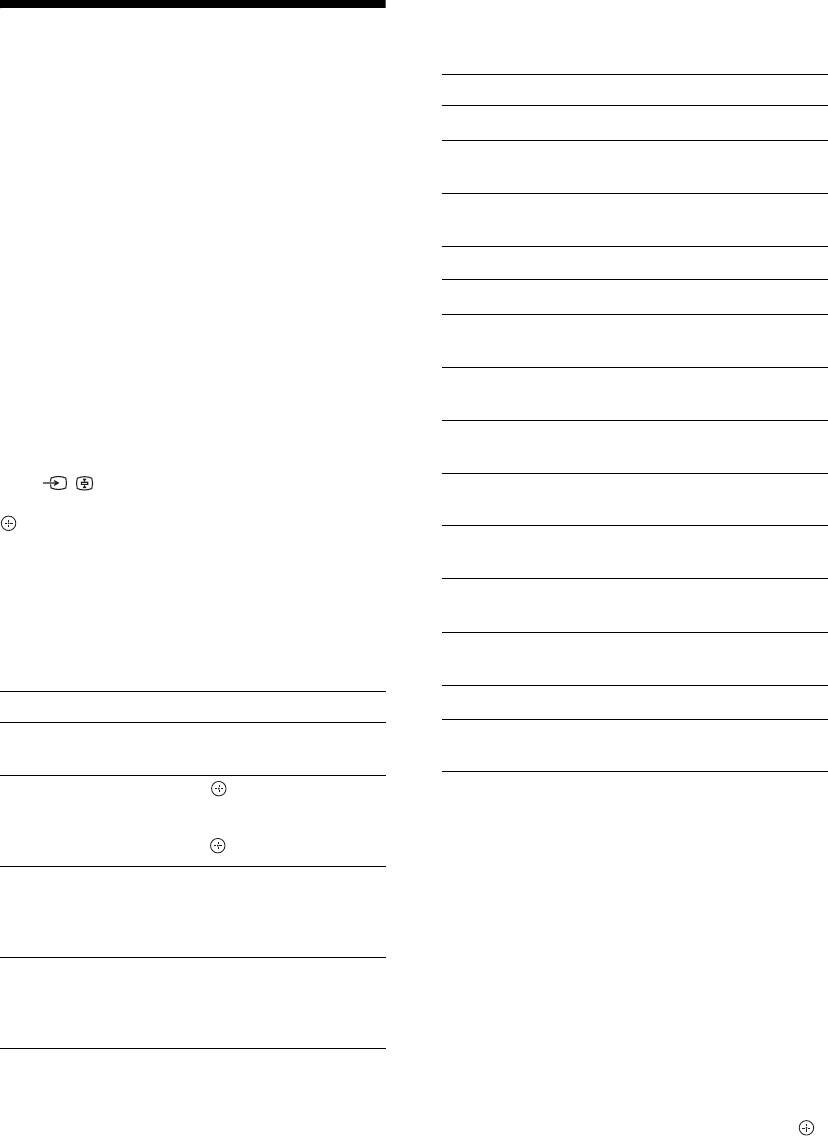
Using the Tools menu
Press TOOLS to display the following options when
Viewing pictures from
viewing pictures from connected equipment.
the connected
Options Description
Close Closes the Tools menu.
equipment
Picture Mode (except
See page 23.
PC input mode)
Turn on the connected equipment, then
Display Mode (in PC
See page 23.
perform one of the following operation.
input mode only)
For equipment connected to the scart sockets using a
Sound Mode See page 25.
fully-wired 21-pin scart lead (page 18)
Speaker See page 29.
Start playback on the connected equipment.
The picture from the connected equipment appears on
PAP (except PC input
See page 20.
the screen.
mode)
For an auto-tuned VCR (page 6)
PIP (in PC input
See page 21.
In analogue mode, press PROG +/-, or the number
mode only)
buttons, to select the video channel.
Auto Adjustment (in
See page 32.
PC input mode only)
For other connected equipment (page 18)
Press / to display the connected equipment list.
Horizontal Shift (in
See page 32.
Press
F/f to select the desired input source, then press
PC input mode only)
. (The highlighted item is selected if 2 seconds pass
without any operation after pressing
F/f.)
Vertical Shift (in PC
See page 32.
input mode only)
When the input source is set to “Skip” in the “AV
Preset” menu under the “AV Set-up” menu (page 29),
i Volume Adjusts the volume of the
that input does not appear in the list.
headphones.
Sleep Timer (except
See page 30.
Additional operations
PC input mode)
Power Saving See page 30.
To Do this
Return to normal TV
Press DIGITAL or ANALOG.
Auto Clock Set Allows you to switch to digital
mode
mode and obtain the time.
Access the Input signal
Press to access the Input
index table (except TV
signal index table. To select an
To view two pictures simultaneously
mode)
input source, press
F/f, then
press .
– PAP (Picture and Picture)
You can view two pictures (external input and TV
Change the volume of
Press
2 +/-.
programme) on the screen simultaneously.
the connected HDMI
Connect the optional equipment (page 18), and make
control compatible
sure that images from the equipment appear on the
audio system
screen (page 20).
Mute the sound of the
Press
%.
~
connected HDMI
Press again to restore.
• This function is not available for a PC input source.
control compatible
• You cannot change the size of the pictures.
audio system
• You cannot display analog TV video in the TV
programme picture while displaying AV1, AV2 or AV6
video in the external input picture.
1 Press TOOLS to display the Tools menu.
2 Press F/f to select “PAP”, then press .
The picture from connected equipment is
displayed on the left and the TV programme is
displayed on the right.
GB
20

3 Press number buttons or PROG +/- to
select the TV channel.
Using HDMI control
To return to single picture mode
Press or RETURN.
The HDMI control function allows equipment to
z
control each other using HDMI CEC (Consumer
The picture framed in green is audible. You can switch the
Electronics Control) specified by HDMI.
audible picture by pressing
G/g.
You can perform interlocked control operations
between Sony HDMI control compatible equipment
such as a TV, DVD recorder with hard disk and audio
To view two pictures simultaneously
system by connecting the equipment with HDMI
– PIP (Picture in Picture)
cables.
You can view two pictures (PC input and TV
Be sure to correctly connect and set the compatible
programme) on the screen simultaneously.
equipment to use the HDMI control function.
Connect a PC (page 18), and make sure that images
from a PC appear on the screen.
To connect the HDMI control compatible
~
• You cannot display resolutions higher than WXGA (1280
equipment
× 768 pixels).
Connect the compatible equipment and the TV with an
Using Optional Equipment
• “Power Management” is not available in PIP mode
HDMI cable. When connecting an audio system, in
(page 32).
addition to the HDMI cable, be sure to also connect
1 Press TOOLS to display the Tools menu.
the DIGITAL OUT (Optical) socket or audio out
sockets of the TV to the audio system using a suitable
2 Press F/f to select “PIP”, then press .
cable. For details, see page 18.
The picture from the connected PC is displayed with
full size and the TV programme is displayed on the
right corner.
To make the HDMI control settings
You can use
F/f/G/g to move the TV programme
HDMI control must be set on both the TV side and the
screen position.
connected equipment side. See “HDMI Set-up” on
3 Press number buttons or PROG +/- to
page 30 for the TV side settings. See the operating
select the TV channel.
instructions of the connected equipment for setting
details.
To return to single picture mode
Press RETURN.
z
HDMI control functions
You can switch the audible picture by selecting “Audio
Swap” from the Tools menu.
• Turns the connected equipment off interlocked with
the TV.
• Turns the TV on interlocked with the connected
equipment and automatically switches the input to
the equipment when the equipment starts to play.
• If you turn on a connected audio system while the
TV is on, the input switches to the audio from the
audio system.
• Adjusts the volume and mutes the sound of a
connected audio system.
GB
21
5 External Inputs
Using MENU Functions
Selects equipment connected to your TV.
• To watch the desired external input, select the
input source, then press .
• To assign a label to an external input, select
Navigating through
“Edit AV Labels”, then see page 29.
• To see a list of the connected HDMI control
menus
compatible equipment, select “HDMI Device
Selection”.
“MENU” allows you to enjoy various convenient
6 Settings
features of this TV. You can easily select channels or
Displays the “Settings” menu where most of the
inputs sources and change the settings for your TV.
advanced settings and adjustments are
performed.
1 Press F/f to select a menu icon, then
press .
2 Press F/f/G/g to select an option or
adjust a setting, then press .
For details about settings, see page 23 to 38.
~
The options you can adjust vary depending on the
situation. Unavailable options are greyed out or not
2
displayed.
* This function may not be available in some countries/
regions.
1
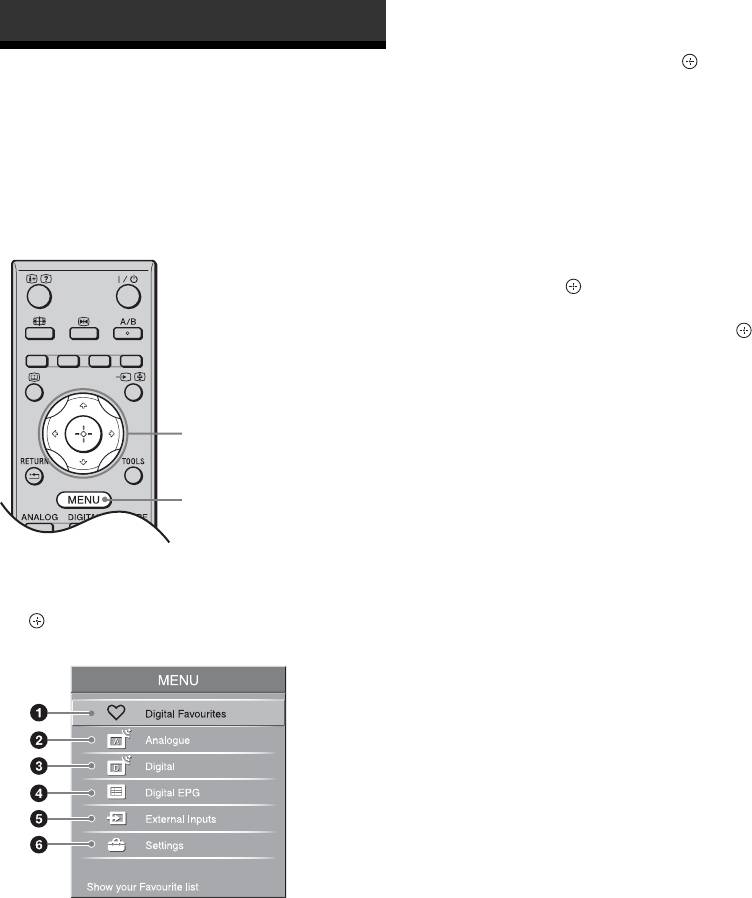
1 Press MENU.
2 Press F/f to select an option, then press
.
To exit the menu, press MENU.
1 Digital Favourites*
Displays the Favourite list (page 17).
2 Analogue
Returns to the last viewed analogue channel.
3 Digital*
Returns to the last viewed digital channel.
4 Digital EPG*
Displays the Digital Electronic Programme
Guide (EPG) (page 15).
GB
22
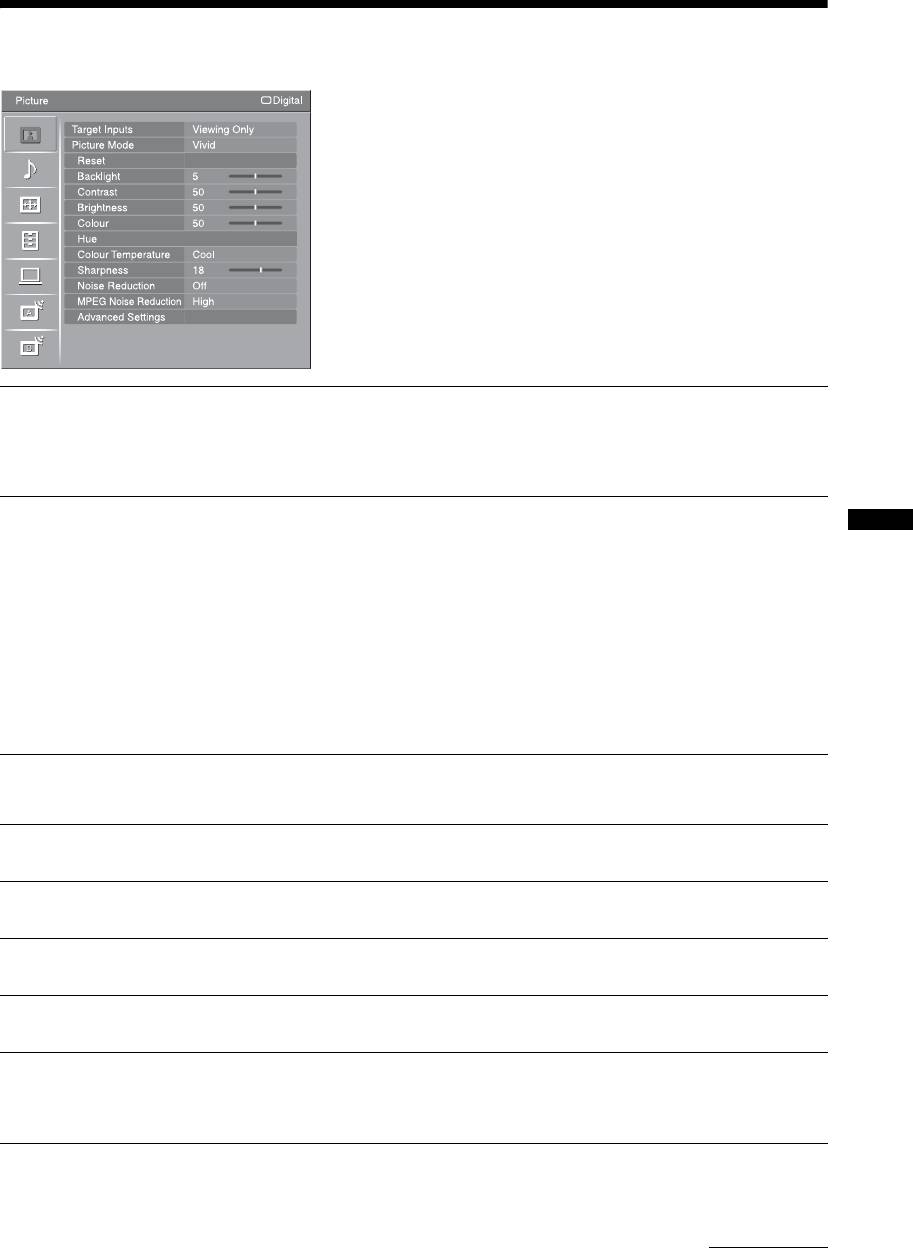
Picture menu
You can select the options listed below on the
“Picture” menu. To select options in “Settings”, refer
to “Navigating through menus” (page 22).
Target Inputs
Selects whether to apply settings made in the “Picture” menu to all inputs, or only to
the input currently being watched.
“All”: Applies settings to all inputs.
“Viewing Only”: Applies settings only to the current input.
Picture Mode
Selects the picture mode except for PC input source. The options for “Picture Mode”
may differ depending on the “Video/Photo” setting (page 28).
Using MENU Functions
“Vivid”: For enhanced picture contrast and sharpness.
“Standard”: For standard picture. Recommended for home entertainment.
“Cinema”: For viewing film-based content. Most suitable for viewing in a theatre-
like environment. This picture setting was developed in collaboration with Sony
Pictures Entertainment to faithfully reproduce movies as intended by their creators.
“Photo”: Sets the optimum picture quality for photographs.
Display Mode
Selects the display mode for PC input source.
“Video”: For video images.
“Text”: For text, charts or tables.
Reset
Resets all the “Picture” settings except “Target Inputs”, “Picture Mode” and
“Display Mode” to the factory settings.
Backlight
Adjusts the brightness of the backlight.
Contrast
Increases or decreases picture contrast.
Brightness
Brightens or darkens the picture.
Colour
Increases or decreases colour intensity.
Hue
Increases or decreases the green tones and red tones.
~
“Hue” can only be adjusted for an NTSC colour signal (e.g. U.S.A. video tapes).
Continued
GB
23
Colour Temperature
Adjusts the whiteness of the picture.
“Cool”: Gives the white colours a blue tint.
“Neutral”: Gives the white colours a neutral tint.
“Warm 1”/“Warm 2”: Gives the white colours a red tint. “Warm 2” gives a redder
tint than “Warm 1”.
z
“Warm 1” and “Warm 2” are not available when “Picture Mode” is set to “Vivid”.
Sharpness
Sharpens or softens the picture.
Noise Reduction
Reduces the picture noise (snowy picture) in a weak broadcast signal.
“Auto”: Automatically reduces the picture noise (in analogue mode only).
“High”/“Medium”/“Low”: Modifies the effect of the noise reduction.
“Off”: Turns off the “Noise Reduction” feature.
MPEG Noise Reduction
Reduces the picture noise in MPEG-compressed video.
Advanced Settings
Customizes the Picture function in more detail. When you set “Picture Mode” to
“Cinema”, “Photo” or “Standard”, you can set/change these settings.
“Reset”: Resets all the advanced settings to the factory settings.
“Black Corrector”: Enhances black areas of the picture for stronger contrast.
“Adv. Contrast Enhancer”: Automatically adjusts “Backlight” and “Contrast” to
the most suitable settings judging from the brightness of the screen. This setting is
especially effective for dark images scenes. It will increase the contrast distinction
of the darker picture scenes.
“Gamma”: Adjusts the balance between bright and dark areas of the picture.
“Clear White”: Emphasizes white colours.
“Live Colour”: Makes colours more vivid.
“Colour Space”: Changes the colour reproduction gamut. “Wide” reproduces the
vivid colour and “Standard” reproduces the standard colour.
GB
24
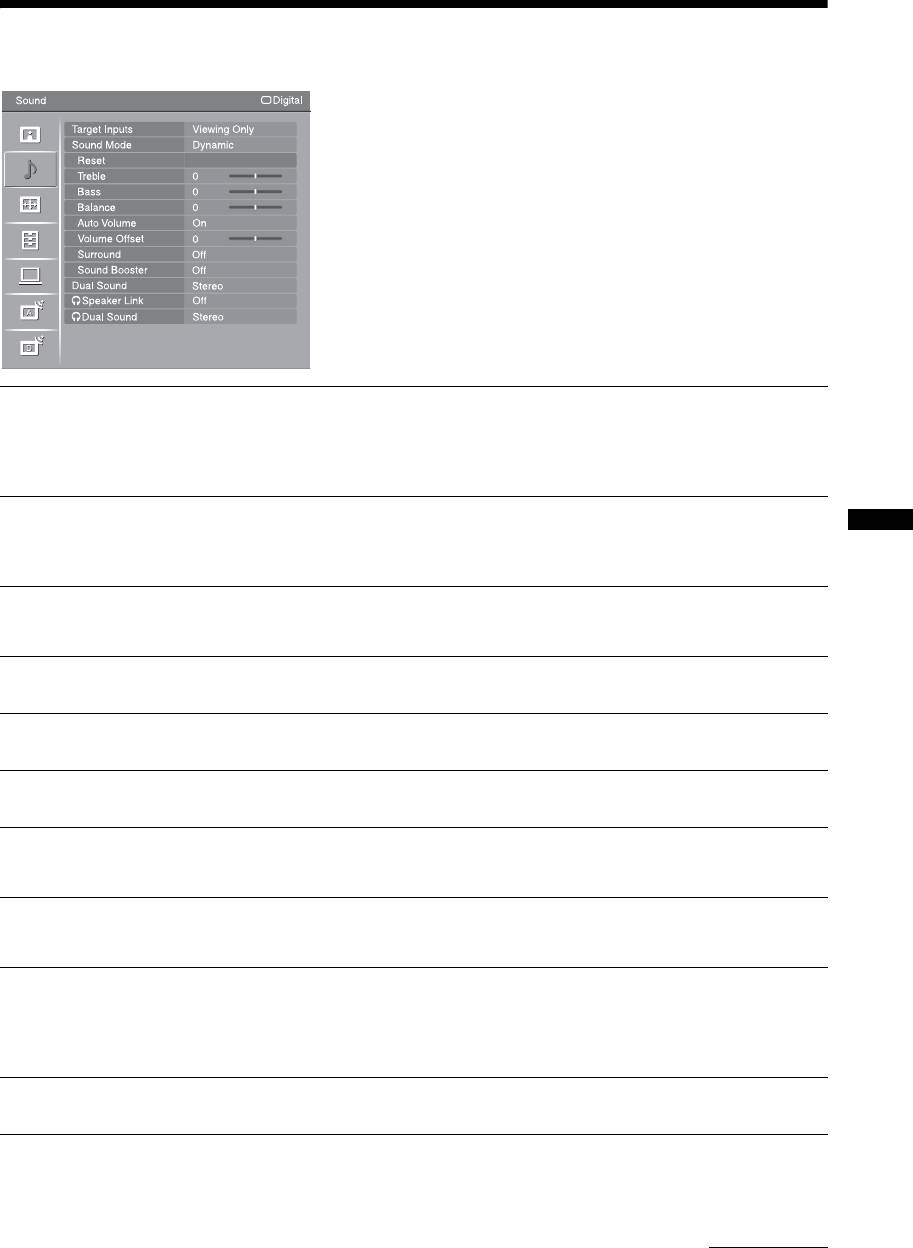
Sound menu
You can select the options listed below on the
“Sound” menu. To select options in “Settings”, refer
to “Navigating through menus” (page 22).
Target Inputs
Selects whether to apply settings made in the “Sound” menu to all inputs, or only to
the input currently being watched.
“All”: Applies settings to all inputs.
“Viewing Only”: Applies settings only to the current input.
Sound Mode
“Dynamic”: Enhances treble and bass.
“Standard”: For standard sound. Recommended for home entertainment.
Using MENU Functions
“Custom”: Flat response. Also allows you to store your preferred settings.
Reset
Resets all the “Sound” settings except “Target Inputs”, “Sound Mode”, “Dual
Sound”, “i Speaker Link” and “i Dual Sound” to the factory settings.
Treble
Adjusts higher-pitched sounds.
Bass
Adjusts lower-pitched sounds.
Balance
Emphasizes left or right speaker balance.
Auto Volume
Keeps a constant volume level even when volume level gaps occur (e.g. adverts tend
to be louder than programmes).
Volume Offset
Adjusts the volume level of the current input relative to other inputs, when “Target
Inputs” is set to “Viewing Only”.
Surround
“S-FORCE Front Surround”: Available for normal stereo broadcast and 5.1ch
digital broadcast surround audio, and the audio input from connected equipment.
“Off”: Converts and reproduces 5.1ch and other digital broadcast surround audio as
normal stereo audio (2ch). Reproduces the original audio of other broadcasts as is.
Sound Booster
Gives sound more impact by compensating for phase effects in speakers.
Continued
GB
25
Dual Sound
Selects the sound from the speaker for a stereo or bilingual broadcast.
“Stereo”/“Mono”: For a stereo broadcast.
“A”/“B”/“Mono”: For a bilingual broadcast, select “A” for sound channel 1, “B”
for sound channel 2, or “Mono” for a mono channel, if available.
~
If you select other equipment connected to the TV, set “Dual Sound” to “Stereo”, “A” or “B”.
However, when the external equipment connected to the HDMI socket is selected, this is fixed
to “Stereo”.
i Speaker Link
Switches the TV’s internal speakers on/off when headphones are connected.
“On”: Sound is output only from headphones.
“Off”: Sound is output from both the TV and headphones.
i Dual Sound
Selects the sound from the headphone for a stereo or bilingual broadcast, which
depends on the “Dual Sound” selection.
GB
26
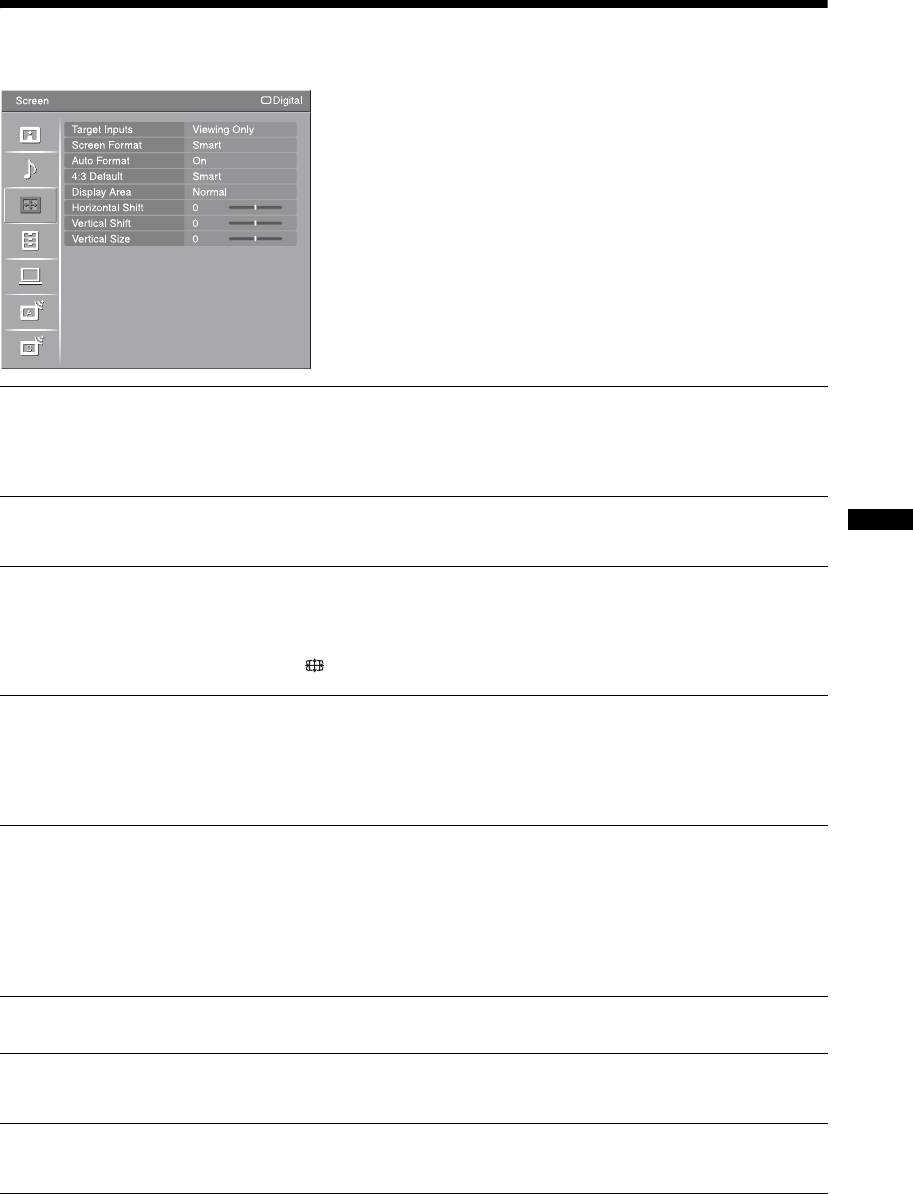
Screen menu
You can select the options listed below on the
“Screen” menu. To select options in “Settings”, refer
to “Navigating through menus” (page 22).
Target Inputs
Selects whether to apply settings made in the “Screen” menu to all inputs, or only to
the input currently being watched.
“All”: Applies settings to all inputs.
“Viewing Only”: Applies settings only to the current input.
Screen Format
For details about the screen format, see “To change the screen format manually to
suit the broadcast” on page 14.
Using MENU Functions
Auto Format
Automatically changes the screen format according to the broadcast signal. To keep
your setting, select “Off”.
z
Even if “Auto Format” is set to “On” or “Off”, you can always modify the format of the screen
by pressing repeatedly.
4:3 Default
Selects the default screen format for use with 4:3 broadcasts.
“Smart”: Displays conventional 4:3 broadcasts with an imitation wide screen effect.
“4:3”: Displays conventional 4:3 broadcasts in the correct proportions.
“Off”: Keeps the current “Screen Format” setting when the channel or input is
changed.
Display Area
Adjusts the screen area for displaying the picture.
“Full Pixel”: Displays the picture for 1080i or 1080p (except for component input)
sources in the original size when parts of the picture are cut off.
“Normal”: Displays the recommended picture area.
“-1”/“-2”: Enlarges the picture to hide the edge of the picture.
~
“Full Pixel” is available only when “Screen Format” is set to “Wide”.
Horizontal Shift
Adjusts the horizontal position of the picture.
Vertical Shift
Adjusts the vertical position of the picture when “Screen Format” is set to “Smart”
(50 Hz), “Zoom” or “14:9”.
Vertical Size
Adjusts the vertical size of the picture when “Screen Format” is set to “Smart”,
“Zoom” or “14:9”.
GB
27
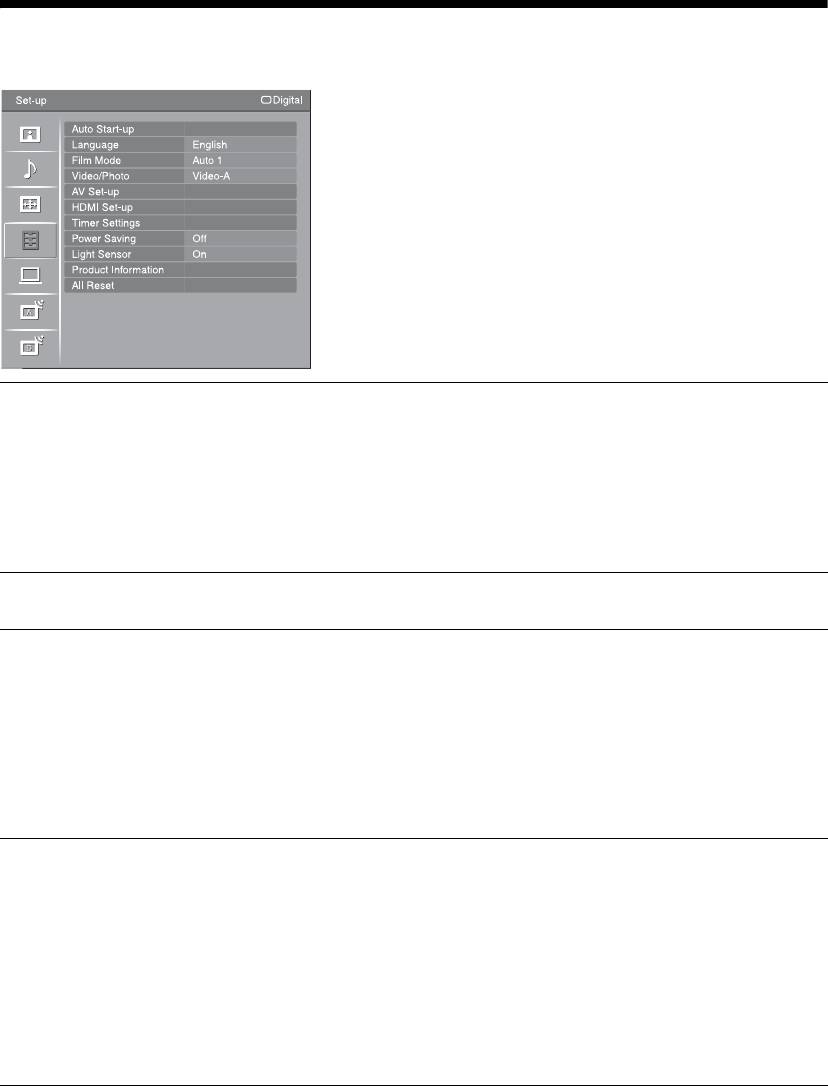
Set-up menu
You can select the options listed below on the “Set-
up” menu. To select options in “Settings”, refer to
“Navigating through menus” (page 22).
Auto Start-up
Starts the initial set-up to select the language and country/region, and tune in all
available digital and analogue channels.
Usually, you do not need to do this operation because the language and country/
region will have been selected and channels already tuned when the TV was first
installed (page 6).
However, this option allows you to repeat the process (e.g. to retune the TV after
moving house, or to search for new channels that have been launched by
broadcasters).
Language
Selects the language in which the menus are displayed.
Film Mode
Provides smoother picture movement when playing DVD or VCR images taken on
film, reducing picture blur and graininess.
“Auto 1”: Provides smoother picture movement than the original film-based
content. Use this setting for standard use.
“Auto 2”: Provides the original film-based content as is.
“Off”: Turns off the “Film Mode” feature.
~
If the image contains irregular signals or too much noise, “Film Mode” will be automatically
turned off even if “Auto 1” or “Auto 2” is selected.
Video/Photo
Provides suitable image quality by selecting the option depending on the input
source (video or photograph data).
“Video-A”: Sets suitable image quality, depending on the input source, video data
or photograph data when directly connecting Sony HDMI output-capable equipment
that supports “Video-A” mode.
“Video”: Produces suitable image quality for moving pictures.
“Photo”: Produces suitable image quality for still images.
~
• The setting is fixed to “Video” when Video-A mode is not supported on the connected
equipment, even if “Video-A” is selected.
• “Video/Photo” is available only for HDMI and component input sources (1080p and 1080i).
GB
28
AV Set-up
AV Preset
Assigns a name to any equipment connected to the side and rear sockets. The name
will be displayed briefly on the screen when the equipment is selected. You can skip
input signals from connected equipment that you do not want displayed on the
screen.
1 Press F/f to select the desired input source, then press .
2 Press
F/f to select the desired option below, then press .
Equipment labels: Uses one of the preset labels to assign a name to connected
equipment.
“Edit:”: Creates your own label. Follow steps 2 to 4 of “Programme Labels”
(page 33).
“Skip”: Skips an unnecessary input source.
Auto S Video
Selects the input signal from S video sockets 6 when / 6 sockets are both
connected.
AV2 Output
Sets a signal to be output through the socket labelled / 2 on the rear of the TV.
If you connect a VCR or other recording equipment to the / 2 socket, you can
then record from the equipment connected to other sockets of the TV.
“TV”: Outputs a broadcast.
“AV1”: Outputs signals from equipment connected to the / 1 socket.
“AV6”: Outputs signals from equipment connected to the
/ 6 socket.
“Auto”: Outputs whatever is being viewed on the screen (except signals from the
/ 3, HDMI IN 4, HDMI IN 5, HDMI IN 7 and PC / sockets).
Using MENU Functions
Speaker
Turns on/off the TV’s internal speakers.
“TV Speaker”: The TV speakers are turned on in order to listen to the TV’s sound
through the TV speakers.
“Audio System”: The TV speakers are turned off in order to listen to the TV’s sound
only through your external audio equipment connected to the audio output sockets.
When connected with an HDMI control compatible equipment, you can turn the
connected equipment on interlocked with the TV. This setting must be made after
connecting the equipment.
Audio Out
“Variable”: The audio output from your audio system can be controlled by the TV’s
remote.
“Fixed”: The audio output of the TV is fixed. Use your audio receiver’s volume
control to adjust the volume (and other audio settings) through your audio system.
Colour System
Selects the colour system (“Auto”, “PAL”, “SECAM”, “NTSC3.58”, “NTSC4.43”
or “PAL60”) according to the input signal from the input source.
Continued
GB
29

HDMI Set-up
This is used to set the HDMI control compatible equipment connected to the HDMI
sockets. Note that the interlock setting must also be made on the connected HDMI
control compatible equipment side.
HDMI Control
Sets whether to interlock the HDMI control compatible equipment and the TV.
When set to “On”, the following menu items can be performed.
Auto Devices Off
When this is set to “On”, the HDMI control compatible equipment turn off
interlocked with the TV.
Auto TV On
When this is set to “On”, the TV turns on interlocked with the HDMI control
compatible equipment.
Device List Update
Creates or updates the “HDMI Device List”. Up to 11 HDMI control compatible
equipment items can be connected, and up to 5 equipment items can be connected to
a single socket. Be sure to update the “HDMI Device List” when you change the
HDMI control compatible equipment connections or settings.
HDMI Device List
Displays the connected HDMI control compatible equipment.
~
You cannot use “HDMI Set-up” when an HDMI control compatible audio system is interlocked
with the TV.
Timer Settings
Sets the timer to turn on/off the TV.
Sleep Timer
Sets a period of time after which the TV automatically switches itself into standby
mode.
When “Sleep Timer” is activated, the (Timer) indicator on the TV front panel
lights up in orange.
z
• If you turn off the TV and turn it on again, “Sleep Timer” is reset to “Off”.
• A notification message appears on the screen one minute before the TV switches to standby
mode.
On Timer
Sets the timer to turn on the TV from standby mode.
“Day”: Selects the day on which you want to activate the “On Timer”.
“Time”: Sets the time to turn on the TV.
“Duration”: Selects the time period after which the TV automatically switches to
standby mode again.
“Volume Set-up”: Sets the volume for when the timer turns on the TV.
Clock Set
Allows you to adjust the clock manually. When the TV is receiving digital channels,
the clock cannot be adjusted manually since it is set to the time code of the
broadcasted signal.
Power Saving
Selects the power saving mode to reduce the power consumption of the TV.
When “Picture Off” is selected, the picture is switched off and the (Picture Off)
indicator on the TV front panel lights up in green. The sound remains unchanged.
GB
30
Light Sensor
“On”: Automatically optimizes the picture settings according to the ambient light in
the room.
“Off”: Turns off the “Light Sensor” feature.
~
Be sure not to put anything over the sensor, as its function may be affected. See page 12 for
further information on the sensor.
Product Information
Displays your TV’s product information.
All Reset
Resets all settings to the factory settings and then displays the “Auto Start-up”
screen.
~
• Be sure not to turn the TV off during this period (it takes about 30 seconds) or press any
buttons.
• All settings, including Digital Favourite list, country/region, language, auto tuned channels,
etc. will be reset.
Using MENU Functions
GB
31
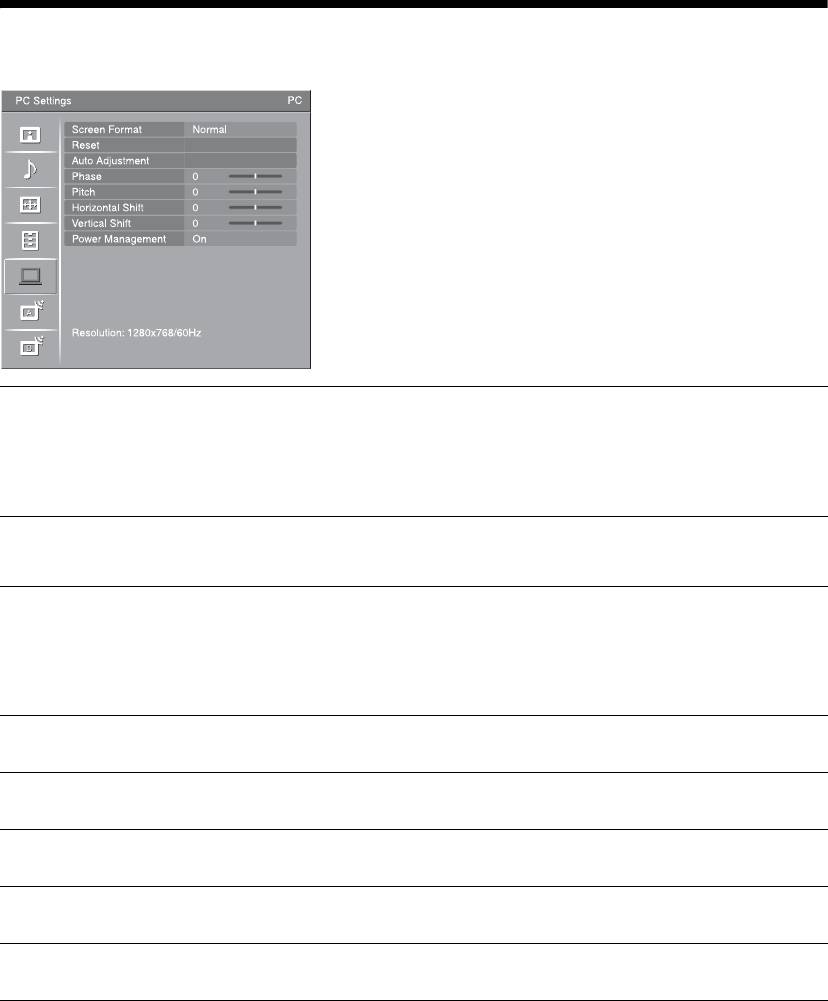
PC Settings menu
You can select the options listed below on the “PC
Settings” menu. To select options in “Settings”, refer
to “Navigating through menus” (page 22).
Screen Format
Selects a screen format for displaying input from your PC.
“Normal”: Displays the picture in its original size.
“Full 1”: Enlarges the picture to fill the display area, keeping its original horizontal-
to-vertical aspect ratio.
“Full 2”: Enlarges the picture to fill the display area.
Reset
Resets the PC settings except “Screen Format” and “Power Management” to the
factory settings.
Auto Adjustment
Automatically adjusts the display position and phase of the picture when the TV
receives an input signal from the connected PC.
z
“Auto Adjustment” may not work well with certain input signals. In such cases, manually
adjust “Phase”, “Horizontal Shift” and “Vertical Shift”.
Phase
Adjusts the phase when the screen flickers.
Pitch
Adjusts the pitch when the picture has unwanted vertical stripes.
Horizontal Shift
Adjusts the horizontal position of the picture.
Vertical Shift
Adjusts the vertical position of the picture.
Power Management
Switches the TV to standby mode if no signal is received for 30 seconds.
GB
32
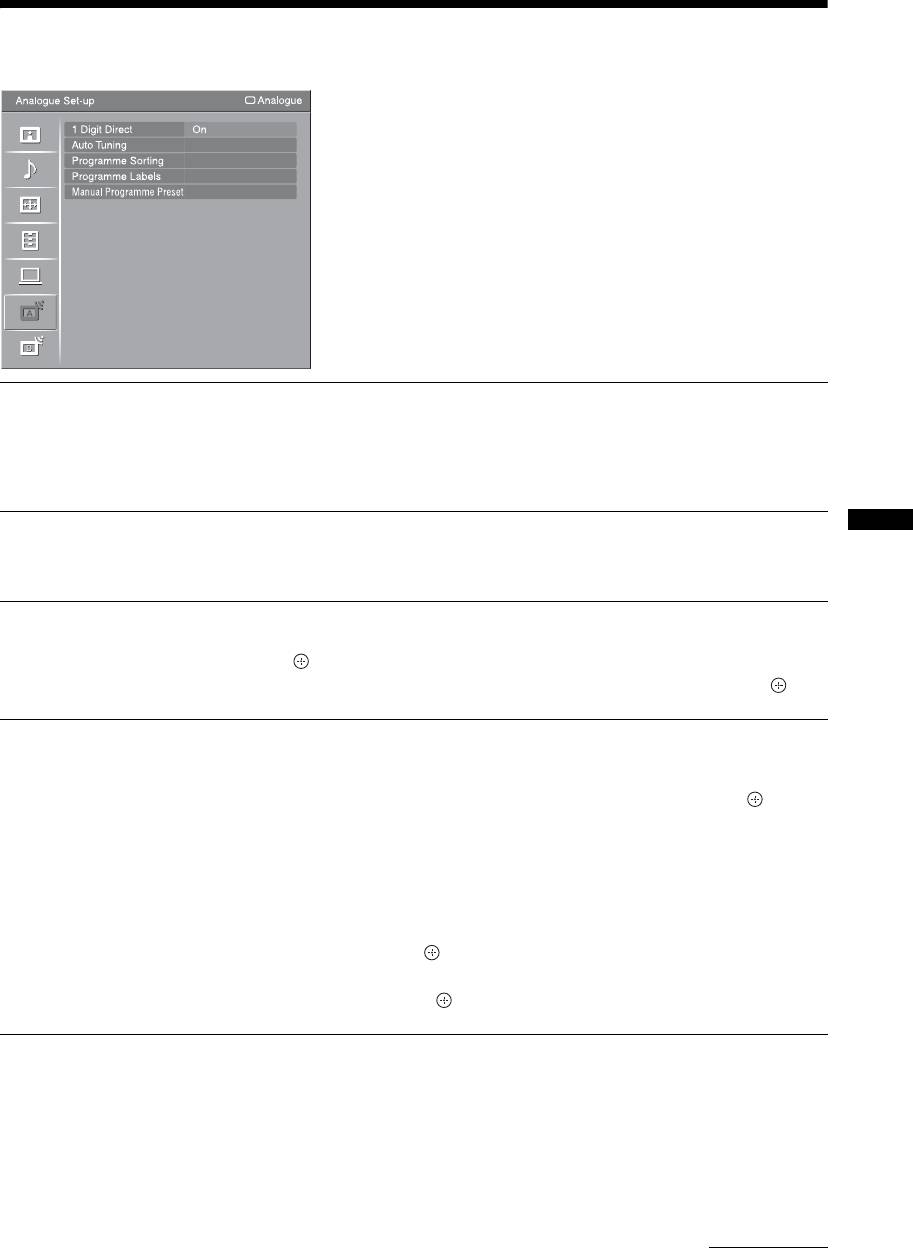
Analogue Set-up menu
You can select the options listed below on the
“Analogue Set-up” menu. To select options in
“Settings”, refer to “Navigating through menus”
(page 22).
1 Digit Direct
When “1 Digit Direct” is set to “On”, you can select an analogue channel using one
preset number button (0 - 9) on the remote.
~
When “1 Digit Direct” is set to “On”, you cannot select channel numbers 10 and above entering
two digits using the remote.
Auto Tuning
Tunes in all the available analogue channels.
This option allows you to retune the TV after moving house, or to search for new
Using MENU Functions
channels that have been launched by broadcasters.
Programme Sorting
Changes the order in which the analogue channels are stored on the TV.
1 Press
F/f to select the channel you want to move to a new position, then
press .
2 Press
F/f to select the new position for your channel, then press .
Programme Labels
Assigns a channel name of your choice up to five letters or numbers. The name will
be displayed briefly on the screen when the channel is selected. (Names for channels
are usually taken automatically from Text (if available).)
1 Press
F/f to select the channel you want to name, then press .
2 Press
F/f to select the desired letter or number (“_” for a blank space),
then press
g.
If you input a wrong character
Press G/g to select the wrong character. Then, press F/f to select the correct
character.
To delete all the characters
Select “Reset”, then press .
3 Repeat the procedure in step 2 until the name is completed.
4 Select “OK”, then press .
Continued
GB
33

Manual Programme
Before selecting “Label”/“AFT”/“LNA”/“Audio Filter”/“Skip”/“Decoder”, press
PROG +/- to select the programme number with the channel. You cannot select a
Preset
programme number that is set to “Skip” (page 35).
Programme/System/Channel
Presets programme channels manually.
1 Press
F/f to select “Programme”, then press .
2 Press
F/f to select the programme number you want to manually tune (if
tuning a VCR, select channel 00), then press RETURN.
3 Press F/f to select “System”, then press .
4 Press
F/f to select one of the following TV broadcast systems, then
press RETURN.
B/G: For western European countries/regions
I: For the United Kingdom
D/K: For eastern European countries/regions
L: For France
5 Press F/f to select “Channel”, then press .
6 Press
F/f to select “S” (for cable channels) or “C” (for terrestrial
channels), then press
g.
7 Tune the channels as follows:
If you do not know the channel number (frequency)
Press F/f to search for the next available channel. When a channel has been found,
the search will stop. To continue searching, press
F/f.
If you know the channel number (frequency)
Press the number buttons to enter the channel number of the broadcast you want or your
VCR channel number.
8 Press to jump to “Confirm”, then press .
9 Press
f to select “OK”, then press .
Repeat the procedure above to preset other channels manually.
Label
Assigns a name of your choice, up to five letters or numbers, to the selected channel.
This name will be displayed briefly on the screen when the channel is selected.
To input characters, follow steps 2 to 4 of “Programme Labels” (page 33).
AFT
Allows you to fine-tune the selected programme number manually if you feel that a
slight tuning adjustment will improve the picture quality.
You can adjust the fine tuning over a range of -15 to +15. When “On” is selected, the
fine tuning is performed automatically.
LNA
Improves the picture quality for individual channels in the case of very weak
broadcast signals (noisy picture).
If you cannot see any improvement in the picture quality even if you set to “On”, set
this option to “Off” (factory setting).
Audio Filter
Improves the sound for individual channels in the case of distortion in mono
broadcasts. Sometimes a non-standard broadcast signal can cause sound distortion or
intermittent sound muting when watching mono programmes.
If you do not experience any sound distortion, we recommend that you leave this
option set to the factory setting “Off”.
~
You cannot receive stereo or dual sound when “Low” or “High” is selected.
GB
34
