
Sony CPD-E100P: Symptom Check these items
Symptom Check these items: Sony CPD-E100P
Table of contents
- Owner’s Record
- Table of Contents
- Precautions
- Identifying parts and controls
- Setup Step 1: Connect your monitor to your computer Step 2: Connect the power cord
- Step 3: Turn on the monitor and computer Selecting the on-screen menu language (LANGUAGE/ INFORMATION)
- Customizing Your Monitor Navigating the menu
- Adjusting the brightness and contrast
- Adjusting the horizontal size or centering of the picture (H-SIZE/ CENTER) Adjusting the vertical size or centering of the picture (V-SIZE/ CENTER) Adjusting the curvature of the picture’s sides (PIN/PIN BALANCE) Adjusting the angle of the picture’s sides (KEY/KEY BALANCE)
- Adjusting the picture’s rotation (ROTATION) Enlarging or reducing the picture (ZOOM) Adjusting the color of the picture (COLOR)
- Additional settings (DEGAUSS/ CANCEL MOIRE) Resetting the adjustments
- Technical Features Troubleshooting
- Trouble symptoms and remedies Symptom Check these items
- Symptom Check these items
- Self-diagnosis function Specifications
15
GB
* If a second degauss cycle is needed, allow a minimum interval of 20 minutes for the best result. A humming noise may be heard, but this is not a
malfunction.
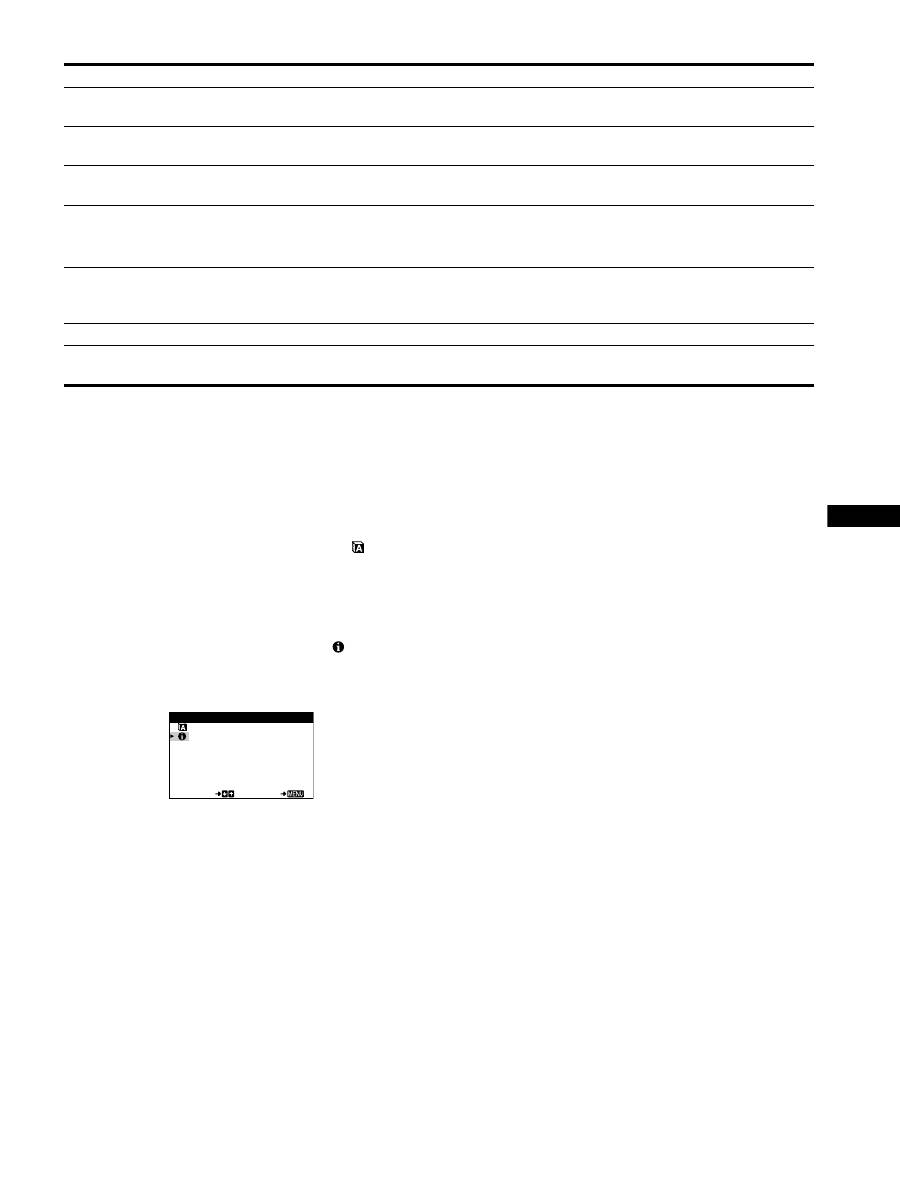
Displaying this monitor’s name, serial number,
and date of manufacture (INFORMATION)
1
Press the center of the control button.
The main MENU appears on the screen.
2
Move the control button
m
/
M
to highlight
LANGUAGE/INFORMATION and press the center of
the control button again.
The LANGUAGE/INFORMATION menu appears on the
screen.
3
Move the control button
m
/
M
to select
(INFORMATION).
This monitor’s information box appears on the screen.
If the problem persists, call your authorized Sony dealer and give
the following information.
• Model name: CPD-E100P
• Serial number
• Name and specifications of your computer and graphics board.
Picture is ghosting
• Eliminate the use of video cable extensions and/or video switch boxes.
• Check that all plugs are firmly seated in their sockets.
Picture is not centered or sized
properly
• Adjust the size or centering (page 10). Note that some video modes do not fill the screen
to the edges.
Edges of the image are curved
• Select PIN/PIN BALANCE, KEY/KEYBALANCE, or ROTATION, and adjust the
picture’s shape and rotation (page 10, 11).
Wavy or elliptical pattern (moire)
is visible
• Select CANCEL MOIRE and adjust the moire cancellation effect (page 12).
x
Problems caused by the connected computer or other equipment
• Change your desktop pattern.
Color is not uniform
• Degauss the monitor* (page 12). If you place equipment that generates a magnetic field,
such as a speaker, near the monitor, or if you change the direction the monitor faces, color
may lose uniformity.
White does not look white
• Adjust the color temperature (page 11).
A hum is heard right after the
power is turned on
• This is the sound of the auto-degauss cycle. When the power is turned on, the monitor is
automatically degaussed for five seconds.
Symptom
Check these items
MODE L CPD - E 1 0 0 P
SER I A L
1 2 3 4 5 6 7 8
MANUF ACTURED 2 0 0 0 - 5 2
SE L ECT
E
I T
LANGUAGE / I NFORMAT I ON
Example
