
Sony CDX-M670 RU: Presetting DAB services Presetting DAB services automatically manually
Presetting DAB services Presetting DAB services automatically manually: Sony CDX-M670 RU
Table of contents
- Welcome !
- Table of Contents
- Location of controls Card remote commander RM-X111
- Main display panel Operation side
- Precautions
- Notes on CDs
- Notes on MDs
- Detaching the main display Getting Started window Resetting the unit
- Setting the clock
- CD/MD Playing a disc
- Display items Playing tracks repeatedly Playing tracks in random order
- Labelling a CD
- Locating a disc by name Selecting specific tracks for playback
- Radio Storing stations automatically
- Receiving the stored stations Storing only the desired stations
- Tuning in a station through a RDS list Overview of RDS
- Automatic retuning for best reception results
- Receiving traffic Presetting RDS stations with announcements AF and TA setting
- Tuning in stations by programme type
- Setting the clock DAB (optional) automatically Overview of DAB
- Basic operations of DAB
- Presetting DAB services Presetting DAB services automatically manually
- Tuning in DAB programme through a list
- Locating a DAB service by programme type (PTY) Switching multi-channel audio and DRC
- Tuning up for your best sound Setting the equalizer (EQ7)
- Setting the soundstage menu
- Adjusting the sound characteristics Listening to each programme source in its registered DSO
- Selecting the listening Adjusting the balance position (CDX-M770 only) (BAL) Adjusting the bass (CDX- M670, MDX-M690 only)
- Adjusting the treble (CDX- Adjusting the front and rear M670, MDX-M690 only) volume (CDX-M770 only) Adjusting the balance (FAD) (CDX-M670, MDX-M690 only)
- Adjusting the volume of the subwoofer(s) Other adjustable items (CDX- M670, MDX-M690 only)
- Other Functions Using the rotary commander
- Quickly attenuating the sound Selecting the spectrum analyzer
- Changing the sound and display settings
- Labelling a Motion Display Connecting auxiliary audio equipment (CDX-M770 only)
- Additional Information Maintenance
- Removing the unit
- Specifications
- Troubleshooting CD/MD playback General Radio reception
- DSP functions (CDX-M770 only) RDS
- Error displays/Messages
Presetting DAB services
Presetting DAB services
automatically
manually
— BTM
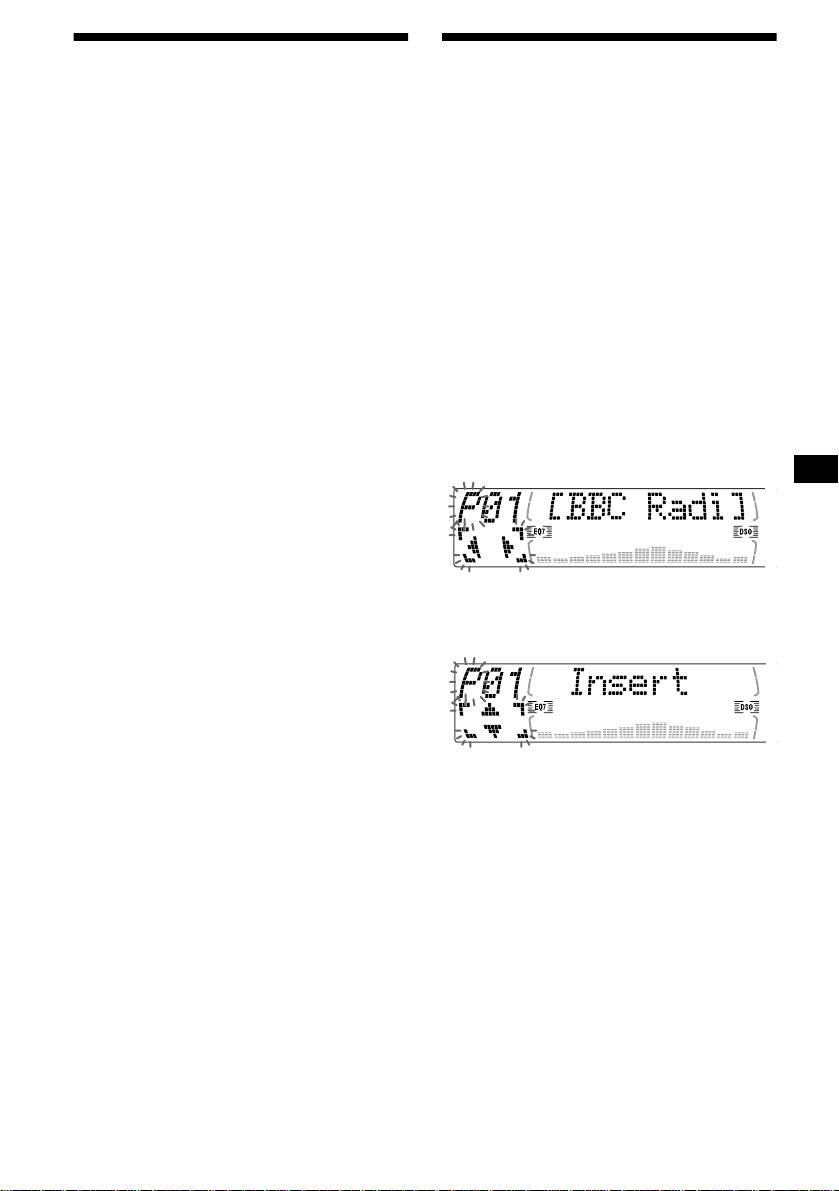
— Preset Edit
The BTM (Best Tuning Memory) function picks
You can also preset DAB services manually or
out DAB ensembles and automatically assigns
delete a service which is already preset. Note that
the services within the ensembles to preset
up to 40 services (preset either by the BTM
service numbers. The unit can preset up to 40
function or manually) can be preset to the unit’s
services.
memory.
If services have been previously set, the BTM
function operates under the following conditions:
1 While listening to a DAB programme,
• If you activate the BTM function while
press (MEN U).
listening to a preset service, the unit will store
2 Press M or m repeatedly until “PRS
detected services (by overwriting) only to
Edit” appears, then press (ENTER).
preset numbers higher than that of the current
present service.
3 Select the service and the preset
• If you activate the function while listening to a
number you want to preset.
service that is not preset, the unit will replace
1 Press either side of (SEEK) to select
the contents of all preset numbers.
the service.
• In both cases above, if the unit detects a service
that is identical to one already preset, the
2 Press M or m to select the preset
previously stored service remains unchanged
number.
and the newly detected service is not preset.
1 While listening to a DAB programme,
press (MENU).
2 Press M or m repeatedly until “BTM”
appears.
3 Press (ENTER).
3 Press (ENTER).
The Preset Edit commands will appear in
A beep sounds when the service is stored.
the display.
After activating the BTM function, the unit
tunes the service assigned in the last smallest
preset memory No. automatically.
Note
If the unit can only tune in a few services, the BTM
function may not assign services to all the preset
service numbers.
4 Press M or m to select the desired
command.
5 Press (ENTER).
To edit other services, repeat steps 3 and 4.
continue to next page t
23
