
Sony BRAVIA KDL-20S2000: Viewing pictures from connected equipment
Viewing pictures from connected equipment: Sony BRAVIA KDL-20S2000
Table of contents
- Table of Contents
- Start-up Guide 1: Checking the accessories 2: Connecting an aerial/ VCR
- 3: Bundling the cables 4: Preventing the TV from toppling over 5: Selecting the language and country/region
- 6: Auto-tuning the TV
- Safety information Carrying Placement
- Ventilation Optional accessories Wiring Medical institutions Outdoor use Vehicle, Ships and other vessels Water and moisture Moisture and flammable objects Lightning storms
- Broken pieces Dangerously high Voltage are
- Precautions Disposal of the TV set
- Overview of the remote
- Overview of the TV buttons and indicators
- Watching TV Additional operations
- To access Text Picture Freeze PIP in PC Mode (Picture in Picture)
- Checking the Digital Electronic Programme Guide (EPG)
- Using the Favourite list
- Viewing pictures from connected equipment
- Navigating through menus Using MENU Functions
- Picture Adjustment menu
- Sound Adjustment menu Sound Effect Treble Bass Balance Reset Dual Sound Auto Volume
- TV Speakers
- Features menu Screen Power Saving AV2 Output RGB Center
- PC Adjustment Timer
- Set-up menu Auto Start-up Language Country Auto Tuning Programme Sorting AV Preset Sound Offset
- Manual Programme Preset
- Digital Set-up menu Digital Tuning
- Digital Set-up
- Connecting optional equipment Using Optional Equipment Connecting to the TV (side)
- Connecting to the TV (rear)
- Specifications Additional Information
- Troubleshooting Picture
- Sound Channels General
18
GB
KDL-20S2020
2-685-333-41(0)
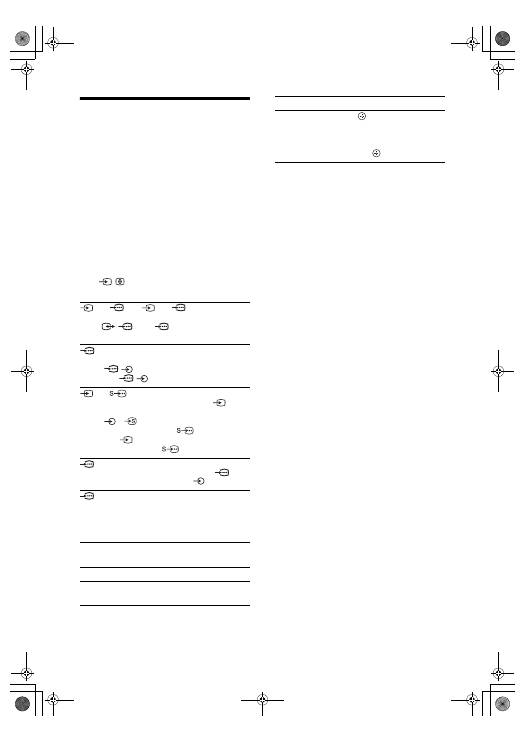
Viewing pictures from connected equipment
Switch on the connected equipment, then
perform one of the following operation.
For equipment connected to the scart sockets using a
fully-wired 21-pin scart lead
Start playback on the connected equipment.
The picture from the connected equipment appears on
the screen.
For an auto-tuned VCR (page 4)
In analogue mode, press PROG +/-, or the number
buttons, to select the video channel.
For other connected equipment
Press
/
repeatedly until the correct input
symbol (see below) appears on the screen.
Additional operations
AV1/
AV1, AV2/
AV2:
Audio/video or RGB input signal through the scart
socket
/
1 or 2.
appears only if an RGB
source has been connected.
AV3:
Component input signal through the Y, P
B
/C
B
, P
R
/C
R
sockets
/
3, and audio input signal through the
L, R sockets
/
3.
AV4/
AV4:
Video input signal through the video socket
4, and
audio input signal through the L (MONO), R audio
sockets
4.
appears only if the equipment is
connected to the S video socket
4 instead of the
video socket
4, and S video input signal is input
through the S video socket
4.
5:
RGB input signal through the PC connectors
5, and
audio input signal through the socket
.
AV6:
Digital audio/video signal is input through the HDMI IN
6 socket. Audio input signal is analogue only if the
equipment has been connected using the DVI and audio
out socket.
To
Do this
Return to the normal
TV operation
Press DIGITAL or ANALOG.
Access the Input
signal index table
Press
to access the Input signal
index table. (Then, only in
analogue mode, press
g
.) To
select an input source, press
F
/
f
,
then press
.
To
Do this
010COV.book Page 18 Monday, June 12, 2006 3:29 PM
