
Sony BRAVIA KDL-20S2000: Digital Set-up menu Digital Tuning
Digital Set-up menu Digital Tuning: Sony BRAVIA KDL-20S2000
Table of contents
- Table of Contents
- Start-up Guide 1: Checking the accessories 2: Connecting an aerial/ VCR
- 3: Bundling the cables 4: Preventing the TV from toppling over 5: Selecting the language and country/region
- 6: Auto-tuning the TV
- Safety information Carrying Placement
- Ventilation Optional accessories Wiring Medical institutions Outdoor use Vehicle, Ships and other vessels Water and moisture Moisture and flammable objects Lightning storms
- Broken pieces Dangerously high Voltage are
- Precautions Disposal of the TV set
- Overview of the remote
- Overview of the TV buttons and indicators
- Watching TV Additional operations
- To access Text Picture Freeze PIP in PC Mode (Picture in Picture)
- Checking the Digital Electronic Programme Guide (EPG)
- Using the Favourite list
- Viewing pictures from connected equipment
- Navigating through menus Using MENU Functions
- Picture Adjustment menu
- Sound Adjustment menu Sound Effect Treble Bass Balance Reset Dual Sound Auto Volume
- TV Speakers
- Features menu Screen Power Saving AV2 Output RGB Center
- PC Adjustment Timer
- Set-up menu Auto Start-up Language Country Auto Tuning Programme Sorting AV Preset Sound Offset
- Manual Programme Preset
- Digital Set-up menu Digital Tuning
- Digital Set-up
- Connecting optional equipment Using Optional Equipment Connecting to the TV (side)
- Connecting to the TV (rear)
- Specifications Additional Information
- Troubleshooting Picture
- Sound Channels General
28
GB
KDL-20S2020
2-685-333-41(0)
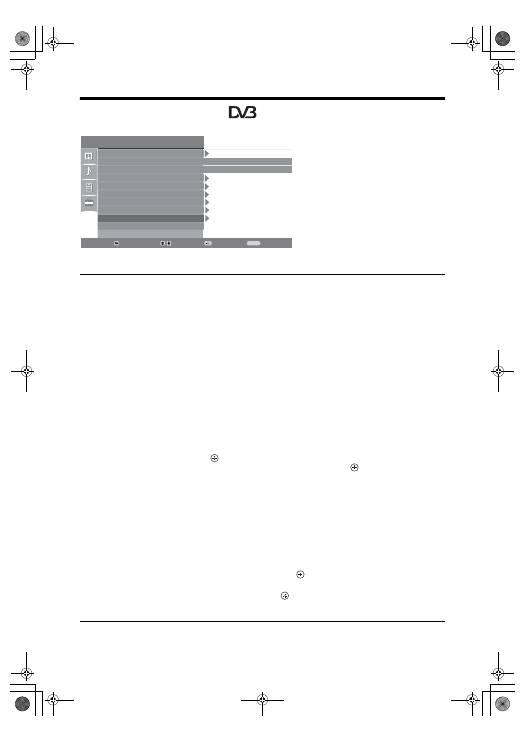
Digital Set-up menu
You can change/set the digital settings using the
Digital Set-up menu. To select options in
“Settings”, see “Navigating through menus”
(page 19).
Digital Tuning
Displays the “Digital Tuning” menu.
Digital Auto Tuning
Tunes in all the available digital channels.
Usually you do not need to do this operation because the channels are already tuned
when the TV was first installed (page 5). However, this option allows you to repeat
the process (e.g., to retune the TV after moving house, or to search for new channels
that have been launched by broadcasters).
Programme List Edit
Removes any unwanted digital channels stored on the TV, and changes the order of
the digital channels stored on the TV.
1
Press
F
/
f
to select the channel you want to remove or move to a new
position.
If you know the programme number (frequency)
Press the number buttons to enter the three-digit programme number of the broadcast
you want.
2
Remove or change the order of the digital channels as follows:
To remove the digital channel
Press
. A message that confirms whether the selected digital channel is to be
deleted appears. Press
G
to select “Yes”, then press
.
To change the order of the digital channels
Press
g
, then press
F
/
f
to select the new position for the channel and press
G
.
Repeat the procedure in steps 1 and 2 to move other channels if required.
3
Press RETURN.
Digital Manual Tuning
Tunes the digital channels manually.
1
Press the number button to select the channel number you want to
manually tune, then press
F
/
f
to tune the channel.
2
When the available channels are found, press
F
/
f
to select the channel
you want to store, then press
.
3
Press
F
/
f
to select the programme number where you want to store the
new channel, then press
.
Repeat the procedure above to tune other channels manually.
Set Up
Select:
Enter:
Exit:
MENU
English
-
Back:
Auto Start Up
Language
Country
Auto Tuning
Programme Sorting
AV Preset
Sound Offset
Manual Programme Preset
Digital Set Up
010COV.book Page 28 Monday, June 12, 2006 3:29 PM
