
Sony BRAVIA KDL-20S2000: To access Text Picture Freeze PIP in PC Mode (Picture in Picture)
To access Text Picture Freeze PIP in PC Mode (Picture in Picture): Sony BRAVIA KDL-20S2000
Table of contents
- Table of Contents
- Start-up Guide 1: Checking the accessories 2: Connecting an aerial/ VCR
- 3: Bundling the cables 4: Preventing the TV from toppling over 5: Selecting the language and country/region
- 6: Auto-tuning the TV
- Safety information Carrying Placement
- Ventilation Optional accessories Wiring Medical institutions Outdoor use Vehicle, Ships and other vessels Water and moisture Moisture and flammable objects Lightning storms
- Broken pieces Dangerously high Voltage are
- Precautions Disposal of the TV set
- Overview of the remote
- Overview of the TV buttons and indicators
- Watching TV Additional operations
- To access Text Picture Freeze PIP in PC Mode (Picture in Picture)
- Checking the Digital Electronic Programme Guide (EPG)
- Using the Favourite list
- Viewing pictures from connected equipment
- Navigating through menus Using MENU Functions
- Picture Adjustment menu
- Sound Adjustment menu Sound Effect Treble Bass Balance Reset Dual Sound Auto Volume
- TV Speakers
- Features menu Screen Power Saving AV2 Output RGB Center
- PC Adjustment Timer
- Set-up menu Auto Start-up Language Country Auto Tuning Programme Sorting AV Preset Sound Offset
- Manual Programme Preset
- Digital Set-up menu Digital Tuning
- Digital Set-up
- Connecting optional equipment Using Optional Equipment Connecting to the TV (side)
- Connecting to the TV (rear)
- Specifications Additional Information
- Troubleshooting Picture
- Sound Channels General
14
GB
KDL-20S2020
2-685-333-41(0)
To access Text
Press
/
. Each time you press
/
, the display changes
cyclically as follows:
Text
t
Text over the TV picture (mix mode)
t
No
Text (exit the Text service)
To select a page, press the number buttons or PROG
+/-.
To hold a page, press
/
.
To reveal hidden information, press
/
.
Tips
• Ensure that the TV is receiving a good signal, or some text
errors may occur.
• Most TV channels broadcast a Text service. For
information on the use of the service, select the index page
(usually page 100).
• When four coloured items appear at the bottom of the Text
page, Fastext is available. Fastext allows you to access
pages quickly and easily. Press the corresponding
coloured button to access the page.
Picture Freeze
Freezes the TV picture (e.g. to make a note of a
telephone number or recipe).
1
Press
on the remote control.
2
Press
F
/
f
/
G
/
g
to adjust the position of the
window.
3
Press
to remove the window.
4
Press
again to return to normal TV
mode.
Tip
Not available for
AV3,
AV5 and
AV6.
PIP in PC Mode (Picture in Picture)
In PC mode, displays a small picture of the last
channel selected.
1
Press
on the remote control.
2
Press
F
/
f
/
G
/
g
to adjust the position of the
window.
3
Press
to cancel.
Tip
The sound is output from the small picture.
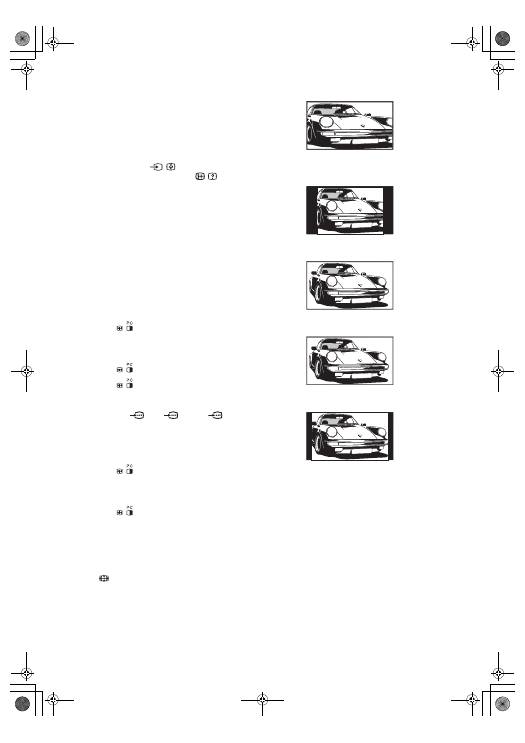
To change the screen mode manually to
suit the broadcast
Press
repeatedly to select Smart, 4:3, Wide,
Zoom, or 14:9.
Displays conventional 4:3 broadcasts with an
imitation wide screen effect. The 4:3 picture is
stretched to fill the screen.
Displays conventional 4:3 broadcasts (e.g., non-wide
screen TV) in the correct proportions.
Displays wide screen (16:9) broadcasts in the correct
proportions.
Displays cinemascopic (letter box format) broadcasts
in the correct proportions.
Displays 14:9 broadcasts in the correct proportions.
As a result, black border areas are visible on the
screen.
* Parts of the top and bottom of the picture may be cut off.
Tips
• Alternatively, you can set “Auto Format” to “On”. The TV
will automatically select the best mode to suit the
broadcast (page 23).
• You can adjust the position of the picture when selecting
Smart, 14:9, or Zoom. Press
F
/
f
to move up or down
(e.g., to read subtitles).
Smart
*
4:3
Wide
Zoom
*
14:9
*
010COV.book Page 14 Monday, June 12, 2006 3:29 PM
