
Sony KDL-32S2820 – page 2
Manual for Sony KDL-32S2820
Table of contents
21
GB
Using MENU Functions
~
“Brightness”, “Colour”, “Sharpness” and “Advanced Settings” are not available when “Picture Mode” is set to “Vivid” or when
“Display Mode” is set to “text”.
Noise Reduction
Reduces the picture noise (snowy picture) in a weak broadcast signal.
“Auto”: Automatically reduces the picture noise (in analogue mode only).
“High/Mid/Low”: Modifies the effect of the noise reduction.
“Off”: Turns off the “Noise Reduction” feature.
z
“Auto” is not available for
AV3,
AV4,
AV5 and PC mode.
Advanced Settings
Customizes the Picture function in more detail. When you set “Picture Mode” to
“Cinema” or “Standard”, you can set/change these settings.
“Live Colour”: Makes colours more vivid.
“Adv. Contrast Enhancer”: Automatically adjusts “Backlight” and “Contrast” to
the most suitable settings judging from the brightness of the screen. This setting is
especially effective for dark images scenes. It will increase the contrast distinction
of the darker picture scenes.
Reset
Resets all picture settings except “Picture Mode” and “Display Mode” (only in PC
mode) to the factory settings.
010COV.book Page 21 Monday, July 23, 2007 12:08 PM
22
GB
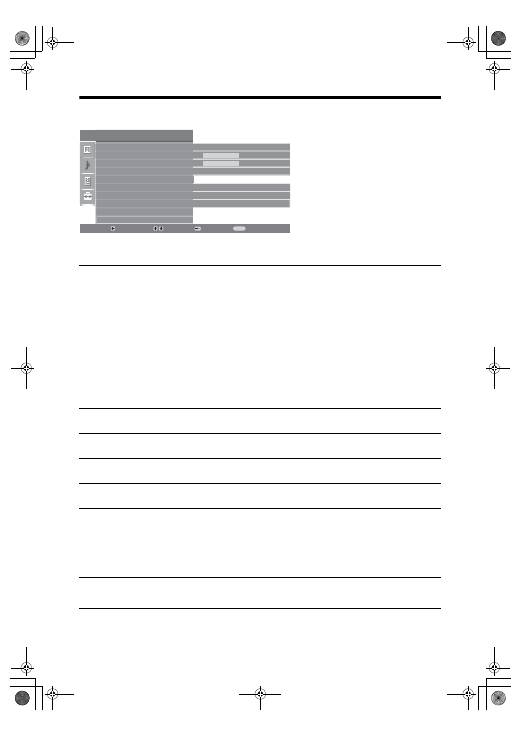
Sound Adjustment menu
You can select the options listed below on the
Sound menu. To select options in “Settings”,
see “Navigating through menus” (page 19).
Sound Effect
Selects the sound mode.
“
Standard”: Enhances clarity, detail, and sound presence by using “BBE High definition
Sound System.”
“Dynamic”: Intensifies clarity and sound presence for better intelligibility and musical realism
by using the “BBE High definition Sound System.”
“BBE ViVA”: BBE ViVA Sound provides musically accurate natural 3D image with Hi-Fi
sound. The clarity of the sound is improved by BBE while the width depth and height of sound
image are expanded by BBE’s proprietary 3D sound process. BBE ViVA Sound is compatible
with all TV programs including news, music, dramas, movies, sports and electronic games.
“Dolby Virtual
”
: Uses the TV speakers to simulate the surround effect produced by a multi
channel system.
“Off”:
Flat response. Also allows you to store your preferred settings.
z
• If you set “Auto Volume” to “On”, “Dolby Virtual” changes to “Standard”.
• If headphones are connected, “Sound Effect” changes to “Off”.
Treble
Adjusts higher-pitched sounds.
Bass
Adjusts lower-pitched sounds.
Balance
Emphasizes left or right speaker balance.
Reset
Resets all the sound settings to the factory settings.
Dual Sound
Selects the sound from the speaker for a stereo or bilingual broadcast.
“Stereo”, “Mono”: For a stereo broadcast.
“A”/“B”/“Mono”: For a bilingual broadcast, select “A” for sound channel 1, “B”
for sound channel 2, or “Mono” for a mono channel, if available.
z
If you select other equipment connected to the TV, set “Dual Sound” to “Stereo”, “A” or “B”.
Auto Volume
Keeps a constant volume level even when volume level gaps occur (e.g., adverts tend
to be louder than programmes).
Sound Adjustment
Select:
Enter:
Exit:
MENU
Sound Effect
Treble
Bass
Balance
Reset
Dual Sound
Auto Volume
Speaker
Standard
50
50
0
Mono
On
TV Speaker
Back:
010COV.book Page 22 Monday, July 23, 2007 12:08 PM
23
GB
Using MENU Functions
~
“Sound Effect”, “Treble”, “Bass”, “Balance” and “Auto Volume” are not available when “Speaker” is set to “Audio System”.
Speaker
Turns on/off the TV’s internal speakers.
“TV Speaker”: The TV speakers are turned on in order to listen to the TV’s sound
through the TV speakers.
“Audio System”: The TV speakers are turned off in order to listen to the TV’s sound
only through your external audio equipment connected to the audio output sockets.
When connected with an HDMI control compatible equipment, you can turn the
connected equipment on interlocked with the TV. This setting must be made after
connecting the equipment.
010COV.book Page 23 Monday, July 23, 2007 12:08 PM
24
GB
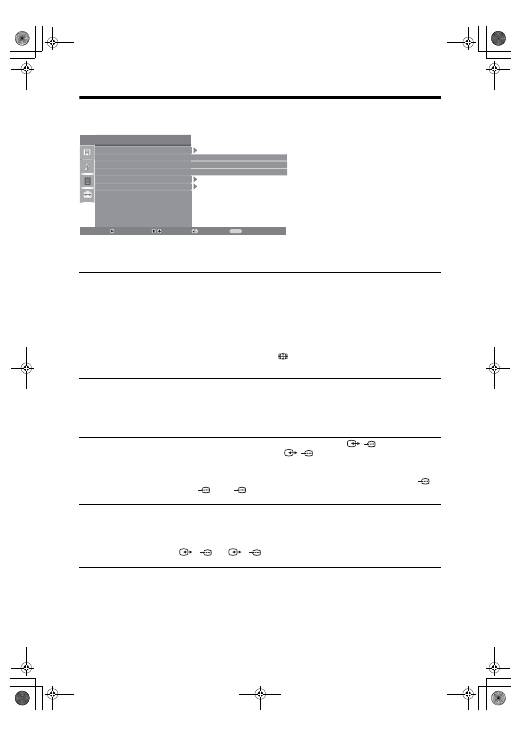
Features menu
You can select the options listed below on the
Features menu. To select options in “Settings”,
see “Navigating through menus” (page 19).
Screen
Changes the screen format.
“Auto Format”: Automatically changes the screen format according to the
broadcast signal.
“Screen Format”: For details about the screen format, see page 12
“V-Size”: Adjust the vertical size of the picture when “Screen Format” is set to
“Smart”.
z
• Even if you have selected “On” or “Off” in “Auto Format”, you can always modify the
format of the screen by pressing
repeatedly.
• “Auto Format” is available for PAL and SECAM signals only.
Power Saving
Selects the power saving mode to reduce the power consumption of the TV.
“Standard”: Default settings.
“Reduce”: Reduces the power consumption of the TV.
“Picture Off”: Switches off the picture. You can listen to the sound with the picture
off.
AV2 Output
Sets a signal to be output through the socket labelled
/
2 on the rear of the
TV. If you connect a VCR to the
/
2 socket, you can then record from the
equipment connected to other sockets of the TV.
“TV”: Outputs a broadcast.
“Auto”: Outputs whatever is being viewed on the screen. Not available for
AV3,
AV4,
AV5 and PC.
RGB Centre
Adjusts the horizontal picture position so that the picture is in the middle of the
screen.
z
This option is only available if an RGB source has been connected to the Scarts connectors
1/
1
or
2/
2
on the rear of the TV.
Features
Select:
Enter:
Exit:
MENU
Screen
Power Saving
AV2 Output
RGB Centre
PC Adjustment
Timer
Standard
TV
0
Back:
010COV.book Page 24 Monday, July 23, 2007 12:08 PM
25
GB
Using MENU Functions
PC Adjustment
Customizes the TV screen as a PC monitor.
z
This option is only available if you are in PC Mode.
“Phase”: Adjust the screen when a part of a displayed text or image is not clear.
“Pitch”: Enlarges or shrinkes the screen size horizontally.
“H Centre”: Moves the screen to the left or to the right.
“V Lines”: Corrects the picture lines while viewing an RGB input signal from the
PC
connector.
“Power saving”: Turns to standby mode if no PC signal is received.
“Reset”: Resets to the factory settings.
Timer
Sets the timer to turn on/off the TV.
Sleep Timer
Sets a period of time after which the TV automatically switches itself into standby
mode.
When the Sleep Timer is activated, the
(Timer) indicator on the TV (front) lights
up in orange.
z
• If you switch off the TV and switch it on again, “Sleep Timer” is reset to “Off”.
• “Sleep timer will end soon. Power will be turned off” appears on the screen one minute
before the TV switches to standby mode.
Clock Set
Allows you to adjust the clock manually. When the TV is receiving digital
channels, the clock cannot be adjusted manually since it is set to the time code of
the broadcasted signal.
Timer
Sets the timer to turn on/off the TV.
“Timer Mode”: Selects the desired period.
“On Time”: Sets the time to turn on the TV.
“Off Time”: Sets the time to turn off the TV.
010COV.book Page 25 Monday, July 23, 2007 12:08 PM
26
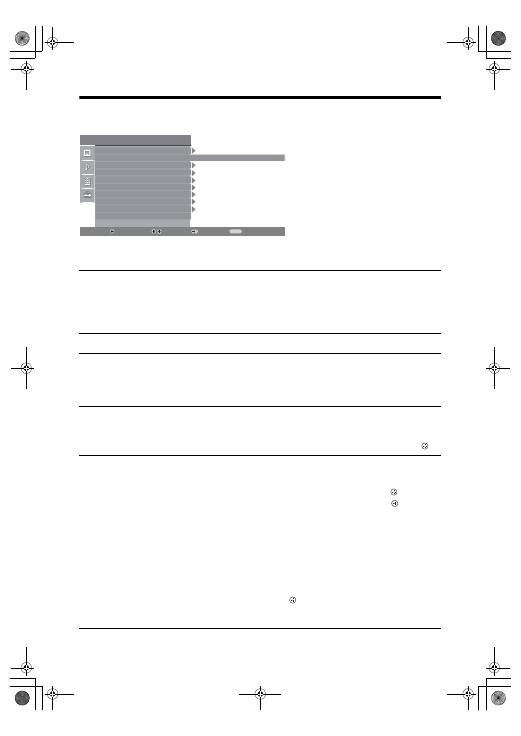
GB
Set-up menu
You can select the options listed below on the
Set-up menu. To select options in “Settings”, see
“Navigating through menus” (page 19).
Auto Start Up
Starts the “first time operation menu” to select the language and country/region, and
tune in all available digital and analogue channels. Usually, you do not need to do
this operation because the language and country/region will have been selected and
channels already tuned when the TV was first installed (page 6). However, this
option allows you to repeat the process (e.g., to retune the TV after moving house,
or to search for new channels that have been launched by broadcasters).
Language
Selects the language in which the menus are displayed.
Auto Tuning
Tunes in all the available analogue channels.
Usually you do not need to do this operation because the channels are already tuned
when the TV was first installed (page 6). However, this option allows you to repeat
the process (e.g., to retune the TV after moving house, or to search for new channels
that have been launched by broadcasters).
Programme Sorting
Changes the order in which the analogue channels are stored on the TV.
1
Press
F
/
f
to select the channel you want to move to a new position,
then press
g
.
2
Press
F
/
f
to select the new position for your channel, then press
.
AV Preset
Assigns a name to any equipment connected to the side and rear sockets. The name
will be displayed briefly on the screen when the equipment is selected. You can skip
an input source that is not connected to any equipment.
1
Press
F
/
f
to select the desired input source, then press
.
2
Press
F
/
f
to select the desired option below, then press
.
• AV1 (or AV2/ AV3/ AV4/AV5/AV6/ PC), VIDEO, DVD, CABLE, GAME, CAM,
SAT
: Uses one of the preset labels to assign a name to connected equipment.
• “Edit”: Creates your own label.
1
Press
F
/
f
to select the desired letter or number (“_” for a blank
space), then press
g
.
If you input a wrong character
Press
G
/
g
to select the wrong character. Then, press
F
/
f
to select the correct
character.
2
Repeat the procedure in step 1 until the name is completed.
3
Select “OK”, then press
.
•
“Skip”: Skips an input source that is not connected to any equipment when you
press
F
/
f
to select the input source.
Set-up
Select:
Enter:
Exit:
MENU
Auto Start Up
Language
Auto Tuning
Programme Sorting
AV Preset
HDMI Set-up
Sound Offset
Manual Programme Preset
Digital Set-up
English
Back:
010COV.book Page 26 Monday, July 23, 2007 12:08 PM
27
GB
Using MENU Functions
HDMI Set-up
This is used to set the HDMI control compatible equipment connected to the HDMI
sockets. Note that the interlock setting must also be made on the connected HDMI
control compatible equipment side.
“HDMI Control”: This sets whether to interlock the HDMI control compatible
equipment and the TV. When set to “On”, the following menu items can be
performed.
“Auto Devices Off”: When this is set to “On”, the HDMI control compatible
equipment turn on and off interlocked with the TV.
“Auto TV On”: When this is set to “On”, the TV turns on interlocked with the
HDMI control compatible equipment.
“Device List Update”: Creates or updates the “HDMI Device List”. Up to 11 HDMI
control compatible equipment can be connected, and up to 5 equipment can be
connected to a single socket. Be sure to update the “HDMI Device List” when you
change the HDMI control compatible equipment connections or settings.
“HDMI Device List”: Displays the connected HDMI control compatible
equipments.
Sound Offset
Sets an independent volume level to each equipment connected to the TV.
Manual Programme
Preset
Before selecting “Label”/“AFT”/“Audio Filter”/“LNA”/“Skip”/“Decoder”, press
F
/
f
to select the programme number you want to modify. Then, press
.
System
Presets programme channels manually.
1
Press
F
/
f
to select “System”, then press
.
2
Press
F
/
f
to select one of the following TV broadcast systems, then
press
G
.
B/G: For western European countries/regions
D/K: For eastern European countries/regions
L: For France
I: For the United Kingdom
~
Depending on the country/region selected for “
Country
” (page 5), this option may not be
available.
Channel
1
Press
F
/
f
to select “Channel”, then press
.
2
Press
F
/
f
to select “S” (for cable channels) or “C” (for terrestrial
channels), then press
g
.
3
Tune the channels as follows:
If you do not know the channel number (frequency)
Press
F
/
f
to search for the next available channel. When a channel has been found,
the search will stop. To continue searching, press
F
/
f
.
If you know the channel number (frequency)
Press the number buttons to enter the channel number of the broadcast you want or
your VCR channel number.
4
Press
to jump to “Confirm”, then press
.
5
Press
f
to select “OK”, then press
.
Repeat the procedure above to preset other channels manually.
Label
Assigns a name of your choice, up to five letters or numbers, to the selected channel.
AFT
Allows you to fine-tune the selected programme number manually if you feel that a
slight tuning adjustment will improve the picture quality.
Continued
010COV.book Page 27 Monday, July 23, 2007 12:08 PM
28
GB
Audio Filter
Improves the sound for individual channels in the case of distortion in mono
broadcasts. Sometimes a non-standard broadcast signal can cause sound distortion or
intermittent sound muting when watching mono programmes.
If you do not experience any sound distortion, we recommend that you leave this
option set to the factory setting “Off”.
~
You cannot receive stereo or dual sound when “Low” or “High” is selected.
“
Audio Filter
” is not available when “
System
” is set to “
L
”.
LNA
Improves the picture quality in case of very weak broadcast signal (noisy picture).
Skip
Skips unused analogue channels when you press PROG +/- to select channels. (You
can still select a skipped channel using the number buttons.)
Decoder
Views and records the scrambled channel selected when using a decoder connected
directly to scart connector
/
1, or to scart connector
/
2 via a VCR.
~
Depending on the country/region selected for “Country” (page 5), this option may not be
available.
Confirm
Saves changes made to the “
Manual Programme Preset
” settings.
010COV.book Page 28 Monday, July 23, 2007 12:08 PM
29
GB
Using MENU Functions
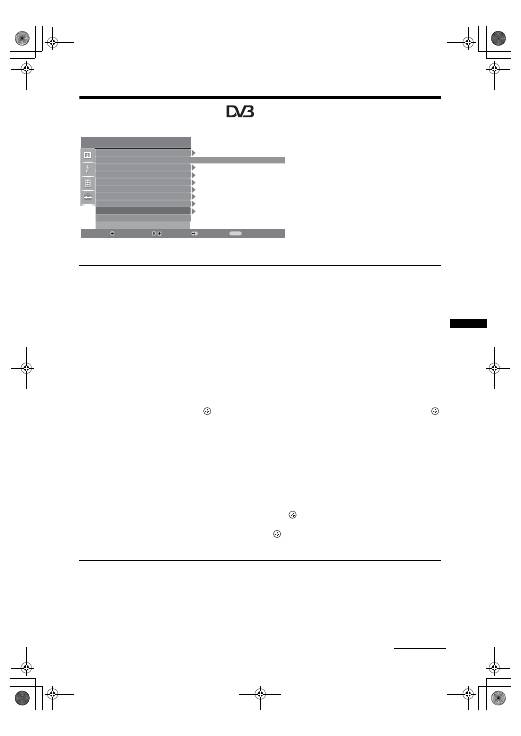
Digital Set-up menu
You can select the options listed below on the
“Digital Set-up” menu. To select options in
“Settings”, refer to “Navigating through
menus” (page 19).
~
Some functions may not be available in some
countries/regions.
Digital Tuning
Digital Auto Tuning
Tunes in the available digital channels.
This option allows you to retune the TV after moving house, or to search for new
channels that have been launched by broadcasters). For details, see “Auto-tunning
the TV” on page 6.
Programme List Edit
Removes any unwanted digital channels stored on the TV, and changes the order of
the digital channels stored on the TV.
1
Press
F
/
f
to select the channel you want to remove or move to a new
position.
Press the number buttons to enter the known three-digit programme number of the
broadcast you want.
2
Remove or change the order of the digital channels as follows:
To remove the digital channel
Press
. After a confirmation message appears, press
G
to select “Yes”, then press
.
To change the order of the digital channels
Press
g
, then press
F
/
f
to select the new position for the channel and press
G
.
3
Press RETURN.
Digital Manual Tuning
Tunes the digital channels manually. This feature is available when “Digital Auto
Tuning” is set to “Antenna”.
1
Press the number button to select the channel number you want to
manually tune, then press
F
/
f
to tune the channel.
2
When the available channels are found, press
F
/
f
to select the channel
you want to store, then press
.
3
Press
F
/
f
to select the programme number where you want to store the
new channel, then press
.
Repeat the above procedure to manually tune other channels.
Set-up
Select:
Enter:
Exit:
MENU
Auto Start Up
Language
Auto Tuning
Programme Sorting
AV Preset
HDMI Set-up
Sound Offset
Manual Programme Preset
Digital Set-up
English
Back:
Continued
010COV.book Page 29 Monday, July 23, 2007 12:08 PM
30
GB
Digital Set-up
Subtitle Set-up
“Subtitle Setting”: When “For Hard Of Hearing” is selected, some visual aids may
also be displayed with the subtitles (if TV channels broadcast such information).
“Subtitle Language”: Selects which language subtitles are displayed in.
Audio Set-up
“Audio Type”: Switches to broadcast for the hearing impaired when “For Hard Of
Hearing” is selected.
“Audio Language”: Selects the language used for a programme. Some digital
channels may broadcast several audio languages for a programme.
“Audio Description”: Provides audio description (narration) of visual information
if TV channels broadcast such information.
“Mixing Level”: Adjusts the TV main audio and Audio Description output levels.
z
This option is only available when “Audio Description” is set to “On”.
Banner Mode
“Basic”: Displays programme information with a digital banner.
“Full”: Displays programme information with a digital banner, and displays detailed
programme information below that banner.
Radio Display
The screen wallpaper is displayed when listening to a radio broadcast after 20
seconds without pressing any button.
You can select the screen wallpaper colour, or display a random colour.
To cancel the screen wallpaper display temporarily, press any button.
Parental Lock
Sets an age restriction for programmes. Any programme that exceeds the age
restriction can only be watched after a PIN Code is entered correctly.
1
Press the number buttons to enter your existing PIN code.
If you have not previously set a PIN, a PIN code entry screen appears. Follow the
instructions of “PIN Code” below.
2
Press
F
/
f
to select the age restriction or “None” (for unrestricted
watching), then press
.
3
Press RETURN.
PIN Code
To set your PIN for the first time
1
Press the number buttons to enter the new PIN code.
2
Press RETURN.
To change your PIN
1
Press the number buttons to enter your existing PIN code.
2
Press the number buttons to enter the new PIN code.
3
Press RETURN.
z
PIN code 9999 is always accepted.
Technical Set-up
“Auto Service Update”: Enables the TV to detect and store new digital services as
they become available.
“Software Download”: Enables the TV to automatically receive software updates,
free through your existing aerial (when issued). Sony recommends that this option is
set to “On” at all times. If you do not want your software to be updated, set this option
to “Off”.
“System Information”: Displays the current software version and the signal level.
“Time Zone”: Allows you to manually select the time zone you are in, if it is not the
same as the default time zone setting for your country/region.
“Auto DST”: Sets whether or not to automatically switch between summer time and
winter time.
• “On”: Automatically switches between summer time and winter time according to the
calendar.
• “Off”: The time is displayed according to the time difference set by “Time Zone”.
CA Module Set-up
Allows you to access a pay TV service once you obtain a Conditional Access Module (CAM)
and a view card. See page 16 for the location of the
(PCMCIA) socket.
010COV.book Page 30 Monday, July 23, 2007 12:08 PM
31
GB
Additional Information
Specifications
Display Unit
Power Requirements:
220–240 V AC, 50 Hz
Screen Size:
KDL-40xxxxx: 40 inches
KDL-32xxxxx: 32 inches
Display Resolution:
1,366 dots (horizontal) × 768 lines (vertical)
Power Consumption:
KDL-40xxxxx: 170 W or less
KDL-32xxxxx: 150 W or less
Standby Power Consumption*:
0,6 W or less
* Specified standby power is reached after the TV
finishes necessary internal processes.
Dimensions (w × h × d):
KDL-40xxxxx:
Approx: 981 x 692 x 265 mm (with stand)
Approx: 981 x 643 x 110 mm (without stand)
KDL-32xxxxx:
Approx: 790 x 577 x 214 mm (with stand)
Approx: 790 x 530 x 100 mm (without stand)
Mass:
KDL-40xxxxx:
Approx: 24,0 kg (with stand)
Approx: 20,5 kg (without stand)
KDL-32xxxxx:
Approx: 16,0 kg (with stand)
Approx: 14,0 kg (without stand)
Panel System
LCD (Liquid Crystal Display) Panel
TV System
Analogue:
Depending on your country/region selection:
B/G/H, D/K, L, I
Digital:
DVB-T
Colour/Video System
Analogue:
PAL, SECAM
NTSC 3.58, 4.43 (only Video In)
Digital:
MPEG-2 MP@ML
Aerial
75 ohm external terminal for VHF/UHF
Channel Coverage
Analogue:
VHF:
E2–E12
UHF:
E21–E69
CATV:
S1–S20
HYPER: S21–S41
D/K:
R1–R12, R21–R69
L:
F2–F10, B–Q, F21–F69
I:
UHF B21–B69
Digital:
VHF/UHF
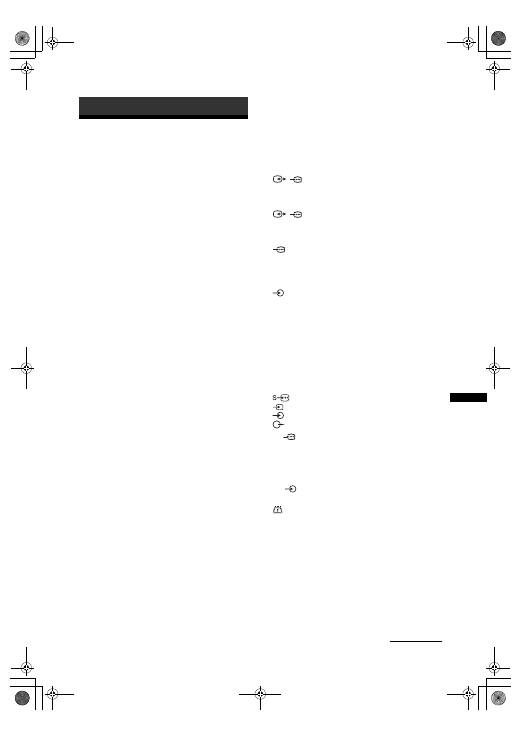
Terminals
/
1
21-pin Scart connector (CENELEC standard) including
audio/video input, RGB input, and TV audio/video
output.
/
2 (SMARTLINK)
21-pin Scart connector (CENELEC standard) including
audio/video input, RGB input, selectable audio/video
output, and SMARTLINK interface.
3
Supported formats: 1080i, 720p, 576p, 576i, 480p, 480i
Y: 1 Vp-p, 75 ohms, 0.3V negative sync
P
B
/C
B
: 0.7 Vp-p, 75 ohms
P
R
/C
R
: 0.7 Vp-p, 75 ohms
3
Audio input (phono jacks)
500 mVrms
Impedance: 47 kilo ohms
HDMI IN 4, 5
Video: 1080i, 720p, 576p, 576i, 480p, 480i
Audio: Two channel linear PCM
32, 44.1 and 48 kHz, 16, 20 and 24 bits
PC (see table)
Analogue audio (phono jacks):
500 mVrms, Impedance 47 kilohms
(HDMI IN 5 only)
6 S video input (4-pin mini DIN)
6
Video input (phono jack)
6
Audio input (phono jacks)
Audio output (Left/Right) (phono jacks)
PC
PC Input (15 Dsub) (see page 16)
G: 0.7 Vp-p, 75 ohms, non Sync on Green
B: 0.7 Vp-p, 75 ohms, non Sync on Green
R: 0.7 Vp-p, 75 ohms, non Sync on Green
HD: 1-5 Vp-p
VD: 1-5 Vp-p
PC audio input (minijack)
i
Headphones jack
CAM (Conditional Access Module) slot
Additional Information
Continued
010COV.book Page 31 Monday, July 23, 2007 12:08 PM
32
GB
Sound Output
10 W + 10 W (RMS)
Optional Accessories
Wall-Mount Bracket SU-WL500.
Design and specifications are subject to change without
notice.
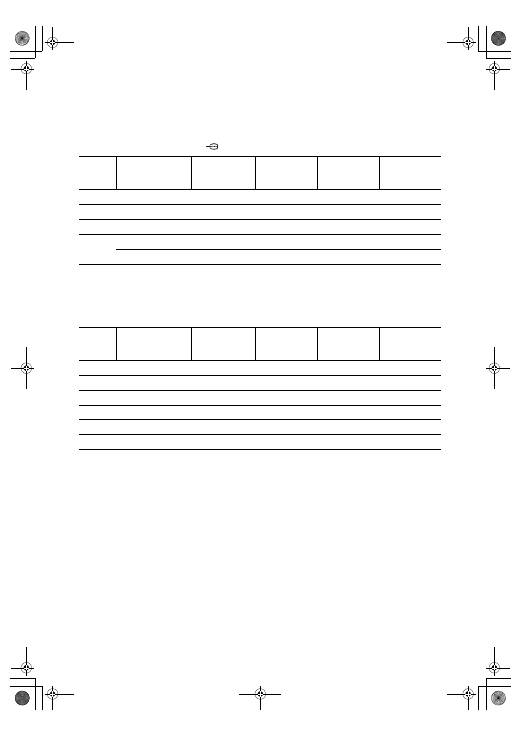
PC Input Signal Reference Chart for PC
• This TV’s PC input does not support Sync on Green or Composite Sync.
• This TV’s PC input does not support interlaced signals.
• This TV’s PC input supports signals in the above chart with a 60 Hz vertical frequency. For other signals, you will see the
message “NO SYNC”.
PC Input Signal Reference Chart for HDMI IN 4, 5
Signals
Horizontal (Pixel)
Vertical (Line)
Horizontal
frequency
(kHz)
Vertical
frequency (Hz)
Standard
VGA
640
480
31.5
60
VGA
SVGA
800
600
37.9
60
VESA Guidelines
XGA
1024
768
48.4
60
VESA Guidelines
WXGA
1280
768
47.4
60
VESA
1280
768
47.8
60
VESA
Signals
Horizontal (Pixel)
Vertical (Line)
Horizontal
frequency
(kHz)
Vertical
frequency (Hz)
Standard
VGA
640
480
31.5
60
VGA
SVGA
800
600
37.9
60
VESA Guidelines
XGA
1024
768
48.4
60
VESA Guidelines
WXGA
1280
768
47.4
60
VESA
WXGA
1280
768
47.8
60
VESA
WXGA
1360
768
47.7
60
VESA
010COV.book Page 32 Monday, July 23, 2007 12:08 PM
33
GB
Additional Information
Troubleshooting
Check whether the
1
(standby) indicator is
flashing in red.
When it is flashing
The self-diagnosis function is activated.
1
Count how many
1
(standby) indicator
flashes between each two second break.
For example, the indicator flashes three times, then
there is a two second break, followed by another
three flashes, etc.
2
Press
1
on the top edge of the TV to turn it
off, disconnect the mains lead, and inform
your dealer or Sony service centre of how
the indicator flashes (number of flashes).
When it is not flashing
1
Check the items in the tables below.
2
If the problem still persists, have your TV
serviced by qualified service personnel.
Picture
No picture (screen is dark) and no sound
• Check the aerial connection.
• Connect the TV to the mains, and press
1
on the top edge
of the TV.
• If the
1
(standby) indicator lights up in red, press
"/1
.
No picture or no menu information from equipment
connected to the scart connector
• Press
/
to display the connected equipment list,
then select the desired input.
• Check the connection between the optional equipment and
the TV.
Double images or ghosting
• Check the aerial connection.
• Check the aerial location and direction.
Only snow and noise appear on the screen
• Check if the aerial is broken or bent.
• Check if the aerial has reached the end of its serviceable
life (three to five years in normal use, one to two years at
the seaside).
Distorted picture (dotted lines or stripes)
• Keep the TV away from electrical noise sources such as
cars, motorcycles, hair-dryers or optical equipment.
• When installing optional equipment, leave some space
between the optional equipment and the TV.
• Make sure that the aerial is connected using the supplied
coaxial cable.
• Keep the aerial cable away from other connecting cables.
Picture or sound noise when viewing a TV channel
• Adjust “AFT” (Automatic Fine Tuning) to obtain better
picture reception (page 27).
Some tiny black points and/or bright points appear
on the screen
• The picture of a display unit is composed of pixels. Tiny
black points and/or bright points (pixels) on the screen do
not indicate a malfunction.
No colour on programmes
• Select “Reset” (page 21).
No colour or irregular colour when viewing a
signal from the
3 sockets
• Check the connection of the
3 sockets and check if
each sockets are firmly seated in their respective sockets.
Sound
No sound, but good picture
• Press
2
+/– or
%
(Mute).
• Check if the “Speaker” is set to “TV Speaker” (page 23).
Channels
The desired channel cannot be selected
• Switch between digital and analogue mode and select the
desired digital/analogue channel.
Some channels are blank
• Scrambled/Subscription only channel. Subscribe to the
pay TV service.
• Channel is used only for data (no picture or sound).
• Contact the broadcaster for transmission details.
Digital channels are not displayed
• Contact a local installer to find out if digital transmissions
are provided in your area.
• Upgrade to a higher gain aerial.
General
The TV turns off automatically (the TV enters
standby mode)
• Check if the “Sleep Timer” or the “Off Time” are
activated (page 25).
• If no signal is received and no operation is performed in
the TV mode for 10 minutes, the TV automatically
switches to standby mode.
The TV turns on automatically
• Check if the “On Time” is activated (page 25).
Some input sources cannot be selected
• Select “AV Preset” and cancel “Skip” of the input source
(page 26).
The remote does not function
• Replace the batteries.
A channel cannot be added to the Favourite list
• Up to 999 channels can be stored in the Favourite list.
HDMI equipment does not appear on “HDMI Device
List”
• Check that your equipment is HDMI control compatible
equipment.
010COV.book Page 33 Monday, July 23, 2007 12:08 PM
2
RU
Благодарим Вас за то, что Вы выбрали этот телевизор
Sony.
Перед первым включением телевизора внимательно
ознакомьтесь с данной инструкцией по эксплуатации и
сохраните ее для консультаций в будущем.
Утилизация
электрического и
электронного
оборудования (директива
применяется в странах
Евросоюза и других
европейских странах, где
действуют системы
раздельного сбора
отходов)
Данный знак на устройстве или
его упаковке обозначает, что
данное устройство нельзя утилизировать вместе с
прочими бытовыми отходами. Его следует сдать в
соответствующий приемный пункт переработки
электрического и электронного оборудования.
Неправильная утилизация данного изделия может
привести к потенциально негативному влиянию на
окружающую среду и здоровье людей, поэтому для
предотвращения подобных последствий необходимо
выполнять специальные требования по утилизации
этого изделия. Переработка данных материалов
поможет сохранить природные ресурсы. Для получения
более подробной информации о переработке этого
изделия обратитесь в местные органы городского
управления, службу сбора бытовых отходов или в
магазин, где было приобретено изделие.
•
Все
функции
,
относящиеся
к
Цифровому
ТВ
(
),
будут
действовать
только
в
тех
странах
или
регионах
,
в
которых
ведется
эфирная
цифровая
трансляция
сигнала
DVB-T (MPEG2).
Просим
Вас
уточнить
у
своего
дилера
,
можно
ли
принимать
сигнал
DVB-T
там
,
где
Вы
живете
.
•
Хотя
данный
телевизор
следует
характеристикам
DVB-T,
мы
не
можем
гарантировать
его
совместимость
с
будущим
вещанием
в
формате
DVB-T.
•
Некоторые из функций Цифрового ТВ в некоторых
странах могут быть недоступными.
•
является зарегистрированной торговой маркой
DVB Project
• Произведено по лицензии компании BBE Sound, Inc.
Лицензия BBE Sound, Inc. зарегистрирована по
патентам США: 5510752, 5736897. Слово “BBE” и
логотип BBE являются торговыми марками
компании BBE Sound, Inc.
• Произведено по лицензии компании Dolby
Laboratories. “Dolby” и логотип с двойной буквой D
являются торговыми марками компании Dolby
Laboratories.
• HDMI, логотип HDMI и High-Definition Multimedia
Interface являются зарегистрированными торговыми
марками компании HDMI Licensing LLC.
~
• Иллюстрации, приведенные в настоящей инструкции,
относятся к модели KDL-32S28xx, если не оговорено
иного.
• Символы “xx” в названии модели соответствуют двум
цифрам, определяемым вариацией цвета.
Введение
Утилизация телевизора
Примечание в отношении
Цифрового ТВ
Информация о торговых марках
D I G I T A L
АЯ
19
Manufacturer:
Sony Corporation
1-7-1 Konan, Minato-ku, Tokyo
Japan
Factory:
Sony Spain S.A.
Pol. Ind. Can Mitjans s/n
08232 Viladecavalls (Barcelona)
Spain
Sony Slovakia, spol. sr. o., Trnava Plant
Trstínska cesta 8
917 58 Trnava
Slovak Republic
Изготовитель:
СОНИ Корпорейшен
1-7-1 Конан, Минато-ку, Токио
Япония
Завод:
СОНИ Испания С.А.
Пол. Инд. Кан Митьянс с/н
08232 Виладекавальс (Барселона)
Испания
СОНИ Словакия, спол. ср. о., Завод Трнава
Трестинска ул., 8
917 58 Трнава
Словацкая Республика
ООО «БАЛТМИКСТ», 238530, Россия,
Калининградская область, Зеленоградский
район, пос. Переславское, ст.
«Переславское-западное»
010COV.book Page 2 Monday, July 23, 2007 12:20 PM
3
RU
Содержание
Íà÷àëî ðàáîòû 4
Сведения по безопасности ....................................................................................................7
Меры предосторожности .......................................................................................................8
Описание пульта ДУ .............................................................................................................9
Описание кнопок и индикаторов телевизора...............................................................10
Просмотр телевизионных программ ...................................................................................11
Использование цифрового электронного экранного телегида (EPG)
...................13
Использование списка избранных цифровых программ
.........................................15
Подключение дополнительных устройств .........................................................................16
Просмотр изображения с устройств, подключенных к телевизору ................................17
Использование HDMI управления .......................................................................................18
Навигация по системе меню ................................................................................................19
Меню “Настройка изображения” ........................................................................................20
Меню “Настройка звука” .....................................................................................................22
Меню “Функции”....................................................................................................................24
Меню “Установка” ................................................................................................................26
Цифровая конфигурация меню ..................................................................................29
Технические характеристики ..............................................................................................31
Поиск неисправностей .........................................................................................................33
Начало работы 4
Просмотр телевизионных программ
Использование дополнительных устройств
Использование функций меню
Дополнительные сведения
: только для цифровых каналов
RU
010COV.book Page 3 Monday, July 23, 2007 12:20 PM
4
RU
Начало работы
1: Проверка комплекта
поставки
Сетевой шнур (1) (только для KDL-
40T26xx, KDL-40S28xx)
Коаксиальный кабель* (1) (только для
KDL-40T26xx, KDL-40S28xx)
Пульт ДУ RM-ED009 (1)
Батарейки размера AA (типа R6) (2)
Ремень для крепления (1) и винты (2)
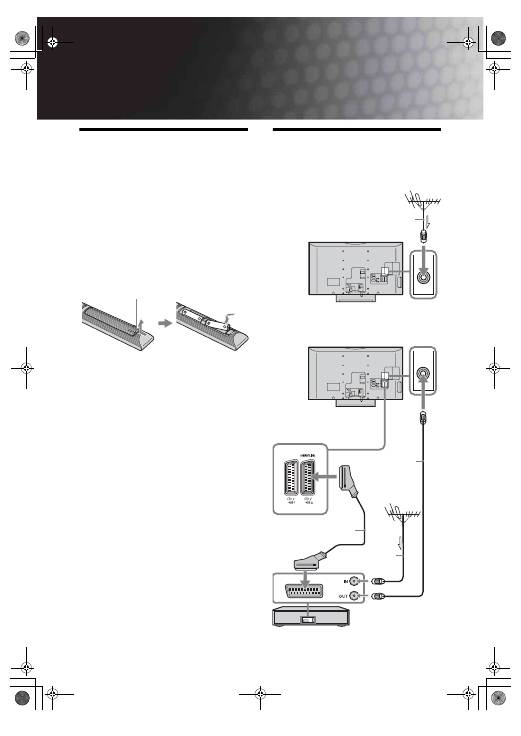
Установка батареек в пульт ДУ
~
• Вставляя батарейки, соблюдайте полярность.
• Не используйте одновременно батарейки
различных типов или старые и новые батарейки.
• При утилизации батареек всегда помните правила
защиты окружающей среды. В некоторых
регионах правила утилизации батареек могут
быть регламентированы. Просьба обращаться по
этому поводы в местные органы власти.
• Бережно обращайтесь с пультом ДУ. Не бросайте
его, не становитесь на него и не лейте на него
никаких жидкостей.
• Не держите пульт ДУ вблизи источников тепла, в
месте, подверженном воздействию прямых
солнечных лучей, или во влажном помещении.
2: Подключение
антенны/
видеомагнитофона
Надавите на крышку и поднимите ее, чтобы
открыть отсек.
Подключения одной
антенны
Подключение антенны и
видеомагнитофона
Коаксиальный кабель*
Видеомагнитофон
Коаксиальный
кабель (не входит в
комплект поставки)
Коаксиальный
кабель*
Scart-кабель (не входит в
комплект поставки)
010COV.book Page 4 Monday, July 23, 2007 12:20 PM
5
RU
Начало работы
3: Меры по
предотвращению
падения телевизора
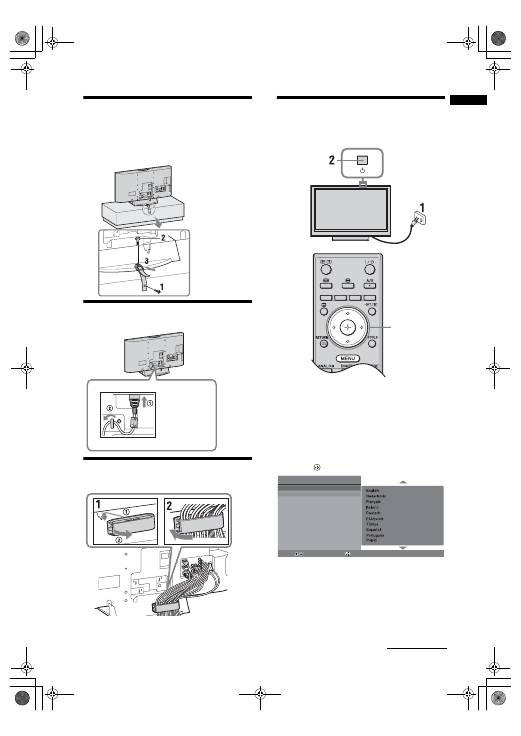
4: Подключение кабелей
5: Крепление кабелей
6: Выбор языка и
страны/региона
1
Включите телевизор в сеть
(220-240 В переменного тока, 50 Гц).
2
Нажмите кнопку
1
на телевизоре (на его
верхней крышке).
При первом включении телевизора на его
экране автоматически появляется меню
“Язык” (Language).
3
Нажимая
F
/
f
, выберите из появившегося на
экране меню нужный Вам язык, затем нажмите
кнопку .
KDL-40T26xx
KDL-40S28xx
3,4
Auto Start Up
Language
Country
Select:
Confirm:
Продолжение
010COV.book Page 5 Monday, July 23, 2007 12:20 PM
6
RU
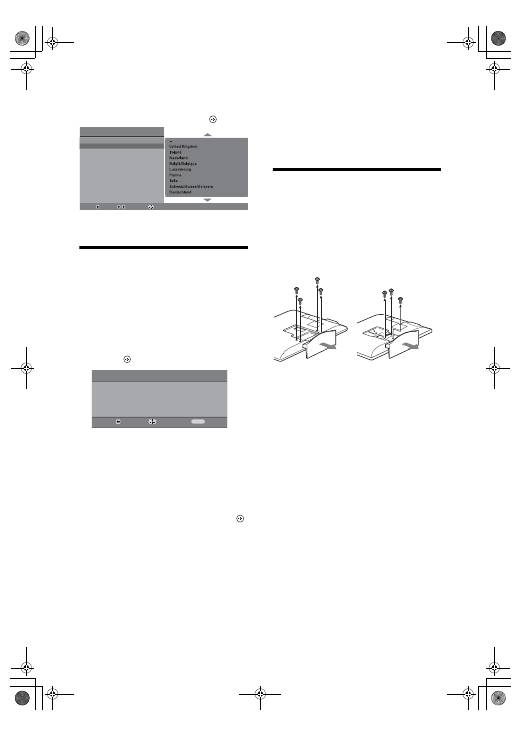
4
С помощью кнопок
F
/
f
выберите страну/
регион, в которой Вы хотите использовать
телевизор, затем нажмите кнопку
.
Если страны/региона, в которой Вы хотите
пользоваться телевизором, нет в списке,
вместо страны/региона выберите “-”
7: Автонастройка
телевизора
1
Перед началом автонастройки телевизора
вставьте кассету с записью в видеомагнитофон,
подключенный к телевизору, (стр. 4) и
поставьте его на воспроизведение.
Видеоканал будет найден и сохранен в памяти
телевизора во время автоматической настройки.
Если к телевизору не подключен
видеомагнитофон, пропустите этот шаг.
2
Нажмите .
Телевизор начнет автоматический поиск
всех доступных цифровых, а затем
аналоговых каналов. Это может занять
некоторое время. Пожалуйста, подождите и
не нажимайте никакие кнопки ни на
телевизоре, ни на пульте ДУ.
В случае появления на экране
сообщения:
"Ни один цифровой или аналоговый канал
не найден" проверьте, правильно ли
подключена антенна, и нажмите кнопку
,
чтобы запустить процедуру автонастройки
повторно.
3
При появлении на экране меню “Сортировка
программ”, выполните операции, указанные в
разделе “Сортировка программ” (стр. 26).
Если Вы не хотите менять порядок, в котором
аналоговые каналы сохранены в памяти
Вашего телевизора, перейдите к шагу 4.
4
Для выхода из меню нажмите кнопку MENU.
Теперь телевизор настроен на прием всех
доступных каналов.
~
В случае, если прием цифрового канала невозможен,
или при выборе в шаге 4 региона, в котором отсутствует
цифровое вещание (стр. 6), установку времени следует
производить после выполнения шага 4.
Отсоединение настольной
подставки от телевизора
~
Отсоединяйте настольную подставку от телевизора
только в том случае, если Вы хотите выполнить его
настенную установку.
Автоз
а
пуск
Язык
C
тр
а
н
а
Выбор:
По
д
твер
.:
Н
а
з
ад
:
Н
а
з
ад
:
З
а
пуск:
Автон
а
стройк
а
Вы
хотите
н
а
ч
а
ть
а
втом
а
тическую н
а
стройку?
Oтк
а
з:
MENU
KDL-40T26xx
KDL-40S28xx
KDL-32T26xx
KDL-32S28xx
010COV.book Page 6 Monday, July 23, 2007 12:20 PM
7
RU
Сведения по
безопасности
Установка и подключение
Во избежание возгорания, поражения
электрическим током, повреждения
телевизора и/или травм выполняйте установку
и эксплуатацию телевизора в соответствии с
нижеследующими указаниями.
Установка
• Телевизор следует устанавливать вблизи
легкодоступной сетевой розетки.
• Установите телевизор на ровную устойчивую
поверхность.
• Настенная установка телевизора должна
выполняться только квалифицированными
специалистами сервисной службы.
• По соображениям безопасности настоятельно
рекомендуется использовать аксессуары Sony, в том
числе:
– Кронштейн для настенной установки SU-WL500
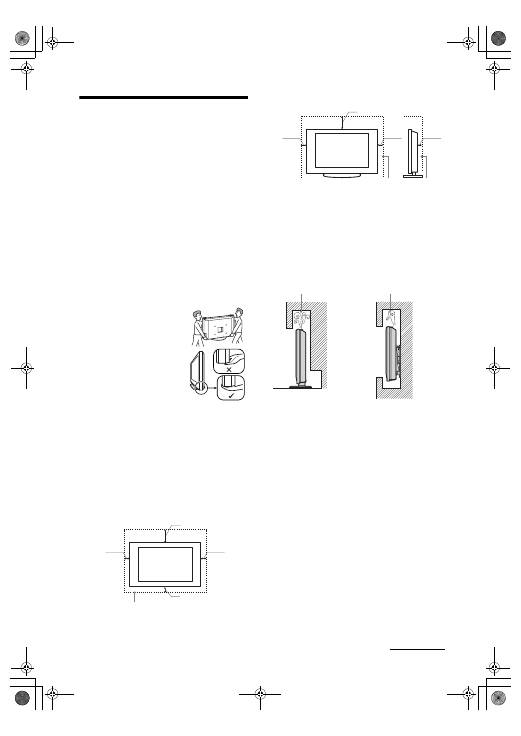
Перемещение
• Перед перемещением телевизора
отсоедините от него все кабели.
• Для переноски телевизора
больших размеров требуются два
или три человека.
• При переноске телевизора
вручную держите его, как
показано на рисунке справа.
• Прим подъеме или перемещении
телевизора крепко
придерживайте его снизу. Не
прикладывайте усилия к ЖК-
панели.
• При перевозке берегите
телевизор от ударов и сильной вибрации.
• Если необходимо доставить телевизор в ремонтную
мастерскую или перевезти в другое место, упакуйте
его в картонную коробку и упаковочный материал, в
которых он поставлялся изначально.
Вентиляция
• Никогда не перекрывайте вентиляционные
отверстия и не вставляйте в них никакие предметы.
• Оставляйте свободное пространство вокруг
телевизора, как показано на рисунке ниже.
• Для обеспечения надлежащей циркуляции воздуха
настоятельно рекомендуется использовать
специальный кронштейн для настенной установки
производства компании Sony.
Настенная установка
Установка на подставке
• Для обеспечения надлежащей вентиляции и
предотвращения скопления грязи и пыли:
– Не кладите телевизор экраном вниз; не
устанавливайте телевизор перевернутым нижней
стороной вверх, задом наперед или набок.
– Не устанавливайте телевизор на полке, ковре,
кровати или в шкафу;
– Не накрывайте телевизор тканью, например,
занавесками, а также газетами и т.п.
– Не устанавливайте телевизор так, как показано на
рисунке ниже.
Кабель питания
Во избежание возгорания, поражения
электрическим током, повреждения телевизора
и/или травм обращайтесь с кабелем питания и
сетевой розеткой в соответствии с
нижеследующими указаниями:
– Включайте телевизор в сеть, используя кабель
питания с вилкой, имеющей контакт заземления,
которую следует вставлять в розетку
электрической сети, также оснащенную
контактом заземления (только для KDL-
40T26xx, KDL-40S28xx).
– Используйте только кабели питания Sony, не
пользуйтесь кабелями других марок.
– Вставляйте вилку в розетку до конца.
– Используйте для питания телевизора только сеть
переменного тока напряжением 220-240 В.
– Выполняя кабельные соединения между
устройствами, в целях безопасности извлеките
кабель питания из сетевой розетки и будьте
осторожны, чтобы не запнуться о кабели.
– Перед выполнением каких-либо работ с
телевизором или его переноской выньте вилку
кабеля питания от сети.
– Кабель питания не должен находиться рядом с
источниками тепла.
– Регулярно чистите вилку кабеля питания,
предварительно вынимая ее из розетки. Если на
вилке имеется пыль, в которой скапливается
влага, это может привести к повреждению
изоляции и, как следствие, к возгоранию.
30 cm
10 cm
10 cm
10 cm
Обеспечьте вокруг телевизора
расстояние не меньше указанного.
30 cm
10 cm
10 cm
6 cm
Обеспечьте вокруг телевизора расстояние не
меньше указанного.
Циркуляция воздуха
нарушена.
Циркуляция воздуха
нарушена.
Стена
Стена
Продолжение
010COV.book Page 7 Monday, July 23, 2007 12:20 PM
8
RU
Примечания
• Не используйте входящий в комплект поставки кабель
питания с другим оборудованием.
• Не пережимайте, не перегибайте и не перекручивайте кабель
питания, прилагая излишние усилия. В противном случае
могут оголиться или переломиться внутренние жилы кабеля.
• Не изменяйте конструкцию кабеля питания.
• Не ставьте и не кладите никакие тяжелые предметы на
кабель питания.
• Вынимая кабель питания из розетки, не тяните за сам кабель.
• Не подключайте слишком много приборов к одной
электророзетке.
• Не пользуйтесь электророзеткой с плохими контактами.
Запрещенные типы установки
Во избежание возгорания, поражения электрическим
током, повреждения телевизора и/или травм не
устанавливайте/не эксплуатируйте телевизор в таких
местах, помещениях и ситуациях, которые перечислены
ниже.
Места расположения:
На открытом воздухе (под прямыми солнечными лучами),
на берегу моря, на корабле или другом судне, в автомобиле,
в медицинских учреждениях, вблизи огнеопасных объектов
(свечей и др.).
Помещения:
В жарких, влажных или слишком запыленных помещениях; в
местах, где могут быть насекомые; в таких местах, в которых
телевизор может быть подвержен механической вибрации; в
неустойчивом положении; вблизи воды, или там, где возможно
воздействие на него дождя, влаги или дыма.
Ситуации:
Не касайтесь телевизора мокрыми руками; не эксплуатируйте
его со снятым корпусом или с дополнительными аксессуарами,
не рекомендованными изготовителем. Во время грозы
отключайте телевизор от розетки электропитания и антенны.
Осколки:
• Не бросайте никакие предметы в телевизор. Стеклянный
экран может разбиться от удара и в этом случае осколки
могут причинить серьезную травму.
• Если на поверхности телевизора образовались трещины,
перед тем, как прикоснуться к нему, выньте кабель питания из
розетки. В противном случае Вы можете получить удар
электрическим током.
Если телевизор не используется
• Если Вы не собираетесь пользоваться телевизором в
течение нескольких дней, по соображениям безопасности
и энергосбережения его следует отключить от сети
электропитания.
• Так как телевизор не отключается от сети при выключении
кнопкой, для его полного отключения от электропитания
выньте вилку кабеля питания из розетки.
• Следует иметь в виду, что некоторые телевизоры обладают
функциями, для корректной работы которых требуется
оставлять телевизор в дежурном режиме.
Меры предосторожности в отношении детей
• Не позволяйте детям взбираться на телевизор.
• Храните мелкие детали вне досягаемости детей, чтобы
они не могли случайно проглотить их.
Если имеют место следующие
неисправности...
Немедленно
выключите
телевизор и выньте вилку
кабеля питания из розетки в следующих случаях.
Обратитесь к своему дилеру или в сервисный центр
Sony для того, чтобы квалифицированные
специалисты сервисной службы выполнили проверку
телевизора.
В случае, если:
– Поврежден кабель питания.
– Электророзетка имеет плохие контакты.
– Телевизор получил повреждения в результате падения,
удара или попадания брошенным в него предметом.
– Внутрь корпуса телевизора через отверстия попала
жидкость или какой-либо предмет.
Меры
предосторожности
Просмотр телевизора
• Смотрите телевизор при достаточном освещении;
просмотр при плохом освещении или в течение
чрезмерно продолжительного времени утомляет глаза.
• При пользовании наушниками не устанавливайте
слишком большую громкость, чтобы не повредить
слух.
ЖК-экран
• Хотя ЖК-экран изготовлен по высокоточной
технологии и число эффективных точек достигает
99,99 % и выше, на экране могут постоянно
появляться черные или яркие цветные (красные,
синие или зеленые) точки. Это структурное свойство
ЖК-экрана, которое не является признаком
неисправности.
• Не нажимайте на защитный фильтр, не царапайте его
и не ставьте на телевизор какие-либо предметы. Это
может привести к неравномерности изображения или
повреждению ЖК-экрана.
• Если телевизор работает в холодном месте,
изображение может оказаться размытым или
слишком темным. Это не является признаком
неисправности. Эти явления исчезнут с повышением
температуры.
• При продолжительной демонстрации неподвижного
изображения могут появляться остаточные
изображения. Через несколько секунд они могут
исчезнуть.
• Во время работы телевизора экран и корпус
нагреваются. Это не является признаком
неисправности.
• ЖК-дисплей содержит небольшое количество
жидких кристаллов и ртути. Люминесцентные
лампы, используемые в данном телевизоре, также
содержат ртуть. При утилизации соблюдайте
соответствующие местные положения и инструкции.
Уход за поверхностью экрана, корпусом
телевизора и их чистка
Перед чисткой телевизора или вилки кабеля
питания отсоедините кабель от сети.
Для обеспечения сохранности конструкционных
материалов и покрытия экрана телевизора
соблюдайте следующие меры предосторожности.
• Для удаления пыли с поверхности экрана/корпуса
телевизора осторожно протирайте его мягкой
тканью. Если пыль не удаляется полностью,
протрите экран мягкой тканью, слегка смоченной в
слабом растворе мягкого моющего средства.
• Ни в коем случае не используйте никакие абразивные
материалы, щелочные/кислотные очистители,
чистящие порошки и такие летучие растворители,
как спирт, бензин, разбавитель или инсектициды.
Применение этих веществ или длительный контакт с
изделиями из резины/винила могут повредить
покрытие корпуса или поверхность экрана.
• При регулировке угла наклона телевизора изменяйте
его положение медленно и осторожно во избежание
соскальзывания телевизора с подставки.
Дополнительные устройства
Держите дополнительные компоненты или
оборудование, излучающее электромагнитные
волны, на расстоянии от телевизора. В противном
случае может иметь место искажение изображения
и/или звука.
010COV.book Page 8 Monday, July 23, 2007 12:20 PM
