
Sony KDL-15G2000 – page 2
Manual for Sony KDL-15G2000
Table of contents
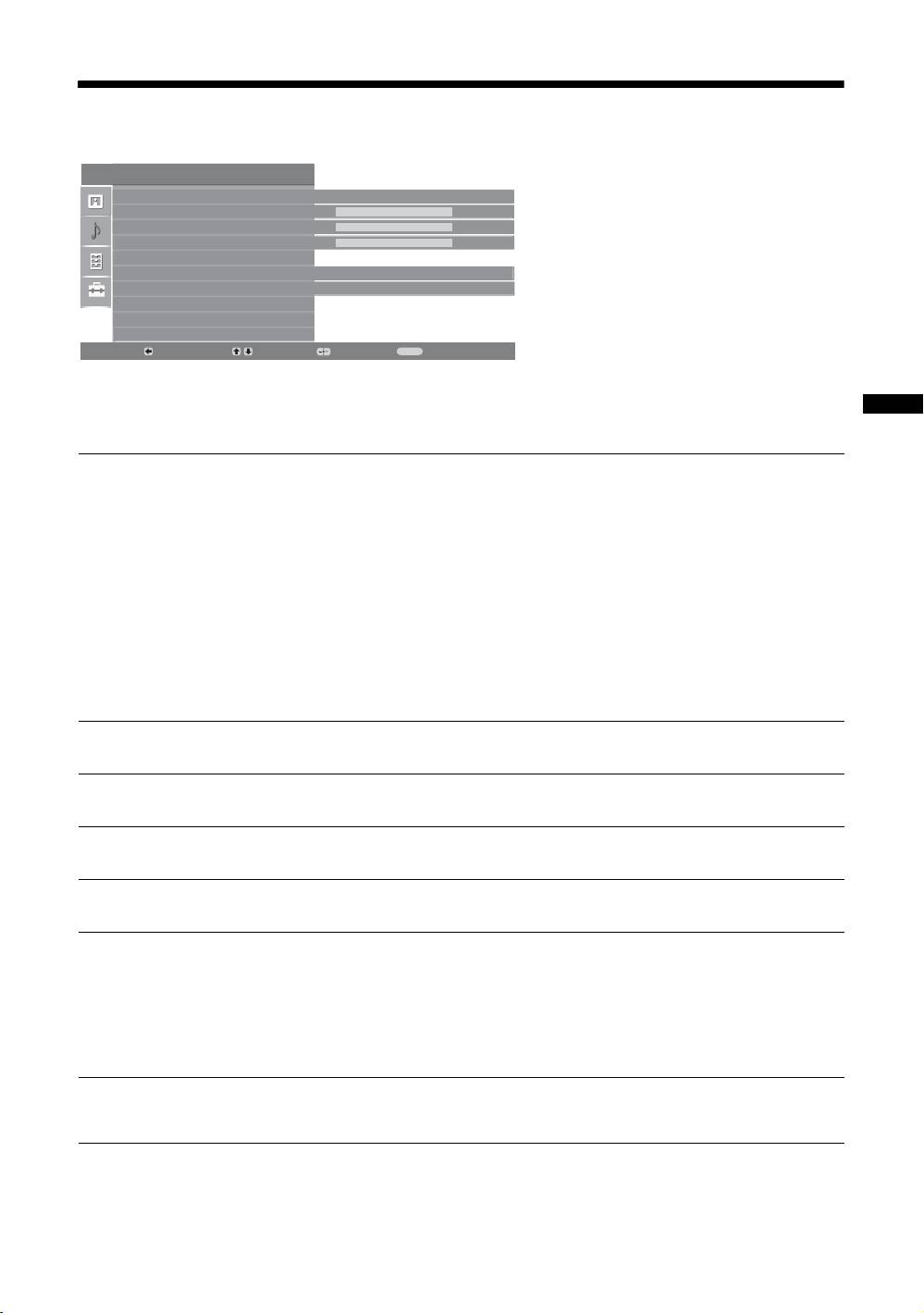
Sound Adjustment menu
You can select the options listed below on the
Sound Adjustment
Sound menu. To select options in “Settings”,
Sound Effect
Standard
see “Navigating through menus” (page 19).
Treble
50
Bass
50
Balance
0
Reset
Dual Sound
Mono
Auto Volume
On
Back:
Select:
Enter:
Exit:
MENU
Using MENU Functions
Sound Effect
Selects the sound mode.
• “Standard”: Enhances clarity, detail, and sound presence by using “BBE High definition
Sound System.”
• “Dynamic”: Intensifies clarity and sound presence for better intelligibility and musical
realism by using the “BBE High definition Sound System.”
• “BBE ViVA”: BBE ViVA Sound provides musically accurate natural 3D image with Hi-Fi
sound. The clarity of the sound is improved by BBE while the width, depth, and height of
sound image are expanded by BBE’s proprietary 3D sound process. BBE ViVA Sound is
compatible with all TV programs including news, music, dramas, movies, sports and
electronic games.
• “Off”: Flat response.
Tip
You can change sound effect by pressing 9 repeatedly.
Treble
Adjusts higher-pitched sounds.
Bass
Adjusts lower-pitched sounds.
Balance
Emphasizes left or right speaker balance.
Reset
Resets all the sound settings to the factory settings.
Dual Sound
Selects the sound from the speaker for a stereo or bilingual broadcast.
• “Stereo”, “Mono”: For a stereo broadcast.
• “A”/“B”/“Mono”: For a bilingual broadcast, select “A” for sound channel 1, “B”
for sound channel 2, or “Mono” for a mono channel, if available.
Tip
If you select other equipment connected to the TV, set “Dual Sound” to “Stereo”, “A” or “B”.
Auto Volume
Keeps a constant volume level even when volume level gaps occur (e.g., adverts tend
to be louder than programmes).
GB
21
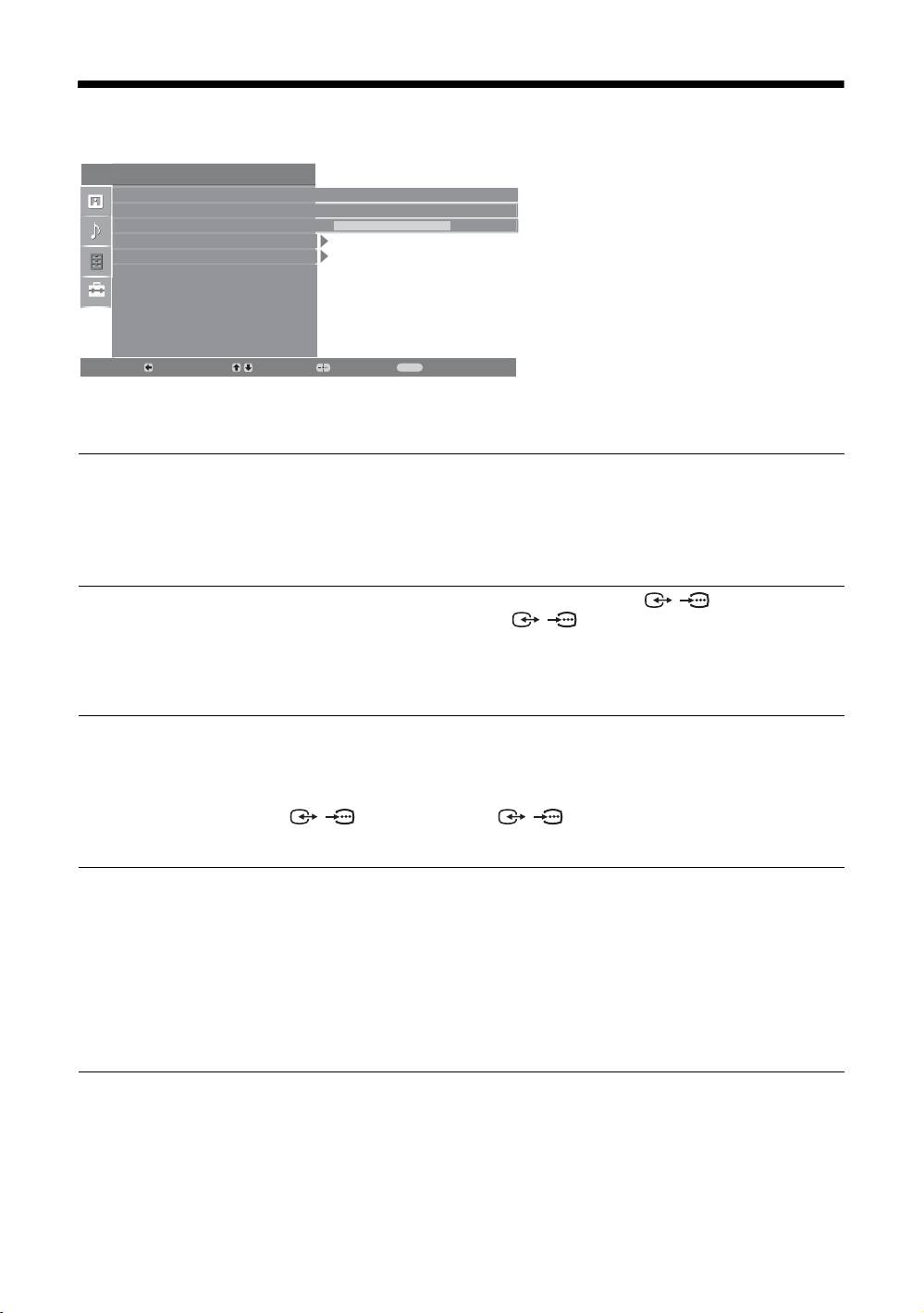
Features menu
You can select the options listed below on the
Features
Features menu. To select options in “Settings”,
Power Saving
Standard
see “Navigating through menus” (page 19).
AV2 Output
TV
RGB Center
0
PC Adjustment
Timer
Back:
Select:
Enter:
Exit:
MENU
Power Saving
Selects the power saving mode to reduce the power consumption of the TV.
• “Standard”: Default settings.
• “Reduce”: Reduces the power consumption of the TV.
• “Picture Off”: Switches off the picture. You can listen to the sound with the picture
off.
AV2 Output
Sets a signal to be output through the socket labelled / 2 on the rear of the
TV. If you connect a VCR to the / 2 socket, you can then record from the
(only for KDL-20G2000)
equipment connected to other sockets of the TV.
• “TV”: Outputs a broadcast.
• “Auto”: Outputs whatever is being viewed on the screen.
RGB Center
Adjusts the horizontal picture position so that the picture is in the middle of the
screen.
Tip
This option is only available if an RGB source has been connected to scart connector
/1, or to scart connector / 2 (only for KDL-20G2000) on the rear of the
TV.
PC Adjustment
Customizes the TV screen as a PC monitor.
(only for KDL-15G2000)
Tip
This option is only available if you are in PC Mode.
• “Phase”: Adjust the screen when a part of a displayed text or image is not clear.
• “Pitch”: Enlarges or shrinkes the screen size horizontally.
• “H Center”: Moves the screen to the left or to the right.
• “Power saving”: Turns to standby mode if no PC signal is received.
• “Reset”: Resets to the factory settings.
GB
22

Timer
Sets the timer to turn on/off the TV.
•Sleep Timer
Sets a period of time after which the TV automatically switches itself into standby
mode.
When the Sleep Timer is activated, the (Timer) indicator on the TV (front)
lights up in orange.
Tips
• If you switch off the TV and switch it on again, “Sleep Timer” is reset to “Off”.
• “Sleep timer will end soon. Power will be turned off” appears on the screen one minute
before the TV switches to standby mode.
• Clock Set
Allows you to adjust the clock manually. When the TV is receiving digital
channels, the clock cannot be adjusted manually since it is set to the time code of
the broadcasted signal.
•Timer
Sets the timer to turn on/off the TV.
“Timer Mode”: Selects the desired period.
Using MENU Functions
“On Time”: Sets the time to turn on the TV.
“Off Time”: Sets the time to turn off the TV.
GB
23
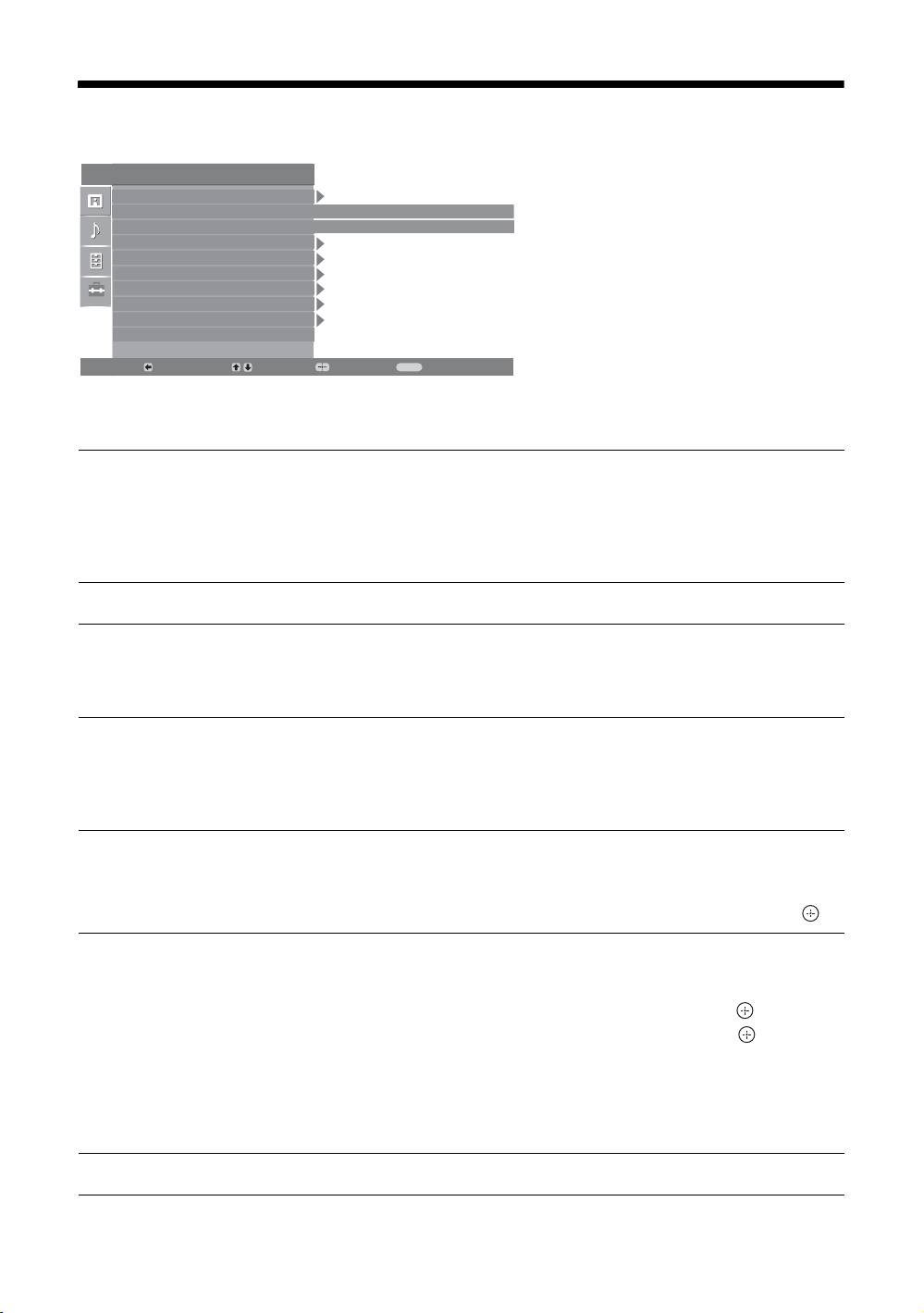
Set-up menu
You can select the options listed below on the
Set Up
Set-up menu. To select options in “Settings”, see
Auto Start Up
“Navigating through menus” (page 19).
Language
English
Country
-
Auto Tuning
Programme Sorting
AV Preset
Sound Offset
Manual Programme Preset
Digital Set Up
Back:
Select:
Enter:
Exit:
MENU
Auto Start-up
Starts the “first time operation menu” to select the language and country/region, and
tune in all available digital and analogue channels. Usually, you do not need to do
this operation because the language and country/region will have been selected and
channels already tuned when the TV was first installed (page 5, 6). However, this
option allows you to repeat the process (e.g., to retune the TV after moving house,
or to search for new channels that have been launched by broadcasters).
Language
Selects the language in which the menus are displayed.
Country
Selects the country/region where you operate the TV.
Tip
The country/region in which you want to use the TV does not appear in the list, select
“-” instead of a country/region.
Auto Tuning
Tunes in all the available analogue channels.
Usually you do not need to do this operation because the channels are already tuned
when the TV was first installed (page 5, 6). However, this option allows you to
repeat the process (e.g., to retune the TV after moving house, or to search for new
channels that have been launched by broadcasters).
Programme Sorting
Changes the order in which the analogue channels are stored on the TV.
1 Press
F/f to select the channel you want to move to a new position,
then press
g.
2 Press
F/f to select the new position for your channel, then press .
AV Preset
Assigns a name to any equipment connected to the side and rear sockets. The name
will be displayed briefly on the screen when the equipment is selected. You can skip
an input source that is not connected to any equipment.
1 Press F/f to select the desired input source, then press .
2 Press
F/f to select the desired option below, then press .
• AV1 (or AV2/AV3/AV4/PC), VIDEO, DVD, CABLE, GAME, CAM, SAT: Uses one
of the preset labels to assign a name to connected equipment.
• “Edit”: Creates your own label.
• “Skip”: Skips an input source that is not connected to any equipment when you
press F/f to select the input source.
Sound Offset
Sets an independent volume level to each equipment connected to the TV.
GB
24
Manual Programme
Before selecting “Label”/“AFT”/“Audio Filter”/“Skip”/“Decoder”, press F/f to
select the programme number you want to modify. Then, press .
Preset
System
/Channel
Presets programme channels manually.
1 Press F/f to select “System”, then press .
2 Press
F/f to select one of the following TV broadcast systems, then
press
G.
B/G: For western European countries/regions
D/K: For eastern European countries/regions
L: For France
I: For the United Kingdom
Note
Depending on the country/region selected for “Country” (page 5), this option may not be
available.
3 Press F/f to select “Channel”, then press .
4 Press
F/f to select “S” (for cable channels) or “C” (for terrestrial
Using MENU Functions
channels), then press
g.
5 Tune the channels as follows:
If you do not know the channel number (frequency)
Press F/f to search for the next available channel. When a channel has been found,
the search will stop. To continue searching, press
F/f.
If you know the channel number (frequency)
Press the number buttons to enter the channel number of the broadcast you want or
your VCR channel number.
6 Press to jump to “Confirm”, then press .
7 Press f to select “OK”, then press .
Repeat the procedure above to preset other channels manually.
Label
Assigns a name of your choice, up to five letters or numbers, to the selected channel.
This name will be displayed briefly on the screen when the channel is selected.
AFT
Allows you to fine-tune the selected programme number manually if you feel that a
slight tuning adjustment will improve the picture quality.
You can adjust the fine tuning over a range of -15 to +15. When “On” is selected, the
fine tuning is performed automatically.
Audio Filter
Improves the sound for individual channels in the case of distortion in mono
broadcasts. Sometimes a non-standard broadcast signal can cause sound distortion or
intermittent sound muting when watching mono programmes.
If you do not experience any sound distortion, we recommend that you leave this
option set to the factory setting “Off”.
Notes
• You cannot receive stereo or dual sound when “Low” or “High” is selected.
• “Audio Filter” is not available when “System” is set to “L”.
Continued
GB
25

Skip
Skips unused analogue channels when you press PROG +/- to select channels. (You
can still select a skipped channel using the number buttons.)
Decoder
Views and records the scrambled channel selected when using a decoder connected
directly to scart connector / 1, or to scart connector / 2 (only for
KDL-20G2000) via a VCR.
Note
Depending on the country/region selected for “Country” (page 5), this option may not be
available.
Confirm
Saves changes made to the “Manual Programme Preset” settings.
GB
26
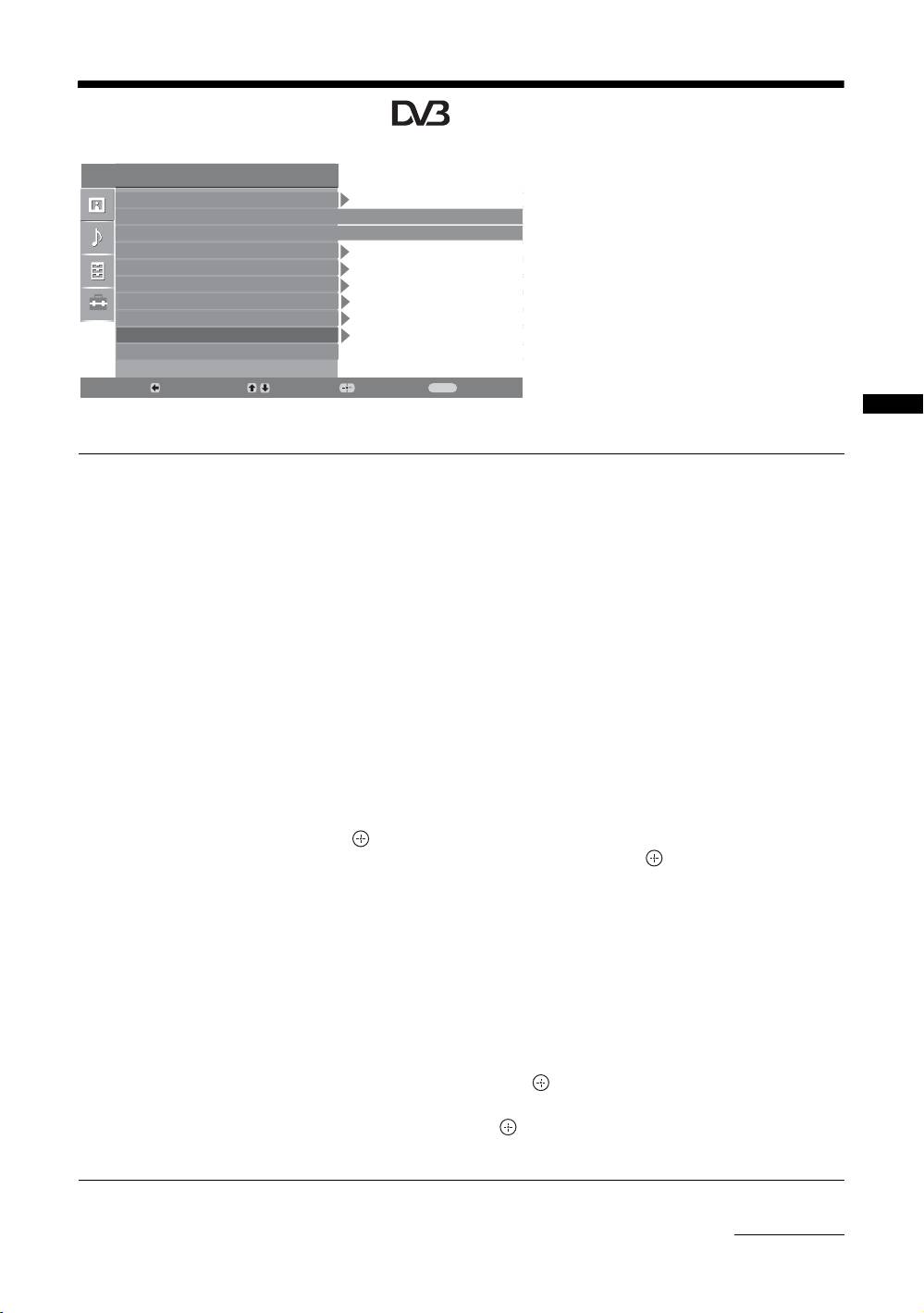
Digital Set Up menu
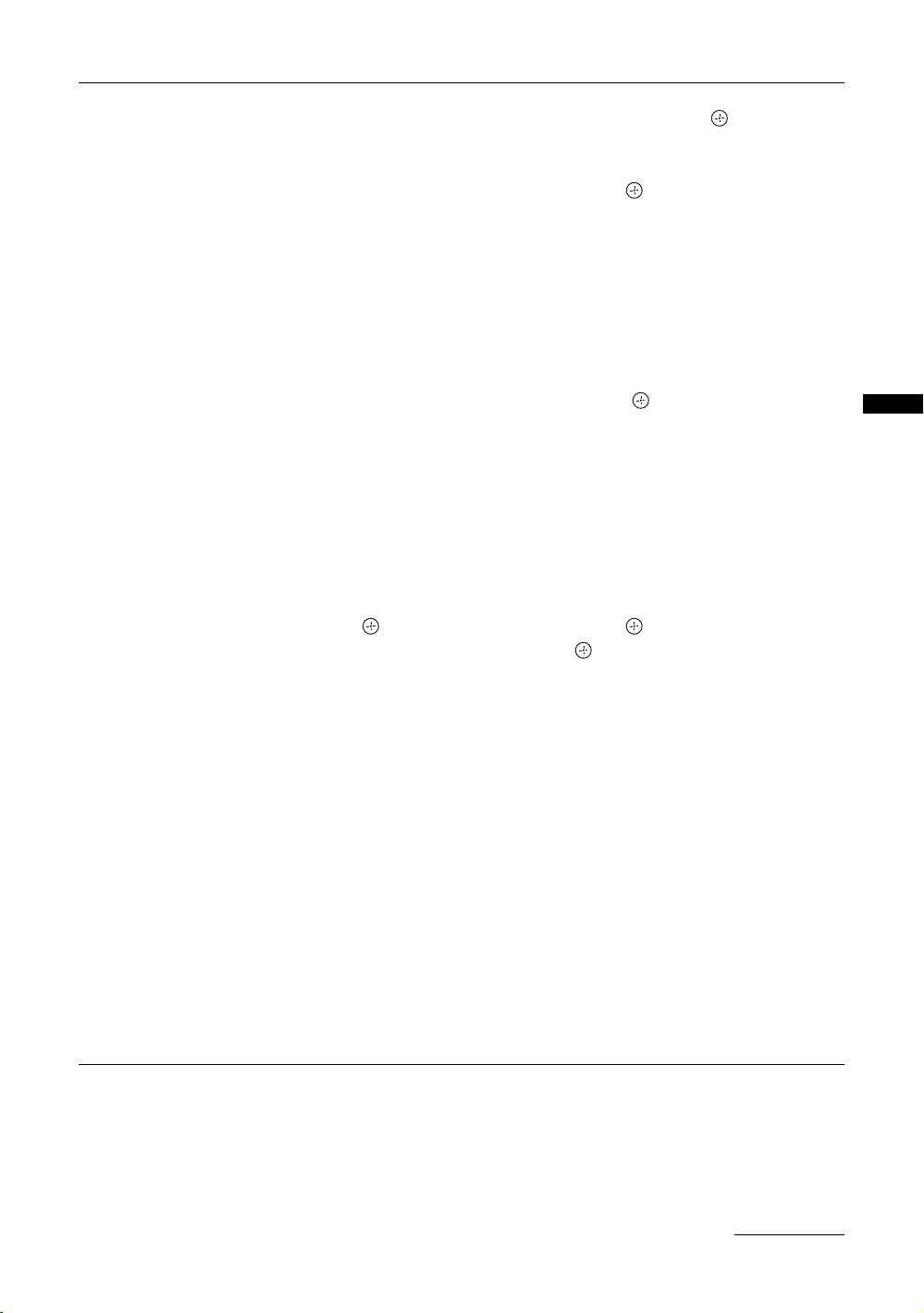
You can change/set the digital settings using the
Set Up
Digital Set Up menu. To select options in
Auto Start Up
“Settings”, see “Navigating through menus”
Language
English
(page 19).
Country
-
Auto Tuning
Programme Sorting
AV Preset
Sound Offset
Manual Programme Preset
Digital Set Up
Back:
Select:
Enter:
Exit:
MENU
Using MENU Functions
Digital Tuning
Displays the “Digital Tuning” menu.
Digital Auto Tuning
Tunes in all the available digital channels.
Usually you do not need to do this operation because the channels are already tuned
when the TV was first installed (page 5). However, this option allows you to repeat
the process (e.g., to retune the TV after moving house, or to search for new channels
that have been launched by broadcasters).
Programme List Edit
Removes any unwanted digital channels stored on the TV, and changes the order of
the digital channels stored on the TV.
1 Press
F/f to select the channel you want to remove or move to a new
position.
If you know the programme number (frequency)
Press the number buttons to enter the three-digit programme number of the broadcast
you want.
2 Remove or change the order of the digital channels as follows:
To remove the digital channel
Press . A message that confirms whether the selected digital channel is to be
deleted appears. Press
G to select “Yes”, then press .
To change the order of the digital channels
Press g, then press F/f to select the new position for the channel and press G.
Repeat the procedure in steps 1 and 2 to move other channels if required.
3 Press RETURN.
Digital Manual Tuning
Tunes the digital channels manually.
1 Press the number button to select the channel number you want to
manually tune, then press
F/f to tune the channel.
2 When the available channels are found, press
F/f to select the channel
you want to store, then press .
3 Press
F/f to select the programme number where you want to store the
new channel, then press .
Repeat the procedure above to tune other channels manually.
Continued
GB
27

Digital Set Up
Displays the “Digital Set Up” menu.
Subtitle Setting
Displays digital subtitles on the screen.
When “For Hard Of Hearing” is selected, some visual aids may also be displayed
with the subtitles (if TV channels broadcast such information).
Subtitle Language
Selects which language subtitles are displayed in.
Audio Language
Selects the language used for a programme. Some digital channels may broadcast
several audio languages for a programme.
Audio Type
Increases the sound level when “For Hard Of Hearing” is selected.
Parental Lock
Sets an age restriction for programmes. Any programme that exceeds the age
restriction can only be watched after a PIN Code is entered correctly.
1 Press the number buttons to enter your existing PIN code.
If you have not previously set a PIN, a PIN code entry screen appears. Follow the
instruction of “PIN Code” below.
2 Press F/f to select the age restriction or “None” (for unrestricted
watching), then press .
3 Press RETURN.
PIN Code
Sets a PIN code for the first time, or allows you to change your PIN code.
1 Enter a PIN as follows:
If you have previously set a PIN
Press the number buttons to enter your existing PIN.
If you have not set a PIN
Press the number buttons to enter the factory setting PIN of 9999.
2 Press the number buttons to enter the new PIN code.
A message appears to inform you that the new PIN has been accepted.
3 Press RETURN.
Tip
PIN code 9999 is always accepted.
Technical Set-up
Displays the Technical Set-up menu.
“Auto Service Update”: Enables the TV to detect and store new digital services as
they become available.
“Software Download”: Enables the TV to automatically receive software updates,
free through your existing aerial (when issued). Sony recommends that this option is
set to “On” at all times. If you do not want your software to be updated, set this option
to “Off”.
“System Information”: Displays the current software version and the signal level.
“Time Zone”: Allows you to select the correct time zone for your country.
CA Module Set-up
Allows you to access a Pay Per View service once you obtain a Conditional Access
Module (CAM) and a view card. See page 29 for the location of the (PCMCIA)
socket.
GB
28
Using Optional Equipment
Connecting optional equipment
You can connect a wide range of optional equipment to your TV. Connecting cables are not supplied.
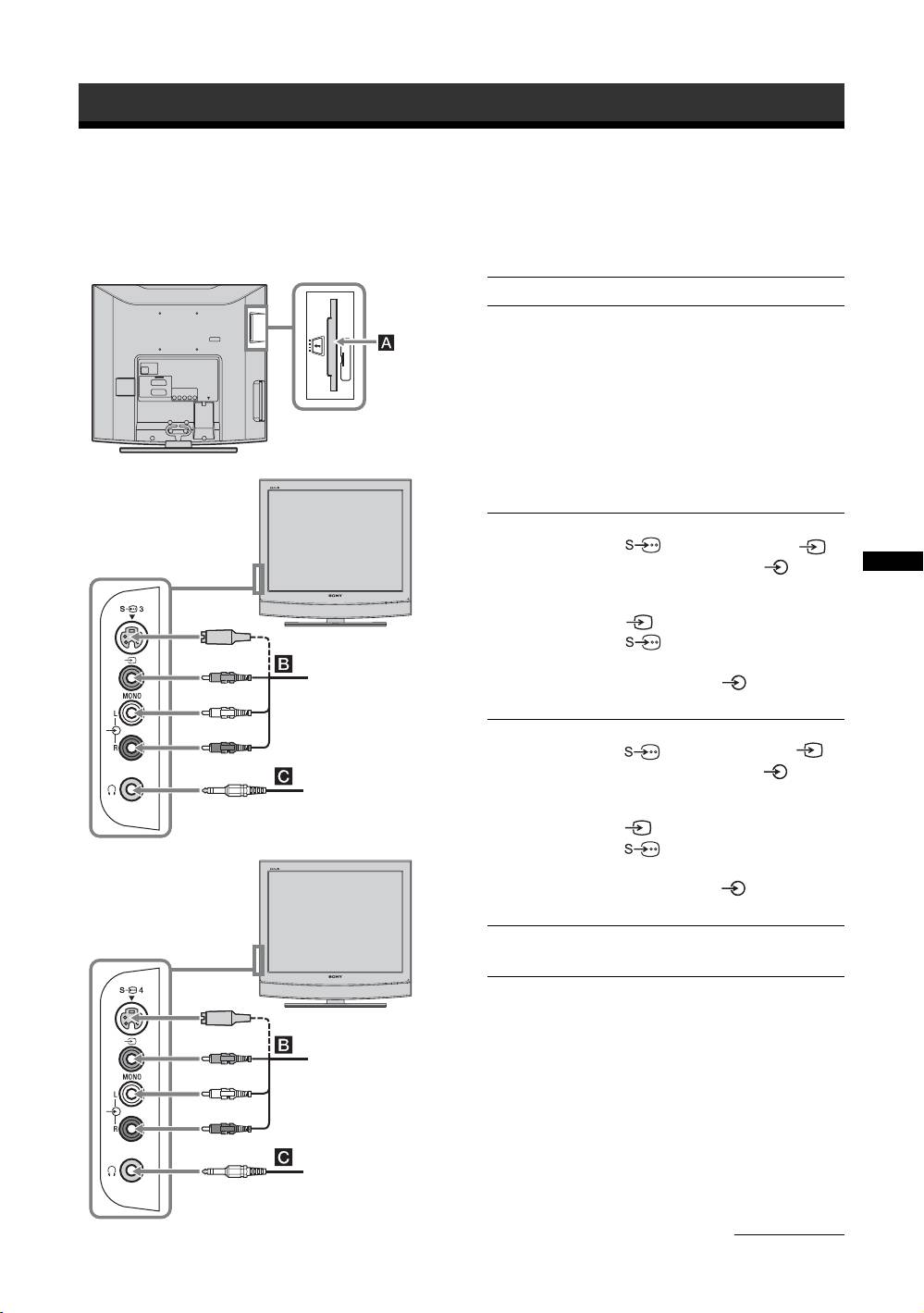
Connecting to the TV (side)
(
To connect Do this
Conditional Access
To use Pay Per View services.
Module (CAM) A
For details, refer to the instruction
manual supplied with your CAM.
To use the CAM, remove the
rubber cover from the CAM slot.
Switch off the TV when inserting
your CAM into the CAM slot.
When you do not use the CAM, we
recommend that you replace the
cover on the CAM slot.
For KDL-15G2000
S VHS/Hi8/DVC
Connect to the S video socket
camcorder B
3 or the video socket 3,
(For KDL-15G2000)
and the audio sockets 3. To
avoid picture noise, do not connect
Using Optional Equipment
the camcorder to the video socket
3 and the S video socket
3 at the same time. If you
connect mono equipment, connect
S VHS/Hi8/DVC
camcorder
to the L socket 3, and set
“Dual Sound” to “A” (page 21).
S VHS/Hi8/DVC
Connect to the S video socket
camcorder B
4 or the video socket 4,
(For KDL-20G2000)
and the audio sockets 4. To
Headphones
avoid picture noise, do not connect
the camcorder to the video socket
4 and the S video socket
4 at the same time. If you
connect mono equipment, connect
For KDL-20G2000
to the L socket 4, and set
“Dual Sound” to “A” (page 21).
Headphones C Connect to the i socket to listen to
sound from the TV on headphones.
S VHS/Hi8/DVC
camcorder
Headphones
Continued
GB
29
For KDL-15G2000 For KDL-20G2000
PC
DVD player with
component output
DVD recorder
VCR
Decoder
DVD player with component output
Video game equipment
Video game equipment
DVD player
DVD player
Decoder
Decoder
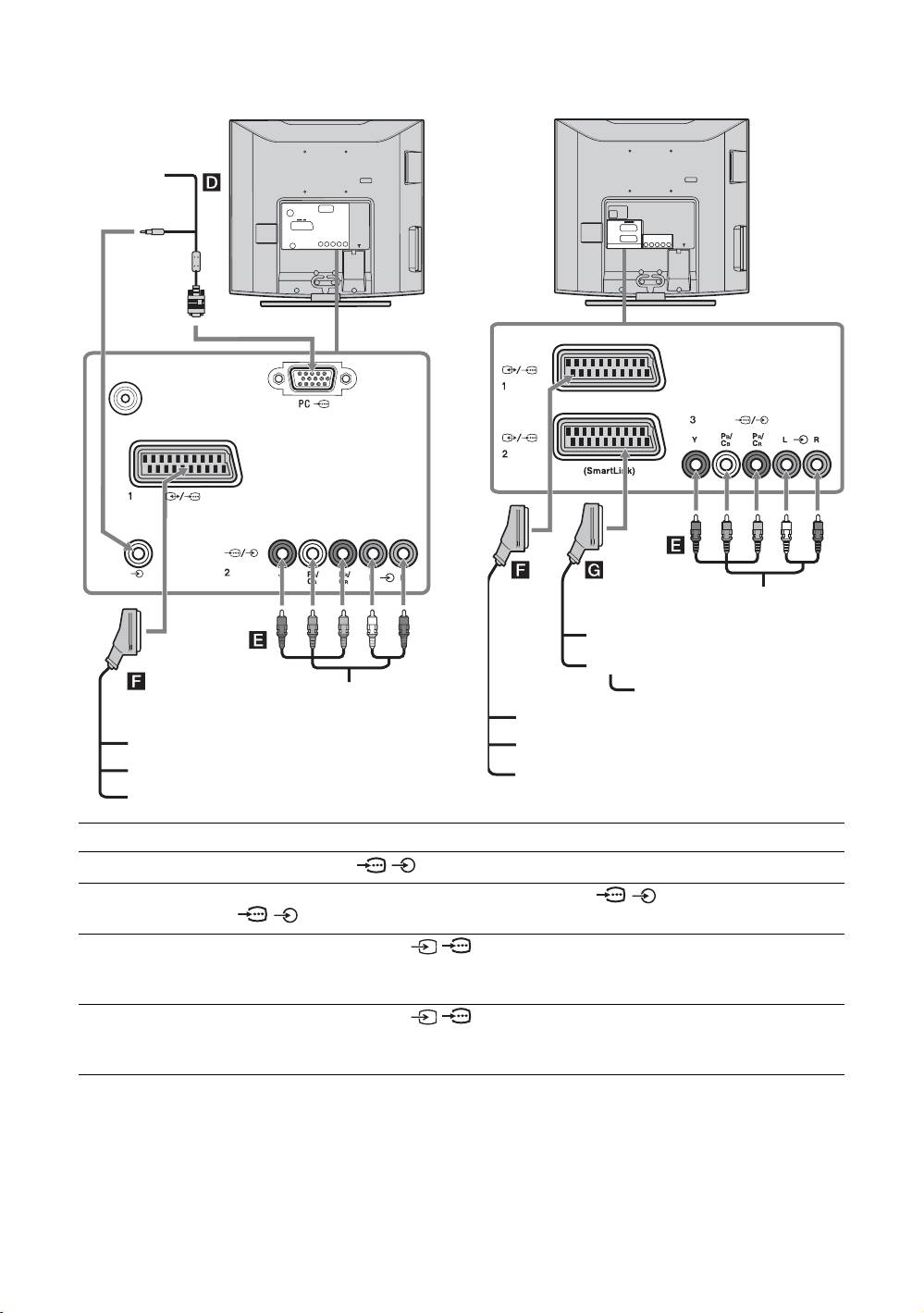
To connect Do this
PC D Connect to the PC / sockets. It is recommended to use a PC cable with ferrites.
DVD player with
Connect to the component sockets and the audio sockets / 2 (for KDL-15G2000) and
component output E
/ 3 (for KDL-20G2000).
Video game
Connect to the scart socket / 1. When you connect the decoder, the scrambled signal
equipment, DVD
from the TV tuner is output to the decoder, then the unscrambled signal is output from the
player or decoder F
decoder.
DVD recorder or VCR
Connect to the scart socket / 2. SmartLink is a direct link between the TV and a VCR/
that supports
DVD recorder.
SmartLink G
GB
30
Additional Information
Aerial
Specifications
75 ohm external terminal for VHF/UHF
Display Unit
Channel Coverage
Screen Size:
Analogue: VHF: E2–E12
KDL-20G2000: 20 inches
UHF: E21–E69
KDL-15G2000: 15 inches
CATV: S1–S20
Display Resolution:
HYPER: S21–S41
KDL-20G2000: 640 dots (horizontal) × 480 lines
D/K: R1–R12, R21–R69
(vertical)
L: F2–F10, B–Q, F21–F69
KDL-15G2000: 1,024 dots (horizontal) × 768 lines
I: UHF B21–B69
(vertical)
Digital: VHF/UHF
Power Requirements:
Terminals
220–240 V AC, 50 Hz
/1
AC power adaptor:
21-pin Scart connector (CENELEC standard) including
KDL-20G2000:
audio/video input, RGB input, and TV audio/video
Model name: AC-FD008
output.
Rating: Input AC 100 V-240 V
/ 2 (SmartLink) (only for KDL-20G2000)
50/60 Hz, 128 W
21-pin Scart connector (CENELEC standard) including
Output DC 18 V 6.11 A
audio/video input, RGB input, selectable audio/video
KDL-15G2000:
output and SmartLink interface.
Model name: AC-FD006
3 (For KDL-20G2000) / 2 (For KDL-15G2000)
Rating: Input AC 100 V-240 V
Supported formats: 576p, 576i, 480p, 480i
50/60 Hz, 74 W
Y: 1 Vp-p, 75 ohms, 0.3V negative sync
Output DC 16.5 V 3.9 A
P
B/CB: 0.7 Vp-p, 75 ohms
Power Consumption:
P
R/CR: 0.7 Vp-p, 75 ohms
KDL-20G2000: 53 W
3 (For KDL-20G2000) / 2 (For KDL-15G2000)
KDL-15G2000: 34 W
Audio input (phono jacks)
Standby Power Consumption*:
500 mVrms
KDL-20G2000: 1.2 W
Impedance: 47 kilo ohms
KDL-15G2000: 1.1 W
For KDL-20G2000
* Specified standby power is reached after the TV finishes
4 S video input (4-pin mini DIN)
necessary internal processes.
Additional Information
4 Video input (phono jack)
Dimensions (w × h × d):
4 Audio input (phono jacks)
KDL-20G2000:
For KDL-15G2000
Approx. 498 × 477 × 235 mm (with stand)
3 S video input (4-pin mini DIN)
Approx. 498 × 445 × 111 mm (without stand)
3 Video input (phono jack)
KDL-15G2000:
3 Audio input (phono jacks)
Approx. 394 × 398 × 170 mm (with stand)
Approx. 394 × 366 × 111 mm (without stand)
PC PC Input (15 Dsub) (see page 30) (only for KDL-
Mass:
15G2000)
KDL-20G2000:
G: 0.7 Vp-p, 75 ohms, non Sync on Green
Approx. 10.4 kg (with stand)
B: 0.7 Vp-p, 75 ohms, non Sync on Green
Approx. 8.9 kg (without stand)
R: 0.7 Vp-p, 75 ohms, non Sync on Green
KDL-15G2000:
HD: 1-5 Vp-p
Approx. 5.7 kg (with stand)
VD: 1-5 Vp-p
Approx. 4.8 kg (without stand)
PC audio input (minijack)
Panel System
i Headphones jack
CAM (Conditional Access Module) slot
LCD (Liquid Crystal Display) Panel
TV System
Analogue: Depending on your country/region selection:
B/G/H, D/K, L, I
Digital: DVB-T
Colour/Video System
Analogue: PAL, SECAM
NTSC 3.58, 4.43 (only Video In)
Digital: MPEG-2 MP@ML
Continued
GB
31

Sound Output
Design and specifications are subject to change
KDL-20G2000: 3 W + 3 W (RMS)
without notice.
KDL-15G2000: 3 W + 3 W (RMS)
Supplied Accessories
Refer to “1: Checking the accessories” on page 4.
PC Input Signal Reference Chart (only for KDL-15G2000)
Horizontal
Vertical
Signals Horizontal (Pixel) Vertical (Line)
frequency
Standard
frequency (Hz)
(kHz)
VGA 640 480 31.5 60 VGA
SVGA 800 600 37.9 60 VESA Guidelines
XGA 1024 768 48.4 60 VESA Guidelines
• This TV’s PC input does not support Sync on Green or Composite Sync.
• This TV’s PC input does not support interlaced signals.
• This TV’s PC input supports signals in the above chart with a 60 Hz vertical frequency. For other signals, you will see the
message “Out of range”.
GB
32
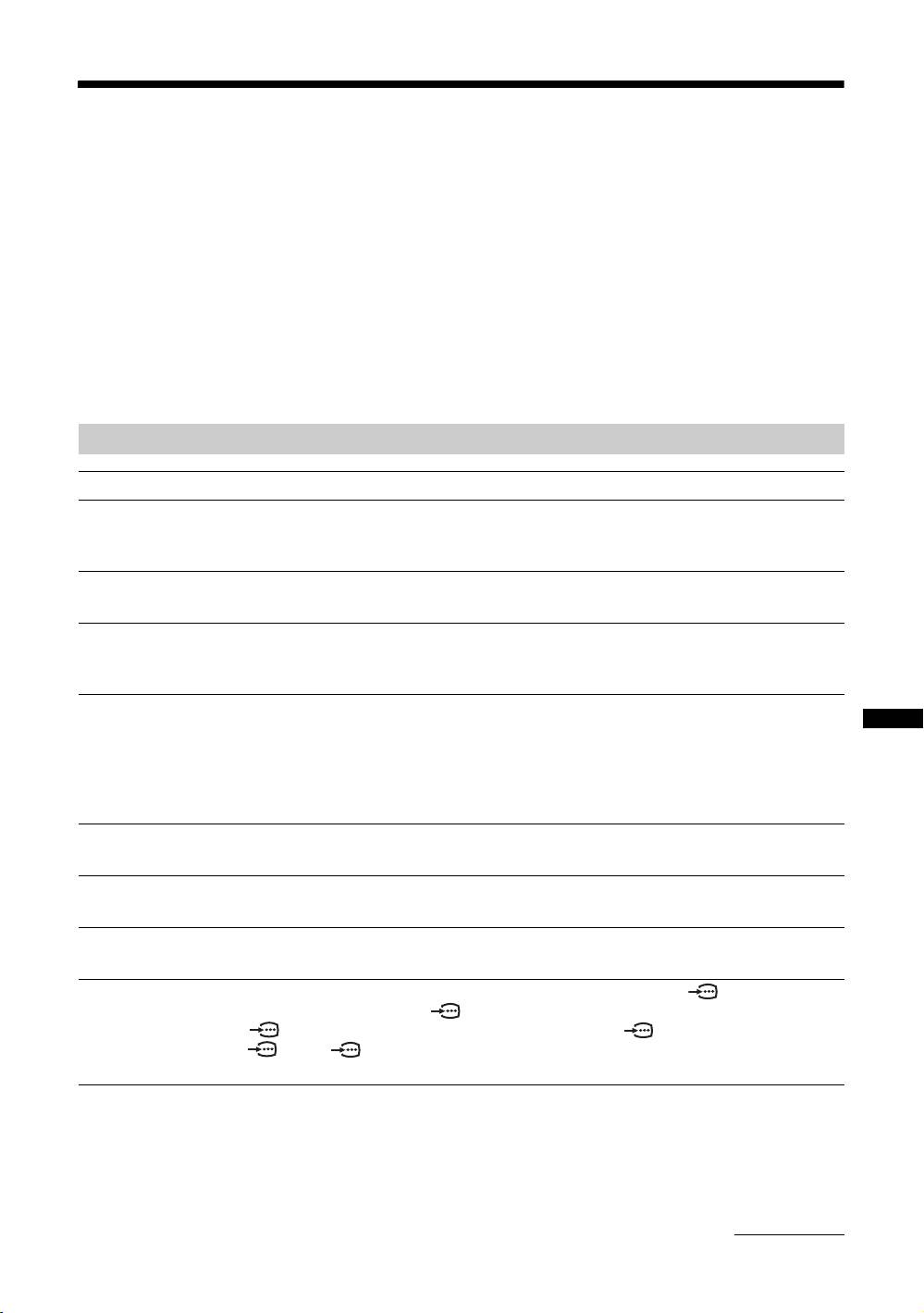
Troubleshooting
Check whether the 1 (standby) indicator is flashing in red.
When it is flashing
The self-diagnosis function is activated.
1 Measure how long the 1 (standby) indicator flashes and stops flashing.
For example, the indicator flashes for two seconds, stops flashing for one second, and flashes for two seconds.
2 Press 1 on the TV (top side) to switch it off, disconnect the mains lead, and inform your dealer or
Sony service centre of how the indicator flashes (duration and interval).
When it is not flashing
1 Check the items in the tables below.
2 If the problem still persists, have your TV serviced by qualified service personnel.
Picture
Problem Cause/Remedy
No picture (screen is dark) and
• Check the aerial connection.
no sound
• Connect the TV to the mains, and press 1 on the TV (top side).
• If the 1 (standby) indicator lights up in red, press "/1.
Double images or ghosting
• Check aerial/cable connections.
• Check the aerial location and direction.
Only snow and noise appear
• Check if the aerial is broken or bent.
on the screen
• Check if the aerial has reached the end of its serviceable life (three to five
years in normal use, one to two years at the seaside).
Distorted picture (dotted lines
• Keep the TV away from electrical noise sources such as cars, motorcycles,
or stripes)
hair-dryers or optical equipment.
Additional Information
• When installing optional equipment, leave some space between the optional
equipment and the TV.
• Make sure that the aerial is connected using the supplied coaxial cable.
• Keep the aerial cable away from other connecting cables.
Picture noise when viewing a
• Select “Manual Programme Preset” in the “Set-Up” menu and adjust “AFT”
TV channel
(Automatic Fine Tuning) to obtain better picture reception (page 25).
Some tiny black points and/or
• The picture of a display unit is composed of pixels. Tiny black points and/or
bright points on the screen
bright points (pixels) on the screen do not indicate a malfunction.
No colour on programmes
• Select “Reset” in the “Picture Adjustment” menu to return to the factory
settings (page 20).
No colour or irregular colour
• Check the connection of the Y, PB/CB, PR/CR jacks of 2 (for KDL-
when viewing a signal from the
15G2000) and 3 (for KDL-20G2000).
Y, P B/CB, PR/CR jacks of 2
• Make sure that the Y, P
B/CB, PR/CR jacks of 2 (for KDL-15G2000) and
(for KDL-15G2000) and 3
3 (for KDL-20G2000) are firmly seated in their respective sockets.
(for KDL-20G2000)
Continued
GB
33

Sound
Problem Cause/Remedy
No sound, but good picture
• Press 2 +/– or % (Mute).
Noisy sound
• See the “Picture noise” causes/remedies on page 33.
Channels
Problem Cause/Remedy
The desired channel cannot be
• Switch between digital and analogue mode and select the desired digital/
selected
analogue channel.
Some channels are blank
• Scrambled/Subscription only channel. Subscribe to the Pay Per View
service.
• Channel is used only for data (no picture or sound).
• Contact the broadcaster for transmission details.
Digital channel is not displayed
• Check that the aerial is plugged directly into the TV (not through other
equipment).
• Contact a local installer to find out if digital transmissions are provided in
your area.
• Upgrade to a higher gain aerial.
General
Problem Cause/Remedy
The TV turns off automatically
• Check if the “Sleep Timer” is activated, or confirm the setting of “Off
(the TV enters standby mode)
Time” (page 23).
• If no signal is received and no operation is performed in the TV mode for
10 minutes, the TV automatically switches to standby mode.
The TV turns on automatically
• Check if the “On Time” is activated (page 23).
Some input sources cannot be
• Select “AV Preset” in the “Set-up” menu and cancel “Skip” of the input
selected
source (page 24).
The remote does not function
• Replace the batteries.
GB
34

Index
Numerics
Features menu
22
T
16:9 14
Technical Set-up 28
H
4:3
14
Text
14
Headphones
Timer
23
A
connecting
29
Timer ( ) indicator
12
Aerial
Hue
20
Timer list
16
connecting
4
I
Timer REC
15
AFT
25
Input signal index table 18
Treble
21
Audio Filter
25
Audio Language
28
L
V
Audio Type
28
Label 25
VCR
Auto Start-up
24
Language
5, 24
connecting
4
Auto Tuning
recording
15
M
analogue and digital channels
6
Manual Programme Preset 25
W
analogue channels only
24
Manual timer REC
16
Wide screen mode 14
digital channels only
27
MENU
19
Auto Volume
21
AV Preset
24
N
AV2 Output
22
Noise Reduction 20
B
P
Backlight 20
Parental Lock 28
Balance
21
PC Adjustment
22
Bass
21
Picture Adjustment menu
20
Batteries
Picture Mode
20
inserting into the remote
4
Picture Off ( ) indicator
12
Brightness
20
PIN Code
28
PIP (Picture in Picture)
14
C
Power (") indicator
12
CA Module Set-up 28
Power (1) switch
12
Category list
15
Power Saving
22
Channels
Programme index table
13
auto-tuning
6
Programme List Edit
27
Additional Information
selecting
13
Programme Sorting
24
Skip
26
Clock Set
23
R
Colour
20
Reminder 16
Colour Tone
20
Remote control
Confirm
26
inserting batteries
4
Connecting
overview
11
an aerial/VCR
4
sensor
12
optional equipment
29
Reset
Contrast
20
picture
20
Country
5, 24
sound
21
RGB Center
22
D
Digital Auto Tuning 27
S
Digital Manual Tuning
27
Set-up menu 24
Digital Set Up menu
27
Sharpness
20
Digital Set Up
28
Skip
24, 26
Digital Tuning
27
Sound Adjustment menu
21
Dual Sound
21
Sound Effect
21
Sound Offset
24
E
Specifications
31
EPG (Digital Electronic Programme
Standby (1) indicator
12
Guide)
15
Subtitle Language
28
F
Subtitle Setting
28
Fastext 14
Favourite list
17
GB
35
Информация о торговых марках
Введение
• является зарегистрированной торговой
Благодарим Вас за то, что Вы выбрали этот
маркой DVB Project.
телевизор Sony.
• Произведено по лицензии компании BBE Sound,
Перед первым включением телевизора внимательно
Inc. Лицензия BBE Sound, Inc. зарегистрирована
ознакомьтесь с данной инструкцией по эксплуатации
по патентам США: 5510752, 5736897. Слово “BBE”
и сохраните ее для консультаций в будущем.
и логотип BBE являются торговыми марками
компании BBE Sound, Inc.
Примечание в отношении
• Иллюстрации, приведенные в настоящей
Цифрового ТВ
инструкции, относятся к модели KDL-15/20G2000,
если не оговорено иного.
• Все функции, относящиеся к Цифровому ТВ
( ), будут действовать только в тех странах
или регионах, в которых ведется эфирная
цифровая трансляция сигнала DVB-T (MPEG2).
Просим Вас уточнить у своего дилера, можно ли
принимать сигнал DVB-T там, где Вы живете.
• Хотя данный телевизор следует характеристикам
Изготовителъ:
DVB-T, мы не можем гарантировать его
Сони Корпорейшн
совместимость с будущим вещанием в формате
Адрес: 1-7-1 Кoнан,
DVB-T.
Mинато-кy, Токио, Япония
• Некоторые из функций Цифрового ТВ в
Страна-производитеь: Словацкая Республика
некоторых странах могут быть недоступными.
RU
2
Содержание
Начало работы 4
Сведения по безопасности ....................................................................................................7
Меры предосторожности .....................................................................................................10
Описание пульта ДУ .............................................................................................................11
Описание кнопок и индикаторов телевизора...............................................................12
Просмотр телевизора
Просмотр телевизионных программ ...................................................................................13
Использование цифрового электронного экранного телегида (EPG) ....................15
Использование списка предпочитаемых программ .................................................18
Просмотр изображения с устройств, подключенных к телевизору ................................19
Использование функций MENU
Навигация по системе меню ................................................................................................20
Меню “Настройка изображения” ........................................................................................22
Меню “Настройка звука” .....................................................................................................23
Меню “Функции”....................................................................................................................24
Меню “Установка” ................................................................................................................26
RU
Меню “Цифровая конфигурация” ..............................................................................29
Использование дополнительных устройств
Подключение дополнительных устройств .........................................................................31
Дополнительные сведения
Технические характеристики ..............................................................................................33
Поиск неисправностей .........................................................................................................35
Указатель ..............................................................................................................................37
: только для цифровых каналов
RU
3
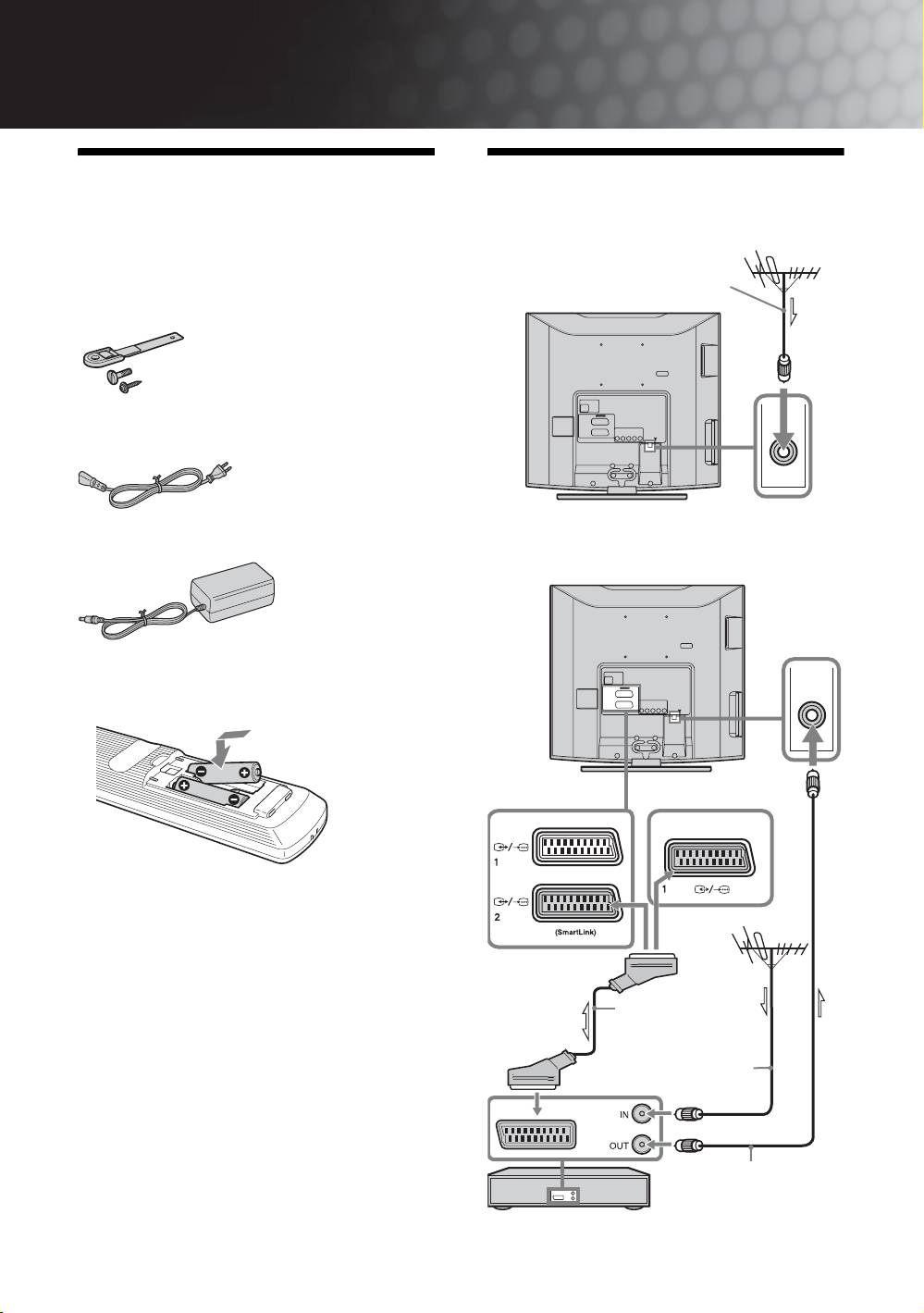
Начало работы
1: Проверка
2: Подключение антенны/
комплекта поставки
видеомагнитофона
Подключения одной антенны
Пульт ДУ RM-ED007 (1)
Батарейки размера AA (типа R6) (2)
Коаксиальный кабель
Ремень для крепления (1) и винты (2)
(прилагается)
(только для KDL-20G2000)
Коаксиальный кабель (1)
Кабель питания (тип C-6) (1)
Адаптер переменного тока (1)
Подключение антенны и видеомагнитофона
Установка батареек в пульт ДУ
Для модели
Для модели
KDL-20G2000
KDL-15G2000
Примечания
• Вставляя батарейки, соблюдайте полярность.
• При утилизации батареек всегда помните правила
защиты окружающей среды. В некоторых регионах
правила утилизации батареек могут быть
регламентированы. Просьба обращаться по этому
поводы в местные органы власти.
• Не используйте одновременно батарейки различных
типов или старые и новые батарейки.
Scart-кабель
• Бережно обращайтесь с пультом ДУ. Не бросайте
(не входит в
его, не становитесь на него и не лейте на него никаких
комплект поставки)
жидкостей.
• Не оставляйте пульт ДУ вблизи источников тепла
Коаксиальный кабель
или в месте, подверженном прямому воздействию
солнечных лучей, или во влажном помещении.
(не входит в комплект
поставки)
Коаксиальный
кабель
(прилагается)
Видеомагнитофон
RU
4
Начало работы
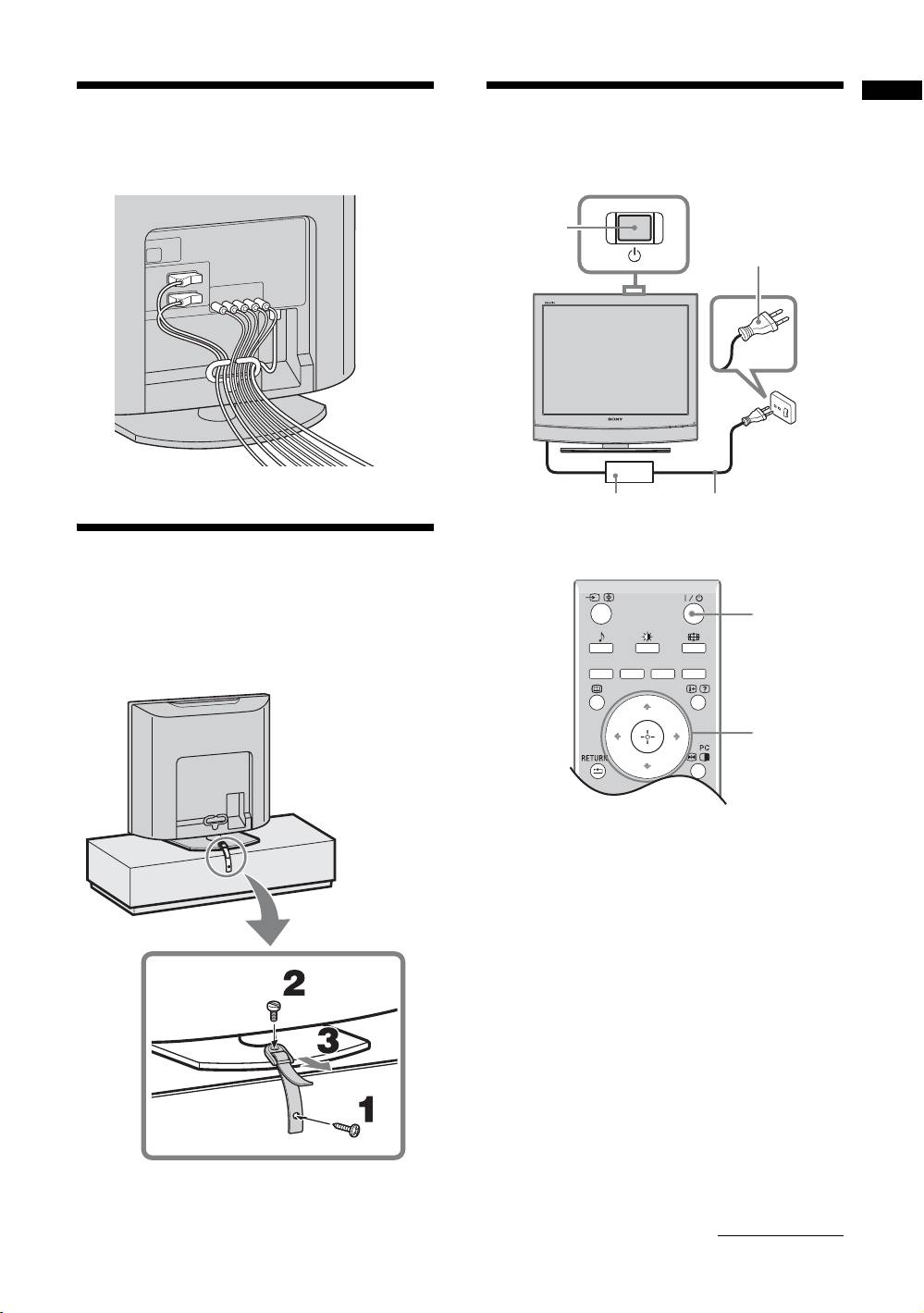
3: Крепление
5:
Выбор языка и
кабелей
страны/региона
2
1
Aдаптер пepeмeнногo
Кабель питания
тока (прилагается)
(прилагается)
4: Меры по
предотвращению
2
падения телевизора
(только для KDL-20G2000)
3,4
1 Включите телевизор в сеть
(220-240 В переменного тока, 50 Гц).
2 Нажмите кнопку 1 на телевизоре (на
его верхней панели).
При первом включении телевизора на его
экране автоматически появляется меню
“Язык” (Language).
Если телевизор находится в дежурном
режиме (индикатор дежурного режима
1
на передней панели телевизора горит
красным цветом), нажмите кнопку "/1 на
пульте ДУ для включения телевизора.
Продолжение
RU
5
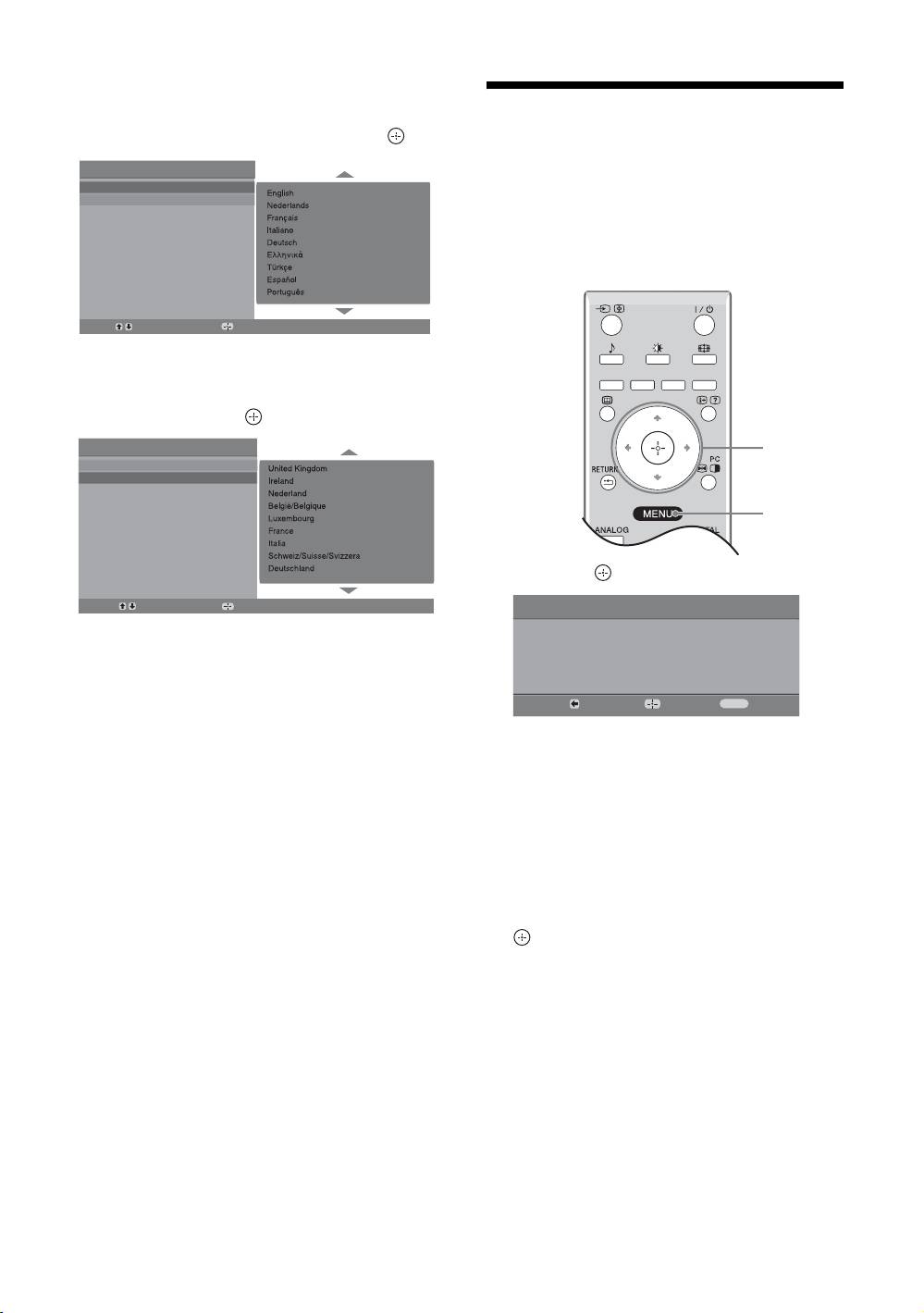
3 Нажимая F/f, выберите из
появившегося на экране меню нужный
6: Автонастройка
Вам язык, затем нажмите кнопку .
телевизора
Auto Start Up
Language
Country
После выбора языка и страны/региона экране
появляется сообщение с подтверждением
начала автонастройки.
Телевизор начнет поиск и сохранение всех
доступных телевизионных каналов.
Select:
Confirm:
4 С помощью кнопок F/f выберите
страну/регион, в которой Вы хотите
использовать телевизор, затем
нажмите кнопку .
Автозапуск
1
Язык
Cтрана
3
1 Нажмитe .
Выбр.:
Подтвер.:
Автонастройка
Если страны/региона, в которой Вы хотите
Вы хотите начать автоматическую настройку?
пользоваться телевизором, нет в списке,
вместо страны/региона выберите “-”
На экране телевизора появится cообщение
Назад:
Запуск:
Oтказ:
MENU
о начале выполнения автонастройки, см.
раздел “6: Автонастройка телевизора”.
Телевизор начнет автоматический поиск
всех доступных цифровых, а затем
аналоговых каналов. Это может занять
некоторое время. Пожалуйста, подождите
и не нажимайте никакие кнопки ни на
телевизоре, ни на пульте ДУ.
В случае появления на экране
сообщения:
“Ни один цифровой или аналоговый канал
не найден” проверьте, правильно ли
подключена антенна, и нажмите кнопку
, чтобы запустить процедуру
автонастройки повторно.
2 При появлении на экране меню
“Сортировка программ”, выполните
операции, указанные в разделе
“Сортировка программ” (стр. 26).
Если Вы не хотите менять порядок, в котором
аналоговые каналы сохранены в памяти
Вашего телевизора, перейдите к шагу 3.
3 Для выхода из меню нажмите кнопку
MENU.
Теперь телевизор настроен на прием всех
доступных каналов.
RU
6

