Sony CPD-E230: Troubleshooting On-screen messages
Troubleshooting On-screen messages: Sony CPD-E230
Table of contents
- Owner’s Record
- Table of Contents Setup 1 Connecting your monitor to your computer 2 Turning on the monitor and computer
- Adjustments Navigating the menu Adjusting the brightness and contrast
- On-Screen menu adjustments
- Troubleshooting On-screen messages
- If thin lines appear on the screen Specifications Self-diagnosis function
- Precautions
x A hum is heard right after the power is turned on
• This is the sound of the auto-degauss cycle. When the power is
Troubleshooting
turned on, the monitor is automatically degaussed for five seconds.
x No picture
* If a second degauss cycle is needed, allow a minimum interval of
20 minutes for the best result. A humming noise may be heard, but this is
If the 1 (power) indicator is not lit
not a malfunction.
• Check that the power cord is properly connected.
• Check that the 1 (power) switch is in the “on” position.
On-screen messages
The 1 (power) indicator is orange
• Check that the video signal cable is properly connected and all plugs
are firmly seated in their sockets.
INFORMATION
• Check that the HD15 video input connector’s pins are not bent or
pushed in.
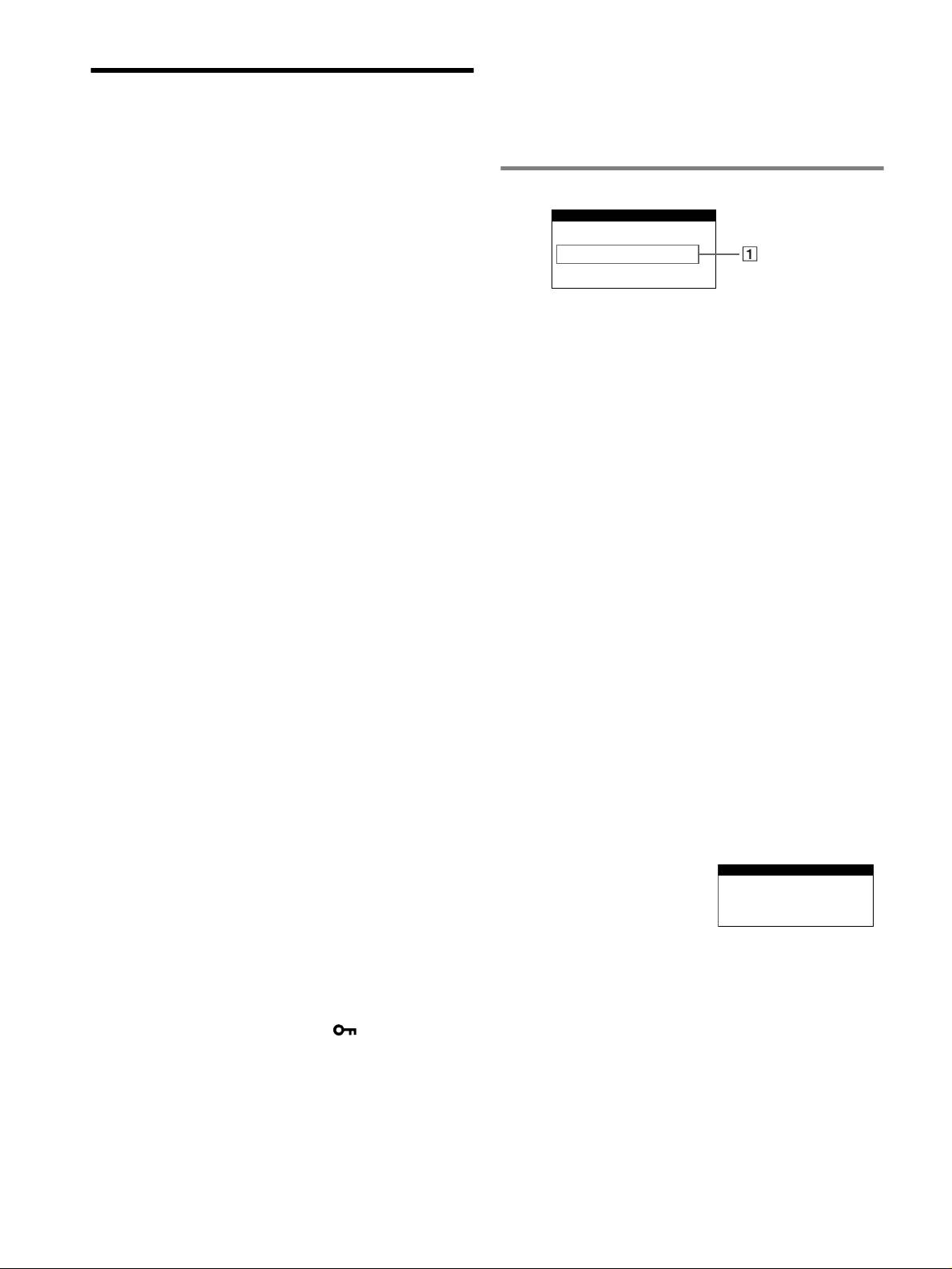
OUT OF SCAN RANGE
• Check that the computer’s power is “on”.
• The computer is in power saving mode. Try pressing any key on the
computer keyboard or moving the mouse.
• Check that the graphic board is completely seated in the proper bus
1 If “OUT OF SCAN RANGE” appears:
slot.
This indicates that the input signal is not supported by the monitor’s
If the 1 (power) indicator is green or flashing orange
specifications. Refer to the following remedies.
• Use the Self-diagnosis function.
• Check that the video frequency range is within that specified for
x Picture flickers, bounces, oscillates, or is scrambled
the monitor. If you replaced an old monitor with this monitor,
• Isolate and eliminate any potential sources of electric or magnetic
reconnect the old monitor and adjust the frequency range to the
fields such as other monitors, laser printers, electric fans, fluorescent
following.
lighting, or televisions.
Horizontal: 30 – 85 kHz
• Move the monitor away from power lines or place a magnetic shield
near the monitor.
Vertical: 48 – 170 Hz
• Try plugging the monitor into a different AC outlet, preferably on a
1 If “NO INPUT SIGNAL” appears:
different circuit.
• Try turning the monitor 90° to the left or right.
This indicates that no input signal is present. Refer to the following
• Check your graphics board manual for the proper monitor setting.
remedies.
• Confirm that the graphics mode and the frequency of the input signal
• Check that the video signal cable is properly connected and all
are supported by this monitor (see “Preset mode timing table” on
plugs are firmly seated in their sockets.
page i). Even if the frequency is within the proper range, some
• Check that the HD15 video input connector’s pins are not bent or
graphics board may have a sync pulse that is too narrow for the
pushed in.
monitor to sync correctly.
• Check that the computer’s power is “on.”
• Adjust the computer’s refresh rate (vertical frequency) to obtain the
• Check that the graphic board is completely seated in the proper
best possible picture.
bus slot.
x Picture is fuzzy
• Adjust the brightness and contrast.
1 If “MONITOR IS IN POWER SAVE MODE”
• Degauss the monitor.*
appears:
• Adjust for minimum moire.
This indicates that the computer is in power saving mode. This
x Picture is ghosting
message is displayed only when your computer is in a power saving
• Eliminate the use of video cable extensions and/or video switch
mode and you press any one of the buttons on the monitor. Refer to
boxes.
the following remedies.
• Check that all plugs are firmly seated in their sockets.
•
Try pressing any key on the computer keyboard or moving the
x Picture is not centered or sized properly
mouse.
• Adjust the size or centering. Note that with some input signals and/
• Check that the computer’s power is “on.”
or graphics board the periphery of the screen is not fully utilized.
• Check that the graphic board is completely seated in the proper
• Just after turning on the power switch, the size/center may take a
bus slot.
while to adjust properly.
x Edges of the image are curved
To display this monitor’s name, serial number, and
date of manufacture.
• Adjust the geometry.
While the monitor is receiving a
INFORMATION
x Wavy or elliptical pattern (moire) is visible
video signal, press and hold the
• Adjust for minimum moire.
MODEL:CPD-E230
MENU/OK button for more than
SER NO:1234567
• Change your desktop pattern.
MANUFACTURED : 200
1-52
five seconds to display this
x Color is not uniform
monitor’s information box.
• Degauss the monitor.* If you place equipment that generates a
magnetic field, such as a speaker, near the monitor, or if you change
the direction the monitor faces, color may lose uniformity.
x White does not look white
• Adjust the color temperature.
x Monitor buttons do not operate ( appears on the
screen)
• If the control lock is set to ON, set it to OFF.
x Letters and lines show red or blue shadows at the
edges
• Adjust the convergence.
6