
Sony CDP-XE520: Recording From CDs Recording Your Own Programme Recording a CD by Specifying Tape Length (Time Edit)
Recording From CDs Recording Your Own Programme Recording a CD by Specifying Tape Length (Time Edit): Sony CDP-XE520
Table of contents
- WARNING Precautions
- TABLE OF CONTENTS
- Unpacking Hooking Up the System
- Getting Started Where do I go next?
- Playing a CD
- Playing CDs Using the Display
- Checking the information of CD TEXT discs
- Locating a Specific Track or a Particular Point in a Track
- Playing Tracks Repeatedly
- Playing in Random Order
- Creating Your Own Programme
- Playing CDs Creating a programme using the remote (CDP-XE520 and CDP-XE320 only) Checking the track order Changing the track order
- Recording From CDs Recording Your Own Programme Recording a CD by Specifying Tape Length (Time Edit)
- Fading In or Out
- Recording From CDs Changing the fading time (CDP-XE520 only) Fading out at the specified time
- Recording From CDs Additional Information Adjusting the Recording Level Notes on CDs
- Additional Information Troubleshooting Specifications
- Index
Recording From CDs
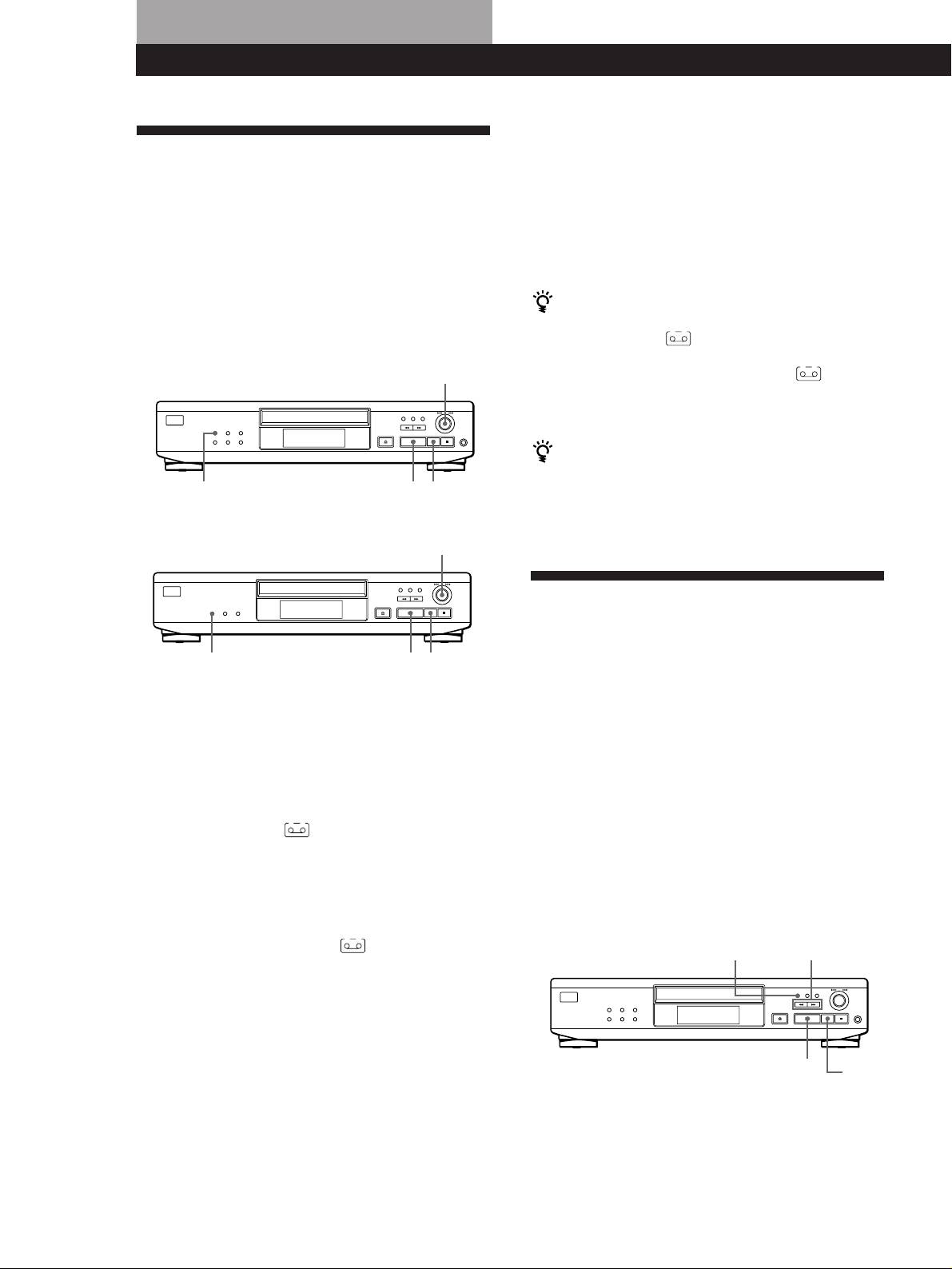
4 Start recording on the deck and then press · on
Recording Your Own
the player.
When you record on both sides of the tape, the player
Programme
pauses at the end of the programme for side A.
You can record the programme you’ve created on a
5 When you record on side B, reverse the tape and
tape, DAT or MD. The programme can contain up to 24
press · or P on the player to resume playing.
tracks.
By inserting a pause during programming, you can
divide the programme into two for recording on both
To check and change your programme
sides of a tape.
See page 13.
The “TAPE A” (or
• CDP-XE520
≠ AMS ±
PLAY MODE
·
P
• CDP-XE320 and CDP-XE220
≠ AMS ±
Recording a CD by Specifying
Tape Length (Time Edit)
PLAY MODE
·
P
(CDP-XE520 only)
1 Create your programme (for side A when
You can have the player create a programme that will
recording on a tape) while checking the total
match the length of the tape. In this feature, the player
playing time indicated in the display.
creates a programme basically keeping the original
Follow Steps 1 to 4 in “Creating a programme on
order of the disc. However, the player may change the
the player” on page 12 or Steps 1 and 2 in
last track of each side to match the recording time to
“Creating a programme using the remote” on page
the tape length.
13.
i.e. Side A: track number 1n2n3n4n8
A
The “TAPE A” (or
indication for the
Side B: track number 5n6n7n9n10
CDP-XE320 and CDP-XE220) appears in the
The programme may contain up to 24 tracks (a pause
display.
inserted between tracks is counted as one track).
Note that tracks numbered over 24 cannot be
2 When you record on both sides of the tape, press
programmed in this feature.
P to insert a pause.
A B
The “P” and “TAPE B” (or
indication for the
EDIT/TIME FADE
0/)
CDP-XE320 and CDP-XE220) appear in the display
and the playing time is reset to “0.00.”
When you record on one side of the tape or on a
DAT or MD, skip this step and go to Step 4.
A pause is counted as one track
You can programme up to 23 tracks when you insert a
pause.
3 Repeat Step 1 to create the programme for side B.
GB
14
A
indication for the CDP-XE320
and CDP-XE220) appears while checking the
B
programme for side A and “TAPE B” (or
indication
for the CDP-XE320 and CDP-XE220) appears while
checking the programme for side B.
When tracks, which aren’t numerically consecutive on
the disc, are programmed consecutively (i.e. 1, 3, 5
etc.)
A one-second access time blank is added between the
tracks.
·
P
