
Sony CDP-XE220: Playing CDs Creating a programme using the remote Checking the track order Changing the track order
Playing CDs Creating a programme using the remote Checking the track order Changing the track order: Sony CDP-XE220
Table of contents
- WARNING Precautions
- TABLE OF CONTENTS Welcome! About This Manual
- Getting Started Unpacking Hooking Up the System
- Getting Started Connecting the mains lead Where do I go next?
- Playing a CD
- Using the Display
- Playing CDs Checking the information of CD TEXT discs (CDP-XE520 only)
- Locating a Specific Track or a Particular Point in a Track
- Playing CDs Playing Tracks Repeatedly
- Playing in Random Order (Shuffle Play)
- Playing CDs Creating Your Own Programme (Programme Play)
- Playing CDs Creating a programme using the remote Checking the track order Changing the track order
- Recording Your Own Programme Recording a CD by Specifying Tape Length (Time Edit) (CDP-XE520 only)
- Recording From CDs Fading In or Out
- Recording From CDs
- Adjusting the Recording Level Notes on CDs
- Troubleshooting Specifications
- Index
Playing CDs
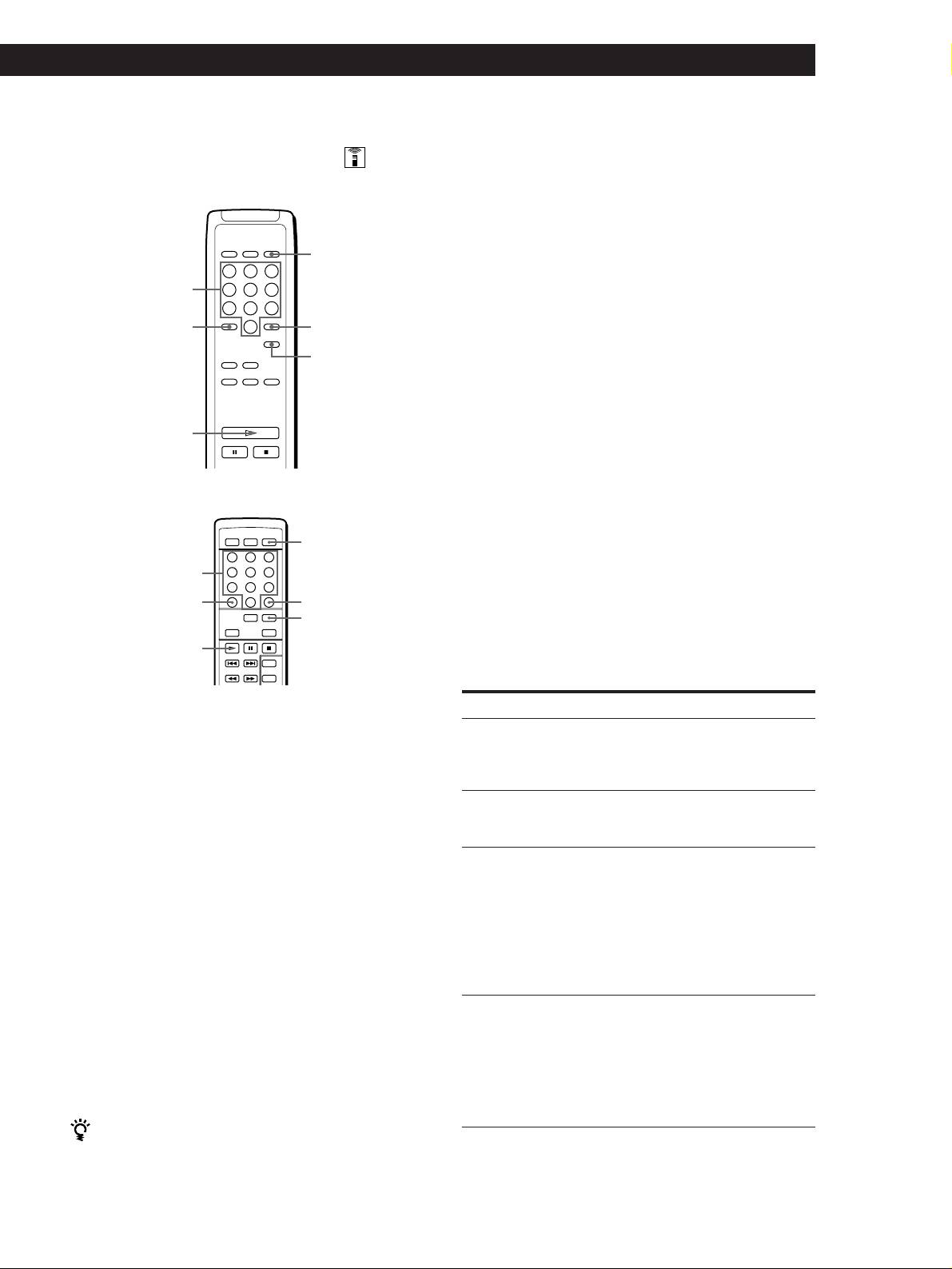
Creating a programme using the remote
Notes
• The total playing time doesn’t appear in the display when it
(CDP-XE520 and CDP-XE320 only)
exceeds 100 minutes.
• If you programme a track numbered over 24 (or 68 for the
• CDP-XE520
CDP-XE320), “–␣ –␣ .␣ –␣ –” appears instead of the total playing
time.
• “PROGRAM FULL” (or “FULL” for the CDP-XE320)
PROGRAM
appears in the display when you try to add a track to a
programme which already contains 24 tracks.
Number buttons
>10
CLEAR
Checking the track order
CHECK
You can check your programme before or after you
start playing.
Press CHECK.
·
Each time you press this button, the display shows the
track number in the programmed order. After the last
track in the programme, the display shows “- END -”
• CDP-XE320
(or “End” for the CDP-XE320 and CDP-XE220) and
returns to the original display. If you check the order
after you start playing, the display shows only the
PROGRAM
remaining track numbers.
Number buttons
>10
CLEAR
Changing the track order
CHECK
You can change your programme before you start
(
playing.
To
You need to
1 Press PROGRAM before you start playing.
“PROGRAM” appears in the display.
Erase a track
Press CHECK until the track
you don’t want appears in
the display, then press
2 Press the number buttons of the tracks you want to
CLEAR
programme in the order you want.
Erase the last track in the
Press CLEAR. Each time you
Example: To programme the tracks 2, 8 and 5.
programme
press the button, the last
Press the number buttons in the order
track will be cleared.
2, 8 and 5.
Add tracks to the end of the
Turn ≠ AMS ± until
programme
the track number you want
to add appears, then push
To select a track with a number over 10
≠ AMS ±.
Use >10 button (see page 10).
When using the remote,
If you’ve made a mistake
press the number buttons of
the tracks to be added
Press CLEAR, then press the correct track number.
(CDP-XE520 and CDP-XE320
only).
3 Press · ( or ( for the CDP-XE320) to start
Change the whole
Hold down CLEAR until
Programme Play.
programme completely
“CLEAR” (for the CDP-
XE520) or “CLEAr” (for the
CDP-XE320 and CDP-XE220)
To cancel Programme Play
appears in the display.
Press CONTINUE.
Create a new programme
following the programming
procedure.
You can check the total playing time while
programming using the remote (Programme Edit)
To select a track, press = or + and check the total
playing time. Then press PROGRAM to confirm your
selection.
GB
13
