
Sony KDL-40Z4500 – page 3
Manual for Sony KDL-40Z4500
Table of contents
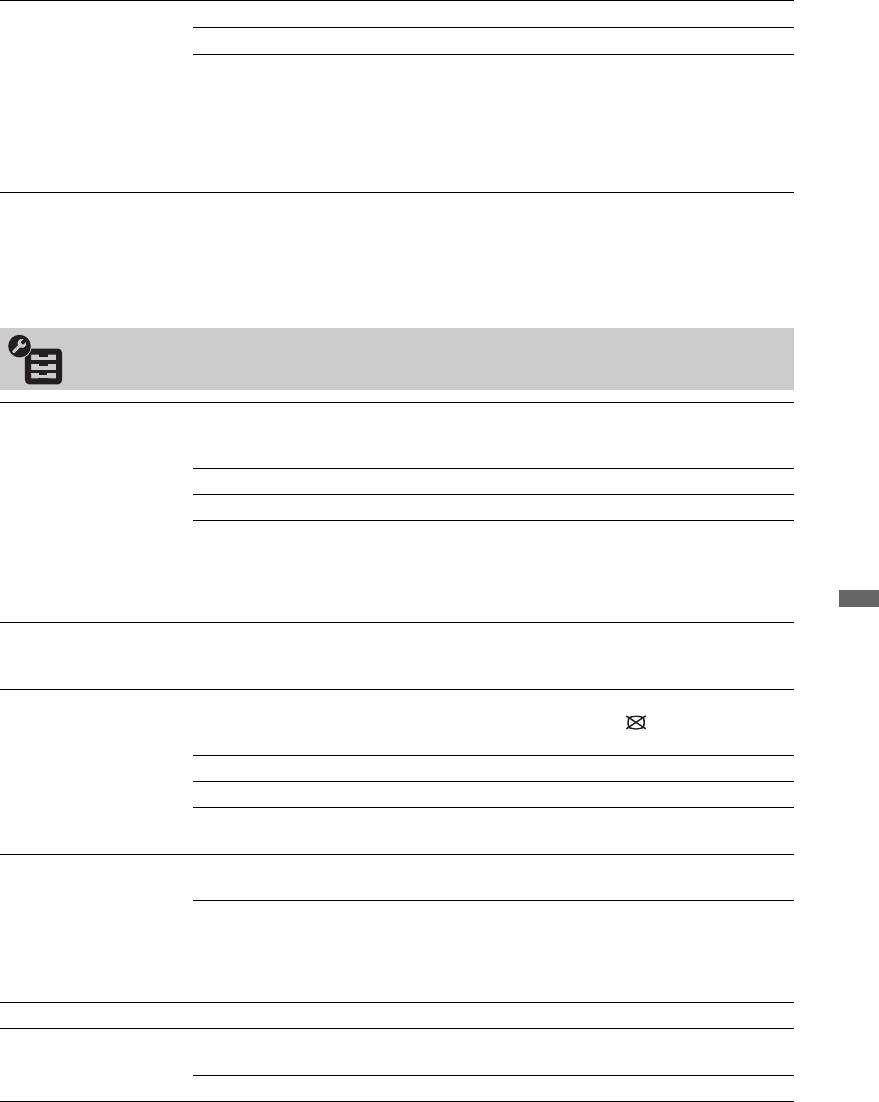
Dual Sound Selects the sound from the speaker for a stereo or bilingual broadcast.
Stereo/Mono For a stereo broadcast.
A/B/Mono For a bilingual broadcast, select “A” for sound channel 1, “B”
for sound channel 2, or “Mono” for a mono channel, if
available.
z
• If you select other equipment connected to the TV, set “Dual Sound” to “Stereo”,
“A” or “B.”
~
• “Treble”, “Bass”, “Balance” and “Auto Volume” are not available when “Speaker” is set to “Audio System”
and headphones are connected.
Features
USB Auto Start Automatically starts photo playback when the TV is turned on and a digital still
camera or other device storing photo files is connected to the USB port and then
turned on.
Slideshow Select to view JPEG files as a slideshow.
Thumbnail View Select to view JPEG files as a thumbnail.
Off Select to disable this function.
~
• Playback does not start automatically if the TV is turned on after connecting the
digital still camera or other device to the USB port.
Using MENU Functions
Quick Start The TV turns on faster than usual within two hours after switching to standby
mode. However, power consumption in standby mode is 20 Watt higher than
usual.
Power Saving Selects the power saving mode to reduce the power consumption of the TV. When
“Picture Off” is selected, the picture is switched off and the (Picture Off)
indicator on the TV front panel lights up in green. The sound remains unchanged.
Standard Power Default settings.
Reduced Power Reduces the power consumption of the TV.
Picture Off Switches off the picture. You can listen to the sound with the
picture off.
Light Sensor On Automatically optimises the picture settings according to the
ambient light in the room.
Off Turns off the “Light Sensor” feature.
~
• Be sure not to put anything over the sensor, as its function may be affected. See
page 15 for the location of the light sensor.
Logo Illumination Lights up and turns off the Sony logo on the front of the TV.
Panel Key
Auto Touch sensor keys light up when you touch the sensor keys
Illumination
on the front of the TV or when the TV is on.
On Touch sensors are lit constantly.
(Continued)
41
GB
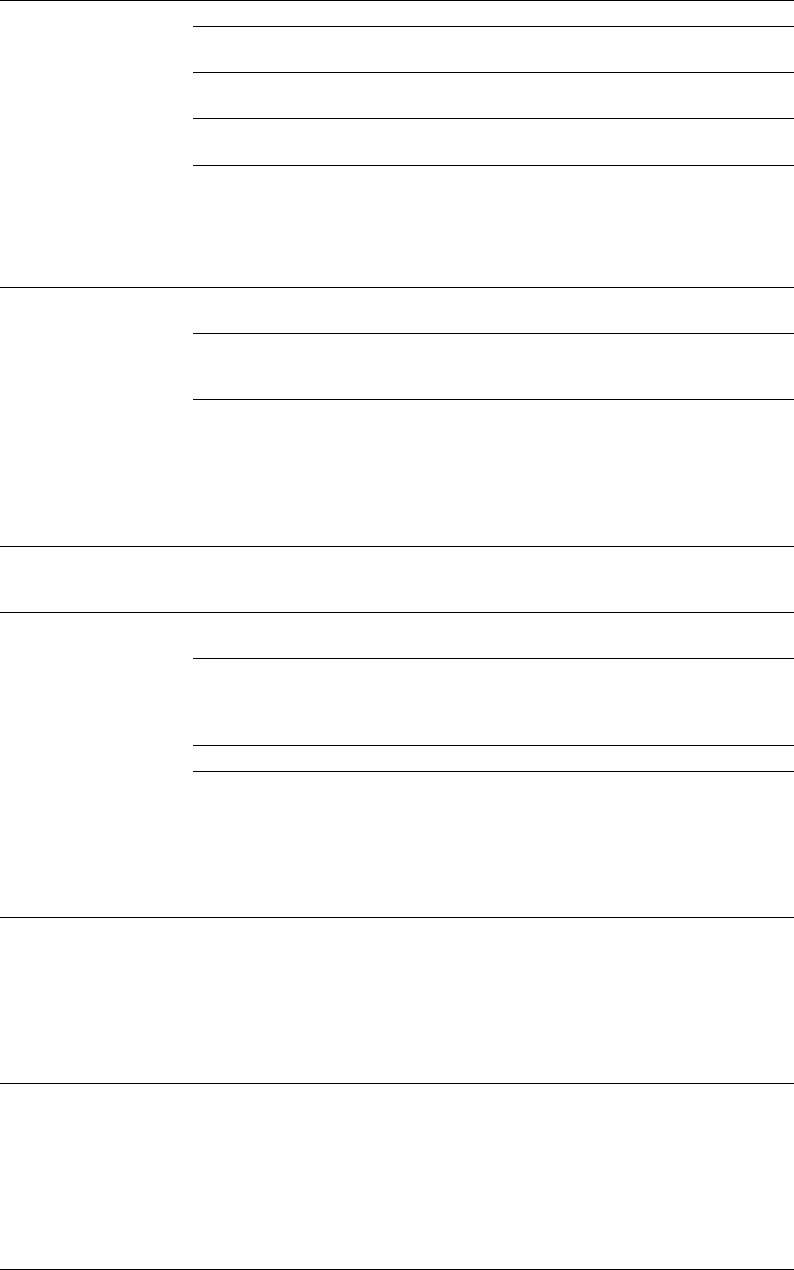
Motionflow Provides smoother picture movement and reduces picture blur.
Max Provides smoother picture movement such as for film-based
contents.
Standard Provides smooth picture movement. Use this setting for
standard use.
Min Provides smooth picture movement. Use this setting to
reduce unwanted picture noise.
Off Use this setting when the “Max”, “Standard” and “Min”
settings result in noise.
~
• Depending on the video, you may not see the effect visually, even if you have
changed the setting.
Film Mode Provides an improved picture quality which is optimised for film when playing
DVD images taken on film.
Auto 1/Auto 2 “Auto 1” Provides smoother picture movement than the
original film-based content. “Auto 2” Provides the original
film-based content as is.
Off Turns off the “Film Mode” feature.
~
• If the image contains irregular signals or too much noise, “Film Mode” will be
automatically turned off even if “Auto 1/Auto 2” is selected.
• “Film Mode” is not available when “Video/Photo” is set to “Photo” or when
photograph is detected if “Video-A” is set.
Game/Text Mode Provides the optimum screen for viewing images with fine lines and characters that
are input from video game equipment. Set to “On” for the sharp display of fine
lines or characters.
Video/Photo Provides suitable image quality by selecting the option depending on the input
source (video or photograph data).
Video-A Sets suitable image quality, depending on the input source,
video data or photograph data when directly connecting Sony
HDMI output-capable equipment that supports “Video-A”
mode.
Video Produces suitable image quality for moving pictures.
Photo Produces suitable image quality for still images.
~
• The setting is fixed to “Video” when Video-A mode is not supported on the
connected equipment, even if “Video-A” is selected.
• Only available for HDMI 1, HDMI 2, HDMI 3 and Component in format 1080i
or 1080p.
x.v.Colour Displays moving pictures that is more faithful to the original source by matching
the colour space of source.
~
• The setting is fixed to “Normal” when the input signal is HDMI (RGB), even if
“x.v.Colour” is selected.
• Only available for HDMI 1, HDMI 2, HDMI 3 and Component in format 720p,
1080i or 1080p.
Photo Colour Space Selects the option (sRGB, sYCC, Adobe RGB) to match the output colour space
within the output signal from the equipment connected to the HDMI, component
input jacks or USB.
~
• Select “sYCC” when using the equipment that supports “x.v.Colour.”
• Only available for HDMI 1, HDMI 2, HDMI 3 and Component in format 1080i
or 1080p.
• Not available when “Colour Space” is set to “Wide” (page 40).
42
GB
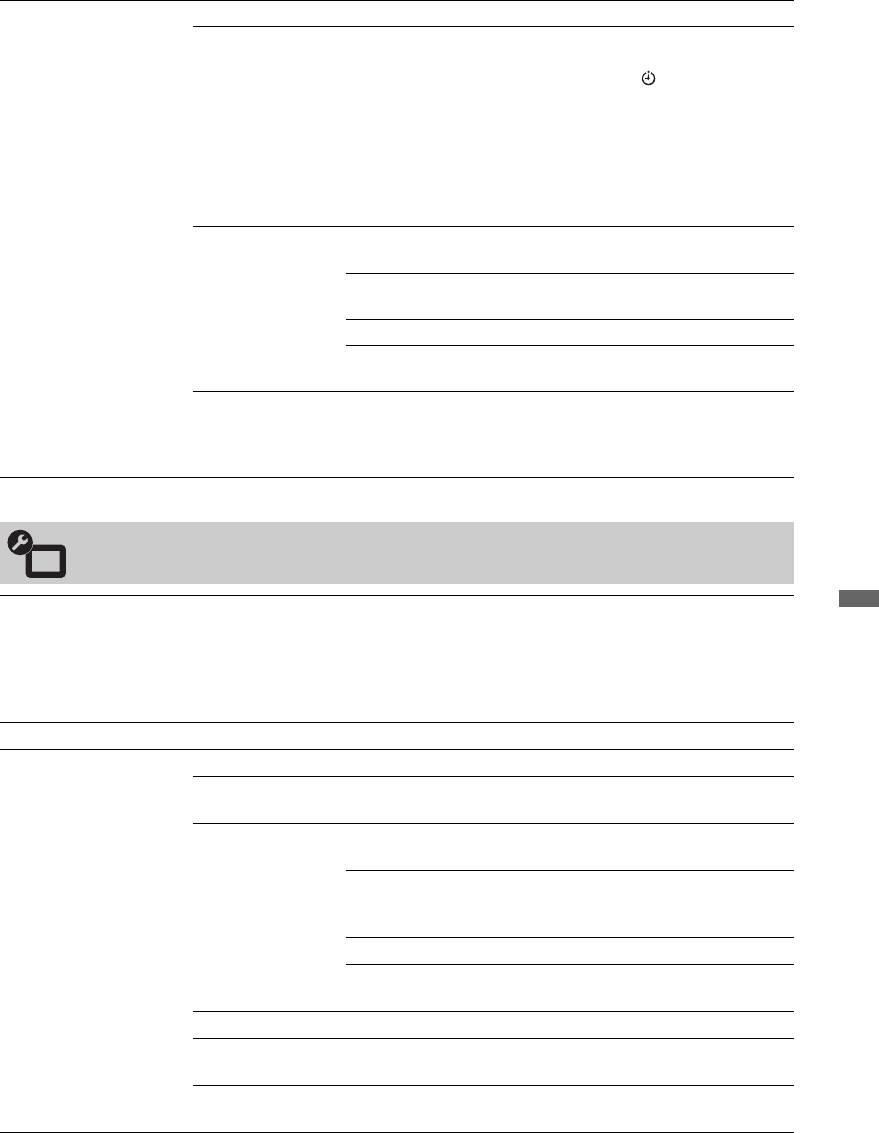
Timer Settings Sets the timer to turn on/off the TV.
Sleep Timer Sets a period of time after which the TV automatically
switches itself into standby mode.
When the “Sleep Timer” is activated, the (Timer) indicator
on the TV (front) lights up in orange.
z
• If you switch off the TV and switch it on again, “Sleep
Timer” is reset to “Off.”
• A notification message appears on the screen one minute
before the TV switches to standby mode.
On Timer
On Timer Sets the timer to turn on the TV from
Settings
standby mode.
Timer Mode Sets the desired day(s) of the week you
want the timer to turn on the TV.
Time Sets the time to turn on the TV.
Duration Sets how long you want the TV to stay on
before switching to standby mode again.
Clock Set Allows you to adjust the clock manually. When the TV is
receiving digital channels, the clock cannot be adjusted
manually since it is set to the time code of the broadcasted
signal.
Set-up
Auto Start-up Starts the “first time operation menu” to select the language, country and location,
Using MENU Functions
and tune in all available digital and analogue channels. Usually, you do not need to
do this operation because the language and country/region will have been selected
and channels already tuned when the TV was first installed (page 6). However, this
option allows you to repeat the process (e.g., to retune the TV after moving house,
or to search for new channels that have been launched by broadcasters).
Language Selects the language in which the menus are displayed.
Screen Settings Screen Format See “To change the screen format manually” on page 17.
Auto Format Automatically changes the screen format according to the
input signal. To keep your setting, select “Off.”
Display Area Adjusts the picture display area in 1080i/p and 720p sources
when “Screen Format” is set to “Wide.”
Auto During digital broadcasts, displays
pictures in accordance with the settings
recommended by the broadcast station.
Full Pixel Displays pictures in their original size.
Normal Displays pictures in their recommended
size.
Horizontal Shift Adjusts the horizontal position of the picture.
Vertical Shift Adjusts the vertical position of the picture when “Screen
Format” is set to “Smart”, “Zoom” or “14:9.”
Vertical Size Adjusts the vertical size of the picture when “Screen Format”
is set to “Smart”, “Zoom” or “14:9.”
(Continued)
43
GB
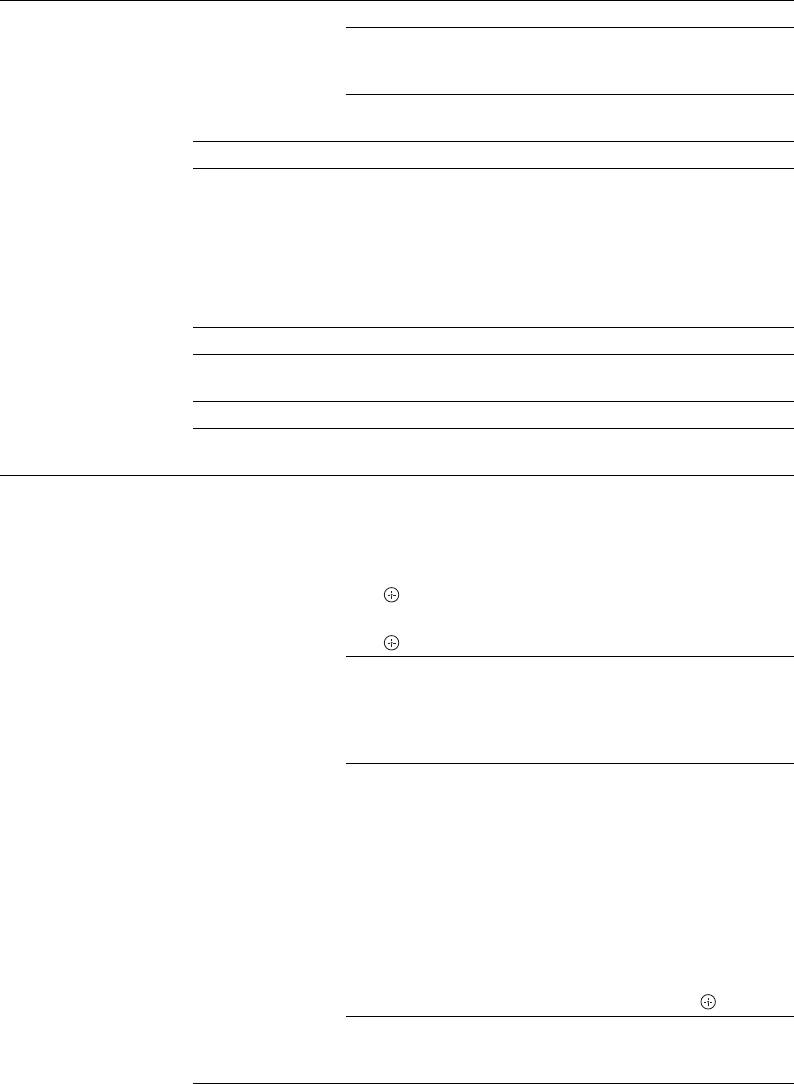
PC Settings Screen Format Selects a screen format for displaying input from your PC.
Full 1 Enlarges the picture to fill the vertical
display area, keeping its original
horizontal-to-vertical aspect ratio.
Full 2 Enlarges the picture to fill the display
area.
Reset Resets the PC screen settings to the factory settings.
Auto Adjustment Automatically adjusts the display position, phase and pitch of
the picture when the TV receives an input signal from the
connected PC.
z
• “Auto Adjustment” may not work well with certain input
signals. In such cases, manually adjust “Phase”, “Pitch” and
“Horizontal Shift.”
Phase Adjusts the phase when the screen flickers.
Pitch Adjusts the pitch when the picture has unwanted vertical
stripes.
Horizontal Shift Adjusts the horizontal position of the picture.
Power
Switches the TV to standby mode if no signal is received for
Management
30 seconds in the PC input.
AV Set-up AV Preset Assigns a name to any equipment connected to the side and
rear sockets. The name will be displayed briefly on the screen
when the equipment is selected. You can skip an input source
that is not connected to any equipment.
1 Press F/f to select the desired input source, then press
.
2 Press F/f to select the desired option below, then press
.
-, CABLE, SAT,
Uses one of the preset labels to assign a
VCR, DVD/BD,
name to connected equipment.
GAME, AUDIO
SYSTEM, CAM,
PC
Edit Creates your own label.
1 Press F/f to select the desired letter
or number (“_” for a blank space),
then press g.
If you input a wrong character
Press G/g to select the wrong
character. Then, press F/f to select
the correct character.
2 Repeat the procedure in step 1 until
the name is completed.
3 Select “OK”, then press .
Skip Skips an input source that is not
connected to any equipment when you
press F/f to select the input source.
44
GB
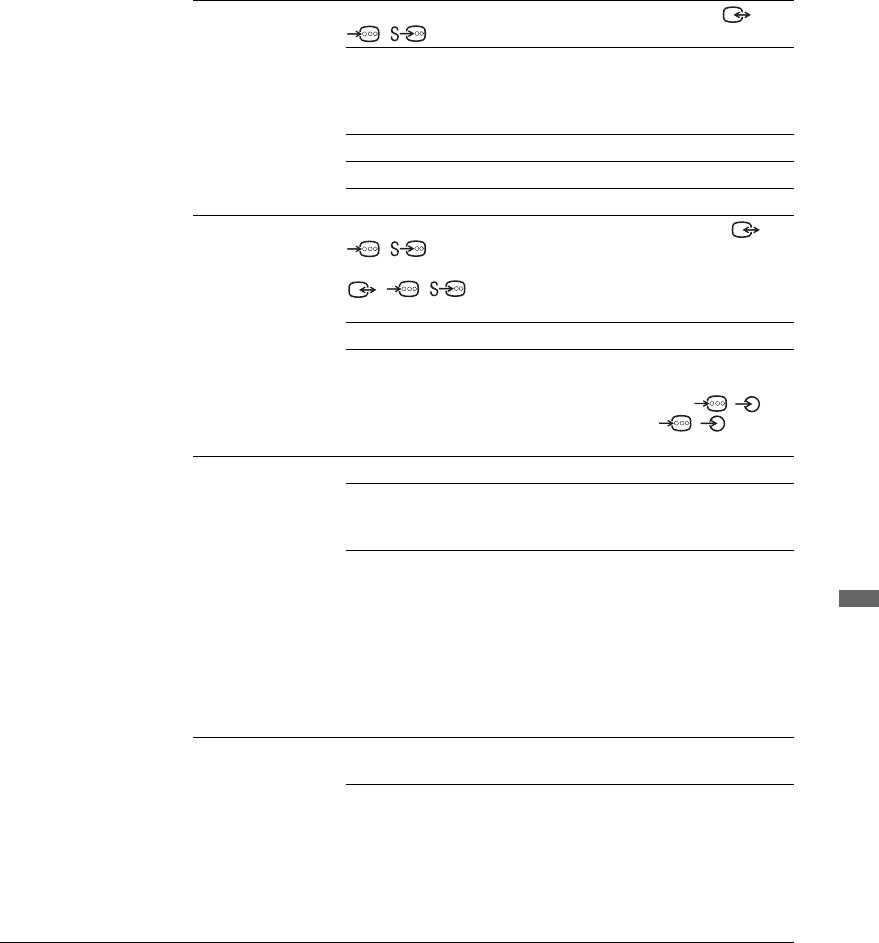
AV2 Input Sets a signal to be input through the socket labelled /
/ AV2 on the rear of the TV.
Auto Switches automatically among the signals
of RGB input, S video input, Composite
video input depending on the input
signal.
RGB Inputs the RGB signal.
S Video Inputs the S Video signal.
Composite Inputs the Composite video signal.
AV2 Output Sets a signal to be output through the socket labelled /
/ AV2 on the rear of the TV. If you connect a
VCR/ DVD recorder or other recording equipment to the
/ / AV2 socket, you can then record from the
equipment connected to other sockets of the TV.
TV Outputs a broadcast.
Auto Outputs whatever is being viewed on the
screen (except signals from the HDMI IN
1, HDMI IN 2, HDMI IN 3, /
COMPONENT IN and / PC IN
sockets).
Speaker Turns on/off the TV’s internal speakers.
TV Speaker The TV speakers are turned on in order to
listen to the TV’s sound through the TV
speakers.
Audio System The TV speakers are turned off in order
to listen to the TV’s sound only through
your external audio equipment connected
to the audio output sockets. When
Using MENU Functions
connected with “Control for HDMI”
compatible equipment, you can turn the
connected equipment on interlocked with
the TV. This setting must be made after
connecting the equipment.
Audio Out Variable The audio output from your audio system
can be controlled by the TV’s remote.
Fixed The audio output of the TV is fixed. Use
your audio receiver’s volume control to
adjust the volume (and other audio
settings) through your audio system.
z
• “Audio Out” is not available for audio system connected to the TV using the
HDMI sockets.
(Continued)
45
GB
HDMI Set-up This is used to set the “Control for HDMI” compatible equipment connected to the
HDMI sockets. Note that the interlock setting must also be made on the connected
“Control for HDMI” compatible equipment side.
Control for HDMI This sets whether to interlock the “Control for HDMI”
compatible equipment and the TV. When set to “On”, the
following menu items can be performed. However, power
consumption in standby mode is higher than usual. If the
specific Sony equipment that is compatible with “Control for
HDMI” is connected, this setting is applied to the connected
equipment automatically when the “Control for HDMI” is set
to “On” using the TV.
Auto Devices Off When this is set to “On”, the “Control for HDMI” compatible
equipment turns off when you switch the TV to standby mode
using the remote.
Auto TV On When this is set to “On” and if the connected HDMI, control
compatible equipment is turned on, the TV automatically
turns on, and the displays the HDMI input from the
connected equipment.
Tuner Box
If set to “Advanced”, you can select a channel tuned by
Control
connected equipment using the TV’s remote.
Device List
Creates or updates the “HDMI Device List.” Up to 14
Update
“Control for HDMI” compatible equipment can be
connected, and up to 4 equipment can be connected to a
single socket. Be sure to update the “HDMI Device List”
when you change the “Control for HDMI” compatible
equipment connections or settings. Select them manually one
by one until getting a correct picture for several seconds.
HDMI Device List Displays the connected “Control for HDMI” compatible
equipment.
~
• You cannot use “Control for HDMI” if the TV operations
are linked to the operations of an audio system that is
compatible with control for HDMI.
Product Information Displays your TV’s product information.
All Reset Resets all settings to the factory settings and then displays the “Auto Start-up”
screen.
z
• Be sure not to turn the TV off during this period (it takes about 30 seconds) or
press any buttons.
• All settings, including digital favourite list, country, language, auto tuned
channels, etc. will be reset.
Analogue Set-up
Programme List
Select “Off” to hide the list of analogue channels from the XMB™
Display
(XrossMediaBar).
Auto Tuning Tunes in all the available analogue channels.
This option allows you to retune the TV after moving house, or to search for new
channels that have been launched by broadcasters.
Programme Sorting Changes the order in which the analogue channels are stored on the TV.
1 Press F/f to select the channel you want to move to a new position, then press
.
2 Press F/f to select the new position for your channel, then press .
46
GB
Manual Programme
Before selecting “Label/AFT/Audio Filter/LNA/Skip/Decoder”, press PROG +/–
Preset
to select the programme number with the channel. You cannot select a programme
number that is set to “Skip” (page 44).
System/Channel Presets programme channels manually.
1 Press F/f to select the programme number you want to
manually tune (if tuning a VCR/ DVD recorder, select
channel 00), then press .
2 Press F/f to select “System”, then press .
3 Press F/f to select one of the following TV broadcast
systems, then press .
B/G: For western European countries/regions
I: For the United Kingdom
D/K: For eastern European countries/regions
L: For France
4 Press F/f to select “Channel”, then press .
5 Press F/f to select “S” (for cable channels) or “C” (for
terrestrial channels), then press g.
6 Tune the channels as follows:
If you do not know the channel number
(frequency)
Press F/f to search for the next available channel. When
a channel has been found, the search will stop. To
continue searching, press F/f.
If you know the channel number (frequency)
Press the number buttons to enter the channel number of
the broadcast you want or your VCR/DVD recorder
channel number.
Using MENU Functions
7 Press to jump to “Confirm”, then press .
Your changes have been saved. Repeat the above
procedure to preset other channels manually.
Label Assigns a name of your choice, up to five letters or numbers,
to the selected channel. This name will be displayed briefly
on the screen when the channel is selected.
To input characters, follow steps 1 to 3 of “Edit” (page 44).
AFT Allows you to fine-tune the selected programme number
manually if you feel that a slight tuning adjustment will
improve the picture quality.
You can adjust the fine tuning over a range of –15 to +15.
When “On” is selected, the fine tuning is performed
automatically.
Audio Filter Improves the sound for individual channels in the case of
distortion in mono broadcasts. Sometimes a non-standard
broadcast signal can cause sound distortion or intermittent
sound muting when watching mono programmes.
If you do not experience any sound distortion, we
recommend that you leave this option set to the factory
setting “Off.”
~
• You cannot receive stereo or dual sound when “Low” or
“High” is selected.
LNA Improves the picture quality for individual channels in the
case of very weak broadcast signals (noisy picture).
If you cannot see any improvement in the picture quality even
if you set to “On”, set this option to “Off” (factory setting).
(Continued)
47
GB
Skip Skips unused analogue channels when you press PROG +/–
to select channels. (You can still select a skipped channel
using the number buttons.)
Decoder Shows and records the scrambled channel selected when
using a decoder connected directly to scart connector /
AV1, or to scart connector / / AV2 via a
VCR/DVD recorder.
~
• Depending on the country selected for “Country” (page 6),
this option may not be available.
Confirm Saves changes made to the “Manual Programme Preset”
settings.
Digital Set-up
Digital Tuning Digital Auto
Tunes in the available digital channels.
Tuning
This option allows you to retune the TV after moving house,
or to search for new channels that have been launched by
broadcasters. For details, see step 6 of “5: Performing the
initial set-up” (page 6).
Programme
Removes any unwanted digital channels stored on the TV,
Sorting
and changes the order of the digital channels stored on the
TV.
1 Press F/f to select the channel you want to remove or
move to a new position.
You can also select a channel by pressing the number
buttons to enter its three-digit channel number.
2 Remove or change the order of the digital channels as
follows:
To remove the digital channel
Press . After a confirmation message appears, press G
to select “Yes”, then press .
To change the order of the digital channels
Press g, then press F/f to select the new position for the
channel and press G.
3 Press RETURN.
Digital Manual
Tunes the digital channels manually. This feature is available
Tuning
when “Digital Auto Tuning” is set to “Antenna.”
1 Press the number button to select the channel number
you want to manually tune, then press F/f to tune the
channel.
2 When the available channels are found, press F/f to
select the channel you want to store, then press .
3 Press F/f to select the programme number where you
want to store the new channel, then press .
Repeat the above procedure to manually tune other channels.
Subtitle Set-up Subtitle Setting When “For Hard Of Hearing” is selected, some visual aids
may also be displayed with the subtitles (if TV channels
broadcast such information).
Subtitle
Allows you to select the language of the subtitles.
Language
48
GB
Audio Set-up Audio Type Switches to broadcast for the hearing impaired when “For
Hard Of Hearing” is selected.
Audio Language Selects the language used for a programme. Some digital
channels may broadcast several audio languages for a
programme.
Audio
Provides audio description (narration) of visual information if
Description
TV channels broadcast such information.
Mixing Level* Adjusts the TV main audio and Audio Description output
levels.
Dynamic Range Compensates for differences in the audio level between
different channels. Note that this function may have no effect
for some channels.
Optical Out Selects the audio signal that is output from the DIGITAL
AUDIO OUT (OPTICAL) terminal on the rear of the TV. Set
to “Auto” when equipment compatible with Dolby Digital is
connected, and set to “PCM” when non-compatible
equipment is connected.
z
* This option is only available when “Audio Description” is set to “On.”
Radio Display Displays the screen wallpaper when you listen to a radio broadcast.
You can select the screen wallpaper colour, display a random colour or view a
slide show (page 27, 34).
To cancel the screen wallpaper display temporarily, press any button.
Parental Lock Sets an age restriction for programmes. Any programme that exceeds the age
restriction can only be watched after a PIN code is entered correctly.
1 Press the number buttons to enter your existing PIN code.
If you have not previously set a PIN, a PIN code entry screen appears. Follow
the instructions of “PIN Code” below.
Using MENU Functions
2 Press F/f to select the age restriction or “None” (for unrestricted watching),
then press .
3 Press RETURN.
PIN Code To set your PIN for the first time
1 Press the number buttons to enter the new PIN code.
2 Press the number buttons to enter the PIN code entered in step 1.
3 Press RETURN.
To change your PIN
1 Press the number buttons to enter your existing PIN code.
2 Press the number buttons to enter the new PIN code.
3 Press the number buttons to enter the new PIN code entered in step 2.
4 Press RETURN.
z
PIN code 9999 is always accepted.
Technical Set-up Auto Service
Enables the TV to detect and store new digital services as
Update
they become available.
~
• For the service update to be able to take place the TV set should be left in stand-
by mode from time to time.
System Update Enables the TV to automatically receive software updates
free through your existing aerial/cable (when issued). We
recommend that you leave the setting to “On” at all times.
~
• For the software upgrade to be able to take place the TV set should be left in
stand-by mode from time to time.
(Continued)
49
GB
System
Displays the current software version and the signal level.
Information
~
• If signal bar is red (no signal) or amber (low signal), check the aerial/cable
connection.
Time Zone Allows you to manually select the time zone you are in, if it is
not the same as the default time zone setting for your country/
region.
Auto DST Sets whether or not to automatically switch between summer
time and winter time.
On Automatically switches between summer
time and winter time according to the
calendar.
Off The time is displayed according to the
time difference set by “Time Zone.”
Programme
You can switch GUIDE (Sony Guide or GUIDE Plus+). If
Guide
you change Sony Guide to GUIDE Plus+ programme, see
(only when GUIDE
page 18.
Plus+ is available)
Condition that this feature is displayed is following:
– in UK, Italy, France, Germany or Spain.
– you can receive digital broadcasting.
– when “Antenna” is selected in step 7 of “5: Performing
the initial set-up.”
CA Module Set-up Allows you to access a pay TV service once you obtain a Conditional Access
Module (CAM) and a view card. See page 23 for the location of the
(PCMCIA) socket.
Network Settings
Network IP Address
DHCP (DNS
Automatically acquires the network
Settings
automatic)
settings through the Dynamic Host
Configuration Protocol server function of
the router or Internet service provider.
DHCP (DNS
Automatically acquires the network
manual)
settings except for DNS server settings.
You can manually set the DNS settings.
Manual Allows you to set the network settings
according to your network environment.
Test Diagnoses whether the network is correctly connected.
IP Address/
You need to configure each item when “Manual” is selected
Subnet Mask/
in “IP Address Settings.”
Default Gateway/
When “DHCP (DNS manual)” is selected, be sure to enter
Primary DNS/
“Primary DNS” and “Secondary DNS” server addresses
Secondary DNS
manually.
MAC Address Displays the MAC address, which is a fixed, globally unique
identifier of the network device.
Server Display
Displays the connected server list and allows you to select the server you want to
Settings
display on the Home Menu.
Server Diagnostics Diagnoses whether the TV can connect to each server on the home network.
Renderer Function Enables playback of photos or music on the TV through other control devices on
the network, such as a digital still camera or mobile phone.
Renderer Access
Allows you to specify the accessible controller to the TV. When this setting is set
Control
to “On”, you can playback photos or music on the TV using the controller.
50
GB
Renderer Set-up Automatic
Allows you to select whether to permit access to the TV
Access
automatically when the network device accesses the TV for
Permission
the first time.
Renderer Name Allows you to set the name of the TV to be shown on the
controller.
Using MENU Functions
51
GB
Additional Information
Installing the Accessories (Wall-Mount Bracket)
To Customers:
For product protection and safety reasons, Sony strongly recommends that installing of your TV be
performed by Sony dealers or licensed contractors. Do not attempt to install it yourself.
To Sony Dealers and Contractors:
Provide full attention to safety during the installation, periodic maintenance and examination of this
product.
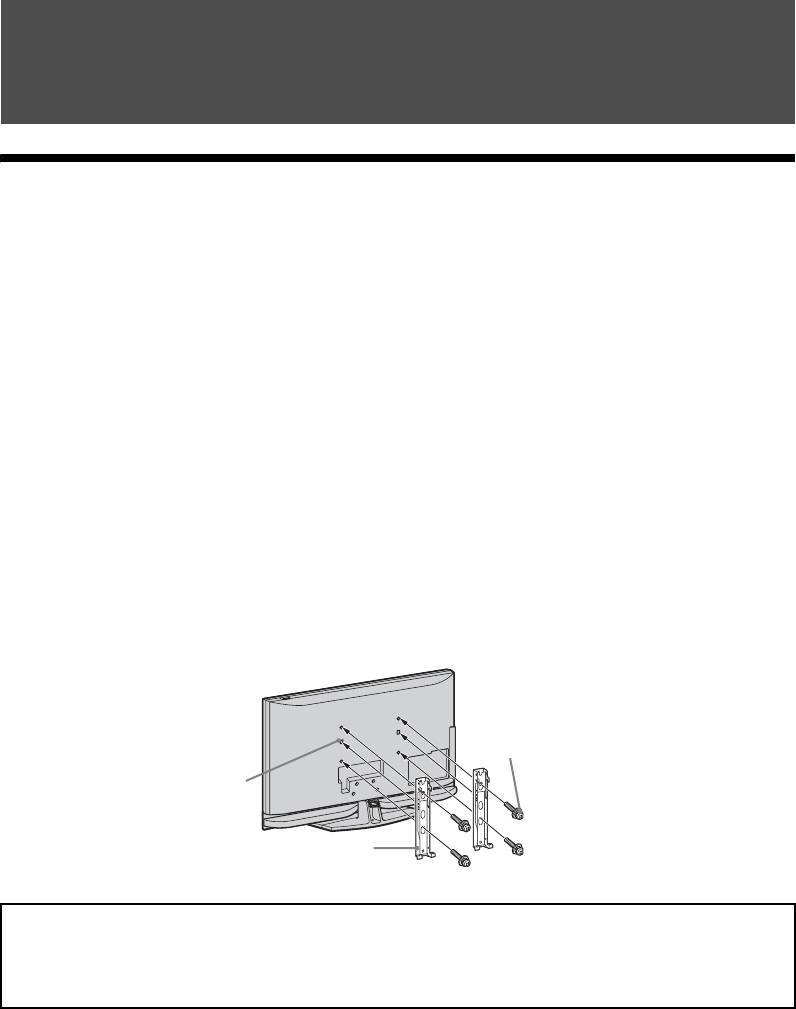
Your TV can be installed using the Wall-Mount Bracket SU-WL500 (sold separately).
• Refer to the Instructions supplied with the Wall-Mount Bracket to properly carry out the
installation.
• Refer to “Detaching the Table-Top Stand from the TV” (page 8).
• Refer to “TV installation dimensions table” (page 53).
• Refer to “Screw and Hook locations diagram/table” (page 53).
~
• Place the TV on the Table-Top Stand, when securing the Mounting Hook.
Screw
(+PSW6 × 16)
Square
hole
Mounting Hook
Sufficient expertise is required for installing this product, especially to determine the strength of the wall for
withstanding the TV’s weight. Be sure to entrust the attachment of this product to the wall to Sony dealers
or licensed contractors and pay adequate attention to safety during the installation. Sony is not liable for any
damage or injury caused by mishandling or improper installation.
52
GB
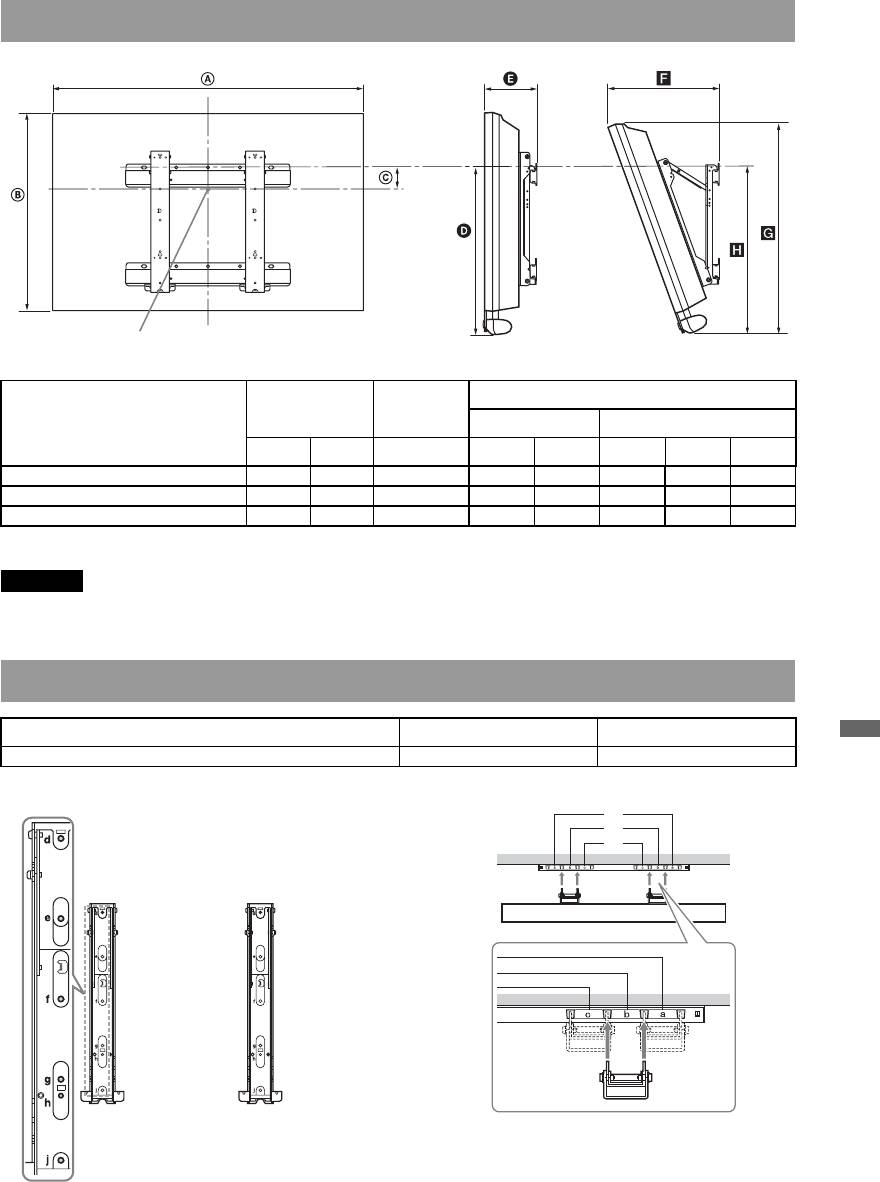
TV installation dimensions table
Screen centre point
Unit: mm
Display dimensions
Screen centre
Length for each mounting angle
Model Name
dimension
Angle (0°) Angle (20°)
AB C DEFGH
KDL-52Z4500 1,281 839 39 494 194 428 796 535
KDL-46Z4500 1,140 749 84 492 192 396 710 533
KDL-40Z4500 1,005 666 122 490 187 364 633 529
Figures in the above table may differ slightly depending on the installation.
WARNING
The wall that the TV will be installed on should be capable of supporting a weight of at least four times that of
the TV. Refer to “Specifications” (page 54) for its weight.
Screw and Hook locations diagram/table
Model Name Screw location Hook location
KDL-52Z4500/KDL-46Z4500/KDL-40Z4500 d, g b
Additional Information
* Hook position “a, c” cannot be used for the models in the table above.
Screw location Hook location
a*
b
c*
53
GB
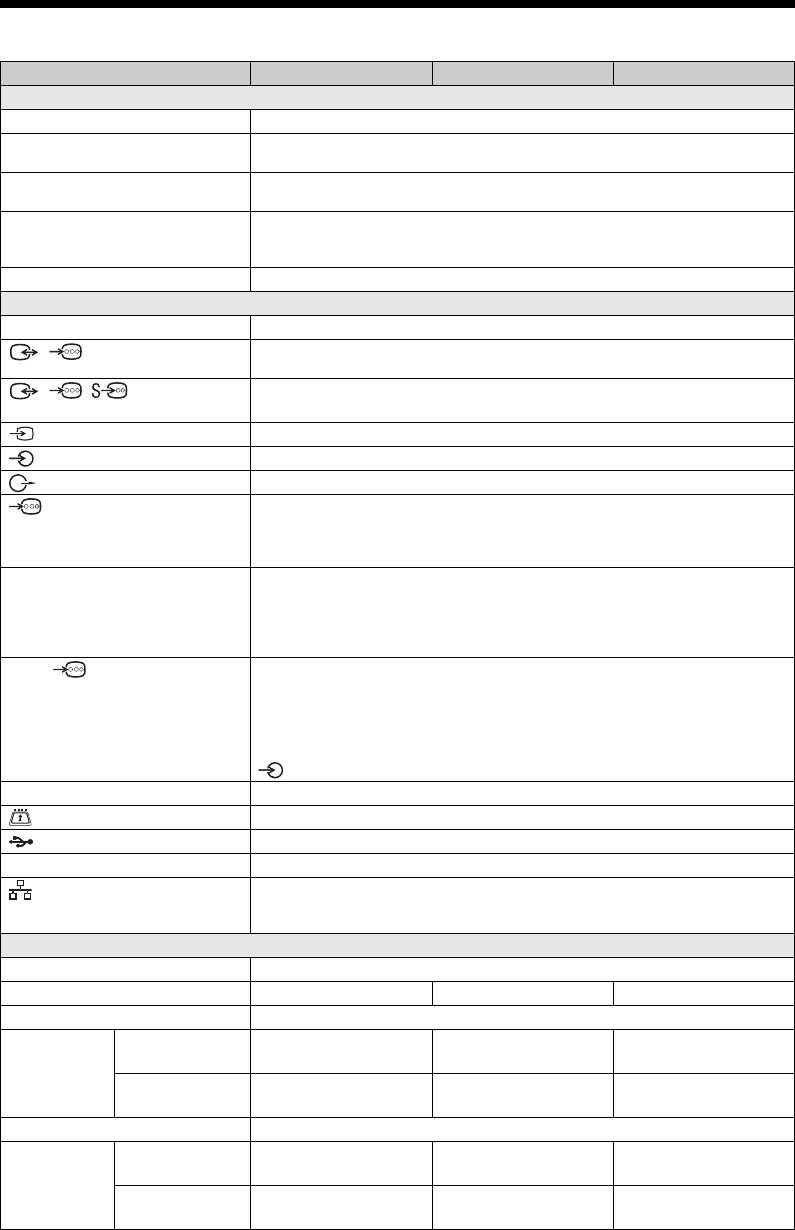
Specifications
Model name KDL-52Z4500 KDL-46Z4500 KDL-40Z4500
System
Panel system
LCD (Liquid Crystal Display) Panel
TV system
Analogue: Depending on your country selection: B/G/H, D/K, L, I
Digital: DVB-T/DVB-C
Colour/video system
Analogue: PAL, SECAM, NTSC 3.58/4.43 (only Video In)
Digital: MPEG-2 MP@ML/HL, H.264/MPEG-4 AVC HP@L4.0, MP@L3.0
Channel coverage
Analogue: VHF: E2–E12/UHF: E21–E69/CATV: S1–S20/HYPER: S21–S41
D/K: R1–R12, R21–R69/L: F2–F10, B–Q, F21–F69/I: UHF B21–B69
Digital: VHF/UHF
Sound output
9 W + 9 W, 12 W (Woofer)
Input/Output jacks
Aerial
75 ohm external terminal for VHF/UHF
/ AV1
21-pin Scart connector (CENELEC standard) including audio/video input, RGB input and TV
audio/video output.
/ / AV2
21-pin Scart connector (CENELEC standard) including audio/video input, RGB input, S Video
(SMARTLINK)
input, selectable audio/video output, and SMARTLINK interface.
AV3
Video input (phono jack)
AV3
Audio input (phono jacks)
DIGITAL AUDIO OUT (OPTICAL)(digital optical jack)/Audio output (phono jack)
COMPONENT IN
Supported formats: 1080p, 1080i, 720p, 576p, 576i, 480p, 480i
Y: 1 Vp-p, 75 ohms, 0.3V negative sync
P
B/CB: 0.7 Vp-p, 75 ohms
P
R/CR: 0.7 Vp-p, 75 ohms
HDMI IN 1, 2, 3
Video: 1080/24p, 1080p, 1080i, 720p, 576p, 576i, 480p, 480i
Audio: Two channel linear PCM
32, 44.1 and 48 kHz, 16, 20 and 24 bits
PC Input (see page 55)
Analogue audio (minijack): 500 mVrms (HDMI IN 2 only)
PC IN
PC Input (D-sub 15-pin)
G: 0.7 Vp-p, 75 ohms, non Sync on Green
B: 0.7 Vp-p, 75 ohms, non Sync on Green
R: 0.7 Vp-p, 75 ohms, non Sync on Green
HD: 1-5 Vp-p
VD: 1-5 Vp-p
PC audio input (minijack)
i
Headphones jack
CAM (Conditional Access Module) slot
USB port
DMPORT
DIGITAL MEDIA PORT
LAN
10BASE-T/100BASE-TX connector (Depending on the operating environment of the network,
connection speed may differ. 10BASE-T/100BASE-TX communication rate and
communication quality is not guaranteed for this TV.)
Power and others
Power requirements
220–240V AC, 50Hz
Screen size (measured diagonally)
52 inches 46 inches 40 inches
Display resolution
1,920 dots (horizontal) × 1,080 lines (vertical)
Power
in “Home”/
280 W 260 W 210 W
consumption
“Standard” mode
in “Shop”/“Vivid”
320 W 283 W 235 W
mode
Standby power consumption*
0.2 W or less (20W when Quick Start is “On”)
Dimensions
with Table-Top
128.1 × 88.2 × 34.6 cm 114.0 × 79.0 × 30.7 cm 100.5 × 70.5 × 27.9 cm
(Approx.)
Stand
(w × h × d)
without Table-Top
128.1 × 83.9 × 13.5 cm 114.0 × 74.9 × 13.2 cm 100.5 × 66.6 × 12.8 cm
Stand
54
GB
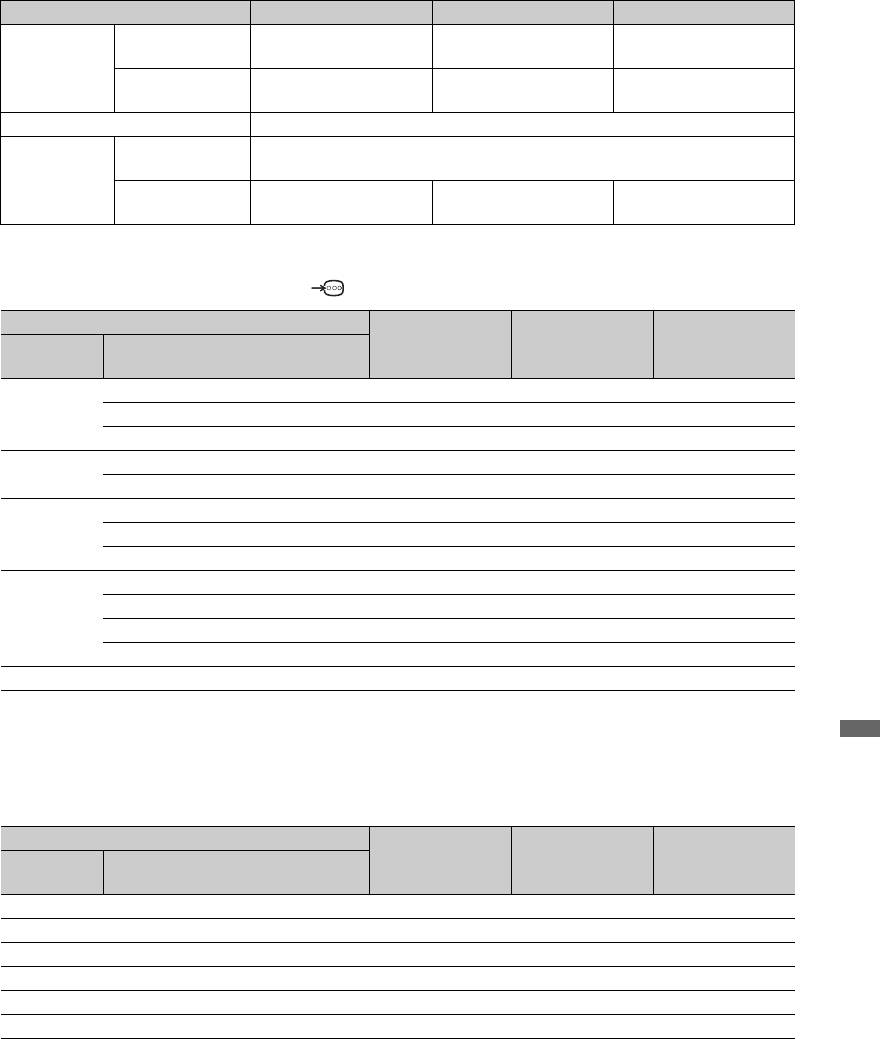
Model name KDL-52Z4500 KDL-46Z4500 KDL-40Z4500
Mass (Approx.) with Table-Top
41.0 kg 34.5 kg 25.5 kg
Stand
without Table-Top
34.0 kg 30.0 kg 22.0 kg
Stand
Supplied accessories
See “Before Use” on page 4.
Optional
Wall-Mount
See “Installing the Accessories (Wall-Mount Bracket)” on page 52.
accessories
Bracket
Colour Variation
CRU-52SG13 CRU-46SG13 CRU-40SG13
Unit
* Specified standby power is reached after the TV finishes necessary internal processes.
PC Input Signal Reference Chart for PC
Resolution
Signals Horizontal
× Vertical (Line) Horizontal
Vertical
Standard
(Pixel)
frequency (kHz)
frequency (Hz)
VGA 640 × 480 31.5 60 VGA
640 × 480 37.5 75 VESA
720 × 400 31.5 70 VGA-T
SVGA 800 × 600 37.9 60 VESA Guidelines
800 × 600 46.9 75 VESA
XGA 1024 × 768 48.4 60 VESA Guidelines
1024 × 768 56.5 70 VESA
1024 × 768 60.0 75 VESA
WXGA 1280 × 768 47.4 60 VESA
1280 × 768 47.8 60 VESA
1280 × 768 60.3 75
1360 × 768 47.7 60 VESA
SXGA 1280 × 1024 64.0 60 VESA
• This TV’s PC input does not support Sync on Green or Composite Sync.
• This TV’s PC input does not support interlaced signals.
Additional Information
• This TV’s PC input supports signals in the above chart with a 60 Hz vertical frequency.
PC Input Signal Reference Chart for HDMI IN 1, 2, 3
Resolution
Signals Horizontal
× Vertical (Line) Horizontal
Vertical
Standard
(Pixel)
frequency (kHz)
frequency (Hz)
VGA 640 × 480 31.5 60 VGA
SVGA 800 × 600 37.9 60 VESA Guidelines
XGA 1024 × 768 48.4 60 VESA Guidelines
WXGA 1280 × 768 47.4 60 VESA
WXGA 1280 × 768 47.8 60 VESA
SXGA 1280 × 1024 64.0 60 VESA
55
GB
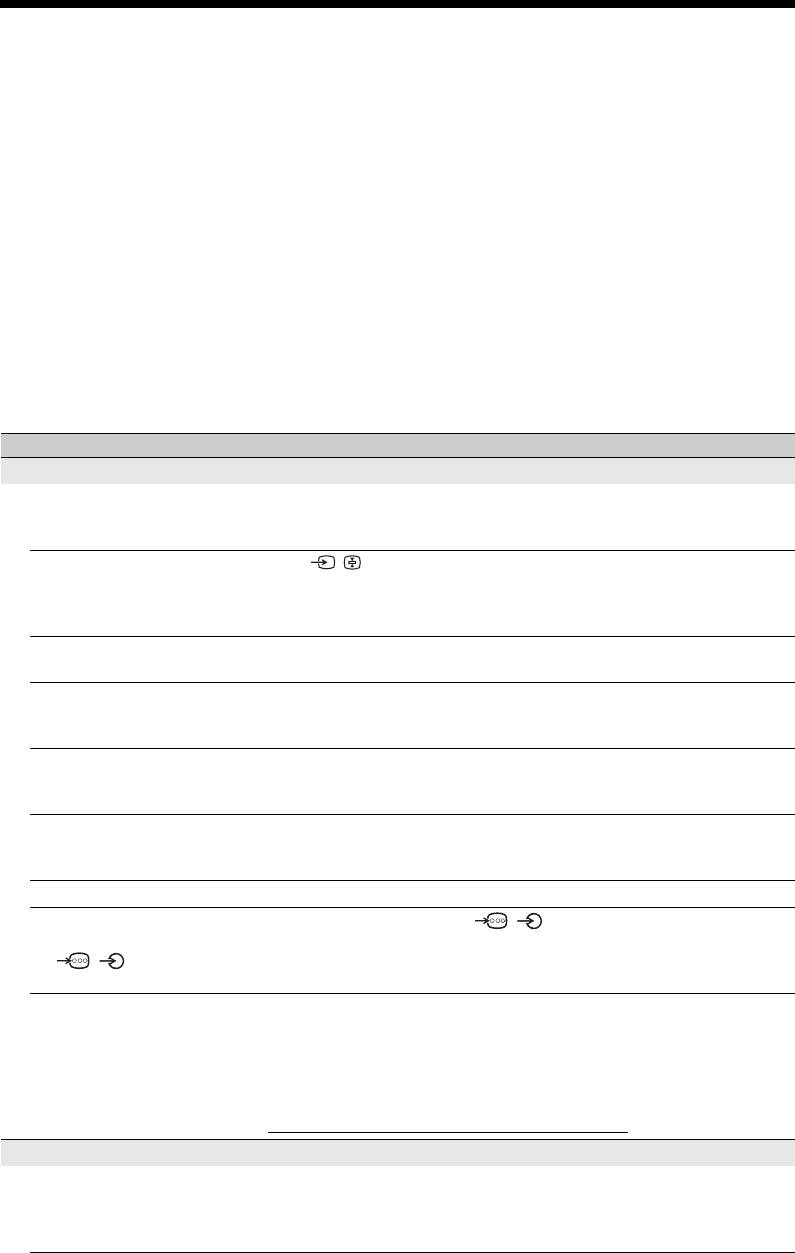
Troubleshooting
Check whether the 1 (standby) indicator is flashing in red.
When it is flashing
The self-diagnosis function is activated.
1 Count how many 1 (standby) indicator flashes between each two second break.
For example, the indicator flashes three times, then there is a two second break, followed by
another three flashes, etc.
2 Press 1 on the top edge of the TV to turn it off, disconnect the mains lead, and inform your
dealer or Sony service centre of how the indicator flashes (number of flashes).
When it is not flashing
1 Check the items in the tables below.
2 If the problem still persists, have your TV serviced by qualified service personnel.
Condition Explanation/Solution
Picture
No picture (screen is dark) and
• Check the aerial/cable connection.
no sound
• Connect the TV to the mains, and press 1 on the top edge of the TV.
• If the 1 (standby) indicator lights up in red, press TV "/1.
No picture or no menu
• Press / to display the connected equipment list, then select the
information from equipment
desired input.
connected to the scart
• Check the connection between the optional equipment and the TV.
connector
Double images or ghosting
• Check the aerial/cable connection.
(only in analogue mode)
• Check the aerial location and direction.
Only snow and noise appear
• Check if the aerial is broken or bent.
on the screen (only in
• Check if the aerial has reached the end of its serviceable life (three to
analogue mode)
five years in normal use, one to two years at the seaside).
Picture or sound noise when
• Adjust “AFT” (Automatic Fine Tuning) to obtain better picture
viewing a TV channel (only in
reception (page 47).
analogue mode)
Some tiny black points and/or
• The picture of a display unit is composed of pixels. Tiny black points
bright points appear on the
and/or bright points (pixels) on the screen do not indicate a malfunction.
screen
No colour on programmes • Select “Reset” (page 39).
No colour or irregular colour
• Check the connection of the / COMPONENT IN sockets and
when viewing a signal from
check if each sockets are firmly seated in their respective sockets.
the / COMPONENT
IN sockets
Picture freezes or contains
• Check signal level (page 50). If signal bar is red (no signal) or amber
blocks on the screen
(low signal), check the aerial/cable connection.
• Remove the connected USB device. It can be damaged or not supported
by the TV.
Check the website below for updated information about compatible USB
devices:
http://support.sony-europe.com/TV/compatibility/
Sound
No sound, but good picture • Press 2 +/– or % (Mute).
• Check if the “Speaker” is set to “TV Speaker” (page 45).
• When using HDMI input with Super Audio CD or DVD-Audio,
DIGITAL AUDIO OUT (OPTICAL) may not output audio signals.
56
GB
Condition Explanation/Solution
There is a significant
• Adjust “Volume Offset” setting in the “Sound” menu (page 40).
difference in the output
volume level between
DIGITAL MEDIA PORT
input and TV or other
equipment input.
Connection Diagnostic Results
“Connection successful.”does
Check Connections
not appear.
• Use a straight cable for the LAN cable.
• Check if the cable is connected firmly.
• Check the connection between the TV and the broadband router.
Check Settings
• Change the IP address for the DNS server (see “Checking the Network
Connection” on page 36) while referring to the following.
– Contact your Internet provider.
– Specify the IP address of the router if you do not know the DNS of
your Internet provider.
Home Network
The server cannot be found, a
• Once server settings are changed, turn the TV off and on by pressing 1
list cannot be retrieved, and
on the TV.
playback fails.
• Execute “Server Diagnostics” (page 37).
When using a PC as the server
• Check if the PC is turned on. Do not turn off the PC while accessing.
• If security software is installed on the server, be sure to allow
connections from external devices. For details, see the manual supplied
with your security software.
• The load on the PC may be too high or the server application may
become unstable. Try the following:
– Stop the server application and restart it.
– Restart the PC.
– Reduce the number of applications running on the PC.
– Reduce the amount of content.
Changes on the server are not
• Sometimes changes are not applied to displays on the TV even though
being applied or displayed
content has been added and/or deleted on the server. If this happens, go
content differs from content
back up one level and try opening the folder or server again.
Additional Information
on the server.
Photo and/or music files do
Preliminary Check
not appear or icons are not
• Check that the connected device supports DLNA.
displayed.
• Operations are not guaranteed for all servers. Also, operations differ
depending on the features of the server and the content in question.
• Turn the connected device on.
Check Connections
• Check that the LAN cable and/or mains lead of the server has not
become disconnected.
Check Settings
• Check that the connected device is registered under “Server Display
Settings” (page 36).
• Check that the server is correctly configured.
• Check that the selected equipment is connected to the network and can
be accessed.
• If the “IP Address” in “Network” under “Network Settings” is set to
“DHCP (DNS automatic)” or “DHCP (DNS manual)”, it may take some
time to recognise a device if there is no DHCP server. Execute “Server
Diagnostics” (page 37).
(Continued)
57
GB
Condition Explanation/Solution
The TV cannot be found from
Check Connections
renderer-compatible
• Check that the LAN cable and/or mains lead of the server has not
equipment (the controller).
become disconnected.
Check Settings
• Check if the “Renderer Function” is activated (page 50).
• Check that the connected device is registered under “Renderer Access
Control” (page 50).
Channels
The desired channel cannot be
• Switch between digital and analogue mode and select the desired digital/
selected
analogue channel.
Some channels are blank • Scrambled/Subscription only channel. Subscribe to the pay TV service.
• Channel is used only for data (no picture or sound).
• Contact the broadcaster for transmission details.
Digital channels are not
• Contact a local installer to find out if digital transmissions are provided
displayed
in your area.
• Upgrade to a higher gain aerial.
General
Distorted picture and/or sound • Keep the TV away from electrical noise sources such as cars,
motorcycles, hair-dryers or optical equipment.
• When installing optional equipment, leave some space between the
optional equipment and the TV.
• Check the aerial/cable connection.
• Keep the aerial/cable TV cable away from other connecting cables.
The TV turns off
• Check if the “Sleep Timer” is activated, or confirm the “Duration”
automatically (the TV enters
setting of “On Timer Settings” (page 43).
standby mode)
• If no signal is received and no operation is performed in the TV mode
for 10 minutes, the TV automatically switches to standby mode.
The TV turns on automatically • Check if the “On Timer” is activated (page 43).
Some input sources cannot be
• Select “AV Preset” and cancel “Skip” of the input source (page 44).
selected
The remote does not function • Replace the batteries.
The BD, DVD, AMP and TV
• The batteries inside the remote run out of battery life. Replace the
function buttons on the remote
batteries with new ones.
flash at the same time.
You have a blank TV listings
• Check the aerial/cable connection.
in the GUIDE Plus+ system
• Your cabling and Setup is OK, but your GUIDE Plus+ system was not
connected for enough time to receive TV listings data. Leave the TV
“STANDBY” overnight (24 hours) or use “Manual Data Download”
(page 20).
• You live in a country/region where the GUIDE Plus+ system is not yet
available. Check the list of countries to see if you are in a region that is
supported.
(http://www.europe.guideplus.com/)
HDMI equipment does not
• Check that your equipment is “Control for HDMI” compatible
appear on “HDMI Device
equipment.
List”
Not all channels are tuned • Check support web site for cable provide information.
http://support.sony-europe.com/TV/DVBC/
You cannot select “Off” in
• If any “Control for HDMI” compatible audio equipment is connected to
“Control for HDMI.”
the TV, you cannot select “Off” in this menu. If you want to change the
audio output to the TV speaker, select “TV Speaker” in the “Speaker”
menu (page 45).
58
GB
Condition Explanation/Solution
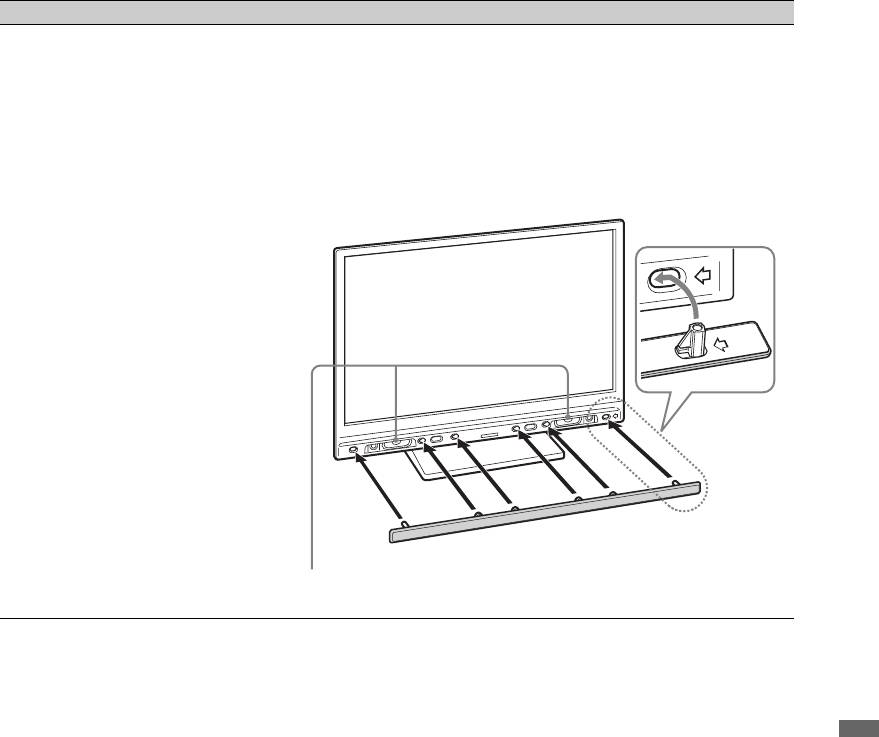
The speaker grille has come
• To attach the speaker grille, first turn off the TV, then unplug the mains
off
lead. Then follow the procedure below.
Orient the speaker grille so that the location of the marks on the speaker
grille and TV match, insert the protrusions on the speaker grille into the
holes on the TV, and support gently. Check that the speaker grille and
TV are in contact without any gaps, and then secure it by pushing and
sliding the speaker grille left into place.
To prevent the TV set from being damaged, do not touch the speakers or
their surroundings.
Do not touch the
speakers.
Additional Information
59
GB
Wprowadzenie
s Nazwa HDMI, logo HDMI oraz High-Definition
Multimedia Interface są znakami towarowymi lub
Dziękujemy, że wybrali Państwo produkt firmy Sony.
zastrzeżonymi znakami towarowymi firmy HDMI
Przed przystąpieniem do eksploatacji telewizora należy
Licensing LLC.
dokładnie zapoznać się z treścią niniejszej instrukcji oraz
s „BRAVIA” i są znakami towarowymi Sony
zachować ją do wykorzystania w przyszłości.
Corporation.
s „XMB” i „xross media bar” są znakami towarowymi firm
Producentem tego produktu jest Sony Corporation,
Sony Corporation i Sony Computer Entertainment Inc.
1-7-1 Konan Minato-ku Tokyo, 108-0075 Japonia.
Upoważnionym przedstawicielem producenta w Unii
Europejskiej, uprawnionym do dokonywania i
potwierdzania oceny zgodności z wymaganiami
zasadniczymi, jest Sony Deutschland GmbH,
Hedelfinger Strasse 61, 70327 Stuttgart, Niemcy. Nadzór
nad dystrybucją na terytorium Rzeczypospolitej Polskiej
sprawuje Sony Poland, 00-876 Warszawa, ul. Ogrodowa
58. W sprawach serwisowych i gwarancyjnych należy
kontaktować się z podmiotami, których adresy podano
w osobnych dokumentach gwarancyjnych lub
serwisowych, lub z najbliższym sprzedawcą produktów
Sony.
Informacja dotycząca funkcji Telewizji
Cyfrowej
s Wszystkie funkcje dotyczące Telewizji Cyfrowej ( )
dostępne są tylko w krajach lub na obszarach, gdzie
nadawane są sygnały cyfrowej telewizji naziemnej DVB-T
(MPEG2 i MPEG4 AVC) lub w miejscach, w których
istnieje dostęp do kompatybilnych z urządzeniem
sygnałów kablowych DVB-C (MPEG2 i MPEG4 AVC).
Prosimy skontaktować się z lokalnym sprzedawcą, aby
ustalić, czy w miejscu Państwa zamieszkania można
odbierać sygnały DVB-T lub zwrócić się do dostawcy usług
kablowych o informacje, czy oferowane przez niego usługi
DVB-C będą dostępne w zakupionym odbiorniku TV.
s Dostawca usług kablowych może doliczyć dodatkową
opłatę za takie usługi oraz poprosić użytkownika o
podpisanie stosownej umowy.
s Choć zakupiony model telewizora jest dostosowany do
odbioru sygnałów telewizji naziemnej DVB-T oraz
kablowej DVB-C, nie można zagwarantować jego
kompatybilności z tworzonymi w przyszłości programami
w formacie DVB-T lub DVB-C.
s W niektórych krajach lub regionach pewne funkcje
Telewizji Cyfrowej lub kablowej DVB-C mogą być
niedostępne.
s Szczegółowe informacje na temat funkcji DVB-C znajdują
się na naszej stronie dotyczącej sygnałów przesyłanych
drogą kablową:
http://support.sony-europe.com/TV/DVBC/
Informacje dot. znaków towarowych
s jest zastrzeżonym znakiem towarowym projektu
DVB
s DLNA i DLNA CERTIFIED są znakami towarowymi
i/lub znakami usługowymi firmy Digital Living Network
Alliance.
s GUIDE Plus+ jest (1) zastrzeżonym znakiem handlowym
lub znakiem handlowym, (2) jest produkowany na licencji
i (3) jest chroniony różnorodnymi patentami
międzynarodowymi i wnioskami patentowymi, których
właścicielem jest lub na które licencję posiada firma
Gemstar-TV Guide International, Inc. lub powiązane z nią
firmy.
s FIRMA GEMSTAR-TV GUIDE INTERNATIONAL,
INC. I POWIĄZANE Z NIĄ FIRMY NIE PONOSZĄ
ŻADNEJ ODPOWIEDZIALNOŚCI ZA
DOKŁADNOŚĆ INFORMACJI O
HARMONOGRAMIE PROGRAMÓW
DOSTARCZANYCH PRZEZ SYSTEM GUIDE
PLUS+. FIRMA GEMSTAR-TV GUIDE
INTERNATIONAL, INC. I POWIĄZANE Z NIĄ
FIRMY NIE PONOSZĄ W ŻADNYM WYPADKU
ODPOWIEDZIALNOŚCI W JAKIEJKOLWIEK
KWOCIE ZA UTRATĘ ZYSKÓW, UTRATĘ
MOŻLIWOŚCI HANDLOWYCH ANI ZA
POŚREDNIE, SPECYFICZNE BĄDŹ WYNIKOWE
STARTY ZWIĄZANE Z DOSTARCZANIEM LUB
WYKORZYSTANIEM JAKICHKOLWIEK
INFORMACJI, USŁUG BĄDŹ SPRZĘTU
ZWIĄZANEGO Z SYSTEMEM GUIDE PLUS+.
s Wyprodukowano na licencji Dolby Laboratories. Nazwa
Dolby i symbol podwójnej litery D są znakami
towarowymi firmy Dolby Laboratories.
2
PL
