
Sony CPD-E530: Adjustments Navigating the menu Adjusting the picture quality On-Screen menu adjustments
Adjustments Navigating the menu Adjusting the picture quality On-Screen menu adjustments: Sony CPD-E530
Table of contents
- Owner’s Record
- Table of Contents Setup
- Adjustments Navigating the menu Adjusting the picture quality On-Screen menu adjustments
- : To adjust the color of the picture
- Troubleshooting On-screen messages
- Specifications If thin lines appear on the screen Self-diagnosis function
- Precautions
Adjustments
Navigating the menu
Adjusting the picture quality
(PICTURE EFFECT)
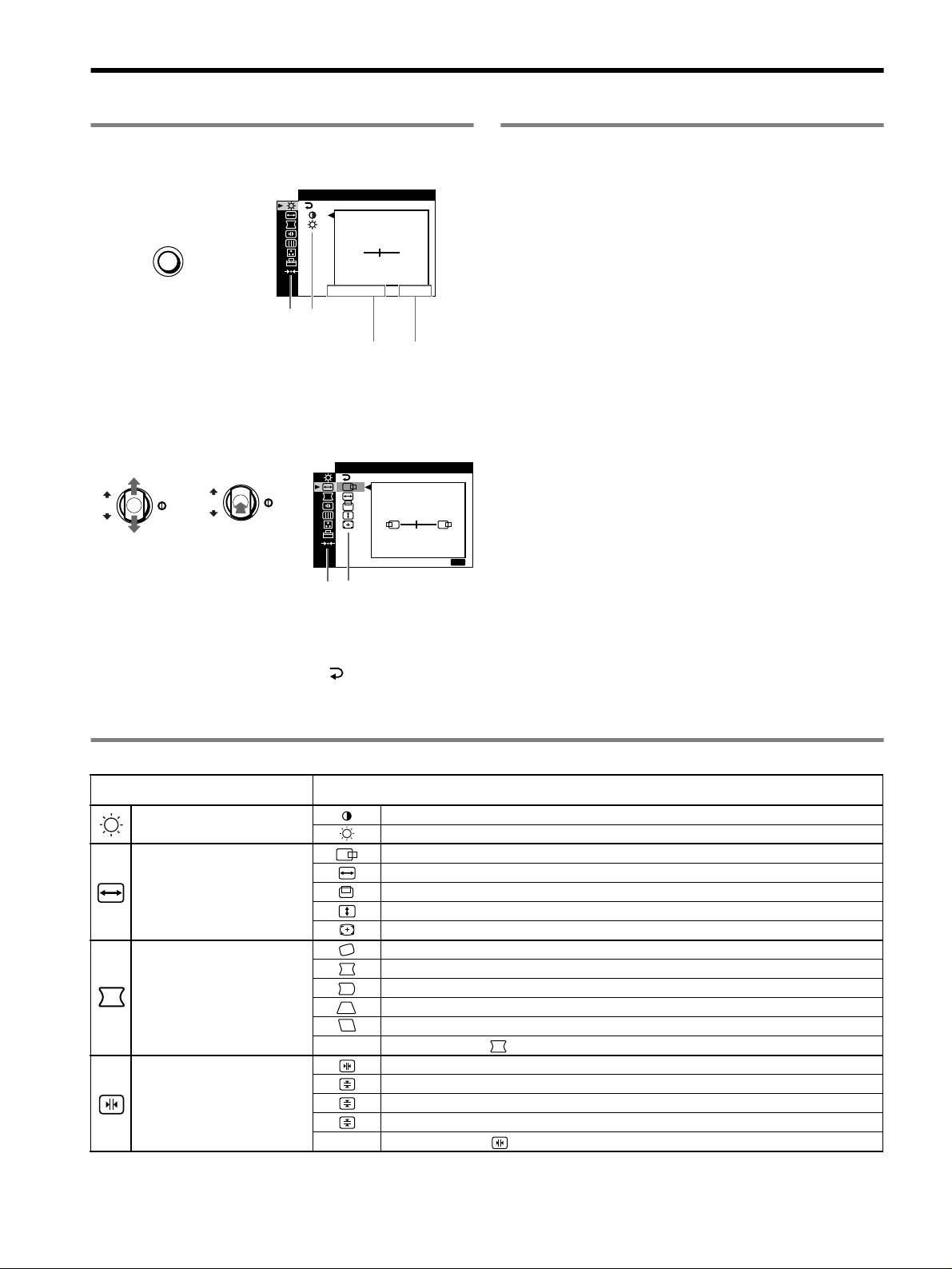
1 Press the MENU button to display the main menu.
You can select the most appropriate picture mode from among 3
CONTRAST
/IBR GHT
preset modes by pressing the PICTURE EFFECT button
repeatedly.
CONTRAST
MENU
,
x PROFESSIONAL
50
For accurate and consistent display color. Choose this for
professional desktop publishing and graphic applications.
1024x768 / 85Hz
Main
Sub
x STANDARD
menu
menu
For images with high contrast and brightness. Choose this mode for
The horizontal frequencies/resolution
the vertical
commonly used applications, such as spreadsheets, word
of the current input signal (only if the
frequencies of
processing, E-mail, or WEB surfing.
signal matches to one of this monitor’s
the current
factory preset modes)
input signal
x DYNAMIC
2 Move the control button m/M to highlight the main
For extremely vivid and photo-realistic images. Bright than
menu you want to adjust and press the control button.
“STANDARD” mode, choose this for intense entertainment
software such as games, or DVD playback.
SZE
/I CENTER
OK
,,
OK
45
E
XIT
:
MENU
Main
Sub
menu
menu
3 Move the control button m/M to highlight the sub menu
you want to adjust and press the control button.
If you want to select another menu;
move the control button m/M to select and press the control
button to exit the menu.
4 Adjust with the control button.
On-Screen menu adjustments
Main menu icons and adjustment
Sub menu icons and adjustment items
items
Adjusting the contrast and
Contrast
brightness
*
1
Brightness
Horizontal position
Horizontal size
Adjusting the size or centering of
Vertical position
the picture
*
1
Ve rt i c al s i ze
Auto Size Center
Rotating the picture
*
2
Expanding or contracting the picture sides*
1
Shifting the picture sides to the left or right*
1
Adjusting the shape of the picture
Adjusting the picture width at the top of the screen*
1
Shifting the picture to the left or right at the top of the screen*
1
0 RESET: Returns all settings to their factory default settings.
Horizontally shifts red or blue shadows
Vertically shifts red or blue shadows
Adjusting the convergence
*
2
T
Vertically shifts red or blue shadows at the top of the screen
B
Vertically shifts red or blue shadows at the bottom of the screen
0 RESET: Returns all settings to their factory default settings.
4
