
Sony Trinitron CPD-E400E: Self-diagnosis function Specifications
Self-diagnosis function Specifications: Sony Trinitron CPD-E400E
Table of contents
- Owner’s Record
- Table of Contents
- Precautions
- Identifying parts and controls
- Setup Step 1:Connect your monitor to your computer
- Step 2:Connect the power cord Step 3:Turn on the monitor and computer
- Selecting the on-screen menu Customizing Your Monitor language (LANG) Navigating the menu
- Using the control button Displaying the current input signal Resetting the adjustments
- Adjusting the brightness and Adjusting the centering of the contrast picture (CENTER) Adjusting the size of the picture (SIZE) Enlarging or reducing the picture (ZOOM)
- Adjusting the shape of the picture Adjusting the color of the picture (GEOM) (COLOR)
- Adjusting the convergence (CONV) Additional settings (OPTION)
- Helpful hints and information (HELP)
- Resetting the adjustments
- Technical Features Troubleshooting
- Trouble symptoms and remedies Symptom Check these items
- Symptom Check these items
- Self-diagnosis function Specifications
Self-diagnosis function
Specifications
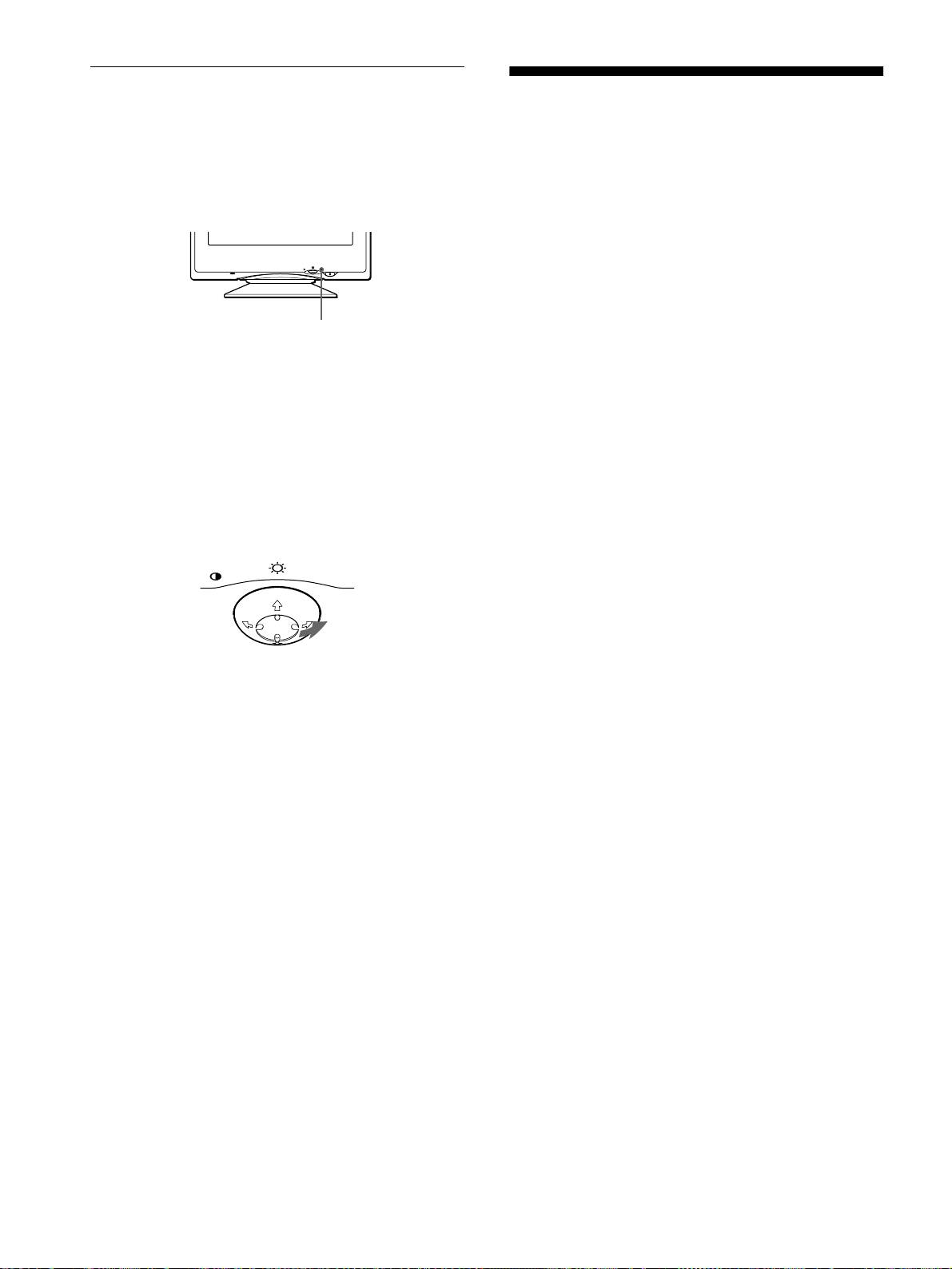
This monitor is equipped with a self-diagnosis function. If there is
a problem with your monitor or computer, the screen will go
CRT 0.24 mm aperture grille pitch (center)
blank and the 1 (power) indicator will either light up green or
19 inches measured diagonally
flash orange. If the 1 (power) indicator is lit in orange, the
90-degree deflection
computer is in power saving mode. Try pressing any key on the
FD Trinitron
keyboard.
Viewable image size Approx. 365
×
274 mm (w/h)
3
7
(14
/
8
×
10
/
8
inches)
18.0" viewing image
Resolution
RESET
MENU
Maximum Horizontal: 1800 dots
Vertical: 1440 lines
Recommended Horizontal: 1280 dots
1
(power) indicator
Vertical: 1024 lines
Standard image area Approx. 352
×
264 mm (w/h)
7
1
(13
/
8
×
10
/
2
inches)
If the
1
(power) indicator is green
Deflection frequency* Horizontal: 30 to 96 kHz
Vertical: 48 to 120 Hz
1
Disconnect the video input cable or turn off the
AC input voltage/current 100 to 240 V, 50 – 60 Hz, Max. 2.0 A
connected computer.
Power consumption 140 W
Operating temperature 10°C to 40°C
2
Press the
1
(power) button twice to turn the monitor
Dimensions
Approx. 446
×
464
×
461 mm
off and then on.
5
3
1
(w/h/d)
(17
/
8
×
18
/
8
×
18
/
4
inches)
3
Move the control button
,
for 2 seconds before the
Mass Approx. 26 kg (57 lb 5 oz)
monitor enters power saving mode.
Plug and Play DDC1/DDC2B/DDC2Bi/GTF
MENU
Supplied accessories See page 6
* Recommended horizontal and vertical timing condition
• Horizontal sync width should be more than 1.0 µsec.
• Horizontal blanking width should be more than 3.0 µsec.
• Vertical blanking width should be more than 500 µsec.
If all four color bars appear (white, red, green, blue), the monitor
Design and specifications are subject to change without notice.
is working properly. Reconnect the video input cable and check
the condition of your computer.
If the color bars do not appear, there is a potential monitor failure.
Inform your authorized Sony dealer of the monitor’s condition.
If the
1
(power) indicator is flashing orange
Press the
1
(power) button twice to turn the monitor off
and then on.
If the 1 (power) indicator lights up green, the monitor is working
properly.
If the 1 (power) indicator is still flashing, there is a potential
monitor failure. Count the number of seconds between orange
flashes of the 1 (power) indicator and inform your authorized
Sony dealer of the monitor’s condition. Be sure to note the model
name and serial number of your monitor. Also note the make and
model of your computer and video board.
18
