
Dell C__Dock II Expansion Station: Docking the Computer
Docking the Computer: Dell C__Dock II Expansion Station
Table of contents
- System Information Guide
- Notes, Notices, and Cautions
- System Information Guide Other Documents Available Getting Help Docking Device Overview
- I/O Panel of the Docking Device
- External I/O Connectors Audio Connectors and Infrared Sensor
- Docking Control Base Controls and Indicators
- Docking Device With the Monitor Stand Before Docking the Computer
- Check Your Computer for Existing Docking Drivers Installing the Docking Drivers Installing the Docking Drivers From the ResourceCD or Drivers and Utilities CD
- Installing the Docking Drivers From the Dell Support Website
- Docking Your Computer
- Docking Panel Door on the Computer
- Docking the Computer
- Docking for the First Time With Windows XP and Windows 2000 Docking for the First Time With Windows Me
- Docking for the First Time With Windows NT 4.0
- Docking for the First Time With Windows 98
- Docking for the First Time With Windows 95
- Updating Drivers in Windows XP and Windows 2000 Updating Drivers in Windows Me
- Undocking the Computer
- Replacing the Battery
- Removing the Top Cover
- Replacing the Battery Removing and Installing a PCI Expansion Card
- PCI Expansion-Slot Door and Expansion-Card Connector
- If you are using a PCI card that was not purchased from Dell, use the drivers and instructions provided by the manufacturer of the card.
- Using the C/Dock II Media Bay
- Installing a Media Device for Windows NT 4.0 With Softex Docking Services Securing the C/Dock Expansion Station Security Features
- Securing the C/Dock II Expansion Station Dell Diagnostics
- Technical Specifications
- Technical Specifications
- Safety and EMC Instructions: Portable Computers
0G913bk1.book Page 12 Thursday, October 18, 2001 12:33 PM
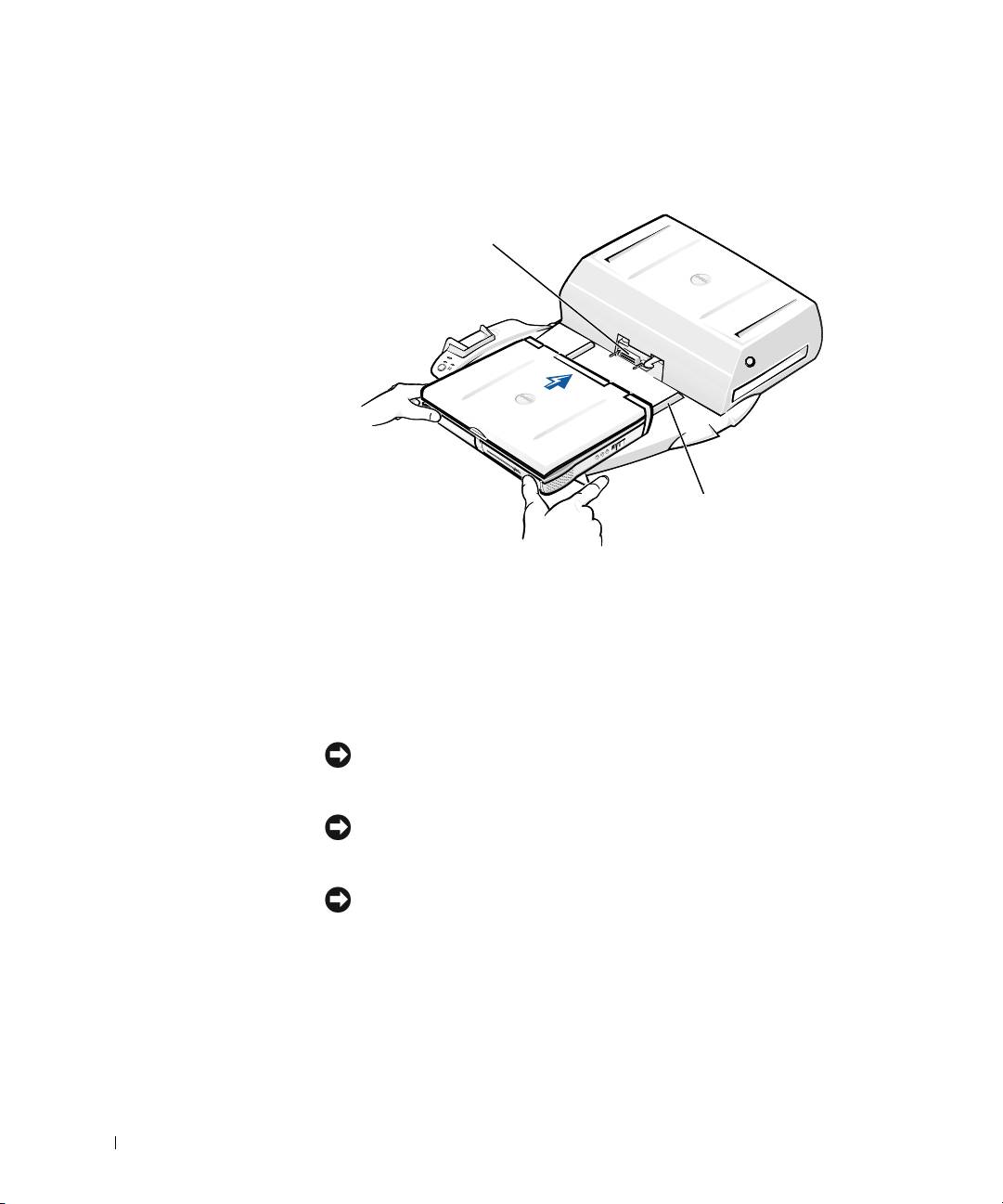
5 Dock the computer to the docking device as follows:
Docking the Computer
docking connector
www.dell.com | support.dell.com
alignment rails (2)
a Horizontally center the computer on the docking device platform,
with the back of the computer facing the docking device docking
connector, as shown in “Docking the Computer.”
b Slide the computer toward the connector until you feel the
grooves on the bottom of the computer engage with the alignment
rails.
NOTICE: If you attempt to push the computer all the way into the docking
device without engaging the alignment rails, you may irreparably damage the
docking connector on the computer.
NOTICE: Do not pick up the computer or the docking device separately when
they are connected because you may damage the connectors on the computer
and the docking device.
NOTICE: If you are using a monitor with the monitor stand
, remove the
monitor from the stand before moving the docking control base into place.
c Gently push the computer forward until the docking connector is
fully engaged.
12 System Information Guide
