
Dell PowerEdge C6105: instruction
Class: Household, kitchen appliances, electronics and equipment
Type: Computer
Manual for Dell PowerEdge C6105
Table of contents
- Notes, Cautions, and Warnings
- CAUTION: Restricted Access Location Installation and Configuration Unpacking the System Installing the Tool-Less Rail Solution
- Figure 1. Pushing the Latch Release Buttons
- Figure 2. Installing the Chassis Stabilizer Shipping Brackets Figure 3. Installing the Chassis onto the Rack.
- Optional-Connecting the Keyboard, Mouse, and Monitor Figure 4. Optional—Connecting the Keyboard, Mouse and Monitor
- Connecting the Power Cable(s) Figure 5. Connecting the Power Cable
- Turning on the System Figure 6. Pressing the Power Button on the Front of the System and the Monitor Figure 7. Pressing the Power Button on the Back of the System
- Complete the Operating System Setup Other Information You May Need
- NOM Information (Mexico Only)
- Technical Specifications Processor (Per System Board) Expansion Bus (Per System Board) Memory (Per System Board) Drives
- Connectors (Per System Board) Video (Per System Board) Power
- Physical Environmental
- Storage
Dell PowerEdge
C6105
Getting Started
With Your System
Začínáme se systémem
Guide de mise en route du système
Handbuch zum Einstieg mit dem System
Τα πρώτα βήματα με το σύστημά σας
Rozpoczęcie pracy z systemem
Начало работы с системой
Introducción al sistema
תכרעמה םע הדובעה תליחת


Dell PowerEdge
C6105
Getting Started With Your System
Notes, Cautions, and Warnings
NOTE:
A NOTE indicates important information that helps you make better use of
your computer.
CAUTION: A CAUTION indicates potential damage to hardware or loss of
data if instructions are not followed.
WARNING: A WARNING indicates a potential for property damage,
personal injury, or death.
______________
Information in this document is subject to change without notice.
© 2013 Dell Inc. All rights reserved.
Reproduction of these materials in any manner whatsoever without the written permission
of Dell Inc. is strictly forbidden.
Trademarks used in this text: Dell™, the DELL logo, and PowerEdge™ are trademarks of
Dell Inc. AMD® is a registered trademark and AMD Opteron™ is a trademark of
Advanced Micro Devices, Inc. Red Hat Enterprise Linux® and Enterprise Linux® are
registered trademarks of Red Hat, Inc. in the United States and/or other countries.
Novell® is a registered trademark and SUSE™ is a trademark of Novell Inc. in the United
States and other countries. Citrix® and XenServer® are either registered trademarks or
trademarks of Citrix Systems, Inc. in the United States and/or other countries. VMware®
is a registered trademarks or trademarks of VMWare, Inc. in the United States or other
countries.
Other trademarks and trade names may be used in this publication to refer to either the
entities claiming the marks and names or their products. Dell Inc. disclaims any
proprietary interest in trademarks and trade names other than its own.
Regulatory Model B03S
September 2013
P/N 6PHWM
Rev. A04
Getting Started With Your System | 3
CAUTION: Restricted Access Location
This server is intended for installation only in restricted access locations as
defined in Cl. 1.2.7.3 of IEC 60950-1: 2001 where both these conditions apply:
Access can only be gained by service persons or by users
who have been
instructed about the reasons for the restrictions applied to the location and
about any precautions that shall be taken.
Access is through the use of a tool or lock and key, or other means of
security, and is controlled by the authority responsible for the location.
Installation and Configuration
WARNING: Before performing the following procedure, review and follow the
safety instructions that came with the system.
Unpacking the System
Unpack your system and identify each item.
Installing the Tool-Less Rail Solution
WARNING: Whenever you need to lift the system, get others to assist you.
To avoid injury, do not attempt to lift the system by yourself.
WARNING: The system is not fixed to the rack or mounted on the rails. To
avoid personal injury or damage to the system, you must adequately
support the system during installation and removal.
WARNING: To avoid a potential electrical shock hazard, a third wire safety
grounding conductor is necessary for the rack installation. The rack
equipment must provide sufficient airflow to the system to maintain proper
cooling.
CAUTION: When installing rails in a square-hole rack it is important to
ensure that the square peg slides through the square holes.
Getting Started With Your System | 4
1
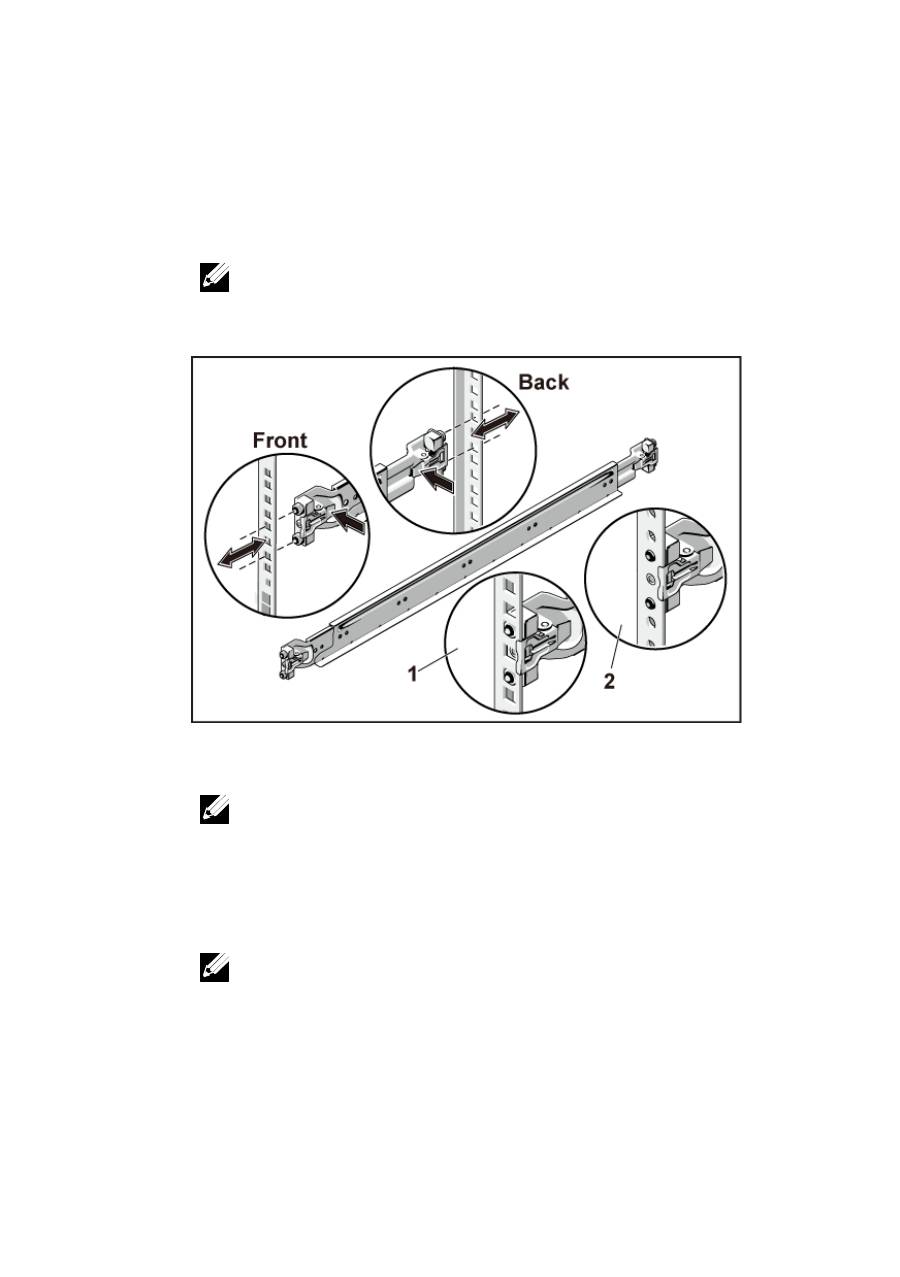
Align the end pieces of the rails on the vertical rack flanges to seat
the pegs in the bottom hole of the first U and the top hole of the
second U. Engage the back end of the rails until the latches lock in
place.
NOTE:
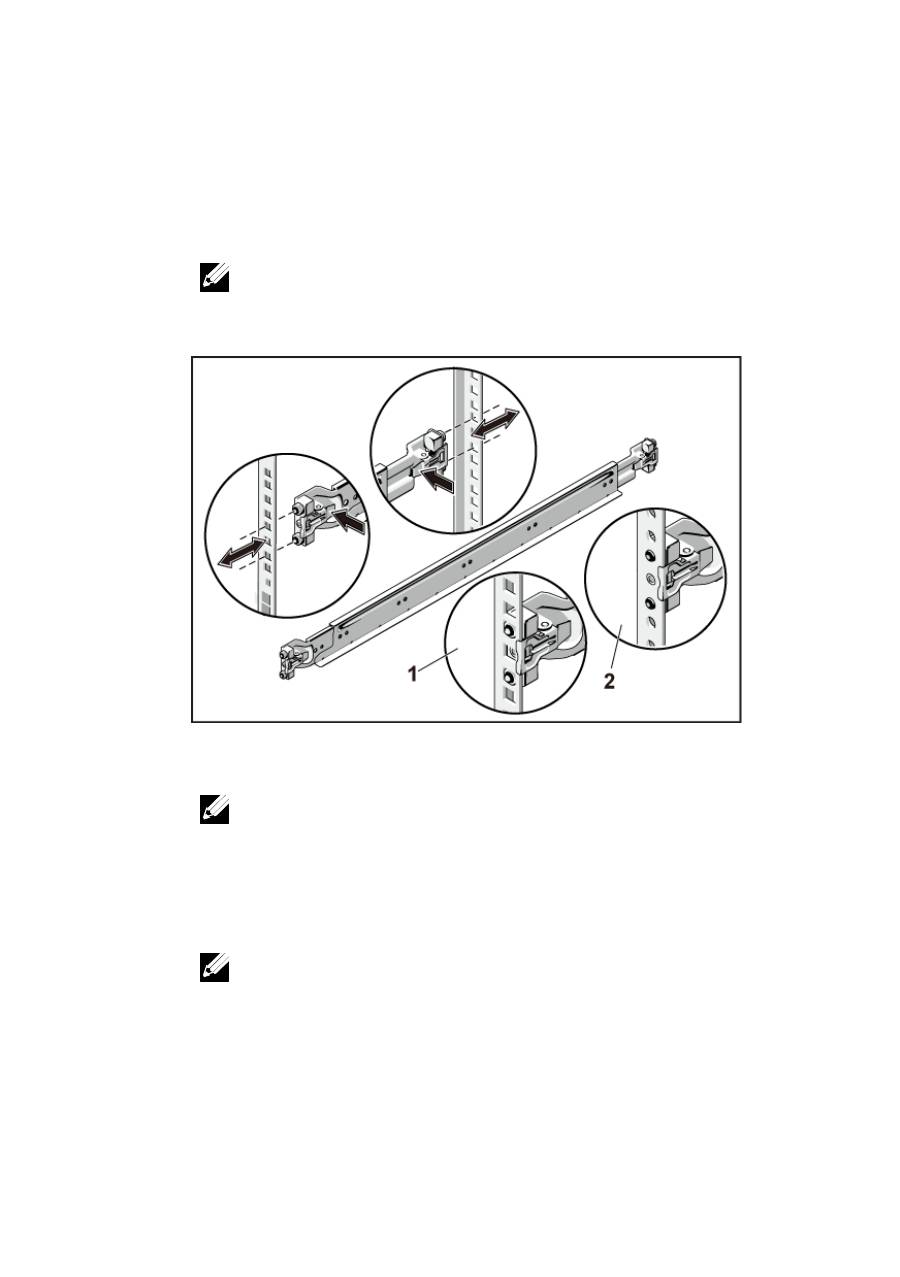
The rails can be used in both square-hole (item 1 in the following figure)
and round-hole racks (item 2 in the following figure).
Figure 1. Pushing the Latch Release Buttons
2
Repeat Step 1 to position and seat the front end pieces on the vertical
flanges.
NOTE:
To remove the rails, pull on the latch release button on the end piece
midpoint and unseat each rail.
3
Slide the system into the rack.
4
If present, remove the chassis stabilizer shipping bracket (optional)
from the rack.
NOTE:
To transport systems already installed in the rack, ensure that the two
chassis stabilizer shipping brackets (optional) are in place.
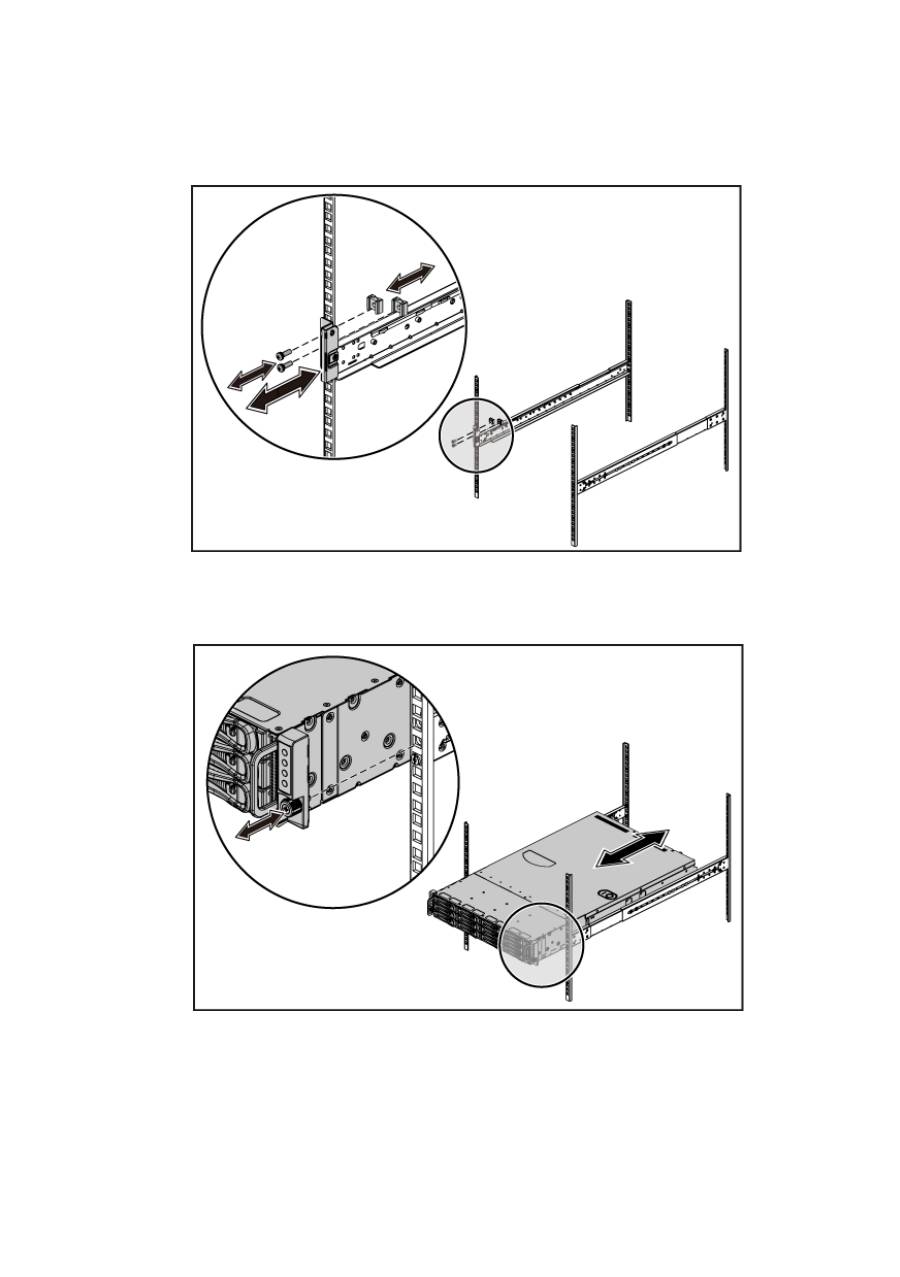
Getting Started With Your System | 5
Figure 2. Installing the Chassis Stabilizer Shipping Brackets
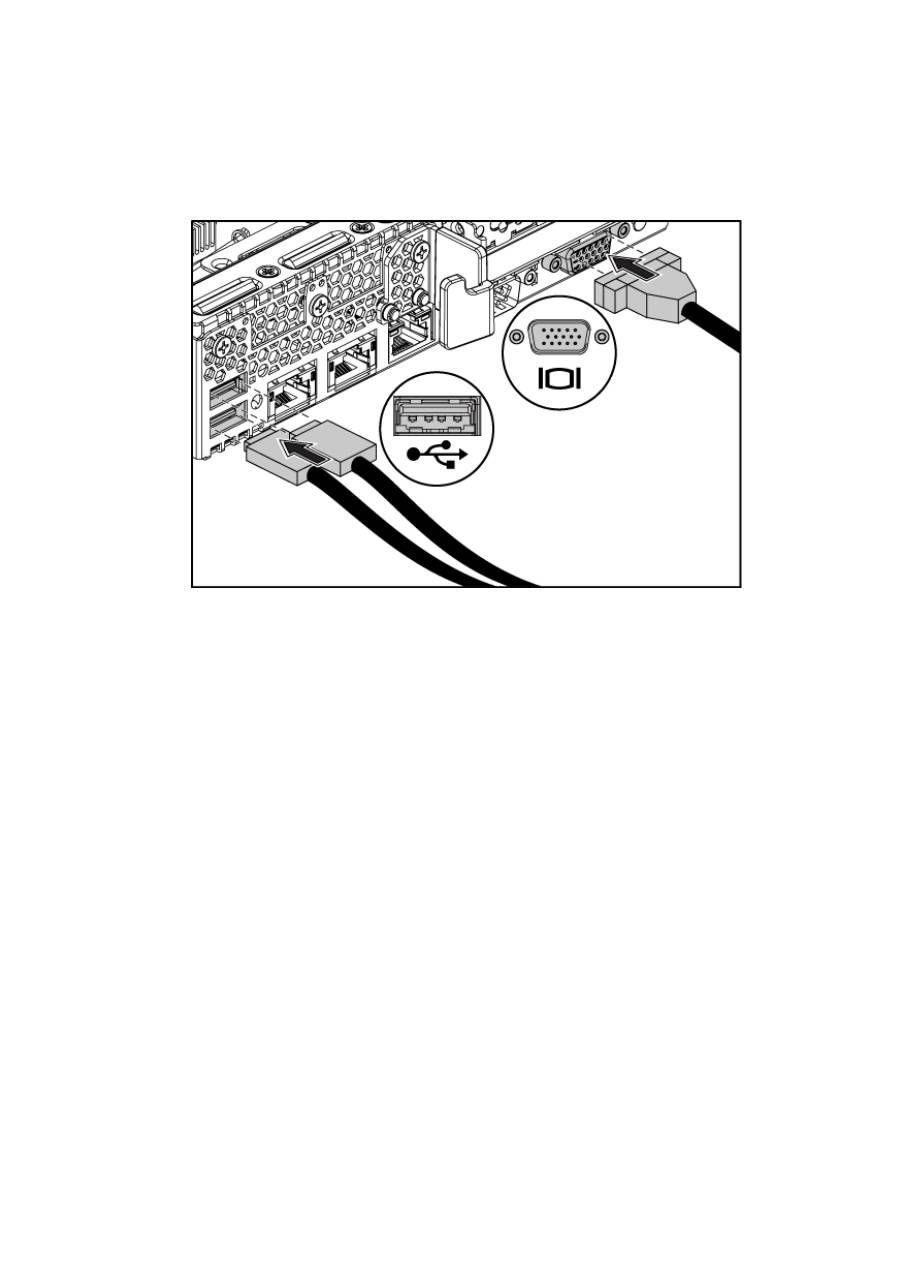
5
Tighten the thumbscrews to secure the ears of the system to the front
of the rack flanges.
Figure 3. Installing the Chassis onto the Rack.
Getting Started With Your System | 6
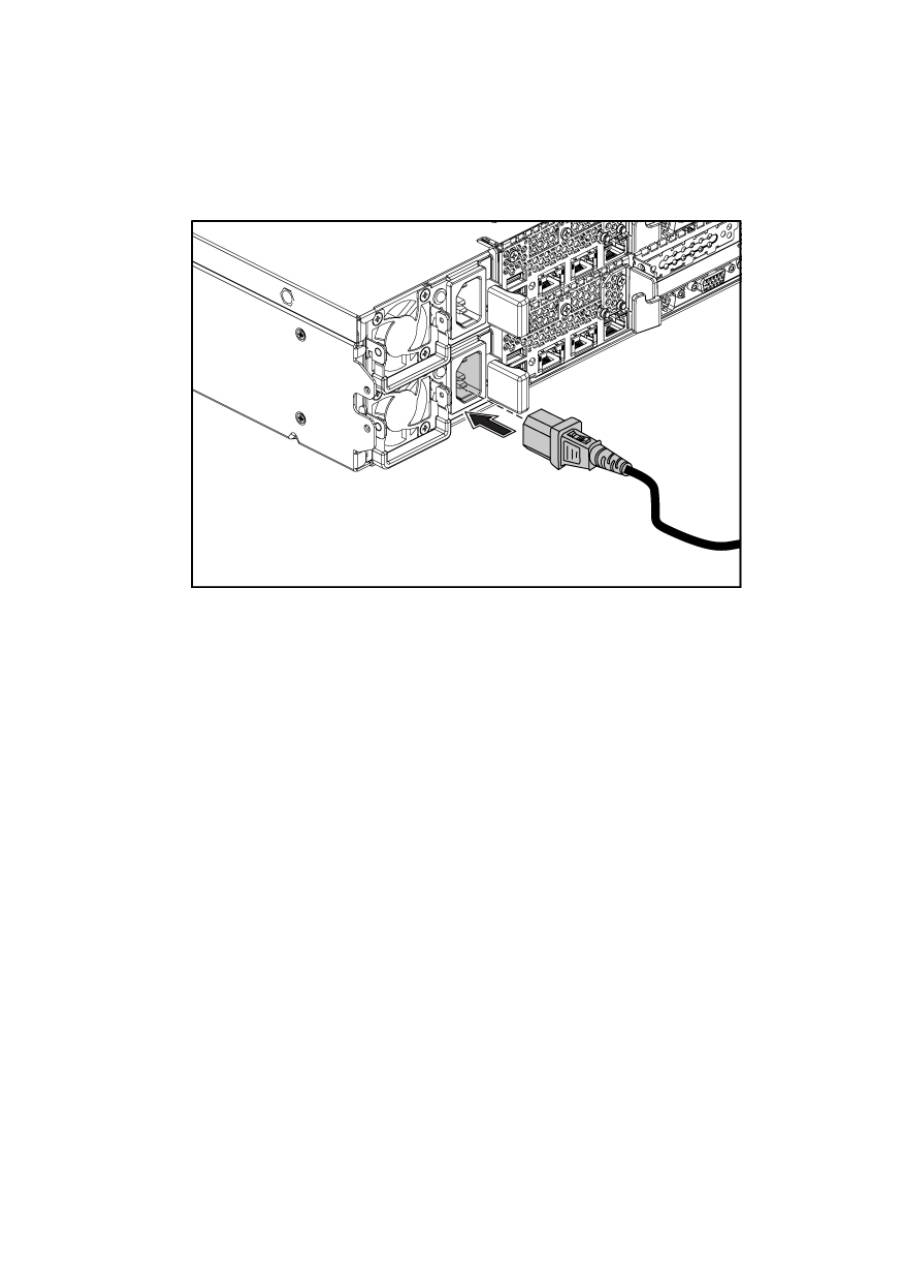
Optional-Connecting the Keyboard, Mouse, and Monitor
Figure 4. Optional—Connecting the Keyboard, Mouse and Monitor
Connect the keyboard, mouse, and monitor (optional).
The connectors on the back of your system have icons indicating which cable to
plug into each connector. Be sure to tighten the screws (if any) on the monitor’s
cable connector.
Getting Started With Your System | 7
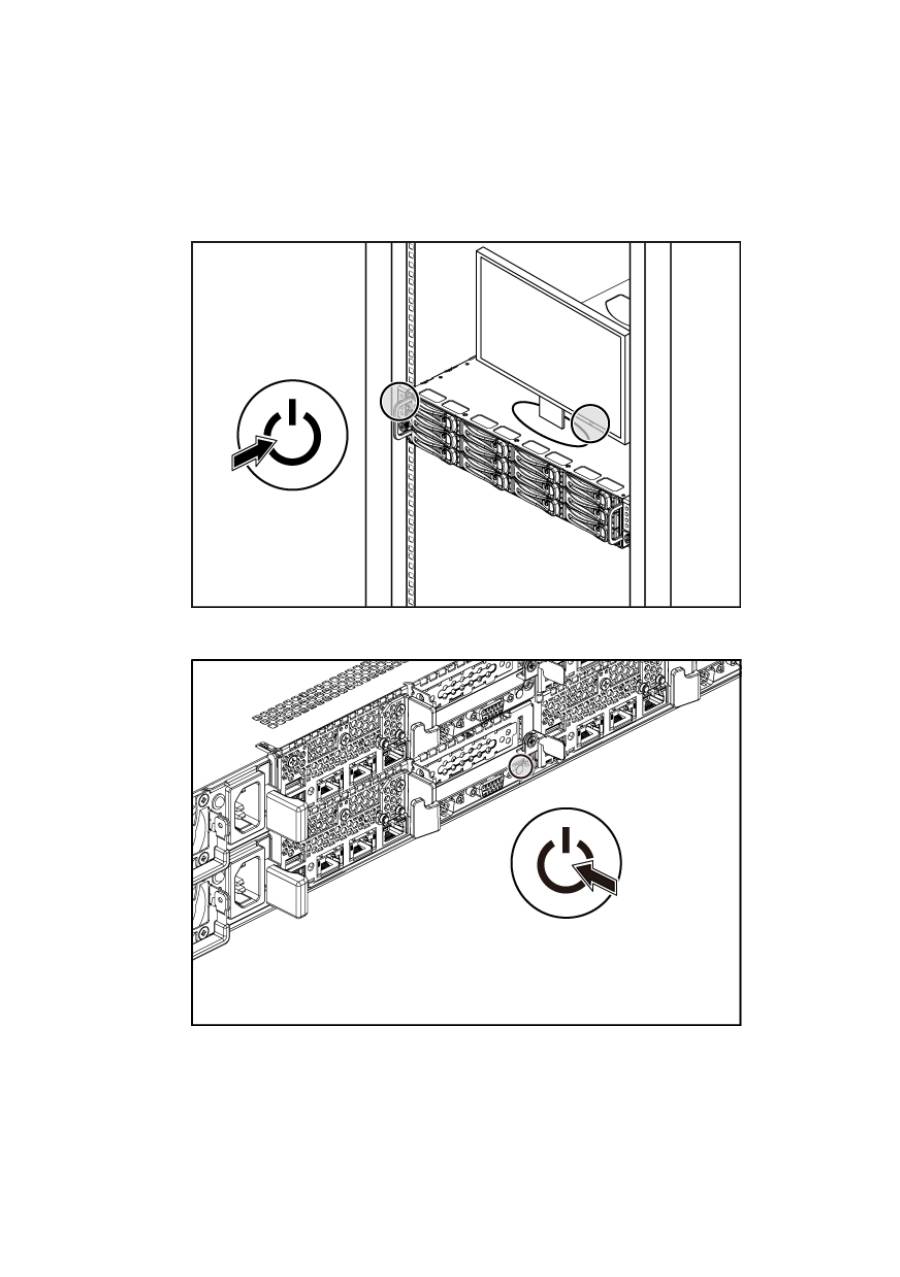
Connecting the Power Cable(s)
Figure 5. Connecting the Power Cable
Connect the system’s power cable(s) to the system and, if a monitor is used,
connect the monitor’s power cable to the monitor. Plug the other end of the
power cables into a grounded electrical outlet or a separate power source such as
an uninterrupted power supply or a power distribution unit.
Getting Started With Your System | 8
Turning on the System
Figure 6. Pressing the Power Button on the Front of the System and
the Monitor
Figure 7. Pressing the Power Button on the Back of the System
Press the power button(s) either on the front or back of the system and on the
monitor. The power indicators should light.
Getting Started With Your System | 9
Complete the Operating System Setup
To install an operating system for the first time, see the installation and
configuration documentation for your operating system. Be sure the operating
system is installed before installing hardware or software not purchased with
the system.
NOTE:
For the latest information on supported operating systems, see
dell.com/ossupport
.
Other Information You May Need
WARNING: See the safety and regulatory information that shipped with your
system. Warranty information may be included within this document or as a
separate document.
The
Hardware Owner’s Manual
provides information about system features and
describes how to troubleshoot the system and install or replace system
components. This document is available at
support.dell.com/manuals
.
Dell systems management application documentation provides information
about installing and using the systems management software. This document is
available online at
support.dell.com/manuals
.
NOTE:
Always check for updates on
support.dell.com/manuals
and read the
updates first because they often supersede information in other documents.

Getting Started With Your System | 10
NOM Information (Mexico Only)
The following information is provided on the device described in this document
in compliance with the requirements of the official Mexican standards (NOM):
Importer
Dell Inc. de México, S.A. de C.V.
Paseo de la Reforma 2620-11° Piso
Col. Lomas Atlas
11950 México, D.F.
Model number
B03S
Supply voltage
100-240 V AC with 470 W/750
W/1100 W Power
200-240 V AC with 1400 W Power
Frequency
50/60 Hz
Current consumption
6.5-3.5 Amps with 470 W Power
8.6 Amps with 1400 W Power
9.5-5.0 Amps with 750 W Power
12-6.7 Amps with 1100 W Power

Getting Started With Your System | 11
Technical Specifications
Processor (Per System Board)
Processor type
One or two AMD C32 Series processors
One or two AMD Opteron 4000 Series
processors
One or two AMD Opteron 4200 Series
processors
One or two AMD Opteron 4300 Series
processors
Expansion Bus (Per System Board)
Bus type
PCI Express Generation 2
Expansion slots
PCIe
One x16, half-length, half-height
Daughter card PCIe
One x8, custom slot
Memory (Per System Board)
Architecture
12 x DDR3 800/1066/1333 MHz registered
memory modules with /ECC
Memory module sockets
12 x DDR3 DIMM sockets
Memory module capacities 2 GB, 4 GB, 8 GB, or 16 GB
Minimum RAM
12 GB
Maximum RAM
192 GB
Drives
Hard drives
Up to twelve 3.5-inch, hot-swappable
SAS/SATA drives or up to twenty four 2.5-
inch, hot-swappable SAS/SATA/SSD drives
NOTE:
SAS hard drives are supported by add-on card.
Getting Started With Your System | 12
Connectors (Per System Board)
Back
NIC
Two RJ-45 (10/100/1000 Mbps Ethernet)
Serial
9-pin, DTE, 16550-compatible
USB
Two 4-pin, USB 2.0-compliant
Video
15-pin D-Sub VGA
Management port
Dedicated Ethernet port for remote
management access
Video (Per System Board)
Video type
On-board AST2050 video controller or
AST1100
Video memory
8 MB
Power
AC power supply (per power supply)
Wattage
470 W low line/1100 W high line
Voltage
100-240 VAC, 50-60 Hz, input current
range: 6.5-3.5 Amps
Heat dissipation
2390 BTU/hr maximum
Wattage
750 W
Voltage
100-240 VAC, 50-60 Hz, input current
range: 9.5-5.0 Amps
Heat dissipation
3414 BTU/hr maximum
Wattage
1024 W low line/1100 high line
Voltage
100-240 VAC, 50-60 Hz, input current
range: 12.0-6.7 Amps
Heat dissipation
4575 BTU/hr maximum
Wattage
1400 W
Voltage
200-240 VAC, 50-60 Hz, maximum input
current: 9.6 Amps
Heat dissipation
5432 BTU/hr maximum
Getting Started With Your System | 13
Maximum inrush current
Initial In-rush Current cannot exceed 55
Amps (peak). Secondary In-rush Current
cannot exceed 35 Amps (peak).
Battery (per system board)
System battery
CR 2032 3.0-V lithium ion coin cell
RAID battery (optional)
3.7-V lithium ion battery pack
Physical
Height
8.76 cm (3.45 in)
Width
44.8 cm (17.6 in)
Depth
75.1 cm (29.47 in)
Weight (maximum
configuration)
33.67 kg (74.2 lb)
Weight (empty)
15.11 kg (33.32 lb)
Environmental
NOTE:
For additional information about environmental measurements for specific system
configurations, see
www.dell.com/environmental_datasheets
.
Temperature
Operating
10° to 35°C (50° to 95°F) with a maximum
temperature gradation of 10°C per hour
NOTE:
For altitudes above 2950 feet, the maximum
operating temperature is derated 1°F/550 ft.
Storage
–40° to 65°C (–40° to 149°F) with a
maximum temperature gradation of 20°C per
hour
Relative humidity
Operating
20% to 80% (noncondensing) with a
maximum humidity gradation of 10% per
hour
Storage
5% to 90% (noncondensing)
Maximum vibration
Operating
0.26 Grms at 5–350 Hz
Storage
1.93 Grms at 10–500 Hz for 15 min

Getting Started With Your System | 14
Maximum shock
Operating
One shock pulse in the positive z axis
(one pulse on each side of the system) of 31
G for 2.6 ms in the operational orientation
Storage
Six consecutively executed shock pulses in
the positive and negative x, y, and z axes
(one pulse on each side of the system) of 71
G for up to 2 ms;
Six consecutively executed shock pulses in
the positive and negative x, y, and z axes
(one pulse on each side of the system) of 27
G faired square wave pulse with velocity
change at 235 inches/second (597
centimeters/second)
Altitude
Operating
–16 to 3,048 m (–50 to 10,000 ft)
NOTE:
For altitudes above 2950 feet, the maximum
operating temperature is derated 1°F/550 ft.
Storage
–16 to 10,600 m (–50 to 35,000 ft)
Airborne contaminant level
Class
G2 or lower as defined by ISA-S71.04-1985

Dell PowerEdge
C6105
Začínáme se systémem
Poznámky a upozornění
POZNÁMKA:
POZNÁMKA označuje důležité informace, které umožňují lepší využití
počítače.
UPOZORNĚNÍ: UPOZORNĚNÍ poukazuje na možnost poškození hardwaru
nebo ztráty dat v případě nedodržení pokynů.
VAROVÁNÍ: VAROVÁNÍ upozorňuje na potenciální nebezpečí poškození
majetku, úrazu nebo smrti.
______________
Informace uvedené v tomto dokumentu se mohou bez předchozího upozornění měnit.
© 2013 Dell Inc. Všechna práva vyhrazena.
Jakákoliv reprodukce těchto materiálů bez písemného povolení společnosti Dell Inc. je přísně
zakázána.
Ochranné známky použité v tomto textu: Dell™, logo DELL a PowerEdge™ jsou ochranné
známky společnosti Dell Inc. AMD® je registrovaná ochranná známka a AMD Opteron™ je
ochranná známka společnosti Advanced Micro Devices, Inc. Red Hat Enterprise Linux® a
Enterprise Linux® jsou registrované ochranné známky společnosti Red Hat, Inc. v USA a
dalších zemích. Novell® je registrovaná ochranná známka a SUSE™ je ochranná známka
společnosti Novell Inc. v USA a dalších zemích. Citrix® a XenServer® jsou registrované
ochranné známky nebo ochranné známky společnosti Citrix Systems, Inc. v USA a dalších
zemích. VMware® je registrovaná ochranná známka společnosti VMware, Inc. v USA a
dalších zemích.
V této publikaci mohou být použity další ochranné známky a obchodní názvy s odkazem na
společnosti vlastnící tyto známky a názvy nebo na jejich produkty. Společnost Dell Inc. nemá
vlastnické zájmy vůči ochranným známkám a obchodním názvům jiným než svým vlastním.
Regulatorní model B03S
Září 2013
Č. dílu 6PHWM
Rev. A04
Začínáme se systémem | 17
VÝSTRAHA:
Umístění s omezeným přístupem
Tento server je určen k instalaci pouze na místa s omezeným přístupem, jak jsou
definována v čl. 1.2.7.3 normy IEC 60950-1: 2001, kde platí obě tyto podmínky:
Přístup mohou získat pouze servisní pracovníci nebo uživatelé,
kteří byli poučeni
o důvodech omezení platného pro umístění a o veškerých opatřeních, jež je nutné
dodržovat.
Přístup je poskytován za použití nástroje nebo zámku a klíče nebo je jinak
zabezpečen a je řízen představitelem zodpovědným za toto umístění.
Instalace a konfigurace
VAROVÁNÍ: Před provedením následujícího postupu si prostudujte
bezpečnostní pokyny dodané se systémem a postupujte podle nich.
Rozbalení systému
Rozbalte systém a identifikujte jeho jednotlivé součásti.
Instalace stojanového řešení s přístupem
bez
nářadí
VAROVÁNÍ: Při každém zvedání systému požádejte o asistenci. Systém
nezvedejte sami, vyvarujete se tak možného zranění.
VAROVÁNÍ: Systém není upevněn ke stojanu ani namontován na
kolejničkách. Chcete-li předejít možnosti zranění osob nebo poškození
systému, je třeba systém během instalace a vyjímání dostatečně
stabilizovat.
VAROVÁNÍ: Chcete-
li předejít nebezpečí úrazu elektrickým proudem, je
nutné při instalaci do stojanu použít třetí bezpečnostní zemnicí vodič.
Stojanové vybavení musí systému poskytovat dostatečný průchod
vzduchu a zajišťovat tak dostatečné chlazení.
UPOZORNĚNÍ: Při instalaci kolejniček do stojanu se čtvercovými otvory je
důležité zajistit, aby byl do čtvercových otvorů zasunut čtyřhranný kolík.
Začínáme se systémem | 18
1
Zarovnejte koncovky kolejniček se svislými přírubami stojanu a
usaďte kolíky do dolního otvoru prvního tvaru U a do horního
otvoru druhého tvaru U. Usaďte zadní konec kolejniček tak, aby
západky zaklaply na místo.
POZNÁMKA:
Kolejničky lze použít ve stojanech se čtvercovými (položka 1 na
následujícím obrázku) i kulatými otvory (položka 2 na následujícím obrázku).
Obrázek 1. Stisknutí uvolňovacích knoflíků
2
Zopakováním kroku 1 usaďte a připevněte ke svislým přírubám přední
konce kolejniček.
POZNÁMKA:
Chcete-
li vyjmout kolejničky, můžete je uvolnit zatažením za
uvolňovací knoflík ve středu zadního konce kolejničky.
3
Zasuňte systém do stojanu.
4
Pokud je namontován stabilizační přepravní držák šasi (volitelný),
vyjměte jej ze stojanu.
POZNÁMKA:
Chcete-
li přepravovat systémy již nainstalované ve stojanu,
zajistěte, aby byly tyto dva stabilizační přepravní držáky šasi (volitelné) správně
namontovány.
přední strana
zadní strana
