
Dell Precision 370: instruction
Class: Household, kitchen appliances, electronics and equipment
Type: Computer
Manual for Dell Precision 370
Table of contents
- Notes, Notices, and Cautions Abbreviations and Acronyms
- Contents
- Finding Information and Assistance What Are You Looking For? Find it Here
- What Are You Looking For? Find it Here
- What Are You Looking For? Find it Here
- What Are You Looking For? Find it Here
- Setting Up Your Mini-Tower Computer Connect the keyboard and the mouse. Connect the modem or the network cable.
- Connect the monitor.
- For single- and dual-monitor capable cards with a single connector
- For dual-monitor capable cards with 1 DVI and 1 VGA connector For dual-monitor capable cards with 2 DVI connectors
- Connect the speakers. Connect the power cables and turn on the computer and monitor.
- Install additional software or devices. Congratulations! You have completed the setup for your mini-tower computer. Setting Up Your Desktop Computer Connect the keyboard and the mouse.
- Connect the modem or the network cable. Connect the monitor.
- For single- and dual-monitor capable cards with a single connector
- For dual-monitor capable cards with 1 DVI and 1 VGA connector For dual-monitor capable cards with 2 DVI connectors
- Connect the speakers. Connect the power cables and turn on the computer and monitor. Install additional software or devices.
- Locating Your User’s Guide To access the User’s Guide from your hard drive: To access your User’s Guide from the Dell Support Site:
- Opening Your Mini-Tower Computer
- Quick Reference Guide 21
- The Card Cooling Fan
- Opening Your Desktop Computer
- Caring for Your Computer
- Solving Problems Troubleshooting Tips Resolving Software and Hardware Incompatibilities Windows XP Windows 2000
- Using Microsoft Windows XP System Restore Creating a Restore Point Restoring the Computer to an Earlier Operating State
- Undoing the Last System Restore Enabling System Restore
- Using Last Known Good Configuration Other Options to Help Resolve Additional Device or Software Conflicts Dell Diagnostics When to Use the Dell Diagnostics
- Starting the Dell Diagnostics From Your Hard Drive Starting the Dell Diagnostics From the Drivers and Utilities CD
- Before You Start Testing Beep Codes Code Cause
- Code Cause Diagnostic Lights
- Light Pattern Problem Description Suggested Resolution
- Light Pattern Problem Description Suggested Resolution
- Light Pattern Problem Description Suggested Resolution
- Light Pattern Problem Description Suggested Resolution
- Frequently Asked Questions How Do I... Solution Where to Find Additional Information
- How Do I... Solution Where to Find Additional Information
- Index
- 40 Index

Dell Precision™ Workstation
370 Systems
Quick Reference Guide
Models DHM and WHM
www.dell.com | support.dell.com

Notes, Notices, and Cautions
NOTE: A NOTE indicates important information that helps you make better use of your computer.
NOTICE: A NOTICE indicates either potential damage to hardware or loss of data and tells you how to avoid
the problem.
CAUTION: A CAUTION indicates a potential for property damage, personal injury, or death.
Abbreviations and Acronyms
For a complete list of abbreviations and acronyms, see the Glossary in your
User’s Guide
.
®
®
If you purchased a Dell™ n Series computer, any references in this document to Microsoft
Windows
operating systems are not applicable.
____________________
Information in this document is subject to change without notice.
© 2004 Dell Inc. All rights reserved.
Reproduction in any manner whatsoever without the written permission of Dell Inc. is strictly forbidden.
Trademarks used in this text: Dell, the DELL logo, and Dell Precision are trademarks of Dell Inc.;
Microsoft and Windows are registered trademarks of Microsoft Corporation.
Other trademarks and trade names may be used in this document to refer to either the entities claiming the marks and names
or their products. Dell Inc. disclaims any proprietary interest in trademarks and trade names other than its own.
Models DHM and WHM
April 2004 P/N X3157 Rev. A00

Contents
Finding Information and Assistance . . . . . . . . . . . . . . . . . . . . 5
Setting Up Your Mini-Tower Computer
. . . . . . . . . . . . . . . . . . . 9
Setting Up Your Desktop Computer
. . . . . . . . . . . . . . . . . . . . . 14
Locating Your User’s Guide
. . . . . . . . . . . . . . . . . . . . . . . . . 19
Opening Your Mini-Tower Computer
. . . . . . . . . . . . . . . . . . . . 20
The Card Cooling Fan
. . . . . . . . . . . . . . . . . . . . . . . . . . . 22
Opening Your Desktop Computer
. . . . . . . . . . . . . . . . . . . . . . 23
Caring for Your Computer
. . . . . . . . . . . . . . . . . . . . . . . . . . 24
Solving Problems
. . . . . . . . . . . . . . . . . . . . . . . . . . . . . 25
Troubleshooting Tips
. . . . . . . . . . . . . . . . . . . . . . . . . 25
Resolving Software and Hardware Incompatibilities
. . . . . . . . . . 25
Using Microsoft Windows XP System Restore
. . . . . . . . . . . . . 26
Using Last Known Good Configuration
. . . . . . . . . . . . . . . . . 28
Dell Diagnostics
. . . . . . . . . . . . . . . . . . . . . . . . . . . . 28
Before You Start Testing
. . . . . . . . . . . . . . . . . . . . . . . . 30
Beep Codes
. . . . . . . . . . . . . . . . . . . . . . . . . . . . . . . . 30
Error Messages
. . . . . . . . . . . . . . . . . . . . . . . . . . . . 31
Diagnostic Lights
. . . . . . . . . . . . . . . . . . . . . . . . . . . . . 31
Frequently Asked Questions
. . . . . . . . . . . . . . . . . . . . . . . . 36
Index . . . . . . . . . . . . . . . . . . . . . . . . . . . . . . . . . . . . 39
Contents 3

4 Contents
Finding Information and Assistance
What Are You Looking For? Find it Here
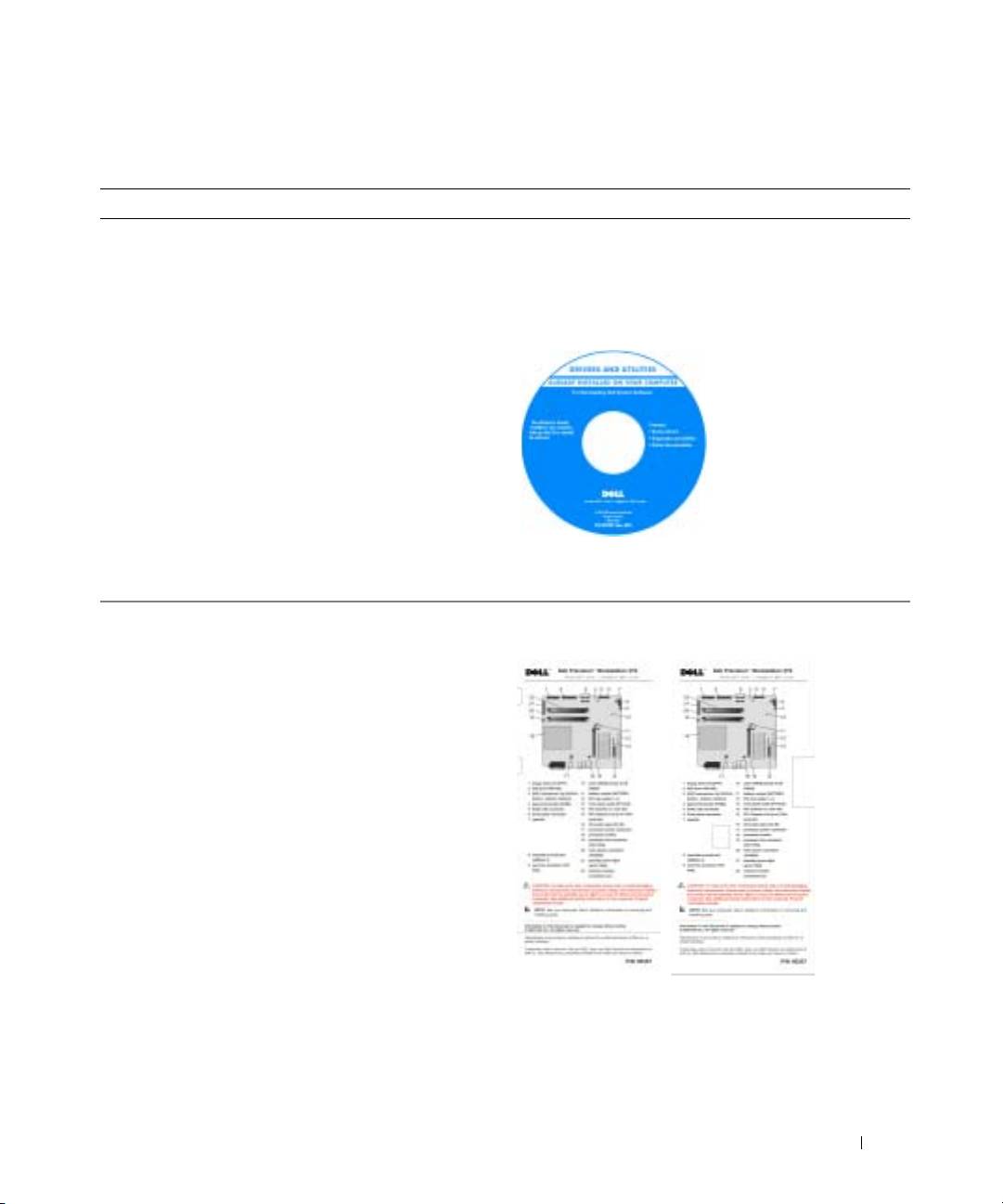
• A diagnostic program for my computer
Drivers and Utilities CD (also known as the ResourceCD)
• Drivers for my computer
Documentation and drivers are already installed on your
• My device documentation
computer. You can use the CD to reinstall drivers, run the
Dell Diagnostics (see page 28), or access your device
documentation.
Readme files may be
included on your CD
to provide last-minute
updates about technical
changes to your
computer or advanced
technical-reference
material for technicians
or experienced users.
NOTE: The latest drivers and documentation updates
can be found at support.dell.com.
• System board connectors
System Information Label
• Location of system board components
Located on the inside cover of your computer.
Quick Reference Guide 5
What Are You Looking For? Find it Here
• Warranty information
Dell™ Product Information Guide
• Safety instructions
• Regulatory information
• Ergonomics information
• End User License Agreement
www.dell.com | support.dell.com
• How to remove and replace parts
Dell Precision User’s Guide
• Technical specifications
®
®
Microsoft
Windows
XP Help and Support Center
• How to configure system settings
1
Click the
Start
button and click
Help and Support.
• How to troubleshoot and solve problems
2
Click
User’s and system guides
and click
User’s guides
.
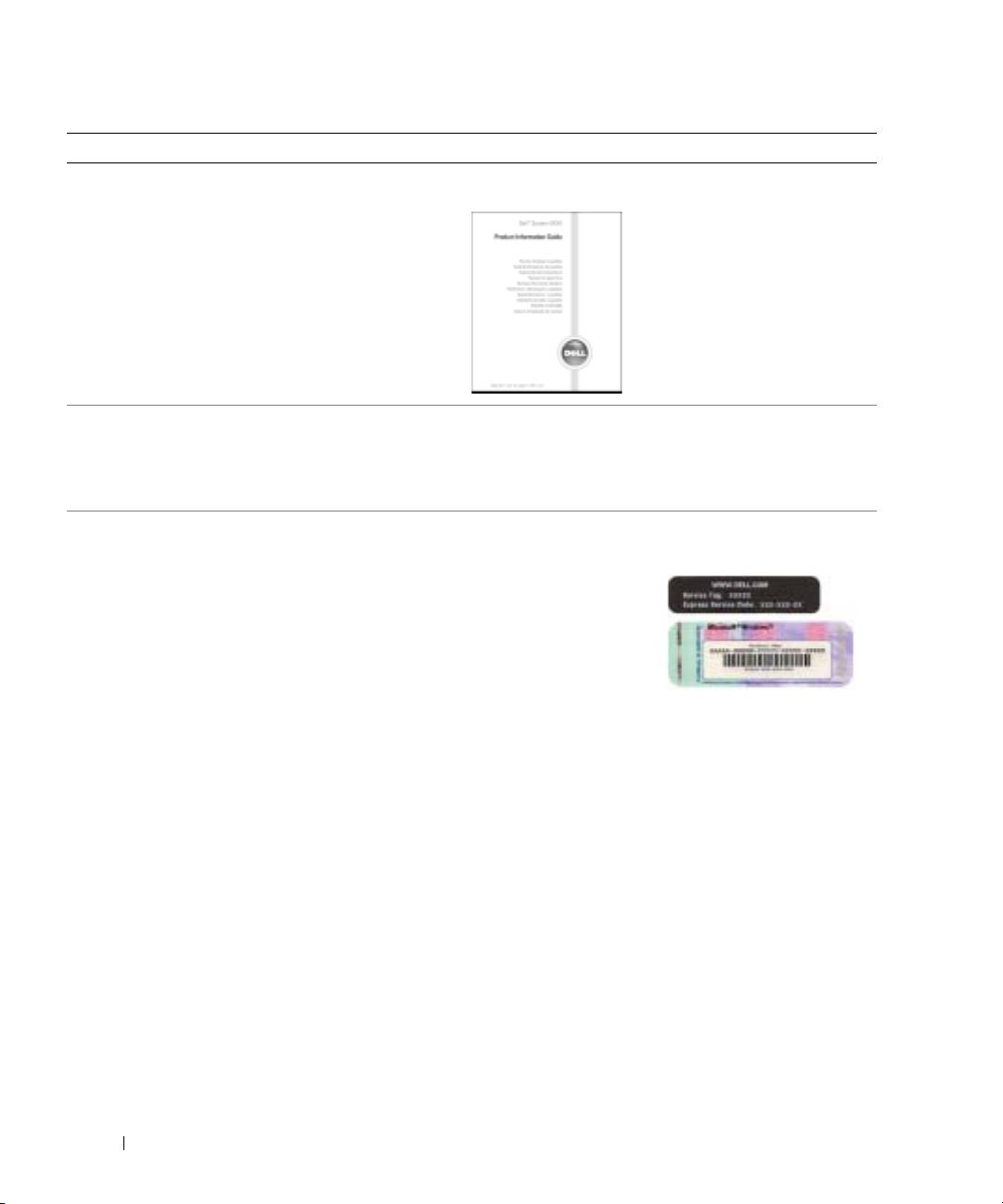
• Service Tag and Express Service Code
Service Tag and Microsoft Windows License
• Microsoft Windows License Label
These labels are located on your computer.
• Use the Service Tag
to identify your
computer when you
use
support.dell.com
or contact technical
support.
• Enter the Express
Service Code to direct your call when contacting
technical support. The Express Service Code is not
available in all countries.
6 Quick Reference Guide

What Are You Looking For? Find it Here
• Latest drivers for my computer
Dell Support Website — support.dell.com
• Answers to technical service and support questions
NOTE: Select your region to view the appropriate support
• Online discussions with other users and technical
site.
support
The Dell Support website provides several online tools,
• Documentation for my computer
including:
• Solutions — Troubleshooting hints and tips, articles
from technicians, and online courses
• Community — Online discussion with other Dell
customers
• Upgrades — Upgrade information for components, such
as memory, the hard drive, and the operating system
• Customer Care — Contact information, order status,
warranty, and repair information
• Downloads — Drivers, patches, and software updates
• Reference — Computer documentation, product
specifications, and white papers
• Service call status and support history
Dell Premier Support Website — premiersupport.dell.com
• Top technical issues for my computer
The Dell Premier Support website is customized for
• Frequently asked questions
corporate, government, and education customers. This
• File downloads
website may not be available in all regions.
• Details on my computer configuration
• Service contract for my computer
• How to use Windows XP
Windows Help and Support Center
• Documentation for my computer
1
Click the
Start
button and click
Help and Support
.
• Documentation for devices (such as a modem)
2
Type a word or phrase that describes your problem
and click the arrow icon.
3
Click the topic that describes your problem.
4
Follow the instructions on the screen.
• How to use Linux
Dell Supported Linux Sites
• E-mail discussions with Dell Precision and Linux users
• http://linux.dell.com
• Additional information regarding Linux and my Dell
• http://lists.us.dell.com/mailman/listinfo/linux-
Precision computer
precision
• http://docs.us.dell.com/docs/software/oslinux/
• http://docs.us.dell.com/docs/software/OSRHEL3/
Quick Reference Guide 7

What Are You Looking For? Find it Here
• How to reinstall my operating system
Operating System CD
The operating system is already installed on your
computer. To reinstall your operating system, use the
Operating System CD. See your Precision User’s Guide
for instructions.
After you reinstall your
operating system, use the
Drivers and Utilities CD
to reinstall drivers for the
devices that came with
your computer.
www.dell.com | support.dell.com
Your operating system
product key label is
located on your
computer.
NOTE: The color of your CD varies based on the operating
system you ordered.
8 Quick Reference Guide
Setting Up Your Mini-Tower Computer
CAUTION: Before you begin any of the procedures in this section, follow the safety instructions
located in the Product Information Guide.
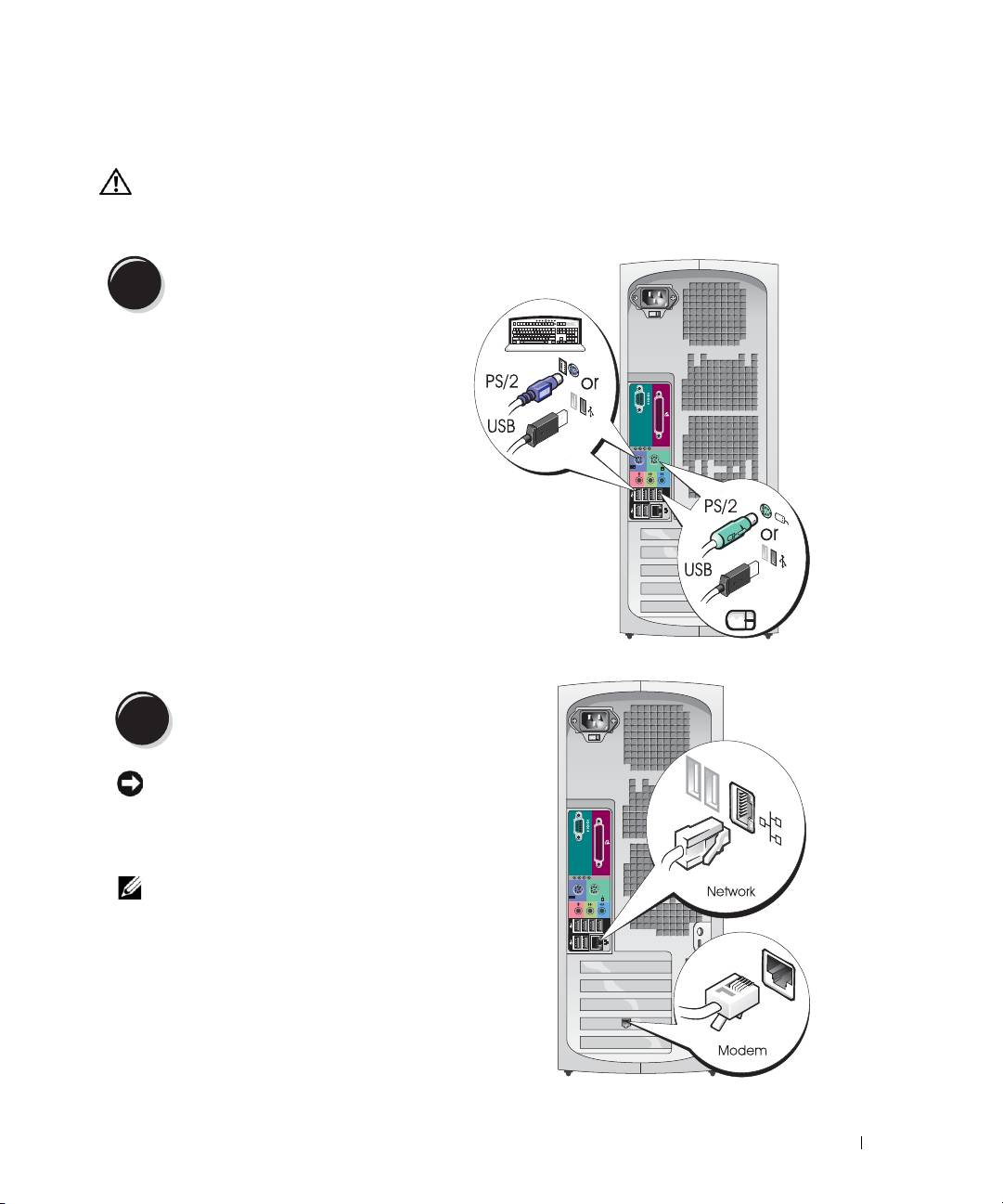
You must complete all steps to properly set up your computer.
Connect the keyboard and the mouse.
1
Connect the modem or the network cable.
2
NOTICE: Do not connect a modem cable to the
network adapter. Voltage from telephone
communications can damage the network adapter.
NOTE: If your computer has a network card installed,
connect the network cable to the card.
Quick Reference Guide 9
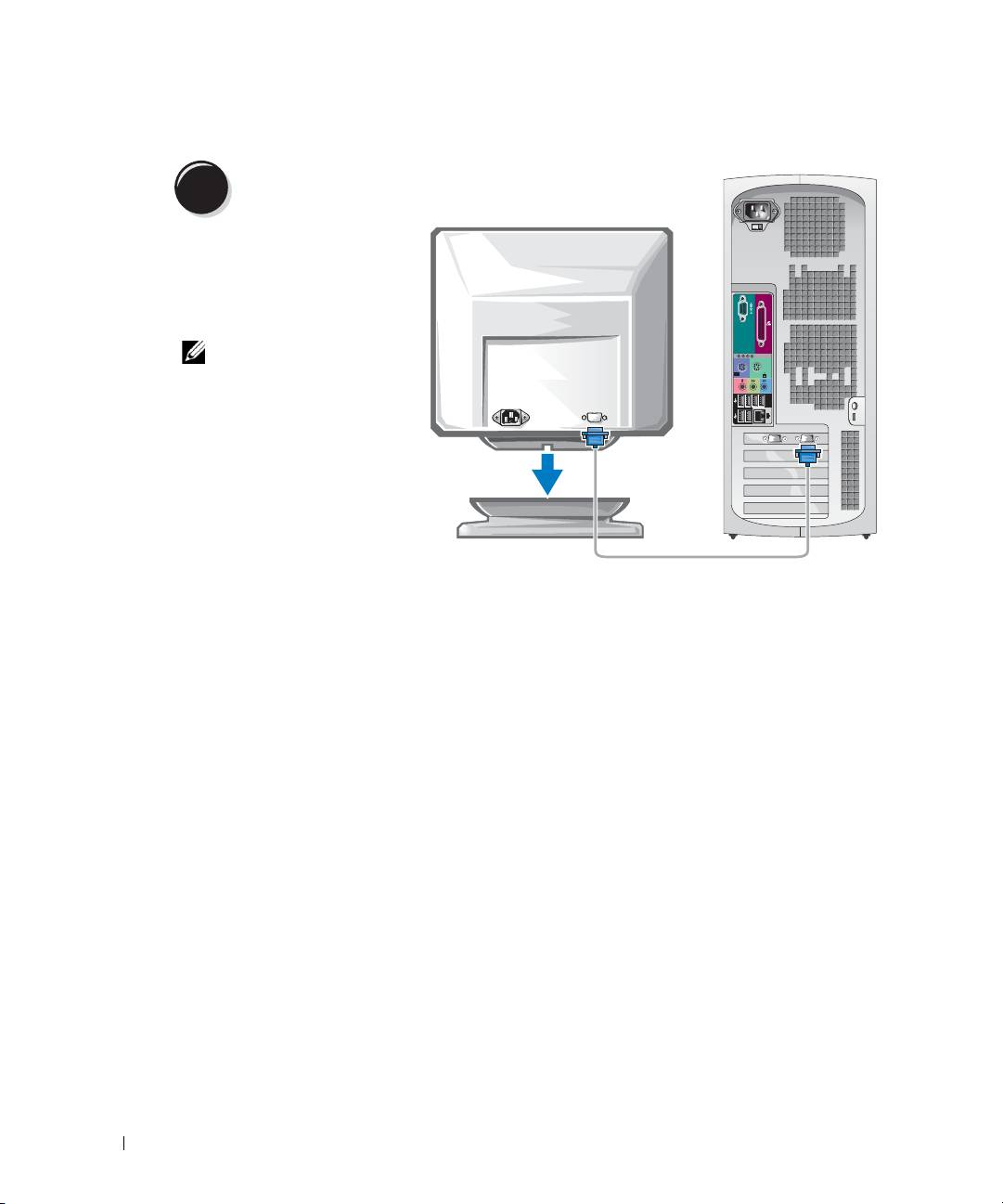
Connect the monitor.
3
Depending on your graphics
card, you can connect your
monitor in various ways.
NOTE: You may need to use
the provided adapter or
cable to connect your
www.dell.com | support.dell.com
monitor to the computer.
10 Quick Reference Guide
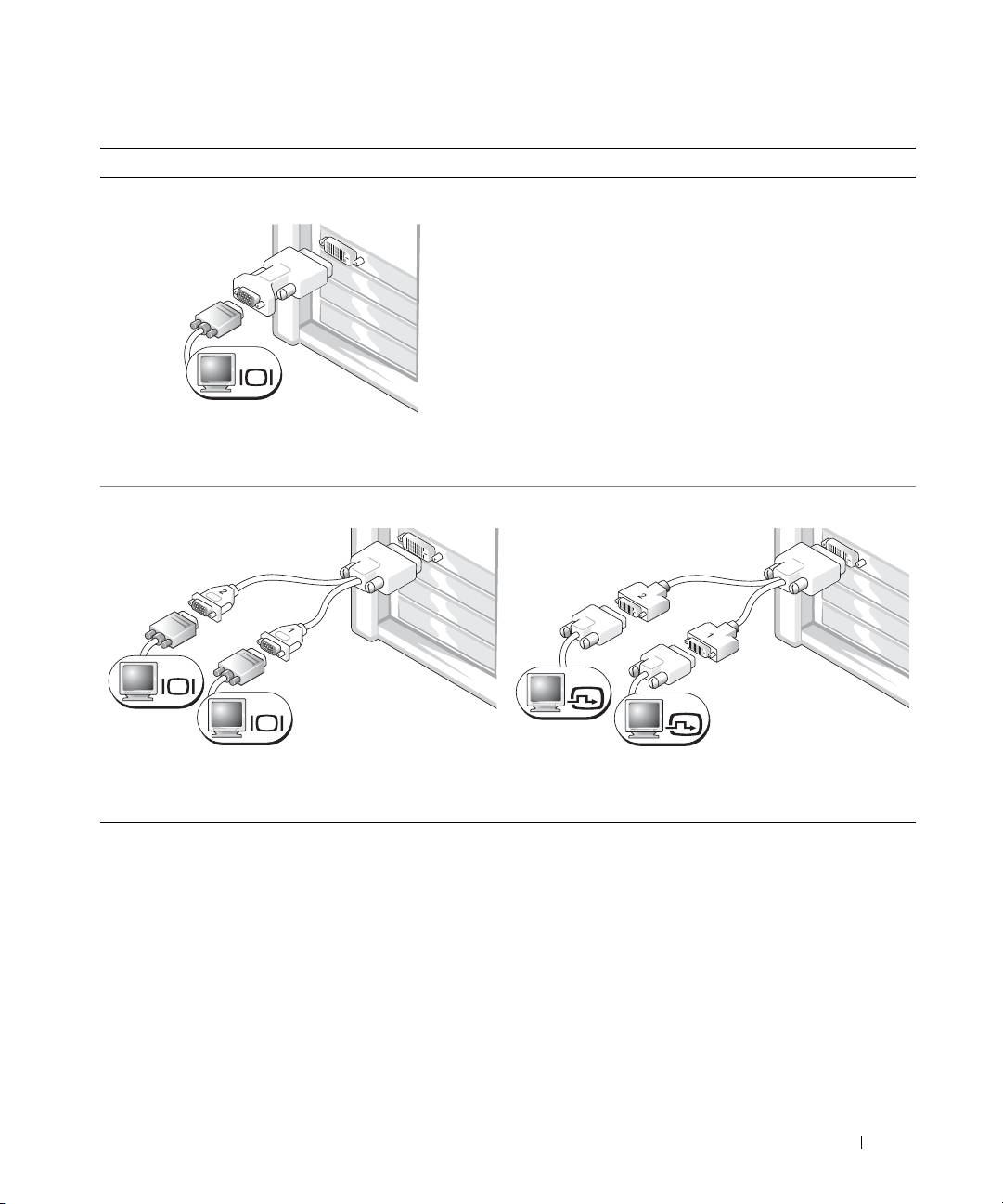
For single- and dual-monitor capable cards with a single connector
VGA Adapter
VGA
Use the VGA adapter when you have a single monitor
graphics card and you want to connect your computer
to a VGA monitor.
Dual VGA Y Cable Adapter
Dual DVI Y Cable Adapter
VGA
DVI
VGA
DVI
Use the appropriate Y cable when your graphics card has a
Use the appropriate Y cable when your graphics card has a
single connector and you want to connect your computer
single connector and you want to connect your computer
to one or two VGA monitors.
to one or two DVI monitors.
The dual-monitor cable is color coded; the blue connector is for the primary monitor, and the black
connector is for the secondary monitor. To enable dual-monitor support, both monitors must be
attached to the computer when it starts.
Quick Reference Guide 11
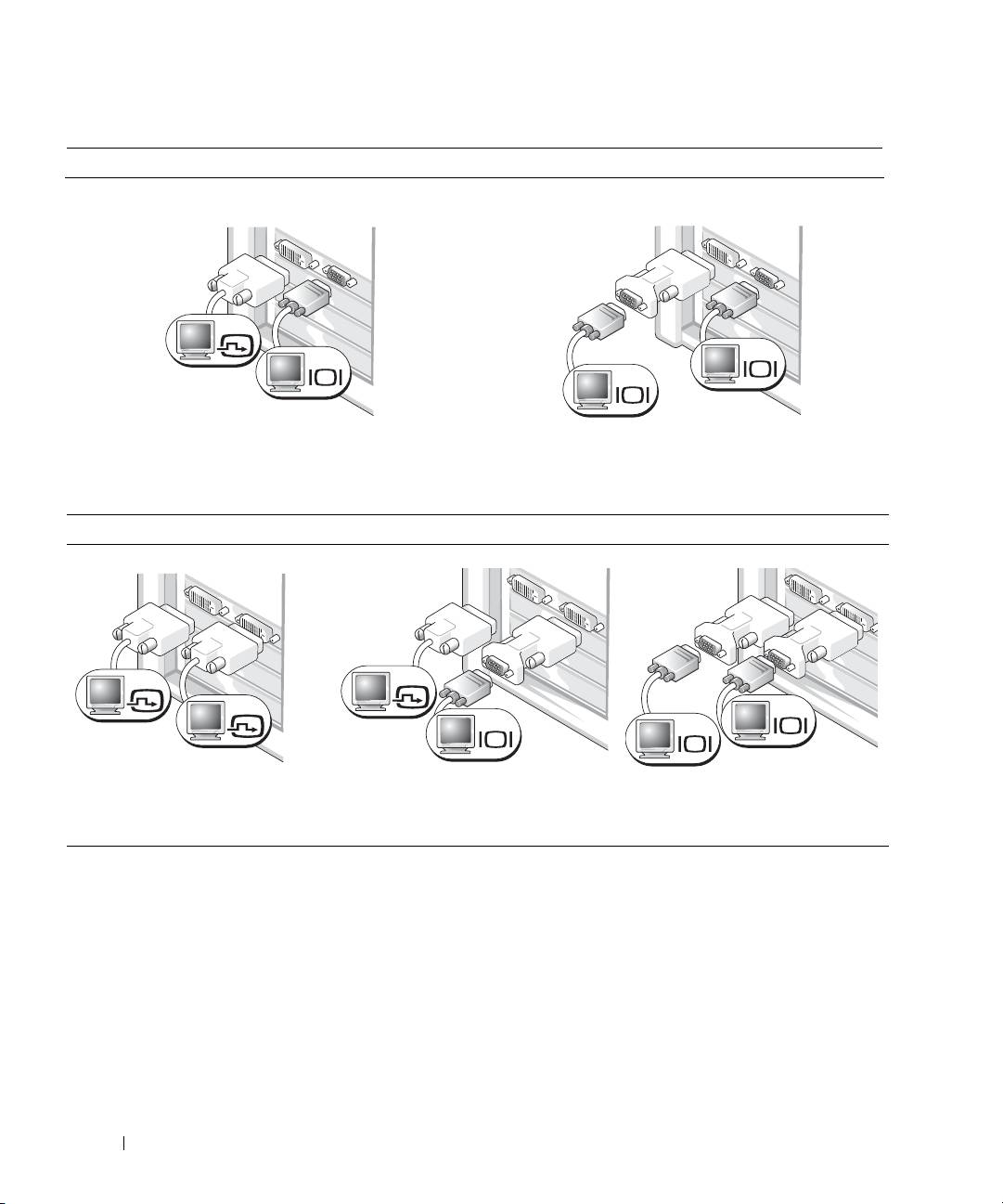
For dual-monitor capable cards with 1 DVI and 1 VGA connector
Single DVI/Single VGA
Dual VGA With VGA Adapter
DVI
VGA
VGA
VGA
www.dell.com | support.dell.com
Use the appropriate connector(s) when you want
Use the VGA adapter when you want to connect
to connect your computer to one or two monitors.
your computer to two VGA monitors.
For dual-monitor capable cards with 2 DVI connectors
Dual DVI
Dual DVI With One VGA Adapter
Dual DVI With Two VGA Adapters
DVI
DVI
DVI
VGA
VGA
VGA
Use the DVI connectors to connect
Use the VGA adapter to connect a
Use two VGA adapters to connect two
your computer to one or two DVI
VGA monitor to one of the DVI
VGA monitors to the DVI connectors
monitors.
connector.s on your computer
on your computer.
12 Quick Reference Guide
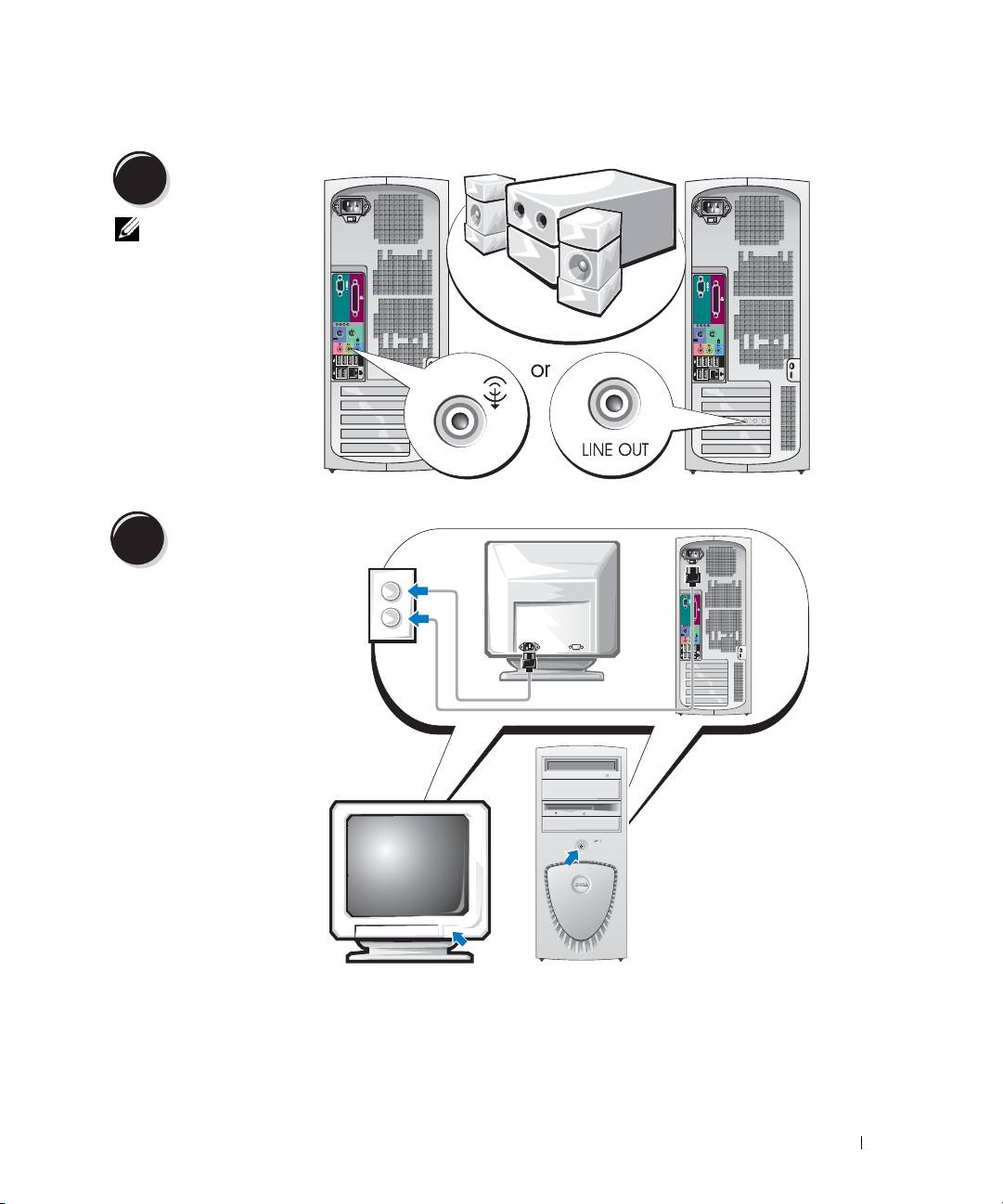
Connect the
4
speakers.
NOTE: If your
computer has an audio
card installed, connect
the speakers to the
card.
Connect the power
5
cables and turn on
the computer and
monitor.
Quick Reference Guide 13
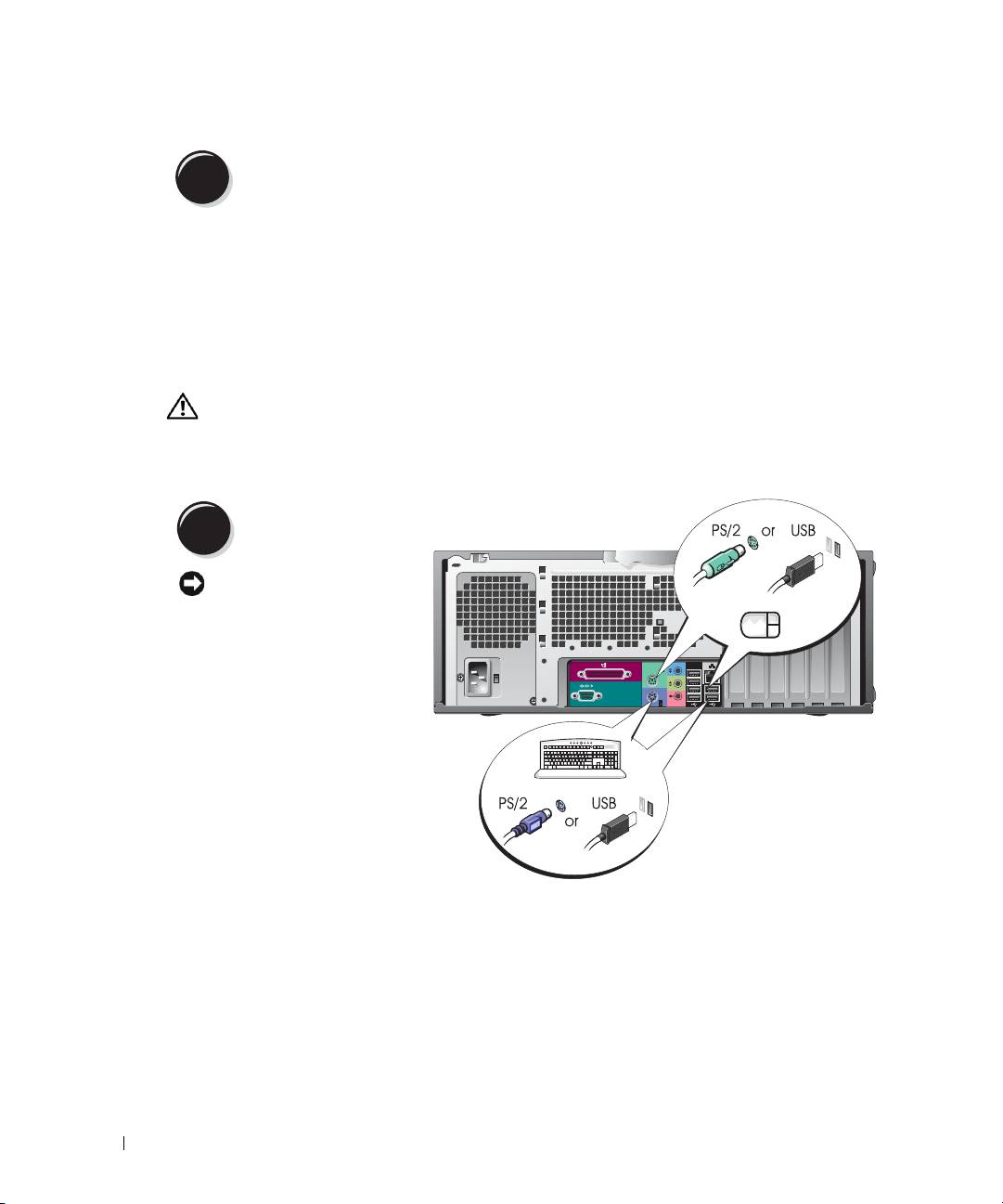
Install additional software or devices.
6
Before you install any devices or software that did not come with your computer, read the
documentation that came with the software or device or contact the vendor to verify that
the software or device is compatible with your computer and operating system.
Congratulations! You have completed the setup for your mini-tower computer.
Setting Up Your Desktop Computer
www.dell.com | support.dell.com
CAUTION: Before you begin any of the procedures in this section, follow the safety instructions
located in the Product Information Guide.
You must complete all steps to properly set up your computer.
Connect the keyboard and the mouse.
1
NOTICE: Do not connect a
modem cable to the network
adapter. Voltage from
telephone communications
can damage the network
adapter.
14 Quick Reference Guide
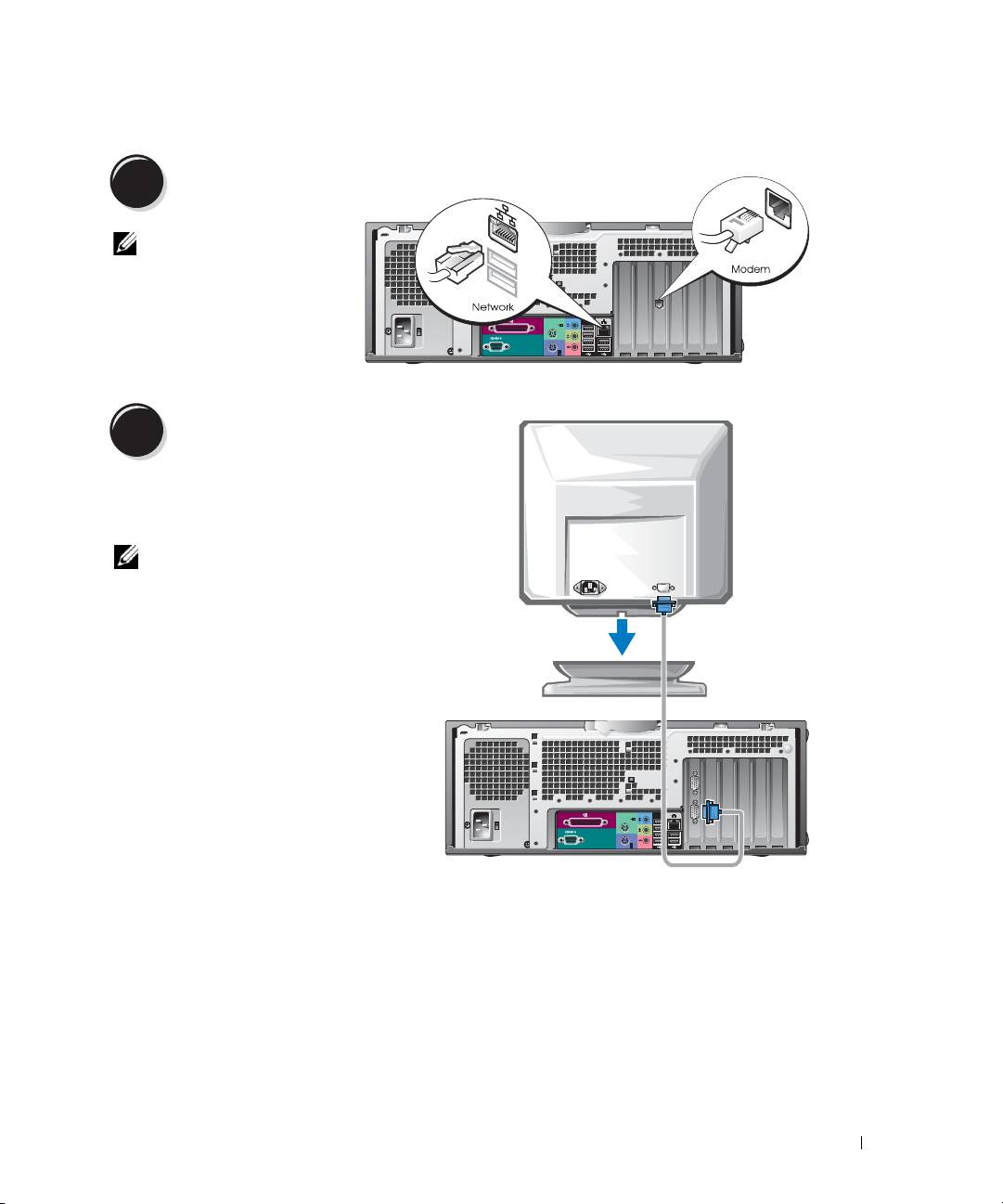
Connect the modem
2
or the network cable.
NOTE: If your computer
has a network card
installed, connect the
network cable to the card.
Connect the monitor.
3
Depending on your graphics card, you
can connect your monitor in various
ways.
NOTE: You may need to use the
provided adapter or cable to connect
your monitor to the computer.
Quick Reference Guide 15
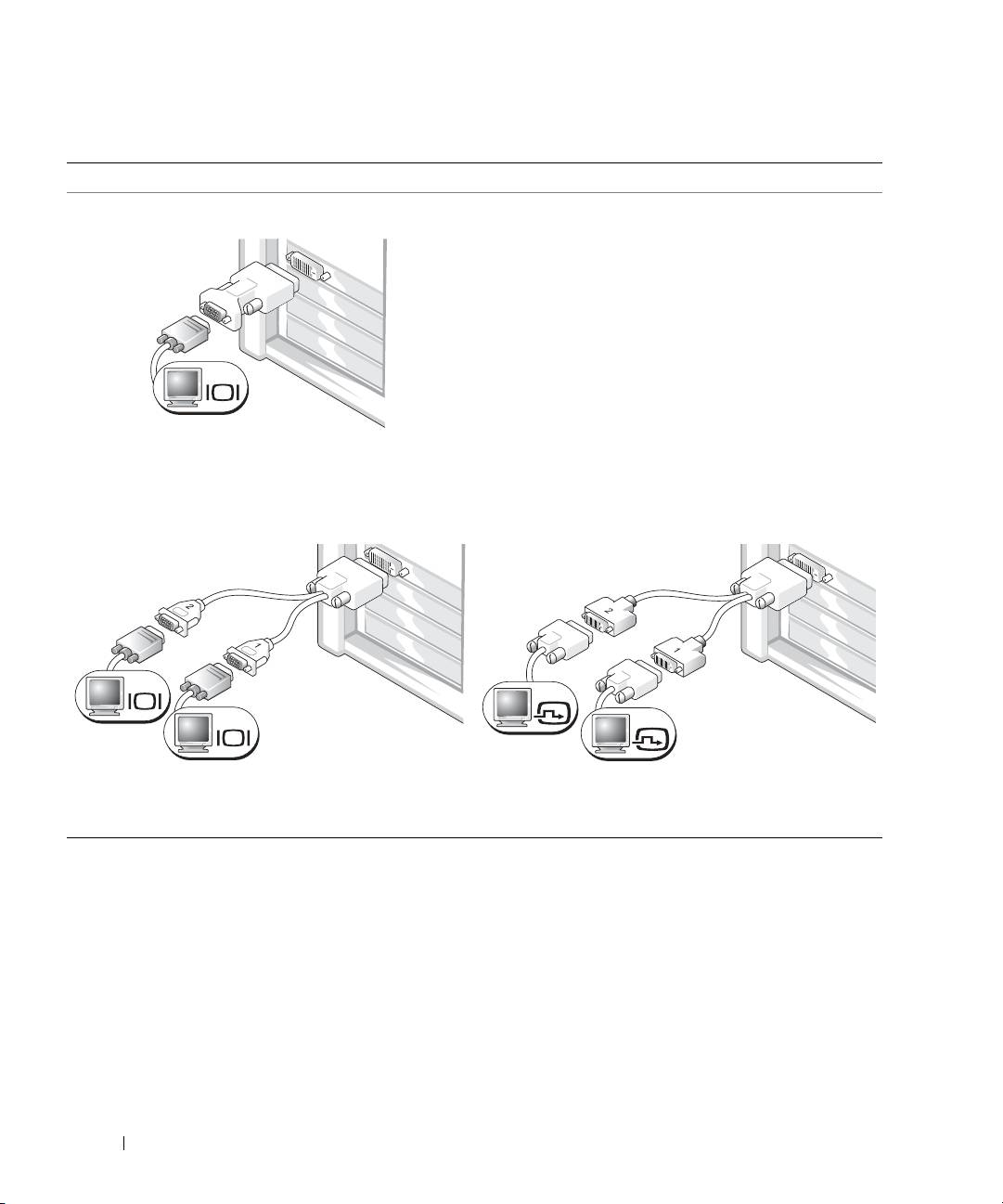
For single- and dual-monitor capable cards with a single connector
VGA Adapter
VGA
www.dell.com | support.dell.com
Use the VGA adapter when you have a single monitor
graphics card and you want to connect your computer
to a VGA monitor.
Dual VGA Y Cable Adapter
Dual DVI Y Cable Adapter
VGA
DVI
VGA
DVI
Use the appropriate Y cable when your graphics card has a
Use the appropriate Y cable when your graphics card has a
single connector and you want to connect your computer
single connector and you want to connect your computer
to one or two VGA monitors.
to one or two DVI monitors.
The dual-monitor cable is color coded; the blue connector is for the primary monitor, and the black
connector is for the secondary monitor. To enable dual-monitor support, both monitors must be
attached to the computer when it starts.
16 Quick Reference Guide
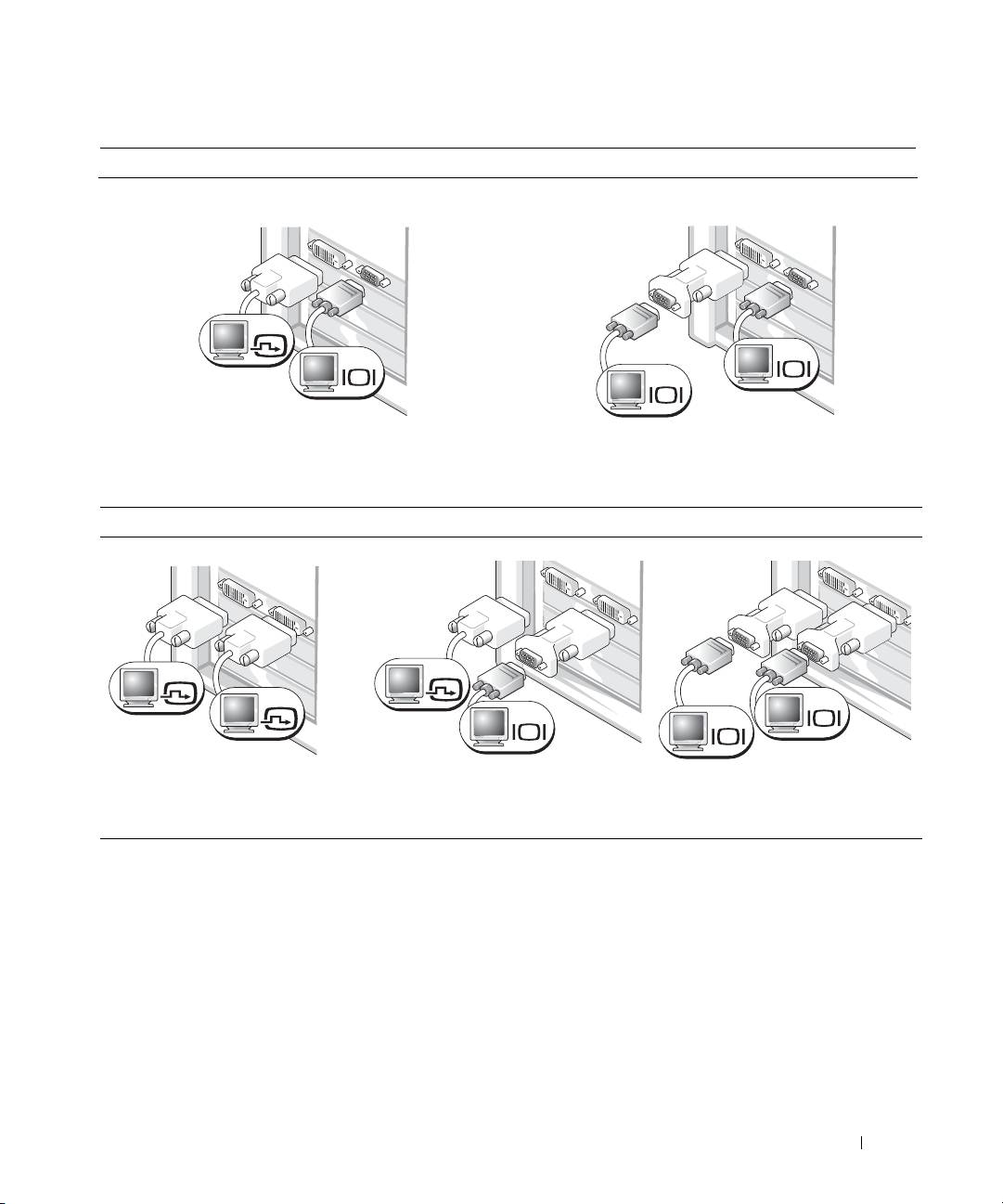
For dual-monitor capable cards with 1 DVI and 1 VGA connector
Single DVI/Single VGA
Dual VGA With VGA Adapter
DVI
VGA
VGA
VGA
Use the appropriate connector(s) when you want
Use the VGA adapter when you want to connect
to connect your computer to one or two monitors.
your computer to two VGA monitors.
For dual-monitor capable cards with 2 DVI connectors
Dual DVI
Dual DVI With One VGA Adapter
Dual DVI With Two VGA Adapters
DVI
DVI
DVI
VGA
VGA
VGA
Use the DVI connector(s) to connect
Use the VGA adapter to connect
Use two VGA adapters to connect
your computer to one or two DVI
a VGA monitor to one of the DVI
two VGA monitors to the DVI
monitors.
connectors on your computer.
connectors on your computer.
Quick Reference Guide 17
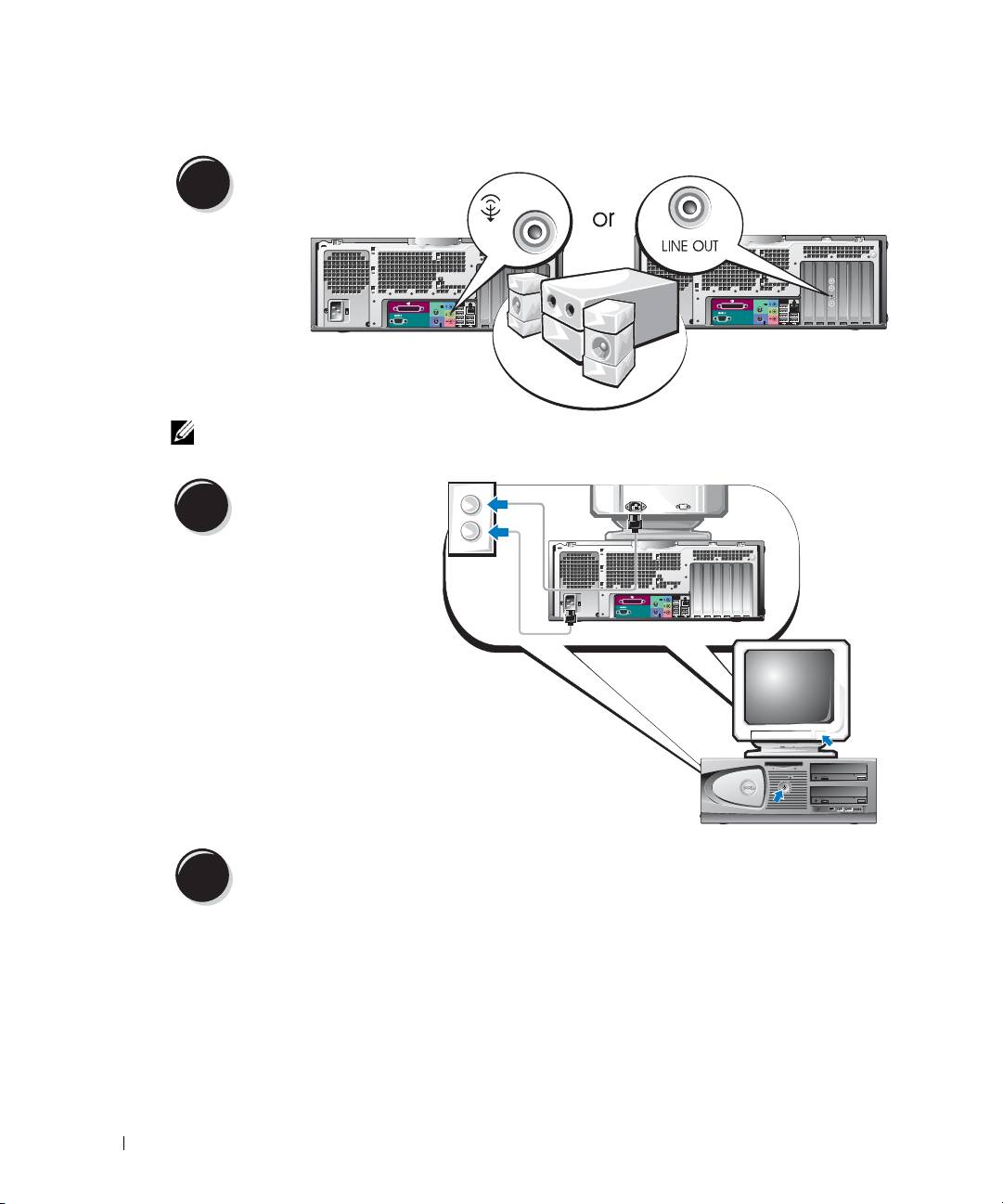
Connect the speakers.
4
www.dell.com | support.dell.com
NOTE: If your computer has an audio card installed, connect the speakers to the card.
Connect the power cables
and turn on the computer
5
and monitor.
Your desktop computer has an
optional front IEEE 1394
connector. This connector is only
available if you purchased an add-
in IEEE 1394 card. To purchase a
card, contact Dell. For more
information on the add-in card,
see your
User’s Guide
.
Install additional software or devices.
6
Before you install any devices or software that did not come with your computer, read the
documentation that came with the software or device or contact the vendor to verify that
the software or device is compatible with your computer and operating system.
Congratulations! You have completed the setup for your desktop computer.
18 Quick Reference Guide

Locating Your User’s Guide
Your
Dell Precision™ Workstation 370 User’s Guide
contains additional information about
your computer such as:
• Technical specifications
• Front and back views of your computer, including all of the available connectors
• Inside views of your computer, including a detailed graphic of the system board
and the connectors
• Instructions for cleaning your computer
• Information on software features, such as LegacySelect Technology control, using a password,
and system setup options
• Tips and information for using the Microsoft Windows XP operating system
• Instructions for removing and installing parts, including memory, cards, drives,
the microprocessor, and the battery
• Information for troubleshooting various computer problems
• Instructions for using the Dell Diagnostics and reinstalling drivers
• Information on how to contact Dell
You can access the
User’s Guide
from your hard drive or the Dell Support website
at
support.dell.com
.
To access the User’s Guide from your hard drive:
Click the
Start
button and click
Help and Support
.
To access your User’s Guide from the Dell Support Site:
1
Go to
support.dell.com
.
2
Follow the prompts on the website that ask you for information specific to your computer.
3
At the Dell Support website home page, click
Reference
, click
User’s Guides
, click
Systems
,
and then select your Dell Precision computer.
Quick Reference Guide 19

Opening Your Mini-Tower Computer
CAUTION: Before you begin any of the procedures in this section, follow the safety instructions
located in the Product Information Guide.
CAUTION: To guard against electrical shock, always unplug your computer from the electrical outlet
before opening the cover.
NOTICE: To avoid losing data, save and close any open files and exit any open programs before you turn
off your computer.
1
Shut down the operating system:
a
Save and close any open files, exit any open programs, click the
Start
button, and
then click
Turn Off Computer
.
www.dell.com | support.dell.com
b
In the
Turn off computer
window, click
Turn off
.
The computer turns off after the operating system shutdown process finishes.
2
Ensure that the computer and any attached devices are turned off. If your computer and
attached devices did not automatically turn off when you shut down your operating system,
turn them off now.
3
If you have installed a padlock through the padlock ring on the back panel, remove the
padlock.
NOTICE: Ensure that sufficient space exists to support the open cover—at least 30 cm (1 ft) of desk top
space.
4
Lay the computer on its side as shown in the following illustration.
5
Open the cover:
a
Facing the back of the computer, press the release button on the right side of the
computer with one hand while pulling up on the top of the cover with the other hand.
b
Press the release button on the left side of the computer with one hand while pulling up
on the top of the cover with the other hand.
6
Hold the bottom of the computer with one hand, and then pull open the cover with the other
hand.
20 Quick Reference Guide
