
Dell Precision 370 – page 2
Manual for Dell Precision 370
Table of contents
- Notes, Notices, and Cautions Abbreviations and Acronyms
- Contents
- Finding Information and Assistance What Are You Looking For? Find it Here
- What Are You Looking For? Find it Here
- What Are You Looking For? Find it Here
- What Are You Looking For? Find it Here
- Setting Up Your Mini-Tower Computer Connect the keyboard and the mouse. Connect the modem or the network cable.
- Connect the monitor.
- For single- and dual-monitor capable cards with a single connector
- For dual-monitor capable cards with 1 DVI and 1 VGA connector For dual-monitor capable cards with 2 DVI connectors
- Connect the speakers. Connect the power cables and turn on the computer and monitor.
- Install additional software or devices. Congratulations! You have completed the setup for your mini-tower computer. Setting Up Your Desktop Computer Connect the keyboard and the mouse.
- Connect the modem or the network cable. Connect the monitor.
- For single- and dual-monitor capable cards with a single connector
- For dual-monitor capable cards with 1 DVI and 1 VGA connector For dual-monitor capable cards with 2 DVI connectors
- Connect the speakers. Connect the power cables and turn on the computer and monitor. Install additional software or devices.
- Locating Your User’s Guide To access the User’s Guide from your hard drive: To access your User’s Guide from the Dell Support Site:
- Opening Your Mini-Tower Computer
- Quick Reference Guide 21
- The Card Cooling Fan
- Opening Your Desktop Computer
- Caring for Your Computer
- Solving Problems Troubleshooting Tips Resolving Software and Hardware Incompatibilities Windows XP Windows 2000
- Using Microsoft Windows XP System Restore Creating a Restore Point Restoring the Computer to an Earlier Operating State
- Undoing the Last System Restore Enabling System Restore
- Using Last Known Good Configuration Other Options to Help Resolve Additional Device or Software Conflicts Dell Diagnostics When to Use the Dell Diagnostics
- Starting the Dell Diagnostics From Your Hard Drive Starting the Dell Diagnostics From the Drivers and Utilities CD
- Before You Start Testing Beep Codes Code Cause
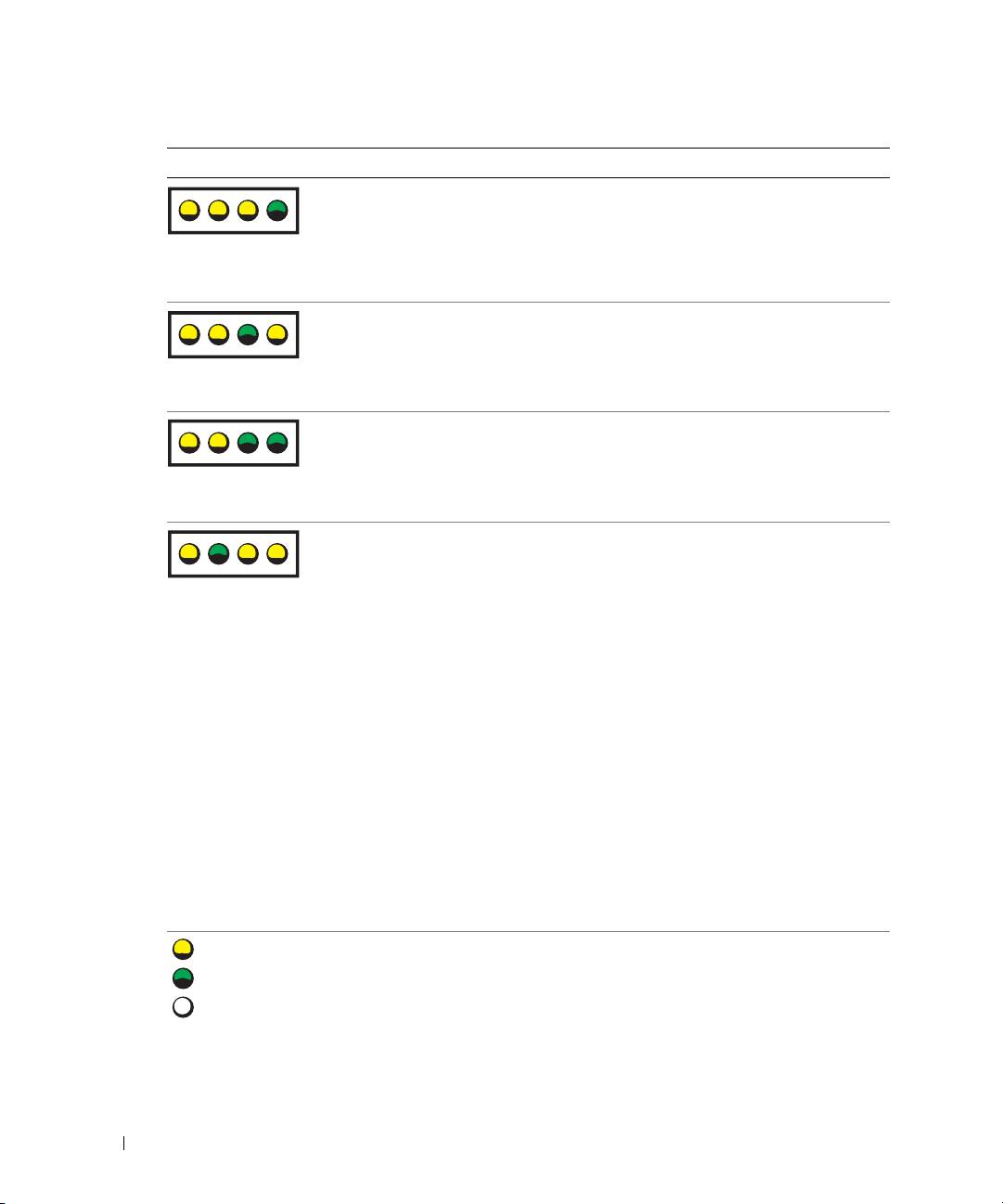
- Code Cause Diagnostic Lights
- Light Pattern Problem Description Suggested Resolution
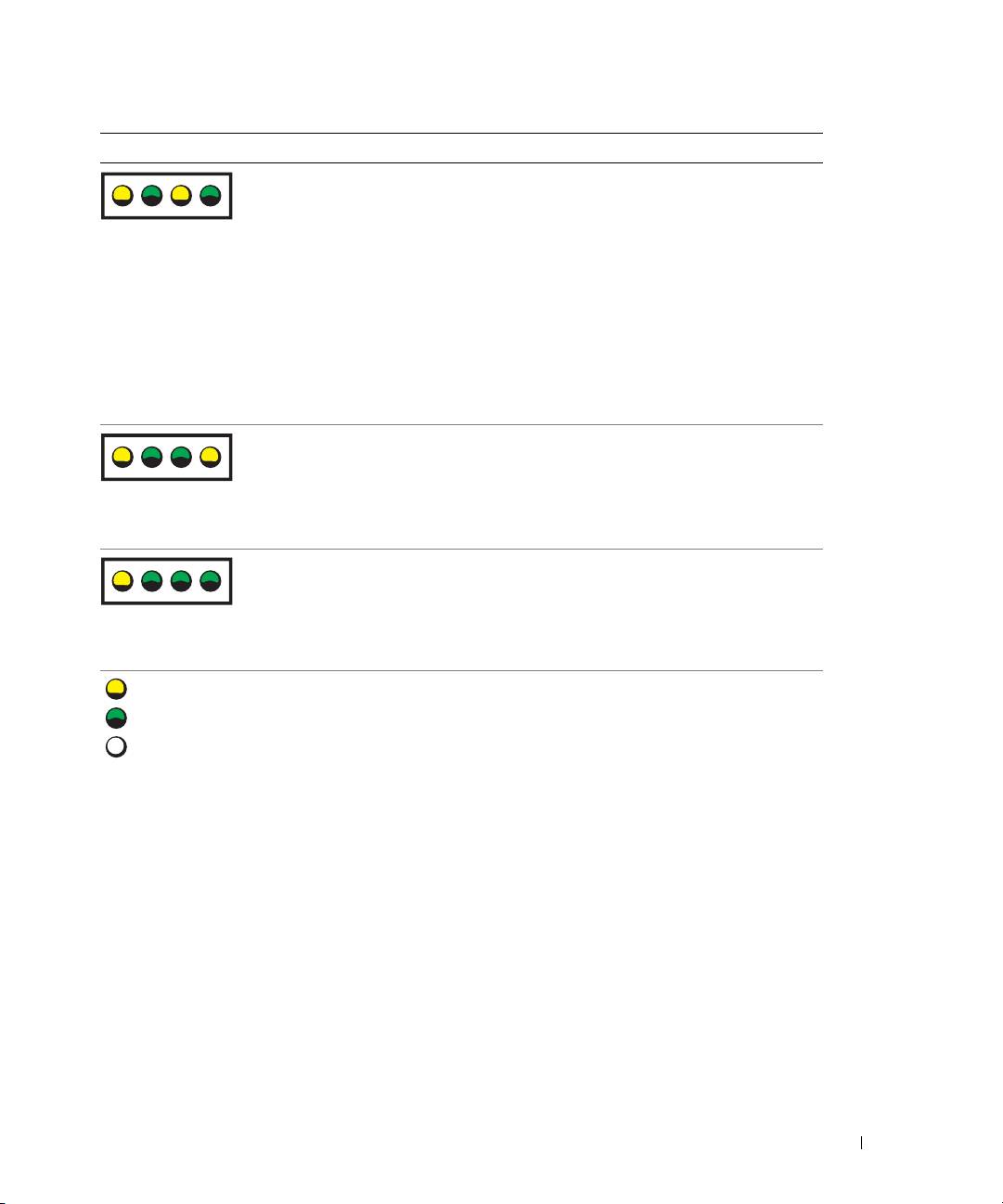
- Light Pattern Problem Description Suggested Resolution
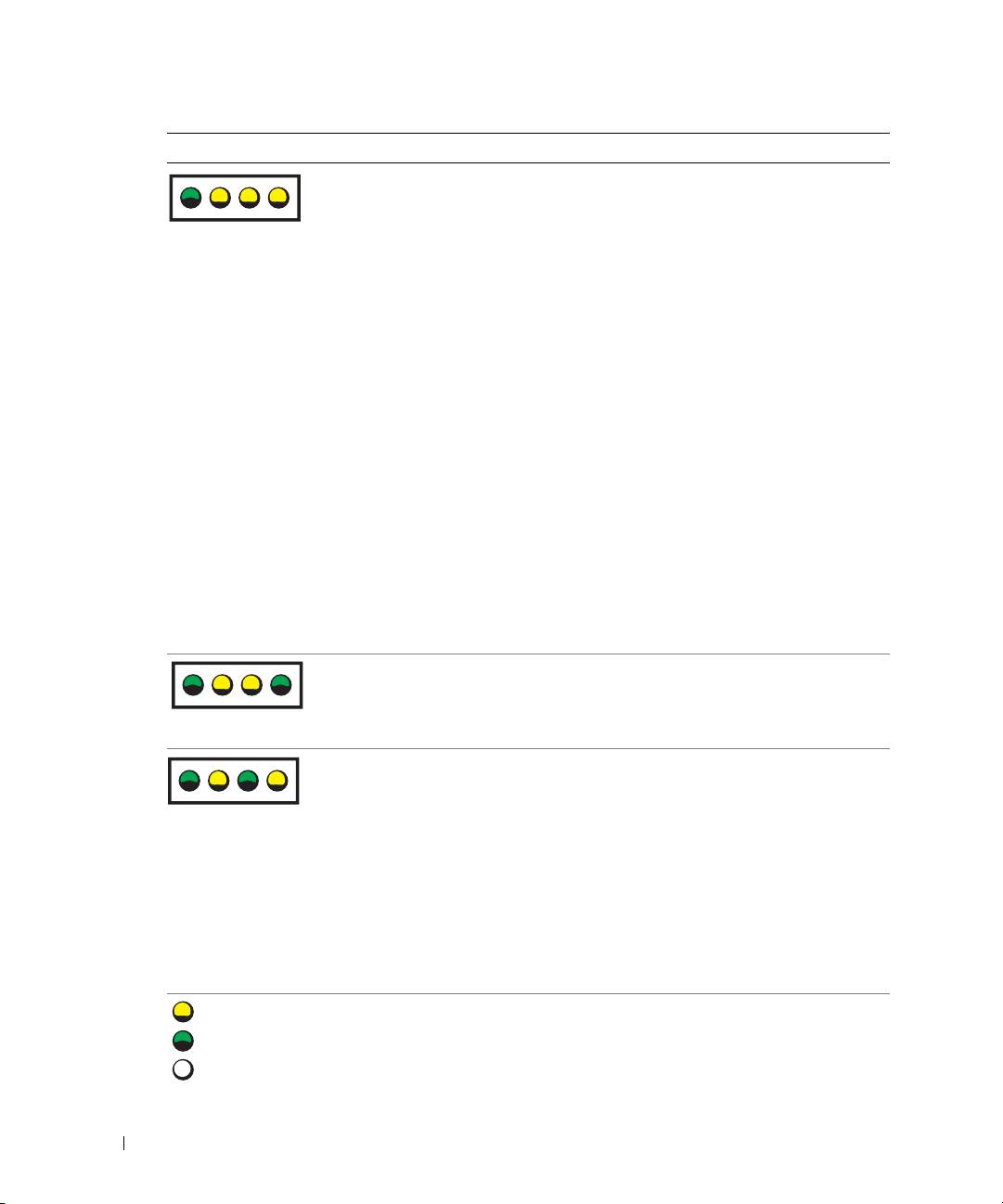
- Light Pattern Problem Description Suggested Resolution
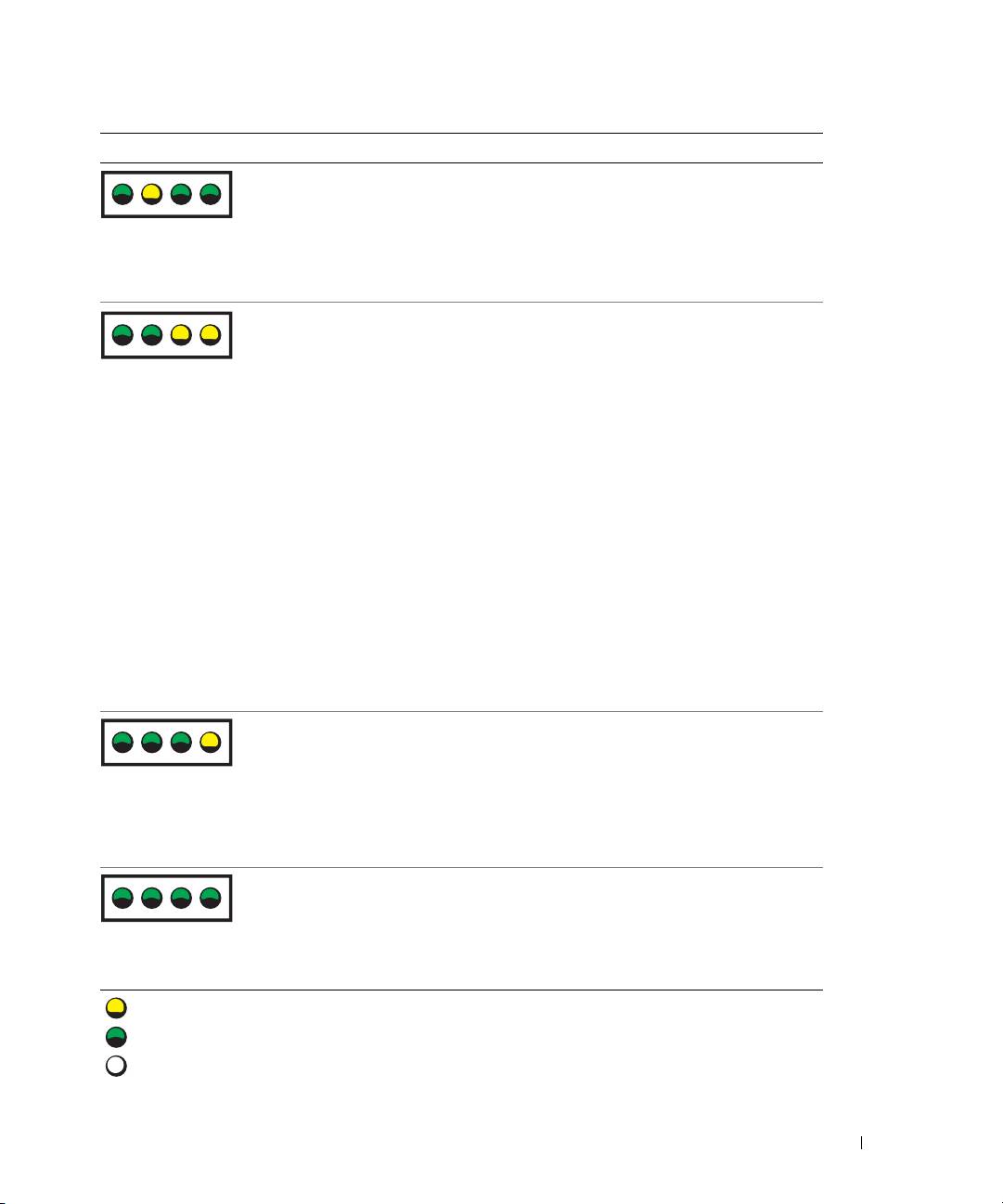
- Light Pattern Problem Description Suggested Resolution
- Frequently Asked Questions How Do I... Solution Where to Find Additional Information
- How Do I... Solution Where to Find Additional Information
- Index
- 40 Index
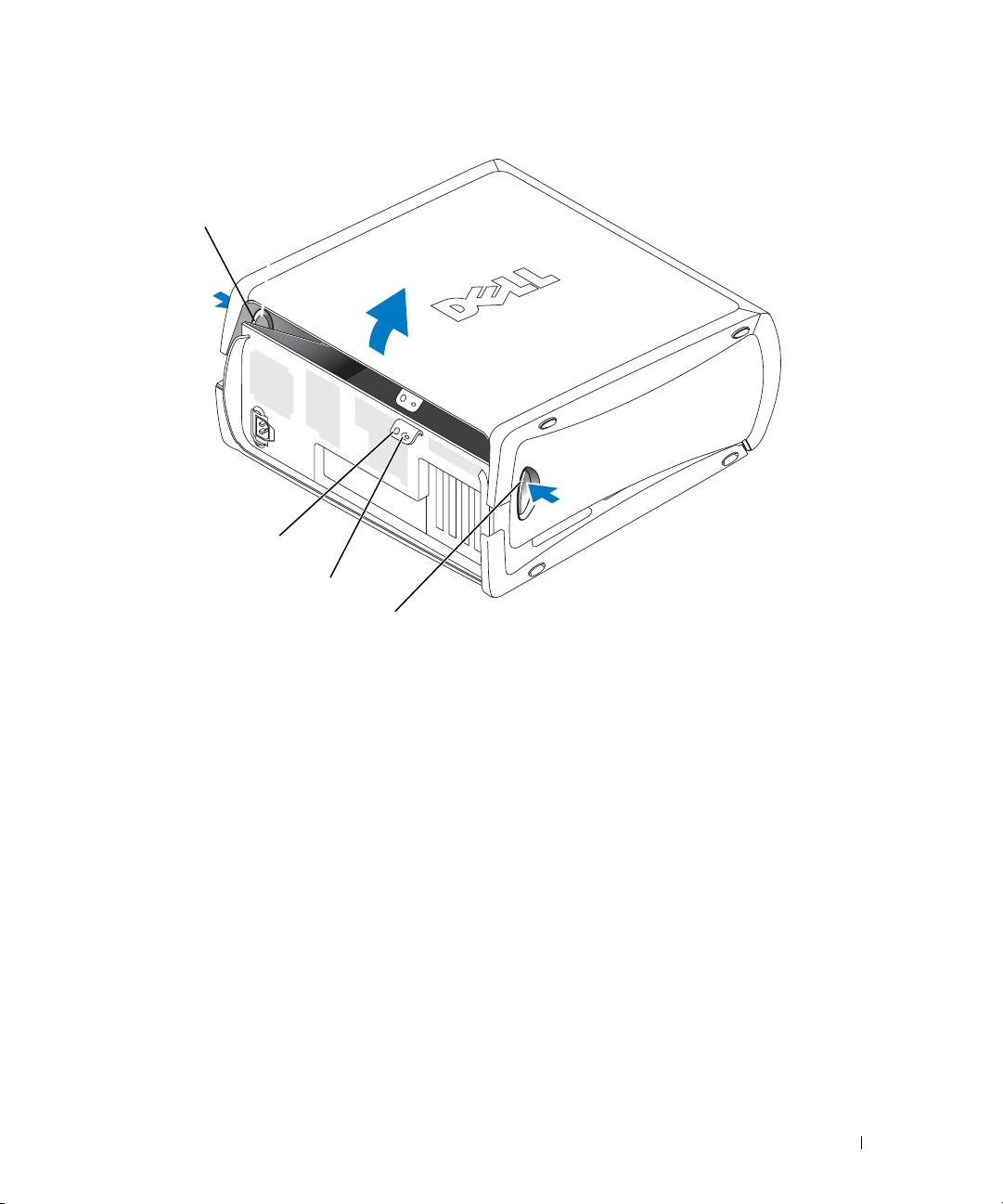
release button
security cable slot
padlock ring
release button
Quick Reference Guide 21
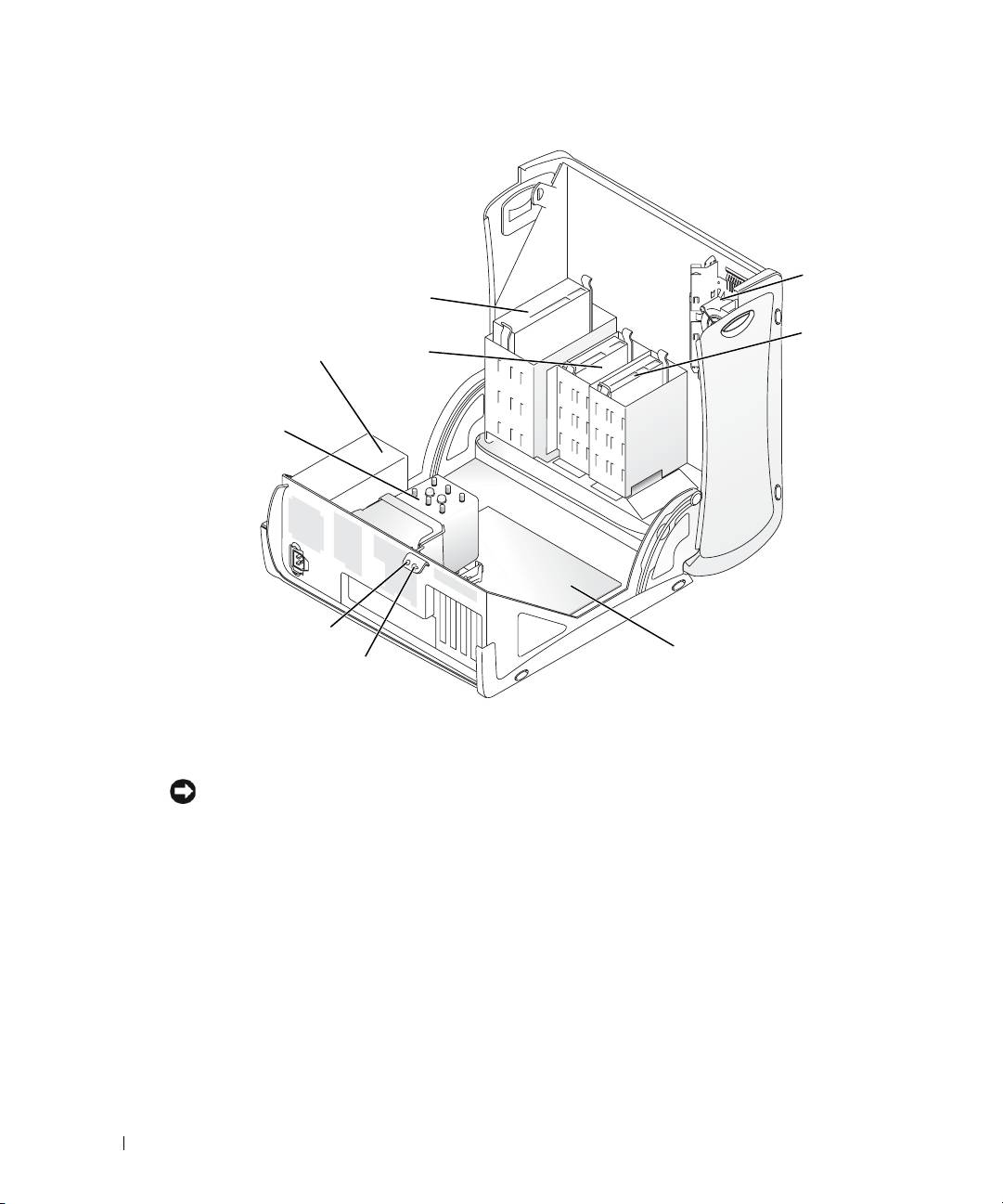
card fan
CD/DVD drive
floppy drive
hard drive
(optional)
power supply
processor
www.dell.com | support.dell.com
airflow shroud
and fan
security cable slot
system board
padlock ring
The Card Cooling Fan
NOTICE: PCI Express graphics cards that run higher than 75 watts (W) require an additional cooling fan
installed. Otherwise, your card could overheat and damage your computer.
If you ordered your computer with a graphics card that requires the fan, the fan is included. If a
card fan is not present in your computer and you are installing a graphics card that runs higher than
75 W, contact Dell to purchase a card fan.
If the computer detects that you have installed a card that requires a fan, an error message appears.
For Dell contact information, see your
User's Guide
or go to
support.dell.com
and click
Contact Us
.
22 Quick Reference Guide
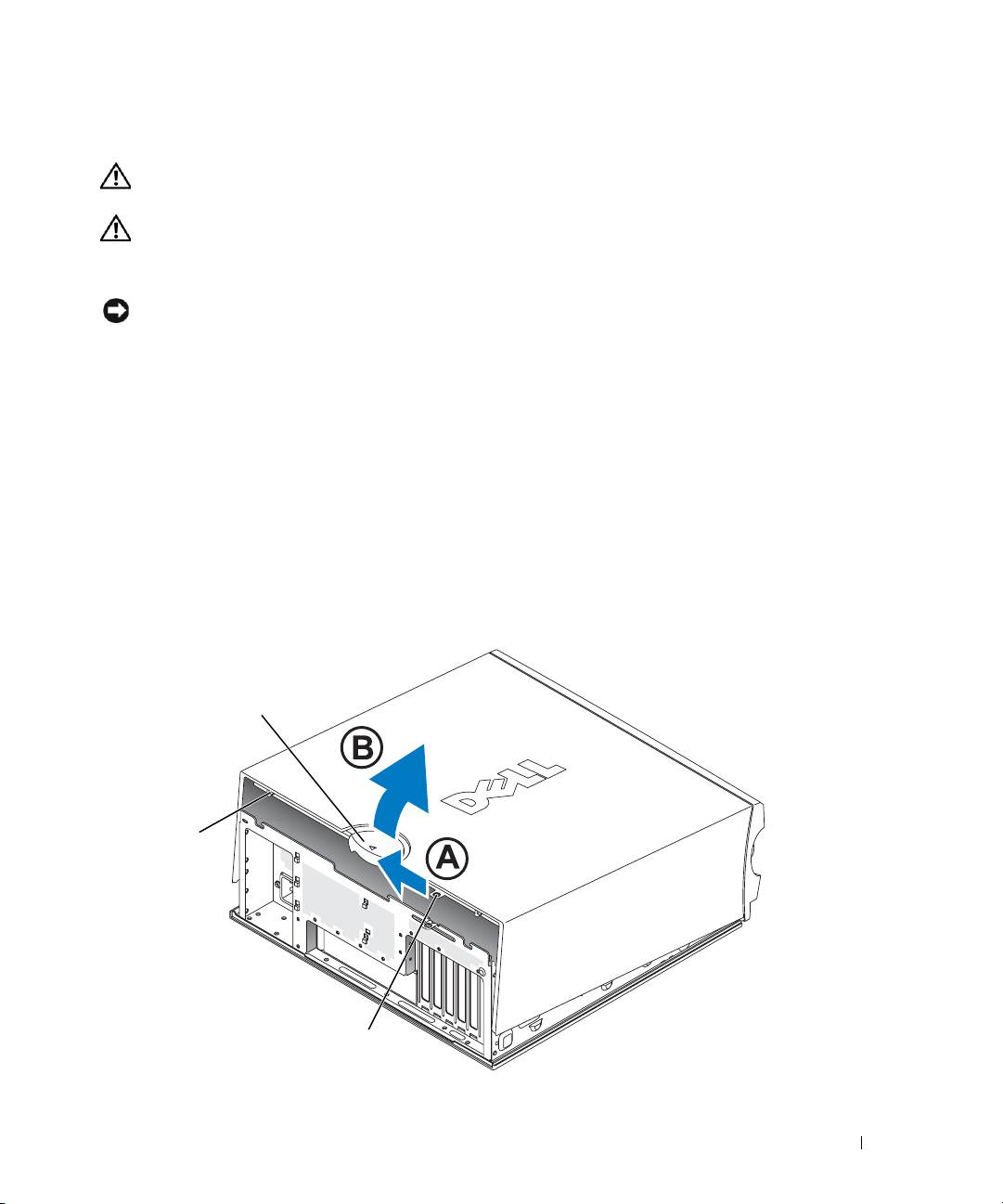
Opening Your Desktop Computer
CAUTION: Before you begin any of the procedures in this section, follow the safety instructions
located in the Product Information Guide.
CAUTION: To prevent static damage to components inside your computer, discharge static electricity
from your body before you touch any of your computer’s electronic components. You can do so by
touching an unpainted metal surface on the computer.
NOTICE: To avoid losing data, save and close any open files and exit any open programs before you turn
off your computer.
1
Shut down the operating system:
a
Save and close any open files, exit any open programs, click the
Start
button, and then
click
Turn Off Computer
.
b
In the
Turn off computer
window, click
Turn off
.
The computer turns off after the operating system shutdown process finishes.
2
Ensure that the computer and any attached devices are turned off. If your computer and
attached devices did not automatically turn off when you shut down your operating system,
turn them off now.
3
Slide the cover release latch to the left.
4
Raise the cover, and pivot it toward the front of the computer.
cover latch release
security
cable slot
padlock ring
Quick Reference Guide 23
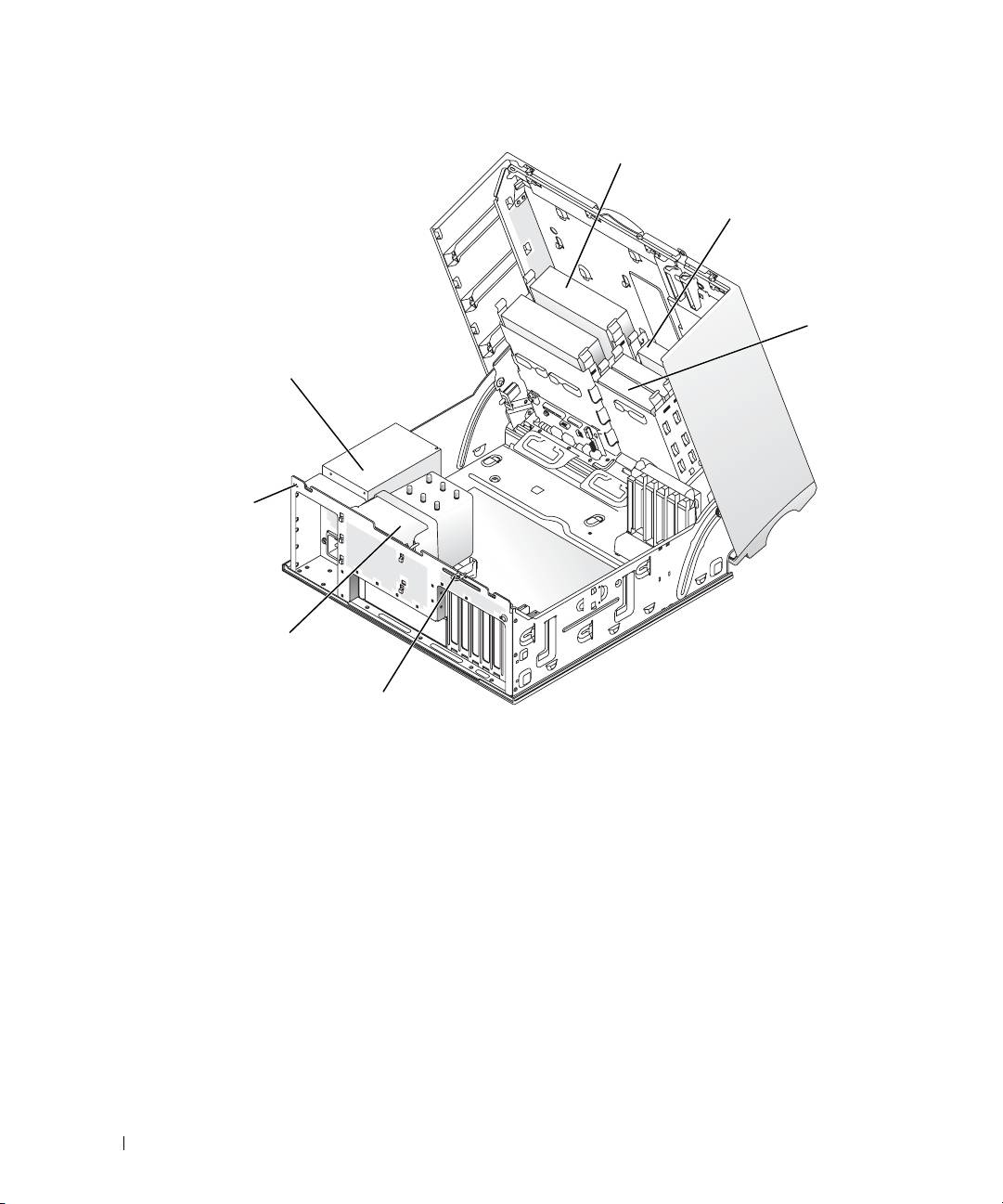
CD/DVD drive
floppy drive (optional)
hard drive
power supply
www.dell.com | support.dell.com
processor airflow
shroud and fan
padlock ring
Caring for Your Computer
To help maintain your computer, follow these suggestions:
• To avoid losing or corrupting data, never turn off your computer when the hard drive light is
on.
• Schedule regular virus scans using virus software.
• Manage hard drive space by periodically deleting unnecessary files and defragmenting
the drive.
• Back up files on a regular basis.
• Periodically clean your monitor screen, mouse, and keyboard (see your
User’s Guide
for more
information).
24 Quick Reference Guide
s
ecurity
cable slot

Solving Problems
Troubleshooting Tips
Follow the following tips when you troubleshoot your computer:
• If you added or removed a part before the problem started, review the installation procedures
and ensure that the part is correctly installed.
• If a peripheral device does not work, ensure that the device is properly connected.
• If an error message appears on the screen, write down the exact message. The message may
help technical support personnel diagnose and fix the problem(s).
• If an error message occurs in a program, see the program’s documentation.
• If the recommended action in the troubleshooting section is to see a section in your
User’s
Guide
, go to
support.dell.com
(on another computer if necessary) to access your
User’s
Guide.
Resolving Software and Hardware Incompatibilities
If a device is either not detected during the operating system setup or is detected but incorrectly
configured, you can use the Hardware Troubleshooter to resolve the incompatibility. In the
®
®
Microsoft
Windows
2000 operating system, you can also use Device Manager to resolve
incompatibilities.
Windows XP
To resolve incompatibilities using the Hardware Troubleshooter:
1
Click the
Start
button and click
Help and Support
.
2
Ty p e
hardware troubleshooter
in the
Search
field and click the arrow to start
the search.
3
Click
Hardware Troubleshooter
in the
Search Results
list.
4
In the
Hardware Troubleshooter
list, click
I need to resolve a hardware conflict
on my computer
, and click
Next
.
Windows 2000
To resolve incompatibilities using Device Manager:
1
Click the
Start
button, point to
Settings
, and then click
Control Panel
.
2
In the
Control Panel
window, double-click
System
.
3
Click the
Hardware
tab.
4
Click
Device Manager
.
5
Click
View
and click
Resources by connection
.
Quick Reference Guide 25

6
Double-click
Interrupt request (IRQ)
.
Incorrectly configured devices are indicated by a yellow exclamation point (
!
) or a red
X
if
the device has been disabled.
7
Double-click any device marked with an exclamation point to display the
Properties
window.
The
Device
status
area in the
Properties
window reports the cards or devices that need to be
reconfigured.
8
Reconfigure the devices or remove the devices from the Device Manager. See the
documentation that came with the device for information on configuring the device.
To resolve incompatibilities using the Hardware Troubleshooter:
1
Click the
Start
button and click
Help
.
www.dell.com | support.dell.com
2
Click
Troubleshooting and Maintenance
on the
Contents
tab, click
Windows 2000
troubleshooters
, and then click
Hardware
.
3
In the
Hardware Troubleshooter
list, click
I need to resolve a hardware conflict on my
computer
and click
Next
.
Using Microsoft Windows XP System Restore
The Microsoft Windows XP operating system provides System Restore to allow you to return
your computer to an earlier operating state (without affecting data files) if changes to the
hardware, software, or other system settings have left the computer in an undesirable operating
state. See the Windows Help and Support Center (see "Finding Information and Assistance"
on page 5) for information about using System Restore.
NOTICE: Make regular backups of your data files. System Restore does not monitor your data files
or recover them.
Creating a Restore Point
1
Click the
Start
button and click
Help and Support
.
2
Click
System Restore
.
3
Follow the instructions on the screen.
Restoring the Computer to an Earlier Operating State
NOTICE: Before you restore the computer to an earlier operating state, save and close any open files
and exit any open programs. Do not alter, open, or delete any files or programs until the system
restoration is complete.
1
Click the
Start
button, point to
All Programs
→
Accessories
→
System Tools
, and then click
System Restore
.
2
Ensure that
Restore my computer to an earlier time
is selected and click
Next
.
26 Quick Reference Guide

3
Click a calendar date to which you want to restore your computer.
The
Select a Restore Point
screen provides a calendar that allows you to see and select restore
points. All calendar dates with available restore points appear in boldface type.
4
Select a restore point and click
Next
.
If a calendar date has only one restore point, then that restore point is automatically selected.
If two or more restore points are available, click the restore point that you prefer.
5
Click
Next
.
The
Restoration Complete
screen appears after System Restore finishes collecting data and
then the computer restarts.
6
After the computer restarts, click
OK
.
To change the restore point, you can either repeat the steps using a different restore point, or you
can undo the restoration.
Undoing the Last System Restore
NOTICE: Before you undo the last system restore, save and close all open files and exit any open
programs. Do not alter, open, or delete any files or programs until the system restoration is complete.
1
Click the
Start
button, point to
All Programs
→
Accessories
→
System Tools
, and then click
System Restore
.
2
Click
Undo my last restoration
and click
Next
.
3
Click
Next
.
The
System Restore
screen appears and the computer restarts.
4
After the computer restarts, click
OK
.
Enabling System Restore
If you reinstall Windows XP with less than 200 MB of free hard-disk space available,
System Restore is automatically disabled. To see if System Restore is enabled:
1
Click the
Start
button and click
Control
Panel
.
2
Click
Performance and Maintenance
.
3
Click
System
.
4
Click the
System Restore
tab.
5
Ensure that
Turn off System Restore
is unchecked.
Quick Reference Guide 27

Using Last Known Good Configuration
1
Restart your computer and press <F8> when the message
Please select the
operating system to start
appears.
2
Highlight Last Known Good Setting, press <Enter>, press <l>, and then select
your operating system when prompted.
Other Options to Help Resolve Additional Device or Software Conflicts
NOTICE: The following processes erase all of the information on your hard drive.
• Reinstall your operating system using the operating system installation guide and operating
system CD.
During the operating system reinstallation, you can select to delete the existing partitions
www.dell.com | support.dell.com
and reformat your hard drive.
• Reinstall all drivers, beginning with the chipset, using the
Drivers and Utilities
CD
.
Dell Diagnostics
CAUTION: Before you begin any of the procedures in this section, follow the safety instructions
located in the Product Information Guide.
When to Use the Dell Diagnostics
If you experience a problem with your computer, perform the checks in "Solving Problems"
on page 25 and run the Dell Diagnostics before you contact Dell for technical assistance.
It is recommended that you print these procedures before you begin.
NOTICE: The Dell Diagnostics works only on Dell™ computers. Using this program with other computers
can cause incorrect computer responses or result in error messages.
The Dell Diagnostics allow you to:
• Perform quick checks or extensive tests on one or all devices
• Choose how many times a test is run
• Display or print test results or save them in a file
• Suspend testing if an error is detected or terminate testing if a certain number of errors occur
• Access online
Help
screens that describe the tests and how to run them
• Read status messages that tell you whether tests completed successfully
• Receive error messages if problems are detected
28 Quick Reference Guide

Starting the Dell Diagnostics From Your Hard Drive
1
Turn on (or restart) your computer.
2
When the DELL™ logo appears, press <F12> immediately.
NOTE: If you see a message stating that no diagnostics utility partition has been found,
see "Starting the Dell Diagnostics From the Drivers and Utilities CD" on page 29.
If you wait too long and the operating system logo appears, continue to wait until you see
the Microsoft Windows desktop. Then shut down your computer and try again. For more
information on shutting down your computer, see your
User’s Guide.
3
When the boot device list appears, highlight
Boot to Utility Partition
and press <Enter>.
4
When the Dell Diagnostics
Main Menu
appears, select the test you want to run. For more
information on the tests, see your
User’s Guide.
Starting the Dell Diagnostics From the Drivers and Utilities CD
1
Insert the
Drivers and Utilities
CD.
2
Shut down and restart the computer. For more information on shutting down your computer,
see your
User’s Guide.
3
When the DELL logo appears, press <F12> immediately.
If you wait too long and the Windows logo appears, continue to wait until you see the
Windows desktop. Then shut down your computer and try again. For more information
on shutting down your computer, see your
User’s Guide.
NOTE: The next steps change the boot sequence for one time only. On the next start-up, the computer
boots according to the devices specified in system setup.
4
When the boot device list appears, highlight
IDE CD-ROM Device
and press <Enter>.
5
Select the
IDE CD-ROM Device
option from the CD boot menu.
6
Select the
Boot from CD-ROM
option from the menu that appears.
7
Ty p e
1
to start the ResourceCD menu.
8
Ty p e
2
to start the Dell Diagnostics.
9
Select
Run the 32 Bit Dell Diagnostics
from the numbered list. If multiple versions are listed,
select the version appropriate for your computer.
10
When the Dell Diagnostics
Main Menu
appears, select the test you want to run. For more
information on the tests, see your
User’s Guide.
Quick Reference Guide 29

Before You Start Testing
CAUTION: Before you begin any of the procedures in this section, follow the safety instructions
in the Product Information Guide.
• Turn on your printer if one is attached.
• Enter system setup, review your computer’s configuration information, and enable all of your
computer’s components and devices, such as connectors.
Beep Codes
Your computer might emit a series of beeps that can identify a problem. One possible series
(code 1-3-1) consists of one beep, a burst of three beeps, and then one beep. This series tell you
www.dell.com | support.dell.com
that the computer encountered a memory problem.
If a beep code is emitted, write it down and look it up in the following table.
Code Cause
1-1-2 Microprocessor register failure
1-1-3 NVRAM read/write failure
1-1-4 ROM BIOS checksum failure
1-2-1 Programmable interval timer failure
1-2-2 DMA initialization failure
1-2-3 DMA page register read/write failure
1-3 Video Memory Test failure
1-3-1 through 2-4-4 Memory not being properly identified or used
3-1-1 Slave DMA register failure
3-1-2 Master DMA register failure
3-1-3 Master interrupt mask register failure
3-1-4 Slave interrupt mask register failure
3-2-2 Interrupt vector loading failure
3-2-4 Keyboard Controller Test failure
3-3-1 NVRAM power loss
3-3-2 Invalid NVRAM configuration
3-3-4 Video Memory Test failure
3-4-1 Screen initialization failure
3-4-2 Screen retrace failure
3-4-3 Search for video ROM failure
30 Quick Reference Guide
Code Cause
4-2-1 No timer tick
4-2-2 Shutdown failure
4-2-3 Gate A20 failure
4-2-4 Unexpected interrupt in protected mode
4-3-1 Memory failure above address 0FFFFh
4-3-3 Timer-chip counter 2 failure
4-3-4 Time-of-day clock stopped
4-4-1 Serial or parallel port test failure
4-4-2 Failure to decompress code to shadowed memory
4-4-3 Math-coprocessor test failure
4-4-4 Cache test failure
Error Messages
NOTE: If the message is not listed, see the documentation for either the operating system or the program
that was running when the message appeared.
If an error occurs during start-up, a message may be displayed on the monitor identifying the
problem. See "Error Messages" in the
User’s Guide
for suggestions on resolving any problems.
Diagnostic Lights
CAUTION: Before you begin any of the procedures in this section, follow the safety instructions
located in the Product Information Guide.
To help you troubleshoot a problem, your computer has four lights labeled "A," "B," "C," and "D" on
the front or back panel. The lights can be yellow or green. When the computer starts normally, the
lights flash. After the computer starts, all four lights display solid green. If the computer
malfunctions, the color and sequence of the lights identify the problem.
Quick Reference Guide 31
Light Pattern Problem Description Suggested Resolution
A possible BIOS failure has occurred; the
Run the BIOS Recovery utility, wait for
computer is in the recovery mode.
recovery completion, and then restart
the computer.
ABCD
A possible processor failure has occurred. Reinstall the processor and restart the
computer. For more information on
reinstalling the processor, see your
ABCD
User’s Guide.
www.dell.com | support.dell.com
Memory modules are detected, but
1
Reseat the memory modules.
a memory failure has occurred.
2
Restart the computer.
3
Run the Dell Diagnostics.
ABCD
4
If the problem persists, contact Dell.
A possible expansion card failure has
1
Determine if a conflict exists by
occurred.
removing a card (not the graphics
card) and then restarting the
ABCD
computer. For more information
on removing a card, see your
User’s
Guide
.
2
If the problem persists, reinstall the
card that you removed, remove a
different card, and then restart the
computer.
3
Repeat this process for each card.
If the computer starts normally,
troubleshoot the last card you
removed for resource conflicts (see
"Resolving Software and Hardware
Incompatibilities").
4
If the problem persists, contact Dell.
For more information on contacting
Dell, see your
User’s Guide
.
= yellow
= green
= off
32 Quick Reference Guide
Light Pattern Problem Description Suggested Resolution
A possible graphics card failure has
• If the computer has a graphics card,
occurred.
remove the card, reinstall it, and then
restart the computer. For more
ABCD
information on reinstalling the
graphics card, see your
User’s Guide
.
• If the problem still exists, install a
graphics card that you know works and
restart the computer.
• If the problem persists or the
computer has integrated graphics,
contact Dell. For more information on
contacting Dell, see your
User’s Guide
.
A possible floppy or hard drive failure
Reseat all power and data cables and
has occurred.
restart the computer.
ABCD
A possible USB failure has occurred. Reinstall all USB devices, check cable
connections, and then restart the
computer.
ABCD
= yellow
= green
= off
Quick Reference Guide 33
Light Pattern Problem Description Suggested Resolution
No memory modules are detected.
• If you have one memory module
installed, reinstall it and restart the
computer. For more information on
ABCD
memory modules, see your
User’s
Guide
.
• If you have two or more memory
modules installed, remove the
modules, reinstall one module, and
then restart the computer. If the
computer starts normally, reinstall an
additional module. Continue until
www.dell.com | support.dell.com
you have identified a faulty module or
reinstalled all modules without error.
For more information on memory
modules, see your
User’s Guide
.
• If available, install properly working
memory of the same type into your
computer. For more information on
memory modules, see your
User’s
Guide
.
• If the problem persists, contact Dell.
For more information on contacting
Dell, see your
User’s Guide
.
System board failure has occurred.
Contact Dell
for technical assistance.
For more information on contacting
Dell, see your User’s Guide.
ABCD
Memory modules are detected, but a
• Ensure that no special memory
memory configuration or compatibility
module/memory connector placement
error exists.
requirements exist.
ABCD
• Verify that the memory modules that
you are installing are compatible with
your computer.
• Reinstall the memory modules and
restart the computer.
• If the problem persists, contact Dell.
For more information on contacting
Dell, see your
User’s Guide
.
= yellow
= green
= off
34 Quick Reference Guide
Light Pattern Problem Description Suggested Resolution
A possible system board resource and/or
Perform the procedures in
"Resolving
hardware failure has occurred.
Software and Hardware
Incompatibilities"
(see
page 25).
ABCD
If the problem persists,
contact Dell
. For
more information on contacting Dell,
see your User’s Guide.
A possible expansion card failure has
1
Determine if a conflict exists by
occurred.
removing a card (not a graphics card)
and restarting the computer. For more
ABCD
information on removing a card, see
your U
ser’s Guide
.
2
If the problem persists, reinstall
the card that you removed, remove
a different card, and then restart
the computer.
3
Repeat this process for each card.
If the computer starts normally,
troubleshoot the last card removed
from the computer for resource
conflicts (see "Resolving Software
and Hardware Incompatibilities" on
page 25).
4
If the problem persists, contact Dell.
For more information on contacting
Dell, see your
User’s Guide
.
Another failure has occurred.
• Ensure that the cables are properly
connected to the system board from
the hard drive, CD drive, and DVD
ABCD
drive.
• If the problem persists, contact Dell.
For more information on contacting
Dell, see your
User’s Guide
.
The computer is in a normal operating
None.
condition after POST.
ABCD
= yellow
= green
= off
Quick Reference Guide 35

Frequently Asked Questions
How Do I... Solution Where to Find Additional Information
Set up my computer to use
If your computer has the required
To locate additional information
two monitors?
graphics card to support dual-
about using dual monitors, see the
monitor setup, then look in your box
graphics card documentation on the
for a Y-cable. The Y-cable has a single
Drivers and Utilities CD.
connector on one end (plug this
connector into the back panel) and
branches into two connectors (plug
these connectors into the monitor
cables). For the mini-tower
www.dell.com | support.dell.com
computer, see "Connect the monitor"
on page 10 and for the desktop
computer, see "Connect the monitor"
on page 15.
Connect my monitor when the
If your graphics card has a DVI
Contact Dell for more information.
monitor cable connector doesn’t
connector but your monitor has a
seem to fit the connector on the
VGA connector, then you need to use
back of my computer?
an adapter. An adapter should be
included in the box.
Install a card fan? If you have installed a new graphics
For information on installing a card
card that runs higher than 75 W, you
fan or a card, see your User's Guide.
need to install a card cooling fan. To
order a card cooling fan, contact
Dell. Contact information is located
in your User's Guide and at
support.dell.com.
Connect my speakers? If you have a sound card installed,
See the documentation that came
connect the speakers to the
with your speakers for more
connectors on the card. For the mini-
information.
tower computer, see "Connect the
speakers" on page 13 and for the
desktop computer, see "Connect the
speakers" on page 18.
36 Quick Reference Guide

How Do I... Solution Where to Find Additional Information
Find the right connectors for my
Your mini-tower computer has
See the front and back view graphics
USB or IEEE 1394 devices?
eight USB connectors (two on
of your computer in your User’s
the front and six on the back).
Guide. For help locating your User’s
Guide, see "Finding Information and
Your Desktop computer has eight
Assistance" on page 5.
USB connectors (two on the front
and six on the back) and an optional
front IEEE 1394 connector. This
connector is only available if you
purchased an add-in IEEE 1394 card.
To purchase a card, contact Dell. For
more information on the add-in card,
see your User’s Guide.
Locate information about the
Yo u r User’s Guide has a
Go to the Dell Support website at
hardware and other technical
specifications table that provides
support.dell.com and use one of the
specifications for my computer?
more detailed information about
following support tools: read white
your computer and the hardware.
papers on the latest technology or
To locate your User’s Guide,
communicate with other Dell users
see "Finding Information and
at the Dell forum chat room.
Assistance" on page 5.
Find documentation
The following documentation is
If you lose your documentation, it is
for my computer?
available for your computer:
available on the Dell Support website
• User’s Guide
at support.dell.com.
• Product Information Guide
• System Information Label
To locate these documents,
see "Finding Information and
Assistance" on page 5.
Quick Reference Guide 37

www.dell.com | support.dell.com
38 Quick Reference Guide

Index
C
drivers
L
ResourceCD, 5
computer
labels
restore to previous state, 26
Drivers and Utilities CD, 5
Microsoft Windows, 6
Service Tag, 6
conflicts
software and hardware
lights
E
incompatibilities, 25
back of computer, 31
error messages
diagnostic, 31
diagnostic lights, 31
D
M
Dell
F
premier support website, 7
Microsoft Windows label, 6
support site, 7
finding information, 5
Dell Diagnostics, 28
O
Dell Premier Support
H
website, 6-7
Operating System CD, 8
Device Manager, 25
hardware
conflicts, 25
diagnostic lights, 31
Dell Diagnostics, 28
P
diagnostics
Hardware Troubleshooter, 25
problems
Dell, 28
Help and Support Center, 7
conflicts, 25
Drivers and Utilities CD, 5
Dell Diagnostics, 28
lights, 31
diagnostic lights, 31
documentation, 14
restore to previous state, 26
I
device, 5
online, 7
installing parts
Product Information Guide, 6
turning off your
R
ResourceCD, 5
computer, 20, 23
User’s Guide, 6
reinstalling
IRQ conflicts, 25
Drivers and Utilities CD, 5
ResourceCD, 5
ResourceCD
Dell Diagnostics, 28
Index 39

40 Index
S
U
safety instructions, 6
User’s Guide, 6
Service Tag, 6
software
W
conflicts, 25
warranty, 6
system board, 5
Windows 2000
system information label, 5
Device Manager, 25
System Restore, 26
Hardware Troubleshooter, 25
Windows XP
Hardware Troubleshooter, 25
T
Help and Support Center, 7
troubleshooting
System Restore, 26
conflicts, 25
Dell Diagnostics, 28
diagnostic lights, 31
Hardware Troubleshooter, 25
Help and Support Center, 7
restore to previous state, 26
40 Index
