
Dell PowerEdge C6105: Figure 1. Pushing the Latch Release Buttons
Figure 1. Pushing the Latch Release Buttons: Dell PowerEdge C6105
Table of contents
- Notes, Cautions, and Warnings
- CAUTION: Restricted Access Location Installation and Configuration Unpacking the System Installing the Tool-Less Rail Solution
- Figure 1. Pushing the Latch Release Buttons
- Figure 2. Installing the Chassis Stabilizer Shipping Brackets Figure 3. Installing the Chassis onto the Rack.
- Optional-Connecting the Keyboard, Mouse, and Monitor Figure 4. Optional—Connecting the Keyboard, Mouse and Monitor
- Connecting the Power Cable(s) Figure 5. Connecting the Power Cable
- Turning on the System Figure 6. Pressing the Power Button on the Front of the System and the Monitor Figure 7. Pressing the Power Button on the Back of the System
- Complete the Operating System Setup Other Information You May Need
- NOM Information (Mexico Only)
- Technical Specifications Processor (Per System Board) Expansion Bus (Per System Board) Memory (Per System Board) Drives
- Connectors (Per System Board) Video (Per System Board) Power
- Physical Environmental
- Storage
Getting Started With Your System | 4
1
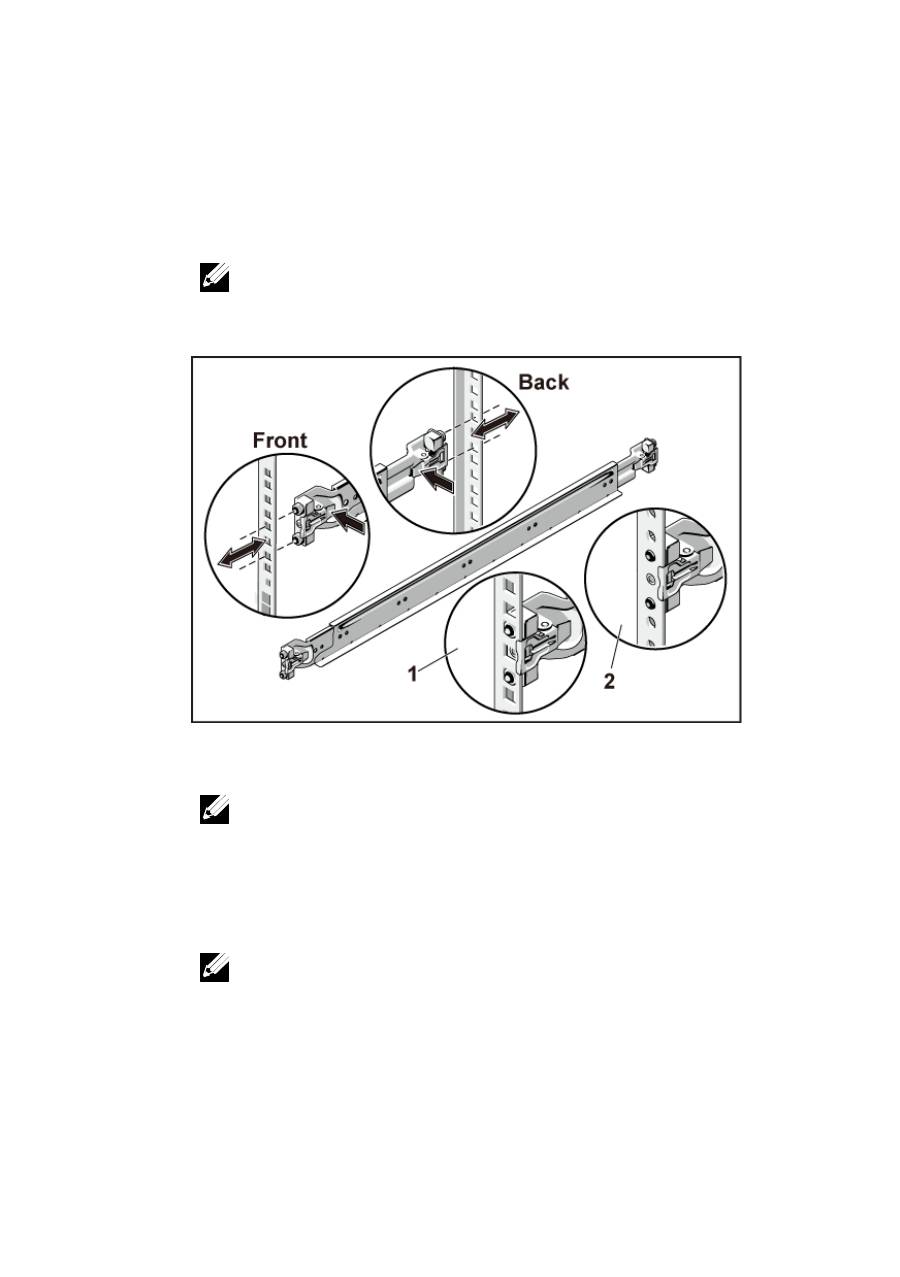
Align the end pieces of the rails on the vertical rack flanges to seat
the pegs in the bottom hole of the first U and the top hole of the
second U. Engage the back end of the rails until the latches lock in
place.
NOTE:
The rails can be used in both square-hole (item 1 in the following figure)
and round-hole racks (item 2 in the following figure).
Figure 1. Pushing the Latch Release Buttons
2
Repeat Step 1 to position and seat the front end pieces on the vertical
flanges.
NOTE:
To remove the rails, pull on the latch release button on the end piece
midpoint and unseat each rail.
3
Slide the system into the rack.
4
If present, remove the chassis stabilizer shipping bracket (optional)
from the rack.
NOTE:
To transport systems already installed in the rack, ensure that the two
chassis stabilizer shipping brackets (optional) are in place.
