
Dell PowerEdge C6105: Connecting the Power Cable(s) Figure 5. Connecting the Power Cable
Connecting the Power Cable(s) Figure 5. Connecting the Power Cable: Dell PowerEdge C6105
Table of contents
- Notes, Cautions, and Warnings
- CAUTION: Restricted Access Location Installation and Configuration Unpacking the System Installing the Tool-Less Rail Solution
- Figure 1. Pushing the Latch Release Buttons
- Figure 2. Installing the Chassis Stabilizer Shipping Brackets Figure 3. Installing the Chassis onto the Rack.
- Optional-Connecting the Keyboard, Mouse, and Monitor Figure 4. Optional—Connecting the Keyboard, Mouse and Monitor
- Connecting the Power Cable(s) Figure 5. Connecting the Power Cable
- Turning on the System Figure 6. Pressing the Power Button on the Front of the System and the Monitor Figure 7. Pressing the Power Button on the Back of the System
- Complete the Operating System Setup Other Information You May Need
- NOM Information (Mexico Only)
- Technical Specifications Processor (Per System Board) Expansion Bus (Per System Board) Memory (Per System Board) Drives
- Connectors (Per System Board) Video (Per System Board) Power
- Physical Environmental
- Storage
Getting Started With Your System | 7
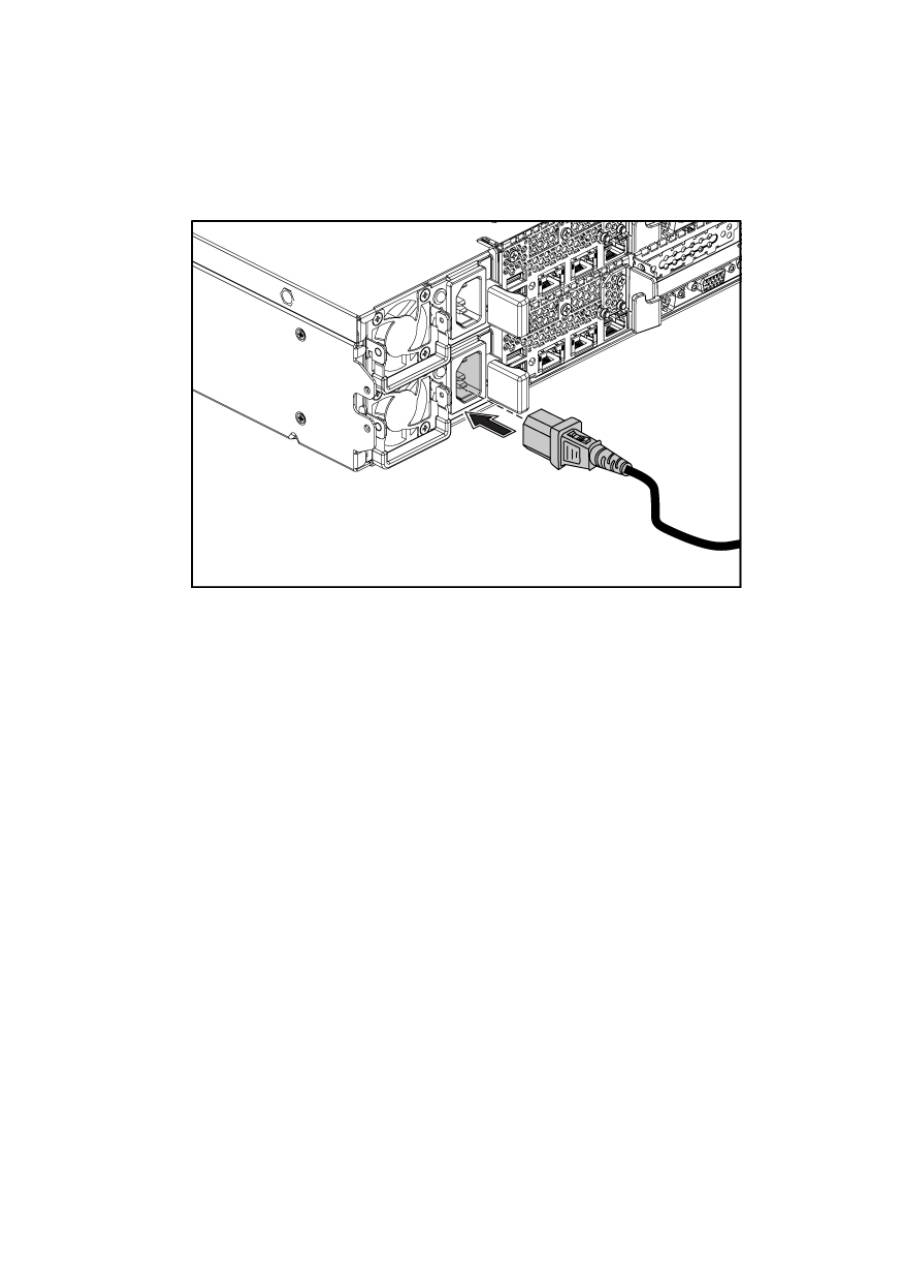
Connecting the Power Cable(s)
Figure 5. Connecting the Power Cable
Connect the system’s power cable(s) to the system and, if a monitor is used,
connect the monitor’s power cable to the monitor. Plug the other end of the
power cables into a grounded electrical outlet or a separate power source such as
an uninterrupted power supply or a power distribution unit.
Top 10 manuals
100.00
NZXT HALE90 1000W99.99
Samsung SM-R38099.97
AEG BSB 18C99.97
Dell 2700W99.97
Smeg KSEC70X99.96
Beurer HDE 4099.96
Pyramida KH 50 v.299.96
MSI CSM-H81M-P3299.96
AEG HR 562799.95
Melissa 640-048