
Dell C__Dock II Expansion Station: Docking Panel Door on the Computer
Docking Panel Door on the Computer: Dell C__Dock II Expansion Station
Table of contents
- System Information Guide
- Notes, Notices, and Cautions
- System Information Guide Other Documents Available Getting Help Docking Device Overview
- I/O Panel of the Docking Device
- External I/O Connectors Audio Connectors and Infrared Sensor
- Docking Control Base Controls and Indicators
- Docking Device With the Monitor Stand Before Docking the Computer
- Check Your Computer for Existing Docking Drivers Installing the Docking Drivers Installing the Docking Drivers From the ResourceCD or Drivers and Utilities CD
- Installing the Docking Drivers From the Dell Support Website
- Docking Your Computer
- Docking Panel Door on the Computer
- Docking the Computer
- Docking for the First Time With Windows XP and Windows 2000 Docking for the First Time With Windows Me
- Docking for the First Time With Windows NT 4.0
- Docking for the First Time With Windows 98
- Docking for the First Time With Windows 95
- Updating Drivers in Windows XP and Windows 2000 Updating Drivers in Windows Me
- Undocking the Computer
- Replacing the Battery
- Removing the Top Cover
- Replacing the Battery Removing and Installing a PCI Expansion Card
- PCI Expansion-Slot Door and Expansion-Card Connector
- If you are using a PCI card that was not purchased from Dell, use the drivers and instructions provided by the manufacturer of the card.
- Using the C/Dock II Media Bay
- Installing a Media Device for Windows NT 4.0 With Softex Docking Services Securing the C/Dock Expansion Station Security Features
- Securing the C/Dock II Expansion Station Dell Diagnostics
- Technical Specifications
- Technical Specifications
- Safety and EMC Instructions: Portable Computers
0G913bk1.book Page 11 Thursday, October 18, 2001 12:33 PM
NOTICE: To avoid damaging the docking connector, open the docking panel
door before you attempt to dock the computer to the docking device.
2
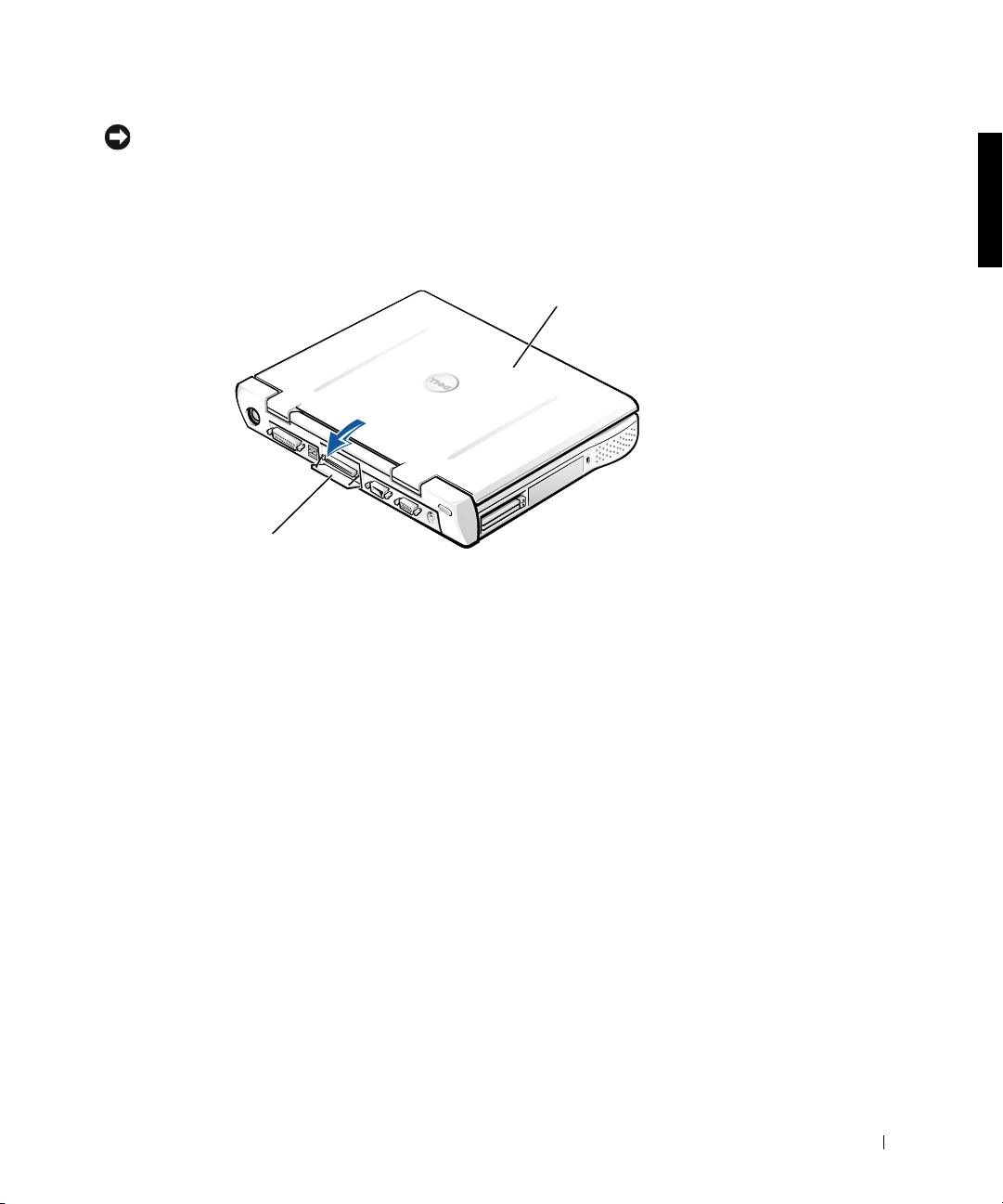
If the computer has a docking panel door, open the docking panel door
on the back of the computer.
Docking Panel Door on the Computer
computer
docking panel door
(not on all computers)
3
If you are using the docking device with a monitor stand, close the
computer display.
4 Ensure that the eject/locking lever is in the unlocked position.
System Information Guide 11
Top 10 manuals
100.00
NZXT HALE90 1000W99.99
Samsung SM-R38099.97
AEG BSB 18C99.97
Dell 2700W99.97
Smeg KSEC70X99.96
Beurer HDE 4099.96
Pyramida KH 50 v.299.96
MSI CSM-H81M-P3299.96
AEG HR 562799.95
Melissa 640-048