
Sony GDM-F420: Owner’s Record
Owner’s Record: Sony GDM-F420
Table of contents
- Owner’s Record
Owner’s Record
NOTICE
The model and serial numbers are located at the rear of the unit.
This notice is applicable for USA/Canada only.
Record these numbers in the spaces provided below. Refer to them
If shipped to USA/Canada, install only a UL LISTED/CSA
whenever you call upon your dealer regarding this product.
LABELLED power supply cord meeting the following
Model No.
Serial No.
specifications:
SPECIFICATIONS
Plug Type Nema-Plug 5-15p
WARNING
Cord Type SVT or SJT, minimum 3
× 18 AWG
Length Maximum 15 feet
To prevent fire or shock hazard, do not expose the
Rating Minimum 7 A, 125 V
unit to rain or moisture.
NOTICE
Dangerously high voltages are present inside the
Cette notice s’applique aux Etats-Unis et au Canada
unit. Do not open the cabinet. Refer servicing to
uniquement.
qualified personnel only.
Si cet appareil est export* aux Etats-Unis ou au Canada,
utiliser le cordon d’alimentation portant la mention UL LISTED/
FCC Notice
CSA LABELLED et remplissant les conditions suivantes:
This equipment has been tested and found to comply with the limits
SPECIFICATIONS
for a Class B digital device, pursuant to Part 15 of the FCC Rules.
Type de fiche Fiche Nema 5-15 broches
These limits are designed to provide reasonable protection against
Cordon Type SVT ou SJT, minimum 3
× 18 AWG
harmful interference in a residential installation. This equipment
Longueur Maximum 15 pieds
generates, uses, and can radiate radio frequency energy and, if not
Tension Minimum 7 A, 125 V
installed and used in accordance with the instructions, may cause
harmful interference to radio communications. However, there is no
guarantee that interference will not occur in a particular installation.
If this equipment does cause harmful interference to radio or
television reception, which can be determined by turning the
equipment off and on, the user is encouraged to try to correct the
interference by one or more of the following measures:
– Reorient or relocate the receiving antenna.
– Increase the separation between the equipment and receiver.
As an
ENERGY STAR Partner, Sony
– Connect the equipment into an outlet on a circuit different from
Corporataion has determined that this
that to which the receiver is connected.
product meets the
ENERGY STAR
– Consult the dealer or an experienced radio/TV technician for
guidelines for energy efficiency.
help.
You are cautioned that any changes or modifications not expressly
approved in this manual could void your authority to operate this
equipment.
EN 55022 Compliance (Czech Republic Only)
This device belongs to category B devices as described in EN
This monitor complies with the TCO’99
55022, unless it is specifically stated that it is a category A
guidelines.
device on the specification label. The following applies to
devices in category A of EN 55022 (radius of protection up to
30 meters). The user of the device is obliged to take all steps
necessary to remove sources of interference to
telecommunication or other devices.
If you have any questions about this product, you may call:
Sony Customer Information Center
1-800-222-SONY (7669)
or write to:
Sony Customer Information Center
1 Sony Drive, Mail Drop #T1-11, Park Ridge, NJ 07656
INFORMATION
Declaration of Conformity
This product complies with Swedish National Council for Metrology
(MPR) standards issued in December 1990 (MPR II) for very low
Trade Name: SONY
frequency (VLF) and extremely low frequency (ELF).
Model No.: GDM-F520/F420
INFORMATION
Responsible Party: Sony Electronics Inc.
Ce produit est conforme aux normes du Swedish National Council
Address: 1 Sony Drive, Park Ridge, NJ 07656 USA
for Metrology de décembre 1990 (MPR II) en ce qui concerne les
Telephone No.: 201-930-6972
fréquences très basses (VLF) et extremement basses (ELF).
INFORMACIÓN
This device complies with Part 15 of the FCC Rules. Operation
Este producto cumple las normas del Consejo Nacional Sueco
is subject to the following two conditions: (1) This device may
para Metrología (MPR) emitidas en diciembre de 1990 (MPR II)
not cause harmful interference, and (2) this device must accept
para frecuencias muy bajas (VLF) y frecuencias extremadamente
any interference received, including interference that may
bajas (ELF).
cause undesired operation.
2
â
•Trinitron
is a registered trademark of Sony Corporation.
Table of Contents
• Macintosh is a trademark licensed to Apple Computer, Inc., registered in
Setup . . . . . . . . . . . . . . . . . . . . . . . . . . . . . . . . . . . 3
the U.S.A. and other countries.
â
• Windows
and MS-DOS are registered trademarks of Microsoft
Adjustments . . . . . . . . . . . . . . . . . . . . . . . . . . . . . 4
Corporation in the United States and other countries.
Troubleshooting . . . . . . . . . . . . . . . . . . . . . . . . . . 6
• IBM PC/AT and VGA are registered trademarks of IBM Corporation of
the U.S.A.
Specifications . . . . . . . . . . . . . . . . . . . . . . . . . . . . 7
ä
• VESA and DDC
are trademarks of the Video Electronics Standard
Precautions . . . . . . . . . . . . . . . . . . . . . . . . . . . . . . 8
Association.
•
ENERGY STAR is a U.S. registered mark.
Appendix . . . . . . . . . . . . . . . . . . . . . . . . . . . . . . . . . i
• All other product names mentioned herein may be the trademarks or
Preset mode timing table . . . . . . . . . . . . . . . . . . . . . i
registered trademarks of their respective companies.
• Furthermore, “
ä” and “â” are not mentioned in each case in this manual.
TCO’99 Eco-document . . . . . . . . . . . . . Back Cover
Setup
To select the input signal
1 Connecting your monitor to your computer
You can connect two computers to this monitor using the HD15 and
BNC connectors. To select one of the two computers, use the
x To connect to the HD15 input connector
INPUT switch. The selected connector appears on the screen for 3
seconds.
Note
to HD15
video signal cable
to HD15 of the
(supplied)
connecting computer
If no signal is input to the selected connector, NO SIGNAL appears on the
screen. After a few seconds, the monitor enters the power saving mode. If
x To connect to the 5 BNC connectors
this happens, switch to the other connector.
RGBHDVD
GB
video signal cable
To connect Universal Serial Bus (USB) compliant
(not supplied)
peripherals
Confirm that the monitor and computer are turned on, then
connect your computer to the USB connectors ( ) on the right side
of the monitor.
Refer to the preceding
Connect your computer to the square upstream
examples to connect to
connector
() using the supplied USB cable.
your computer.
If a Windows message appears, follow the on-screen instructions
and select “Generic USB Hub”.
to VIDEO IN R/G/B
to SYNC IN HD/VD
When connecting your USB compliant peripheral devices (e.g.,
printer, keyboard, mouse, scanner, etc.) connect the rectangular
Connecting to a Macintosh or compatible
downstream USB connector
().
computer
Note
When connecting this monitor to a Power Mac G3/G4 computer,
The monitor functions as a USB hub as long as the monitor is either “on” or
use the supplied adapter if necessary. Connect the supplied adapter
in power saving mode.
to the computer before connecting the cable. If you connect to
another version of Macintosh series computer, having 2 rows of
HD15 input connectors
pins, you will need a different adapter (not supplied).
5 4 3 2
1
678910
1112131415
2 Turning on the monitor and computer
Pin No. Signal
Pin No. Signal
1 Connect the power cord to the monitor and press the
1Red
9 DDC + 5V*
! (power) switch to turn on the monitor.
2 Green (Sync on
10 Ground
2 Turn on the computer.
Green)
11 ID (Ground)
No need for specific drivers
3Blue
12 Bi-Directional
This monitor complies with the “DDC” Plug & Play standard and
4 ID (Ground)
Data (SDA)*
automatically detects all the monitor’s information. No specific driver
5 DDC Ground*
13 H. Sync
needs to be installed to the computer.
6 Red Ground
14 V. Sync
The first time you turn on your PC after connecting the monitor, the setup
Wizard may appear on the screen. In this case, follow the on-screen
7 Green Ground
15 Data Clock
instructions. The Plug & Play monitor is automatically selected so that you
(SCL)*
8 Blue Ground
can use this monitor.
* DDC (Display Data Channel) is a standard of VESA.
Notes
• Plug and Play is compatible with the HD15 connector only, and not
compatible with the 5 BNC connectors.
• Do not touch the pins of the video signal cable connector.
• Check the alignment of the HD15 connector to prevent bending the pins
of the video signal cable connector.
3
Adjustments
Navigating the menu
Adjusting the picture quality
(PICTURE EFFECT)
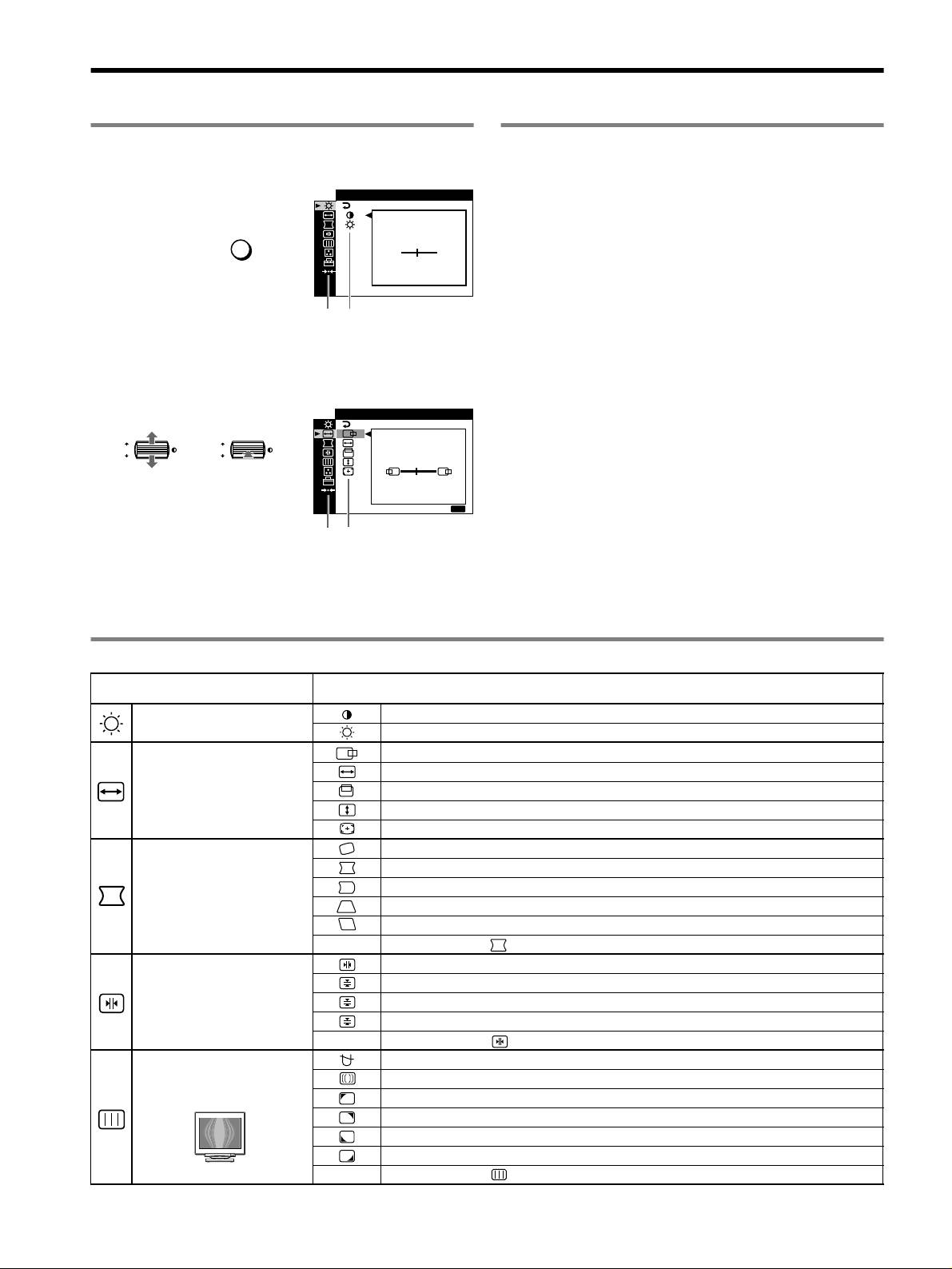
1 Press the MENU button to display the main menu.
You can select the most appropriate picture mode from among 3
CONTRAST
/IBR GHT
preset modes by pressing the PICTURE EFFECT button
repeatedly.
CONTRAST
MENU
,
x PROFESSIONAL
50
For accurate and consistent display color. Choose this for
professional desktop publishing and graphic applications.
1024x768 / 85Hz
Main
Sub
x STANDARD
menu
menu
For images with high contrast and brightness. Choose this mode for
commonly used applications, such as spreadsheets, word
2 Move the control button m/M to highlight the main
processing, E-mail, or WEB surfing.
menu you want to adjust and press the control button.
x DYNAMIC
SZE
/I CENTER
For extremely vivid and photo-realistic images. Bright than
“STANDARD” mode, choose this for intense entertainment
OK
,,
OK
software such as games, or DVD playback.
45
E
XIT
:
MENU
Main
Sub
menu
menu
3 Select the sub menu you want to adjust and press the
control button.
4 Adjust with the control button.
On-Screen menu adjustments
Main menu icons and adjustment
Sub menu icons and adjustment items
items
Adjusting the contrast and
Contrast
brightness
*
1
Brightness
Horizontal position
Horizontal size
Adjusting the size or centering of
the picture
*
1
Vertical position
Vert ical size
Auto Size Center
Rotating the picture
Expanding or contracting the picture sides
*
1
Shifting the picture sides to the left or right*
1
Adjusting the shape of the picture
Adjusting the picture width at the top of the screen*
1
Shifting the picture to the left or right at the top of the screen*
1
0 RESET: Returns all settings to their factory default settings.
Horizontally shifts red or blue shadows
Vertically shifts red or blue shadows
Adjusting the convergence
*
2
T
Vertically shifts red or blue shadows at the top of the screen
B
Vertically shifts red or blue shadows at the bottom of the screen
0 RESET: Returns all settings to their factory default settings.
DEGAUSS: demagnetizes the monitor.
Adjusting the picture quality
CANCEL MOIRE: adjusts the degree of moire cancellation until the moire is at a minimum.
*
1
LANDING: reduces any color irregularities in the screen’s top left corner to a minimum.*
2
Example of Moire
LANDING: reduces any color irregularities in the screen’s top right corner to a minimum.*
2
LANDING: reduces any color irregularities in the screen’s bottom left corner to a minimum.*
2
LANDING: reduces any color irregularities in the screen’s bottom right corner to a minimum.*
2
0 RESET: Returns all settings to their factory default settings.
4
Main menu icons and adjustment
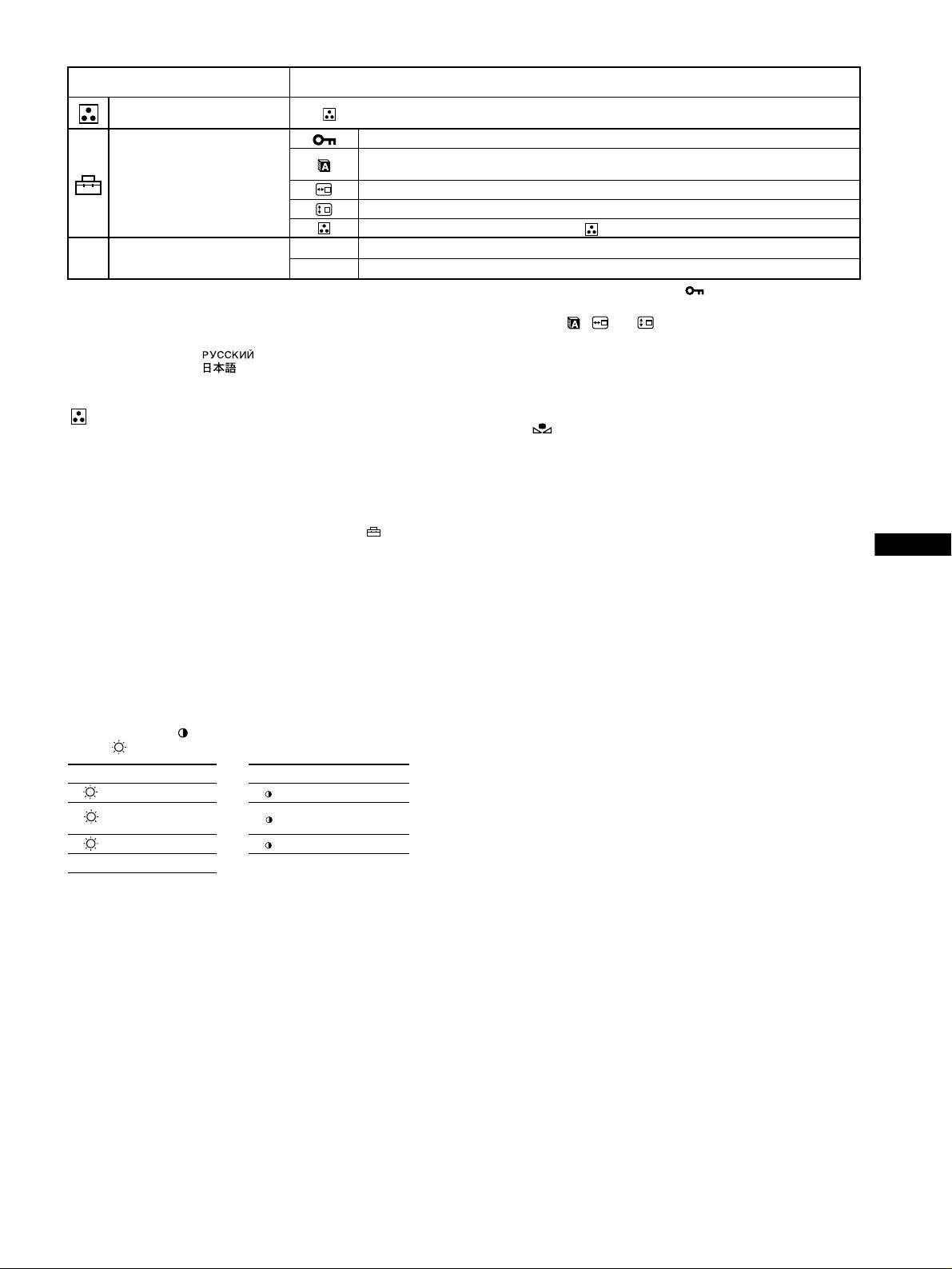
Sub menu icons and adjustment items
items
Adjusting the color of the picture See “ : To adjust the color of the picture”.
Protecting adjustment data (CONTROL LOCK)
*
4
Selecting the on-screen menu language/Confirming the monitor’s information LANGUAGE/
INFORMATION
*
3
Additional settings
Changing the menu’s position for horizontal adjustment
Changing the menu’s position for vertical adjustment
Selecting the color adjustment mode (See “ : To adjust the color of the picture.”)
01
*
1
Resetting all the adjustment data for the current input signal.*
5
Select “OK”.
0 Resetting the adjustments
02
*
2
Resetting all of the adjustment data for all input signals. Select “OK”.
1
4
*
This adjustment is effective for the current input signal.
*
Only the ! (power) switch, EXIT, and (CONTROL LOCK) menu
2
*
This adjustment is effective for all input signals.
will operate.
3
*
Language Menu
5
*
The menu items , and are not reset by this method.
• ENGLISH • NEDERLANDS: Dutch
• FRANÇAIS: French • SVENSKA: Swedish
• DEUTSCH: German • : Russian
• ESPAÑOL: Spanish • : Japanese
• ITALIANO: Italian
: To adjust the color of the picture
To restore the color from the EASY, PRESET, or sRGB
modes ( IMAGE RESTORATION)
The COLOR settings allow you to adjust the picture’s color
You can restore the color to the original factory quality levels. Before using
temperature by changing the color level of the white color field.
this feature, the monitor must have been in normal operation mode (green
Colors appear reddish if the temperature is low, and bluish if the
power indicator on) for at least 30 minutes. You may need to adjust your
temperature is high. This adjustment is useful for matching the
computer’s power saving settings. If the monitor has not been on for at least
monitor’s color to a printed picture’s colors.
30 minutes, the “AVAILABLE AFTER WARM UP” message will appear.
Select one of the color temperature setting modes from among
Also, this function may gradually lose its effectiveness due to the natural
4 modes; EASY, PRESET, EXPERT, and sRGB on (OPTION)
aging of the Trinitron picture tube.
menu.
GB
x EASY (Default setting)
You can adjust the color temperature from 5000K to 11000K.
x PRESET
You can select the preset color temperature from 5000K, 6500K, or
9300K. The default setting is 9300K.
x EXPERT
You can make additional fine adjustments to the color by selecting
this mode. GAIN ( ) adjusts the bright areas of the screen, while
BIAS ( ) adjusts the dark areas of the screen.
Select for Select for
R R (Red) BIAS R R (Red) GAIN
G (Green)
G
G G (Green) GAIN
BIAS
B B (Blue) BIAS B B (Blue) GAIN
0 RESET
x sRGB
The sRGB color setting is an industry standard color space protocol
designed to correlate the colors displayed on the monitor and those
printed. In order to display the sRGB colors correctly (γ = 2.2,
6500K), select the sRGB mode and set the PROFESSIONAL mode
of PICTURE EFFECT (page 4) and your connected computer to the
sRGB profile. If you select sRGB, you cannot operate the
CONTRAST/BRIGHT menu adjustments.
5
x Letters and lines show red or blue shadows at the
edges
Troubleshooting
• Adjust the convergence.
x No picture
x USB peripherals do not function
If the ! (power) indicator is not lit
• Check that the appropriate USB connectors are securely connected.
• Check that the power cord is properly connected.
• Turn the monitor OFF and then ON again, then reconnect USB cable.
• Check that the ! (power) switch is in the “on” position.
• If you connect a keyboard or mouse to the USB connectors and then
boot your computer for the first time, the peripheral devices may not
The ! (power) indicator is orange
function. First connect the keyboard and mouse directly to the
• Check that the video signal cable is properly connected and all plugs
computer and set up the USB compliant devices. Then connect them
are firmly seated in their sockets.
to this monitor.
• Check that the INPUT switch setting is correct.
• Install the latest version of the device driver on your computer.
• Check that the HD15 video input connector’s pins are not bent or
Contact your device’s manufacturer for information about the
pushed in.
appropriate device driver.
• Check that the computer’s power is “on”.
• The computer is in power saving mode. Try pressing any key on the
x A hum is heard right after the power is turned on
computer keyboard or moving the mouse.
• This is the sound of the auto-degauss cycle. When the power is
• Check that the graphic board is completely seated in the proper bus
turned on, the monitor is automatically degaussed for a few seconds.
slot.
* If a second degauss cycle is needed, allow a minimum interval of
If the ! (power) indicator is green or flashing orange
20 minutes for the best result. A humming noise may be heard, but this is
not a malfunction.
• Use the Self-diagnosis function.
x Picture flickers, bounces, oscillates, or is scrambled
• Isolate and eliminate any potential sources of electric or magnetic
On-screen messages
fields such as other monitors, laser printers, electric fans, fluorescent
lighting, or televisions.
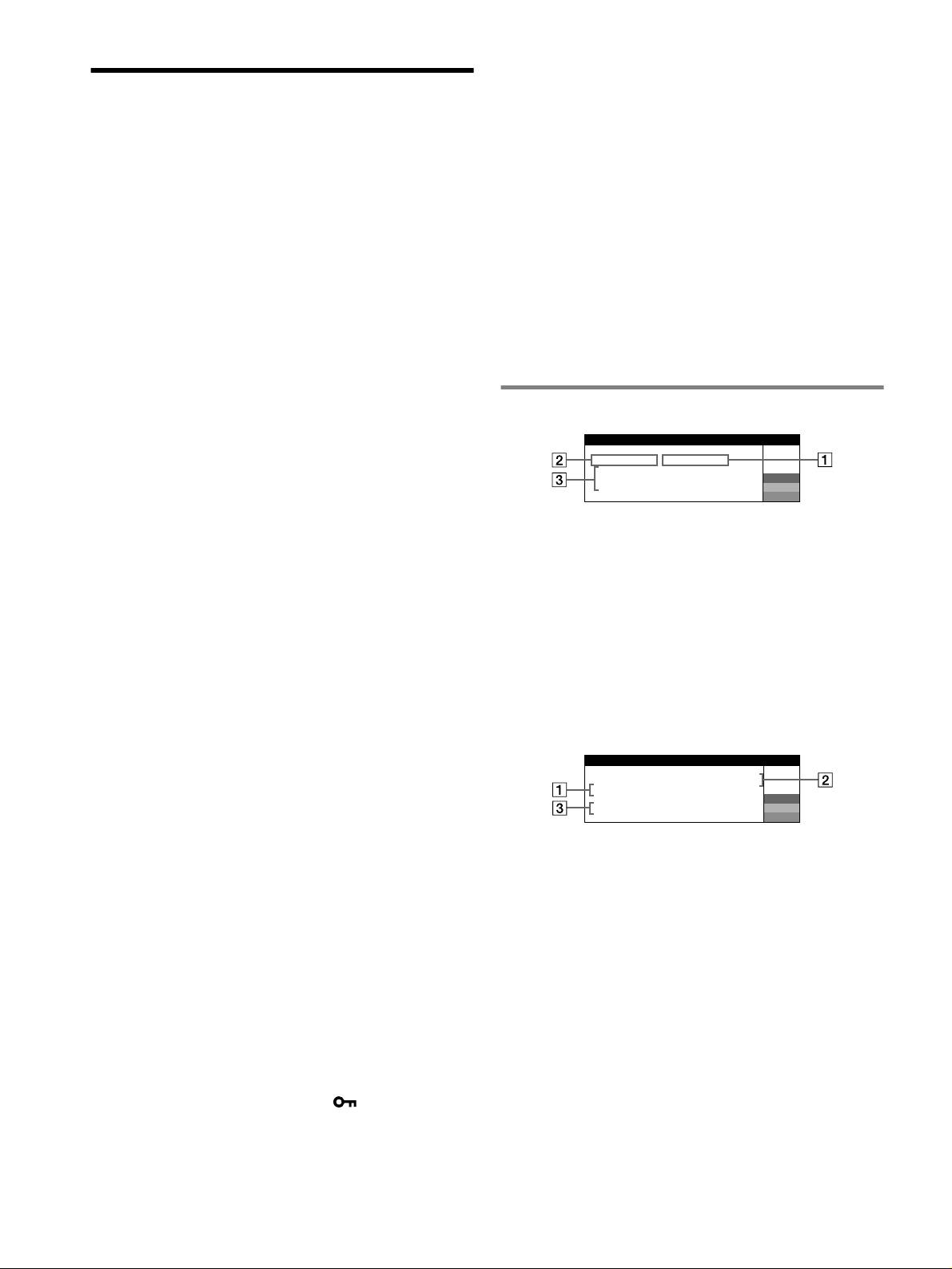
IIONNFORMAT
• Move the monitor away from power lines or place a magnetic shield
MON I I I NGS WORKTOR
near the monitor.
I
NPUT
2:NO
S
GNALI
ACT
IVATE
BY
COMPUTER
W
• Try plugging the monitor into a different AC outlet, preferably on a
CHECK
S GNAL CABLEI
R
CHECK
I NPUT SELECTOR
G
different circuit.
B
• Try turning the monitor 90° to the left or right.
• Check your graphics board manual for the proper monitor setting.
• Confirm that the graphics mode and the frequency of the input signal
1 If “NO SIGNAL” appears:
are supported by this monitor (see “Preset mode timing table” on
This indicates that no signal is input from the selected connector.
page i). Even if the frequency is within the proper range, some
graphics board may have a sync pulse that is too narrow for the
2 Shows the currently selected connector.
monitor to sync correctly.
3 Shows the remedies.
• Adjust the computer’s refresh rate (vertical frequency) to obtain the
• If ACTIVATE BY COMPUTER appears on the screen, try
best possible picture.
pressing any key on the computer or moving the mouse, and
x Picture is fuzzy
confirm that your computer’s graphic board is completely seated
• Adjust the contrast, brightness, and PICTURE EFFECT.
in the correct bus slot.
• Degauss the monitor.*
• If CHECK SIGNAL CABLE appears on the screen, check that
• Adjust the degree of moire cancellation until the moire is minimal,
the monitor is correctly connected to the computer.
or set CANCEL MOIRE to OFF.
• If CHECK INPUT SELECTOR appears on the screen, try
x Picture is ghosting
changing the input signal.
• Eliminate the use of video cable extensions and/or video switch
boxes.
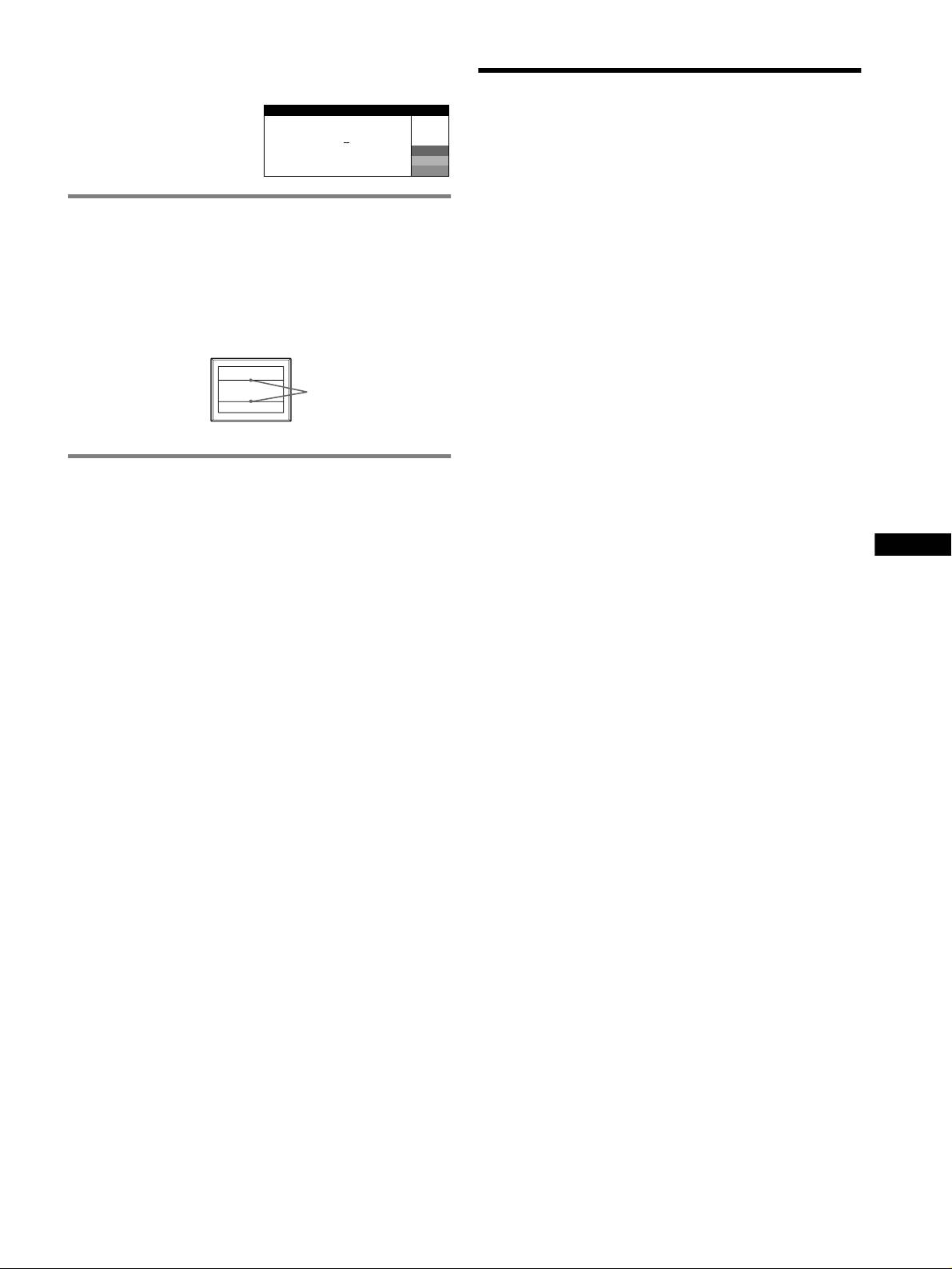
IIONNFORMAT
• Check that all plugs are firmly seated in their sockets.
MON I I I NGS WORKTOR
I1:.200 0 /kHz 85Hz
NPUT
x Picture is not centered or sized properly
OUT OF SCAN
RANGE
W
R
• Perform the Auto Size Center function.
CHANGE
S GNAL TIIINGM
G
• Adjust the size or centering. Note that with some input signals and/
B
or graphics board the periphery of the screen is not fully utilized.
• Just after turning on the power switch, the size/center may take a
1 If “OUT OF SCAN RANGE” appears:
while to adjust properly.
This indicates that the input signal is not supported by the monitor’s
x Edges of the image are curved
specifications.
• Adjust the geometry.
2 Shows the input signal frequency.
x Wavy or elliptical pattern (moire) is visible
3 Shows the remedies.
• Adjust the degree of moire cancellation until the moire is minimal.
• Change your desktop pattern.
CHANGE SIGNAL TIMING appears on the screen. If you are
replacing an old monitor with this monitor, reconnect the old
x Color is not uniform
monitor. Then adjust the computer’s graphic board so that the
• Degauss the monitor.* If you place equipment that generates a
magnetic field, such as a speaker, near the monitor, or if you change
horizontal frequency is between 30 – 137 kHz (GDM-F520),
the direction the monitor faces, color may lose uniformity.
30 – 115 kHz (GDM-F420), and the vertical frequency is between
• Adjust the landing.
48 – 170 Hz.
x White does not look white
• Adjust the color temperature.
• Check that the 5 BNC connectors are connected in the correct order.
x Monitor buttons do not operate ( appears on the
screen)
• If the control lock is set to ON, set it to OFF.
6
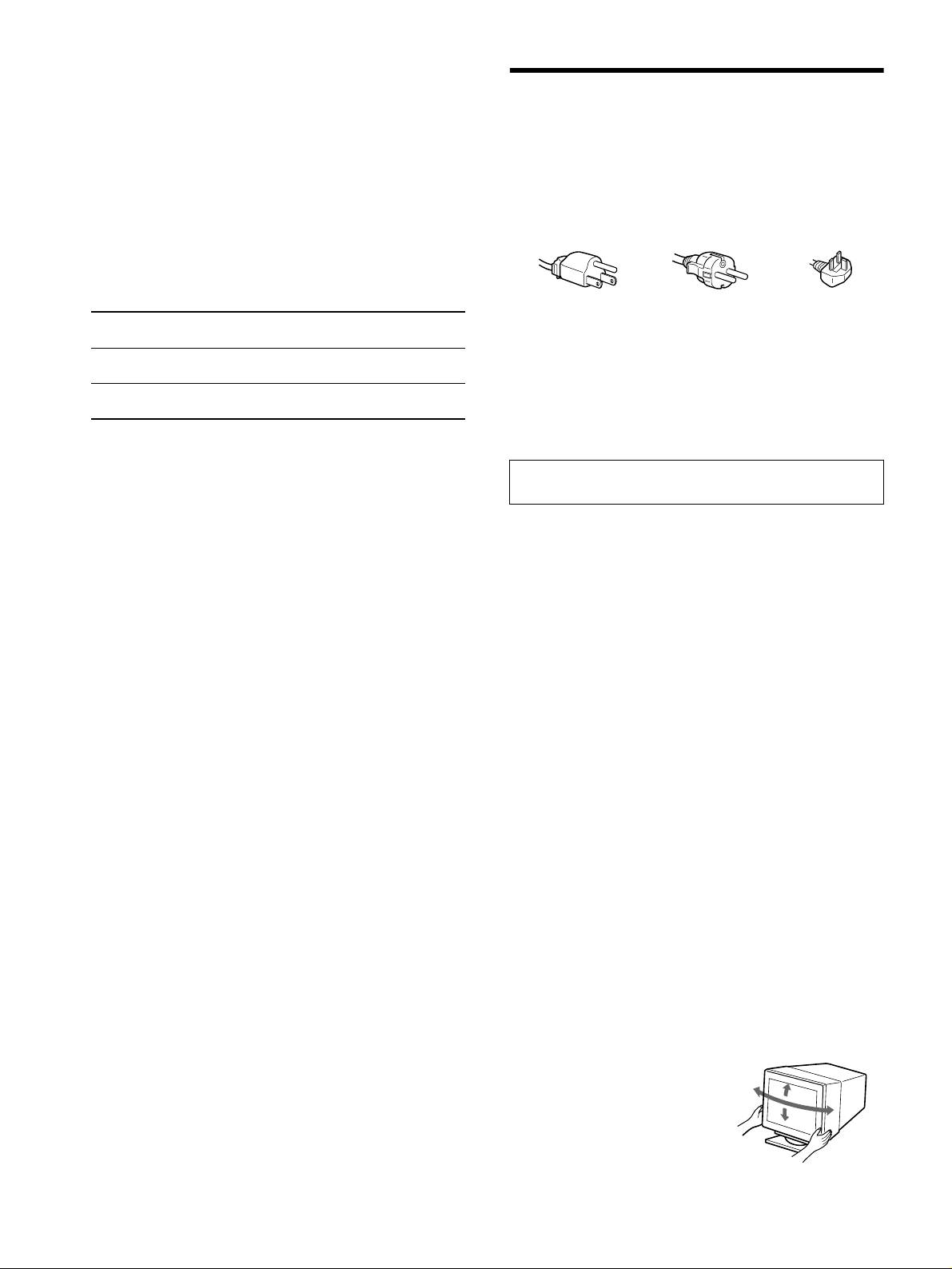
To display this monitor’s name, serial number, and
date of manufacture.
Specifications
While the monitor is receiving a
INFORMATION
video signal, press and hold the
CRT
MENU button for more than
MODEL
:
GDM F520
W
0.22 mm aperture grille pitch, 90-degree deflection, FD Trinitron
SER NO
:
1234567
R
5 seconds to display this
MANUFACTURED
: 2000-52
G
GDM-F520 21 inches measured diagonally
monitor’s information box.
B
GDM-F420 19 inches measured diagonally
Viewable image size
GDM-F520 Approx. 403.8
× 302.2 mm (w/h) (16 × 12 inches)
If thin lines appear on the screen
19.8" viewing image
3
7
(damper wires)
GDM-F420 Approx. 365
× 274 mm (w/h) (14
/8 × 10
/8 inches)
18.0" viewing image
These lines do not indicate a malfunction; they are a normal
Resolution (H:Horizontal, V:Vertical)
effect of the Trinitron picture tube with this monitor. These are
GDM-F520 Maximum: H: 2048 dots, V: 1536 lines
shadows from the damper wires used to stabilize the aperture grille.
Recommended: H: 1600 dots, V: 1200 lines
The aperture grille is the essential element that makes a Trinitron
GDM-F420 Maximum: H: 1920 dots, V: 1440 lines
picture tube unique by allowing more light to reach the screen,
Recommended: H: 1280 dots, V: 1024 lines
resulting in a brighter, more detailed picture.
Input signal levels
Video signal: Analog RGB: 0.700 Vp-p (positive), 75
Ω
SYNC signal: H/V separate or composite sync:
TTL 2 k
Ω, Polarity free
Damper
Sync on Green: 0.3 Vp-p (negative)
wires
Standard image area
GDM-F520 Approx. 388
× 291 mm (4:3)
3
1
(15
/8 × 11
/2 inches) or
Approx. 364
× 291 mm (5:4)
3
1
(14
/8 × 11
/2 inches)
Self-diagnosis function
GDM-F420 Approx. 352
× 264 mm (4:3)
7
1
(13
/8 × 10
/2 inches) or
This monitor is equipped with a self-diagnosis function. If there is
Approx. 330
× 264 mm (5:4)
1
a problem with your monitor or computer(s), the screen will go
(13
× 10
/2 inches)
Deflection frequency (H:Horizontal, V:Vertical)
blank and the ! (power) indicator will either light up green or flash
GDM-F520 H: 30 to 137 kHz, V: 48 to 170 Hz
orange. If the ! (power) indicator is lit in orange, the computer is
GB
GDM-F420 H: 30 to 115 kHz, V: 48 to 170 Hz
in power saving mode. Try pressing any key on the keyboard or
AC input voltage/current
moving the mouse.
100 to 240 V, 50 – 60 Hz, 2.0 – 1.0 A
Power Consumption (with no USB devices connected)
x If the ! (power) indicator is green
GDM-F520 Approx. 145 W
GDM-F420 Approx. 135 W
1 Disconnect any plugs from the video input 1 and 2
Operating temperature
connectors, or turn off the connected computer(s).
10 ºC to 40 ºC
Dimensions
2 Turn the monitor OFF and then ON.
GDM-F520 Approx. 497
× 499 × 487 mm (w/h/d)
5
3
1
(19
/8 × 19
/4 × 19
/4 inches)
3 Hold the control button upward for a few seconds
GDM-F420 Approx. 446
× 472 × 463 mm (w/h/d)
before the monitor enters power saving mode.
5
5
1
(17
/8 × 18
/8 × 18
/4 inches)
Mass
If all 4 color bars appear (white, red, green, blue), the monitor is
GDM-F520 Approx. 30 kg (66 lb 2 oz)
working properly. Reconnect the video input cables and check the
GDM-F420 Approx. 26 kg (57 lb 5 oz)
Plug and Play DDC2B/DDC2Bi
condition of your computer(s).
Supplied accessories
If the color bars do not appear, there is a potential monitor failure.
Power cord
Inform your authorized Sony dealer of the monitor’s condition.
HD15 video signal cable
USB cable
x If the ! (power) indicator is flashing orange
Exclusive Power Mac G3/G4 adapter
This instruction manual
Turn the monitor OFF and then ON.
If the ! (power) indicator lights up green, the monitor is working
properly.
If the ! (power) indicator is still flashing, there is a potential
monitor failure. Count the number of seconds between orange
flashes of the ! (power) indicator and inform your authorized Sony
dealer of the monitor’s condition. Be sure to note the model name
and serial number of your monitor. Also note the make and model
of your computer and graphics board.
(continued)
7
Preset and user modes
When the monitor receives an input signal, it automatically matches the
Precautions
signal to one of the factory preset modes stored in the monitor’s memory
to provide a high quality picture
(see “Preset mode timing table” on
page i)
. If the input signals does not match one of the factory preset
Warning on power connections
modes, the monitor automatically provides the most appropriate picture
• Use the supplied power cord. If you use a different power cord,
for the input signal that is within the range of the vertical or horizontal
be sure that it is compatible with your local power supply.
frequencies (page 7) corresponding to the Generalized Timing Formula.
When the picture is adjusted, the adjustment data is stored as a user mode
For the customers in the UK
and automatically recalled whenever the same input signal is received.
If you use the monitor in the UK, be sure to use the supplied UK
power cable.
Power saving function
This monitor meets the power-saving guidelines set by VESA, TCO’99,
Example of plug types
and
ENERGY STAR. If no signal is input to the monitor from your
computer, the monitor will automatically reduce power consumption as
shown below.
for 100 to 120 V AC for 200 to 240 V AC for 240 V AC only
1
Power mode Power consumption*
! (power)
• Before disconnecting the power cord, wait at least 30 seconds
indicator
after turning off the power to allow the static electricity on the
screen’s surface to discharge.
normal operation
≤ 145 W (GDM-F520)
green
• After the power is turned on, the screen is demagnetized
≤ 135 W (GDM-F420)
(degaussed) for about a few seconds. This generates a strong
2
active off*
≤ 3 W orange
magnetic field around the screen which may affect data stored
3
(deep sleep)*
on magnetic tapes and disks placed near the monitor. Be sure to
keep magnetic recording equipment, tapes, and disks away
1
*
Figures reflect power consumption when no USB compatible
from the monitor.
peripherals are connected to the monitor.
2
*
When your computer enters power saving mode, NO SIGNAL appears
The equipment should be installed near an easily accessible
on the screen. After a few seconds, the monitor enters power saving
outlet.
mode.
3
*
“Deep sleep” is power saving mode defined by the Environmental
Installation
Protection Agency.
Do not install the monitor in the following places:
Design and specifications are subject to change without notice.
• on surfaces (rugs, blankets, etc.) or near materials (curtains,
draperies, etc.) that may block the ventilation holes
• near heat sources such as radiators or air ducts, or in a place
subject to direct sunlight
• in a place subject to severe temperature changes
• in a place subject to mechanical vibration or shock
• on an unstable surface
• near equipment which generates magnetism, such as a
transformer or high voltage power lines
• near or on an electrically charged metal surface
• inside an enclosed rack
Maintenance
• Clean the screen with a soft cloth. If you use a glass cleaning
liquid, do not use any type of cleaner containing an anti-static
solution or similar additive as this may scratch the screen’s
coating.
• Do not rub, touch, or tap the surface of the screen with sharp or
abrasive items such as a ballpoint pen or screwdriver. This type
of contact may result in a scratched picture tube.
• Clean the cabinet, panel and controls with a soft cloth lightly
moistened with a mild detergent solution. Do not use any type
of abrasive pad, scouring powder or solvent, such as alcohol or
benzine.
Transportation
When you transport this monitor for repair or shipment, use the
original carton and packing materials.
Display Stand
Do not remove this monitor’s stand.
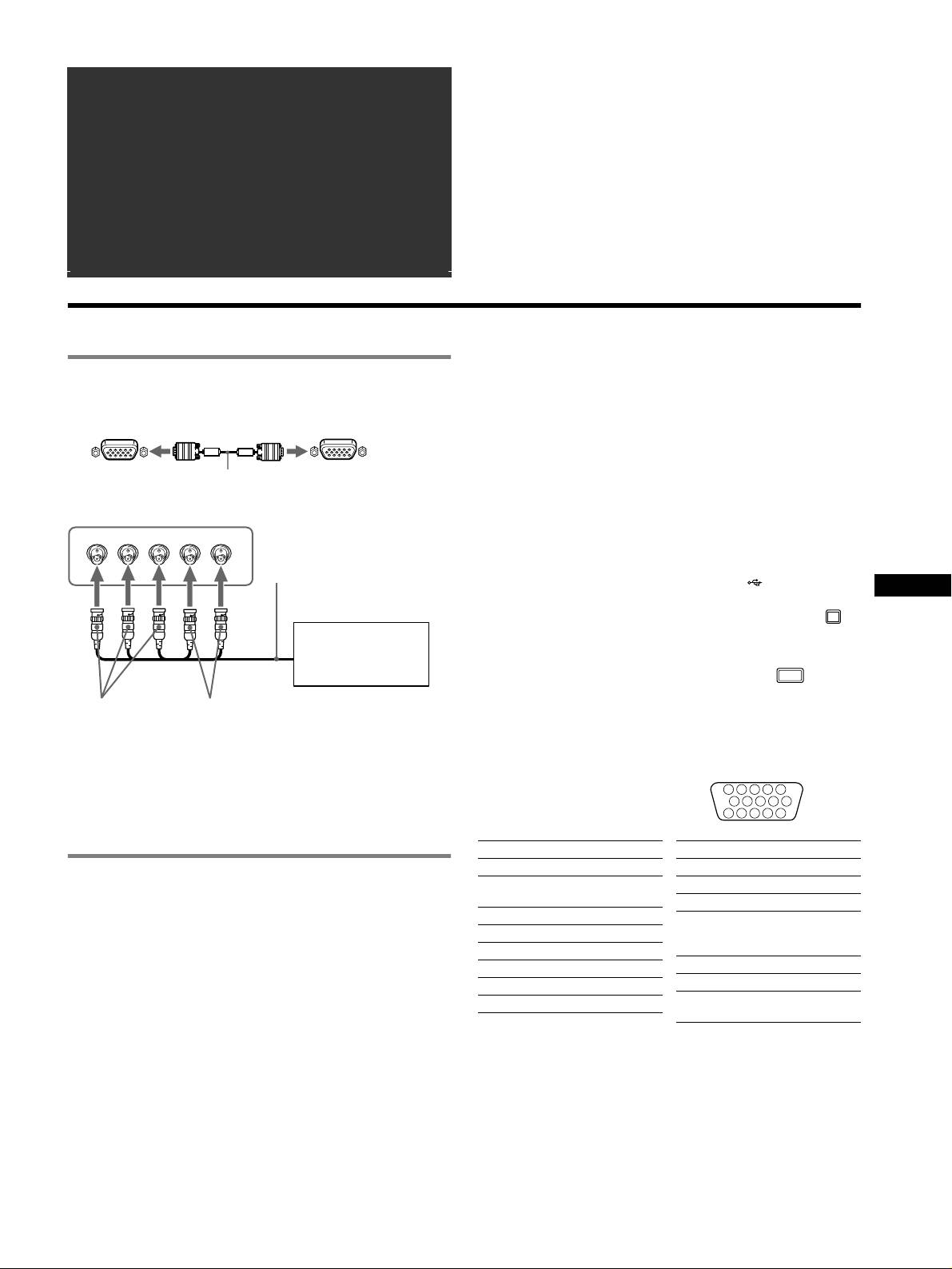
Use of the tilt-swivel
This monitor can be adjusted
within the angles shown right. To
90°
15°
turn the monitor vertically or
90°
horizontally, hold it at the bottom
5°
with both hands.
8
â
• Trinitron
est une marque commerciale déposée de Sony Corporation.
Table des Matières
• Macintosh est une marque commerciale sous licence d’Apple Computer, Inc.,
Configuration. . . . . . . . . . . . . . . . . . . . . . . . . . . . . . . 3
déposée aux Etats-Unis et dans d’autres pays.
â
•Windows
et MS-DOS sont des marques déposées de Microsoft Corporation
Réglages. . . . . . . . . . . . . . . . . . . . . . . . . . . . . . . . . . . 4
aux Etats-Unis et dans d’autres pays.
Dépannage . . . . . . . . . . . . . . . . . . . . . . . . . . . . . . . . . 6
• IBM PC/AT et VGA sont des marques commerciales déposées d’IBM
Corporation aux Etats-Unis.
Spécifications . . . . . . . . . . . . . . . . . . . . . . . . . . . . . . 7
ä
• VESA et DDC
sont des marques commerciales de Video Electronics
Précautions . . . . . . . . . . . . . . . . . . . . . . . . . . . . . . . . 8
Standard Association.
•
ENERGY STAR est une marque déposée aux Etats-Unis.
Appendix . . . . . . . . . . . . . . . . . . . . . . . . . . . . . . . . . . . i
• Tous les autres noms de produits mentionnés dans le présent mode d’emploi
Preset mode timing table . . . . . . . . . . . . . . . . . . . . . . . i
peuvent être des marques commerciales ou des marques commerciales
déposées de leurs sociétés respectives.
TCO’99 Eco-document. . . . . . . . . . . . . .Couverture dos
• Les symboles “
ä” et “â” ne sont pas mentionnés systématiquement dans le
présent mode d’emploi.
Configuration
Sélection du signal d’entrée
1 Raccordez votre moniteur à votre
Vous pouvez raccorder deux ordinateurs à ce moniteur à l’aide des
ordinateur
connecteurs HD15 et BNC. Pour basculer d’un ordinateur à l’autre,
utilisez le commutateur INPUT. Le connecteur sélectionné apparaît à
x Raccordement au connecteur d’entrée HD15
l’écran pendant 3 secondes.
Remarque
Si aucun signal n’est entré par le connecteur sélectionné, le message PAS DE
vers le HD15
câble de signal
vers le HD15 de
VIDEO apparaît à l’écran. Après quelques secondes, le moniteur passe en mode
vidéo (fourni)
l’ordinateur raccordé
d’économie d’énergie. Si tel est le cas, basculez sur l’autre connecteur.
x Raccordement aux 5 connecteurs BNC
Raccordement de périphériques compatibles USB
RGBHDVD
(bus série universel)
câble de signal vidéo
Assurez-vous que le moniteur et l’ordinateur sont sous tension puis
(non fourni)
raccordez votre ordinateur aux connecteurs USB ( ) situés sur le côté
FR
droit du moniteur.
Raccordez votre ordinateur au connecteur d’envoi carré ( ) à
Reportez-vous aux
l’aide du câble USB fourni.
exemples précédents
Si un message Windows s’affiche, suivez les instructions à l’écran et
pour raccorder
sélectionnez “Concentrateur USB générique”.
l’ordinateur.
Raccordez le connecteur USB rectangulaire de réception ( ) lorsque
vous raccordez vos périphériques compatibles USB (par exemple, une
vers VIDEO IN R/G/B
vers SYNC IN HD/VD
imprimante, le clavier, la souris, un scanner, etc.).
Remarque
Raccordement à un Macintosh ou un ordinateur
Le moniteur fonctionne comme un concentrateur USB tant qu’il est allumé ou en
compatible
mode d’économie d’énergie.
Lorsque vous connectez ce moniteur à un Power Mac G3/G4, utilisez
Connecteurs d’entrée HD15
l’adaptateur fourni, le cas échéant. Raccordez l’adaptateur fourni à
5 4 3 2
1
l’ordinateur avant de raccorder le câble. Si vous possédez un autre type
678910
d’ordinateur Macintosh, doté de 2 rangées de broches, vous devrez
1112131415
utiliser un adaptateur différent (non fourni).
N° de broche Signal
N° de broche Signal
1 Rouge
9 DDC + 5V*
2 Mettez le moniteur et l’ordinateur sous
2Vert
10 Masse
tension
(Sync sur Vert)
11 ID (Masse)
3Bleu
12 Données
1 Raccordez le cordon d’alimentation au moniteur puis
4 ID (Masse)
bi-directionnelles
appuyez sur l’interrupteur ! (alimentation) afin de mettre
le moniteur sous tension.
5 DDC (Masse)*
(SDA)*
6 Masse Rouge
13 Sync H
2 Mettez l’ordinateur sous tension.
7Masse Vert
14 Sync V
Vous n’avez pas besoin de pilotes spécifiques
8Masse Bleu
15 Horloge de
Ce moniteur est conforme à la norme Plug & Play “DDC” et détecte
données (SCL)*
automatiquement l’ensemble des informations relatives au moniteur. Il n’est pas
nécessaire d’installer un pilote ou un gestionnaire supplémentaire sur
* DDC (Display Data Channel) est une norme de VESA.
l’ordinateur.
Lorsque vous mettez votre ordinateur sous tension pour la première fois, après
l’avoir raccordé au moniteur, il est possible que l’Assistant d’ajout de nouveau
matériel apparaisse à l’écran. Dans ce cas, suivez les instructions affichées. Le
moniteur Plug & Play approprié est sélectionné automatiquement, vous
permettant ainsi de l’utiliser.
Remarques
• Plug and Play ne s’applique qu’au connecteur HD15 et non aux 5 connecteurs
BNC.
• Ne touchez pas les broches du connecteur du câble de signal vidéo.
• Vérifiez l’alignement du connecteur HD15 pour ne pas tordre les broches du
connecteur du câble de signal vidéo.
3
Réglages
Navigation dans le menu
Réglage de la qualité de l’image
(PICTURE EFFECT)
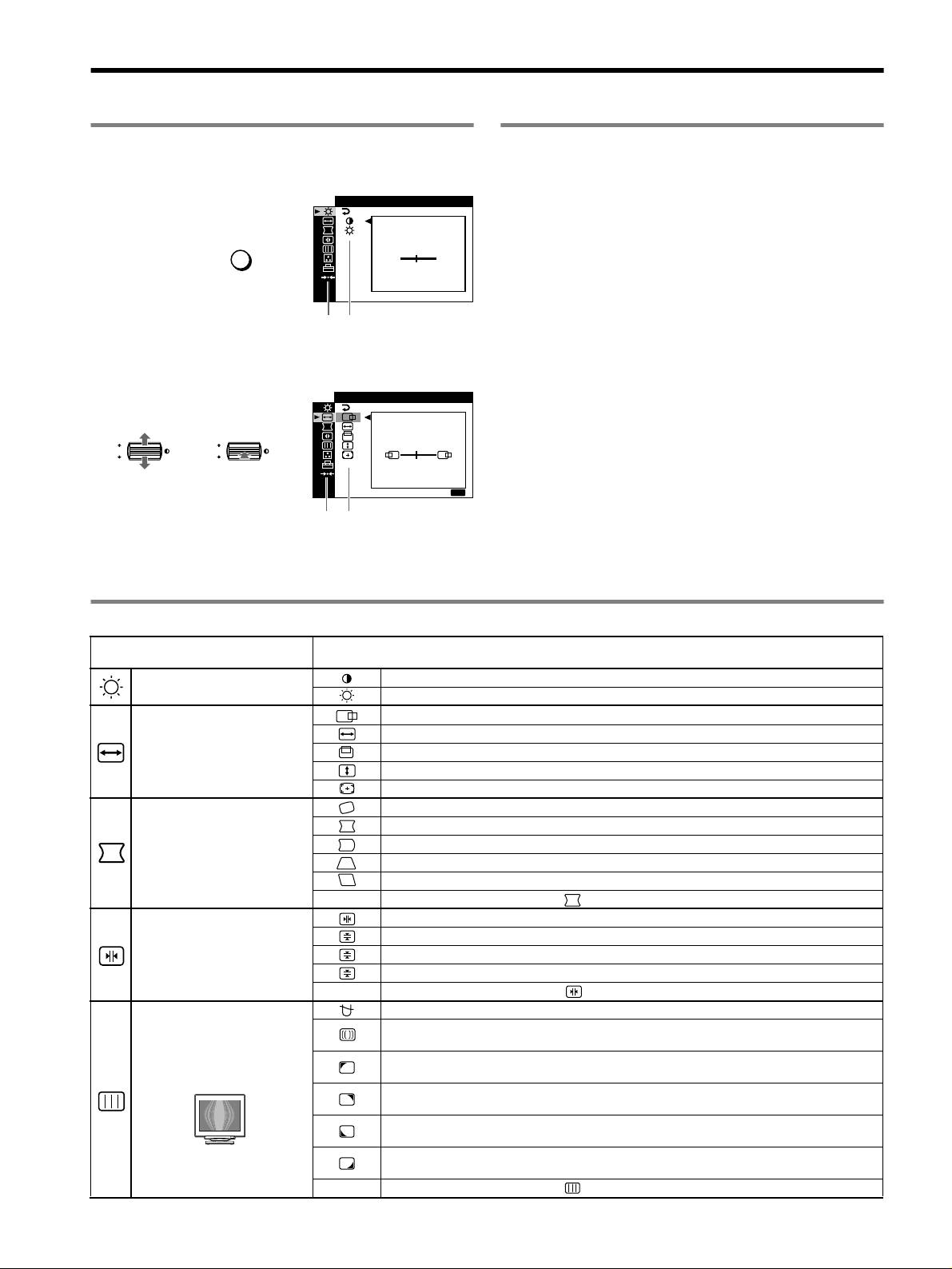
1 Appuyez sur la touche MENU pour afficher le menu
principal.
Vous pouvez sélectionner le mode d’image le plus approprié parmi 3
CONTR
/ LUM I N
modes prédéfinis, en appuyant sur la touche PICTURE EFFECT de
façon répétée.
CONTRASTE
x PROFESSIONNEL
MENU
,
Pour un affichage et des couleurs précises et homogènes. Choisissez
50
cette option si vous utilisez des applications graphiques et de retouche
d’images.
1024x768 / 85Hz
Menu principal
Sous-menu
x STANDARD
Pour des images avec un haut niveau de contraste et de luminosité.
2 Déplacez la touche de commande m/M pour mettre en
Choisissez ce mode pour la plupart des applications courantes, comme
surbrillance le menu principal que vous souhaitez régler
les traitements de texte, les tableurs, la messagerie électronique ou la
et appuyez sur la touche de commande.
navigation sur le Web.
TI
LL
/A CENTRAGE
x DYNAMIQUE
Pour des images éclatantes de réalisme. Utilisez ce mode, offrant une
OK
,,
OK
meilleure restitution que le mode “STANDARD”, pour des utilisations
45
graphiques poussées telles que des jeux ou une lecture DVD.
SORT
IR
:
MENU
Menu principal
Sous-menu
3 Sélectionnez le sous-menu que vous souhaitez régler
puis appuyez sur la touche de commande.
4 Effectuez le réglage à l’aide de la touche de commande.
Réglages du menu d’écran
Icônes du menu principal et éléments
Icônes du sous-menu et éléments de réglage
de réglage
Réglage du contraste et de la
Contraste
luminosité
*
1
Luminosité
Position horizontale
Taille horizontale
Réglage de la taille ou du centrage
de l’image
*
1
Position verticale
Taille verticale
Centrage de taille automatique
Rotation de l’image
Étirement ou contraction des côtés de l’image
*
1
Déplacement des bords de l’image vers la droite ou la gauche*
1
Réglage de la forme de l’image
Réglage de la largeur de l’image en haut de l’écran*
1
Déplacement de l’image vers la droite ou la gauche en haut de l’écran*
1
0 REINITIALISATION : Les réglages sont tous réinitialisés sur les valeurs par défaut.
Décalage horizontal des ombres rouges ou bleues
Décalage vertical des ombres rouges ou bleues
Réglage de la convergence
*
2
T
Décalage vertical des ombres rouges ou bleues en haut de l’écran
B
Décalage horizontal des ombres rouges ou bleues en bas de l’écran
0 REINITIALISATION : Les réglages sont tous réinitialisés sur les valeurs par défaut.
DEMAGNET : démagnétise le moniteur.
SUPPRESSION MOIRAGE : règle le degré de suppression du moiré afin de réduire le moiré au
minimum.
*
1
Réglage de la qualité de l’image
PURETE COULEUR : réduit au minimum les irrégularités des couleurs dans l’angle supérieur gauche
de l’écran.
*
2
Exemple de moiré
PURETE COULEUR : réduit au minimum les irrégularités des couleurs dans l’angle supérieur droit de
l’écran.
*
2
PURETE COULEUR : réduit au minimum les irrégularités des couleurs dans l’angle inférieur gauche
de l’écran.
*
2
PURETE COULEUR : réduit au minimum les irrégularités des couleurs dans l’angle inférieur droit de
l’écran.
*
2
0 REINITIALISATION : Les réglages sont tous réinitialisés sur les valeurs par défaut.
4
Icônes du menu principal et éléments
Icônes du sous-menu et éléments de réglage
de réglage
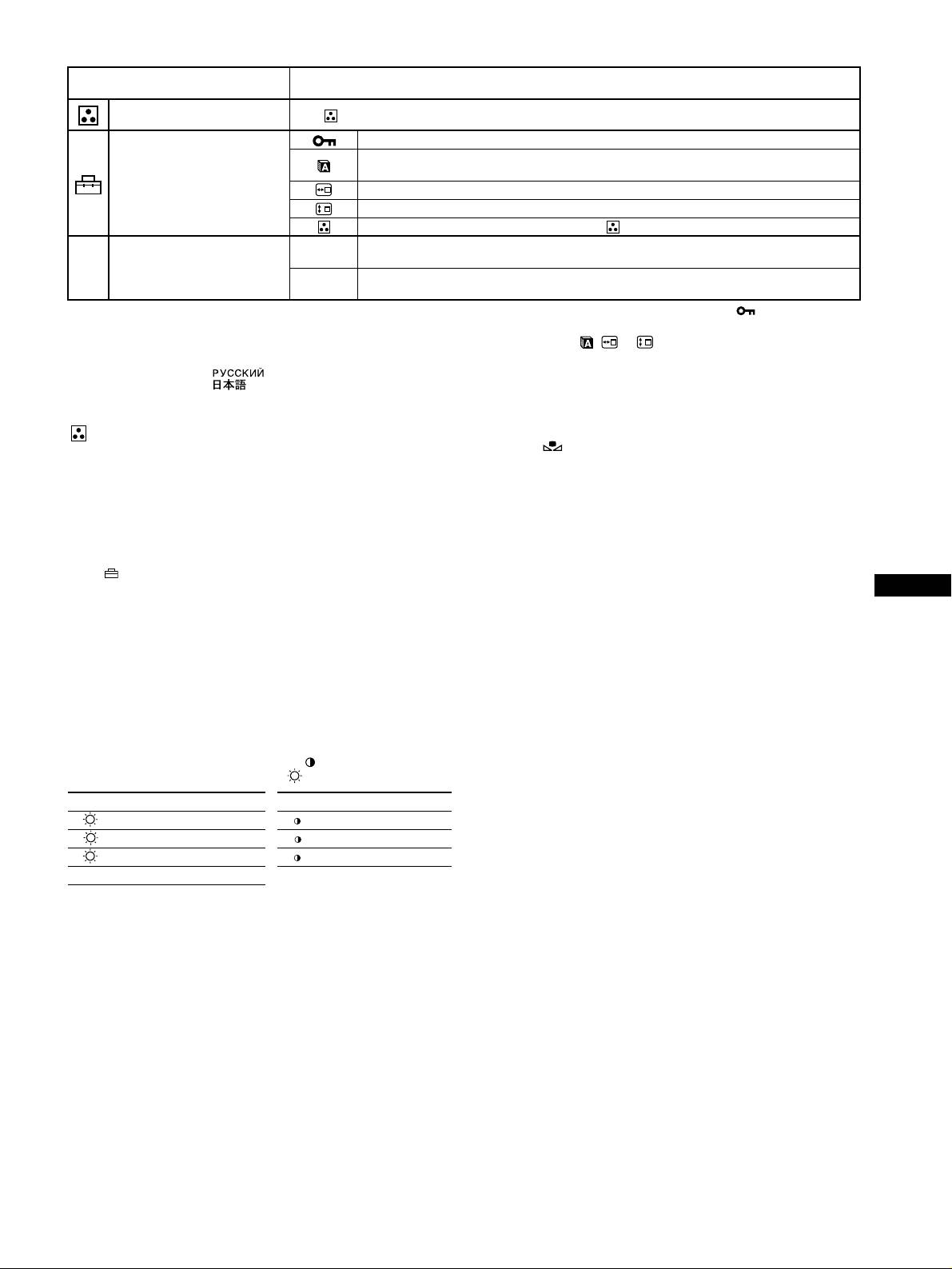
Réglage de la couleur de l’image Voir “ : pour régler la couleur de l’image”.
Protection des données de réglage (VERROU MENU)
*
4
Sélection de la langue d’affichage à l’écran/Confirmation des informations relatives au moniteur
LANGUAGE/INFORMATIONS
*
3
Réglages supplémentaires
Modification de la position du menu pour le réglage horizontal
Modification de la position du menu pour le réglage vertical
Sélection du mode de réglage des couleurs. (Voir “ : Pour régler la couleur de l’image”.)
Réinitialisation de l’ensemble des données de réglage pour le signal d’entrée actuel.*
5
Appuyez sur
01
*
1
“OK”.
0 Réinitialisation des réglages
Réinitialisation de l’ensemble des données de réglage pour tous les signaux d’entrée. Appuyez sur
02
*
2
“OK”.
1
4
*
Ce réglage est effectif pour le signal d’entrée courant.
*
Seul le commutateur (d’alimentation) !, SORTIR et (VERROU MENU)
2
*
Ce réglage est effectif pour tous les autres signaux d’entrée.
fonctionnent.
3
*
Menu de langues
5
*
Les options de menu , et ne sont pas réinitialisées par cette
• ENGLISH : Anglais • NEDERLANDS : Néerlandais
méthode.
• FRANÇAIS • SVENSKA : Suédois
• DEUTSCH : Allemand • : Russe
• ESPAÑOL : Espagnol • : Japonais
• ITALIANO : Italien
: pour régler la couleur de l’image
Restauration des couleurs via les modes SIMPLE, PRESELECT
ou sRGB ( RESTAURER COULEUR)
Les paramètres COULEUR permettent de régler la température des
Vous pouvez restaurer les couleurs par défaut, afin de retrouver les niveaux de
couleurs de l’image en changeant le niveau de couleur des champs de
qualité initiaux. Le moniteur doit avoir fonctionné normalement (indicateur
couleur blanche. Les couleurs apparaissent rougeâtres lorsque la
d’alimentation vert allumé) pendant au moins 30 minutes avant d’utiliser cette
température est basse et bleuâtres lorsqu’elle est élevée. Ce réglage
fonction. Vous devrez peut-être régler les paramètres du mode d’économie
s’avère pratique pour faire correspondre les couleurs du moniteur aux
d’énergie de votre ordinateur. Si le moniteur n’a pas fonctionné depuis au moins
couleurs d’une image imprimée.
30 minutes, le message “UTILISABLE APRES CHAUFFAGE” s’affiche. De
Sélectionnez l’un des modes de réglage de température des couleurs
même, il se peut que cette fonction perde de son efficacité en raison du
parmi les 4 modes; SIMPLE, PRESELECT, EXPERT et sRGB dans le
vieillissement naturel du tube à image Trinitron.
menu (OPTION).
FR
x SIMPLE (Réglage par défaut)
Vous pouvez régler la température des couleurs sur une plage comprise
entre 5000K et 11000K.
x PRESELECT
Vous pouvez sélectionner une température des couleurs prédéfinie, à
savoir 5000K, 6500K, ou 9300K. Le réglage par défaut est 9300K.
x EXPERT
Vous pouvez effectuer des réglages affinés supplémentaires des
couleurs en sélectionnant ce mode. GAIN ( ) règle les zones
lumineuses de l’écran, alors que BIAS ( ) règle les zones sombres.
Sélectionnez
pour
Sélectionnez
pour
R R (Rouge) BIAS R R (Rouge) GAIN
GG (Vert) BIASGG (Vert) GAIN
B B (Bleu) BIAS B B (Bleu) GAIN
0 REINITIALISATION
x sRGB
Le réglage de couleur sRGB est un protocole industriel standard pour
les espaces colorimétriques. Il est conçu pour harmoniser les couleurs
affichées sur le moniteur et les couleurs imprimées. Pour afficher les
couleurs sRGB correctement (γ = 2,2, 6500K), sélectionnez le mode
sRGB, réglez le mode PICTURE EFFECT sur PROFESSIONNEL
(page 4) puis réglez l’ordinateur raccordé sur le profil sRGB. Il est
impossible d’utiliser les réglages du menu CONTR/LUMIN. lorsque
vous sélectionnez le mode sRGB.
5
x Les touches du moniteur ne fonctionnent pas
( apparaît à l’écran)
Dépannage
• Si la fonction de verrouillage des commandes est réglée sur ACTIF,
x Aucune image
réglez-la sur INACTIF.
Si l’indicateur ! (alimentation) est éteint
x Les bords des lettres et des lignes sont soulignés d’une
• Assurez-vous que le cordon d’alimentation est raccordé correctement.
ombre rouge ou bleue
• Vérifiez que l’interrupteur ! (alimentation) est en position activée (on).
• Réglez la convergence.
L’indicateur ! (alimentation) est allumé en orange
x Les périphériques USB ne fonctionnent pas
• Vérifiez que le câble de signal vidéo est correctement raccordé et que
• Vérifiez que les connecteurs USB sont correctement branchés.
toutes les prises sont complètement enfichées.
• Eteignez puis rallumez le moniteur et reconnectez le câble USB.
• Vérifiez que le réglage du commutateur INPUT est correct.
• Si vous raccordez un clavier ou une souris aux connecteurs USB, et que
• Vérifiez que les broches du connecteur d’entrée vidéo HD15 ne sont pas
vous démarrez ensuite l’ordinateur pour la première fois, il est possible
pliées ni enfoncées.
que les périphériques ne fonctionnent pas. Raccordez dans un premier
• Assurez-vous que l’ordinateur est sous tension.
temps le clavier et la souris directement à l’ordinateur, puis configurez
• L’ordinateur est en mode d’économie d’énergie. Essayez d’appuyer sur
les périphériques conformes USB. Raccordez-les ensuite au moniteur.
une touche ou de déplacer la souris.
• Installez la dernière version du gestionnaire de périphérique sur
• Vérifiez que la carte graphique est bien insérée dans le connecteur de bus
l’ordinateur. Contactez le fabricant du périphérique pour déterminer le
approprié.
gestionnaire approprié.
Si l’indicateur ! (alimentation) est vert ou orange clignotant
x Un bourdonnement est audible juste après la mise sous
• Utilisez la fonction d’auto-diagnostic.
tension
x L’image scintille, sautille, oscille ou est brouillée
• Il s’agit du son provoqué par le cycle de démagnétisation automatique.
• Isolez et supprimez les sources potentielles de champs électriques ou
Lorsque le moniteur est mis sous tension, il est automatiquement
magnétiques tels que d’autres moniteurs, des imprimantes laser, des
démagnétisé pendant quelques secondes.
éclairages fluorescents ou des téléviseurs.
* Si un deuxième cycle de démagnétisation est nécessaire, attendez au
•Éloignez le moniteur des lignes à haute tension ou placez un blindage
minimum 20 minutes pour un résultat optimal. Un bourdonnement peut être
magnétique à proximité du moniteur.
audible, ceci est normal.
• Banchez le moniteur sur une autre prise secteur, de préférence raccordée
à un autre circuit.
• Faites pivoter le moniteur de 90° vers la gauche ou la droite.
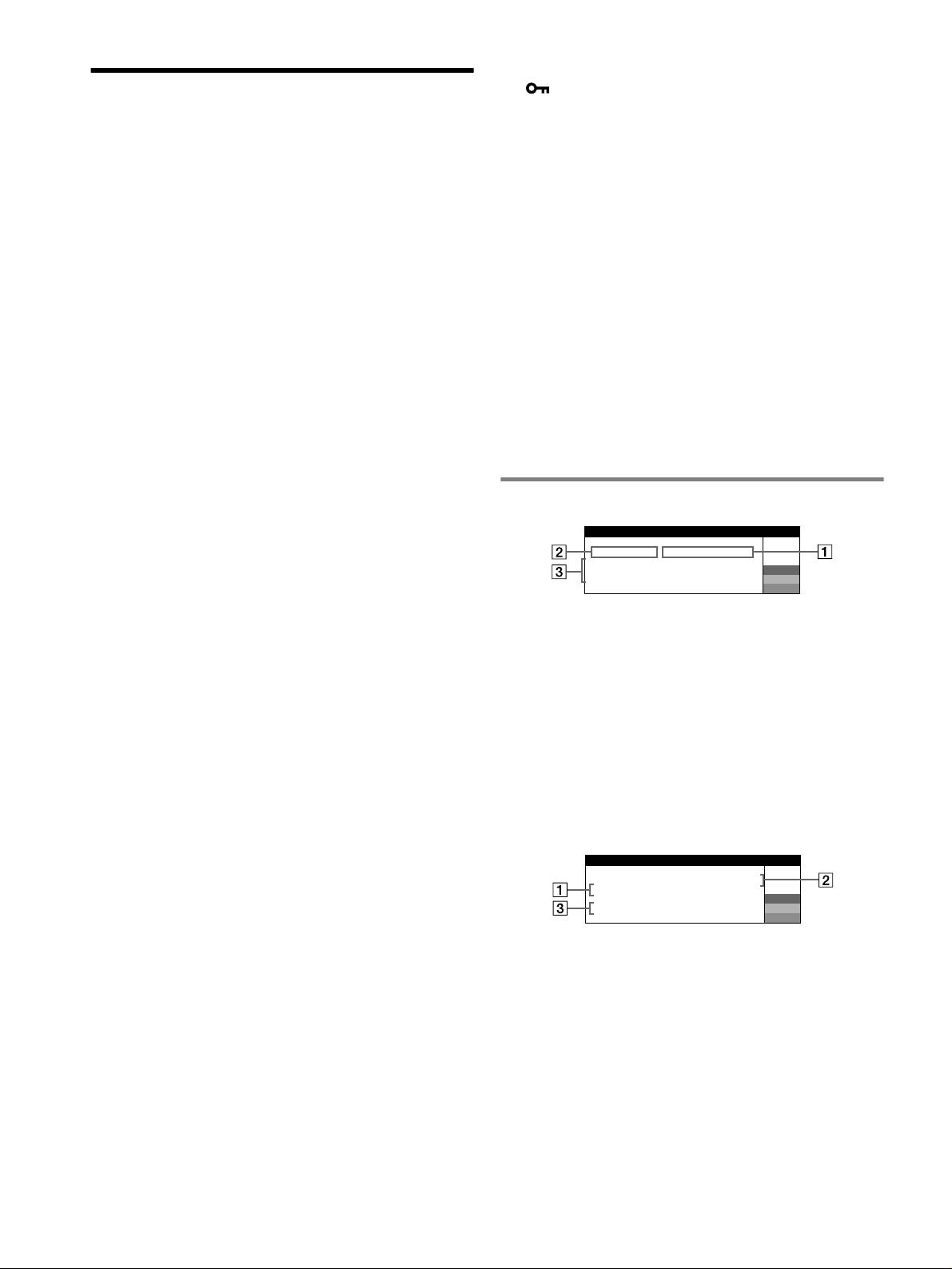
Messages à l’écran
• Vérifiez le réglage adéquat pour le moniteur dans le mode d’emploi de
votre carte graphique.
IIONSNFORMAT
• Assurez-vous que le mode graphique et la fréquence du signal d’entrée
L ' ECRAN FONCT I ONNE
sont pris en charge par ce moniteur (voir le tableau de modes prédéfinis
ENTREE
2 : PAS DE V I DEO
ACT I VER PAR L ' ORD I NATEUR
W
(Preset mode timing table) page i). Même si la fréquence est comprise
VER I F I ER CABLE V I DEO
R
dans la plage appropriée, il est possible que certaines cartes graphiques
VER I F I ER ENTREE SELECT
G
B
aient une impulsion de synchronisation trop étroite pour que le moniteur
puisse se synchroniser correctement.
• Ajustez le taux de régénération de l’ordinateur (fréquence verticale) de
1 Si “PAS DE VIDEO” s’affiche:
façon à obtenir la meilleure image possible.
Ceci indique qu’aucun signal n’est entré à partir du connecteur
sélectionné.
x L’image est floue
2 Indique le connecteur actuellement sélectionné.
• Réglez le contraste, la luminosité et PICTURE EFFECT.
• Démagnétisez le moniteur.*
3 Indique les remèdes.
• Réglez le degré de suppression du moiré afin de réduire le moiré au
• Si le message ACTIVER PAR L’ORDINATEUR apparaît à l’écran,
minimum ou réglez SUPPRESSION MOIRAGE sur INACTIF.
essayez d’appuyer sur une touche quelconque du clavier ou de
x Des images fantômes apparaissent
déplacer la souris et assurez-vous que la carte graphique est
correctement et totalement insérée dans le connecteur de bus
• N’utilisez pas de prolongateurs de câble vidéo et/ou de boîtiers de
commutation vidéo.
adéquat.
• Vérifiez que toutes les fiches sont bien connectées dans leurs prises
• Si le message VERIFIER CABLE VIDEO apparaît à l’écran,
respectives.
vérifiez que le moniteur est connecté correctement à l’ordinateur.
• Si le message VERIFIER ENTREE SELECT apparaît à l’écran,
x L’image n’est pas centrée ou est de taille incorrecte
essayez de changer le signal d’entrée.
• Exécutez le Centrage de taille automatique.
• Ajustez la taille ou le centrage. Veuillez noter que pour certains signaux
I I ONSNFORMAT
d’entrée et/ou cartes graphiques, il est possible que l’image ne remplisse
L ' ECRAN FONCT I ONNE
pas totalement la surface de l’écran.
ENTREE
1: .200 0 /kHz 85Hz
• Juste après la commutation de l’interrupteur d’alimentation, le réglage
HORS PLAGE DE BALAYAGE
W
R
correct de la taille et du centrage peut prendre un certain temps.
CHANGE S I GNAL PARAMETRE
G
B
x Les bords de l’image sont incurvés
• Réglez la géométrie.
1 Si “HORS PLAGE DE BALAYAGE” s’affiche:
x Un motif ondulatoire ou elliptique (moiré) est visible
Ceci indique que le signal d’entrée n’est pas pris en charge par les
• Réglez le degré de suppression du moiré afin de réduire le moiré au
spécifications du moniteur.
minimum.
2 Affiche la fréquence du signal d’entrée.
• Changez le motif de votre bureau.
3 Indique les remèdes.
x Les couleurs ne sont pas uniformes
Le message CHANGE SIGNAL PARAMETRE apparaît à l’écran. Si
• Démagnétisez le moniteur.* Si vous placez à côté du moniteur un
vous remplacez votre ancien moniteur par ce moniteur, rebranchez
appareil qui génère un champ magnétique, comme un haut-parleur, ou si
l’ancien moniteur. Ajustez ensuite la carte graphique de l’ordinateur de
vous changez l’orientation du moniteur, il est possible que les couleurs
sorte que la fréquence horizontale soit comprise entre 30 et 137 kHz
perdent leur uniformité.
(GDM-F520), 30 et 115 kHz (GDM-F420), et que la fréquence
• Réglez l’alignement.
verticale soit comprise entre 48 et 170 Hz.
x Le blanc n’est pas blanc
• Réglez la température des couleurs.
• Vérifiez que les 5 connecteurs BNC sont raccordés dans l’ordre correct.
6
Affichage de l’identification du moniteur, du
numéro de série et de la date de fabrication.
Spécifications
Alors que l’écran reçoit un signal
I NFORMAT I ONS
vidéo, maintenez la touche
CRT
MENU enfoncé pendant plus de
MODEL
:
GDM F520
W
Pas d’ouverture de grille de 0,22 mm, Déflexion de 90 degrés, FD
5 secondes pour afficher les
SER NO
:
1234567
R
MANUFACTURED
: 2000-52
G
Trinitron
informations sur ce moniteur.
B
GDM-F520 21 pouces en diagonale
GDM-F420 19 pouces en diagonale
Taille de l’image affichée
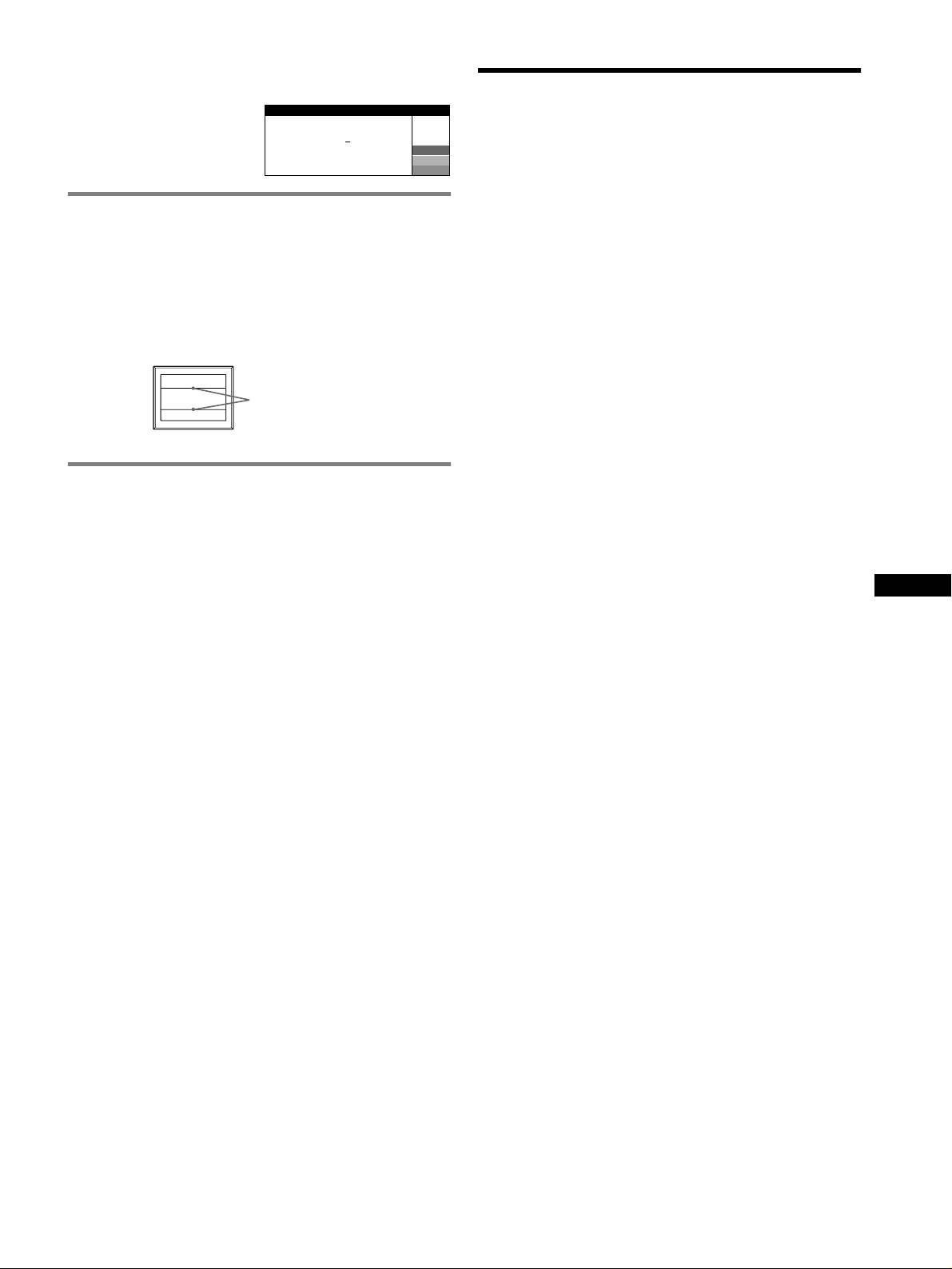
Si des lignes fines apparaissent à
GDM-F520 Environ 403,8
× 302,2 mm (l/h) (16 × 12 pouces)
l’écran
(fils d’amortissement)
Zone de visualisation de 19,8"
3
7
GDM-F420 Environ 365
× 274 mm (l/h) (14
/8 × 10
/8 pouces)
Ces lingnes ne constituent aucunement un dysfonctionnement;
Zone de visualisation de 18,0"
elles résultent de l’utilisation du tube image Trinitron sur ce moniteur.
Résolution (H:Horizontal, V:Vertical)
Ces lignes sont en fait l’ombre des fils d’amortissement employés pour
GDM-F520 Maximum H: 2048 points, V: 1536 lignes
stabiliser la grille d’ouverture. Cette grille est un composant essentiel
Recommandé H: 1600 points, V: 1200 lignes
qui rend le tube d’image Trinitron unique en laissant passer une plus
GDM-F420 Maximum H: 1920 points, V: 1440 lignes
grande quantité de lumière vers l’écran, permettant ainsi d’obtenir une
Recommandé H: 1280 points, V: 1024 lignes
image plus lumineuse et plus détaillée.
Niveaux des signaux d’entrée
Signal vidéo: RVB analogique : 0,700 Vcc (positif), 75
Ω
Signal SYNC: H/V séparé ou sync composite:
TTL 2 k
Ω, sans polarité
Fils d’amortissement
Sync sur Vert : 0,3 Vcc (négatif)
Zone d’image standard
GDM-F520 Environ 388
× 291 mm (4:3)
3
1
(15
/8 × 11
/2 pouces) ou
Environ 364
× 291 mm (5:4)
3
1
(14
/8 × 11
/2 pouces)
Fonction d’auto-diagnostic
GDM-F420 Environ 352
× 264 mm (4:3)
7
1
(13
/8 × 10
/2 pouces) ou
Ce moniteur est équipé d’une fonction d’auto-diagnostic. En cas de
Environ 330
× 264 mm (5:4)
problème avec le moniteur ou les ordinateurs, rien n’est affiché à
1
(13
× 10
/2 pouces)
l’écran et 1’indicateur ! (alimentation) s’allume en vert ou clignote en
Fréquence de déflexion (H:Horizontal, V:Vertical)
orange. Si l’indicateur ! (alimentation) est allumé en orange,
GDM-F520 H: 30 à 137 kHz, V: 48 à 170 Hz
l’ordinateur est en mode d’économie d’énergie. Essayez d’appuyer sur
GDM-F420 H: 30 à 115 kHz, V: 48 à 170 Hz
une touche ou de déplacer la souris.
Voltage d’entrée secteur
FR
100 à 240 V, 50 – 60 Hz, 2,0 – 1,0 A
Consommation électrique (sans périphérique USB connecté)
x Si l’indicateur ! (alimentation) s’allume en vert
GDM-F520 Environ 145 W
1 Débranchez toutes les prises des connecteurs d’entrée
GDM-F420 Environ 135 W
vidéo 1 et 2, ou mettez les ordinateurs connectés hors
Température d’utilisation
tension.
10°C à 40°C
Dimensions
2 Eteignez puis rallumez le moniteur.
GDM-F520 Environ 497
× 499 × 487 mm (l/h/p)
5
3
1
(19
/8 × 19
/4 × 19
/4 pouces)
3 Maintenez le bouton de commande vers le haut pendant
GDM-F420 Environ 446
× 472 × 463 mm (l/h/p)
quelques secondes avant que le moniteur n’entre en
5
5
1
(17
/8 × 18
/8 × 18
/4 pouces)
mode d’économie d’énergie.
Poids
GDM-F520 Environ 30 kg (66 lb 2 oz)
Si les quatre barres de couleurs apparaissent (blanc, rouge, vert et bleu),
GDM-F420 Environ 26 kg (57 lb 5 oz)
le moniteur fonctionne correctement. Reconnectez les câbles d’entrée
Plug and Play DDC2B/DDC2Bi
vidéo et vérifiez l’état des ordinateurs.
Accessoires fournis Cordon d’alimentation
Si les barres de couleur n’apparaissent pas, il est possible que le
Câble de signal vidéo HD15
moniteur ne fonctionne pas normalement. Informez votre revendeur
Câble USB
Sony agréé de l’état du moniteur.
Adaptateur Power Mac G3/G4
Le présent mode d’emploi
x Si l’indicateur ! (alimentation) clignote en orange
Eteignez puis rallumez le moniteur.
Si l’indicateur ! (alimentation) est allumé en vert, le moniteur
fonctionne correctement.
Si l’indicateur ! (alimentation) clignote toujours, il est possible que le
moniteur ne fonctionne pas normalement. Comptez le nombre de
secondes entre les clignotements oranges de l’indicateur
! (alimentation) et informez votre revendeur Sony agréé de l’état du
moniteur. Notez soigneusement le modèle et le numéro de série du
moniteur. Notez également la marque et le modèle de l’ordinateur et de
la carte graphique.
(suite page suivante)
7
Modes préréglés et personnalisés
Lorque le moniteur reçoit un signal d’entrée, il compare automatiquement le
signal à l’un des modes préréglés d’usine mémorisés afin de fournir une image
Précautions
de haute qualité (voir le tableau de modes prédéfinis (Preset mode timing table)
page i). Si le signal d’entrée ne correspond à aucun des modes préréglés
Avertissement relatif au raccordement secteur
d’usine, le moniteur fournit automatiquement l’image la plus appropriée à ce
signal d’entrée, dans la plage de fréquences verticales ou horizontales (page 7),
• Utilisez le cordon d’alimentation fourni. Si vous utilisez un cordon
selon la formule de minutage généralisée. Lorsque l’image est réglée, les
d’alimentation différent, assurez-vous que ce dernier est
données de réglage sont mémorisées comme un mode utilisateur et sont
compatible avec votre réseau d’alimentation électrique.
automatiquement utilisées dès qu’un signal d’entrée identique est reçu.
Pour les utilisateurs au Royaume-Uni
Si vous utilisez le moniteur au Royaume-Uni, assurez-vous
Fonction d’économie d’énergie
d’utiliser le cordon d’alimentation correct.
Ce moniteur satisfait aux critères d’économie d’énergie VESA, TCO’99 et
ENERGY STAR. Lorsqu’aucun signal n’est envoyé à l’ordinateur par
Exemple de types de prises
l’ordinateur, le moniteur réduit automatiquement la consommation d’énergie
comme indiqué ci-dessous.
Mode
Consommation
indicateur
pour 100 à 120 V CA pour 200 à 240 V CA pour 240 V CA
1
uniquement
d’alimentation
électrique*
! (alimentation)
• Avant de débrancher le cordon d’alimentation, attendez au moins
fonctionnement
≤ 145 W (GDM-F520)
vert
normal
≤ 135 W (GDM-F420)
30 secondes avant de couper l’alimentation afin de permettre le
déchargement de l’électricité statique de la surface de l’écran.
2
inactif*
≤ 3 W orange
• Après la mise sous tension, l’écran est démagnétisé pendant
3
(sommeil profond)*
quelques secondes. Ceci génère un champ magnétique puissant
autour de l’écran, susceptible d’altérer les données stockées sur les
1
*
Ces chiffres indiquent la consommation électrique lorsqu’aucun
cassettes ou bandes placées à proximité du moniteur. Assurez-vous
périphérique USB n’est connecté à l’ordinateur.
de ne pas placer d’équipement d’enregistrement magnétique, de
2
*
PAS DE VIDEO s’affiche à l’écran lorsque votre ordinateur passe en mode
bandes ou de disquettes à proximité du moniteur.
d’économie d’énergie. Le moniteur passe en mode d’économie d’énergie
quelques secondes plus tard.
La prise électrique doit être installée à proximité de l’appareil et
3
*
“Sommeil profond” est le mode d’économie d’énergie défini par l’agence de
facile d’accès.
protection de l’environnement.
Installation
La conception et les spécifications sont sujettes à modifications sans préavis.
N’installez pas le moniteur dans les endroits suivantes:
• sur des surfaces textiles (tapis, couvertures, etc.) ni à proximité de
tissus (rideaux, draperies) qui risquent d’obstruer les orifices de
ventilation
• près de sources de chaleur telles que des radiateurs ou des conduits
d’air chaud ou à un emplacement exposé aux rayons directs du
soleil
• dans un endroit sujet à de fortes variations de température
• dans un endroit sujet à des vibrations mécaniques ou à des chocs
• sur une surface instable
• près d’un équipement générant un champ magnétique, tel qu’un
transformateur ou des lignes à haute tension
• près ou sur une surface métallique chargée d’électricité
• dans un rack fermé
Entretien
• Nettoyez l’écran en utilisant un chiffon doux et sec. Si vous utilisez
un nettoyant pour vitres, n’utilisez pas de produits contenant une
solution antistatique ou une solution similaire qui risque d’abîmer
le revêtement de l’écran.
• Ne frottez pas, ne touchez pas et ne tapotez pas la surface de l’écran
avec des objets pointus ou abrasifs, tels que la pointe d’un stylo ou
un tournevis. Dans le cas contraire, vous pourriez rayer le tube de
l’écran.
• Nettoyez le châssis, l’écran et les commandes à l’aide d’un chiffon
doux légèrement imbibé d’une solution détergente non agressive.
N’utilisez pas d’éponge abrasive, de poudre à récurer ou de solvant
tel que de l’alcool ou de la benzine.
Transport
Lorsque vous transportez ce moniteur, utilisez le carton et les
matériaux d’emballage d’origine.
Support d’écran
Ne retirez pas le support de moniteur.
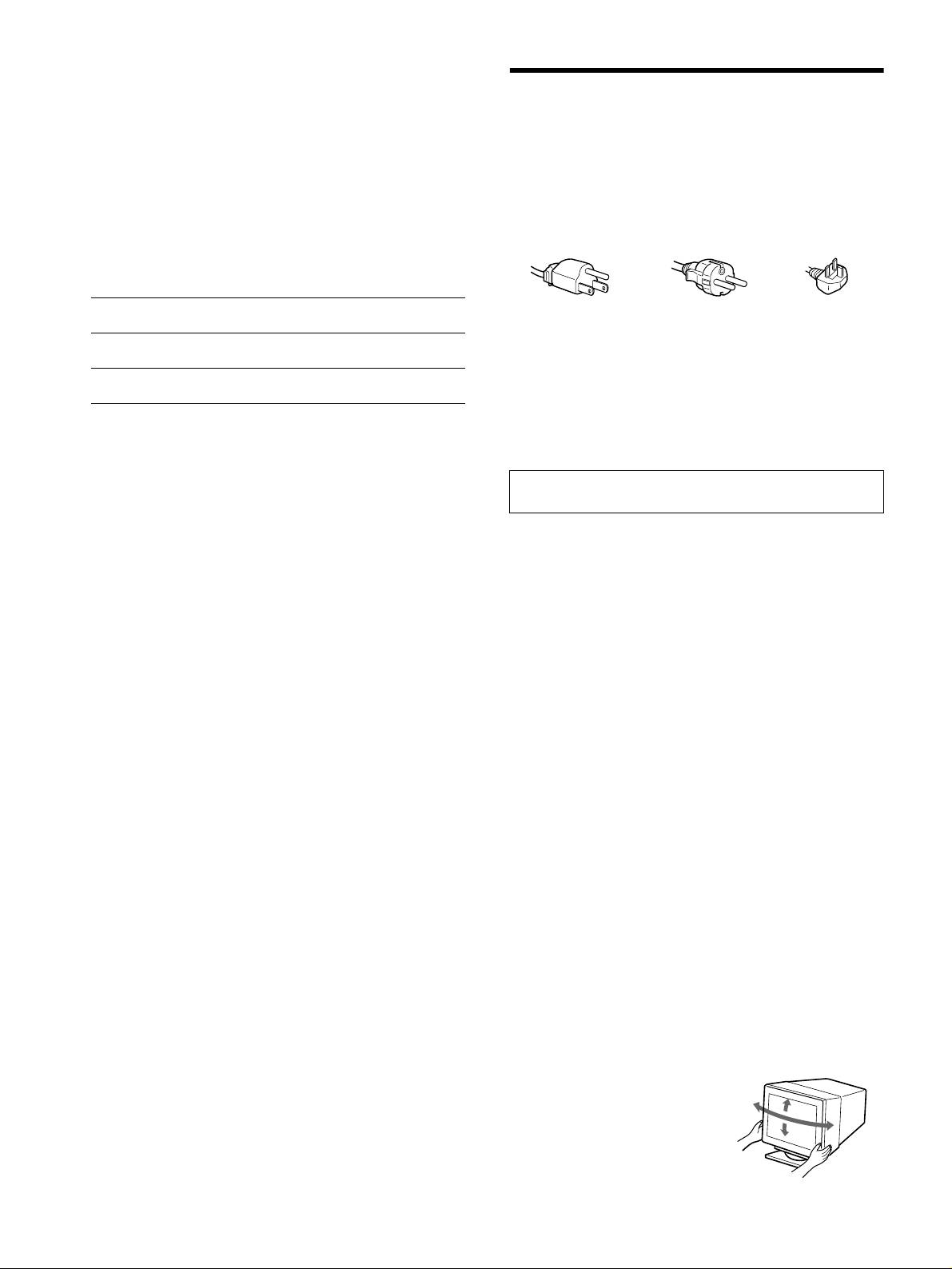
Utilisation du pied pivotant
Ce moniteur peut être ajusté selon les
angles illustrés ci-contre. Pour
90°
15°
tourner le moniteur verticalement ou
90°
horizontalement, tenez sa base avec
5°
les deux mains.
8
Hinweis
Dieses Gerät erfüllt bezüglich tieffrequenter (very low frequency) und
Inhalt
tiefstfrequenter (extremely low frequency) Strahlung die Vorschriften
Anschließen des Monitors . . . . . . . . . . . . . . . . . . . . 3
des „Swedish National Council for Metrology (MPR)“ vom Dezember
1990 (MPR II).
Einstellen des Monitors . . . . . . . . . . . . . . . . . . . . . . 4
Dieses Garät entspricht den folgenden europäischen EMV-
Störungsbehebung . . . . . . . . . . . . . . . . . . . . . . . . . . 6
Vorschriften für Betrieb in Wohngebieten, gewerblicher Gebleten
und Leichtindustriegebieten.
Technische Daten . . . . . . . . . . . . . . . . . . . . . . . . . . . 7
EN55022/1998 Klasse B
Sicherheitsmaßnahmen . . . . . . . . . . . . . . . . . . . . . . 8
EN55024/1998
EN61000-3-2/1995
Appendix . . . . . . . . . . . . . . . . . . . . . . . . . . . . . . . . . . . i
Preset mode timing table . . . . . . . . . . . . . . . . . . . . . . . i
Hinweise
TCO’99 Eco-document. . . . . . . . Hintere Umschlagseite
• Aus ergonomischen Gründen wird empfohlen, die Grundfarbe
Blau nicht auf dunklem Untergrund zu verwenden (schlechte
â
•Trinitron
ist ein eingetragenes Warenzeichen der Sony Corporation.
Erkennbarkeit, Augenbelastung bei zu geringem
• Macintosh ist ein Warenzeichen der Apple Computer, Inc., in den USA
Zeichenkontrast).
und anderen Ländern.
• Aus ergonomischen Gründen (flimmern) sollten nur
â
• Windows
und MS-DOS sind eingetragene Warenzeichen der Microsoft
Darstellungen bei Vertikalfrequenzen ab 70 Hz (ohne
Corporation in den USA und anderen Ländern.
Zeilensprung) verwendet werden.
• IBM PC/AT und VGA sind eingetragene Warenzeichen der IBM
• Die Konvergenz des Bildes kann sich auf Grund des
Corporation in den USA.
Magnetfeldes am Ort der Aufstellung aus der korrekten
ä
• VESA und DDC
sind Warenzeichen der Video Electronics Standard
Grundeinstellung verändern. Zur Korrektur empfiehlt es sich
Association.
deshalb, die Regler an der Frontseite für Konvergenz so
•
ENERGY STAR ist ein eingetragenes Warenzeichen in den USA.
einzustellen, daß die getrennt sichtbaren Farblinien für Rot,
• Alle anderen in diesem Handbuch erwähnten Produktnamen können
Grün und Blau bei z.B. der Darstellung eines Buchstabens zur
Warenzeichen oder eingetragene Warenzeichen der jeweiligen
Deckung (Konvergenz) gelangen.
Eigentümer sein.
Siehe hierzu auch die Erklärungen zu Konvergenz.
• Im Handbuch sind die Warenzeichen und eingetragenen Warenzeichen
nicht überall ausdrücklich durch „
ä“ und „â“ gekennzeichnet.
Anschließen des Monitors
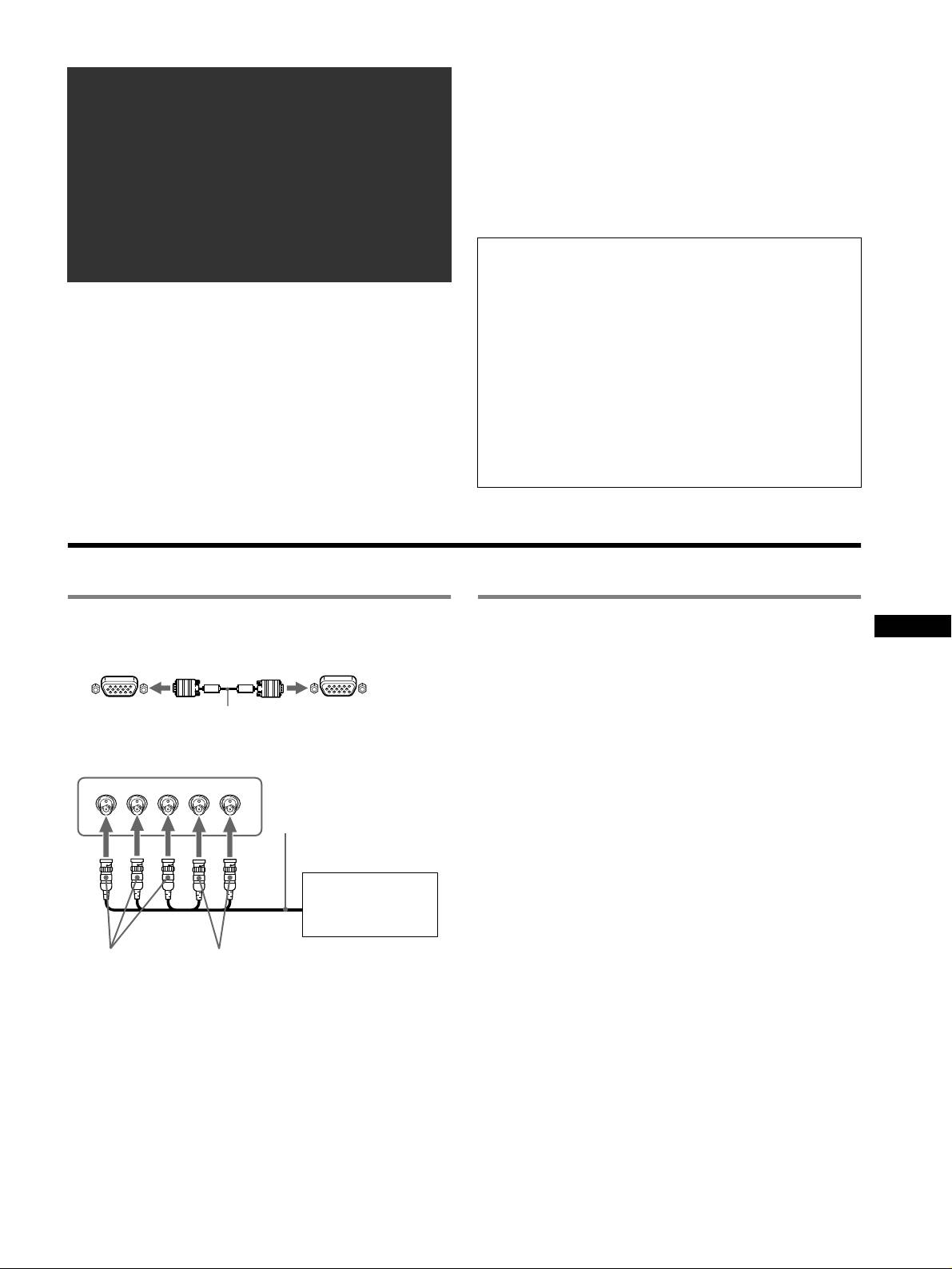
1 Anschließen des Monitors an den
2 Einschalten von Monitor und Computer
DE
Computer
1 Verbinden Sie das Netzkabel mit dem Monitor, und
x Anschließen an einen HD15-Eingang
schalten Sie den Monitor am Netzschalter ! ein.
2 Schalten Sie den Computer ein.
Keine speziellen Treiber erforderlich
an HD15
Videosignalkabel
an HD15 des
(mitgeliefert)
anzuschließenden
Dieser Monitor entspricht dem Plug-and-Play-Standard „DDC“, so daß alle
Computers
Daten des Monitors automatisch erkannt werden. Daher muß kein spezifischer
Treiber auf dem Computer installiert werden.
x Anschließen an einen 5-BNC-Anschluß
Wenn Sie den Monitor an den PC anschließen und diesen dann zum ersten Mal
starten, wird möglicherweise der Hardware-Assistent auf dem Bildschirm
RGBHDVD
angezeigt. Gehen Sie in diesem Fall nach den Anweisungen auf dem Bildschirm
vor. Der Plug-and-Play-Monitor ist automatisch ausgewählt, so daß Sie ohne
Videosignalkabel
(nicht mitgeliefert)
weitere Vorbereitungen mit diesem Monitor arbeiten können.
Hinweise
• Nur der HD15-Anschluß ist Plug-and-Play-kompatibel (DDC-kompatibel),
nicht jedoch der 5-BNC-Anschluß.
Schließen Sie den
• Berühren Sie nicht die Stifte am Stecker des Videosignalkabels.
Monitor wie in den
• Achten Sie darauf, den Stecker des Videosignalkabels korrekt am HD15-
Beispielen oben gezeigt
Anschluß auszurichten, damit die Stifte am Stecker des Videosignalkabels
an den Computer an.
nicht verbogen werden.
Auswählen des Eingangssignals
an SYNC IN HD/VDan VIDEO IN R/G/B
Über den HD15- und den BNC-Anschluß können Sie zwei Computer an
diesen Monitor anschließen. Mit dem Schalter INPUT schalten Sie
Anschließen an einen Macintosh oder kompatiblen
zwischen den beiden Computern um. Der ausgewählte Anschluß wird
Computer
3 Sekunden lang auf dem Bildschirm angezeigt.
Wenn Sie diesen Monitor an einen Power Macintosh G3/G4 anschließen,
verwenden Sie, wenn nötig, den mitgelieferten Adapter. Schließen Sie den
Hinweis
mitgelieferten Adapter an den Computer an, bevor Sie das Kabel
Wenn am ausgewählten Eingang kein Signal eingespeist wird, erscheint KEIN
anschließen. Wenn Sie den Monitor an andere Modelle der Macintosh-Serie
SIGNAL auf dem Bildschirm. Nach einigen Sekunden schaltet der Monitor in
mit zwei Stiftreihen anschließen wollen, benötigen Sie einen anderen
den Energiesparmodus. Schalten Sie in diesem Fall zum anderen Eingang um.
Adapter (nicht mitgeliefert).
(Fortsetzung)
3

Anschließen von USB-kompatiblen
HD15-Eingänge
5 4 3 2
1
•
Peripheriegeräten (USB - Universeller Serieller
678910
1112131415
Bus)
Vergewissern Sie sich, daß Monitor und Computer eingeschaltet sind,
Stift Nr. Signal
Stift Nr. Signal
und schließen Sie den Computer dann an die USB-Anschlüsse ( ) an der
1
Rot
10 Masse
rechten Seite des Monitors an.
2Grün
11 ID (Masse)
Schließen Sie Ihren Computer mit dem mitgelieferten
(Grünsignal mit
12 Bidirektionale
Synchronisation)
USB-Kabel an den quadratischen USB-Anschluß () für
Daten (SDA)*
3Blau
das vorgeschaltete Gerät an.
13 H. Sync
Wenn eine Windows-Meldung auf Ihrem Bildschirm erscheint, gehen Sie
4ID (Masse)
14 V. Sync
nach den Anweisungen auf dem Bildschirm vor, und wählen Sie „Generic
5 DDC-Masse*
15
Datentakt (SCL)*
USB Hub“.
6 Masse Rot
Wenn Sie USB-kompatible Peripheriegeräte (z. B. Drucker, Tastatur,
7 Masse Grün
Maus, Scanner usw.) anschließen wollen, verbinden Sie sie mit dem
8 Masse Blau
rechteckigen USB-Anschluß () für nachgeschaltete Geräte.
9 DDC + 5V*
Hinweis
Der Monitor fungiert als USB-Hub, wenn er eingeschaltet und betriebsbereit ist
* DDC (Display Data Channel) ist ein Standard der VESA.
oder sich im Energiesparmodus befindet.
Einstellen des Monitors
Navigieren in den Menüs
Einstellen der Bildqualität
(PICTURE EFFECT)
1 Rufen Sie mit der Taste
KONTRAST
/ HELL
Sie können aus 3 voreingestellten Modi den am besten geeigneten
MENU das Menü auf.
Bildmodus auswählen. Drücken Sie dazu entsprechend oft die Taste
KONTRAST
PICTURE EFFECT.
50
x PROFESSIONELL
MENU
,
Für präzise und gleichbleibende Bildschirmfarben. Wählen Sie diese
1024x768 / 85Hz
Einstellung für Desktop Publishing und Grafikanwendungen auf
professionellem Niveau.
Hauptmenü
Untermenü
x STANDARD
2 Bewegen Sie die Steuertaste nach m/M, um das
Für kontraststarke, helle Bilder. Diese Einstellung eignet sich für die
Hauptmenü hervorzuheben, in dem Sie Einstellungen
meisten gängigen Anwendungen wie Tabellenkalkulationen,
vornehmen wollen, und drücken Sie die Steuertaste.
Textverarbeitungsprogramme, E-Mail-Programme oder das Surfen im
G
RÖSSE B I LDLAGE
/
Internet.
x DYNAMISCH
OK
,,
OK
Für sehr lebhafte, fotorealistische Bilder. Heller als der Modus
45
„STANDARD“. Wählen Sie diese Einstellung für grafikbetonte
Unterhaltungs-Software wie zum Beispiel Spiele oder für die Wiedergabe
ENDE
:
MENU
von DVDs.
Hauptmenü
Untermenü
3 Wählen Sie das Untermenü aus, in dem Sie eine
Einstellung vornehmen wollen, und drücken Sie die
Steuertaste.
4 Nehmen Sie die Einstellung mit der Steuertaste vor.
Einstellungen über das Bildschirmmenü
Hauptmenüsymbole und
Untermenüsymbole und Einstelloptionen
Einstelloptionen
Kontrast
Einstellen von Kontrast und
Helligkeit
*
1
Helligkeit
Horizontale Position
Breite
Einstellen von Größe oder Zentrierung
Vertikale Position
des Bildes
*
1
Höhe
Automatische Einstellung von Bildgröße und -zentrierung
4

Hauptmenüsymbole und
Untermenüsymbole und Einstelloptionen
Einstelloptionen
Drehen des Bildes
Wölben der Bildränder nach außen oder innen
*
1
Verschieben der Bildränder nach links oder rechts*
1
Einstellen der Form des Bildes
Einstellen der Bildbreite im oberen Bildschirmbereich*
1
Verschieben des Bildes nach links oder rechts im oberen Bildschirmbereich*
1
0 ZURÜCKSETZEN: Setzt alle -Einstellungen auf ihre werkseitigen Standardwerte zurück.
Horizontales Verschieben roter oder blauer Schatten
Vertikales Verschieben roter oder blauer Schatten
Einstellen der Konvergenz
*
2
T
Vertikales Verschieben roter oder blauer Schatten im oberen Bildschirmbereich
B
Vertikales Verschieben roter oder blauer Schatten im unteren Bildschirmbereich
0 ZURÜCKSETZEN: Setzt alle -Einstellungen auf ihre werkseitigen Standardwerte zurück.
ENTMAGNETISIEREN: Entmagnetisieren des Monitors.
MOIRE-KORREKTUR: Einstellen des Grads der Moiré-Korrektur, so daß der Moiré-Effekt möglichst gering
ausfällt.
*
1
Einstellen der Bildqualität
FARBREINHEIT: Reduzieren der Farbungleichmäßigkeiten in der linken oberen Bildschirmecke auf ein
Minimum.
*
2
Beispiel für Moire
FARBREINHEIT: Reduzieren der Farbungleichmäßigkeiten in der rechten oberen Bildschirmecke auf ein
Minimum.
*
2
FARBREINHEIT: Reduzieren der Farbungleichmäßigkeiten in der linken unteren Bildschirmecke auf ein
Minimum.
*
2
FARBREINHEIT: Reduzieren der Farbungleichmäßigkeiten in der rechten unteren Bildschirmecke auf ein
Minimum.
*
2
0 ZURÜCKSETZEN: Setzt alle -Einstellungen auf ihre werkseitigen Standardwerte zurück.
Einstellen der Farben des Bildes Siehe „ : Einstellen der Farben des Bildes“.
Schützen von Einstellungen (TASTENSPERRE)
*
4
Auswählen der Sprache für die Bildschirmmenüs/Anzeigen der Monitorinformationen (LANGUAGE/
INFORMATION)
*
3
Weitere Einstellungen
Ändern der horizontalen Menüposition
Ändern der vertikalen Menüposition
DE
Auswählen des Farbeinstellmodus (siehe „ : Einstellen der Farben des Bildes“.)
0
1
Zurücksetzen aller Einstellungen für das aktuelle Eingangssignal.*
5
1*
Wählen Sie „OK“.
0 Zurücksetzen der Einstellungen
0
2*
2
Zurücksetzen aller Einstellungen für alle Eingangssignale. Wählen Sie „OK“.
*
1
Diese Einstellung gilt für das aktuelle Eingangssignal.
*
4
Jetzt können Sie nur noch den Netzschalter !, die Option ENDE sowie
*
2
Diese Einstellung gilt für alle Eingangssignale.
(TASTENSPERRE) benutzen.
3
*
5
*
Sprachmenü
Die Menüoptionen , und werden auf diese Weise nicht zurückgesetzt.
• ENGLISH: Englisch • NEDERLANDS: Niederländisch
• FRANÇAIS: Französisch • SVENSKA: Schwedisch
• DEUTSCH • : Russisch
• ESPAÑOL: Spanisch • : Japanisch
• ITALIANO: Italienisch
: Einstellen der Farben des Bildes
x sRGB
Mit den Optionen im Menü FARBE können Sie die Farbtemperatur des
Die sRGB-Farbeinstellung ist ein Farbraumprotokoll nach
Bildes einstellen. Dabei ändert sich der Farbwert im weißen Farbfeld.
Industriestandard, mit dem die am Bildschirm angezeigten mit den
Farben erscheinen bei einer niedrigen Farbtemperatur rötlich, bei einer
gedruckten Farben in Übereinstimmung gebracht werden sollen. Damit die
hohen Farbtemperatur bläulich. Mit Hilfe dieser Funktion können Sie die
sRGB-Farben korrekt angezeigt werden (
γ = 2,2, 6500 K), wählen Sie den
Farben auf dem Monitor an die Farben eines gedruckten Bildes anpassen.
Modus sRGB, setzen Sie den Modus PICTURE EFFECT auf
Wählen Sie einen der 4 Farbtemperatureinstellmodi EINFACH, VORDEF,
PROFESSIONELL (Seite 4), und stellen Sie an Ihrem Computer das sRGB-
KOMPLEX und sRGB im Menü (OPTION) aus.
Profil ein. Wenn Sie sRGB auswählen, können Sie keine
Menüeinstellungen für KONTRAST/HELL vornehmen.
x EINFACH (Standardeinstellung)
Die Farbtemperatur läßt sich auf einen Wert zwischen 5000 K und 11000 K
Wiederherstellen der Farbe über die Modi EINFACH,
einstellen.
VORDEF oder sRGB ( FARBWIEDERHERSTELLUNG)
Mit dieser Funktion können Sie die Bildschirmfarben auf die ursprünglichen,
x VORDEF
werkseitig eingestellten Werte zurücksetzen. Bevor Sie diese Funktion
Hier stehen drei voreingestellte Farbtemperaturen zur Verfügung: 5000 K,
verwenden können, muß sich der Monitor mindestens 30 Minuten lang im
6500 K und 9300 K. Die Standardeinstellung ist 9300 K.
normalen Betriebsmodus befinden (Netzanzeige leuchtet grün). Dazu müssen
x KOMPLEX
Sie unter Umständen die Energiespareinstellungen des Computers ändern. Wenn
der Monitor weniger als 30 Minuten lang eingeschaltet war, erscheint die
Wenn Sie diesen Modus auswählen, können Sie weitere Feineinstellungen
Meldung „ERST NACH WARM UP VERFÜGBAR“. Im Lauf der Zeit verliert
für die Farbe vornehmen. GAIN ( ) dient zum Einstellen der hellen
diese Funktion aufgrund der unvermeidlichen Alterung der Trinitron-Bildröhre
Bildschirmbereiche, BIAS ( ) zum Einstellen der dunklen
nach und nach ihre Wirkung.
Bildschirmbereiche.
Option Funktion Option Funktion
R
R (Rot) BIAS
R
R (Rot) GAIN
GG (Grün) BIAS
G
G (Grün) GAIN
BB (Blau) BIAS
B
B (Blau) GAIN
0 ZURÜCKSETZEN
5
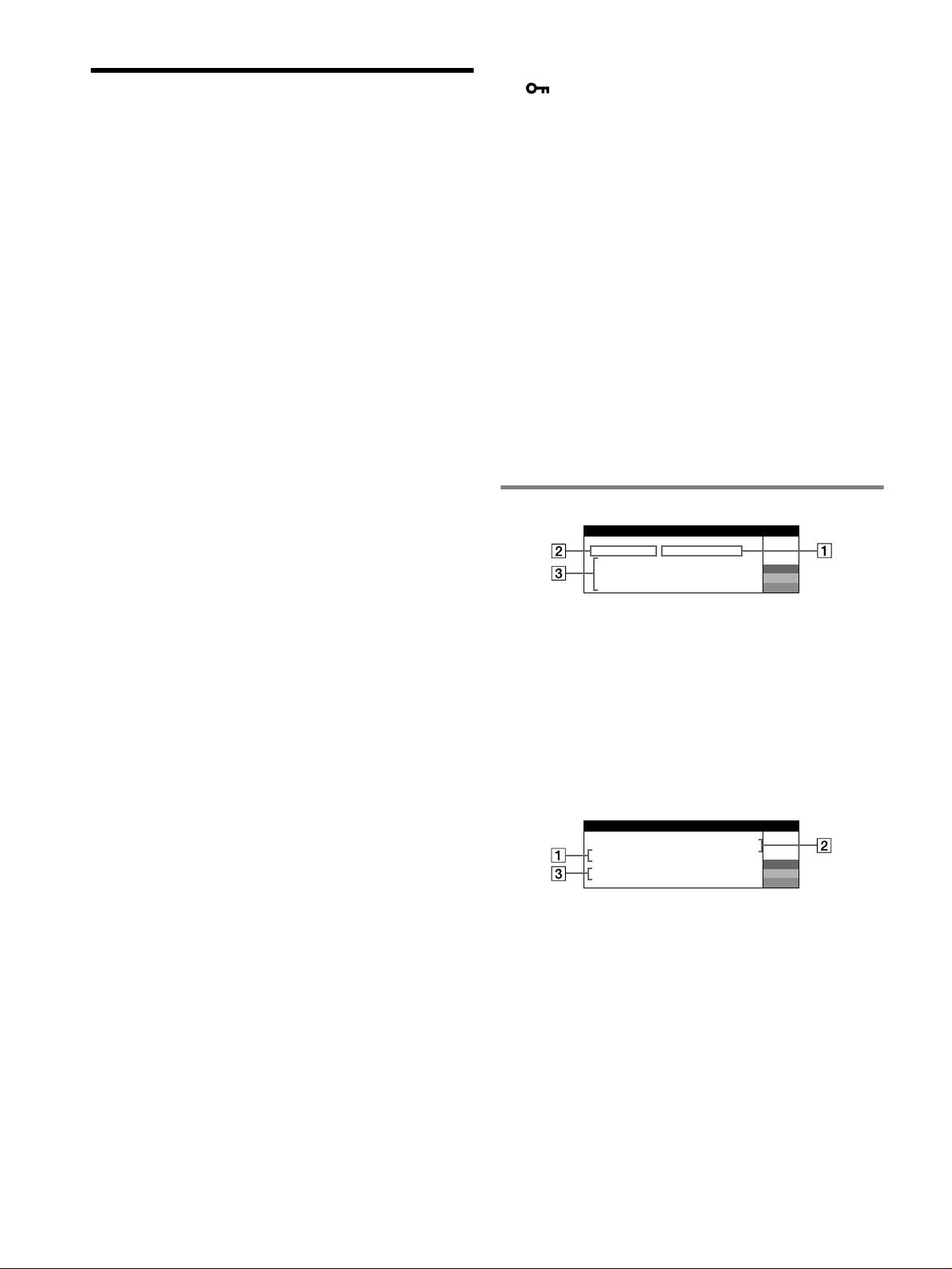
x Die Bedienelemente am Monitor funktionieren nicht
( erscheint auf dem Bildschirm)
Störungsbehebung
• Wenn die Tastatursperre auf EIN gesetzt ist, setzen Sie sie auf AUS.
x An den Rändern von Buchstaben und Linien sind rote
x Es wird kein Bild angezeigt
oder blaue Schatten zu sehen
Die Netzanzeige ! leuchtet nicht
• Stellen Sie die Konvergenz ein.
• Das Netzkabel muß korrekt angeschlossen sein.
x Die USB-Peripheriegeräte funktionieren nicht
• Der Monitor muß am Netzschalter ! eingeschaltet sein.
• Die richtigen USB-Anschlüsse müssen fest angeschlossen sein.
Die Netzanzeige ! leuchtet orange
• Schalten Sie den Monitor aus (OFF) und dann wieder ein (ON), und
•Überprüfen Sie, ob das Videosignalkabel korrekt angeschlossen ist und
schließen Sie das USB-Kabel erneut an.
alle Stecker fest in den Buchsen sitzen.
• Wenn Sie den Computer zum ersten Mal starten, nachdem Sie eine
• Der Schalter INPUT muß korrekt eingestellt sein.
Tastatur oder eine Maus an die USB-Anschlüsse angeschlossen haben,
• Achten Sie darauf, daß am HD15-Videoeingangsanschluß keine Stifte
funktionieren die Peripheriegeräte möglicherweise nicht. Schließen Sie
verbogen oder eingedrückt sind.
in diesem Fall die Tastatur und die Maus direkt an den Computer an, und
•Überprüfen Sie, ob der Computer eingeschaltet ist.
installieren Sie die USB-kompatiblen Geräte. Schließen Sie sie dann an
• Der Computer befindet sich im Energiesparmodus. Drücken Sie eine
diesen Monitor an.
beliebige Taste auf der Computer-Tastatur, oder bewegen Sie die Maus.
• Installieren Sie die neueste Version des Gerätetreibers auf Ihrem
• Die Grafikkarte muß korrekt im richtigen Bus-Steckplatz sitzen.
Computer. Informationen zum geeigneten Gerätetreiber erhalten Sie
Die Netzanzeige ! leuchtet grün oder blinkt orange
beim Hersteller des Geräts.
• Verwenden Sie die Selbstdiagnosefunktion.
x Unmittelbar nach dem Einschalten ist ein
x Das Bild flimmert, springt, oszilliert oder ist gestört
Summgeräusch zu hören
• Entfernen Sie alle möglichen Quellen elektrischer oder magnetischer
• Dieses Geräusch wird vom automatischen Entmagnetisierungszyklus
Felder wie andere Monitore, Laserdrucker, Ventilatoren,
verursacht. Wenn Sie das Gerät einschalten, wird der Monitor
Leuchtstoffröhren oder Fernsehgeräte aus der Nähe des Monitors.
automatisch einige Sekunden lang entmagnetisiert.
• Halten Sie den Monitor von Stromleitungen fern, oder schützen Sie den
* Ist ein zweiter Entmagnetisierungszyklus erforderlich, warten Sie nach
Monitor durch eine Magnetabschirmung.
dem ersten Zyklus mindestens 20 Minuten. Auf diese Weise erzielen Sie
• Schließen Sie das Netzkabel des Monitors an eine andere Steckdose,
die besten Ergebnisse. Dabei ist möglicherweise ein Summgeräusch zu
möglichst an einem anderen Stromkreis, an.
hören, aber dies ist keine Fehlfunktion.
• Versuchen Sie, den Monitor um 90 Grad nach links oder rechts zu
drehen.
• Schlagen Sie in der Anleitung zur Grafikkarte die korrekte
Bildschirmmeldungen
Monitoreinstellung nach.
IIONNFORMAT
•Überprüfen Sie, ob der Grafikmodus und die Frequenz des
MON I TOR FUNKTIONIERT
Eingangssignals von diesem Monitor unterstützt werden (siehe “Preset
E I NGANG
2 : KE I N S I GNAL
mode timing table” auf Seite i). Auch wenn die Frequenz innerhalb des
AM COMPUTER AKT I V I EREN
W
S I GNALKABEL PRÜFEN
R
unterstützten Bereichs liegt, arbeiten einige Grafikkarten
POS I T I ON VON WÄHL–
G
möglicherweise mit einem Synchronisationsimpuls, der für eine korrekte
SCHALTER I NPUT PRÜFEN
B
Synchronisation des Monitors zu kurz ist.
• Stellen Sie die Auffrischungsrate am Computer (Vertikalfrequenz) auf
1 Wenn „KEIN SIGNAL“ angezeigt wird:
den Wert ein, mit dem Sie die besten Bilder erzielen.
Diese Meldung gibt an, daß kein Signal vom ausgewählten Anschluß eingeht.
x Das Bild ist verschwommen
2 Zeigt den momentan ausgewählten Anschluß an.
• Stellen Sie Helligkeit, Kontrast und PICTURE EFFECT ein.
3 Zeigt mögliche Abhilfemaßnahmen an.
• Entmagnetisieren Sie den Monitor.*
• Wird AM COMPUTER AKTIVIEREN auf dem Bildschirm angezeigt,
• Regulieren Sie den Grad der Moiré-Korrektur, bis der Moiré-Effekt auf
drücken Sie eine beliebige Taste am Computer, oder bewegen Sie die
ein Minimum reduziert ist, oder setzen Sie MOIRE-KORREKTUR auf
AUS.
Maus. Überprüfen Sie gegebenenfalls, ob die Grafikkarte des Computers
korrekt in den richtigen Steckplatz eingebaut ist.
x Doppelbilder sind zu sehen
• Wenn SIGNALKABEL PRÜFEN auf dem Bildschirm erscheint,
• Verwenden Sie keine Bildschirmverlängerungskabel und/oder
überprüfen Sie, ob der Monitor korrekt an den Computer angeschlossen
Videoschaltboxen, wenn dieses Phänomen auftritt.
ist.
•Überprüfen Sie, ob alle Stecker fest in den jeweiligen Buchsen sitzen.
• Wenn POSITION VON WÄHLSCHALTER INPUT PRÜFEN auf dem
x Das Bild ist nicht zentriert, oder die Bildgröße ist nicht
Bildschirm erscheint, wechseln Sie das Eingangssignal.
korrekt
IIONNFORMAT
• Führen Sie die Funktion zur automatischen Einstellung von Bildgröße
MON I TOR FUNKTIONIERT
und -zentrierung aus.
E I NGANG
1: .200 0 /kHz 85Hz
• Stellen Sie die Bildgröße oder -zentrierung ein. Beachten Sie bitte, daß
N I CHT I M ABTASTBERE I CH
W
R
bei einigen Eingangssignalen und/oder Grafikkarten das Bild den
S GNAL–T I M I NG ÄNDERNI
G
Bildschirm nicht ganz bis zum Rand ausfüllt.
B
• Unmittelbar nach dem Einschalten des Geräts am Netzschalter dauert es
1 Wenn „NICHT IM ABTASTBEREICH“ angezeigt wird:
eine Weile, bis Bildgröße und -zentrierung richtig eingestellt sind.
Diese Meldung gibt an, daß das Eingangssignal nicht den technischen Daten
x Die Bildränder sind gekrümmt
des Monitors entspricht.
• Stellen Sie die Geometrie ein.
2 Gibt die Frequenz des Eingangssignals an.
x Wellenförmige oder elliptische Moiré-Effekte sind
3 Zeigt mögliche Abhilfemaßnahmen an.
sichtbar
SIGNAL-TIMING ÄNDERN erscheint auf dem Bildschirm. Wenn Sie
• Regulieren Sie den Grad der Moiré-Korrektur, bis der Moiré-Effekt auf
einen älteren Monitor durch diesen Monitor ersetzen, schließen Sie den
ein Minimum reduziert ist.
• Wählen Sie ein anderes Muster für Ihren Desktop.
alten Monitor wieder an. Stellen Sie dann die Grafikkarte des Computers
auf eine Horizontalfrequenz zwischen 30 und 137 kHz (GDM-F520), 30
x Die Farbe ist nicht gleichmäßig
und 115 kHz (GDM-F420) und eine Vertikalfrequenz zwischen 48 und
• Entmagnetisieren Sie den Monitor.* Wenn Sie ein Gerät, das ein
170 Hz ein.
Magnetfeld erzeugt (z. B. einen Lautsprecher), in der Nähe des Monitors
aufstellen oder wenn Sie die Richtung des Monitors ändern, sind die
Farben möglicherweise nicht mehr gleichmäßig.
• Stellen Sie die Farbreinheit ein.
x Weiß sieht nicht weiß aus
• Stellen Sie die Farbtemperatur ein.
•Überprüfen Sie, ob die fünf BNC-Stecker in der richtigen Reihenfolge
angeschlossen sind.
6
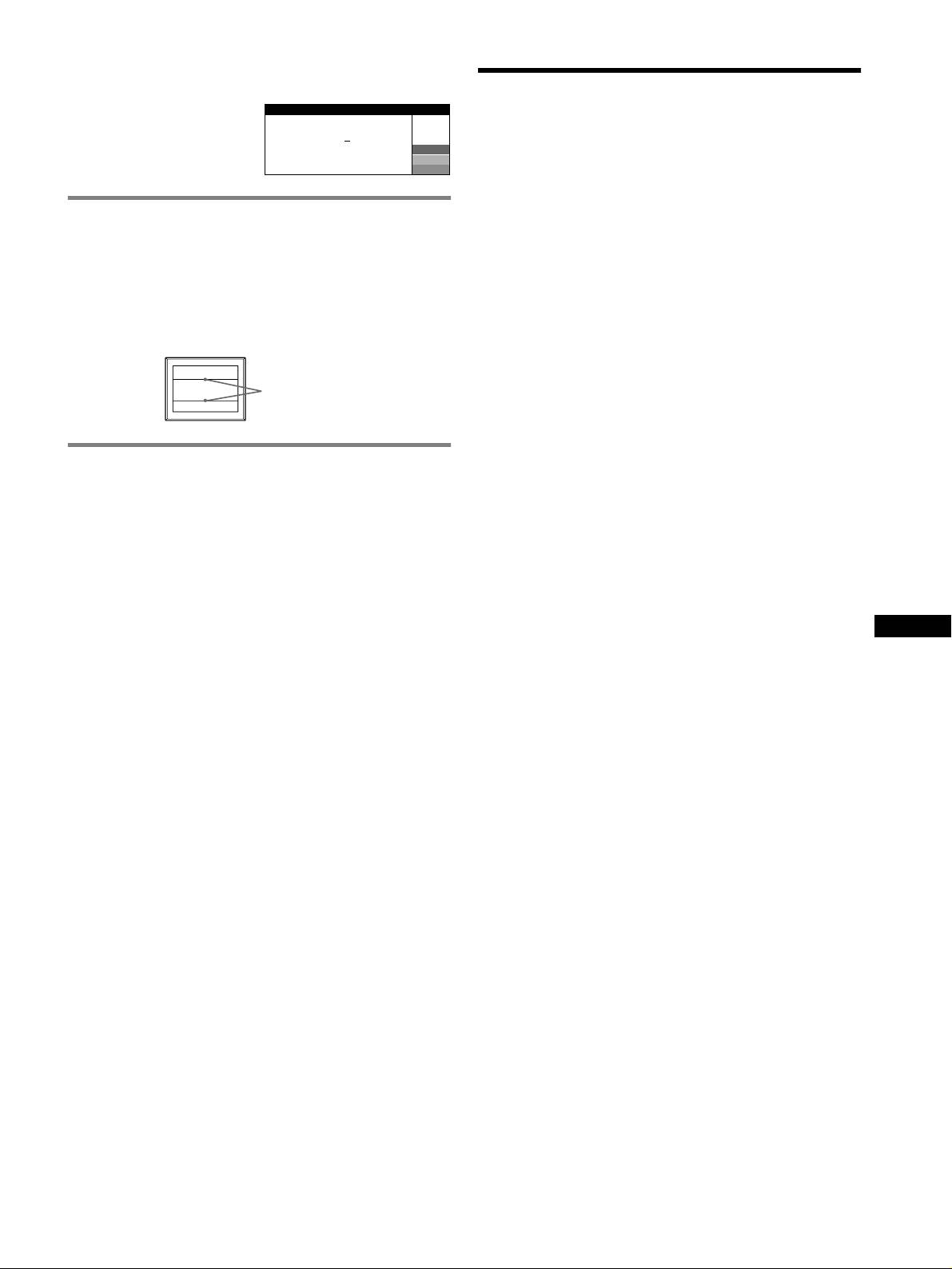
Anzeigen des Namens, der Seriennummer und des
Herstellungsdatums des Monitors.
Technische Daten
Während Videosignale am Monitor
I NFORMAT I ON
eingehen, halten Sie die Taste
Kathodenstrahlröhre
MENU mehr als fünf Sekunden
MODEL
:
GDM F520
W
lang gedrückt, um ein Feld mit
Streifenabstand 0,22 mm, Ablenkung 90 Grad, FD-Trinitron
SER NO
:
1234567
R
Informationen zum Monitor
MANUFACTURED
: 2000-52
G
GDM-F520 Bildschirmdiagonale 54 cm
B
anzuzeigen.
GDM-F420 Bildschirmdiagonale 49 cm
Effektive Bildgröße
GDM-F520 ca. 403,8
× 302,2 mm (B/H), Anzeigegröße 51 cm
Wenn auf dem Bildschirm dünne
GDM-F420 ca. 365
× 274 mm (B/H), Anzeigegröße 46 cm
Auflösung (H:Horizontal, V:Vertikal)
Linien erscheinen
(Dämpfungsdrähte)
GDM-F520 Maximum: H: 2048 Punkte, V: 1536 Zeilen
Empfohlen: H: 1600 Punkte, V: 1200 Zeilen
Diese Linien sind keine Fehlfunktion. Sie sind bei einem Monitor mit
GDM-F420 Maximum: H: 1920 Punkte, V: 1440 Zeilen
Trinitron-Bildröhre normal. Es sind die Schatten der Dämpfungsdrähte, die
Empfohlen: H: 1280 Punkte, V: 1024 Zeilen
die Streifenmaske stabilisieren. Die Streifenmaske ist ein wichtiges
Eingangssignalpegel
Merkmal der Trinitron-Bildröhre. Sie bewirkt, daß mehr Licht auf den
Videosignal: Analoges RGB-Signal: 0,700 Vp-p (positiv), 75
Ω
Bildschirm gelangt, und ermöglicht eine höhere Farbintensität und
Synchronisationssignal:
Detailgenauigkeit.
Getrenntes H/V- oder zusammengesetztes
Synchronisationssignal:
TTL, 2 k
Ω, ohne Polarität
Dämpfungsdrähte
Grünsignal mit Sync: 0,3 Vp-p (negativ)
Standardanzeigegröße
GDM-F520 ca. 388
× 291 mm (4:3) oder ca. 364 × 291 mm (5:4)
GDM-F420 ca. 352
× 264 mm (4:3) oder ca. 330 × 264 mm (5:4)
Ablenkfrequenz (H:Horizontal, V:Vertikal)
Selbstdiagnosefunktion
GDM-F520 H: 30 bis 137 kHz, V: 48 bis 170 Hz
GDM-F420 H: 30 bis 115 kHz, V: 48 bis 170 Hz
Dieser Monitor verfügt über eine Selbstdiagnosefunktion. Wenn an dem
Betriebsspannung 100 bis 240 V Wechselstrom, 50 – 60 Hz, 2,0 – 1,0 A
Monitor oder am Computer (bzw. an den Computern) ein Problem auftritt,
Leistungsaufnahme (ohne angeschlossene USB-Geräte)
erscheint ein leerer Bildschirm, und die Netzanzeige ! leuchtet grün auf
GDM-F520 ca. 145 W
oder blinkt orange. Wenn die Netzanzeige ! orange leuchtet, befindet sich
GDM-F420 ca. 135 W
der Computer im Energiesparmodus. Drücken Sie eine beliebige Taste auf
Betriebstemperatur 10 °C bis 40 °C
der Computer-Tastatur, oder bewegen Sie die Maus.
Abmessungen
GDM-F520 ca. 497
× 499 × 487 mm (B/H/T)
x Wenn die Netzanzeige ! grün leuchtet
GDM-F420 ca. 446
× 472 × 463 mm (B/H/T)
Gewicht
1 Lösen Sie alle Stecker aus den Videoeingangsbuchsen
GDM-F520 ca. 30 kg
DE
1 und 2, oder schalten Sie den/die angeschlossenen
GDM-F420 ca. 26 kg
Plug and Play DDC2B/DDC2Bi
Computer aus.
Mitgeliefertes Zubehör
2 Schalten Sie den Monitor aus (OFF) und dann wieder
Netzkabel
HD15-Videosignalkabel
ein (ON).
USB-Kabel
3 Halten Sie die Steuertaste einige Sekunden nach oben
Exklusiver Power Mac G3/G4-Adapter
gedrückt, bevor der Monitor in den Energiesparmodus
Diese Bedienungsanleitung
wechselt.
Wenn alle vier Farbbalken (weiß, rot, grün, blau) angezeigt werden,
funktioniert der Monitor ordnungsgemäß. Schließen Sie die
Videoeingangskabel wieder an, und überprüfen Sie den Zustand des/der
Computer(s).
Wenn die Farbbalken nicht erscheinen, liegt möglicherweise ein Fehler am
Monitor vor. Wenden Sie sich mit der Beschreibung des Problems an einen
autorisierten Sony-Händler.
x Wenn die Netzanzeige ! orange blinkt
Schalten Sie den Monitor aus (OFF) und dann wieder ein
(ON).
Wenn die Netzanzeige ! jetzt grün leuchtet, funktioniert der Monitor
ordnungsgemäß.
Wenn die Netzanzeige ! immer noch blinkt, liegt möglicherweise ein
Fehler am Monitor vor. Ermitteln Sie das Intervall, in dem die Netzanzeige
! orange blinkt (in Sekunden), und wenden Sie sich mit der Beschreibung
des Problems an einen autorisierten Sony-Händler. Notieren Sie sich
unbedingt die Modellbezeichnung und die Seriennummer des Monitors.
Notieren Sie sich außerdem das Fabrikat und Modell Ihres Computers und
der Grafikkarte.
(Fortsetzung)
7
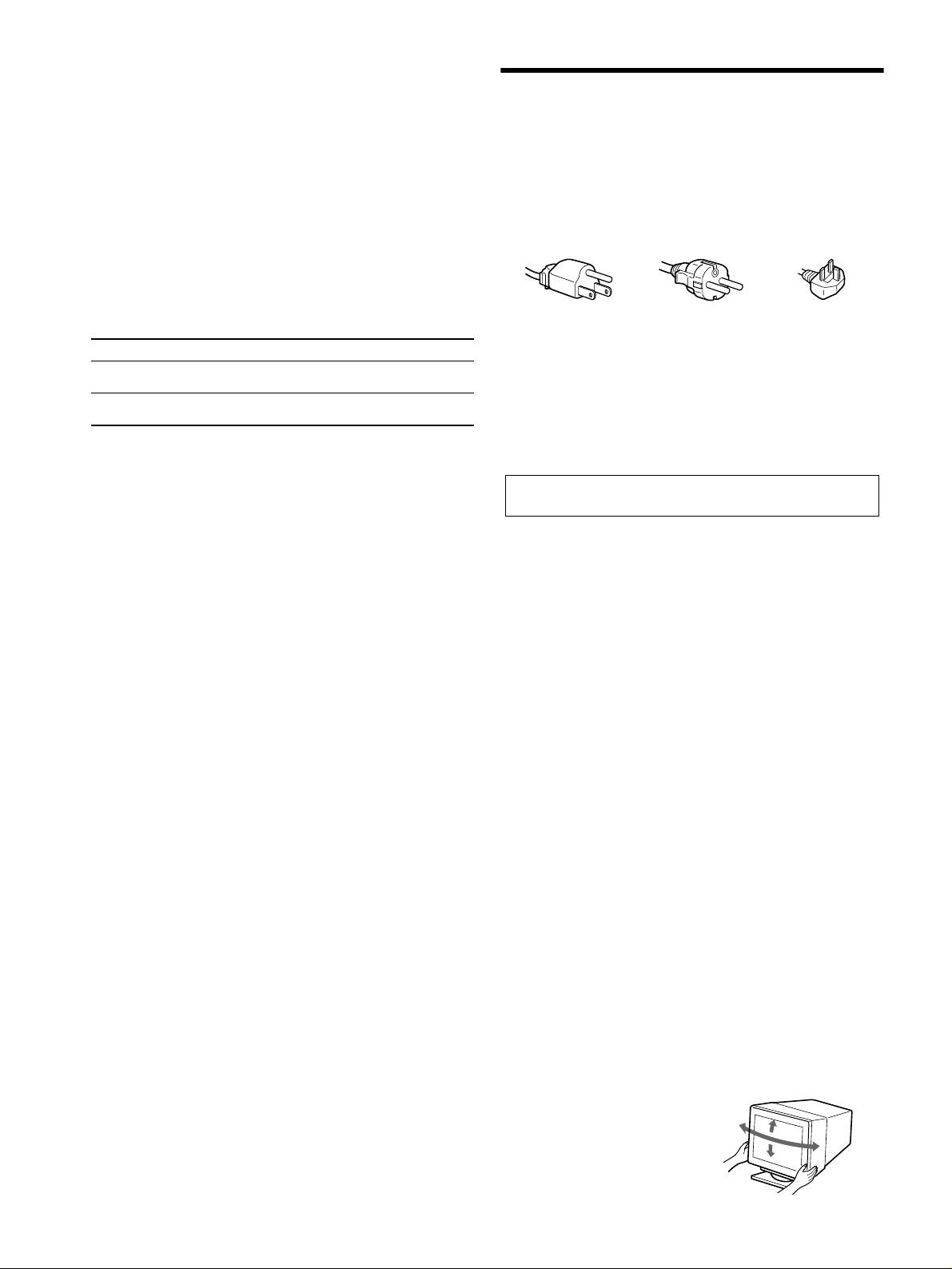
Vordefinierte Modi und Benutzermodi
Wenn ein Eingangssignal in den Monitor eingespeist wird, vergleicht der
Monitor dieses Signal mit den werkseitig vordefinierten Modi im Speicher des
Sicherheitsmaßnahmen
Monitors und wählt automatisch den Modus aus, bei dem sich eine möglichst
hohe Bildqualität erzielen läßt (siehe “Preset mode timing table” auf Seite i). Bei
Warnhinweis zum Netzanschluß
einem Eingangssignal, das keinem der werkseitig voreingestellten Modi
entspricht, erzeugt der Monitor auf der Basis des Eingangssignals automatisch
• Verwenden Sie ausschließlich das mitgelieferte Netzkabel. Wenn Sie ein
ein möglichst gutes Bild, sofern die Vertikal- und Horizontalfrequenzen des
anderes Netzkabel verwenden, achten Sie darauf, daß es für die
Eingangssignals im angegebenen Bereich liegen (Seite 7) und das
Stromversorgung in Ihrem Land geeignet ist.
Eingangssignal GTF-kompatibel ist (GTF = Generalized Timing Formula).
Für Kunden in Großbritannien
Beim Einstellen des Bildes werden die Einstellungen automatisch als
Wenn Sie den Monitor in Großbritannien verwenden, benutzen Sie bitte
Benutzermodus gespeichert und abgerufen, wann immer das betreffende
das mitgelieferte Kabel mit dem für Großbritannien geeigneten Stecker.
Eingangssignal eingeht.
Beispiele für Steckertypen
Die Energiesparfunktion
Dieser Monitor erfüllt die Energiesparrichtlinien der VESA, des TCO’99-
Standards und des
ENERGY STAR-Programms. Wenn vom Computer kein
Signal am Monitor eingeht, wird der Stromverbrauch des Monitors wie unten
erläutert automatisch verringert.
für 100 bis 120 V
für 200 bis 240 V
nur für 240 V
Wechselstrom
Wechselstrom
Wechselstrom
1
Betriebsmodus Leistungsaufnahme*
Netzanzeige !
• Warten Sie nach dem Ausschalten des Geräts mindestens 30 Sekunden,
bevor Sie das Netzkabel lösen. In dieser Zeit kann sich die statische
Normalbetrieb ≤ 145 W (GDM-F520)
grün
≤ 135 W (GDM-F420)
Elektrizität auf der Oberfläche des Bildschirms entladen.
2
• Wenn Sie das Gerät einschalten, wird der Bildschirm einige Sekunden
Deaktiviert*
≤ 3 W orange
3
lang entmagnetisiert. Dadurch entsteht um den Bildschirm ein starkes
(Tiefschlaf)*
magnetisches Feld, das Daten auf Magnetbändern, Disketten oder
1
*
Die Zahlen geben den Stromverbrauch an, wenn keine USB-kompatiblen
anderen Datenträgern in der Nähe beschädigen kann. Legen Sie
Peripheriegeräte an den Monitor angeschlossen sind.
magnetische Datenträger und Bänder/Disketten daher nicht zu nahe bei
2
*
Wenn der Computer in den Energiesparmodus schaltet, erscheint „KEIN
diesem Monitor ab.
SIGNAL“ auf dem Bildschirm. Nach einigen Sekunden schaltet der Monitor
Die Netzsteckdose sollte sich in der Nähe des Geräts befinden und
in den Energiesparmodus.
leicht zugänglich sein.
3
*
„Tiefschlaf“ ist ein Energiesparmodus, der von der EPA
(Umweltschutzbehörde der USA) definiert wurde.
Aufstellung
Stellen Sie den Monitor nicht an folgenden Standorten auf:
Änderungen, die dem technischen Fortschritt dienen, bleiben vorbehalten.
• Auf Oberflächen wie Teppichen oder Decken oder in der Nähe von
Materialien wie Gardinen und Wandbehängen, die die
Lüftungsöffnungen blockieren könnten.
• In der Nähe von Wärmequellen wie Heizkörpern oder
Warmluftauslässen oder an einem Ort, an dem der Monitor direktem
Sonnenlicht ausgesetzt ist.
• An einem Ort, an dem der Monitor starken Temperaturschwankungen
ausgesetzt ist.
• An einem Ort, an dem der Monitor mechanischen Vibrationen oder
Stößen ausgesetzt ist.
• Auf einer instabilen Oberfläche.
• In der Nähe anderer Geräte, die ein starkes Magnetfeld generieren, wie
zum Beispiel ein Transformator oder eine Hochspannungsleitung.
• In der Nähe von oder auf einer elektrisch geladenen Metallfläche.
• In einem geschlossenen Gestell.
Wartung
• Reinigen Sie den Bildschirm mit einem weichen Tuch. Wenn Sie ein
Glasreinigungsmittel verwenden, achten Sie darauf, daß es keine
Antistatik-Lösung oder ähnliche Zusätze enthält, da diese zu Kratzern
auf der Beschichtung des Bildschirms führen könnten.
• Berühren Sie die Bildschirmoberfläche nicht mit scharfen, rauhen oder
spitzen Gegenständen wie zum Beispiel Kugelschreibern oder
Schraubenziehern. Andernfalls könnte die Bildschirmoberfläche
zerkratzt werden.
• Reinigen Sie Gehäuse, Bedienfeld und Bedienelemente mit einem
weichen Tuch, das Sie leicht mit einer milden Reinigungslösung
angefeuchtet haben. Verwenden Sie keine Scheuermittel,
Scheuerschwämme oder Lösungsmittel wie Alkohol oder Benzin.
Transport
Wenn Sie den Monitor zur Reparatur oder bei einem Umzug transportieren
müssen, verpacken Sie ihn mit Hilfe der Originalverpackungsmaterialien
wieder im Originalkarton.
Bildschirmständer
Nehmen Sie den Ständer dieses Monitors nicht ab.
Der dreh- und neigbare Ständer
Mit dem Ständer können Sie den
Monitor innerhalb der rechts
90°
abgebildeten Winkel nach Bedarf
15°
90°
einstellen. Wenn Sie den Monitor
5°
drehen oder neigen, stützen Sie ihn
bitte mit beiden Händen unten ab.
8
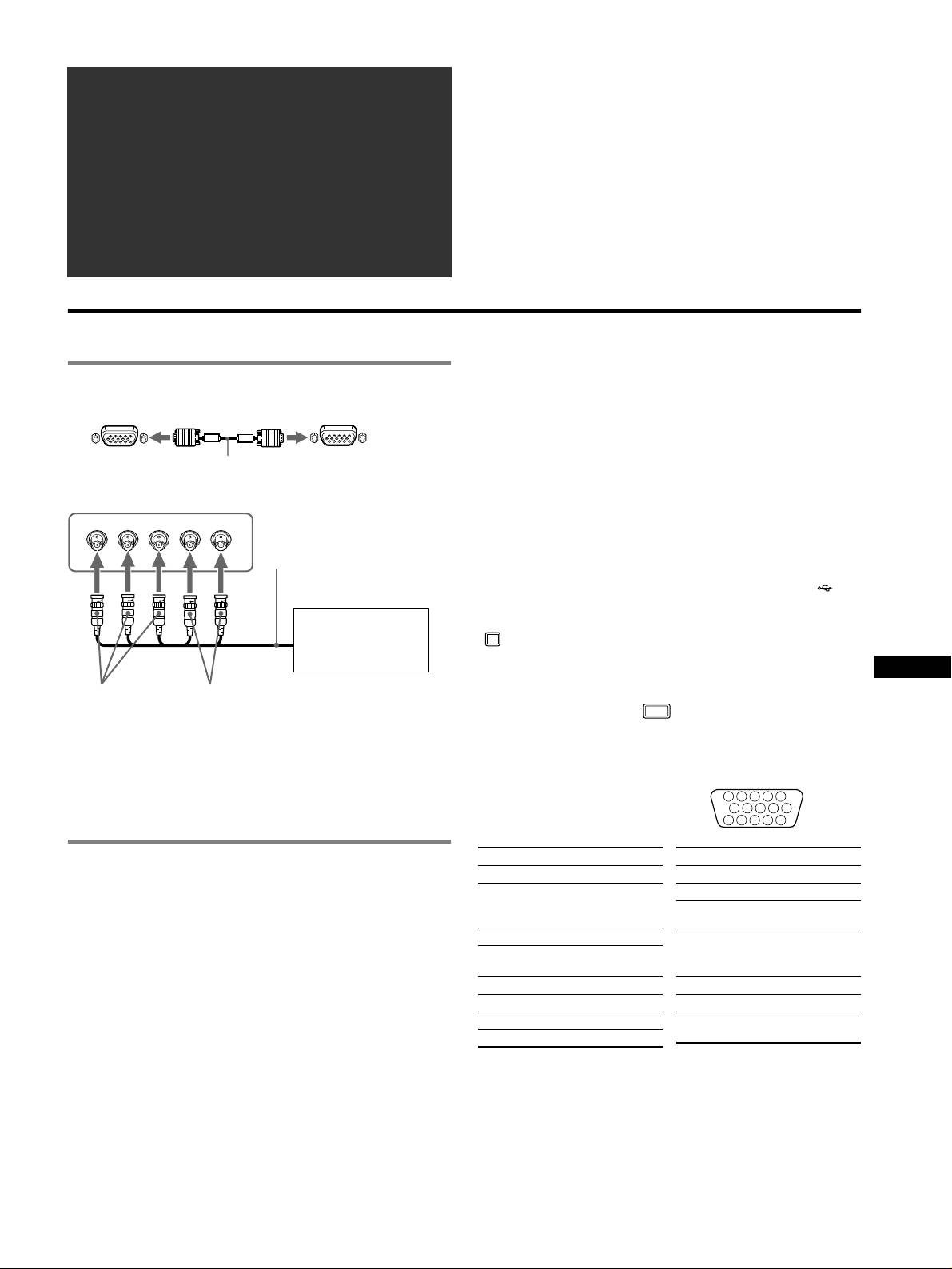
â
• Trinitron
es una marca comercial registrada de Sony Corporation.
Índice
• Macintosh es una marca comercial de Apple Computer, Inc., registrada en
Configuración . . . . . . . . . . . . . . . . . . . . . . . . . . . . . . 3
EE.UU. y otros países.
â
•Windows
y MS-DOS son marcas comerciales registradas de Microsoft
Ajustes . . . . . . . . . . . . . . . . . . . . . . . . . . . . . . . . . . . . 4
Corporation en Estados Unidos y otros países.
Solución de problemas. . . . . . . . . . . . . . . . . . . . . . . 6
• IBM PC/AT y VGA son marcas comerciales registradas de IBM Corporation
de EE.UU.
Especificaciones . . . . . . . . . . . . . . . . . . . . . . . . . . . . 7
ä
• VESA y DDC
son marcas comerciales de Video Electronics Standard
Precauciones . . . . . . . . . . . . . . . . . . . . . . . . . . . . . . . 8
Association.
•
ENERGY STAR es una marca registrada de EE.UU.
Appendix . . . . . . . . . . . . . . . . . . . . . . . . . . . . . . . . . . . i
• El resto de los nombres de productos mencionados en este manual pueden ser
Preset mode timing table . . . . . . . . . . . . . . . . . . . . . . . i
marcas comerciales o marcas comerciales registradas de sus respectivas
compañías.
TCO’99 Eco-document. . . . . . . . . . . .Cubierta posterior
• Además, “
ä” y “â” no se mencionan en cada caso en este manual.
Configuración
Para seleccionar la señal de entrada
1 Conexión del monitor al ordenador
Es posible conectar dos ordenadores a este monitor utilizando los
conectores HD15 y BNC. Para seleccionar uno de los dos ordenadores,
x Para conectarlo al conector de entrada HD15
emplee el interruptor INPUT. El conector seleccionado aparece en
pantalla durante 3 segundos.
Nota
a HD15
cable de señal de
a HD15 del ordenador
Si el conector seleccionado no recibe ninguna señal, la pantalla mostrará SIN
vídeo (suministrado)
conectado
SEÑAL. Transcurridos unos segundos, el monitor entrará en el modo de ahorro
de energía. Si esto ocurre, cambie al otro conector.
x Para conectarlo a los 5 conectores BNC
RGBHDVD
Para conectar periféricos compatibles con bus
cable de señal de vídeo
serie universal (USB)
(no suministrado)
Compruebe que el monitor y el ordenador están encendidos y, a
continuación, conecte dicho ordenador a los conectores USB ( ) del
lateral derecho del monitor.
Consulte los anteriores
Conecte el ordenador al conector cuadrado de flujo de salida
ejemplos para realizar la
()
mediante el cable USB suministrado.
conexión al ordenador.
Si aparece un mensaje de Windows, siga las instrucciones en pantalla y
seleccione “Generic USB Hub”.
ES
Cuando conecte dispositivos periféricos compatibles con USB (p.ej., una
a VIDEO IN R/G/B
a SYNC IN HD/VD
impresora, un teclado, un ratón, un escáner, etc.), conecte el conector USB
rectangular de flujo de entrada ( ).
Conexión de un ordenador Macintosh o
Nota
compatible
El monitor funciona como hub USB mientras se encuentre encendido o en el
Cuando conecte este monitor a un ordenador Power Mac G3/G4, utilice
modo de ahorro de energía.
el adaptador suministrado si es necesario. Conecte el adaptador
Conectores de entrada HD15
suministrado al ordenador antes de conectar el cable. Si lo conecta a
5 4 3 2
1
otra versión de ordenador de la serie Macintosh que tenga 2 filas de
678910
terminales, necesitará un adaptador diferente (no suministrado).
1112131415
Terminal nº Señal
Terminal nº Señal
2 Encendido del monitor y el ordenador
1 Rojo
9 DDC + 5V*
1 Conecte el cable de alimentación al monitor y pulse el
2Verde
10 Masa
interruptor ! (alimentación) para encender dicho
(Sincronización en
11 Identificación
monitor.
verde)
(Masa)
3Azul
2 Encienda el ordenador.
12 Datos
4 Identificación
bidireccionales
Innecesario para controladores específicos
(Masa)
(SDA)*
Este monitor cumple con el estándar Plug & Play “DDC” y detecta
5 Masa DDC*
13 Sincronización H.
automáticamente toda la información de dicho monitor. No es preciso instalar
ningún controlador específico en el ordenador.
6 Masa roja
14 Sincronización V.
La primera vez que encienda el PC después de conectar el monitor, es posible que
7 Masa verde
15 Reloj de datos
aparezca el asistente de instalación en pantalla. En este caso, siga las
8 Masa azul
(SCL)*
instrucciones en pantalla. El monitor Plug & Play se selecciona
automáticamente, por lo que puede utilizar este monitor.
* DDC (Canal de datos de visualización) es un estándar de VESA.
Notas
• La característica Plug and Play es compatible sólo con el conector HD15, y es
incompatible con los 5 conectores BNC.
• No toque los terminales del conector del cable de señal de vídeo.
• Compruebe la alineación del conector HD15 para evitar que se doblen los
terminales del conector del cable de señal de vídeo.
3
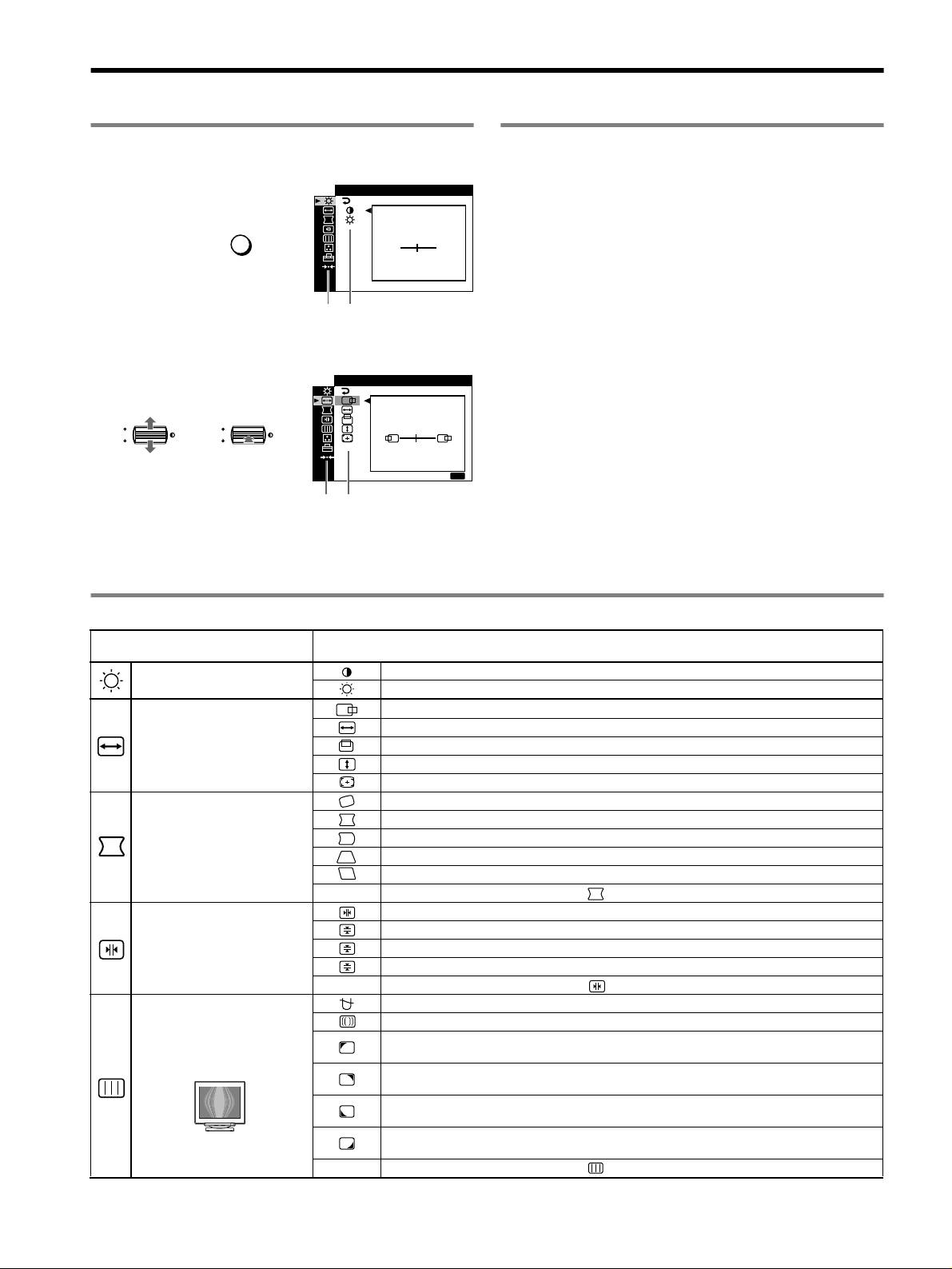
Ajustes
Navegación por el menú
Ajuste de la calidad de imagen
(PICTURE EFFECT)
1 Pulse el botón MENU para visualizar el menú principal.
Puede seleccionar el modo de imagen más apropiado entre los 3 modos
CONTRASTE
/ BR I LLO
predefinidos pulsando el botón PICTURE EFFECT varias veces.
CONTRASTE
x PROFESIONAL
MENU
,
Para obtener colores precisos y consistentes en pantalla. Elija este
50
modo para aplicaciones profesionales gráficas y de edición.
1024x768 / 85Hz
x ESTANDAR
Menú principal
Para obtener imágenes con alto contraste y brillo. Elija este modo para
Submenú
aplicaciones de uso común, como hojas de cálculo, procesador de texto,
2 Desplace el botón de control m/M para resaltar el menú
correo electrónico o navegación por páginas WEB.
principal que desee ajustar y pulse el botón de control.
x DINAMICO
TAMAÑO CENTRO
/
Para obtener imágenes notablemente vívidas y con realismo
fotográfico. Con un brillo superior al modo “ESTANDAR”, elija este
modo para software de entretenimientos intensos, como juegos, o
OK
OK
reproducción DVD.
,,
45
SAL I R
:
MENU
Menú principal
Submenú
3 Seleccione el submenú que desee ajustar y pulse el botón
de control.
4 Realice el ajuste con el botón de control.
Ajustes de menús en pantalla
Iconos del menú principal y
Iconos del submenú y elementos de ajuste
elementos de ajuste
Contraste
Ajuste del contraste y del brillo
*
1
Brillo
Posición horizontal
Tamaño horizontal
Ajuste del tamaño o centrado de la
imagen
*
1
Posición vertical
Tamaño vertical
Centrado de tamaño automático
Giro de la imagen
Expansión o contracción de los lados de la imagen
*
1
Desplazamiento de los lados de la imagen a la izquierda o la derecha*
1
Ajuste de la forma de la imagen
Ajuste de la anchura de la imagen en la parte superior de la pantalla*
1
Desplazamiento de la imagen a la izquierda o la derecha en la parte superior de la pantalla*
1
0 RESTAURAR: recupera todos los ajustes de fábrica.
Desplazamiento de las sombras rojas o azules en sentido horizontal
Desplazamiento de las sombras rojas o azules en sentido vertical
Ajuste de la convergencia
*
2
T
Desplazamiento de las sombras rojas o azules en sentido vertical en la parte superior de la pantalla
B
Desplazamiento de las sombras rojas o azules en sentido vertical en la parte inferior de la pantalla
0 RESTAURAR: recupera todos los ajustes de fábrica.
DESMAGNET: desmagnetiza el monitor.
ELIMINAR MOIRE: ajusta el grado de cancelación de muaré hasta que éste sea mínimo.
*
1
TRAYECTORIA: reduce al mínimo las irregularidades del color en la esquina superior izquierda de la
Ajuste de la calidad de imagen
pantalla.
*
2
Ejemplo de muaré
TRAYECTORIA: reduce al mínimo las irregularidades del color en la esquina superior derecha de la
pantalla.
*
2
TRAYECTORIA: reduce al mínimo las irregularidades del color en la esquina inferior izquierda de la
pantalla.
*
2
TRAYECTORIA: reduce al mínimo las irregularidades del color en la esquina inferior derecha de la
pantalla.
*
2
0 RESTAURAR: recupera todos los ajustes de fábrica.
4
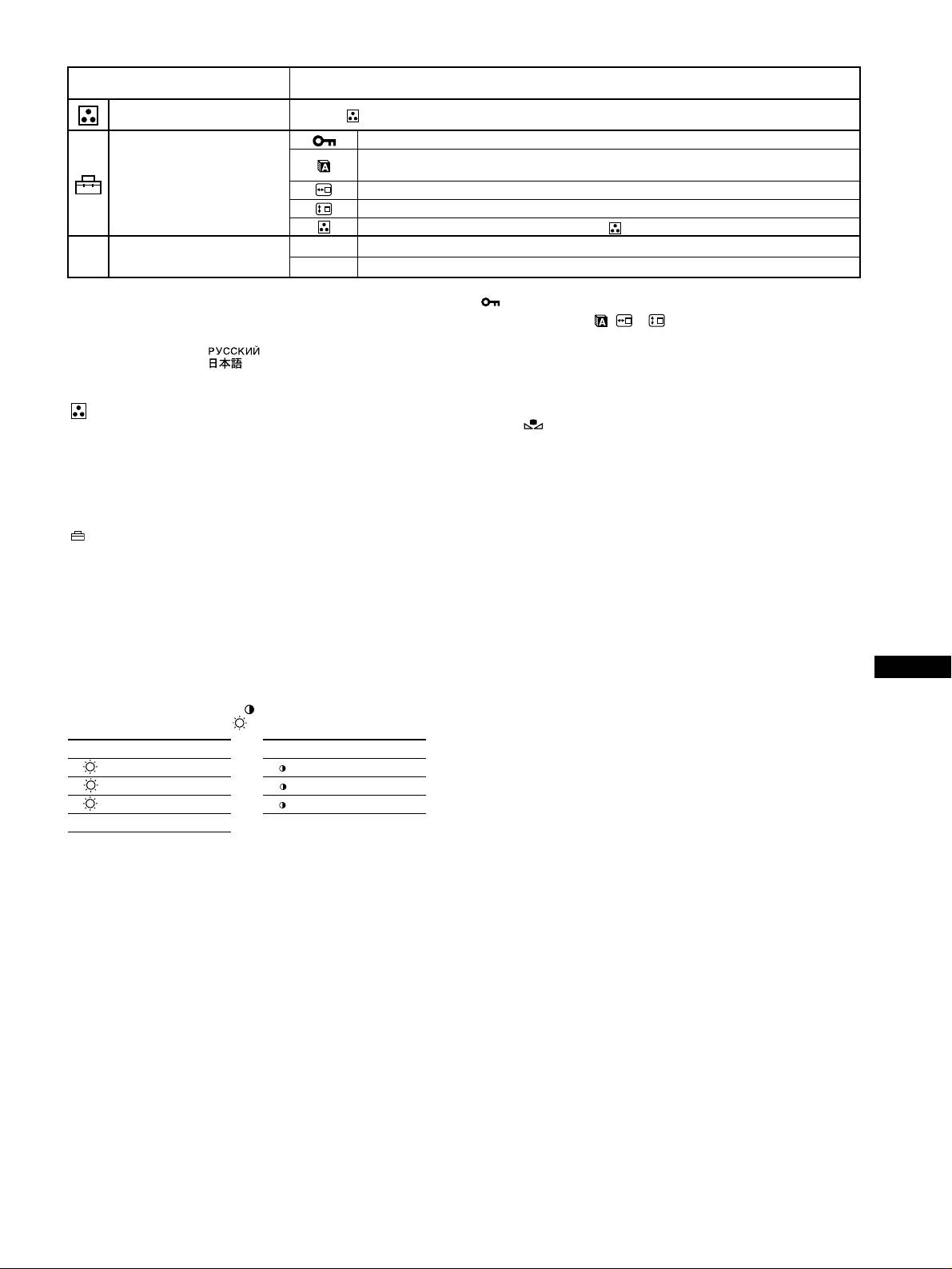
Iconos del menú principal y
Iconos del submenú y elementos de ajuste
elementos de ajuste
Ajuste del color de la imagen Consulte “ : Para ajustar el color de la imagen”.
Protección de los datos de ajuste (BLOQUEO DE AJUSTES)
*
4
Selección del idioma de los menús en pantalla/Comprobación de la información del monitor
LANGUAGE/INFORMACION
*
3
Ajustes adicionales
Cambio de la posición de los menús para el ajuste horizontal
Cambio de la posición de los menús para el ajuste vertical
Selección del modo de ajuste del color. (Consulte “ : Para ajustar el color de la imagen”.)
0
1*
1
Restauración de todos los datos de ajuste para la señal de entrada actual.*
5
Seleccione “ACEPTAR”.
0 Restauración de los ajustes
0
2*
2
Restauración de todos los datos de ajuste para todas las señales de entrada. Seleccione “ACEPTAR”.
1
4
*
Este ajuste es efectivo para la señal de entrada actual.
*
Sólo funcionará el interruptor (!) alimentación, SALIR y el menú
2
*
Este ajuste es efectivo para todas las señales de entrada.
(BLOQUEO DE AJUSTES).
3
*
Menú de idiomas
5
*
Los elementos de menú , y no se restauran mediante este método.
• ENGLISH: Inglés • NEDERLANDS: Holandés
• FRANÇAIS: Francés • SVENSKA: Sueco
• DEUTSCH: Alemán • : Ruso
• ESPAÑOL • : Japonés
• ITALIANO: Italiano
: Para ajustar el color de la imagen
Para restaurar el color desde los modos FACIL, PREDEFIN o
sRGB ( REAJUSTE DE COLOR)
Los ajustes de COLOR permiten definir la temperatura del color de la
Puede recuperar los niveles de calidad originales de fábrica del color. Antes de
imagen cambiando el nivel de color del campo de color blanco. Los
utilizar esta función, el monitor debe haberse encontrado en el modo de
colores aparecerán con un tono rojizo si la temperatura es baja, y con
funcionamiento normal (indicador verde de alimentación encendido) durante al
un tono azulado si es alta. Este ajuste es útil para hacer coincidir el color
menos 30 minutos. Puede que sea necesario ajustar los valores de ahorro de
del monitor con los colores de imágenes impresas.
energía del ordenador. Si el monitor no ha estado encendido durante al menos
Seleccione uno de los modos de ajuste de la temperatura del color entre
30 minutos, aparecerá el mensaje “EFECTIVO TRAS CALENTAMIENTO”.
4 modos; FACIL, PREDEFIN, EXPERTO y sRGB en el menú
Igualmente, esta función puede perder gradualmente su efectividad debido al
(OPCION).
desgaste natural del tubo de imagen Trinitron.
x FACIL (Ajuste de fábrica)
Puede ajustar la temperatura del color entre 5000K y 11000K.
x PREDEFIN
Puede seleccionar la temperatura del color predefinida entre 5000K,
6500K o 9300K. El ajuste de fábrica es 9300K.
ES
x EXPERTO
Puede realizar ajustes adicionales con precisión en el color mediante la
selección de este modo. GAIN ( ) ajusta las partes luminosas de la
pantalla, mientras que BIAS ( ) ajusta las partes oscuras.
Seleccione para Seleccione para
R R (Rojo) BIAS R R (Rojo) GAIN
G G (Verde) BIAS G G (Verde) GAIN
B B (Azul) BIAS B B (Azul) GAIN
0 RESTAURAR
x sRGB
El ajuste de color sRGB es un protocolo estándar de espacio de color
diseñado para establecer una equivalencia entre los colores mostrados
en el monitor y los impresos. Con el fin de visualizar los colores sRGB
correctamente (γ = 2,2, 6500K), seleccione el modo sRGB y ajuste el
modo PROFESIONAL de PICTURE EFFECT (página 4) y el
ordenador conectado en el perfil sRGB. Si selecciona sRGB, no podrá
utilizar los ajustes del menú CONTRASTE/BRILLO.
5
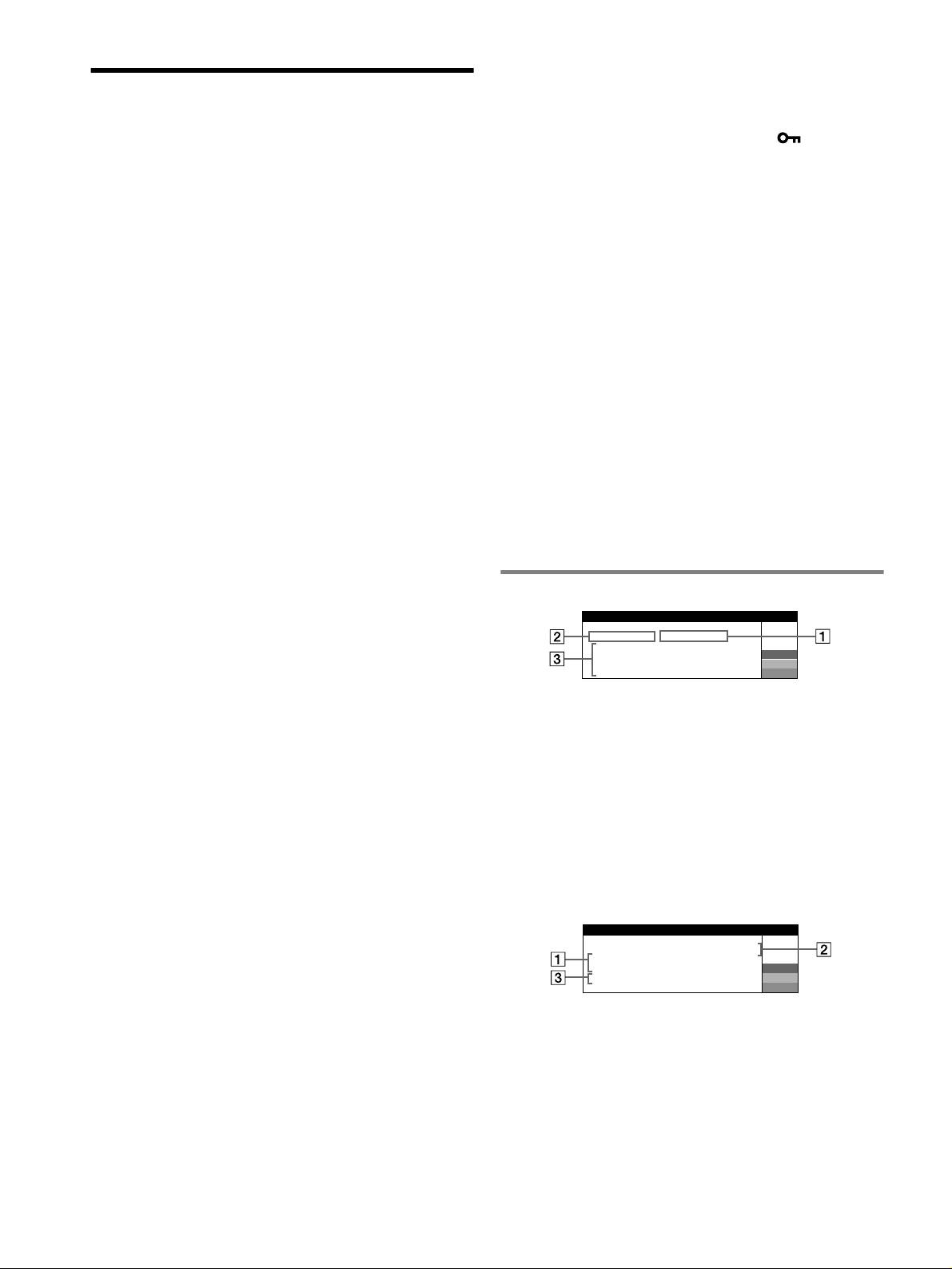
x El blanco no parece blanco
• Ajuste la temperatura del color.
Solución de problemas
• Compruebe que los 5 conectores BNC están conectados en el orden
x No aparece la imagen
correcto.
Si el indicador ! (alimentación) no se ilumina
x Los botones del monitor no funcionan ( aparece en
• Compruebe que el cable de alimentación está correctamente conectado.
pantalla)
• Compruebe que el interruptor ! (alimentación) se encuentra en la
• Si el bloqueo de los controles está ajustado en SI, ajústelo en NO.
posición de encendido.
x Las letras y líneas muestran sombras rojas o azules en
El indicador ! (alimentación) aparece en naranja
los bordes
• Compruebe que el cable de señal de vídeo está correctamente conectado
• Ajuste la convergencia.
y que todos los enchufes están perfectamente insertados en sus clavijas.
• Compruebe que el ajuste del interruptor INPUT es correcto.
x Los periféricos USB no funcionan
• Compruebe que los terminales del conector de entrada de vídeo HD15 no
• Compruebe que los conectores USB apropiados están firmemente
están doblados ni aplastados.
conectados.
• Compruebe que la alimentación del ordenador está activada.
• Apague (OFF) el monitor y vuelva a encenderlo (ON) y, a continuación,
• El ordenador está en el modo de ahorro de energía. Pulse cualquier tecla
conecte el cable USB de nuevo.
del teclado del ordenador o mueva el ratón.
• Si conecta un teclado o ratón a los conectores USB y después arranca el
• Compruebe que la tarjeta gráfica se encuentra completamente insertada
ordenador por primera vez, los dispositivos periféricos pueden no
en la ranura bus adecuada.
funcionar. Conecte primero el teclado y el ratón directamente al
ordenador y configure los dispositivos compatibles con USB. Después,
Si el indicador ! (alimentación) se ilumina en verde o parpadea
conéctelos a este monitor.
en naranja
• Instale la última versión del controlador de dispositivo en el ordenador.
• Utilice la función de autodiagnóstico.
Póngase en contacto con el fabricante del dispositivo para obtener
x La imagen parpadea, se ondula, oscila o aparece
información sobre el controlador apropiado.
codificada
x Se oye un zumbido inmediatamente después de activar la
• Aísle y elimine las fuentes potenciales de campos eléctricos o
alimentación
magnéticos, como otros monitores, impresoras láser, ventiladores
• Este es el sonido del ciclo de desmagnetización automática. Cuando se
eléctricos, luces fluorescentes o televisores.
activa la alimentación, el monitor se desmagnetiza durante unos
• Aleje el monitor de líneas eléctricas o instale una protección magnética
segundos.
cerca del monitor.
* Si es necesario aplicar un segundo ciclo de desmagnetización, deje que
• Enchufe el monitor en una toma de CA diferente, preferiblemente de un
transcurra un intervalo mínimo de 20 minutos para obtener resultados
circuito diferente.
óptimos. Es posible que se oiga un zumbido, pero esto no es fallo de
• Gire el monitor 90° a la izquierda o la derecha.
funcionamiento.
• Consulte el manual de la tarjeta gráfica para obtener información sobre
el ajuste adecuado para el monitor.
• Compruebe que este monitor admite el modo gráfico y la frecuencia de
Mensajes en pantalla
la señal de entrada (consulte la “Tabla de temporización de modo
predefinido (Preset mode timing table)” en la página i). Aunque la
IIONNFORMAC
frecuencia se encuentre dentro del margen adecuado, algunas tarjetas
MON I TOR FUNC I ONA
ENTRADA
2 : S I N SE AL
Ñ
gráficas pueden tener un impulso de sincronización demasiado estrecho
ACT I VAR POR ORDENADOR
W
para que el monitor se sincronice correctamente.
REV I SE CABLE SEÑAL
R
COMPROBAR SELECTOR
G
• Ajuste la frecuencia de barrido (frecuencia vertical) del ordenador para
DE ENTRADA
B
obtener la mejor imagen posible.
x La imagen es borrosa
1 Si aparece “SIN SEÑAL”:
• Ajuste el contraste, el brillo y PICTURE EFFECT.
• Desmagnetice el monitor.*
Esto indica que no se recibe ninguna señal mediante el conector
• Ajuste el grado de cancelación de muaré hasta que éste sea mínimo, o
seleccionado.
ajuste ELIMINAR MOIRE en NO.
2 Muestra el conector actualmente seleccionado.
x Aparecen imágenes fantasma
3 Muestra las soluciones.
• Deje de utilizar cables prolongadores de vídeo y/o dispositivos de
• Si ACTIVAR POR ORDENADOR aparece en pantalla, pulse
conmutación de vídeo.
cualquier tecla del ordenador o mueva el ratón, y verifique que la
• Compruebe que todos los enchufes están firmemente insertados en sus
tarjeta gráfica de dicho ordenador se encuentra completamente
receptáculos.
insertada en la ranura de bus correcta.
x La imagen no está centrada o su tamaño no es correcto
• Si REVISE CABLE SEÑAL aparece en pantalla, compruebe que el
monitor está correctamente conectado al ordenador.
• Realice la función de centrado y tamaño automáticos.
• Ajuste el tamaño o el centrado. Tenga en cuenta que con determinadas
• Si COMPROBAR SELECTOR DE ENTRADA aparece en pantalla,
señales de entrada y/o tarjetas gráficas, la periferia de la pantalla no se
cambie la señal de entrada.
utiliza por completo.
IIONNFORMAC
• Inmediatamente después de activar el interruptor de alimentación, el
MON I TOR FUNC I ONA
tamaño/centrado pueden tardar unos instantes en ajustarse
ENTRADA
1: .200 0 /kHz 85Hz
FUERA DEL
W
adecuadamente.
RANGO DE AJUSTE
R
CAMB I E S I NCRO DE SEÑAL
G
x Los bordes de la imagen aparecen curvos
B
• Ajuste la geometría.
x Aparece un patrón ondulado o elíptico (muaré)
1 Si aparece “FUERA DEL RANGO DE AJUSTE”:
• Ajuste el grado de cancelación de muaré hasta que éste sea mínimo.
Esto indica que la señal de entrada no cumple las especificaciones del
• Cambie el patrón de escritorio.
monitor.
x El color no es uniforme
2 Muestra la frecuencia de la señal de entrada.
• Desmagnetice el monitor.* Si coloca equipos que generen campos
3 Muestra las soluciones.
magnéticos, como altavoces, cerca del monitor, o si cambia la
CAMBIE SINCRO DE SEÑAL aparece en pantalla. Si sustituye un
orientación de éste, el color puede perder uniformidad.
• Ajuste la pureza del color.
monitor antiguo por este monitor, vuelva a conectar el antiguo. A
continuación, ajuste la tarjeta gráfica del ordenador de forma que la
frecuencia horizontal se encuentre entre 30 – 137 kHz (GDM-F520),
30 – 115 kHz (GDM-F420), y la vertical entre 48 – 170 Hz.
6
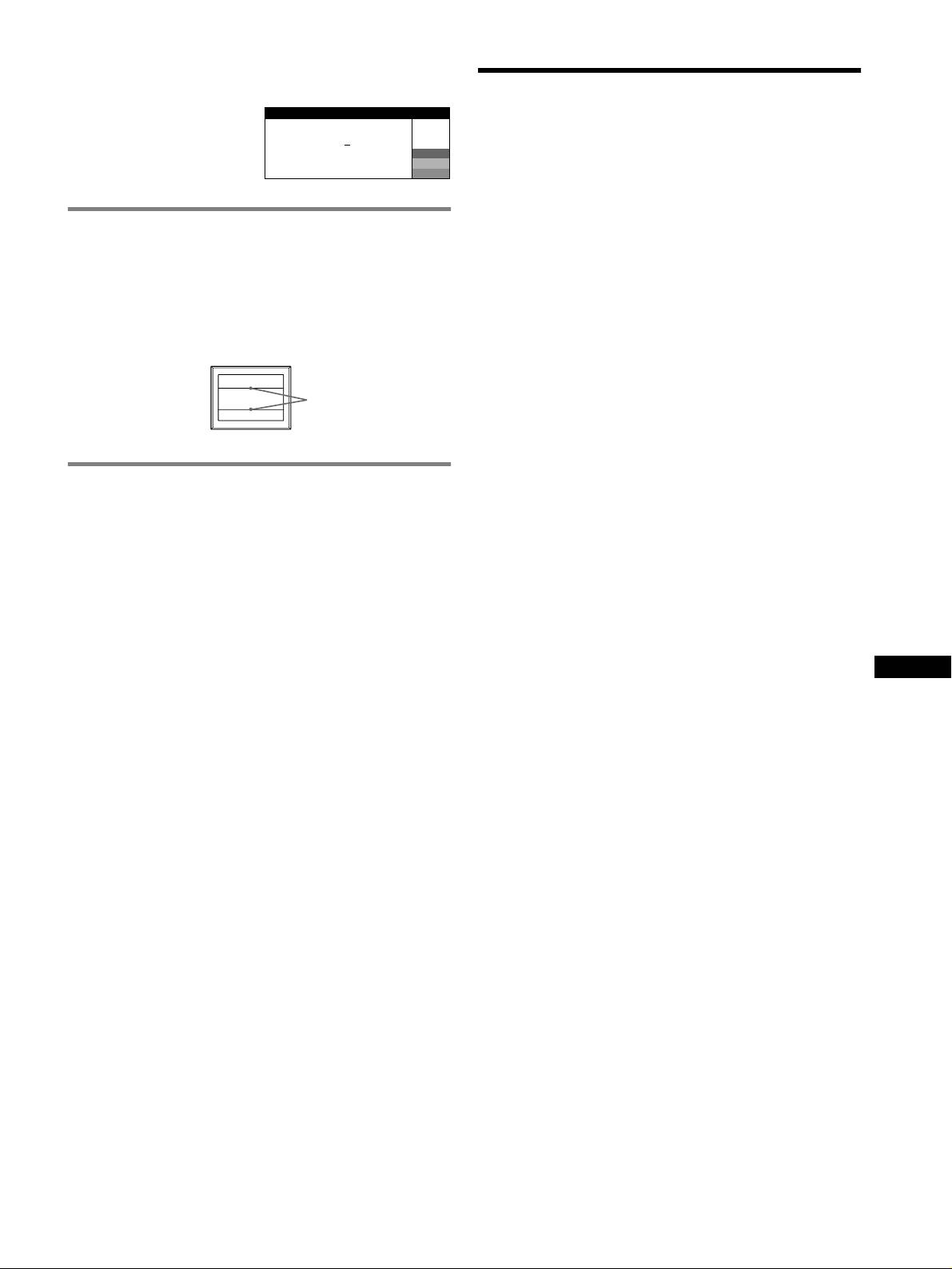
Para visualizar el nombre, número de serie y fecha
de fabricación de este monitor.
Especificaciones
Mientras el monitor recibe una
I NFORMAC I ON
señal de vídeo, pulse y mantenga
TRC
pulsado el botón MENU durante
MODEL
:
GDM F520
W
Paso de la rejilla de apertura de 0,22 mm, 90 grados de deflexión, FD
más de 5 segundos para visualizar
SER NO
:
1234567
R
Trinitron
el cuadro de información de este
MANUFACTURED
: 2000-52
G
B
GDM-F520 21 pulgadas, medido en diagonal
monitor.
GDM-F420 19 pulgadas, medido en diagonal
Tamaño de imagen visualizable
GDM-F520 Aprox. 403,8
× 302,2 mm (an/al) (16 × 12 pulgadas)
Si aparecen líneas finas en pantalla
Imagen de visualización de 19,8"
3
7
(hilos de amortiguación)
GDM-F420 Aprox. 365
× 274 mm (an/al) (14
/8 × 10
/8 pulgadas)
Imagen de visualización de 18,0"
Estas líneas no indican fallo de funcionamiento; son un efecto
Resolución (H:Horizontal, V:Vertical)
normal del tubo de imagen Trinitron con este monitor. Se trata de
GDM-F520 Máxima: H: 2048 puntos, V: 1536 líneas
sombras de los hilos de amortiguación utilizados para estabilizar la
Recomendada: H: 1600 puntos, V: 1200 líneas
rejilla de apertura. La rejilla de apertura es el elemento esencial que
GDM-F420 Máxima: H: 1920 puntos, V: 1440 líneas
hace que el tubo de imagen Trinitron sea único al permitir que llegue
Recomendada: H: 1280 puntos, V: 1024 líneas
más luz a la pantalla, obteniéndose imágenes con mayor brillo y detalle.
Niveles de señal de entrada
Señal de vídeo: RGB analógica: 0,700 Vp-p (positiva), 75
Ω
Señal SYNC: Sincronización H/V separada o compuesta:
TTL 2 k
Ω, Sin polaridad
Hilos de
Sincronización en verde: 0,3 Vp-p (negativa)
amortiguación
Área de imagen estándar
GDM-F520 Aprox. 388
× 291 mm (4:3)
3
1
(15
/8 × 11
/2 pulgadas) o
Aprox. 364
× 291 mm (5:4)
3
1
(14
/8 × 11
/2 pulgadas)
Función de autodiagnóstico
GDM-F420 Aprox. 352
× 264 mm (4:3)
7
1
(13
/8 × 10
/2 pulgadas) o
Este monitor dispone de una función de autodiagnóstico. Si el monitor
Aprox. 330
× 264 mm (5:4)
o el ordenador presenta algún problema, la pantalla se mostrará en
1
(13
× 10
/2 pulgadas)
blanco y el indicador ! (alimentación) se iluminará en verde o
Frecuencia de deflexión (H:Horizontal, V:Vertical)
parpadeará en naranja. Si el indicador ! (alimentación) se ilumina en
GDM-F520 H: 30 a 137 kHz, V: 48 a 170 Hz
naranja, significa que el ordenador está en el modo de ahorro de
GDM-F420 H: 30 a 115 kHz, V: 48 a 170 Hz
energía. Pulse cualquier tecla del teclado o mueva el ratón.
Corriente/tensión de entrada de CA
100 a 240 V, 50 – 60 Hz, 2,0 – 1,0 A
x Si el indicador ! (alimentación) se ilumina en verde
Consumo de energía (sin dispositivos USB conectados)
GDM-F520 Aprox. 145 W
1 Desconecte los enchufes de los conectores 1 y 2 de
GDM-F420 Aprox. 135 W
entrada de vídeo, o apague los ordenadores conectados.
Temperatura de funcionamiento
10°C a 40°C
ES
2 Apague (OFF) el monitor y vuelva a encenderlo (ON).
Dimensiones
3 Mantenga el botón de control desplazado hacia arriba
GDM-F520 Aprox. 497
× 499 × 487 mm (an/al/prf)
5
3
1
(19
/8 × 19
/4 × 19
/4 pulgadas)
durante unos segundos antes de que el monitor entre en
GDM-F420 Aprox. 446
× 472 × 463 mm (an/al/prf)
el modo de ahorro de energía.
5
5
1
(17
/8 × 18
/8 × 18
/4 pulgadas)
Peso
Si aparecen cuatro barras de color (blanco, rojo, verde, azul), significa
GDM-F520 Aprox. 30 kg (66 lb 2 oz)
que el monitor funciona correctamente. Vuelva a conectar los cables de
GDM-F420 Aprox. 26 kg (57 lb 5 oz)
entrada de vídeo y compruebe el estado del ordenador.
Plug and Play DDC2B/DDC2Bi
Si las barras de color no aparecen, significa que existe un fallo potencial
Accesorios suministrados
del monitor. Informe a un proveedor Sony autorizado sobre el estado
Cable de alimentación
del monitor.
Cable de señal de vídeo HD15
Cable USB
x Si el indicador ! (alimentación) parpadea en naranja
Adaptador Power Mac G3/G4 exclusivo
Este manual de instrucciones
Apague (OFF) el monitor y vuelva a encenderlo (ON).
Si el indicador ! (alimentación) se ilumina en verde, significa que el
monitor funciona correctamente.
Si el indicador ! (alimentación) aún parpadea, significa que existe un
fallo potencial del monitor. Cuente el número de segundos entre los
parpadeos en naranja del indicador ! (alimentación) e informe a un
proveedor Sony autorizado sobre el estado del monitor. Asegúrese de
anotar el nombre del modelo y el número de serie del monitor. Tome
nota también del fabricante y modelo del ordenador y de la tarjeta
gráfica.
(continúa)
7
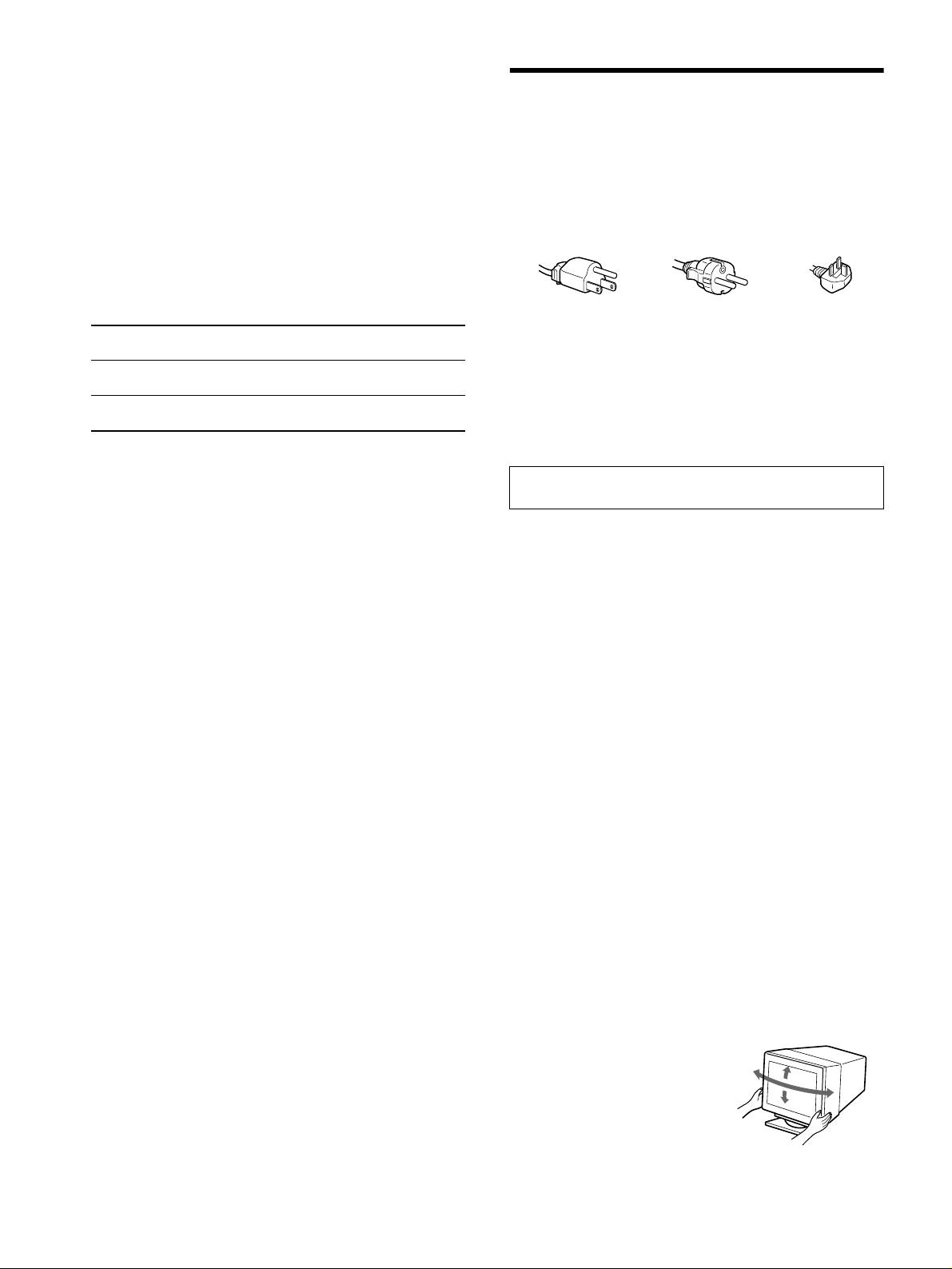
Modos predefinidos y de usuario
Cuando el monitor recibe una señal de entrada, hace coincidir automáticamente
la señal con uno de los modos predefinidos en fábrica almacenados en la
Precauciones
memoria del monitor para mostrar una imagen de alta calidad (consulte la
“Tabla de temporización de modo predefinido (Preset mode timing table)” en
Advertencia sobre las conexiones de la alimentación
la página i). Si las señales de entrada no se corresponden con ninguno de los
• Utilice el cable de alimentación suministrado. Si utiliza un cable de
modos predefinidos en fábrica, el monitor proporcionará automáticamente la
alimentación diferente, asegúrese de que es compatible con el
imagen más adecuada a la señal de entrada que se encuentre dentro del margen
de las frecuencias verticales u horizontales (página 7) correspondientes a la
suministro eléctrico local.
Generalized Timing Formula. Al ajustarse la imagen, los datos de ajuste se
Para los usuarios en el Reino Unido
almacenarán como un modo de usuario y se recuperarán automáticamente
Si emplea el monitor en el Reino Unido, asegúrese de utilizar el
siempre que se reciba la misma señal de entrada.
cable de alimentación suministrado para dicho país.
Función de ahorro de energía
Ejemplo de tipos de enchufe
Este monitor cumple con las directrices de ahorro de energía definidas por
VESA, TCO’99 y
ENERGY STAR. Si no se introduce ninguna señal en el
monitor desde el ordenador, dicho monitor reducirá automáticamente el
consumo de energía como se muestra a continuación.
para 100 a 120 V CA para 200 a 240 V CA para 240 V CA
solamente
1
Modo de
Consumo de energía*
Indicador
• Antes de desconectar el cable de alimentación, espere al menos
alimentación
! (alimentación)
30 segundos tras desactivar la alimentación para permitir que se
descargue la electricidad estática de la superficie de la pantalla.
funcionamiento
≤ 145 W (GDM-F520)
verde
• Tras activar la alimentación, la pantalla se desmagnetiza durante
normal
≤ 135 W (GDM-F420)
unos segundos. Esto genera un intenso campo magnético alrededor
2
activo inactivo*
≤ 3 W naranja
de la pantalla que puede afectar a los datos almacenados en discos
3
(deep sleep)*
y cintas magnéticas que se encuentren cerca del monitor.
Asegúrese de mantener discos, cintas y equipos de grabación
1
*
Las cifras reflejan el consumo de energía cuando no hay periféricos
magnética alejados del monitor.
compatibles con USB conectados al monitor.
2
*
Cuando el ordenador entra en el modo de ahorro de energía, aparece SIN
El equipo debe instalarse cerca de una toma de corriente de fácil
SEÑAL en pantalla. Después de unos segundos, el monitor entra en el modo
acceso.
de ahorro de energía.
3
*
“Deep sleep” es un modo de ahorro de energía definido por la Agencia de
Instalación
protección del medio ambiente.
No instale el monitor en los siguientes lugares:
• sobre superficies (alfombras, mantas, etc.) ni cerca de materiales
El diseño y las especificaciones están sujetos a cambios sin previo aviso.
(cortinas, tapices, etc.) que puedan bloquear los orificios de
ventilación
• cerca de fuentes de calor, como radiadores o conductos de aire
caliente, ni en lugares expuestos a la luz solar directa
• en lugares expuestos a cambios bruscos de temperatura
• en lugares sujetos a vibraciones mecánicas o golpes
• sobre una superficie inestable
• cerca de equipos que generen magnetismo, como transformadores
o líneas eléctricas de alto voltaje
• cerca o sobre superficies metálicas con carga eléctrica
• dentro de un soporte cerrado
Mantenimiento
• Limpie la pantalla con un paño suave. Si utiliza un producto líquido
de limpieza de cristales, no emplee ningún tipo de producto que
contenga soluciones antiestáticas ni aditivos similares, ya que
puede dañar el revestimiento de la pantalla.
• No frote, toque ni golpee la superficie de la pantalla con objetos
afilados o abrasivos, como un bolígrafo o un destornillador. Este
tipo de contacto puede rayar el tubo de imagen.
• Limpie el exterior, el panel y los controles con un paño suave
ligeramente humedecido con una solución detergente poco
concentrada. No utilice estropajos abrasivos, detergente en polvo
ni disolventes, como alcohol o bencina.
Transporte
Cuando transporte este monitor para su reparación o desplazamiento,
utilice la caja de cartón y materiales de embalaje originales.
Soporte de pantalla
No retire este soporte del monitor.
Uso del soporte basculante giratorio
Este monitor puede ajustarse en los
ángulos que se muestran a la derecha.
90°
15°
Para girar el monitor en vertical o en
90°
horizontal, agárrelo por la base con
5°
ambas manos.
8
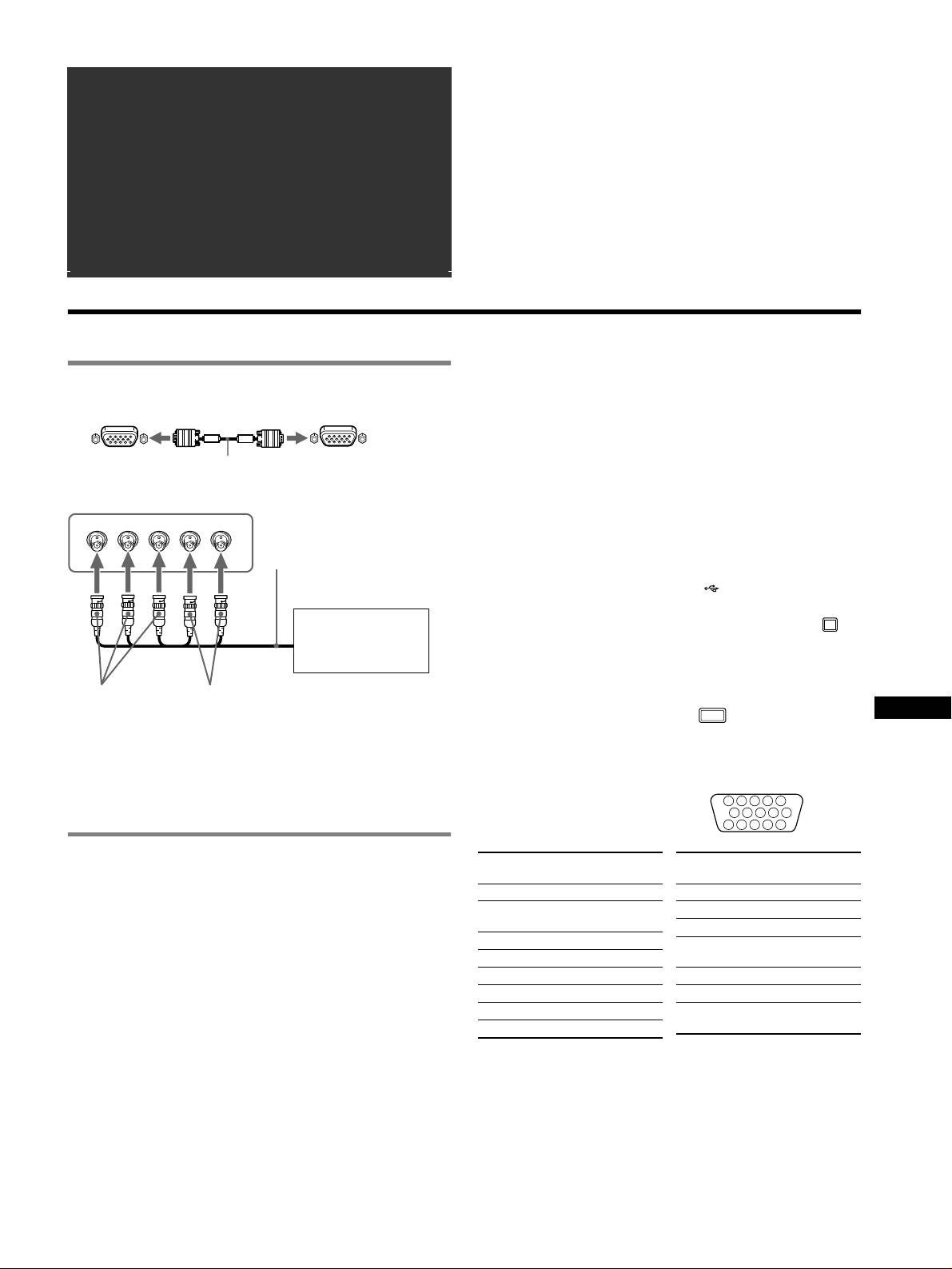
â
• Trinitron
è un marchio di fabbrica registrato di Sony Corporation.
Indice
• Macintosh è un marchio di fabbrica concesso in licenza a Apple Computer,
Installazione . . . . . . . . . . . . . . . . . . . . . . . . . . . . . . . . 3
Inc., registrato negli U.S.A. e in altri paesi.
â
•Windows
e MS-DOS sono marchi di fabbrica registrati di Microsoft
Regolazioni . . . . . . . . . . . . . . . . . . . . . . . . . . . . . . . . 4
Corporation negli U.S.A. e in altri paesi.
Guida alla soluzione dei problemi . . . . . . . . . . . . . . 6
• IBM PC/AT e VGA sono marchi di fabbrica registrati di IBM Corporation
degli U.S.A.
Caratteristiche tecniche . . . . . . . . . . . . . . . . . . . . . . 7
ä
• VESA e DDC
sono marchi di fabbrica di Video Electronics Standard
Precauzioni . . . . . . . . . . . . . . . . . . . . . . . . . . . . . . . . 8
Association.
•
ENERGY STAR è un marchio di fabbrica registrato negli U.S.A.
Appendix . . . . . . . . . . . . . . . . . . . . . . . . . . . . . . . . . . . i
• Tutti i nomi degli altri prodotti citati in questo manuale potrebbero essere
Preset mode timing table . . . . . . . . . . . . . . . . . . . . . . . i
marchi di fabbrica o marchi di fabbrica registrati delle rispettive compagnie.
• Inoltre, “
ä” e “â” non sempre vengono riportati nel manuale.
TCO’99 Eco-document. . . . . . . . . . . Pannello anteriore
Installazione
Selezione del segnale di ingresso
1 Collegamento del monitor al computer
È possibile collegare due computer a questo monitor utilizzando i
connettori HD15 e BNC. Per selezionare uno dei due computer,
x Collegamento al connettore di ingresso HD15
utilizzare l’interruttore INPUT. Il connettore selezionato viene
visualizzato sullo schermo per 3 secondi.
Nota
a HD15
cavo del segnale
a HD15 del computer da
Se non viene inviato alcun segnale al connettore selezionato, sullo schermo viene
video (in dotazione)
collegare
visualizzato il messaggio NO SEGNALE. Dopo alcuni secondi, il monitor entra
nel modo di risparmio energetico. In questo caso, selezionare l’altro connettore.
x Collegamento ai 5 connettori BNC
RGBHDVD
Collegamento delle periferiche conformi a USB
cavo del segnale video
(Universal Serial Bus)
(non in dotazione)
Assicurarsi che il monitor e il computer siano accesi, quindi
collegare il computer ai connettori USB ( ) sul lato destro del
monitor.
Per collegare il computer,
Collegare il computer al connettore upstream quadrato ( )
fare riferimento agli
utilizzando il cavo USB in dotazione.
esempi mostrati in
Se viene visualizzato un messaggio Windows, seguire le indicazioni a
precedenza.
schermo, quindi selezionare “Generic USB Hub”.
Se si effettua il collegamento delle periferiche conformi a USB (quali una
a VIDEO IN R/G/B
a SYNC IN HD/VD
stampante, una tastiera, un mouse, uno scanner e così via), collegare il
IT
Collegamento ad un computer Macintosh o compatibile
connettore USB downstream rettangolare ( )
.
Se questo monitor viene collegato ad un computer Power Mac G3/G4,
Nota
utilizzare l’adattatore in dotazione, se necessario. Prima di procedere al
Il monitor funziona come hub USB se è acceso o si trova nel modo di risparmio
collegamento del cavo, collegare al computer l’adattatore in dotazione.
energetico
.
Se si effettua il collegamento ad un’altra versione dei computer serie
Connettori di ingresso HD15
Macintosh dotata di 2 file di piedini, è necessario un adattatore diverso
5 4 3 2
1
(non in dotazione).
678910
1112131415
2 Accensione del monitor e del computer
Numero
Segnale
Numero
Segnale
piedini
piedini
1 Collegare al monitor il cavo di alimentazione, quindi
1Rosso
9 DDC + 5V*
premere l’interruttore
! (alimentazione) per accendere il
2Verde
10 Terra
monitor.
(Sinc su verde)
11 ID (Terra)
2 Accendere il computer.
3Blu
12 Dati bidirezionali
Non sono necessari driver specifici
4 ID (Terra)
(SDA)*
Questo monitor è conforme allo standard Plug & Play “DDC” ed individua
5 Terra DDC*
13 Sincronia O
automaticamente tutte le informazioni relative al monitor. Non è dunque
6 Terra rosso
14 Sincronia V
necessaria l’installazione di un driver specifico nel computer.
La prima volta che si accende il computer dopo avere effettuato il collegamento
7 Terra verde
15 Orologio Dati
del monitor, potrebbe venire visualizzata la finestra del programma di
8 Terra blu
(SCL)*
installazione guidata. In questo caso, seguire le indicazioni a schermo. Il monitor
* DDC (Display Data Channel) è uno standard di VESA.
Plug & Play viene selezionato automaticamente ed è possibile procedere
all’utilizzo.
Note
• Lo standard Plug and Play è compatibile esclusivamente con il connettore
HD15 e non con i 5 connettori BNC.
• Non toccare i piedini del connettore del cavo del segnale video.
• Controllare l’allineamento del connettore HD15 onde evitare il piegamento
dei piedini del connettore del cavo del segnale video.
3
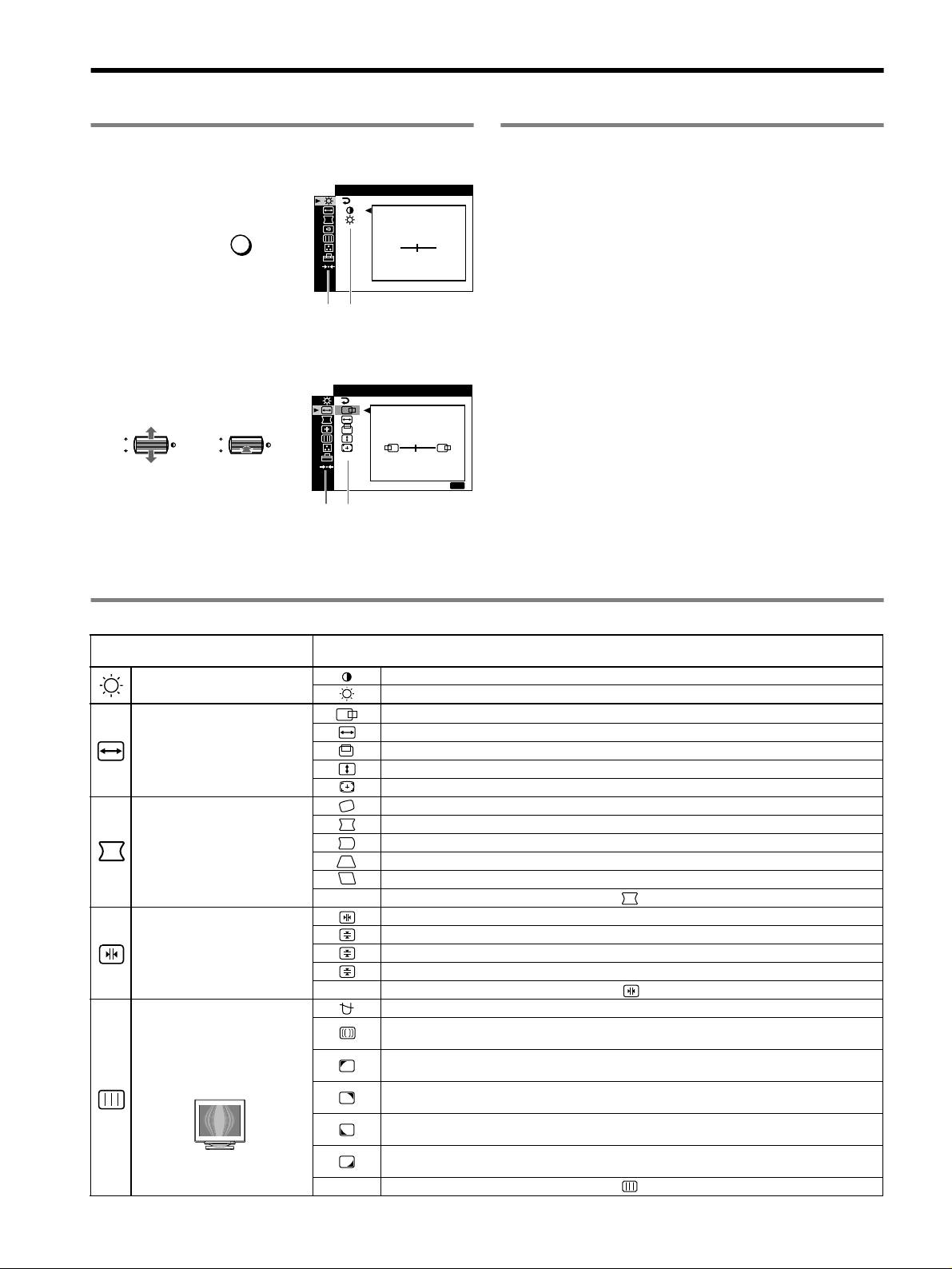
Regolazioni
Come spostarsi all’interno dei menu
Regolazione della qualità
dell’immagine
(PICTURE EFFECT)
1 Premere il tasto MENU per visualizzare il menu.
CONTRASTO LUM I N
/
È possibile selezionare il modo immagine più appropriato tra 3 modi
preimpostati premendo più volte il tasto PICTURE EFFECT.
CONTRASTO
x PROFESSIONALE
MENU
,
Per visualizzare i colori in modo accurato e uniforme. Scegliere questo
50
modo per le applicazioni di grafica e desktop publishing.
1024x768 / 85Hz
x STANDARD
Menu principale
Sottomenu
Per ottenere immagini con contrasto e luminosità elevati. Scegliere
questo modo per le applicazioni utilizzate comunemente, quali fogli di
2 Spostare il tasto di comando m/M per evidenziare il menu
calcolo, elaborazione di testi, posta elettronica o navigazione sul WEB.
principale che si desidera regolare, quindi premere il tasto
di comando.
x DINAMICO
D I MENS I ONE CENTRO
/
Per ottenere immagini estremamente nitide e realistiche simili a
fotografie. Scegliere questo modo, più luminoso del modo
“STANDARD”, per software di intrattenimento quali videogiochi o
riproduzioni di DVD.
OK
,,
OK
45
USC I TA
:
MENU
Menu principale
Sottomenu
3 Selezionare il sottomenu che si desidera regolare, quindi
premere il tasto di comando.
4 Effettuare la regolazione utilizzando il tasto di comando.
Regolazione dei menu a schermo
Icone dei menu principali e voci di
Icone dei sottomenu e voci di regolazione
regolazione
Regolazione del contrasto e della
Contrasto
luminosità
*
1
Luminosità
Posizione orizzontale
Dimensione orizzontale
Regolazione delle dimensioni o
della centratura dell’immagine
*
1
Posizione verticale
Dimensione verticale
Centratura e dimensionamento automatici
Ruotare l’immagine
Espandere o contrarre i bordi dell’immagine
*
1
Regolazione della forma
Spostare i bordi dell’immagine verso sinistra o verso destra*
1
dell’immagine
Regolare la larghezza dell’immagine nella parte superiore dello schermo*
1
Spostare l’immagine verso destra o verso sinistra nella parte superiore dello schermo*
1
0 RIPRISTINO: per riportare tutte le impostazioni ai valori predefiniti.
Per spostare le ombre blu o rosse in senso orizzontale
Per spostare le ombre blu o rosse in senso verticale
Regolazione della convergenza
*
2
T
Per spostare le ombre blu o rosse in senso verticale nella parte superiore dello schermo
B
Per spostare le ombre blu o rosse in senso verticale nella parte inferiore dello schermo
0 RIPRISTINO: per riportare tutte le impostazioni ai valori predefiniti.
SMAGNETIZZ: per smagnetizzare il monitor.
ANNULLA MOIRE: per regolare il grado di eliminazione dell’effetto moiré fino a ridurlo al
minimo.
*
1
Regolazione della qualità
LANDING: per ridurre al minimo le irregolarità del colore nell’angolo superiore sinistro dello
dell’immagine
schermo.
*
2
Esempio di effetto moiré
LANDING: per ridurre al minimo le irregolarità del colore nell’angolo superiore destro dello
schermo.
*
2
LANDING: per ridurre al minimo le irregolarità del colore nell’angolo inferiore sinistro dello
schermo.
*
2
LANDING: per ridurre al minimo le irregolarità del colore nell’angolo inferiore destro dello
schermo.
*
2
0 RIPRISTINO: per riportare tutte le impostazioni ai valori predefiniti.
4
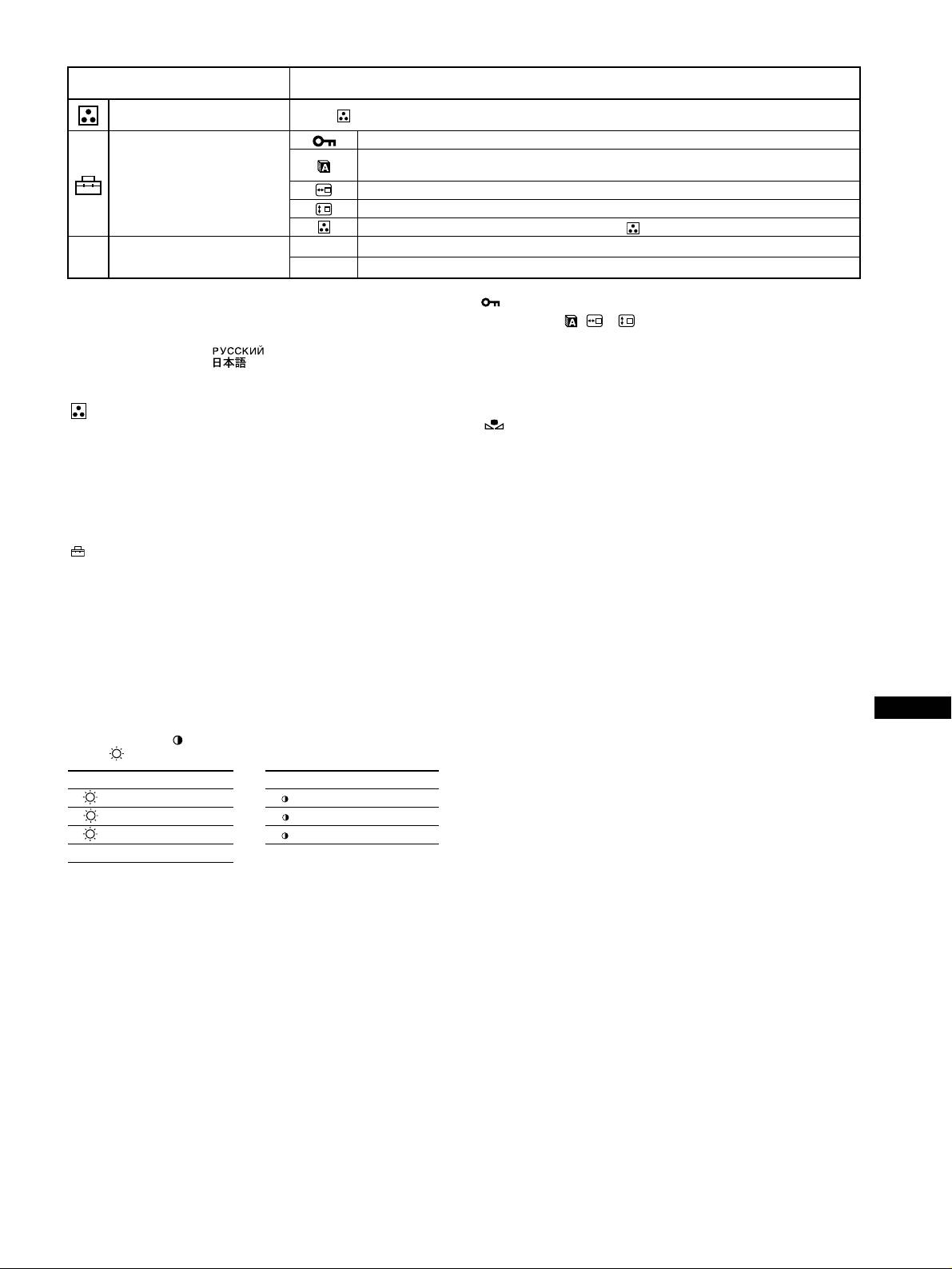
Icone dei menu principali e voci di
Icone dei sottomenu e voci di regolazione
regolazione
Regolazione del colore
Vedere “ : Per regolare il colore dell’immagine”.
dell’immagine
Protezione dei dati di regolazione (BLOCCO MENU)
*
4
Selezione della lingua dei menu a schermo/Conferma delle informazioni relative al monitor
LANGUAGE/INFORMAZIONI
*
3
Impostazioni aggiuntive
Modifica della posizione dei menu per la regolazione in senso orizzontale
Modifica della posizione dei menu per la regolazione in senso verticale
Selezione del modo di regolazione del colore (vedere “ : Per regolare il colore dell’immagine”.)
1
Ripristino di tutti i dati di regolazione relativi al segnale di ingresso corrente.*
5
01
*
Selezionare “OK”.
0 Ripristino delle regolazioni
02
*
2
Ripristino di tutti i dati di regolazione relativi a tutti i segnali di ingresso. Selezionare “OK”.
1
4
*
Questa regolazione funziona per il segnale di ingresso corrente.
*
Funzioneranno solo l’interruttore ! (alimentazione), USCITA e il menu
2
*
Questa regolazione funziona per tutti i segnali di ingresso.
(BLOCCO MENU).
3
*
Menu delle lingue
5
*
Le voci dei menu , e non vengono ripristinate tramite questo
• ENGLISH: Inglese • NEDERLANDS: Olandese
metodo.
• FRANÇAIS: Francese • SVENSKA: Svedese
• DEUTSCH: Tedesco • : Russo
• ESPAÑOL: Spagnolo • : Giapponese
• ITALIANO
: Per regolare il colore dell’immagine
Ripristino del colore tramite i modi FACILE, PREDEF o sRGB
( RIPRISTINO COLORE)
Le impostazioni del menu COLORE consentono di regolare la
È possibile ripristinare il colore sui livelli di qualità predefiniti. Prima di
temperatura del colore dell’immagine modificando il livello del colore
utilizzare questa funzione, è necessario che il monitor rimanga nel modo di
del campo di colore bianco. I colori appaiono rossastri se la temperatura
funzionamento normale (indicatore di alimentazione verde acceso) per almeno
è bassa e bluastri se la temperatura è alta. Questa regolazione risulta
30 minuti. Potrebbe essere inoltre necessario regolare le impostazioni relative al
utile per fare corrispondere i colori del monitor ai colori di
modo di risparmio energetico del computer. Se il monitor non è rimasto acceso
un’immagine stampata.
per almeno 30 minuti, viene visualizzato il messaggio “PRONTO DOPO
Selezionare uno dei modi di impostazione della temperatura del colore
RISCALD”. Inoltre, questa funzione può perdere gradualmente la sua efficacia
fra i 4 modi; FACILE, PREDEF, ESPERTO e sRGB nel menu
a causa della naturale usura del cinescopio Trinitron.
(OPZIONI).
x FACILE (Impostazione predefinita)
È possibile effettuare la regolazione della temperatura del colore a
partire da 5000K fino a 11000K.
x PREDEF
È possibile selezionare la temperatura del colore da 5000K, 6500K o
9300K. L’impostazione predefinita è 9300K.
x ESPERTO
IT
Selezionando questo modo, è possibile effettuare ulteriori regolazioni
del colore. GAIN ( ) regola le aree luminose dello schermo, mentre
BIAS ( ) regola le aree scure.
Selezionare per Selezionare per
R R (rosso) BIAS R R (rosso) GAIN
G G (verde) BIAS G G (verde) GAIN
B B (blu) BIAS B B (blu) GAIN
0 RIRPISTINO
x sRGB
L’impostazione del colore sRGB è un protocollo sullo spazio del colore
di standard industriale creato per fare corrispondere i colori visualizzati
sul monitor con quelli stampati. Per visualizzare correttamente i colori
sRGB (
γ = 2,2, 6500K), selezionare il modo sRGB, quindi impostare il
modo PROFESSIONALE di PICTURE EFFECT (pagina 4) e il
computer collegato sul profilo sRGB. Se si seleziona il modo sRGB,
non è possibile effettuare le regolazioni nel menu CONTRASTO/
LUMIN.
5
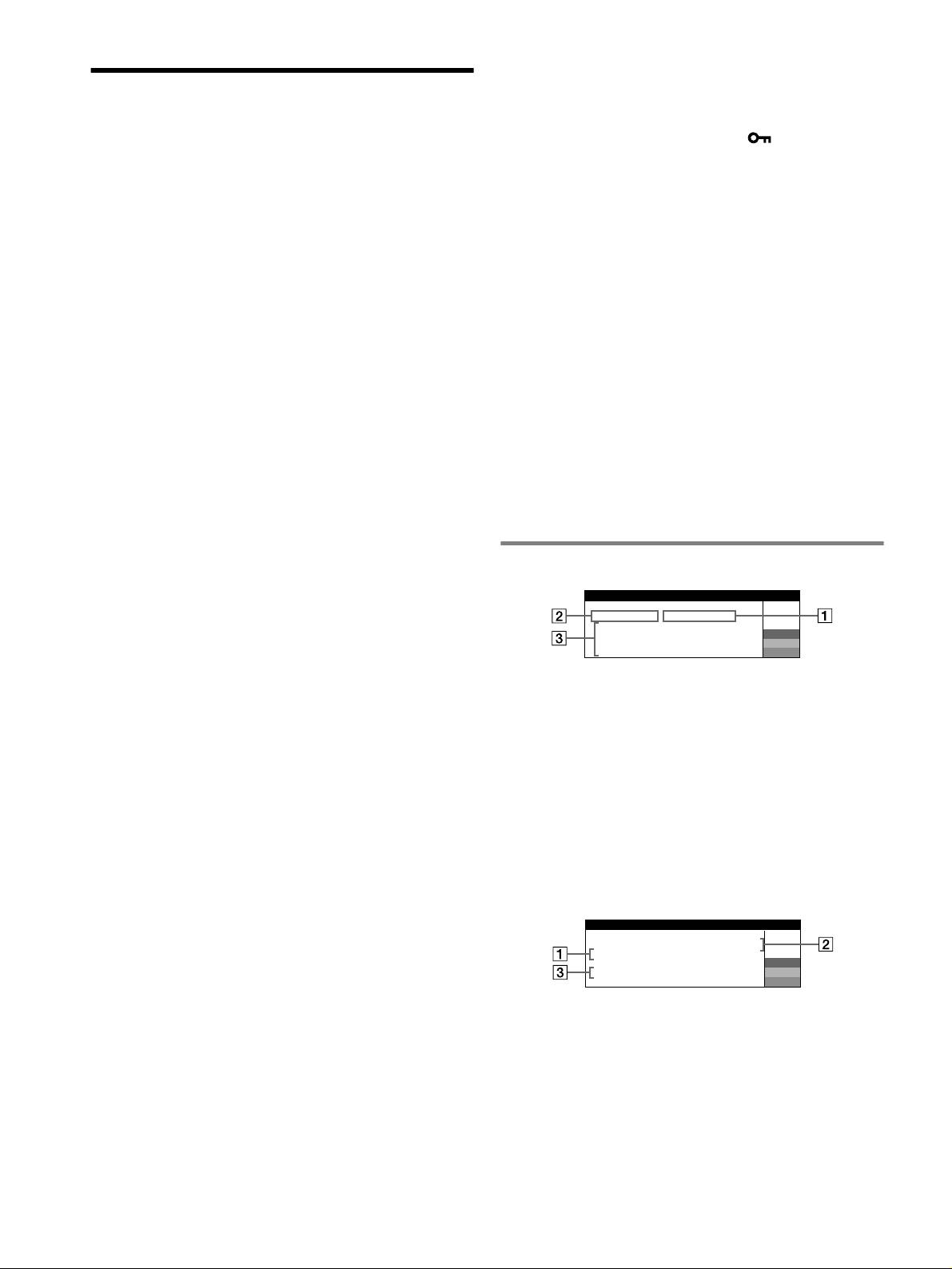
x Il bianco non è perfetto
• Regolare la temperatura del colore.
Guida alla soluzione dei
• Controllare che i 5 connettori BNC siano stati collegati nell’ordine
corretto.
problemi
x I tasti del monitor non funzionano ( appare sullo
x Assenza di immagini
schermo)
Se l’indicatore ! (alimentazione) non è illuminato
• Se la funzione di bloccaggio dei comandi è impostata su SI, impostarla
• Controllare che il cavo di alimentazione sia collegato correttamente.
su NO.
• Controllare che l’interruttore ! (alimentazione) sia nella posizione di
x Lettere e linee presentano ombre rosse o blu sui lati
accensione.
• Regolare la convergenza.
L’indicatore ! (alimentazione) è arancione
x Le periferiche USB non funzionano
• Controllare che il cavo del segnale video sia collegato correttamente e
che tutte le spine siano inserite saldamente nelle apposite prese.
• Controllare che gli appositi connettori USB siano saldamente collegati.
• Controllare che l’interruttore INPUT sia impostato correttamente.
• Spegnere e accendere di nuovo il monitor, quindi ricollegare il cavo
• Controllare che i piedini del connettore di ingresso video HD15 non siano
USB.
piegati o danneggiati.
• Se ai connettori USB vengono collegati una tastiera o un mouse e il
• Controllare che l’alimentazione del computer sia attivata.
computer viene avviato per la prima volta, le periferiche potrebbero non
• Il computer si trova nel modo di risparmio energetico. Premere un tasto
funzionare. Innanzitutto, collegare la tastiera e il mouse direttamente al
qualsiasi della tastiera o muovere il mouse.
computer, quindi effettuare le impostazioni dei dispositivi conformi a
• Controllare che la scheda grafica sia inserita completamente
USB. Infine, collegarli a questo monitor.
nell’alloggiamento del bus corretto.
• Installare nel computer la versione più recente del driver della periferica.
Per ulteriori informazioni sul driver della periferica adatto, contattare la
Se l’indicatore ! (alimentazione) è verde o lampeggia in
casa produttrice della periferica.
arancione
• Utilizzare la funzione di autodiagnostica.
x Non appena si accende l’apparecchio si avverte un
ronzio
x L’immagine è tremolante, salta, oscilla oppure è confusa
•È il rumore del ciclo di smagnetizzazione automatica. Al momento
• Isolare ed eliminare qualsiasi fonte potenziale di elettricità o di campi
dell’accensione il monitor viene automaticamente smagnetizzato per
magnetici quali altri monitor, stampanti laser, ventilatori, lampade a
alcuni secondi.
fluorescenza, o televisori.
* Nel caso in cui sia necessario un secondo ciclo di smagnetizzazione, attendere
• Allontanare il monitor dalle linee di alimentazione oppure collocare uno
almeno 20 minuti per ottenere il risultato ottimale. Potrebbe venire avvertito
schermo magnetico in prossimità del monitor.
un ronzio che tuttavia non indica un problema di funzionamento.
• Collegare il monitor ad un’altra presa di rete CA, preferibilmente su un
circuito differente.
• Ruotare il monitor di 90° verso sinistra o verso destra.
Messaggi a schermo
• Controllare il manuale della scheda grafica per le corrette impostazioni
del monitor.
IION INFORMAZ
• Assicurarsi che il modo grafica e la frequenza del segnale di ingresso
MON I TOR ESEGUE
siano supportati dal presente monitor (vedere la sezione “Preset mode
I NGRESSO
2 : NO SEGNALE
timing table” a relativa alla tabella degli intervalli del modo di
ATT I VARE I L COMPUTER
W
CONTROLLARE SEGNALE
R
preselezione a pagina i). Anche se la frequenza rientra nella gamma
CONTROLLAR SELETTORE
G
D I I NGRESSO
B
prevista, alcune schede grafiche potrebbero avere un impulso sincronico
insufficiente a permettere al monitor di sincronizzarsi correttamente.
• Regolare la frequenza di refresh del computer (frequenza verticale) per
1 Se viene visualizzato il messaggio “NO SEGNALE”:
ottenere immagini di qualità superiore.
Questo messaggio indica che il connettore selezionato non emette alcun
x L’immagine è sfocata
segnale.
• Regolare il contrasto, la luminosità e PICTURE EFFECT.
2 Indica il connettore correntemente selezionato.
• Smagnetizzare il monitor.*
3 Indica i rimedi.
• Regolare il livello di eliminazione dell’effetto moiré fino a ridurlo al
• Se sullo schermo appare il messaggio ATTIVARE IL COMPUTER,
minimo, oppure impostare ANNULLA MOIRE su NO.
premere un tasto qualsiasi del computer o muovere il mouse, quindi
x L’immagine appare sdoppiata
assicurarsi che la scheda grafica del computer sia completamente
• Eliminare l’utilizzo di prolunghe del cavo video e/o di cassette per
inserita nell’alloggiamento del bus corretto.
l’interruttore video.
• Se sullo schermo appare il messaggio CONTROLLARE
• Controllare che tutte le spine siano saldamente inserite nelle apposite
SEGNALE, assicurarsi che il monitor sia collegato correttamente al
prese.
computer.
x L’immagine non è centrata o non è delle dimensioni
• Se sullo schermo appare il messaggio CONTROLLAR
corrette
SELETTORE DI INGRESSO, modificare il segnale di ingresso.
• Attivare la funzione di regolazione automatica di dimensione e
centratura.
I I ON INFORMAZ
• Regolare la dimensione o la centratura. Con alcuni segnali di ingresso e/
MON I TOR ESEGUE
I NGRESSO
1: .200 0 /kHz 85Hz
o schede grafiche lo schermo non viene utilizzato completamente.
FUOR I GAMMA SCANS
W
R
• Dopo avere attivato l’interruttore dell’alimentazione, potrebbero essere
MOD I F I CARE SEGNALE
G
necessari alcuni istanti prima che la dimensione/centratura venga
B
regolata correttamente.
x I bordi dell’immagine appaiono incurvati
1 Se viene visualizzato il messaggio “FUORI GAMMA
• Regolare la geometria.
SCANS”:
x Sono visibili disturbi ondulati o ellittici (effetto moiré)
Questo messaggio indica che il segnale di ingresso non è presente tra le
caratteristiche tecniche del monitor.
• Regolare il livello di eliminazione dell’effetto moiré finché tale effetto
non viene ridotto al minimo.
2 Indica la frequenza del segnale di ingresso.
• Modificare il motivo del desktop.
3 Indica i rimedi.
x Il colore non è uniforme
Sullo schermo appare il messaggio MODIFICARE SEGNALE. Se si è
sostituito un monitor vecchio con questo monitor, ricollegare il monitor
• Smagnetizzare il monitor.* Se in prossimità del monitor viene collocata
vecchio. Quindi regolare la scheda grafica del computer in modo che la
un’apparecchiatura che genera campi magnetici quale ad esempio un
frequenza orizzontale sia compresa tra 30 – 137 kHz (GDM-F520),
diffusore oppure se si modifica la direzione del monitor, il colore
30 – 115 kHz (GDM-F420) e la frequenza verticale sia compresa tra 48 –
potrebbe perdere uniformità.
170 Hz.
• Regolare la purezza del colore.
6
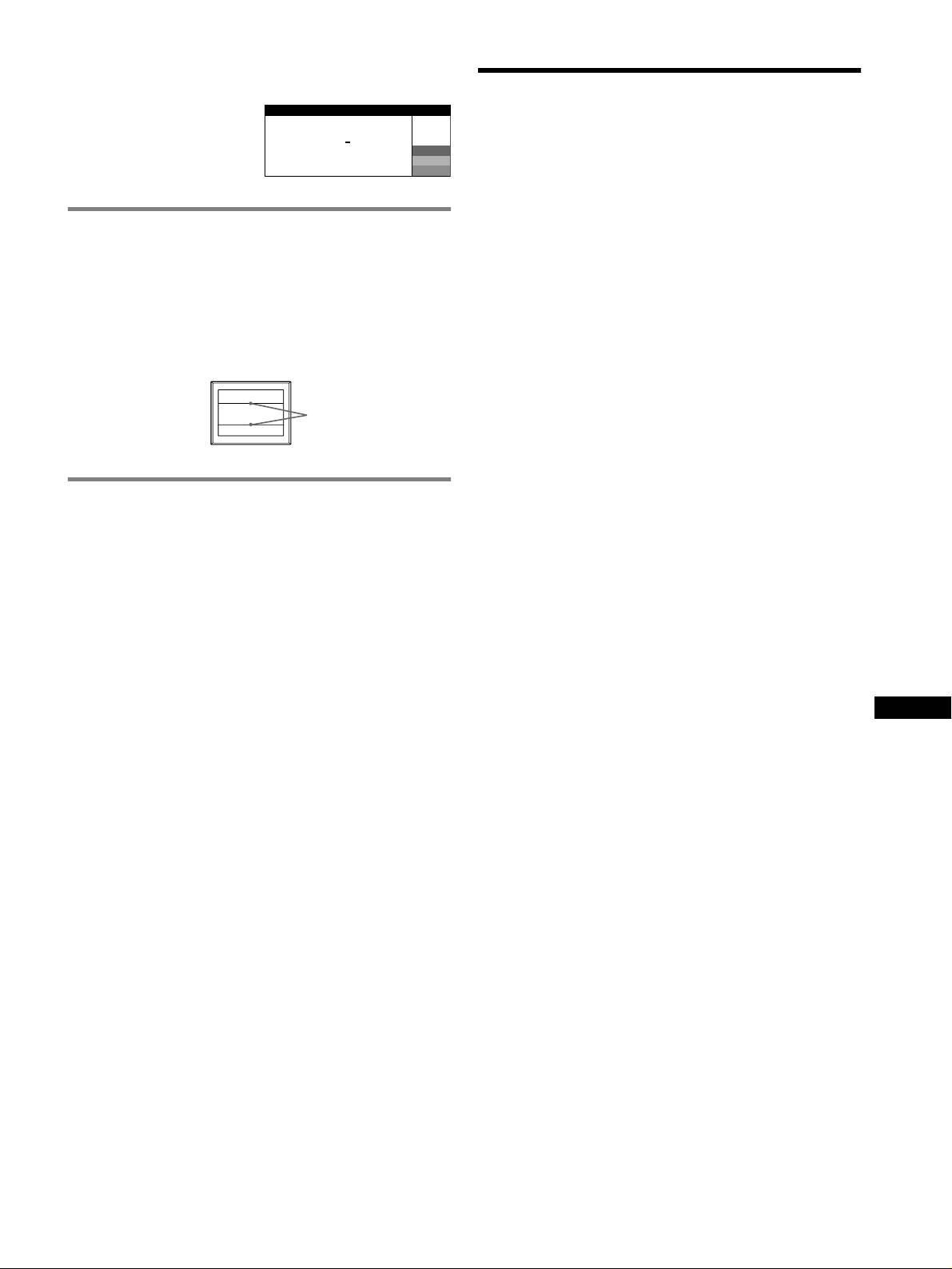
Per visualizzare il nome, il numero di serie e la data
di produzione del monitor.
Caratteristiche tecniche
Mentre il monitor riceve un
I NFORMAZ I ON I
segnale video, premere e tenere
Tubo a raggi catodici (CRT)
premuto il tasto MENU per oltre
MODEL
:
GDM F520
W
Passo della griglia di apertura 0,22 mm, Deflessione di 90 gradi, FD
5 secondi per visualizzare la
SER NO
:
1234567
R
MANUFACTURED
: 2000-52
G
Trinitron
finestra delle informazioni
B
GDM-F520 21 pollici misurati in diagonale
relative al monitor.
GDM-F420 19 pollici misurati in diagonale
Dimensioni dell’immagine visibile
GDM-F520 Circa 403,8
× 302,2 mm (l/a)
Se sullo schermo appaiono delle linee
Immagine visibile 19,8"
sottili
(cavi di smorzamento)
GDM-F420 Circa 365
× 274 mm (l/a)
Immagine visibile 18,0"
Queste linee non indicano un problema di funzionamento, ma sono
Risoluzione (O: Orizzontale, V: Verticale)
il risultato del normale effetto del cinescopio a colori Trinitron con il
GDM-F520 Massima: O: 2048 punti, V: 1536 linee
presente monitor. Si tratta dell’ombra dei cavi di smorzamento
Consigliata: O: 1600 punti, V: 1200 linee
utilizzati per stabilizzare la griglia di apertura. La griglia di apertura è
GDM-F420 Massima: O: 1920 punti, V: 1440 linee
l’elemento essenziale che caratterizza il cinescopio a colori Trinitron
Consigliata: O: 1280 punti, V: 1024 linee
consentendo una maggiore illuminazione dello schermo con il risultato
Livelli dei segnali di ingresso
di immagini più nitide e dettagliate.
Segnale video: RVB analogico: 0,700 Vp-p (positivo), 75
Ω
Segnale SYNC:Sincronismo O/V separato o composito:
TTL 2 k
Ω, polarità
Sincronismo libero su verde: 0,3 Vp-p (negativo)
Cavi di
Area dell’immagine standard
smorzamento
GDM-F520 Circa 388
× 291 mm (4:3) o
Circa 364
× 291 mm (5:4)
GDM-F420 Circa 352
× 264 mm (4:3) o
Circa 330
× 264 mm (5:4)
Frequenza di deflessione (O: Orizzontale, V: Verticale)
Funzione di autodiagnostica
GDM-F520 O: da 30 a 137 kHz, V: da 48 a 170 Hz
GDM-F420 O: da 30 a 115 kHz, V: da 48 a 170 Hz
Questo monitor è dotato di una funzione di autodiagnostica. Se si
Tensione/corrente di ingresso CA
verificano problemi con il monitor o con i computer, lo schermo si
da 100 a 240 V, 50 – 60 Hz, 2,0 – 1,0 A
oscura e l’indicatore ! (alimentazione) si illumina in verde o
Consumo energetico (senza periferiche USB collegate)
lampeggia in arancione. Se l’indicatore ! (alimentazione) si illumina
GDM-F520 Circa 145 W
in arancione, significa che il computer si trova nel modo di risparmio
GDM-F420 Circa 135 W
energetico. Premere un tasto qualsiasi della tastiera o muovere il
Temperatura di utilizzo
mouse.
Da 10°C a 40°C
Dimensioni
x Se l’indicatore ! (alimentazione) è verde
GDM-F520 Circa 497
× 499 × 487 mm (l/a/p)
GDM-F420 Circa 446
× 472 × 463 mm (l/a/p)
1 Scollegare una spina qualsiasi dai connettori di ingresso
Peso
video 1 e 2 oppure spegnere i computer collegati.
GDM-F520 Circa 30 kg
GDM-F420 Circa 26 kg
2 Spegnere il monitor, quindi riaccenderlo.
IT
Plug and Play DDC2B/DDC2Bi
3 Tenere premuto verso l’alto il tasto di comando per alcuni
Accessori in dotazione
secondi prima che il monitor entri nel modo di risparmio
Cavo di alimentazione
energetico.
Cavo del segnale video HD15
Cavo USB
Adattatore esclusivo per Power Mac G3/G4
Se vengono visualizzate le quattro barre del colore (bianco, rosso,
Il presente manuale delle istruzioni
verde, blu), significa che il monitor funziona correttamente.
Ricollegare i cavi di ingresso video e controllare le condizioni dei
computer.
Se le barre del colore non vengono visualizzate, potrebbe trattarsi di un
potenziale guasto la monitor. Rivolgersi ad un rivenditore Sony
autorizzato.
x Se l’indicatore ! (alimentazione) lampeggia in
arancione
Spegnere il monitor, quindi riaccenderlo.
Se l’indicatore ! (alimentazione) si illumina in verde, significa che il
monitor funziona correttamente.
Se l’indicatore ! (alimentazione) continua a lampeggiare, potrebbe
trattarsi di un potenziale guasto al monitor. Contare il numero di
secondi che intercorrono tra i lampeggiamenti in arancione
dell’indicatore ! (alimentazione) e rivolgersi ad un rivenditore Sony
autorizzato. Prendere nota del nome del modello e del numero di serie
del monitor. Prendere inoltre nota della marca e del modello del
computer e della scheda grafica.
(continua)
7
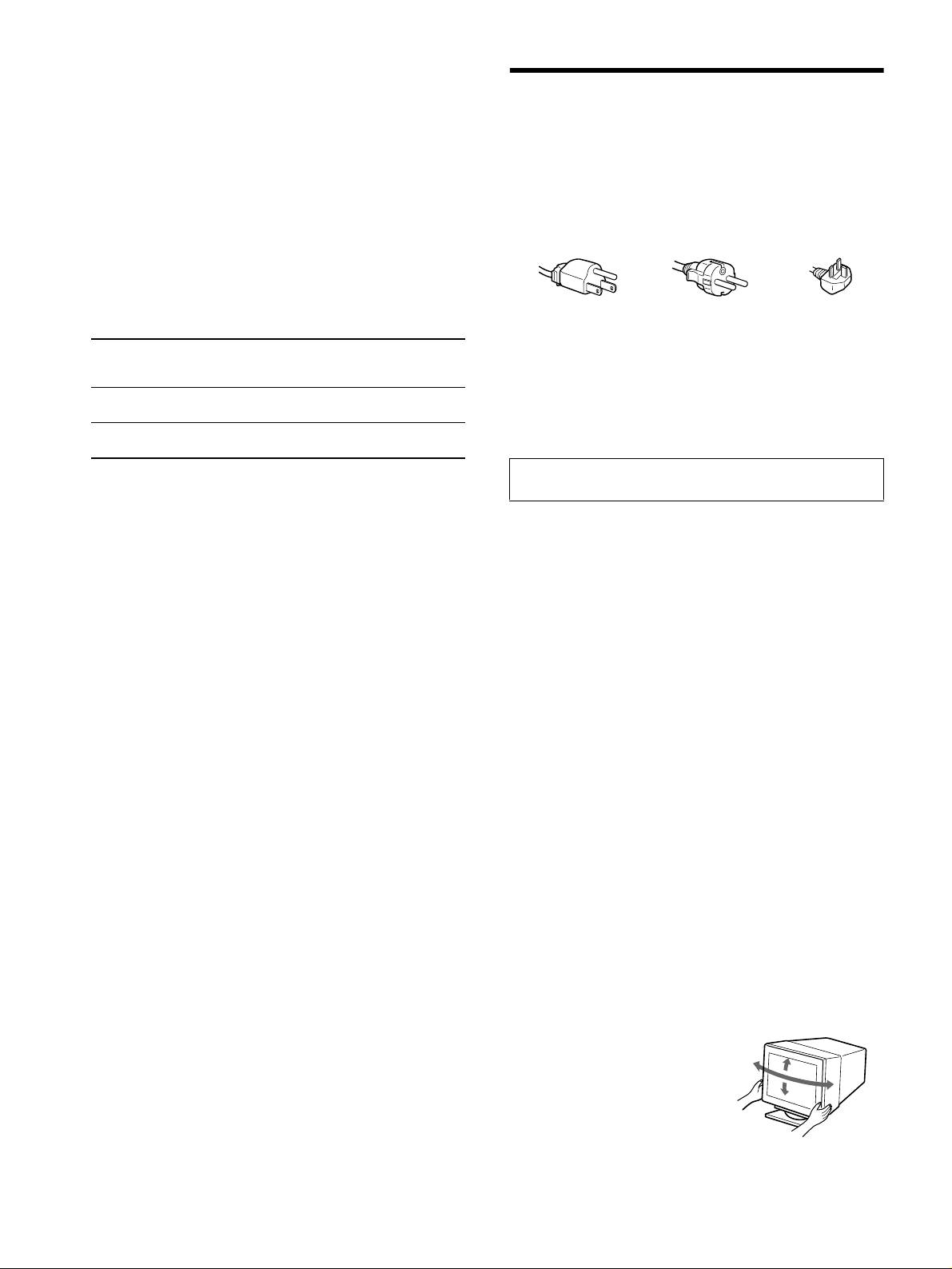
Modo preimpostato e modo utente
Se il monitor riceve un segnale di ingresso, tale segnale viene fatto
corrispondere automaticamente ad uno dei modi preimpostati in fabbrica
Precauzioni
contenuti nella memoria del monitor allo scopo di ottenere un’immagine di
qualità superiore (vedere la sezione “Preset mode timing table” a relativa alla
Avvertenze sui collegamenti dell’alimentazione
tabella degli intervalli del modo di preselezione a pagina i). Se i segnali di
ingresso non corrispondono a nessuno dei modi preimpostati, il monitor
• Utilizzare il cavo di alimentazione in dotazione. Se si utilizza un
fornisce automaticamente l’immagine più appropriata per il segnale di ingresso
cavo di alimentazione diverso, assicurarsi che sia compatibile con
compreso nella gamma delle frequenze verticali o orizzontali (pagina 7) che
la tensione operativa locale.
corrispondono alla Generalized Timing Formula. Se l’immagine è stata
Per gli utenti nel Regno Unito
regolata, i dati relativi alla regolazione vengono memorizzati come modo
Se si utilizza il monitor nel Regno Unito, utilizzare il relativo cavo
utente e vengono richiamati automaticamente al momento della ricezione dello
di alimentazione in dotazione.
stesso segnale di ingresso.
Esempio di tipi di spine
Funzione di risparmio energetico
Questo monitor è conforme alle direttive sul risparmio energetico di VESA,
TCO’99 e
ENERGY STAR. Se il monitor non riceve alcun segnale dal
computer, il consumo energetico verrà automaticamente ridotto come descritto
da 100 a 120 V CA da 200 a 240 V CA solo 240 V CA
di seguito.
• Prima di scollegare il cavo di alimentazione, attendere almeno 30
1
secondi dalla disattivazione dell’alimentazione per permettere la
Modo di
Consumo energetico*
Indicatore di
dispersione dell’elettricità statica sulla superficie dello schermo.
alimentazione
accensione
• Non appena si accende l’apparecchio, lo schermo viene
! (alimentazione)
smagnetizzato per alcuni secondi. Questa operazione crea un forte
Funzionamento
≤ 145 W (GDM-F520)
verde
campo magnetico attorno allo schermo che potrebbe danneggiare i
normale
≤ 135 W (GDM-F420)
dati memorizzati su nastri e dischi magnetici collocati in prossimità
2
del monitor. Collocare le apparecchiature per le registrazioni, i
Attivo spento*
≤ 3 W arancione
3
nastri e i dischi magnetici lontano dal monitor.
(deep sleep)*
1
Installare l’apparecchio in prossimità di una presa facilmente
*
Le cifre indicano il consumo energetico quando al monitor vengono
accessibile.
collegate periferiche non conformi a USB.
2
*
Se il computer entra nel modo di risparmio energetico, sullo schermo viene
Installazione
visualizzato il messaggio NO SEGNALE. Dopo alcuni secondi, il monitor
entra nel modo di risparmio energetico.
Non installare il monitor nei seguenti luoghi:
3
• su superfici (tappeti, coperte e così via) o in prossimità di materiali
*
“Deep sleep” è il modo di risparmio energetico definito dalla Environmental
Protection Agency.
(tende, tessuti e così via) che potrebbero bloccarne le prese di
ventilazione
Il design e le caratteristiche tecniche sono soggetti a modifiche senza
• in prossimità di fonti di calore quali radiatori o condotti d’aria calda
preavviso.
né in luoghi soggetti alla luce diretta del sole
• in luoghi soggetti a forti escursioni termiche
• in luoghi soggetti a scosse o vibrazioni di tipo meccanico
• su superfici instabili
• in prossimità di apparecchiature che generano campi magnetici,
quali un trasformatore o linee ad alta tensione
• in prossimità o su superfici metalliche con carica elettrica
• all’interno di uno scaffale chiuso
Manutenzione
• Pulire lo schermo con un panno morbido. Se si utilizza un
detergente liquido per vetri, assicurarsi che non contenga soluzioni
antistatiche o additivi simili onde evitare di graffiare il
rivestimento dello schermo.
• Non strofinare, toccare o tamburellare la superficie dello schermo
con oggetti appuntiti o abrasivi quali la punta di una penna o un
cacciavite onde evitare di graffiare il cinescopio a colori.
• Pulire il rivestimento, il pannello e i comandi con un panno
morbido leggermente inumidito con una soluzione detergente
neutra. Non utilizzare alcun tipo di spugnette o polveri abrasive o
solventi quali alcol o benzene.
Trasporto
Per trasportare il monitor o inviarlo in riparazione, utilizzare il
materiale di imballaggio originale.
Supporto del display
Non rimuovere il supporto del monitor.
Utilizzo del sistema orientabile
È possibile regolare questo monitor
entro le angolazioni riportate a
90°
destra. Per ruotare il monitor
15°
90°
orizzontalmente o verticalmente,
5°
afferrarlo alla base con entrambe le
mani.
8
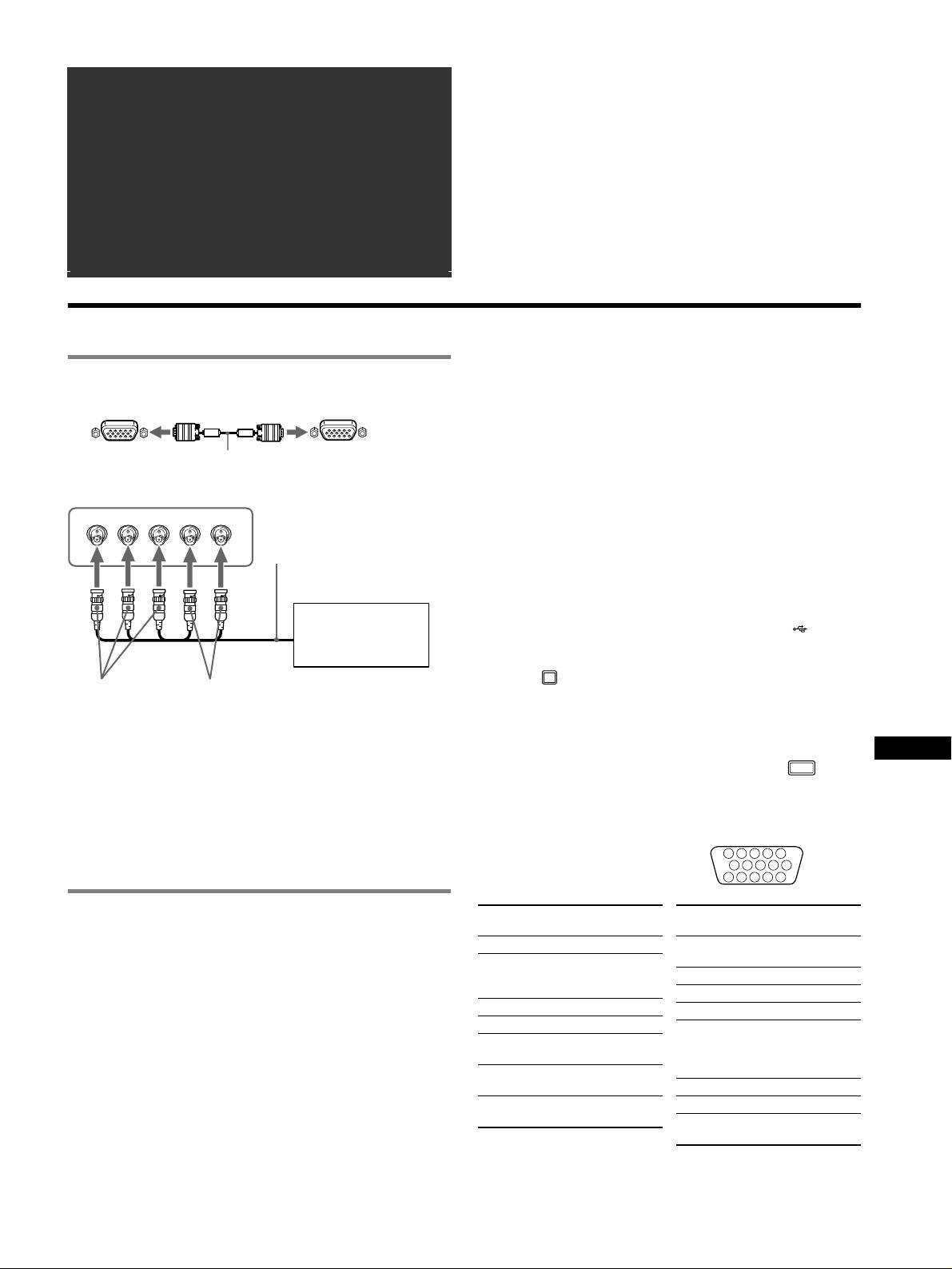
•Trinitron
â
зарегистрированная торговая марка Sony Corporation.
Coдepжaниe
• Macintosh является торговой маркой Apple Computer, Inc.,
Подготовка к работе. . . . . . . . . . . . . . . . . . . . . . . . 3
зарегистрированной в США и других странах.
• Windows
â
и MS-DOS являются зарегистрированными торговыми
Регулировка . . . . . . . . . . . . . . . . . . . . . . . . . . . . . . . 4
марками Microsoft Corporation в США и других странах.
Устранение неисправностей . . . . . . . . . . . . . . . . . 6
• IBM PC/AT и VGA являются зарегистрированными торговыми
марками IBM Corporation в США.
Технические характеристики . . . . . . . . . . . . . . . . 7
ä
• VESA и DDC
являются торговыми марками Video Electronics
Меры предосторожности. . . . . . . . . . . . . . . . . . . . 8
Standard Association.
•
ENERGY STAR является маркой, зарегистрированной в США.
Appendix . . . . . . . . . . . . . . . . . . . . . . . . . . . . . . . . . . . i
• Остальные названия продуктов, упомянутые в этом документе,
Preset mode timing table . . . . . . . . . . . . . . . . . . . . . . . i
могут являться зарегистрированными торговыми марками или
торговыми марками соответствующих владельцев.
TCO’99 Eco-document. . . . . . . . . . . . Зaдняя крышкa
• В дальнейшем символы “
ä” и “â” не упоминаются в этом
руководстве.
Подготовка к работе
Выбор входного сигнала
1 Подключение монитора к компьютеру
К данному монитору можно подключить два компьютера,
используя разъемы HD15 и BNC. Воспользуйтесь
x Подключение к входному разъему HD15
переключателем INPUT, чтобы выбрать один из
компьютеров. Выбранное гнездо появляется на экране на
3секунды.
к HD15
кабель видеосигнала
к разъему HD15
Примечание
(входит в комплект)
подключаемого компьютера
Если на выбранном входе отсутствует сигнал, на экране
появляется сообщение НЕТ СИГНАЛА. Через несколько секунд
x Подключение к 5 разъемам BNC
монитор переходит в режим экономии энергии. В подобном случае
RGBHDVD
переключитесь на другой вход.
кабель видеосигнала
(не входит в комплект)
Подключение периферийных устройств,
совместимых со стандартом USB
(универсальная последовательная шина)
Убедитесь в том, что монитор и компьютер включены,
Для подключения к
компьютеру см.
затем подключите компьютер к разъемам USB ( ) на
предыдущие примеры.
правой панели монитора.
Подключите компьютер к прямоугольному входному
разъему ( ) с помощью прилагаемого кабеля USB.
к гнезду VIDEO
к гнезду SYNC
Если на экране появится сообщение Windows, следуйте
IN R/G/B
IN HD/VD
указаниям на экране и выберите “Generic USB Hub”
(Универсальный концентратор USB).
Подключение к компьютеру Macintosh или
При подключении USB-совместимых периферийных устройств
совместимому с ним
(например, принтера, клавиатуры, мыши, сканера и т.д.)
RU
При подключении этого монитора к компьютеру Power Mac
подключите прямоугольный входной разъем USB (
).
G3/G4 используйте при необходимости прилагаемый
адаптер. Входящий в комплект переходник необходимо
Примечание
Монитор может работать как концентратор USB только в режимах
подключать к компьютеру до подключения кабеля. При
“on” (вкл.) или экономии энергии.
подключении к другим компьютерам серии Macintosh,
которые имеют разъемы с двумя рядами штырьков,
Входные разъемы HD15
необходимо использовать другой переходник (не входит в
5 4 3 2
1
комплект).
678910
1112131415
2 Включение монитора и компьютера
Номер
Сигнал
Номер
Сигнал
штырька
штырька
1 Подключите кабель питания к монитору и нажмите
1 Красный
8 Заземление
кнопку питания !, чтобы включить монитор.
2 Зеленый
синего
2 Включите компьютер.
(Синхронизация
9 DDC + 5 B*
по зеленому)
Специальные драйверы не требуются
10 Заземление
Данный монитор отвечает требованиям стандарта “DDC” Plug &
3Синий
11 ID (Заземление)
Play, и компьютер автоматически обнаруживает всю информацию
4 ID (Заземление)
12 Канал
о мониторе. Необязательно устанавливать на компьютере какие-
5 Заземление
двустороннего
либо специальные драйверы.
DDC*
обмена данныx
При первом включении ПК после подключения монитора на экране
6 Заземление
(SDA)*
может появиться диалоговое окно программы установки. В этом
красного
13 Г. Cинxp.
случае следуйте указаниям на экране. Монитор Plug & Play
выбирается автоматически, что позволяет сразу начать его
7 Заземление
14 B. Cинxp.
использовать.
зеленого
15 Xpонометpаж
данныx (SCL)*
Примечания
• Функция Plug and Play работает только с разъемом HD15 и не
* Display Data Channel (DDC) является стандартом VESA.
работает с пятью разъемами BNC.
• Не прикасайтесь к штырькам разъема кабеля видеосигнала.
• Проверьте правильность расположения разъема HD15 для
предотвращения сгибания штырьков разъема кабеля
видеосигнала.
3
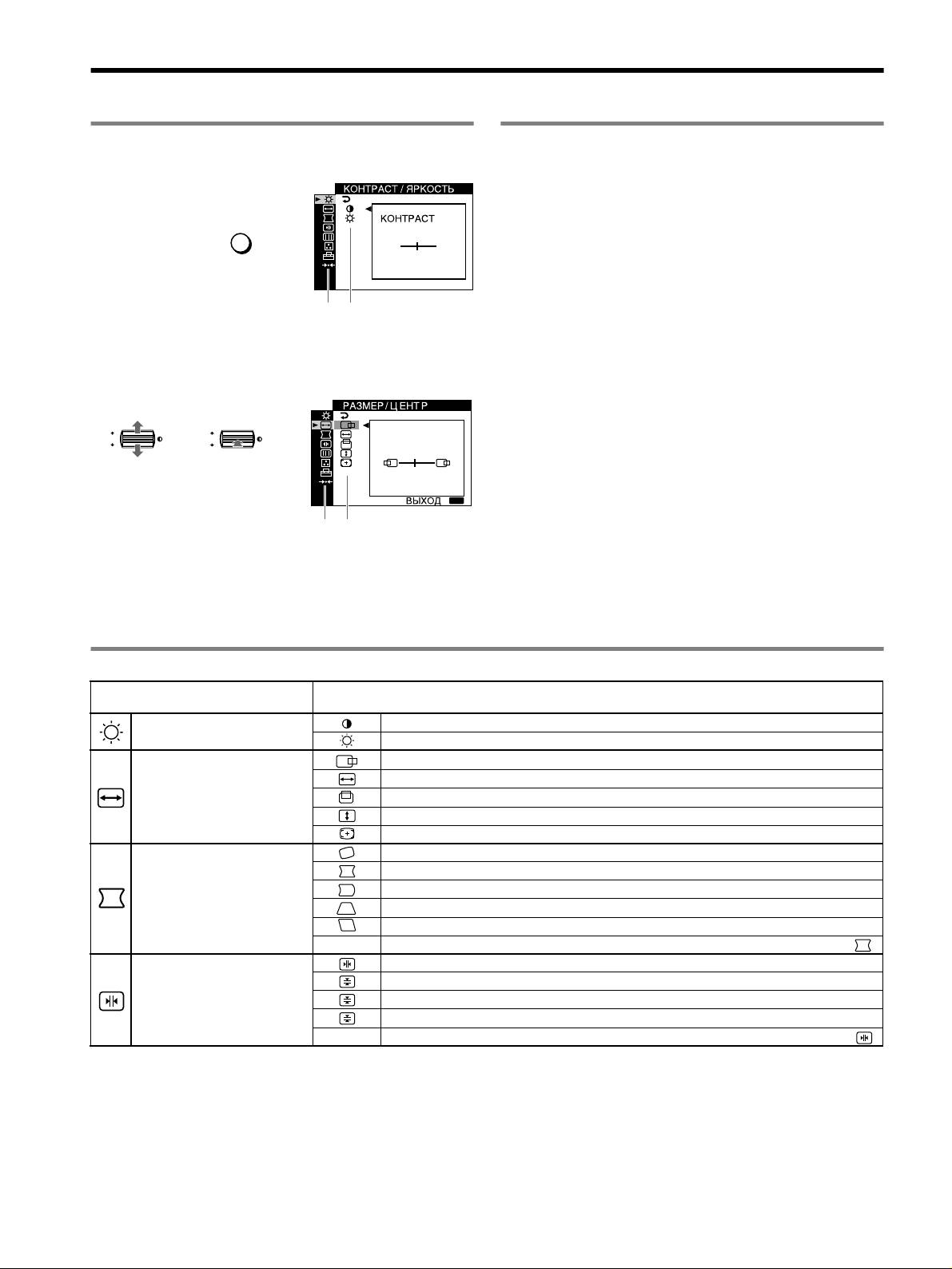
Регулировка
Перемещение по экранному меню
Регулировка качества изображения
(PICTURE EFFECT)
1 Нажмите кнопку MENU для отображения меню.
Можно выбрать один из трех наиболее подходящих
предварительно установленных режимов, обеспечивающих
наивысшее качество изображения, путем
последовательного нажатия кнопки PICTURE EFFECT.
MENU
,
50
x ПРОФЕССИОНАЛЬHOE
Для обеспечения точности и стабильности цветов дисплея.
1024x768 / 85Hz
Выберите этот режим для работы с профессиональными
настольными издательскими системами и графическими
Главное
Подменю
приложениями.
меню
x СТАНДАРТНOE
2 Переместите кнопку управления m/M, чтобы
Для изображений с высокой контрастностью и яркостью.
выделить главное, которое необходимо настроить, и
Выберите этот режим для работы с обычными
нажмите кнопку управления.
приложениями, такими как электронные таблицы,
текстовый редактор, электронная почта или WEB-браузер.
OK
,,
OK
x ДИНАМИЧECKOE
Для очень ярких цветов и изображений с фотографической
45
точностью. Цвета в этом режиме ярче, чем в режиме
“СТАНДАРТНОЕ”, поэтому он используется для таких
:
MENU
развлекательных приложений с большим количеством
графики, как игры или воспроизведение DVD.
Главное
Подменю
меню
3 Выберите элемент подменю, который требуется
настроить, и нажмите кнопку управления.
4 Выполните настройку с помощью кнопки
управления.
Настройка экранного меню
Значки главного меню и
Значки подменю и настраиваемые элементы
настраиваемые элементы
Регулировка контрастности и
Контрастность
яркости
*
1
Яркость
Положение по горизонтали
Горизонтальный размер
Подстройка размера или
Положение по вертикали
центровки изображения
*
1
Вертикальный размер
Авто-Размер-Центр
Поворот изображения
Расширение или сужение краев изображения
*
1
Регулировка формы
Смещение краев изображения влево или вправо*
1
изображения
Регулировка ширины изображения в верхней части экрана*
1
Смещение изображения влево или вправо в верхней части экрана*
1
0 СБРОС: Восстановление заводских настроек по умолчанию для всех параметров .
Смещение красных или синих оттенков по горизонтали
Смещение красных или синих оттенков по вертикали
Регулировка совмещения
T
цветов
*
2
Смещение красных или синих оттенков по вертикали в верхней части экрана
B
Смещение красных или синих оттенков по вертикали в нижней части экрана
0 СБРОС: Восстановление заводских настроек по умолчанию для всех параметров .
4
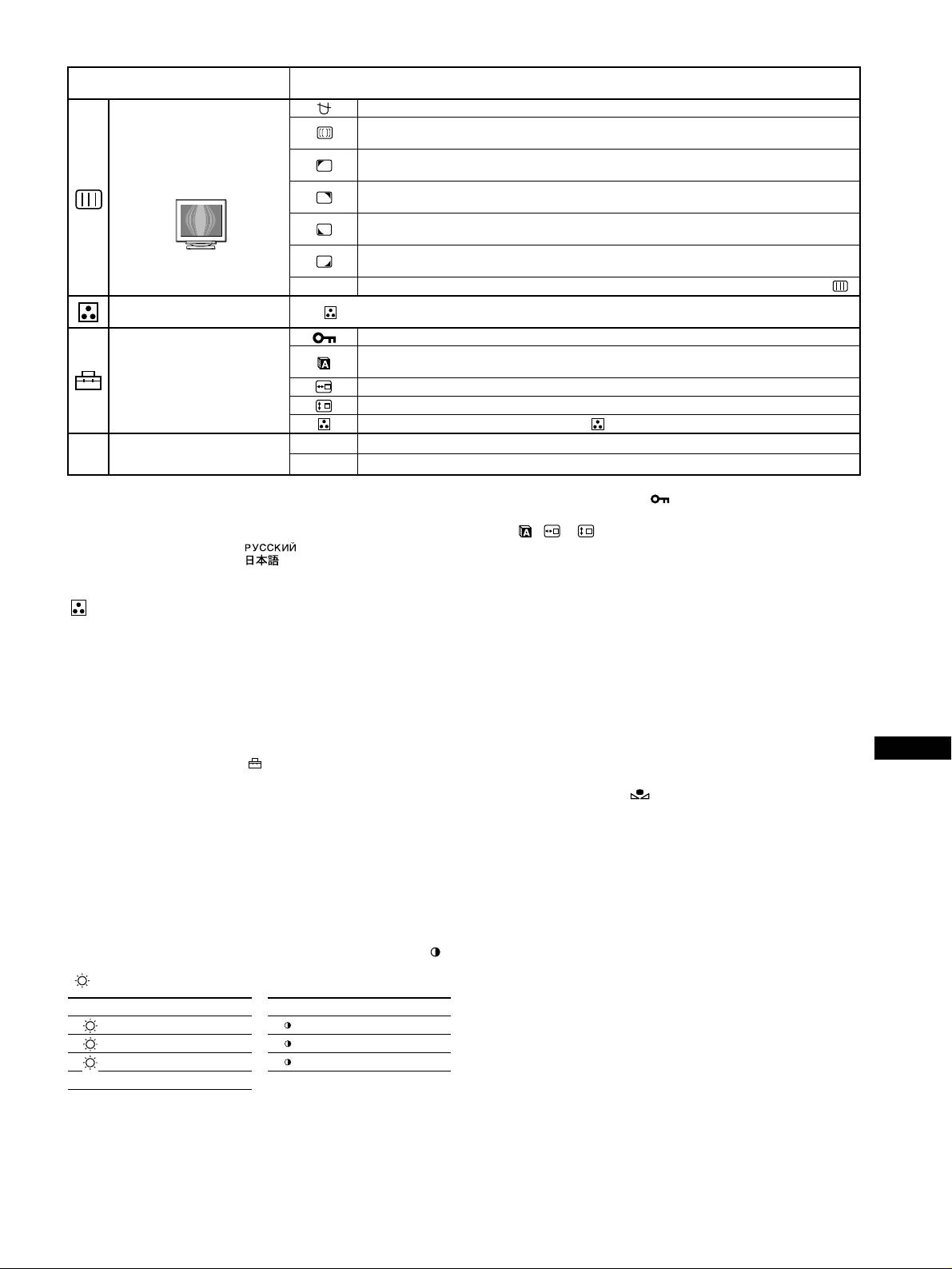
Значки главного меню и
Значки подменю и настраиваемые элементы
настраиваемые элементы
РАЗМАГНИЧИВАНИЕ: размагничивание монитора.
ПOДABЛEHИE MУАРА: регулировка степени устранения муарового фона, пока он не
будет сведен до минимума.
*
1
Регулировка качества
ЧИCTOTA ЦВЕТА: уменьшение разбалансировки цвета в левом верхнем углу экрана
изображения
до минимума.
*
2
Пример муарового фона
ЧИCTOTA ЦВЕТА: уменьшение разбалансировки цвета в правом верхнем углу экрана
до минимума.
*
2
ЧИCTOTA ЦВЕТА: уменьшение разбалансировки цвета в левом нижнем углу экрана до
минимума.
*
2
ЧИCTOTA ЦВЕТА: уменьшение разбалансировки цвета в правом нижнем углу экрана
до минимума.
*
2
0 СБРОС: Восстановление заводских настроек по умолчанию для всех параметров .
Регулировка цвета
См. “ : Для регулировки цвета изображения”.
изображения
Защита данных настройки (БЛОКИРОВКА УПРАВЛЕНИЯ)
*
4
Выбор языка в экранном меню/Подтверждение информации на мониторе LANGUAGE/
ИНФОРМАЦИЯ
*
3
Дополнительные настройки
Изменение положения меню для подстройки по горизонтали
Изменение положения меню для подстройки по вертикали
Выбор режима настройки цветов. (См. “ : Для регулировки цвета изображения.”)
5
01
*
1
Сброс всех данных настройки для текущего входного сигнала.*
Выберите “OK”.
0 Cброс настроек
02
*
2
Сброс всех данных настройки для всех входных сигналов. Выберите “OK”.
1
4
*
Эта настройка эффективна для текущего входного сигнала.
*
Будут работать только выключатель ! (питание), функция
2
*
Эта настройка эффективна для всех входных сигналов.
ВЫХОД, а также блокировка (БЛОКИРОВКА УПРАВЛЕНИЯ).
3
*
Меню Language
5
*
Этим способом нельзя сбросить настройки следующих элементов
• ENGLISH: Английский • NEDERLANDS: Голландский
меню: , и .
• FRANÇAIS: Французский • SVENSKA: Шведский
• DEUTSCH: Немецкий •
• ESPAÑOL: Испанский • : Японский
• ITALIANO: Итальянский
: Для регулировки цвета изображения
x sRGB
Настройки меню ЦВЕТ позволяют отрегулировать
Модель смешения цветов sRGB (красный-зеленый-синий)
цветовую температуру изображения путем изменения
является промышленным стандартом для описания цвета
уровня насыщенности поля белого цвета. В цветовой гамме
изображения и приведения в соответствие отображаемых
доминирует красный цвет при небольшой температуре, и
на мониторе и распечатываемых цветных изображений.
синий цвет - при высокой температуре. Данная настройка
Чтобы цвета sRGB отображались правильно (γ = 2,2,
может пригодиться для приведения в соответствие цветов
6500K), выберите режим sRGB и установите для режима
монитора с цветами распечатываемых изображений.
PICTURE EFFECT значение ПРОФЕССИОНАЛЬНОЕ. (стр.
Выберите один из следующих четырех режимов установки
4), а на подключенном компьютере профиль sRGB. При
цветовой температуры; ПPOCTOE, ЗАДАННЫЙ,
выборе режима sRGB невозможно выполнить настройки в
RU
СЛОЖНOE и sRGB в меню (ПРОЧЕЕ).
меню КОНТРАСТ/ЯРКОСТЬ.
Восстановление цвета с помощью режимов ПРОСТОЕ,
x ПPOCTOE (Установка по умолчанию)
ЗАДАННЫЙ или sRGB ( ВОССТАНОВ ЦВЕТ)
Можно настроить цветовую температуру в диапазоне от
Цвет можно восстановить до уровня первоначального заводского
5000K до 11000K.
качества. Перед использованием данной функции монитор должен
находиться в обычном режиме работы (зеленый индикатор горит)
не менее 30 минут. Возможно, потребуется изменить настройки
x ЗАДАННЫЙ
компьютера, относящиеся к режиму экономии энергии. Если
Можно выбрать одну из стандартных цветовых температур:
монитор работал менее 30 минут, появится сообщение “ДОСТУПНО
5000K, 6500K или 9300K. Установка по умолчанию - 9300K.
ПОСЛЕ ПРОГРЕВА”. Эта функция может постепенно утратить
свою эффективность по причине естественного старения
x СЛОЖНOE
электронно-лучевой трубки Trinitron.
При выборе этого режима можно выполнить
дополнительные, более точные настройки цвета. GAIN ( )
настраивает светлые области экрана, в то время, как BIAS
( ) - темные.
Выберите для Выберите для
R R (красный) BIAS R R (красный) GAIN
G G (зеленый) BIAS G G (зеленый) GAIN
B B (синий) BIAS B B (синий) GAIN
0 СБРОС
5
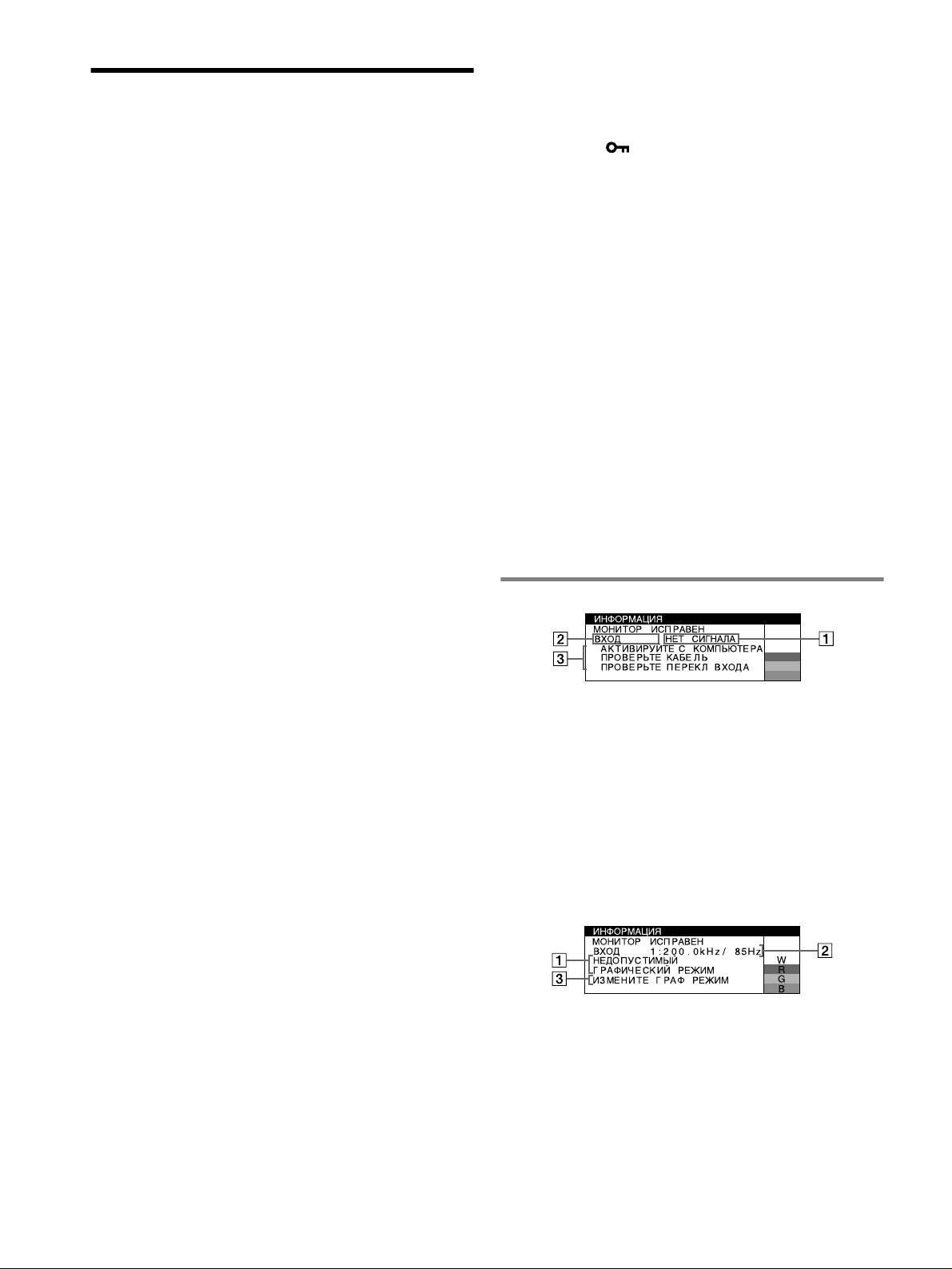
x Белый цвет не выглядит белым
• Подстройте цветовую температуру.
Устранение неисправностей
• Убедитесь, что пять разъемов BNC подключены в
правильном порядке.
x Нет изображения
Если индикатор ! (питание) не горит
x Кнопки монитора не работают (на экране
• Проверьте, правильно ли подключен кабель питания.
появляется )
• Проверьте, находится ли выключатель ! (питание) в
• Если функция блокировки органов управления включена -
положении “on” (вкл.).
положение ВКЛ, переведите ее в положение ВЫКЛ.
Индикатор питания ! горит оранжевым
x Красные или синие оттенки по краям букв или линий
• Убедитесь, что кабель видеосигнала подключен правильно,
• Подстройте совмещение цветов.
и все разъемы надежно вставлены в свои гнезда.
• Убедитесь, что переключатель INPUT стоит в правильном
x Не работают периферийные устройства USB
положении.
• Убедитесь, что соответствующие разъемы USB правильно
• Убедитесь, что ни один из штырьковых контактов
подключены и надежно закреплены.
видеокабеля HD15 не является изогнутым и не утоплен
• Выключите монитор, а затем снова включите. Затем
внутрь вилки.
подключите кабель USB.
• Проверьте, находится ли выключатель компьютера в
• Если впервые подсоединить клавиатуру или мышь к
положении “on” (вкл.).
разъемам USB, а затем загрузить компьютер, они могут не
• Компьютер находится в режиме экономии энергии.
работать. Сначала подключите клавиатуру и мышь
Попробуйте нажать любую клавишу на клавиатуре
непосредственно к компьютеру и произведите настройку
компьютера или передвинуть мышь.
USB-совместимых устройств. Затем подключите их к
• Убедитесь, что графический адаптер правильно и надежно
монитору.
закреплен в разъеме подключения к шине.
• Установите на свой компьютер последнюю версию драйвера
Если индикатор питания ! (питание) горит зеленым или
устройства. Обратитесь к изготовителю устройства за
мигает оранжевым
дополнительной информацией о требуемом драйвере
• Используйте функцию самодиагностики.
устройства.
x Скачки, дрожание, волнообразные колебания или
x Сразу после включения монитора раздается
помехи изображения
непродолжительное гудение
• Изолируйте и устраните любые потенциальные источники
• Этот звук сопутствует процессу автоматического
электрических или магнитных полей, например, другие
размагничивания. После включения питания в течение
мониторы, лазерные принтеры, электрические вентиляторы,
нескольких секунд происходит автоматическое
флуоресцентные лампы или телевизоры.
размагничивание трубки монитора.
• Отодвиньте монитор подальше от линий электропитания или
* Если потребуется повторить процесс размагничивания, это
установите возле него магнитный экран.
можно сделать как минимум через 20 минут, для того чтобы
• Попробуйте подключить монитор к другой сетевой розетке,
получить наилучший результат. Гудящий звук, который слышен,
желательно от другого контура.
не является неисправностью.
• Попробуйте повернуть монитор на 90° влево или вправо.
• Обратитесь к руководству по графическому адаптеру, чтобы
проверить, правильные ли параметры установлены для
Экранные сообщения
монитора.
• Удостоверьтесь в том, что графический режим и частота
входного сигнала соответствуют характеристикам монитора
2:
W
(см. раздел “Preset mode timing table” на стр. i). Даже в
R
подходящем частотном диапазоне некоторые графические
G
B
адаптеры подают слишком узкий для корректной
синхронизации монитора синхронизирующий импульс.
1 Если на экране появляется сообщение “НЕТ
• Подстройте частоту регенерации компьютера (частоту
СИГНАЛА”:
вертикальной развертки) для получения оптимального
Указывает на то, что входной сигнал не подается
изображения.
выбранным входным гнездом.
x Нечеткое изображение
2 Отображает выбранное в текущий момент входное
• Подстройте контрастность, яркость и функцию PICTURE
гнездо.
EFFECT.
3 Отображает действия по устранению.
• Выполните размагничивание монитора.*
• Если на экране появляется сообщение АКТИВИPУЙTE С
• Откорректируйте степень устранения муарового фона, пока
КОМПЬЮТЕРА, попробуйте нажать любую клавишу на
он не будет сведен до минимума, или установите для
компьютере или переместить мышь и убедитесь, что
параметра ПОДАВЛЕНИЕ МУАРА значение ВЫКЛ.
плата графического адаптера компьютера надежно
x “Тени” на изображении
вставлена в гнездо шины.
• Не используйте удлинители видеокабелей и коммутаторы
• Если на экране появляется сообщение ПРОВЕРЬTE
КАБЕЛЬ, проверьте, правильно ли монитор подключен к
видеосигнала.
компьютеру.
• Проверьте, надежно ли закреплены в своих гнездах все
• Если на экране появляется сообщение ПРОВЕРЬTE
разъемы.
ПЕРЕКЛ ВХОДA, попробуйте изменить входной сигнал.
x Неправильные центровка или размер изображения
• Выполните функцию Авто-Размер-Центр.
• Подстройте размер или отцентрируйте изображение.
Следует иметь в виду, что в сочетании входных сигналов с
определенными графическими платами края экрана
используются не полностью.
• Сразу после нажатия кнопки питания, изображение
1 Если на экране появляется сообщение
некоторое время подстраивается по размеру и центру
“НЕДОПУСТИМЫЙ ГРАФИЧЕСКИЙ РЕЖИМ”:
экрана.
Указывает на то, что входной сигнал не соответствует
x Края изображения искривлены
характеристикам монитора.
• Подстройте геометрические параметры.
2 Отображение частоты входного сигнала.
x Волнистые или муаровые разводы на экране
3 Отображает действия по устранению.
• Откорректируйте степень устранения муарового фона, пока
он не будет сведен до минимума.
На экране появляется сообщение ИЗМЕНИТЕ ГРАФ
• Смените рисунок рабочего стола.
PEЖИM. Если данная модель устанавливается вместо
x Неравномерная окраска изображения
старого монитора, верните прежний монитор на место.
• Выполните размагничивание монитора.* Однородность
Затем настройте графический адаптер, так чтобы частота
цвета может нарушаться в тех случаях, когда вблизи
горизонтальной развертки была в диапазоне 30 – 137 кГц
монитора находятся источники магнитного поля, такие как
(GDM-F520), 30 – 115 кГц (GDM-F420), а частота
громкоговорители, или при повороте монитора.
вертикальной развертки - в диапазоне 48 – 170 Гц.
• Откорректируйте разбалансировку цвета по углам экрана.
6
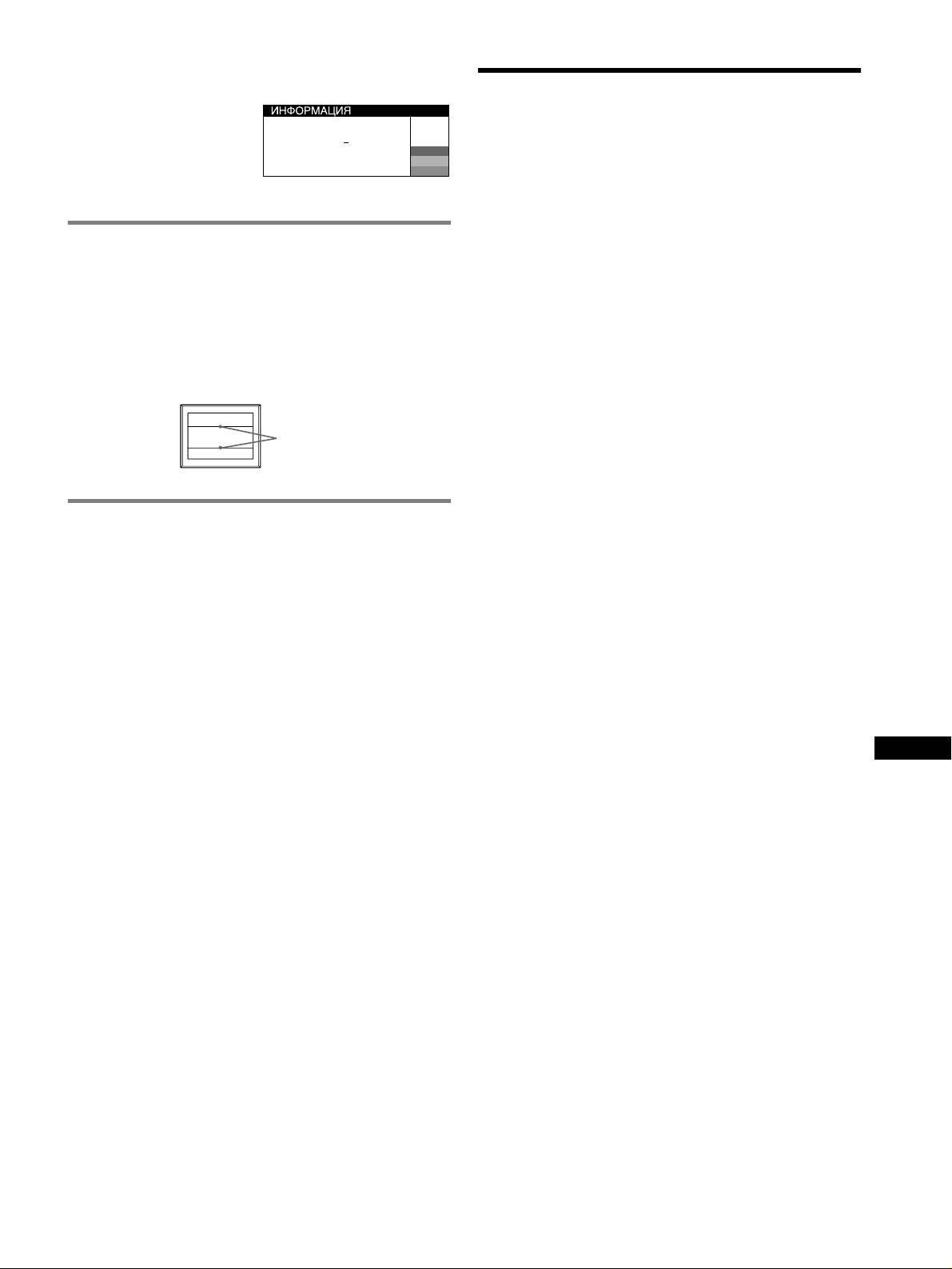
Отображение названия модели монитора,
серийного номера и даты выпуска.
Технические
В момент получения
монитором видеосигнала
характеристики
нажмите кнопку MENU и не
MODEL
:
GDM F520
W
отпускайте в течение не
SER NO
:
1234567
R
MANUFACTURED
: 2000-52
G
Кинескоп
менее 5 секунд, чтобы
B
Шаг апертурной решетки 0,22 мм, Развертка 90 градусов,
вывести на экран
FD Trinitron
информационное окно для данной модели монитора.
GDM-F520 Размер экрана по диагонали 21 дюйм
GDM-F420 Размер экрана по диагонали 19 дюймов
Размер экранного изображения
Демпферные нити
GDM-F520 Прибл. 403,8
× 302,2 мм (ш/в)
Эти линии не свидетельствуют о неисправности и
Видимое изображение 19,8"
являются обычным эффектом электронно-лучевых трубок
GDM-F420 Прибл. 365
× 274 мм (ш/в)
Trinitron, которые устанавливаются в данных мониторах.
Видимое изображение 18,0"
Это тени демпферных нитей, которые гасят вибрацию
Разрешение (Г:по горизонтали, B:по вертикали)
апертурной решетки. Апертурная решетка - это очень
GDM-F520 Максимальное: Г: 2048 точек, B: 1536 линий
Рекомендуется: Г: 1600 точек, B: 1200 линий
важный элемент, который делает электронно-лучевые
GDM-F420 Максимальное: Г: 1920 точек, B: 1440 линий
трубки Trinitron уникальными и обеспечивает более
Рекомендуется: Г: 1280 точек, B: 1024 линий
интенсивные светлые тона на экране, благодаря чему
Уровни входных сигналов
изображение становится ярче и отчетливее.
Видеосигнал:Аналоговые RGB: 0,700 Vp-p (положит.), 75
Ω
Сигнал синхронизации:
Г/В отдельная или комбинированная
синхронизация:
Дeмпфepныe Hити
TTL 2 к
Ω, без соблюдения полярности
Синхронизация по зеленому: 0,3 Vp-p
(отрицательная)
Стандартная площадь изображения
GDM-F520 Прибл. 388
× 291 мм (4:3) или
Прибл. 364
× 291 мм (5:4)
Функция самодиагностики
GDM-F420 Прибл. 352
× 264 мм (4:3) или
Данный монитор оснащен функцией самодиагностики. Если
Прибл. 330
× 264 мм (5:4)
возникает какая-либо проблема с монитором или
Частота развертки (Г:по горизонтали, B:по вертикали)
компьютером (компьютерами), экран очищается, а
GDM-F520 Г: 30 – 137 кГц, B: 48 – 170 Гц
индикатор ! (питание) горит зеленым или мигает
GDM-F420 Г: 30 – 115 кГц, B: 48 – 170 Гц
оранжевым. Если индикатор ! (питание) горит оранжевым,
Параметры сетевого питания
100 – 240 В, 50 – 60 Гц, 2,0 – 1,0 А
то компьютер находится в режиме экономии энергии.
Потребляемая мощность (без подключенных устройств USB)
Попробуйте нажать любую клавишу на клавиатуре или
GDM-F520 Прибл. 145 Вт
передвинуть мышь.
GDM-F420 Прибл. 135 Вт
Paбoчaя тeмпepaтypa
x Если индикатор ! (питание) горит зеленым
10°C – 40°C
Габариты
1 Отсоедините кабели видеовходов 1 и 2 или
GDM-F520 Прибл. 497
× 499 × 487 мм (ш/в/г)
отключите питание подключенных компьютеров.
GDM-F420 Прибл. 446
× 472 × 463 мм (ш/в/г)
2 Выключите монитор, а затем снова включите.
Масса
RU
GDM-F520 Прибл. 30 кг
3 Сдвиньте кнопку управления вверх и удерживайте в
GDM-F420 Прибл. 26 кг
таком положении в течение нескольких секунд перед
Plug and Play DDC2B/DDC2Bi
тем, как монитор перейдет в режим экономии
Входящие в комплект принадлежности
энергии.
Кабель питания
Кабель видеосигнала HD15
Если появятся все четыре цветные полоски (белого,
Кабель USB
красного, зеленого, синего), то монитор работает
Специальный переходник к Power Mac G3/G4
Настоящая инструкция по эксплуатации
правильно. Вновь подсоедините кабели к видеовходам и
проверьте состояние компьютера.
Если цветные полоски не появляются, то монитор,
возможно, неисправен. Проинформируйте местного
официального дилера Sony о состоянии своего монитора.
x Если индикатор ! (питание) мигает оранжевым
Выключите монитор, а затем снова включите.
Если индикатор ! (питание) горит зеленым, то монитор
работает нормально.
Если индикатор ! (питание) продолжает мигать, то,
возможно, монитор неисправен. Сосчитайте количество
секунд в интервалах между загоранием индикатора
! (питание) и проинформируйте местного официального
дилера Sony о состоянии своего монитора. Не забудьте
предоставить название модели и серийный номер своего
монитора. Также необходимо указать марку и модель
Вашего компьютера и графического адаптера.
(продолжение на следующей странице)
7
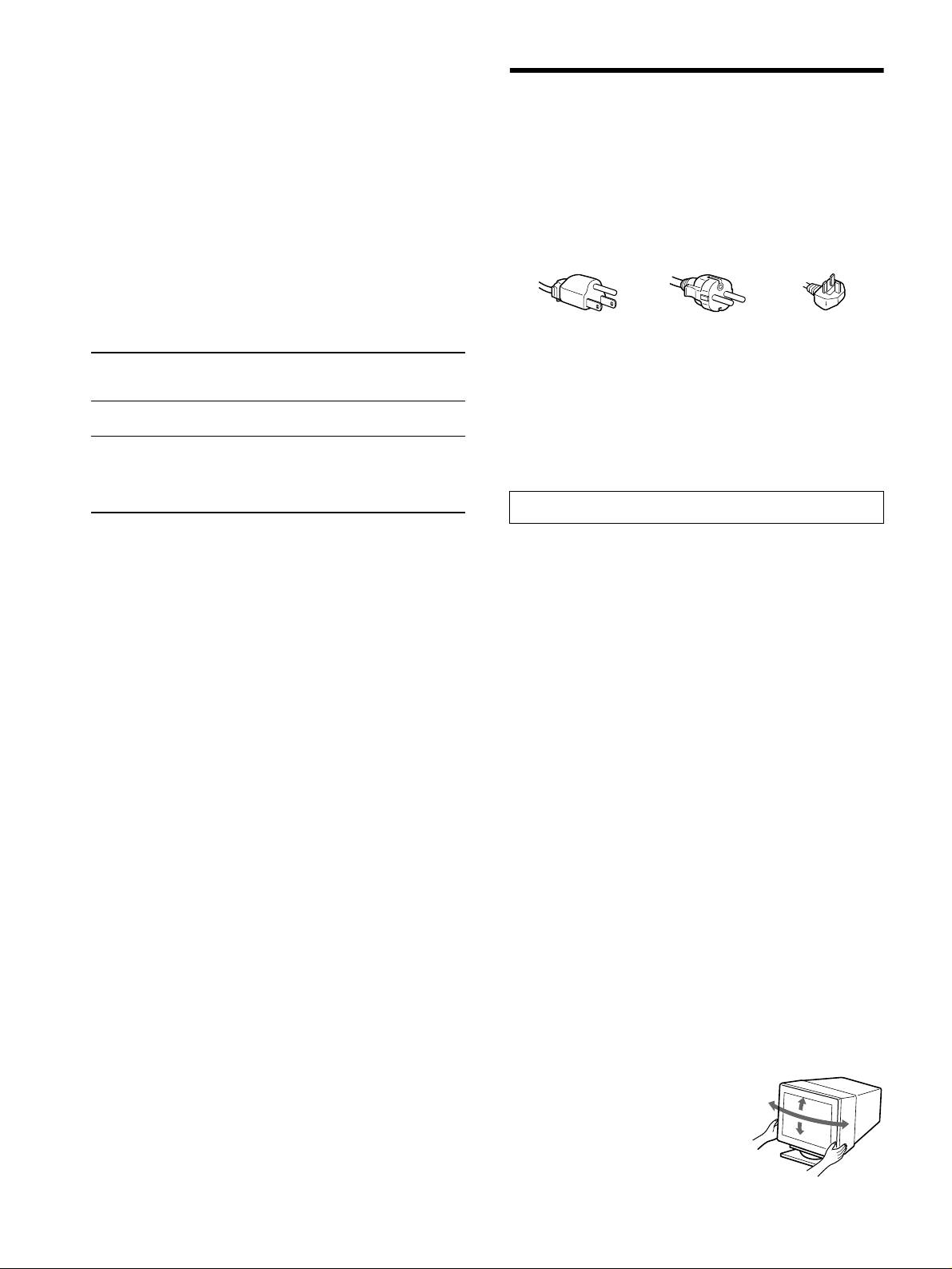
Предустановленный и пользовательский режимы
При приеме входного сигнала монитор автоматически
согласовывает его с одним из режимов, предварительно
Меры предосторожности
установленных на заводе и хранящихся в памяти монитора, для
обеспечения высококачественного изображения (см. раздел
Меры предосторожности при подключении к сети
“Preset mode timing table” на стр. i). Если входные сигналы не
электропитания
соответствуют ни одному из заводских режимов, монитор
• Используйте кабель питания, поставляемый с монитором.
автоматически подбирает наиболее подходящий режим для
При использовании другого кабеля питания убедитесь в
входного сигнала, находящегося в диапазоне частот
том, что он подходит для использования в местной сети.
горизонтальной и вертикальной развертки (стр. 7), в
Для покупателей в Великобритании
соответствии с формулой GTF (Generalized Timing Formula). При
При использовании монитора в Великобритании
регулировке изображения данные настройки заносятся в память
пользуйтесь поставляемым с монитором кабелем питания с
как пользовательский режим и автоматически вызываются из
разъемом для Великобритании.
нее каждый раз при получении данного входного сигнала.
Примеры сетевых вилок
Функция экономии энергии
Данный монитор соответствует нормам экономии
электроэнергии, установленным VESA, TCO’99 и
ENERGY STAR.
Если на монитор не подается сигнал с компьютера, монитор будет
автоматически снижать потребление энергии, как показано ниже.
для 100 - 120 В
для 200 - 240 В
только для 240 В
переменного тока
переменного тока
переменного тока
• Отсоединяйте кабель питания от сети не раньше, чем через
Режим
Потребляемая
Индикатор
30 секунд после выключения питания монитора, когда
1
потребления
мощность*
! (питание)
уменьшится заряд статического электричества на
энергии
поверхности экрана.
• После включения питания в течение нecкoлькиx секунд
Oбычная работа
≤ 145 Bт (GDM-F520)
Горит зеленым
происходит размагничивание трубки монитора. При этом
≤ 135 Bт (GDM-F420)
вокруг экрана возникает сильное магнитное поле,
способное повредить данные на магнитных лентах и
Выход из
≤ 3 Bт горит оранжевым
дискетах, находящихся рядом с монитором. Поэтому
активного
2
магнитофоны, кассеты и дискеты следует держать на
состояния
*
некотором расстоянии от прибора.
(тpeтий режим
3
экономии)*
Сетевая розетка должна находиться в легкодоступном
месте вблизи прибора.
1
*
Цифры отображают потребляемую мощность, если к монитору
Установка
не подключаются никакие USB-совместимые периферийные
Не устанавливайте монитор в следующих местах:
устройства.
• на мягких поверхностях (коврики, одеяла и т.д.) или вблизи
2
*
Когда компьютер переходит в режим экономии энергии, на
других материалов (занавески, портьеры), которые могут
экране появляется сообщение “НЕТ СИГНАЛА”. Через
преградить доступ воздуха к вентиляционным отверстиям
несколько секунд монитор переходит в режим экономии
• вблизи таких источников тепла, как батареи или
энергии.
воздуховоды, а также в местах, где возможно попадание
3
прямого солнечного света
*
“3 режим экономии” определен агентством защиты
• где наблюдаются резкие колебания температуры
окружающей среды (EPA).
• где присутствует вибрация или резкие механические
воздействия
Конструкция и характеристики могут изменяться без
• на неустойчивой поверхности
предварительного уведомления.
• рядом с источниками магнитных полей, такими как
трансформаторы или высоковольтные кабели
• рядом или на металлической поверхности с наличием
электрического заряда
• в закрытой полке
Техническое обслуживание
• Протирайте экран мягкой тканью. При использовании
химических средств для чистки стекла не применяйте
жидкости, содержащие антистатические или аналогичные
добавки, так как они могут повредить покрытие экрана.
• Не следует прикасаться к дисплею, скрести или стучать по
нему острыми предметами (шариковой ручкой, отверткой).
Это может привести к появлению царапин на поверхности
электронно-лучевой трубки.
• Протирайте корпус, дисплей и панель управления мягкой
тканью, слегка смоченной в слабом растворе моющего
средства. Не пользуйтесь грубыми щетками, абразивными
пастами или такими растворителями, как спирт или бензин.
Транспортировка
При перевозке монитора или его доставке в ремонтную
мастерскую пользуйтесь заводской картонной коробкой и
упаковочными материалами.
Подставка для дисплея
Не удаляйте эту подставку монитора.
Использование шарнирной опоры с изменяемым
углом наклона
Монитор можно устанавливать в
удобное положение, изменяя углы
90°
наклона, как показано на рисунке
15°
90°
справа. Поворачивая прибор по
5°
вертикали или горизонтали,
держите его за нижнюю часть
обеими руками.
8
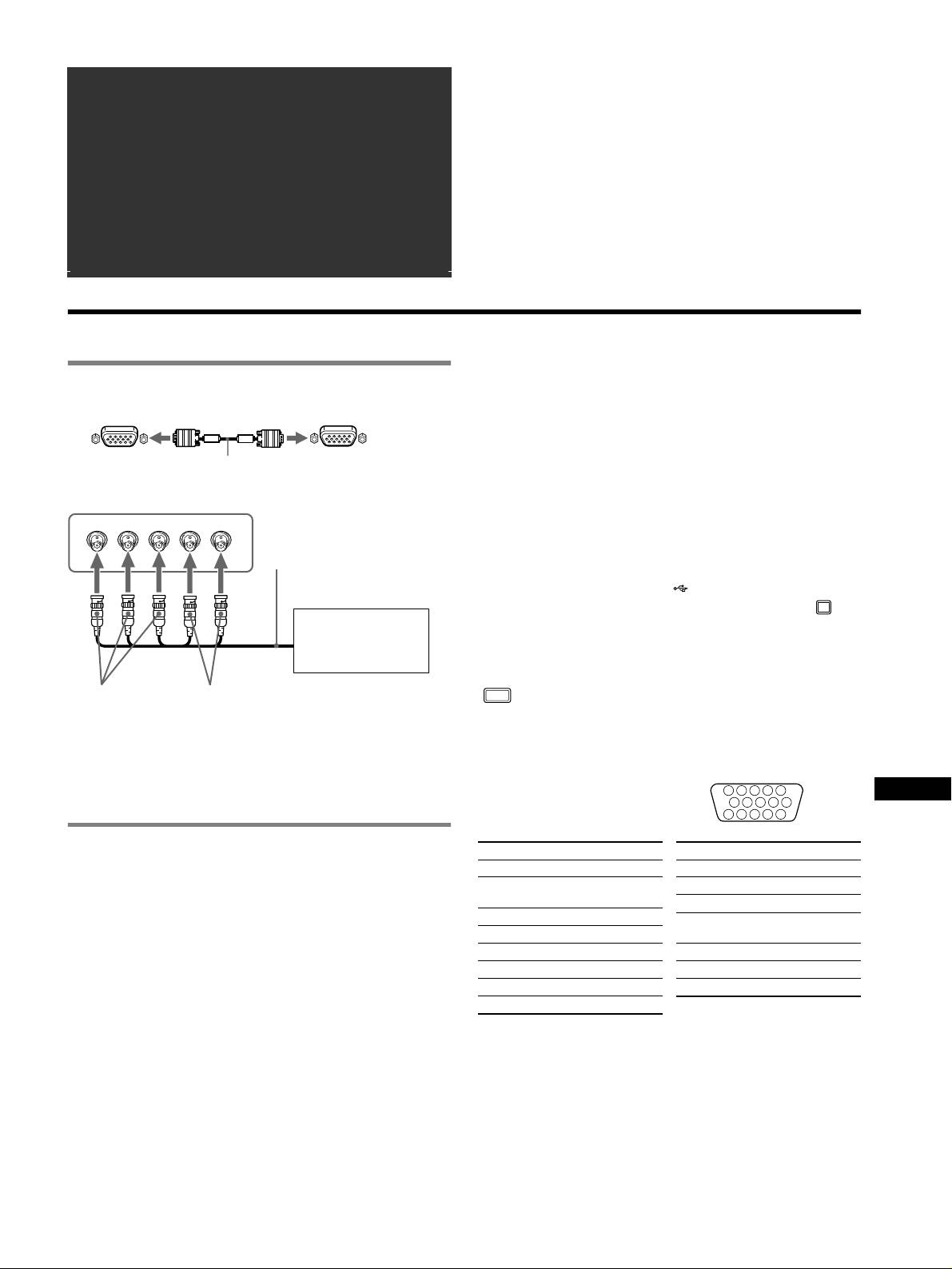
â
• Trinitron
är ett registrerat varumärke som tillhör Sony Corporation.
Innehållsförteckning
• Macintosh är ett varumärke som tillhör Apple Computer, Inc, registrerat i
Installation . . . . . . . . . . . . . . . . . . . . . . . . . . . . . . . . . 3
USA och andra länder.
â
•Windows
och MS-DOS är registrerade varumärken som tillhör Microsoft
Inställningar . . . . . . . . . . . . . . . . . . . . . . . . . . . . . . . . 4
Corporation i USA och andra länder.
Felsökning . . . . . . . . . . . . . . . . . . . . . . . . . . . . . . . . . 6
• IBM PC/AT och VGA är registrerade varumärken som tillhör IBM
Corporation i U.S.A.
Specifikationer. . . . . . . . . . . . . . . . . . . . . . . . . . . . . . 7
ä
• VESA och DDC
är varumärken som tillhör Video Electronics Standard
Försiktighetsåtgärder . . . . . . . . . . . . . . . . . . . . . . . . 8
Association.
•
ENERGY STAR är ett registrerat varumärke i USA.
Appendix . . . . . . . . . . . . . . . . . . . . . . . . . . . . . . . . . . . i
• Alla andra produktnamn som nämns i denna handbok kan vara varumärken
Preset mode timing table . . . . . . . . . . . . . . . . . . . . . . . i
eller registrerade varumärken som tillhör respektive företag.
• Dessutom nämns inte “
ä” och “â” vid varje tillfälle i denna handbok.
TCO’99 Eco-document. . . . . . . . . . . . . . . . . . . Baksida
Installation
Välja insignal
1 Anslut bildskärmen till datorn
Du kan ansluta två datorer till den här bildskärmen med hjälp av HD15-
och BNC-kontakterna. Vilken dator som ska lämna signal till skärmen
x Ansluta till HD15-kontakten
bestämmer du med INPUT-omkopplaren. Den valda anslutningen visas
på skärmen under 3 sekunder.
Obs!
till HD15
videokabel
till HD15 på datorn
Om du väljer en ingång som inte tar emot någon signal, visas INGEN SIGNAL
(medföljer)
på skärmen. Därefter dröjer det några sekunder och sedan växlar bildskärmen
över till energisparläge. Om det här händer växlar du om till den andra ingången.
x Ansluta till 5 BNC-kontakterna
RGBHDVD
Ansluta USB-kompatibla (Universal Serial Bus)
videokabel
tillbehör
(medföljer ej)
Se till att du har slagit på såväl bildskärm som dator och anslut
sedan datorn till USB-kontakterna ( ) på bildskärmens högra sida.
Anslut datorn till den kvadratiska upstream-kontakten ( )
med hjälp av den medföljande USB-kabeln.
Föregående exempel
Om ett Windows-meddelande visas följer du instruktionerna på
visas hur datorn ansluts.
bildskärmen och väljer “Generic USB Hub”.
När du ansluter det USB-kompatibla tillbehöret (t.ex. skrivare, tangentbord,
mus eller skanner) ansluter du dem till en rektangulär downstream-kontakt
till VIDEO IN R/G/B
till SYNC IN HD/VD
()
.
Obs!
Ansluta till en Macintosh eller kompatibel dator
Bildskärmen fungerar som en USB-hubb så länge bildskärmen antingen står i
När du ansluter den här bildskärmen till en Power Mac G3/G4-dator
läge på (“on”) eller befinner sig i energisparläge.
använder du vid behov den medföljande adaptern. Anslut adaptern till
datorn innan du ansluter kabeln. Om du ansluter till en annan version
HD15-ingångens kontakt
av Macintosh-seriens datorer med 2 stiftrader, måste du använda en
5 4 3 2
1
SE
annan adapter (medföljer ej).
678910
1112131415
2 Slå på strömmen till bildskärmen och
Stift Nr. Signal
Stift Nr. Signal
datorn
1Röd
9 DDC + 5V*
2 Grön (synk på
10 Jord
1 Anslut nätkabeln till bildskärmen och slå sedan på
grön)
11 ID (Jord)
skärmen genom att trycka på ! (ström)-omkopplaren.
3Blå
12 Dubbelriktad data
2 Slå på datorn.
4 ID (Jord)
(SDA)*
Inga särskilda drivrutiner behövs
5DDC Jord*
13 H. Synk
Den här bildskärmen uppfyller kraven enligt standarden “DDC” Plug & Play,
6Röd jord
14 V. Synk
vilket innebär att bildskärmsinformationen automatiskt kan identifieras. Därför
7 Grön jord
15 Dataklocka (SCL)*
behöver du inte installera någon speciell drivrutin på datorn.
När du startar datorn för första gången efter det att du har anslutit bildskärmen
8Blå jord
kan det hända att en installationsguide visas på skärmen. Följ anvisningarna på
bildskärmen. Plug & Play är automatiskt valt så att du direkt kan börja använda
* DDC (Display Data Channel) är en VESA-standard.
den här bildskärmen.
Obs!
• Plug and Play gäller bara för HD15-anslutningen, inte för 5 BNC-
anslutningarna.
• Vidrör inte stiften i videokabelns kontakt.
• När du ansluter videokabeln bör du först kontrollera hur stiften sitter i HD 15-
kontakten. Om du vänder kontakten fel och trycker in den för hårt kan stiften
i videokabelns kontakt böjas.
3
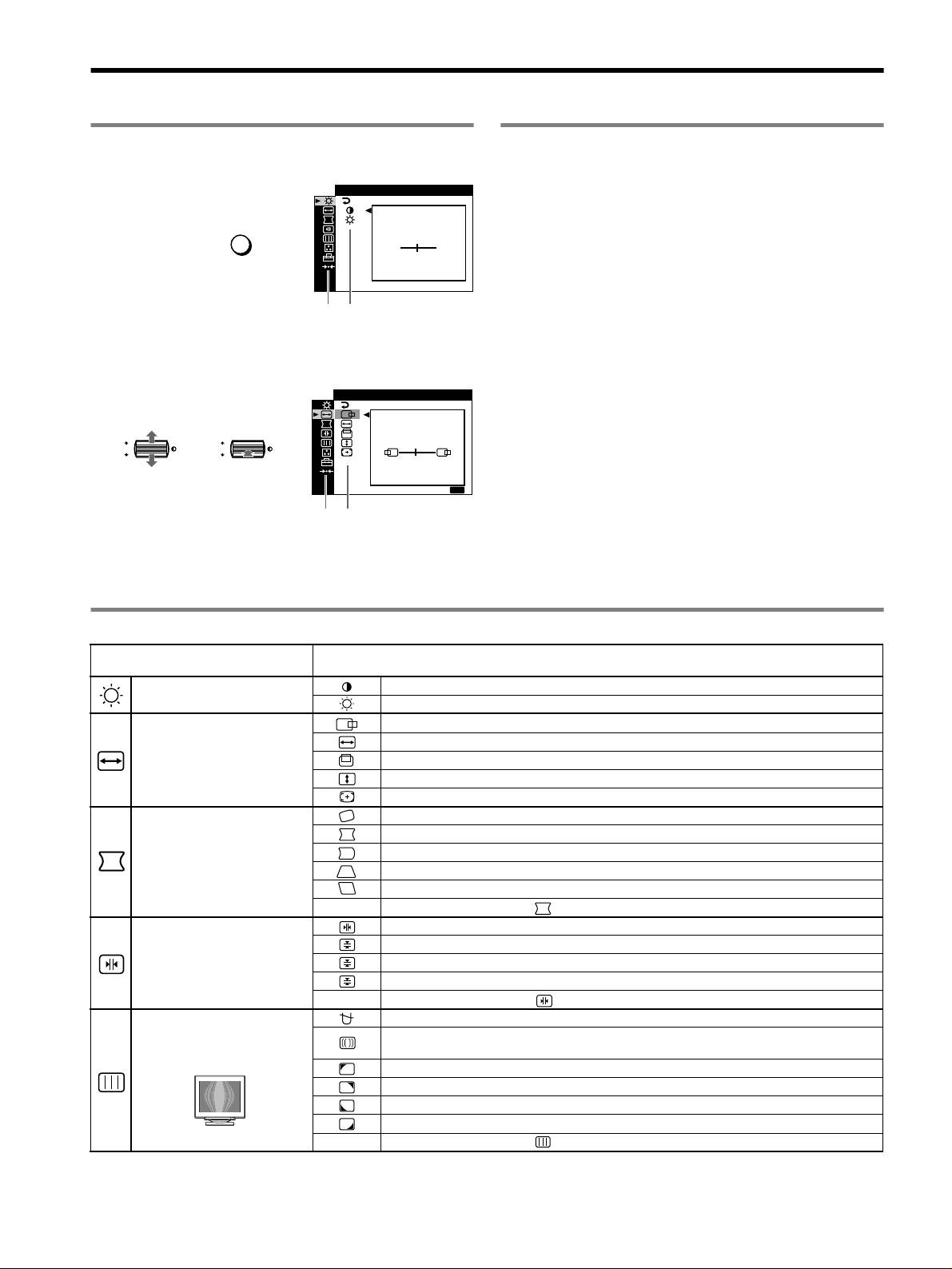
Inställningar
Använda menyn
Justera kvaliteten på bilden
(PICTURE EFFECT)
1 Tryck på MENU-knappen för att visa huvudmenyn.
KONTRAST
/LJUS
Du kan välja det bästa läget bland tre förinställda lägen genom att
trycka upprepade gånger på PICTURE EFFECT-knappen.
KONTRAST
x PROFESSIONELL
MENU
,
För exakta och jämna färger. Välj detta läge för professionell desktop
50
publishing och grafikprogram.
1024x768 / 85Hz
x STANDARD
Huvudmeny
Undermeny
För bilder med hög kontrast och ljusstyrka. Välj det här läget om du
använder standardprogram av typen kalkylprogram, ordbehandling och
2 Rör på kontrollknappen m/M för att markera den
e-post eller när du surfar på Internet.
huvudmeny du vill justera och tryck sedan på
kontrollknappen.
x DYNAMISK
STORLEK CENTER
/
För extremt skarpa och fotorealistiska bilder. Ljusare än läget
STANDARD. Välj det här läget om du ofta använder
underhållningsprogram av typen spel och uppspelning av DVD-skivor.
OK
,,
OK
45
SLUTA
:
MENU
Huvudmeny
Undermeny
3 Markera den undermeny, vars inställningar du vill justera
och tryck sedan på kontrollknappen.
4 Gör inställningarna med hjälp av kontrollknappen.
Inställningar på skärmmenyn
Ikoner på huvudmeny och
Ikoner på undermeny och justeringsalternativ
justeringsalternativ
Justering av kontrast och
Ställa in kontrasten
ljusstyrka
*
1
Ställa in ljusstyrkan
Horisontell position
Ställa in horisontell storlek
Justering av bildens storlek och
Vertikal position
centrering
*
1
Ställa in vertikal storlek
Få storlek och centrering automatiskt utförd
Rotera bilden
Expandera eller dra samman bildens sidor
*
1
Förskjuta bildens sidor åt vänster eller höger*
1
Justering av bildens form
Justera bildens bredd upptill*
1
Förskjuta bildens övre del åt vänster eller höger*
1
0 ÅTERSTÄLL: Återställer alla inställningar till fabriksinställningarna.
Förskjuta röda eller blå skuggor horisontellt
Förskjuta röda eller blå skuggor vertikalt
Justering av konvergensen
*
2
T
Förskjuta röda eller blå skuggor vertikalt upptill på skärmen
B
Förskjuta röda eller blå skuggor vertikalt nedtill på skärmen
0 ÅTERSTÄLL: Återställer alla inställningar till fabriksinställningarna.
Avmagnetisera skärmen (DEGAUSS).
Justering av bildkvaliteten
Justera graden av moaréupphävning tills moaréeffekten blivit så liten som möjligt (ELIMINERA
MOARE).
*
1
Exempel på moaré
Minska ojämnheter i färgen i skärmens övre vänstra hörn till ett minimum (HÖRNFÄRG).*
2
Minska ojämnheter i färgen i skärmens övre högra hörn till ett minimum (HÖRNFÄRG).*
2
Minska ojämnheter i färgen i skärmens nedre vänstra hörn till ett minimum (HÖRNFÄRG).*
2
Minska ojämnheter i färgen i skärmens nedre högra hörn till ett minimum (HÖRNFÄRG).*
2
0 ÅTERSTÄLL: Återställer alla inställningar till fabriksinställningarna.
4
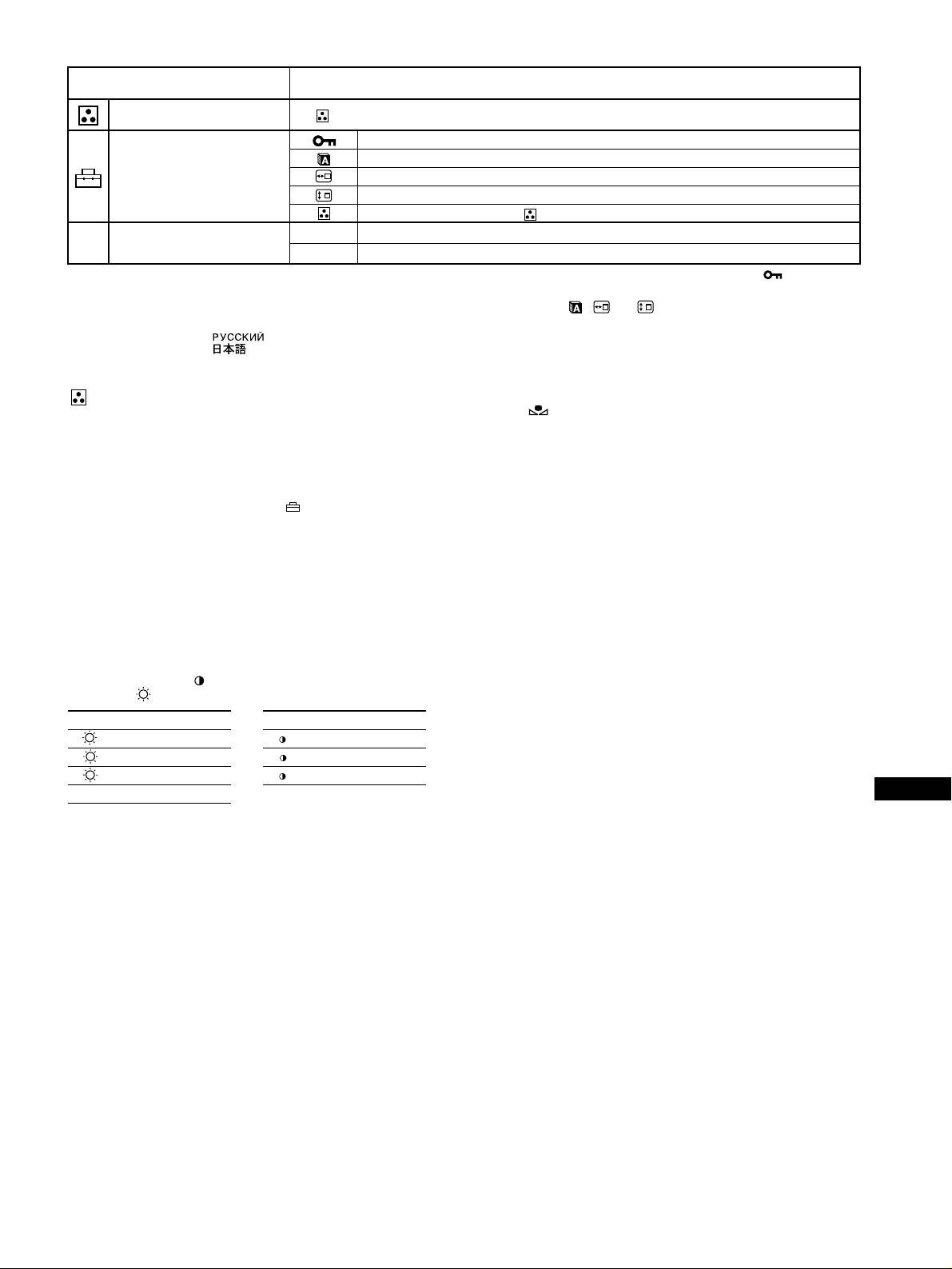
Ikoner på huvudmeny och
Ikoner på undermeny och justeringsalternativ
justeringsalternativ
Justering av bildens färger Se “ : Justera bildens färg”.
Skydda inställningarna (KONTROLL LÅS)
*
4
Välja språk för skärmmeny/bekräfta skärmens information (LANGUAGE/INFORMATION)*
3
Övriga inställningar
Ändra menyns horisontella placering
Ändra menyns vertikala placering
Välja läge för färgjustering. (Se “ : Justera bildens färg”.)
01
*
1
Återställa alla justeringar för den aktuella insignalen.*
5
Välj “OK”.
0 Återställning av inställningarna
02
*
2
Återställa alla justeringar för alla insignaler. Välj “OK”.
1
4
*
Den här inställningen gäller den aktuella insignalen.
*
Du kan bara använda ! (ström) omkopplaren, SLUTA, och (KONTROLL
2
*
Den här inställningen gäller alla insignaler.
LÅS).
3
*
Språkmeny
5
*
Menyalternativen , och återställs inte på det här sättet.
• ENGLISH: Engelska • NEDERLANDS: Holländska
• FRANÇAIS: Franska • SVENSKA
• DEUTSCH: Tyska • : Ryska
• ESPAÑOL: Spanska • : Japanska
• ITALIANO: Italienska
: Justera bildens färg
Återställa färgerna från ENKEL-, FÄRGRESET- och sRGB-
lägena ( FÄRGRESET)
Med FÄRG-inställningarna kan du justera bildens färgtemperatur
Du kan återställa färgerna till den kvalitet de hade vid leverans från fabrik. Innan
genom att ändra färgnivån på det vita färgfältet. Vid låg färgtemperatur
du använder den här funktionen måste bildskärmen ha varit påslagen i normalt
verkar färgerna rödare och vid hög färgtemperatur framstår de som
driftsläge (strömindikatorn lyser grönt) under minst 30 minuter. Eventuellt
blåare. Den här inställningen kan du använda om du vill anpassa
kanske du måste ändra datorns inställningar för energisparläget för att
färgerna på bildskärmen till färgerna på utskrifterna.
bildskärmen ska förbli i normalt läge under 30 minuter. Om bildskärmen inte
Välj något av de 4 inställningslägena för färgtemperatur: ENKEL,
varit i rätt driftsläge under minst 30 minuter, visas meddelandet “TILLGÅNG
FÄRGRESET, EXPERT och sRGB på menyn (OPTION).
EFTER UPPVÄRMN”. Med tiden kan den här funktionen gradvis bli mindre
effektiv. Det beror på Trinitron-bildrörets naturliga åldrande.
x ENKEL (Standardinställning)
Du kan ställa in färgtemperaturen från 5000 K till 11000 K.
x FÄRGRESET
Du kan välja mellan tre förinställda färgtemperaturer, 5000 K, 6500 K
och 9300 K. Standardinställning är 9300 K.
x EXPERT
Du kan göra ytterligare finjusteringar av färgerna genom att välja det
här läget. Med GAIN ( ) justerar du de ljusa partierna av skärmen,
med BIAS ( ) justerar du de mörka partierna.
Välj förVälj för
RR (röd) BIAS R R (röd) GAIN
GG (grön) BIAS G G (grön) GAIN
BB (blå) BIAS B B (blå) GAIN
0 ÅTERSTÄLL
SE
x sRGB
Färginställningen sRGB är en industristandard för färgrymdsprotokoll
som har utvecklats för att kalibrera bildskärmens färger mot färgerna på
utskrifterna. För att sRGB-färgerna ska visas korrekt (γ = 2,2, 6500 K)
väljer du sRGB-läget och ställer PICTURE EFFECT-läget på
PROFESSIONELL (sidan 4) och datorn på sRGB-profilen. Om du
väljer sRGB kan du inte göra några justeringar på menyn KONTRAST/
LJUS.
5

x Anslutna USB-enheter fungerar inte
• Kontrollera att USB-anslutningarna sitter som de ska.
Felsökning
• Stäng av bildskärmen (OFF) och slå sedan på den igen (ON). Därefter
x Ingen bild
ansluter du USB-kabeln igen.
• Om du ansluter ett tangentbord eller en mus till USB-kontakterna och
Om ! (ström)-indikatorn inte lyser
sedan startar om datorn för första gången kan det hända att
• Kontrollera att nätkabeln är ordentligt ansluten.
periferienheterna inte fungerar. I så fall kopplar du tangentbord och mus
• Kontrollera att ! (ström)-omkopplaren är i påslaget läge (“on”).
direkt till datorn och installerar USB-enheterna. Därefter kan du ansluta
! (ström) indikatorn lyser orange
dem till bildskärmen.
• Kontrollera att videokabeln är ordentligt ansluten och att alla kontakter
• Installera den senaste versionen av drivrutinen på datorn. Kontakta
är ordentligt anslutna och sitter stadigt förankrade på sina platser.
återförsäljaren av enheten, så får du veta vilken drivrutin du behöver.
• Kontrollera att INPUT-omkopplaren är rätt inställd.
x Ett brum hörs just efter det att du slagit på strömmen
• Kontrollera att stiften på HD15-kontakten inte är böjda eller har tryckts
in i kontakten.
• Det är ljudet från den automatiska avmagnetiseringen. När du slår på
• Kontrollera att strömmen till datorn är påslagen (“on”).
strömmen avmagnetiseras bildskärmen automatiskt under några
• Datorn är i energisparläge. Pröva att trycka på någon tangent på
sekunder. (Funktionen kallas på engelska “degauss”.)
tangentbordet eller att röra på musen.
* Om du behöver avmagnetisera skärmen ytterligare en gång bör du, för att få
bästa resultat, vänta minst 20 minuter. Ett surrande ljud kan höras, men det är
• Kontrollera att grafikkortet i datorn sitter som det ska i sin kortplats.
normalt och innebär inte att något är fel.
Om indikatorn ! (ström) lyser grön eller blinkar orange
• Använda självdiagnosfunktionen.
x Bilden fladdrar, hoppar, oscillerar eller är förvrängd
Skärmmeddelanden
• Isolera och avlägsna möjliga källor till elektromagnestiska fält, t.ex.
andra bildskärmar, laserskrivare, elektriska fläktar eller TV-apparater.
IIONNFORMAT
• Flytta bildskärmen bort från strömkablar eller placera en magnetisk
SKÄRMEN FUNGERAR
I NS I GNAL
2 : I NGEN S I GNAL
avskärmning nära den.
AKT I VERA V I A DATORN
W
• Försök ansluta bildskärmen till ett annat vägguttag, helst ett som ligger
KONTROLLERA S I GNALKABEL
R
KONTROLLERA
G
på en annan gruppsäkring.
I NGÅNGSVÄLJARE
B
• Pröva att vrida bildskärmen 90° åt vänster eller höger.
• Information om rätt inställning för bildskärmen finns i bruksanvisningen
1 Om “INGEN SIGNAL” visas:
till grafikkortet.
• Kontrollera att bildskärmen kan hantera grafikläget och insignalens
Meddelandet innebär att ingen signal matas in via den aktuella
frekvens (se “Grafiklägen och frekvenser (Preset mode timing table)” på
anslutningen.
sidan i). Även om frekvensen ligger inom korrekt intervall, kan vissa
2 Visar den aktuella anslutningen.
grafikkort ha en synkpuls som är för kort för att bildskärmen ska synka
3 Visar åtgärderna.
korrekt.
• Om AKTIVERA VIA DATORN visas på skärmen kan du pröva att
• Justera datorns uppdateringsfrekvens (vertikal frekvens) för att få bästa
trycka på någon av tangenterna på tangentbordet eller röra på musen,
möjliga bild.
och sedan kontrollera att datorns grafikkort sitter ordentligt i rätt
x Bilden är otydlig
kortplats.
• Ställ in kontrast, ljusstyrka och PICTURE EFFECT.
• Om KONTROLLERA SIGNALKABEL visas på skärmen
• Avmagnetisera bildskärmen.*
kontrollerar du att bildskärmen är korrekt ansluten till datorn.
• Ställ in moareupphävningen så att den blir så liten som möjligt eller ställ
• Om KONTROLLERA INGÅNGSVÄLJARE visas på skärmen kan
ELIMINERA MOARE på AV.
du pröva att växla insignal.
x Bilden har skuggor
• Undvik att använda förlängningskablar och/eller omkopplingsdon till
IIONNFORMAT
videokabeln.
SKÄRMEN FUNGERAR
I NS I GNAL
1: .200 0 /kHz 85Hz
• Kontrollera att alla kontakter är ordentligt anslutna och sitter stadigt.
UTANFÖR FREKVENSOMFÅNG
W
R
x Bilden har fel storlek eller är inte centrerad
ÄNDRA B I LDFREKVENSEN
G
B
• Aktivera funktionen för automatisk storlek och centrering.
• Justera storleken eller centreringen. Vissa insignaler och/eller grafikkort
använder inte bildskärmens yta fullt ut.
1 Om “UTANFÖR FREKVENSOMFÅNG” visas:
• Direkt efter det att du har slagit på strömbrytaren kan det hända att det tar
Detta meddelande visar att insignalen inte kan hanteras av bildskärmen.
ett tag innan storleken/centreringen har rättat till sig.
2 Visar insignalens frekvens.
x Bildens kanter är inte raka
3 Visar åtgärderna.
• Justera geometrin.
ÄNDRA BILDFREKVENSEN visas på skärmen. Om du har bytt ut en
x Vågformiga eller elliptiska mönster (moaré) syns
gammal bildskärm mot den här skärmen, ansluter du den gamla
skärmen igen och ställer sedan in grafikkortet så att den horisontella
• Ställ in moareupphävningen så att moareeffekten blir så liten som
möjligt.
frekvensen ligger mellan 30 och 137 kHz (GDM-F520), 30 – 115 kHz
•Ändra mönster på skrivbordet.
(GDM-F420) och den vertikala mellan 48 och 170 Hz.
x Färgen är ojämn
• Avmagnetisera bildskärmen.* Om du placerar utrustning som skapar
magnetfält, t.ex. högtalare i närheten av bildskärmen eller om du ändrar
riktning på bildskärmen (vrider på den), kan det hända att färgerna blir
ojämna.
• Justera hörnfärgen.
x Vitt ser inte ut som vitt
• Justera färgtemperaturen.
• Kontrollera att de fem BNC-kontakterna är anslutna i rätt ordning.
x Knapparna på bildskärmen fungerar inte ( visas på
skärmen)
• Om kontrollåset står i läge PÅ ställer du det i läge AV.
x Bokstäver och linjer är omgivna av röda och blå skuggor
• Justera konvergensen.
6
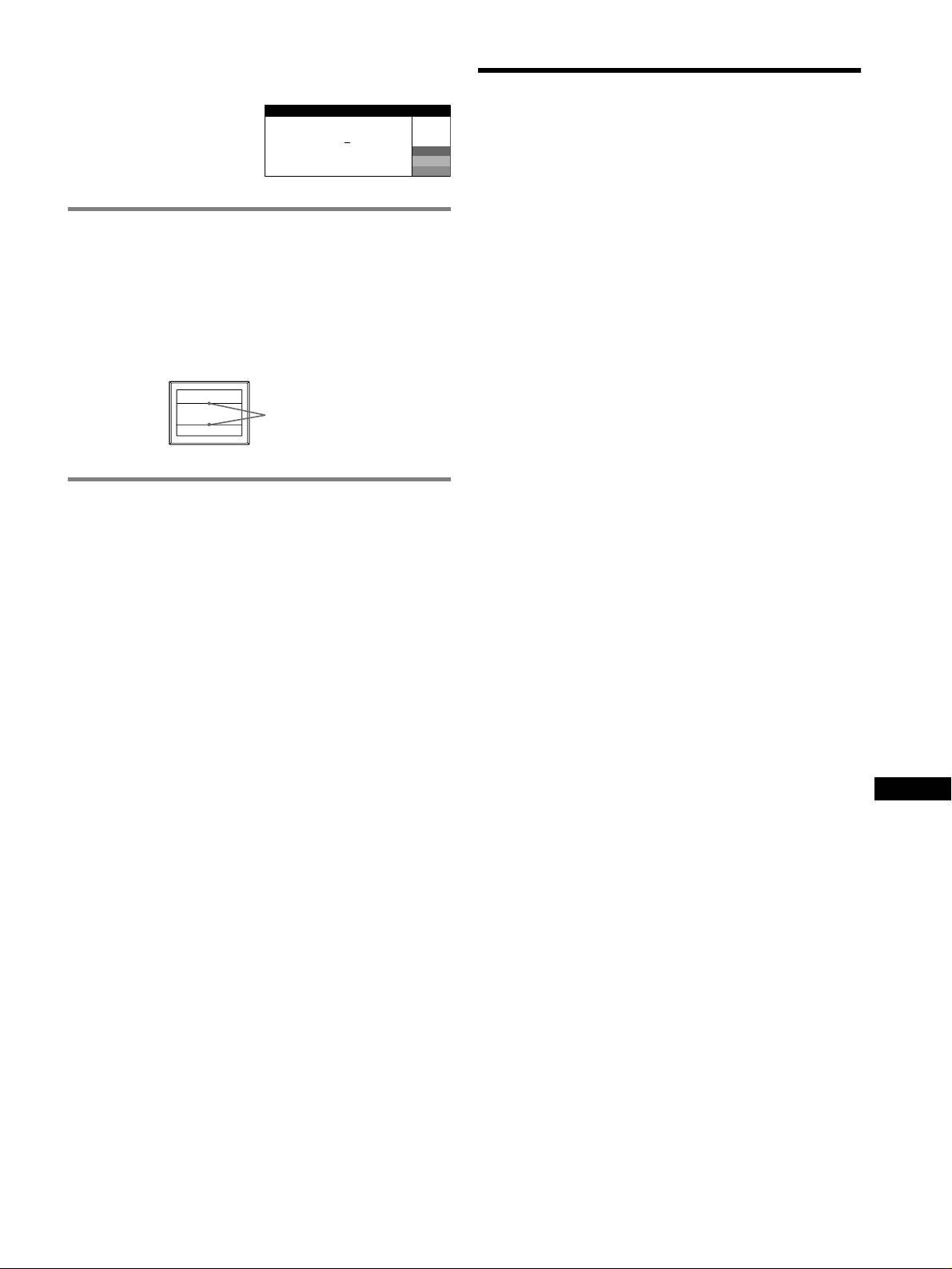
Visa bildskärmens namn, serienummer och
tillverkningsdatum.
Specifikationer
Medan bildskärmen tar emot en
I NFORMAT I ON
videosignal trycker du på
CRT
MENU-knappen och håller den
MODEL
:
GDM F520
W
0,22 mm skuggmask, 90 graders avböjning, FD Trinitron
intryckt i mer än 5 sekunder. Då
SER NO
:
1234567
R
MANUFACTURED
: 2000-52
G
GDM-F520 21 tum uppmätt diagonalt
visas bildskärmens
B
GDM-F420 19 tum uppmätt diagonalt
informationsruta.
Verklig bildstorlek
GDM-F520 Ca. 403,8
× 302,2 mm (b/h)
19,8 tum visningsyta
Om tunna linjer syns på skärmen
GDM-F420 Ca. 365
× 274 mm (b/h)
(dämpartrådar)
18 tum visningsyta
Upplösning (H:Horisontellt, V:Vertikalt)
Linjerna du ser på skärmen är en del av konstruktionen i
GDM-F520 Max.: H: 2048 punkter, V: 1536 linjer
Trinitrons bildrör; som används i den här bildskärmen, och innebär
Rekommenderad: H: 1600 punkter, V: 1200 linjer
inte att något är fel. Det du ser är skuggorna av dämpartrådarna som
GDM-F420 Max.: H: 1920 punkter, V: 1440 linjer
håller skuggmasken på plats. De syns mest när bakgrunden är ljus
Rekommenderad: H: 1280 punkter, V: 1024 linjer
(normalt vit). Skuggmasken är det viktiga element som gör Trinitron
Insignalnivåer
bildrör unika genom att släppa igenom mer ljus till bildskärmen, vilket
Videosignal: Analog RGB: 0,700 Vp-p (positiv), 75
Ω
i sin tur ger klarare och detaljrikare bilder.
SYNC-signal: Separata horisontella och vertikala
synksignaler eller sammansatt synksignal:
TTL 2 k
Ω, fri polaritet
Synkning på grön: 0,3 Vp-p (negativ)
Dämpartrådar
Standardbildstorlek
GDM-F520 Ca. 388
× 291 mm (4:3) eller
Ca. 364
× 291 mm (5:4)
GDM-F420 Ca. 352
× 264 mm (4:3) eller
Ca. 330
× 264 mm (5:4)
Avböjningsfrekvens (H:Horisontellt, V:Vertikalt)
Sjävldiagnosfunktion
GDM-F520 H: 30 till 137 kHz, V: 48 till 170 Hz
GDM-F420 H: 30 till 115 kHz, V: 48 till 170 Hz
Den här bildskärmen är utrustad med en självdiagnosfunktion. Om du
Strömspänning/styrka
får något problem med bildskärmen eller datorn/datorerna slocknar
100 till 240 V, 50 – 60 Hz, 2,0 – 1,0 A
skärmen och ! (ström)-indikatorn lyser antingen grönt eller blinkar
Strömförbrukning (när inga USB-enheter är anslutna)
orange. Om ! (ström)-indikatorn lyser orange betyder det att datorn är
GDM-F520 Ca. 145 W
i energisparläge. Prova att trycka på någon av tangenterna på
GDM-F420 Ca. 135 W
tangentbordet eller att röra på musen.
Driftstemperatur 10°C till 40°C
Mått
x Om ! (ström)-indikatorn lyser grönt
GDM-F520 Ca. 497
× 499 × 487 mm (b/h/d)
GDM-F420 Ca. 446
× 472 × 463 mm (b/h/d)
1 Koppla ur alla kontakter från videoingångarna 1 och 2
Vikt
eller stäng av strömmen till den eller de anslutna
GDM-F520 Ca. 30 kg
datorerna.
GDM-F420 Ca. 26 kg
Plug and Play DDC2B/DDC2Bi
2 Slå av (OFF) bildskärmen och slå sedan på (ON) den igen.
Medföljande tillbehör
Nätkabel
3 För kontrollknappen uppåt och håll den där några
HD15-videokabel
sekunder innan bildskärmen går in i energisparläget.
USB-kabel
Specialadapter för Power Mac G3/G4
Om alla fyra färgstaplarna (vit, röd, grön, blå) visas, betyder det att
Denna bruksanvisning
bildskärmen fungerar som den ska. Återanslut alla videokablar och
SE
kontrollera sedan anslutningen till datorn/datorerna.
Om färgstaplarna inte visas är det risk för att något är fel med
bildskärmen. Kontakta din Sony-återförsäljare och berätta vad som
hänt med bildskärmen.
x Om ! (ström)-indikatorn blinkar orange
Slå av (OFF) bildskärmen och slå sedan på (ON) den igen.
Om ! (ström)-indikatorn lyser grönt fungerar bildskärmen som den
ska.
Om ! (ström)-indikatorn fortfarande blinkar kan det vara något fel på
bildskärmen. Räkna antalet sekunder mellan de orange blinkningarna
hos ! (ström)-indikatorn och informera din Sony-återförsäljare om
förhållandet. Tänk på att skriva ned modellnamnet och bildskärmens
serienummer och ha dessa uppgifter till hands. Ytterligare uppgifter
som kan behövas är märke och modell på dator och grafikkort.
(forts.)
7
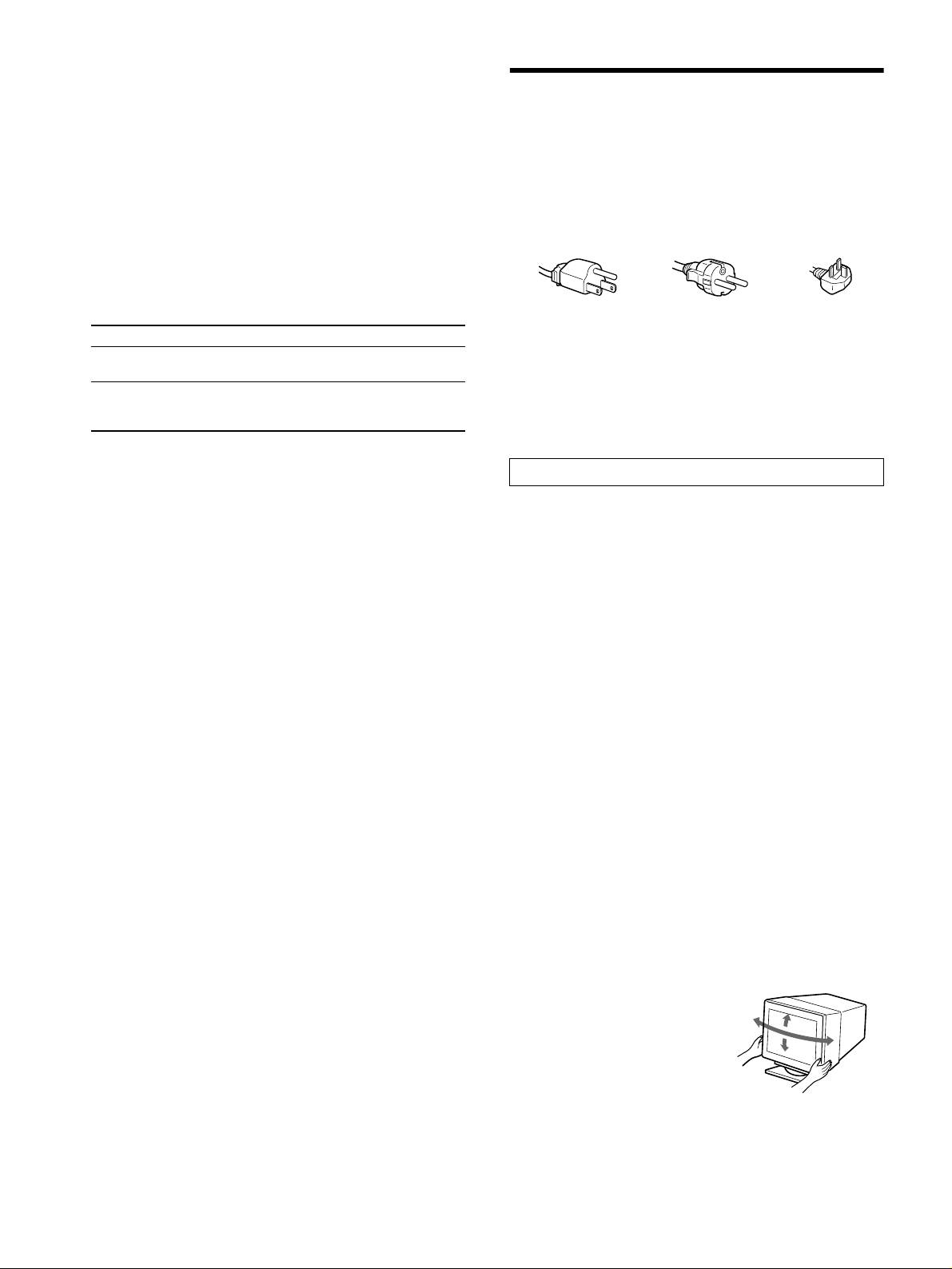
Förinställda och användardefinierade lägen
När bildskärmen registrerar en insignal, sker en automatisk anpassning av
signalen till något av de förinställda lägen som finns lagrade i bildskärmens
Försiktighetsåtgärder
minne. Detta gör att skärmen kan visa en bild av hög kvalitet under många olika
förhållanden (se “Grafiklägen och frekvenser (Preset mode timing table)” på
Varning rörande strömanslutningar
sidan i). Om insignalen inte överensstämmer med något av de fabriksinställda
lägena väljs automatiskt det läge som bäst stämmer överens med den aktuella
• Använd den medföljande nätkabeln. Om du använder en annan
insignalen inom gränserna för de vertikala och horisontella frekvenser som
nätkabel måste du kontrollera att den är godkänd för det lokala
bildskärmen kan hantera (sidan 7) i överensstämmelse med GTF (Generalized
elnätet.
Timing Formula). När bilden är inställd lagras inställningarna som ett
För kunder i Storbritannien
användarläge och kan automatiskt återställas när samma insignal på nytt tas
Om du använder bildskärmen i Storbritannien använder du den
emot.
kabel som är avsedd för användning i Storbritannien.
Energisparfunktion
Exempel på kontakttyper
Den här bildskärmen uppfyller kraven för energibesparing enligt de normer
som ställts upp av VESA, TCO’99 och
ENERGY STAR. Om ingen signal
matas in till bildskärmen från datorn minskas bildskärmens energiförbrukning
automatiskt på följande vis.
för 100 till 120 V AC för 200 till 240 V AC endast för 240 V AC
1
• Innan du drar ur nätkabeln bör du vänta minst 30 sekunder efter det
Energiläge Strömförbrukning*
! (ström) indikator
att du har stängt av bildskärmen. Då ger du den statiska
normal användning
≤ 145 W (GDM-F520)
grön
elektriciteten på bildskärmens yta tillfälle att laddas ur.
≤ 135 W (GDM-F420)
• Det första som händer när du slår på bildskärmen är att den
2
avmagnetiseras. Det tar några få sekunder. Det här är en process
ej aktiv*
≤ 3 W orange
som skapar starka magnetfält runt skärmen, fält som kan påverka
(energisparläge,
3
den information som finns lagrad på magnetband och disketter i
“deep sleep”)*
närheten av bildskärmen. Se därför till att du inte förvarar medier
med magnetisk lagrad information i närheten av bildskärmen.
1
*
Siffrorna visar strömförbrukningen när inga USB-kompatibla enheter är
anslutna till bildskärmen.
Utrustningen bör anslutas till ett lättåtkomligt vägguttag.
2
*
När datorn växlar över till energisparläge visas INGEN SIGNAL på
bildskärmen. Efter ytterligare några sekunder växlar skärmen över till
Installation
energisparläge.
3
Placera inte bildskärmen på följande platser:
*
Energisparläget “deep sleep” är definierat av Environmental Protection
• på ytor (t.ex. mattor och filtar) eller nära material (t.ex. gardiner
Agency.
och draperier) som kan täppa för ventilationshålen
• nära värmekällor, som element och varmluftkanaler, eller på
Utformning och specifikationer kan ändras utan föregående meddelande.
platser som är utsatt för direkt solljus
• på platser där temperaturen kan variera kraftigt
• på platser där den kan utsättas för vibrationer eller stötar
• på ytor som inte är stabila
• nära utrustning som genererar magnetfält, t ex transformatorer och
högspänningsledningar
• i närheten av eller på elektriskt laddade metallytor
• i tillslutna utrymmen
Underhåll
• Rengör bildskärmen med en mjuk duk. Om du använder en
rengöringsvätska för glas, måste du kontrollera att den inte
innehåller antistatmedel eller andra tillsatser som kan repa
bildskärmens ytbehandling.
• Vidrör eller knacka aldrig på skärmen med vassa föremål och
använd aldrig heller någon form av slipmedel för rengöring. De
repor du riskerar på bildröret går inte att få bort.
• Rengör höljet, panelen och kontrollerna med en mjuk duk fuktad
med ett milt rengöringsmedel. Använd aldrig slipande svampar,
skurpulver eller lösningsmedel som alkohol eller bensen.
Transport
Transportera alltid bildskärmen i originalkartongen och använd de
insatser som den levererades förpackad med.
Bildskärmsstöd
Ta inte bort bildskärmsstödet.
Använda det svängbara stödet
Bildskärmen kan justeras inom de
vinklar som anges till höger. Håll i
90°
bildskärmens undersida med båda
15°
90°
händerna då du vrider den
5°
horisontellt eller vertikalt.
8
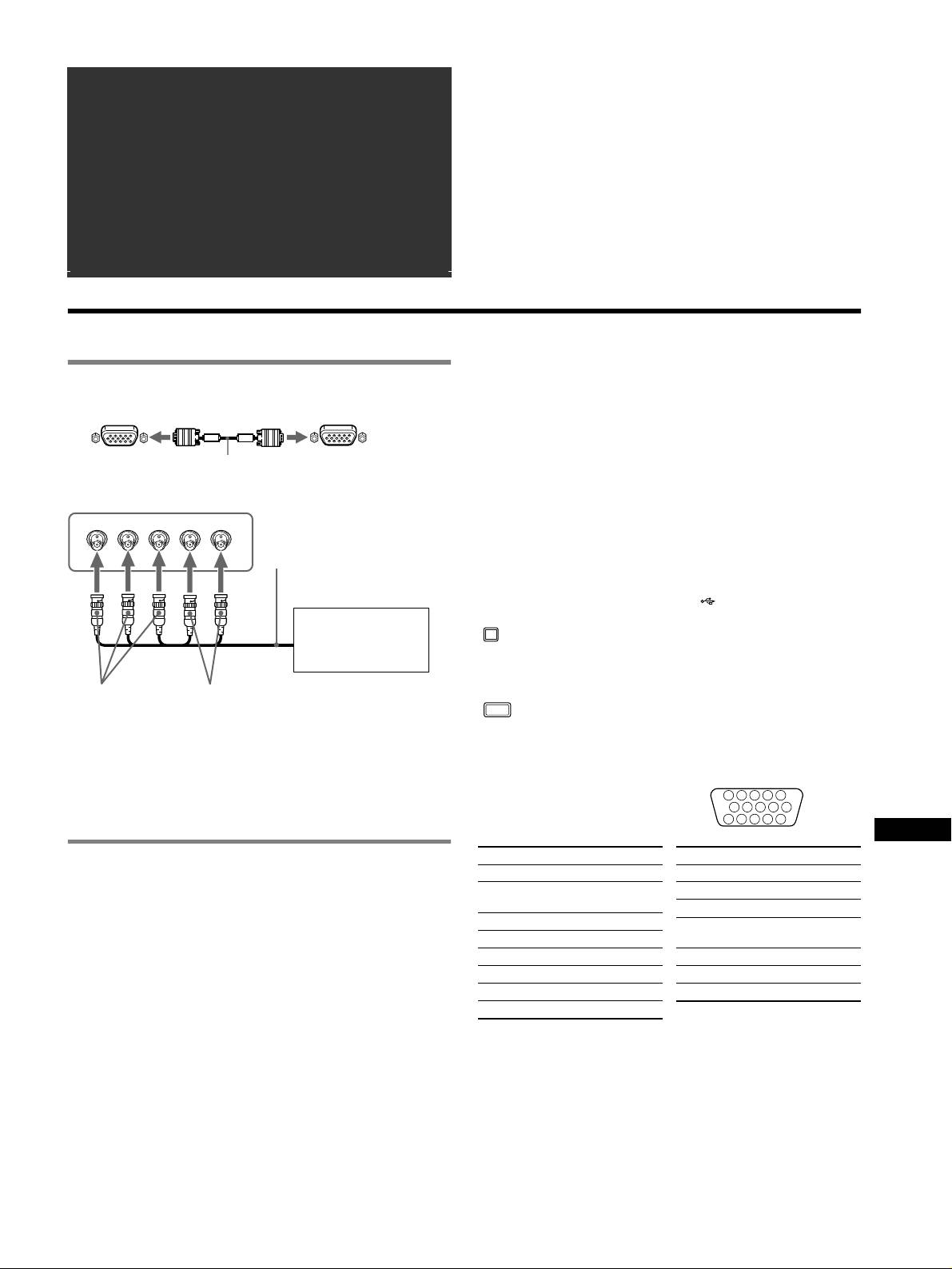
â
• Trinitron
is een geregistreerd handelsmerk van Sony Corporation.
Inhoudsopgave
• Macintosh is een handelsmerk in licentie gegeven aan Apple Computer, Inc.,
Opstelling. . . . . . . . . . . . . . . . . . . . . . . . . . . . . . . . . . 3
geregistreerd in de U.S.A. en andere landen.
â
•Windows
en MS-DOS zijn geregisteerde handelsmerken van Microsoft
Regelingen . . . . . . . . . . . . . . . . . . . . . . . . . . . . . . . . . 4
Corporation in de Verenigde Staten en andere landen.
Verhelpen van storingen. . . . . . . . . . . . . . . . . . . . . . 6
• IBM PC/AT en VGA zijn geregistreerde handelsmerken van IBM
Corporation of the U.S.A.
Technische gegevens . . . . . . . . . . . . . . . . . . . . . . . . 7
ä
•VESA en DDC
zijn handelsmerken van de Video Electronics Standard
Voorzorgsmaatregelen . . . . . . . . . . . . . . . . . . . . . . . 8
Association.
•
ENERGY STAR is een in de V.S. geregistreerd merk.
Appendix . . . . . . . . . . . . . . . . . . . . . . . . . . . . . . . . . . . i
• Alle andere vermelde productnamen kunnen handelsmerken of geregistreerde
Preset mode timing table . . . . . . . . . . . . . . . . . . . . . . . i
handelsmerken zijn van hun respectieve bedrijven.
• Bovendien zijn “
ä” en “â” niet telkens vermeld in deze handleiding.
TCO’99 Eco-document. . . . . . . . . . . . . . . . . . Achterflap
Opstelling
Ingangssignaal kiezen.
1 De monitor aansluiten op uw computer
Op deze monitor kunnen twee computers worden aangesloten via
HD15 en BNC. Met de INPUT schakelaar kan tussen beide computers
x Aansluiten op de HD15 ingang
worden omgeschakeld. De gekozen aansluiting verschijnt gedurende 3
seconden op het scherm.
Opmerking
naar HD15
videokabel
naar HD15 van de
Indien de geselecteerde ingang geen signaal krijgt, verschijnt de melding GEEN
(meegeleverd)
aangesloten computer
SIGNAAL op het scherm. Na een aantal seconden schakelt de monitor in de
schakelt de monitor in de stroomspaarstand. Als dit gebeurt, moet u omschakelen
x Aansluiten op de 5 BNC connectoren
naar de andere aansluiting.
RGBHDVD
videokabel
USB (Universal Serial Bus) compatibele
(niet meegeleverd)
randapparatuur aansluiten
Controleer of de monitor en de computer aan staan en verbind dan
de computer met de USB aansluitingen ( ) rechts op de computer.
Sluit uw computer aan op de vierkante voorliggende aansluiting
Baseer u op de vorige
( ) met behulp van de meegeleverde USB kabel.
voorbeelden om uw
Indien een Windows-bericht verschijnt, volg dan de instructies op het
computer aan te sluiten.
scherm en kies “Generic USB Hub”.
Sluit USB compatibele randapparatuur (b.v. printer, toetsenbord, muis,
naar VIDEO IN R/G/B
naar SYNC IN HD/VD
scanner, enz.) aan op de rechthoekige achterliggende USB connector
(
).
Aansluiting op een Macintosh of compatibele
Opmerking
computer
De monitor werkt als USB hub zolang de monitor “aan” of in de
Gebruik eventueel de meegeleverde adapter wanneer u deze monitor
stroomspaarstand staat.
aansluit op een Power Mac G3/G4 computer. Sluit de meegeleverde
HD15 ingangen
adapter aan op de computer alvorens de kabel aan te sluiten. Voor
5 4 3 2
1
aansluiting op een andere versie van de Macintosh computer met 2
678910
pinrijen hebt u een andere adapter nodig (niet meegeleverd).
1112131415
NL
Pin Nr. Signaal
Pin Nr. Signaal
2 De monitor en de computer aanzetten
1 Rood
9 DDC + 5V*
1 Sluit het netsnoer aan op de monitor en druk op de
2Groen
10 Massa
! (aan/uit) schakelaar om de monitor aan te schakelen.
(Sync op Groen)
11 ID (Massa)
3Blauw
2 Zet de computer aan.
12 Bi-directionele data
4ID (Massa)
(SDA)*
Er zijn geen specifieke drivers nodig
5 DDC Massa*
13 H. Sync
Deze monitor beantwoordt aan de “DDC” Plug & Play norm en detecteert
automatisch alle monitorinformatie. Op de computer hoeft geen specifieke driver
6 Rood Massa
14 V. Sync
te worden geïnstalleerd.
7 Groen Massa
15 Dataklok (SCL)*
Wanneer u de PC voor het eerst aanzet nadat de monitor werd aangesloten, kan
8 Blauw Massa
de installatie-wizard op het scherm verschijnen. Volg dan de instructies op het
scherm. De Plug & Play monitor wordt automatisch gekozen zodat u deze
* DDC (Display Data Channel) is een VESA standaard.
monitor kunt gebruiken.
Opmerkingen
• Plug & Play werkt alleen met de HD15 connector en niet met de 5 BNC
connectoren.
• Raak de pinnen van de videokabelstekker niet aan.
• Controleer de uitlijning van de HD15 connector om te voorkomen dat de
pinnen van de videokabelstekker verbogen worden.
3
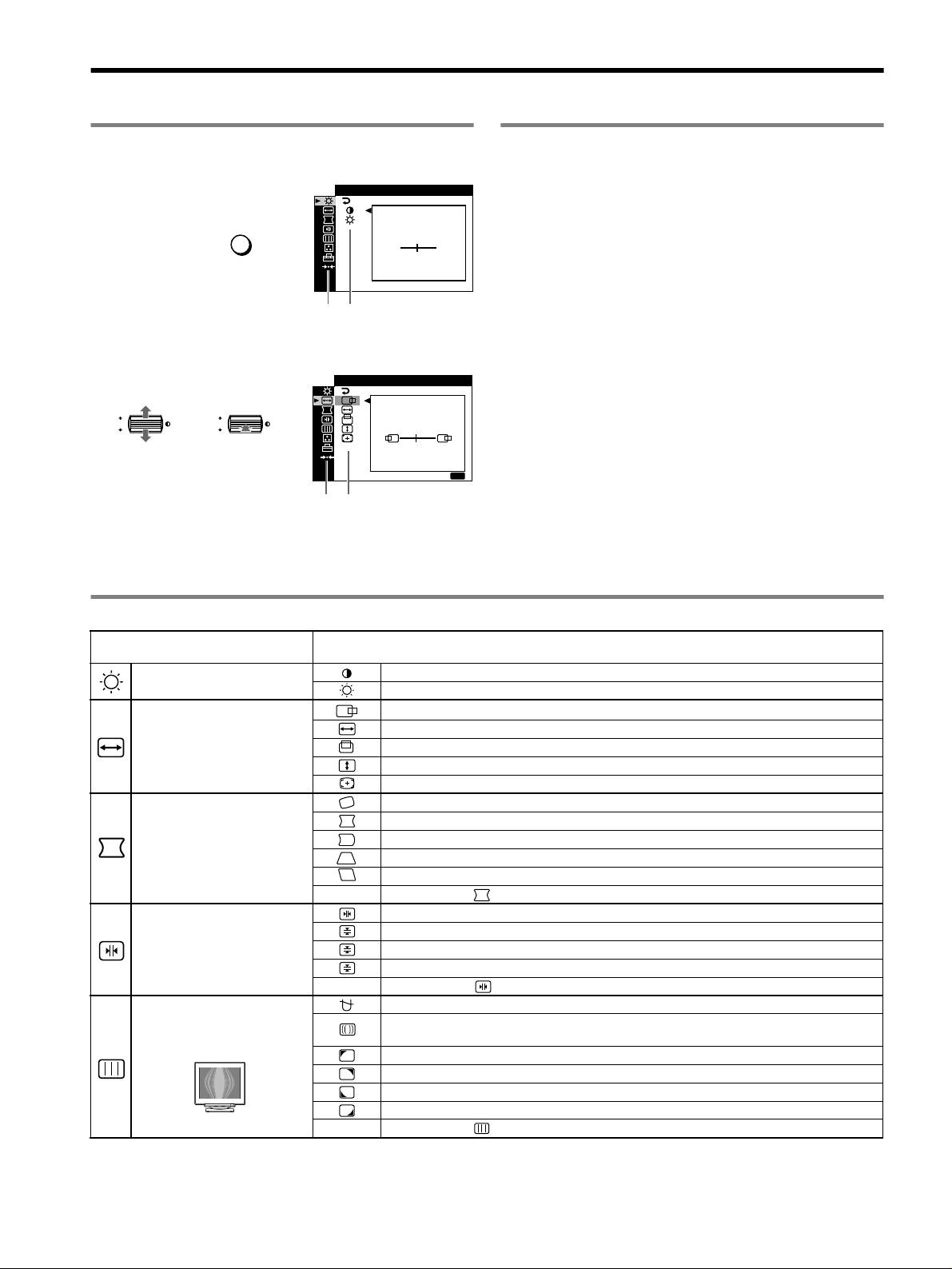
Regelingen
Het menu gebruiken
De beeldkwaliteit regelen
(PICTURE EFFECT)
1 Druk op de MENU toets om het hoofdmenu te tonen.
U kunt de meest geschikte beeldstand kiezen uit 3 voorinstellingen
CONTRAST
/ HELDER
door herhaaldelijk op de PICTURE EFFECT toets te drukken.
CONTRAST
x PROFESSIONEEL
MENU
,
Voor precieze en stabiele kleurenweergave. Kies deze stand voor
50
professionele DTP en grafische toepassingen.
1024x768 / 85Hz
x STANDAARD
Hoofdmenu
Voor beelden met veel contrast en grote helderheid. Kies deze mode
Submenu
voor veel gebruikte toepassingen zoals rekenbladen, tekstverwerking,
2 Beweeg de joystick m/M om het hoofdmenu te laten
e-mail of internettoepassingen.
oplichten dat u wilt instellen en druk op de joystick.
x DYNAMISCH
AFMET I NG CENTR
/
Voor zeer levendige en realistische weergave. In deze stand is het beeld
helderder dan in de “STANDAARD” mode. Kies dit voor
ontspanningssoftware zoals spelletjes of DVD-weergave.
OK
,,
OK
45
U I T
:
MENU
Hoofdmenu
Submenu
3 Kies het submenu dat u wilt instellen en druk op de
joystick.
4 Regel met de joystick.
On-screen Menu-instellingen
Hoofdmenu-pictogrammen en
Submenu-pictogrammen en regelpunten
regelpunten
Contrast
Contrast en helderheid regelen
*
1
Helderheid
Horizontale positie
Horizontale grootte
Beeldformaat en -centrering
regelen
*
1
Verticale positie
Verticale grootte
Automatische beeldformattering en - centrering
Beeld roteren
De zijkanten van het beeld doen uitzetten of inkrimpen
*
1
De zijden van het beeld naar links of rechts verschuiven*
1
De beeldvorm regelen
De breedte van het beeld aan de bovenkant van het scherm aanpassen*
1
Het beeld naar links of rechts verschuiven aan de bovenkant van het scherm*
1
0 RESET: Stelt alle instellingen terug.
Rode of blauwe schaduwen horizontaal verschuiven
Rode of blauwe schaduwen verticaal verschuiven
Convergentie regelen
*
2
T
Rode of blauwe schaduwen bovenaan het scherm verticaal verschuiven
B
Rode of blauwe schaduwen onderaan het scherm verticaal verschuiven
0 RESET: Stelt alle instellingen terug.
DEMAGN: monitor demagnetiseren.
De beeldkwaliteit regelen
ONDERDRUK MOIRE: het moiré-onderdrukkingseffect zo regelen dat moiré tot een minimum
beperkt blijft.
*
1
Voorbeeld van Moiré
LANDING: kleuronregelmatigheden in de linker bovenhoek van het scherm minimaliseren.*
2
LANDING: kleuronregelmatigheden in de rechter bovenhoek van het scherm minimaliseren.*
2
LANDING: kleuronregelmatigheden in de linker benedenhoek van het scherm minimaliseren.*
2
LANDING: kleuronregelmatigheden in de rechter benedenhoek van het scherm minimaliseren.*
2
0 RESET: Stelt alle instellingen terug.
4
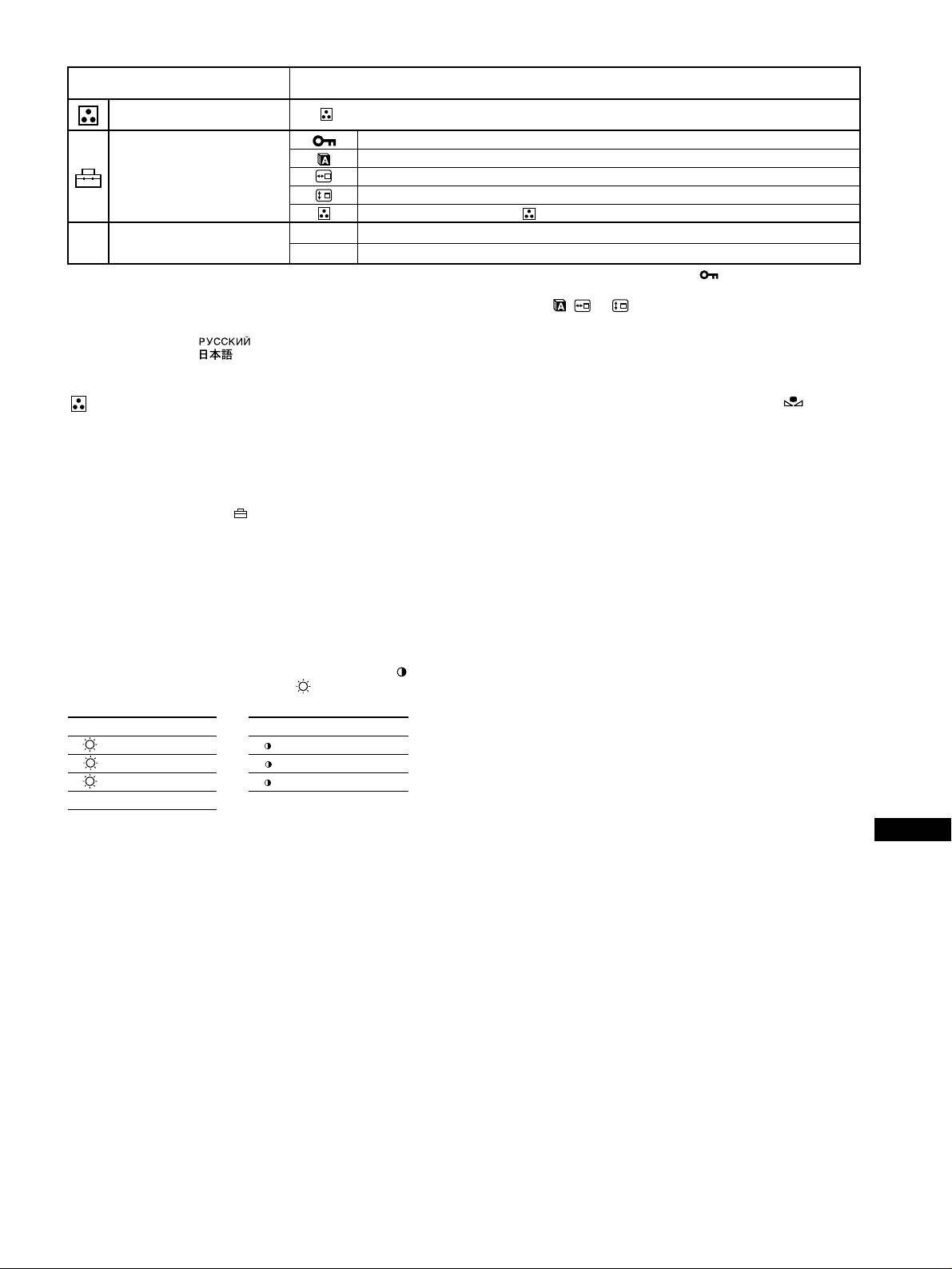
Hoofdmenu-pictogrammen en
Submenu-pictogrammen en regelpunten
regelpunten
De beeldkleur regelen Zie “ : Beeldkleur regelen”.
Instellingen beveiligen (TOETSEN SLOT)
*
4
Schermmenutaal kiezen/Monitorinformatie bevestigen LANGUAGE/INFORMATIE*
3
Extra instellingen
De menupositie wijzigen voor horizontale regeling
De menupositie wijzigen voor verticale regeling
De kleurregelstand kiezen. (Zie “ Beeldkleur regelen”.)
01
*
1
Alle instelgegevens voor het huidige ingangssignaal terugstellen.*
5
Kies “OK”.
0 Regelingen terugstellen
02
*
2
Alle instelgegevens voor alle ingangssignalen terugstellen. Kies “OK”.
1
4
*
Deze instelling geldt voor het huidige ingangssignaal.
*
Alleen de ! (aan/uit) schakelaar, UIT en het (TOETSEN SLOT) menu
2
*
Deze instelling geldt voor alle ingangssignalen.
werken.
3
*
Taalmenu
5
*
De menu items , en worden op deze manier niet teruggesteld.
• ENGLISH: Engels • NEDERLANDS
• FRANÇAIS: Frans • SVENSKA: Zweeds
• DEUTSCH: Duits • : Russisch
• ESPAÑOL: Spaans • : Japans
• ITALIANO: Italiaans
: Beeldkleur regelen
De kleur van BASIS, PRESET of sRGB herstellen ( KLEUR
HERSTEL)
Met de KLEUREN instellingen kunt u de beeldkleurtemperatuur
U kunt de oorspronkelijke kleuren herstellen. Alvorens deze functie te
regelen door het kleurniveau van het witte kleurveld te veranderen. De
gebruiken, moet de monitor minstens 30 minuten in de normale stand hebben
kleuren hebben een rode tint bij lage temperatuur en een blauwe tint bij
gewerkt (groen controlelampje). Eventueel dient de stroomspaarfunctie van uw
hoge temperatuur. Deze regeling is handig om de monitorkleuren af te
computer te worden geregeld. Wanneer de monitor gedurende minstens
stemmen op drukkleuren.
30 minuten is uitgeschakeld, verschijnt het bericht “BESCHIKBAAR NA
Kies één van de 4 kleurtemperatuurinstelmodes; BASIS, PRESET,
OPWARMEN”. Deze functie kan na verloop van tijd ook minder goed werken
GEAVANC en sRGB via het (OPTIES) menu.
door de natuurlijke veroudering van de Trinitron beeldbuis.
x BASIS (Standaard instelling)
U kunt de kleurtemperatuur regelen van 5000K tot 11000K.
x PRESET
U kunt kiezen uit vooringestelde kleurtemperaturen van 5000K, 6500K
of 9300K. De standaard instelling is 9300K.
x GEAVANC
In deze mode kunt u de kleuren nauwkeurig regelen. GAIN ( ) regelt
de heldere zones op het scherm en BIAS ( ) regelt de donkere zones
op het scherm.
Kies voor Kies voor
R R (rood) BIAS R R (rood) GAIN
G G (groen) BIAS G G (groen) GAIN
B B (blauw) BIAS B B (blauw) GAIN
0 RESET
x sRGB
NL
De kleurinstelling sRGB is een gestandaardiseerd kleurprotocol om de
beeld- en drukkleuren van computerapparatuur te harmoniseren. Om
sRGB kleuren correct weer te geven (γ = 2,2, 6500K), kiest u de sRGB
mode en zet u de PROFESSIONEEL mode onder PICTURE EFFECT
(pagina 4) en uw aangesloten computer op het sRGB profiel. In de
sRGB stand werken de instellingen van het CONTRAST/HELDER
menu niet.
5
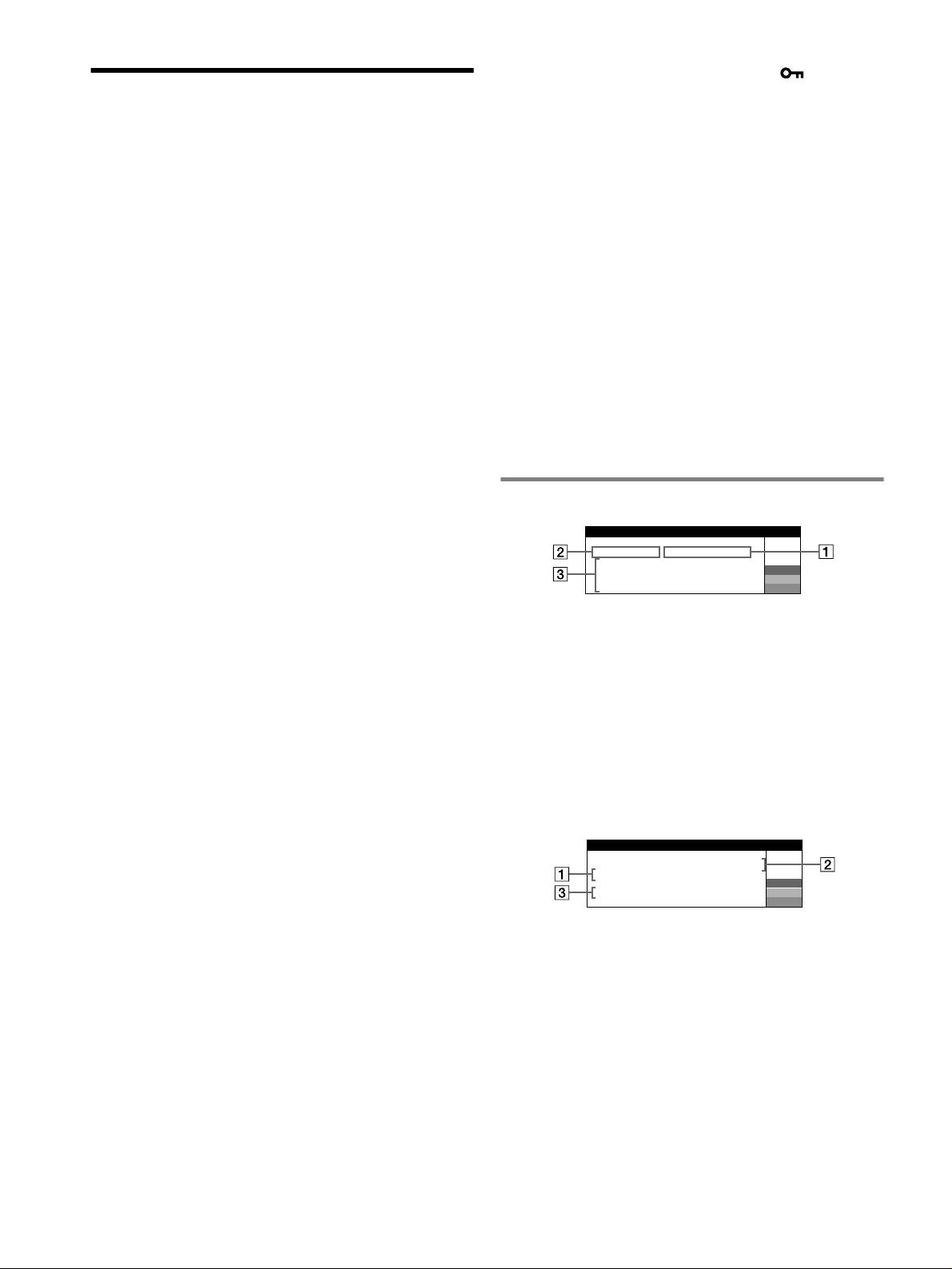
x De knoppen op de monitor werken niet ( verschijnt
op het scherm)
Verhelpen van storingen
• Indien de vergrendeling van de bedieningen op AAN staat, moet u deze
x Geen beeld
op UIT zetten.
Indien de ! (aan/uit) indicator niet verlicht is
x Letters en regels hebben rode of blauwe schaduwen aan
• Controleer of het netsnoer goed is aangesloten.
de hoeken
• Controleer of de ! (aan/uit) schakelaar “aan” staat.
• Convergentie regelen.
De ! (aan/uit) indicator is oranje
x USB randapparatuur werkt niet
• Controleer of de videosignaalkabel goed is aangesloten en alle stekkers
• Controleer of de geschikte USB connectoren goed zijn aangesloten.
goed vastzitten.
• Zet de monitor UIT en dan weer AAN, en sluit de USB kabel weer aan.
• Controleer of de INPUT schakelaar instelling correct is.
• Wanneer u een toetsenbord of muis aansluit op de USB aansluitingen en
• Controleer of de pinnen van de HD15 video-ingangsconnector niet
u vervolgens de computer voor het eerst start, kan de randapparatuur
verbogen of naar binnen gedrukt zijn.
eventueel niet functioneren. Sluit eerst het toetsenbord en de muis
• Controleer of de stroom van de computer “aan” is.
rechtstreeks aan op de computer en stel de USB compatibele apparatuur
• De computer staat in de stroomspaarstand. Druk op een willekeurige
in. Sluit ze vervolgens aan op de monitor.
toets op het toetsenbord of verplaats de muis.
• Installeer de meest recente versie van de device driver op uw computer.
• Controleer of de grafische kaart volledig in de correcte busaansluiting zit.
Raadpleeg de fabrikant van de apparatuur voor meer informatie over de
Indien de ! (aan/uit) indicator groen is of oranje knippert
geschikte device driver.
• Gebruik de zelfdiagnosefunctie.
x U hoort een brommend geluid direct na het inschakelen
x Het beeld flikkert, springt, oscilleert of is vervormd
van de monitor
• Isoleer en elimineer potentiële bronnen van elektrische of magnetische
• Dit is het geluid van de zelf-demagnetiserende cyclus. Bij het
velden zoals monitors, laser printers, elektrische ventilatoren,
aanschakelen wordt de monitor automatisch gedurende enkele seconden
fluorescentieverlichting of televisietoestellen.
gedemagnetiseerd.
• Plaats de monitor uit de buurt van stroomkabels of plaats een
* Indien er een tweede demagnetiseringscyclus nodig is, dient u voor het beste
magnetische afscherming bij de buurt van de monitor.
resultaat 20 minuten te wachten. U hoort eventueel een bromgeluid maar dat
• Probeer de monitor aan te sluiten op een ander stopcontact, bij voorkeur
is normaal.
op een ander circuit.
• Probeer de monitor 90° naar links of naar rechts te draaien.
• Controleer de handleiding van uw grafische kaart voor de juiste instelling
Schermberichten
van de monitor.
• Controleer of de grafische mode en de frequentie van het ingangssignaal
I NFORMAT I E
worden ondersteund door de monitor (zie “Preset mode timing table” op
MON I TOR FUNCT I ONEERT
pagina i). Sommige grafische kaarten hebben een synchronisatiepuls die
I NGANG
2 : GEEN S I GNAAL
AANZETTEN COMPUTERVIA
W
te smal is om de monitor correct te laten synchroniseren, ook al ligt de
CONTROLEER
V I DEOKABEL
R
CONTROLEER
G
frequentie binnen het juiste bereik.
I NGANGSSELECT I E
B
• Pas de verversingsfrequentie van de computer aan (verticale frequentie)
om een optimaal beeld te verkrijgen.
1 Indien “GEEN SIGNAAL” verschijnt:
x Het beeld is wazig
Dit geeft aan dat er geen signaal wordt ingevoerd via de gekozen
• Regel contrast, helderheid en PICTURE EFFECT.
aansluiting.
• Demagnetiseer de monitor.*
2 Toont de momenteel gekozen aansluiting.
• Regel moiré-onderdrukking tot moiré minimaal is of zet ONDERDRUK
MOIRE op UIT.
3 Toont de oplossingen.
• Als AANZETTEN VIA COMPUTER verschijnt op het scherm,
x Echobeeld (ghosting)
probeer dan een toets op het toetsenbord van de computer in te
• Gebruik geen videoverlengkabels en/of videoschakeldozen.
drukken of de muis te bewegen en controleer of de grafische kaart
• Controleer of alle aansluitingen goed vastzitten.
van de computer in de juiste aansluiting zit.
x Het beeld is niet gecentreerd of heeft niet de juiste
• Als CONTROLEER VIDEOKABEL op het scherm verschijnt,
afmetingen
controleer dan of de monitor correct is aangesloten op de computer.
• Verricht de Auto Afmeting Centreer-functie.
• Als CONTROLEER INGANGSSELECTIE op het scherm
• Regel formaat en centrering. Merk op dat het scherm met sommige
verschijnt, probeer dan het ingangssignaal te veranderen.
ingangssignalen en/of grafische kaarten niet volledig is gevuld.
• Na het aanzetten van de aan/uit-schakelaar kan een correcte formattering/
I NFORMAT I E
centrering enige tijd in beslag nemen.
MON I TOR FUNCT I ONEERT
I NGANG
1: .200 0 /kHz 85Hz
x De hoeken van het beeld zijn krom
BU I TEN SCANBERE I K
W
• Regel de geometrie.
R
W I JZ I G S I GNAALT I M I NG
G
B
x Golvend of elliptisch patroon (moiré)
• Regel het moiré-onderdrukkingseffect zo dat moiré tot een minimum
beperkt blijft.
1 Indien “BUITEN SCANBEREIK” verschijnt:
• Verander uw desktoppatroon.
Dit geeft aan dat het ingangssignaal niet door de monitor kan worden
x De kleur is niet gelijkmatig
verwerkt.
• Demagnetiseer de monitor*. Indien u apparatuur die een magnetisch veld
2 Toont de ingangssignaalfrequentie.
genereert, bijvoorbeeld een luidspreker, in de buurt van de monitor
3 Toont de oplossingen.
opstelt, of wanneer u de richting van de monitor verandert, is het
WIJZIG SIGNAALTIMING verschijnt op het scherm. Wanneer u een
mogelijk dat de kleuren niet meer gelijkmatig zijn.
bestaande monitor vervangt, moet u de oude monitor opnieuw
• Regel landing.
aansluiten. Stel vervolgens de grafische kaart van de computer zo in dat
x Onzuivere witweergave
de horizontale frequentie 30 – 137 kHz (GDM-F520), 30 – 115 kHz
• Regel de kleurtemperatuur.
(GDM-F420) en de verticale frequentie 48 – 170 Hz bedraagt.
• Controleer of de vijf BNC connectoren in de juiste volgorde zijn
aangesloten.
6
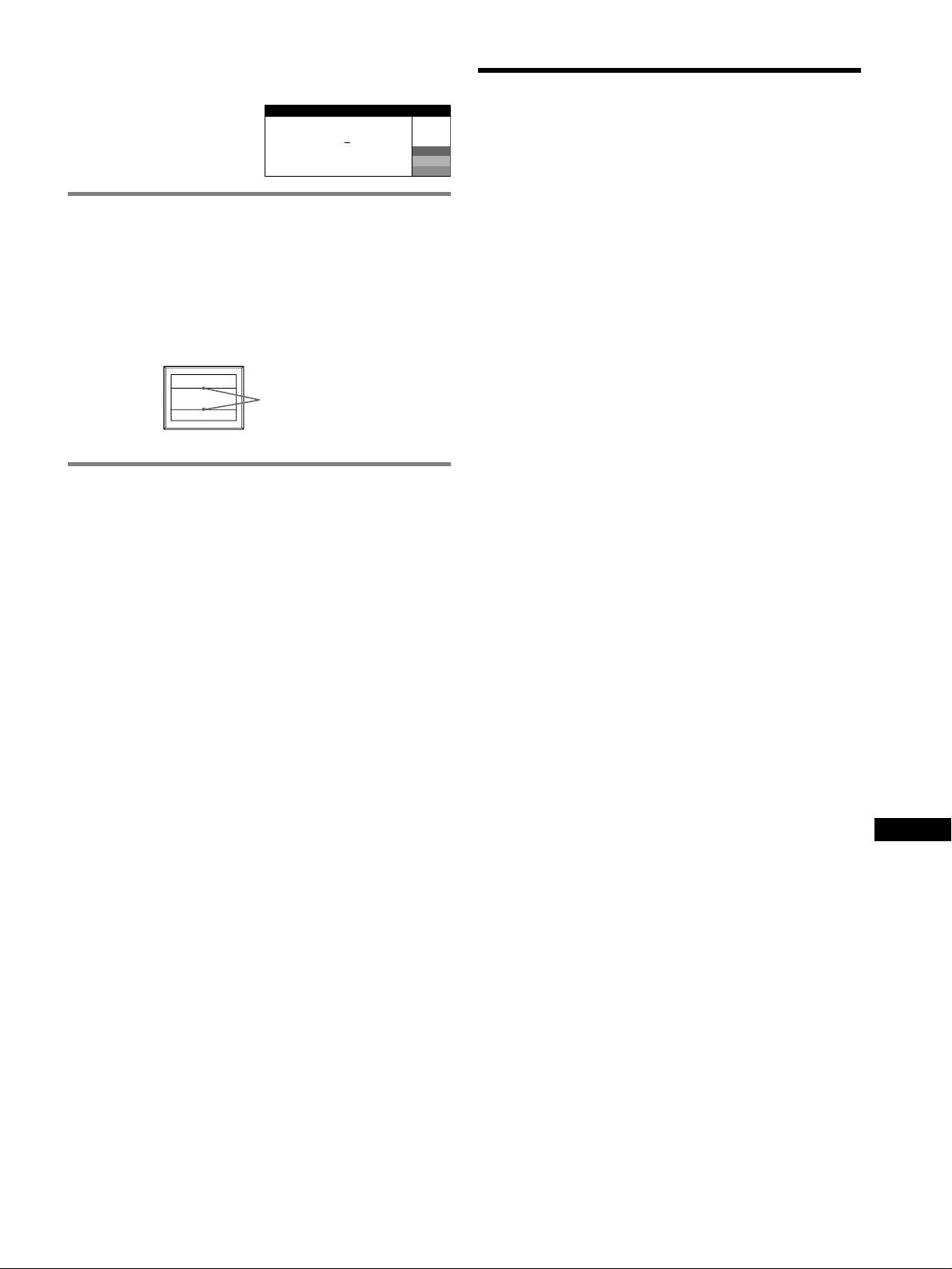
Weergave van de naam van de monitor, het
serienummer en de productiedatum.
Technische gegevens
Als de monitor een videosignaal
I NFORMAT I E
ontvangt, moet u de MENU toets
CRT
meer dan 5 seconden ingedrukt
MODEL
:
GDM F520
W
0,22 mm apertuurrooster pitch, afbuiging van 90 graden, FD Trinitron
houden om de informatiebox van
SER NO
:
1234567
R
MANUFACTURED
: 2000-52
G
GDM-F520 21 inch diagonaal gemeten
deze monitor te laten verschijnen.
B
GDM-F420 19 inch diagonaal gemeten
Zichtbare grootte
GDM-F520 Ong. 403,8
× 302,2 mm (b/h)
Indien er dunne lijnen op uw scherm
19,8" zichtbaar beeld
verschijnen
(demperdraden)
GDM-F420 Ong. 365
× 274 mm (b/h)
18,0" zichtbaar beeld
Deze lijnen duiden niet op een defect en zijn normaal voor een
Resolutie (H:Horizontaal, V:Verticaal)
Trinitron-beeldbuis. Dit zijn de schaduwen van de demperdraden die
GDM-F520 Maximum H: 2048 punten, V: 1536 lijnen
gebruikt worden om het apertuurrooster te stabiliseren. Het
Aanbevolen H: 1600 punten, V: 1200 lijnen
apertuurrooster is het fundamentele element dat een Trinitron beeldbuis
GDM-F420 Maximum H: 1920 punten, V: 1440 lijnen
onderscheidt van alle anderen, doordat er meer licht bij het scherm kan
Aanbevolen H: 1280 punten, V: 1024 lijnen
komen, hetgeen resulteert in een contrastrijker, meer gedetailleerd
Ingangssignaalniveaus
beeld.
Videosignaal: Analoog RGB: 0,700 Vp-p (positief), 75
Ω
SYNC signaal: Apart H/V of composietsync:
TTL 2 k
Ω, polariteitsvrij
Sync op groen: 0,3 Vp-p (negatief)
Demperdraden
Standaard beeldformaat
GDM-F520 Ong. 388
× 291 mm (4:3) of
Ong. 364
× 291 mm (5:4)
GDM-F420 Ong. 352
× 264 mm (4:3) of
Ong. 330
× 264 mm (5:4)
Afbuigingsfrequentie (H:Horizontaal, V:Verticaal)
Zelfdiagnosefunctie
GDM-F520 H: 30 tot 137 kHz, V: 48 tot 170 Hz
GDM-F420 H: 30 tot 115 kHz, V: 48 tot 170 Hz
Deze monitor heeft een zelfdiagnosefunctie. Indien er een probleem
Ingangsspanning/stroomsterkte
met de monitor of computer is, zal het scherm leeg worden en zal de
100 tot 240 V, 50 – 60 Hz, 2,0 – 1,0 A
! (aan/uit) indicator groen oplichten of oranje knipperen. Indien de
Stroomverbruik (zonder USB apparatuur aangesloten)
! (aan/uit) indicator oranje oplicht, bevindt de computer zich in de
GDM-F520 Ong. 145 W
energiebesparende stand. Druk op een willekeurige toets op het
GDM-F420 Ong. 135 W
toetsenbord of verplaats de muis.
Bedrijfstemperatuur 10°C tot 40°C
Afmetingen
x Indien de ! (aan/uit) indicator groen is
GDM-F520 Ong. 497
× 499 × 487 mm (b/h/d)
GDM-F420 Ong. 446
× 472 × 463 mm (b/h/d)
1 Trek eventuele stekkers uit video ingang 1 en 2 of zet de
Gewicht
aangesloten computer(s) uit.
GDM-F520 Ong. 30 kg
GDM-F420 Ong. 26 kg
2 Zet de monitor UIT en weer AAN.
Plug and Play DDC2B/DDC2Bi
Meegeleverde toebehoren
3 Beweeg de joystick gedurende enkele seconden naar
Netsnoer
boven voor hij overschakelt naar de stroomspaarstand.
HD15 videokabel
USB kabel
Als alle vier de kleurbalken verschijnen (wit, rood, groen, blauw),
Exclusieve Power Mac G3/G4 adapter
betekent dit dat de monitor goed werkt. Sluit de video-ingangskabel
Deze gebruiksaanwijzing
weer aan en controleer de instelling van uw computer.
Indien de kleurbalken niet verschijnen, gaat het mogelijk om een defect
van de monitor. Informeer uw erkende Sony dealer over het probleem.
NL
x Indien de ! (aan/uit) indicator oranje knippert
Zet de monitor UIT en weer AAN.
Indien de ! (aan/uit) indicator groen oplicht, betekent dit dat de
monitor goed werkt.
Indien de ! (aan/uit) indicator nog steeds knippert, gaat het mogelijk
om een defect aan de monitor. Tel het aantal seconden tussen het oranje
aanflitsen van de ! (aan/uit) indicator en neem contact op met uw
erkende Sony dealer over het probleem. Vergeet niet de modelnaam en
het serienummer van de monitor op te schrijven. Noteer ook het merk
en model van uw computer en grafische kaart.
(wordt vervolgd)
7
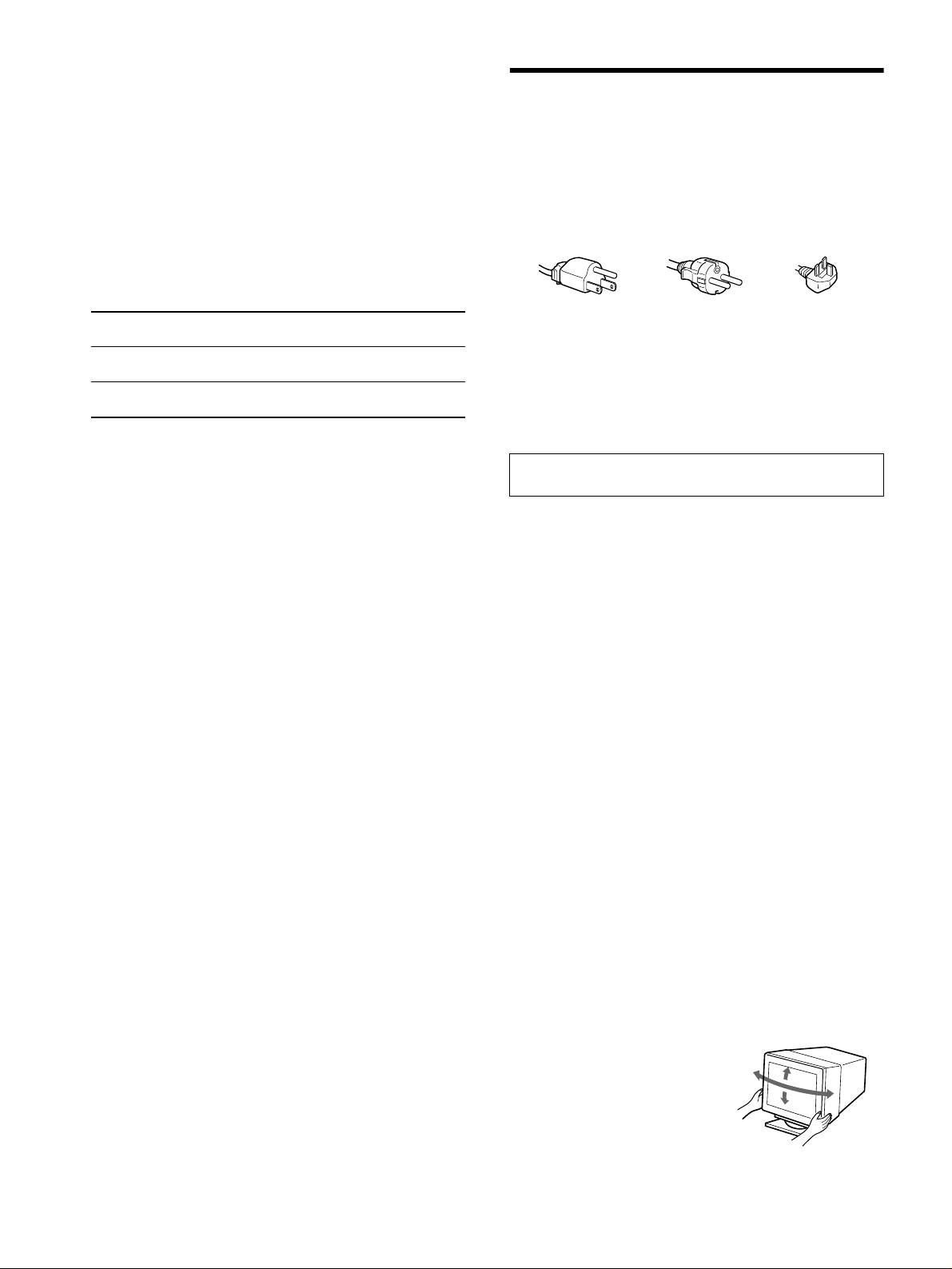
Fabrieks- en gebruikersinstellingen
Wanneer de monitor een ingangssignaal ontvangt, stemt deze dit signaal
automatisch af op één van de fabrieksinstellingen die in het geheugen van de
Voorzorgsmaatregelen
monitor zijn opgeslagen, om een beeld van hoge kwaliteit te verkrijgen (zie
“Preset mode timing table” op pagina i). Indien de ingangssignalen niet
Waarschuwing betreffende voedingsaansluitingen
overeenstemmen met de fabrieksinstellingen, produceert de monitor
• Gebruik het meegeleverde netsnoer. Als u een ander netsnoer
automatisch het meest geschikte beeld voor het ingangssignaal dat binnen het
gebruikt, moet u nagaan of het compatibel is met de lokale
verticale of horizontale frequentiebereik valt (pagina 7) conform de algemene
timingformule. Indien het beeld wordt bijgesteld, worden de instelgegevens
stroomvoorziening.
opgeslagen als gebruikersinstelling en automatisch weer opgeroepen op het
Voor de klanten in het VK
moment dat hetzelfde ingangssignaal wordt ontvangen.
Als u de monitor in het VK gebruikt, gebruik dan altijd het
bijgeleverde netsnoer voor het VK.
Stroomspaarfunctie
Deze monitor voldoet aan de richtlijnen voor energiebesparing die zijn
Voorbeeld van stekkertypes
opgesteld door
VESA, TCO’99 en ENERGY STAR. Indien de monitor geen
signaal van de computer ontvangt, zal hij het energieverbruik automatisch
verminderen zoals hieronder beschreven.
voor 100 tot 120 V
voor 200 tot 240 V
alleen voor 240 V
1
wisselstroom
wisselstroom
wisselstroom
Energiestand Energieverbruik*
! (aan/uit)
indicator
• Wacht na het afzetten van het toestel minstens 30 seconden
alvorens de stekker uit het stopcontact te trekken zodat de statische
normale werking
≤ 145 W (GDM-F520)
groen
elektriciteit op het scherm kan ontladen.
≤ 135 W (GDM-F420)
• Na het aanschakelen wordt het scherm gedurende enkele seconden
2
actief uit*
≤ 3 W oranje
gedemagnetiseerd. Hierbij ontstaat rond het scherm een sterk
3
(diepe sluimer)*
magnetisch veld dat gegevens op magneetbanden en diskettes kan
beschadigen. Hou dergelijke zaken dan ook uit de buurt van de
1
*
De cijfers geven het stroomverbruik aan wanneer er geen USB compatibele
monitor.
randapparatuur is aangesloten op de monitor.
2
*
Wanneer uw computer overschakelt naar de stroomspaarstand, verschijnt
Het toestel moet in de buurt van een makkelijk bereikbaar
GEEN SIGNAAL op het scherm. Na enkele seconden schakelt de monitor
stopcontact worden geplaatst.
over naar de stroomspaarstand.
3
*
“Diepe sluimer” is een energiebesparende instelling gedefinieerd door de
Installatie
Environmental Protection Agency.
Installeer de monitor niet op de volgende plaatsen:
• op een zacht of wollig oppervlak (een kleedje of deken), of tegen
Wijzigingen in ontwerp en technische gegevens voorbehouden zonder
gordijnen, waardoor de ventilatie-openingen geblokkeerd kunnen
voorafgaande kennisgeving.
worden.
• nabij warmtebronnen zoals radiatoren of luchtkanalen, of op een
plek waar het bloot staat aan directe zonnestraling
• op een plek waar het bloot staat aan grote
temperatuurschommelingen
• op een plek waar het bloot staat aan mechanische trillingen of
schokken
• op een onstabiele ondergrond
• nabij apparatuur die een magnetisch veld opwekt, zoals een
transformator of hoogspanningslijnen
• nabij of op een elektrisch geladen metalen oppervlak
• in een gesloten rek
Onderhoud
• Reinig het scherm met een zachte doek. Gebruik geen
glasreinigingsmiddel dat een antistatische oplossing of soortgelijk
additief bevat omdat de schermcoating hierdoor kan worden
gekrast.
• Wrijf, druk of tik niet op het scherm met een scherp of schurend
voorwerp zoals een balpen of schroevendraaier. Daardoor kan de
beeldbuis immers worden gekrast.
• Reinig de behuizing, het voorpaneel en de bedieningselementen
met een zachte doek die lichtjes is bevochtigd met een mild
zeepsopje. Gebruik geen schuursponsje, schuurpoeder noch
solventen zoals alcohol of benzine.
Transport
Transporteer deze monitor altijd in de originele verpakking.
Monitorstand
Verwijder de monitorstand niet.
Gebruik van de zwenkvoet
Deze monitor kan in de hieronder
getoonde hoeken worden versteld.
90°
15°
Hou de monitor onderaan met beide
90°
handen vast om hem verticaal of
5°
horizontaal te verstellen.
8

Appendix
Preset mode timing table
No. Resolution
Horizontal
Vertical
Graphics
(dots × lines)
Frequency
Frequency
Mode
1640 × 480 31.5 kHz 60 Hz VGA-G
2640 × 480 37.5 kHz 75 Hz EVGA
3640 × 480 43.3 kHz 85 Hz VESA
4720 × 400 31.5 kHz 70 Hz VGA-Text
5720 × 400 37.9 kHz 85 Hz VESA
6800 × 600 37.9 kHz 60 Hz SVGA
7800 × 600 46.9 kHz 75 Hz VESA
8800 × 600 53.7 kHz 85 Hz VESA
9832 × 624 49.7 kHz 75 Hz Macintosh
16" Color
10 1024 × 768 48.4 kHz 60 Hz VESA
11 1024 × 768 56.5 kHz 70 Hz VESA
12 1024 × 768 60.0 kHz 75 Hz EUVGA
13 1024 × 768 60.2 kHz 75 Hz Macintosh
19" Color
14 1024 × 768 68.7 kHz 85 Hz VESA
15 1152 × 864 67.5 kHz 75 Hz VESA
16 1152 × 864 77.5 kHz 85 Hz VESA
17 1152 × 870 68.7 kHz 75 Hz Macintosh
21" Color
18 1280 × 960 60.0 kHz 60 Hz VESA
19 1280 × 960 85.9 kHz 85 Hz VESA
20 1280 × 1024 64.0 kHz 60 Hz VESA
21 1280 × 1024 80.0 kHz 75 Hz VESA
22 1280 × 1024 91.2 kHz 85 Hz VESA
23 1600 × 1200 75.0 kHz 60 Hz VESA
24 1600 × 1200 81.3 kHz 65 Hz VESA
25 1600 × 1200 87.5 kHz 70 Hz VESA
26 1600 × 1200 93.8 kHz 75 Hz VESA
27 1600 × 1200 106.3 kHz 85 Hz VESA
28 1920 × 1440 112.5 kHz 75 Hz VESA
If the input signal does not match one of the factory preset modes
above, the Generalized Timing Formula feature of this monitor
will automatically provide an optimal image for the screen as long
as the signal is GTF compliant.
i

Below you will find a brief summary of the environmental
TCO’99 Eco-document
requirements met by this product. The complete environmental
criteria document may be ordered from:
TCO Development
SE-114 94 Stockholm, Sweden
Fax: +46 8 782 92 07
Email (Internet): development@tco.se
Current information regarding TCO’99 approved and labelled
products may also be obtained via the Internet, using the
address: http://www.tco-info.com/
x Environmental requirements
Flame retardants
x Congratulations!
Flame retardants are present in printed circuit boards, cables,
You have just purchased a TCO’99 approved and labelled
wires, casings and housings. Their purpose is to prevent, or at
product! Your choice has provided you with a product developed
least to delay the spread of fire. Up to 30% of the plastic in a
computer casing can consist of flame retardant substances. Most
for professional use. Your purchase has also contributed to
flame retardants contain bromine or chloride, and those flame
reducing the burden on the environment and also to the further
retardants are chemically related to another group of
development of environmentally adapted electronics products.
environmental toxins, PCBs. Both the flame retardants containing
x Why do we have environmentally labelled
bromine or chloride and the PCBs are suspected of giving rise to
computers?
severe health effects, including reproductive damage in fish-
eating birds and mammals, due to the bio-accumulative*
In many countries, environmental labelling has become an
processes. Flame retardants have been found in human blood and
established method for encouraging the adaptation of goods and
researchers fear that disturbances in foetus development may
services to the environment. The main problem, as far as
occur.
computers and other electronics equipment are concerned, is that
environmentally harmful substances are used both in the products
The relevant TCO’99 demand requires that plastic components
and during their manufacture. Since it is not so far possible to
weighing more than 25 grams must not contain flame retardants
satisfactorily recycle the majority of electronics equipment, most
with organically bound bromine or chlorine. Flame retardants are
of these potentially damaging substances sooner or later enter
allowed in the printed circuit boards since no substitutes are
nature.
available.
There are also other characteristics of a computer, such as energy
Cadmium**
consumption levels, that are important from the viewpoints of
Cadmium is present in rechargeable batteries and in the colour-
both the work (internal) and natural (external) environments.
generating layers of certain computer displays. Cadmium
Since all methods of electricity generation have a negative effect
damages the nervous system and is toxic in high doses. The
on the environment (e.g. acidic and climate-influencing
relevant TCO’99 requirement states that batteries, the colour-
emissions, radioactive waste), it is vital to save energy.
generating layers of display screens and the electrical or
Electronics equipment in offices is often left running
electronics components must not contain any cadmium.
continuously and thereby consumes a lot of energy.
Mercury**
x What does labelling involve?
Mercury is sometimes found in batteries, relays and switches. It
This product meets the requirements for the TCO’99 scheme
damages the nervous system and is toxic in high doses. The
which provides for international and environmental labelling of
relevant TCO’99 requirement states that batteries may not contain
personal computers. The labelling scheme was developed as a
any mercury. It also demands that mercury is not present in any of
joint effort by the TCO (The Swedish Confederation of
the electrical or electronics components associated with the
Professional Employees), Svenska Naturskyddsforeningen (The
labelled unit.
Swedish Society for Nature Conservation) and Statens
Energimyndighet (The Swedish National Energy
CFCs (freons)
Administration).
The relevant TCO’99 requirement states that neither CFCs nor
HCFCs may be used during the manufacture and assembly of the
Approval requirements cover a wide range of issues:
product. CFCs (freons) are sometimes used for washing printed
environment, ergonomics, usability, emission of electric and
circuit boards. CFCs break down ozone and thereby damage the
magnetic fields, energy consumption and electrical and fire
ozone layer in the stratosphere, causing increased reception on
safety.
earth of ultraviolet light with e.g. increased risks of skin cancer
The environmental demands impose restrictions on the presence
(malignant melanoma) as a consequence.
and use of heavy metals, brominated and chlorinated flame
Lead**
retardants, CFCs (freons) and chlorinated solvents, among other
things. The product must be prepared for recycling and the
Lead can be found in picture tubes, display screens, solders and
manufacturer is obliged to have an environmental policy which
capacitors. Lead damages the nervous system and in higher doses,
must be adhered to in each country where the company
causes lead poisoning. The relevant TCO’99 requirement permits
implements its operational policy.
the inclusion of lead since no replacement has yet been developed.
The energy requirements include a demand that the computer and/
* Bio-accumulative is defined as substances which accumulate
or display, after a certain period of inactivity, shall reduce its
within living organisms.
power consumption to a lower level in one or more stages. The
** Lead, Cadmium and Mercury are heavy metals which are Bio-
length of time to reactivate the computer shall be reasonable for
accumulative.
the user.
Labelled products must meet strict environmental demands, for
example, in respect of the reduction of electric and magnetic
fields, physical and visual ergonomics and good usability.
Sony Corporation Printed in Japan
