
Dell C/Port II APR: Undocking the Computer
Undocking the Computer: Dell C/Port II APR
Table of contents
- System Information Guide
- Notes, Notices, and Cautions
- System Information Guide Other Documents Available Getting Help Docking Device Overview
- I/O Panel of the Docking Device External I/O Connectors
- External I/O Connectors Audio Connectors and Infrared Sensor
- Docking Control Base Controls and Indicators Monitor Stand
- Docking Device With the Monitor Stand Before Docking the Computer
- Check Your Computer for Existing Docking Drivers Installing the Docking Drivers Installing the Docking Drivers From the ResourceCD or Drivers and Utilities CD
- Installing the Docking Drivers From the Dell Support Website
- Docking Your Computer
- Docking Panel Door on the Computer
- Docking the Computer
- Docking for the First Time With Windows XP and Windows 2000 Docking for the First Time With Windows Me
- Docking for the First Time With Windows NT 4.0
- Docking for the First Time With Windows 98
- Docking for the First Time With Windows 95
- Updating Drivers in Windows XP and Windows 2000 Updating Drivers in Windows Me
- Undocking the Computer
- Securing the C/Port II APR Security Features Securing the C/Port II APR
- Dell Diagnostics
- Technical Specifications
- Technical Specifications
- Safety and EMC Instructions: Portable Computers
- 24 Dell Latitude C/Port II APR System Information Guide
- Power (Safety Instructions)
- Regulatory Notices
- CE Notice (European Union)
- EN 55022 Compliance (Czech Republic Only) Polish Center for Testing and Certification Notice
4G281bk1.book Page 18 Friday, October 19, 2001 3:21 PM
Undocking the Computer
www.dell.com | support.dell.com
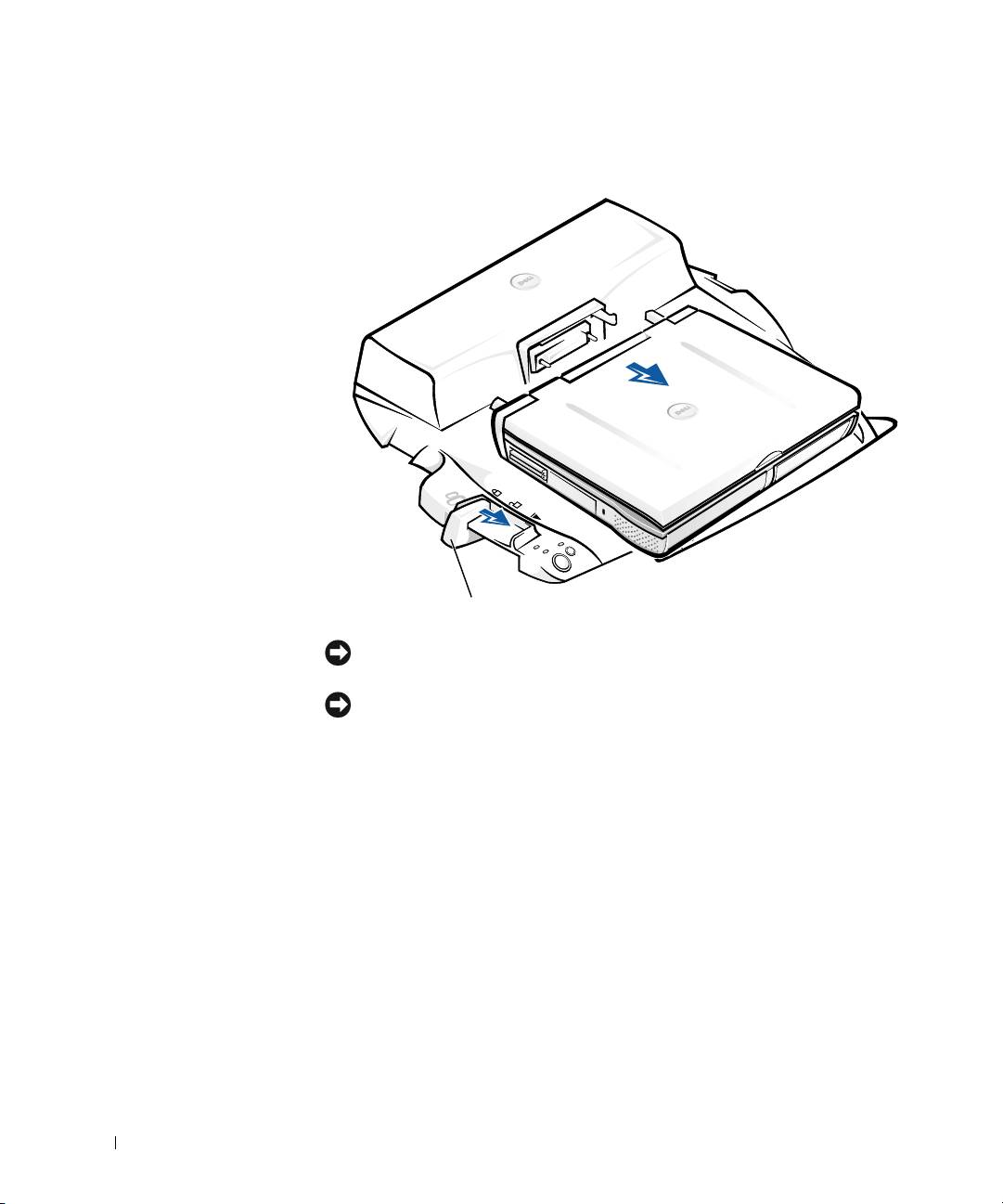
eject/locking lever
NOTICE: If the computer does not have power from a battery, the computer
turns off when you undock it
, and you will lose all unsaved data.
NOTICE: Never undock the computer without first preparing the computer. If
you undock before preparing the computer
, you will lose data and the computer
may not recover normal operation for several minutes
, if at all.
To prepare the computer for undocking, perform one of these methods:
• Press <Fn><Esc> on the computer's keyboard (or
<Scroll Lock><Esc> on an external keyboard).
Wait a few seconds for the power light on the computer to turn off.
• In Windows XP, click the Start button, and then click Undock
Computer.
In Windows 95, Windows 98, Windows Me, or Windows 2000, click the
Start button, and then click Eject PC.
In Windows NT, click the docking icon on the taskbar, and then click
Undock to place the computer in suspend mode.
18 Dell Latitude C/Port II APR System Information Guide
