
Dell AXIM X3: Align the connector on the bottom of the device with the connector on the cradle, and, keeping the front of the device flush with the front of the cradle, lower the device onto the cradle.
Align the connector on the bottom of the device with the connector on the cradle, and, keeping the front of the device flush with the front of the cradle, lower the device onto the cradle.: Dell AXIM X3
Table of contents
- System Information Guide
- Notes, Notices, and Cautions
- Contents
- 4 Contents
- CAUTION: Safety Instructions General
- Power Battery
- Air Travel EMC Instructions
- Ergonomic Computing Habits Protecting Against Electrostatic Discharge
- Finding Information What Are You Looking For? Find It Here: Setting Up Your Device
- Front, Side, and Back Views Front and Side Views
- Back View Using the Battery
- Installing and Removing the Battery
- Charging the Battery
- Connecting to a Computer Using the Cradle You can use the cradle to: To connect your device to the cradle: Place the cradle on a flat, level surface near your computer. Connect the cradle cable to the USB connector on your computer.
- Connect the AC adapter to the cradle and to an electrical outlet.
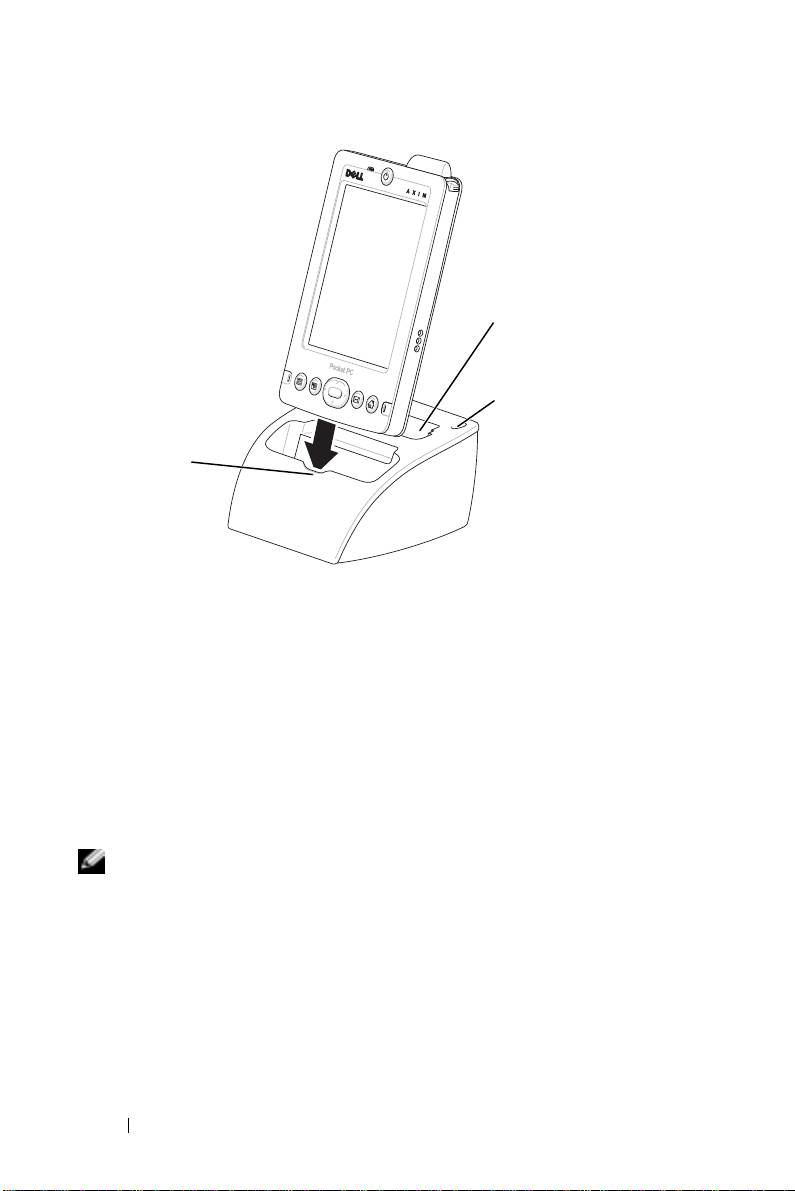
- Align the connector on the bottom of the device with the connector on the cradle, and, keeping the front of the device flush with the front of the cradle, lower the device onto the cradle.
- Using the Sync Cable Using Secure Digital Memory Cards
- Performing a Reset Soft Reset
- Hard Reset
- Regulatory Notices
spare battery
charger
stylus holder (2)
front of
cradle
www.dell.com | support.euro.dell.com
4
Align the connector on the bottom of the device with the connector on
the cradle, and, keeping the front of the device flush with the front of
the cradle, lower the device onto the cradle.
When the device is docked in the cradle, the DELL™ logo on the cradle
lights up and the connection status icon appears on the command bar.
The spare battery status light on the cradle operates as follows:
• Green — The spare battery is fully charged.
• Amber — The spare battery is charging.
NOTE: The power button on the device indicates the charge status of the main
battery. See the description of the device status lights in your User’s Guide for
more information.
To remove the device from the cradle, pull the device straight up and out of
the cradle.
16 System Information Guide
