
Dell Latitude D505: Finding Information for Your Computer What are you looking for? Find It Here
Finding Information for Your Computer What are you looking for? Find It Here: Dell Latitude D505
Table of contents
- System Information Guide
- Notes, Notices, and Cautions Abbreviations and Acronyms
- Contents
- CAUTION: Safety Instructions SAFETY: General
- SAFETY: Power SAFETY: Battery SAFETY: Air Travel
- SAFETY: EMC Instructions When Using Your Computer
- SAFETY: Ergonomic Computing Habits SAFETY: When Working Inside Your Computer SAFETY: Protecting Against Electrostatic Discharge
- SAFETY: Battery Disposal
- Finding Information for Your Computer What are you looking for? Find It Here
- What are you looking for? Find It Here
- What are you looking for? Find It Here
- Setting Up Your Computer
- Open the computer display and press the power button to turn on the computer.
- About Your Computer Front View
- Left View Right View
- Back View Bottom View
- Removing a Battery
- Removing and Installing a Reserve Battery
- Installing a Battery
- Dell Diagnostics When to Use the Dell Diagnostics
- Dell Diagnostics Main Menu Option Function
- Tab Function
- Regulatory Notices
Finding Information for Your Computer
What are you looking for? Find It Here
• A diagnostic program for my
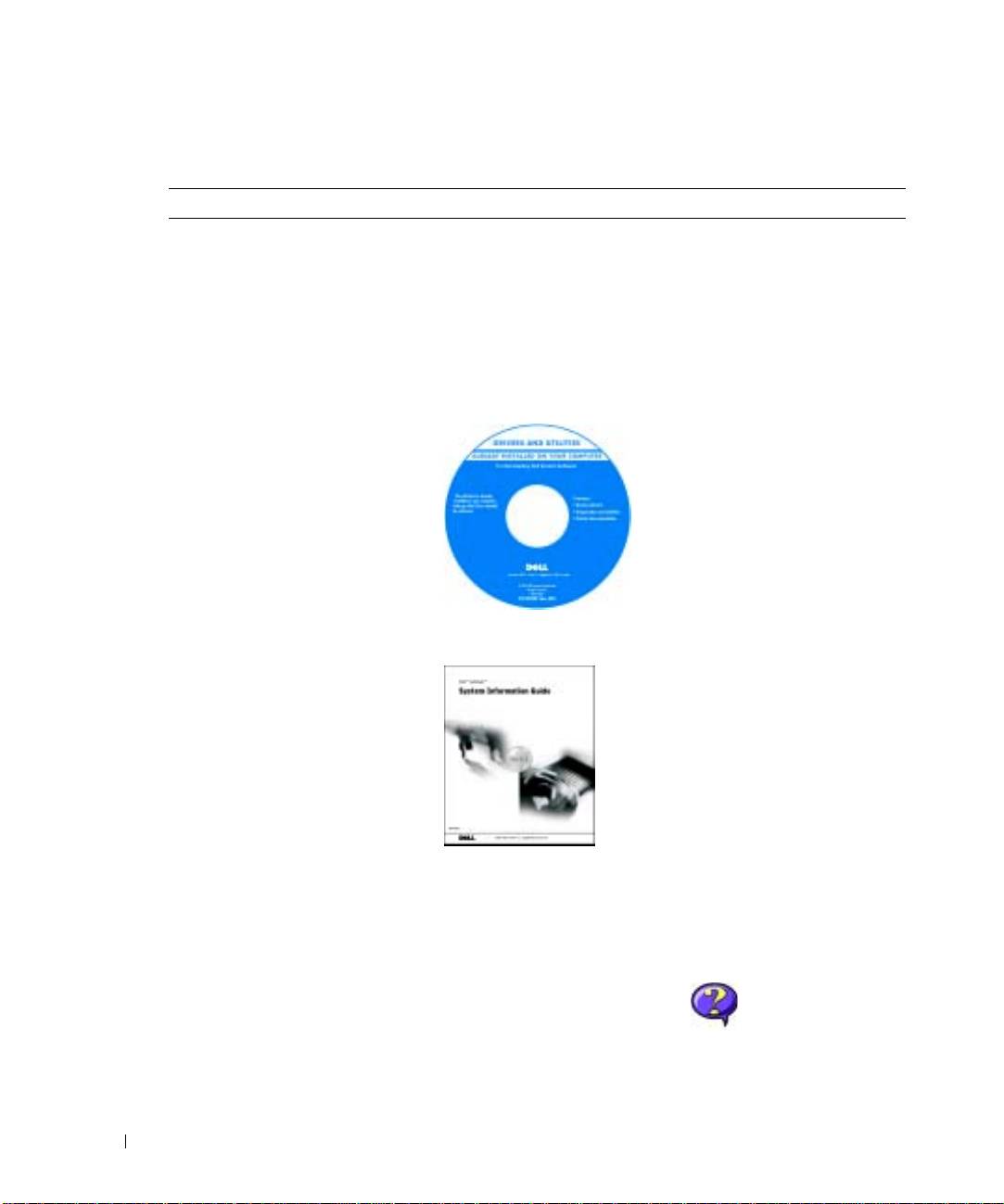
Drivers and Utilities CD (also known as the
computer
ResourceCD)
• Drivers for my computer
Documentation and drivers are already installed on your computer.
• My computer documentation
You can use the CD to reinstall drivers, run the Dell Diagnostics, or
• My device documentation
access your documentation.
Readme files may be included on your CD to provide last-minute
updates about technical changes to your computer or advanced
technical-reference material for technicians or experienced users.
www.dell.com | support.euro.dell.com
• How to set up my computer
Dell™ System Information Guide
• Warranty information
• Safety instructions
NOTE: This document is available as a PDF at support.euro.dell.com.
• How to remove and replace parts
User’s Guide
• Technical specifications
®
®
Microsoft
Windows
XP Help and Support Center
• How to configure system settings
1
Click the
Start
button and click
Help and Support.
• How to troubleshoot and solve
2
Click
User’s and system guides
and click
User’s guides
.
problems
Windows 2000
Double-click the
User’s Guides
icon on your desktop.
10 System Information Guide
