
Dell Latitude D800: What are you looking for? Find It Here
What are you looking for? Find It Here: Dell Latitude D800
Table of contents
- Notes, Notices, and Cautions Abbreviations and Acronyms
- Contents
- CAUTION: Safety Instructions General
- CAUTION: Safety Instructions (continued) Power
- CAUTION: Safety Instructions (continued) Battery
- CAUTION: Safety Instructions (continued) Air Travel EMC Instructions California Residents
- When Using Your Computer
- When Using Your Computer (continued) Ergonomic Computing Habits When Working Inside Your Computer
- When Using Your Computer (continued) Protecting Against Electrostatic Discharge
- Finding Information for Your Computer What are you looking for? Find It Here
- What are you looking for? Find It Here
- Setting Up Your Computer
- 4 Open the computer display and press the power button to turn on the computer.
- About Your Computer
- Front View
- Left Side View Right Side View
- Back View
- Bottom View
- Removing a Battery
- Installing a Battery Removing a Reserve Battery
- 3 Pull the reserve battery out of its compartment, and disconnect the cable from the connector.
- Installing a Reserve Battery Running the Dell Diagnostics
- Option Function
- Tab Function
- Regulatory Notices
What are you looking for? Find It Here
• Latest drivers for my computer
Dell Support Website — support.dell.com
• Answers to technical service and
The Dell Support website provides several online tools, including:
support questions
• Solutions — Troubleshooting hints and tips, articles from
• Online discussions with other users
technicians, and online courses
and technical support
• Community Forum — Online discussion with other Dell customers
• Documentation for my computer
• Upgrades — Upgrade information for components, such as memory,
the hard drive, and the operating system
• Customer Care — Contact information, order status, warranty, and
repair information
• Downloads — Drivers, patches, and software updates
• Reference — Computer documentation, product specifications, and
white papers
• How to use Windows XP
Windows Help and Support Center
• Documentation for my computer
1 Click the Start button and click Help and Support.
• Documentation for devices (such as a
2 Type a word or phrase that describes your problem and click the
modem)
arrow icon.
3 Click the topic that describes your problem.
4 Follow the instructions on the screen.
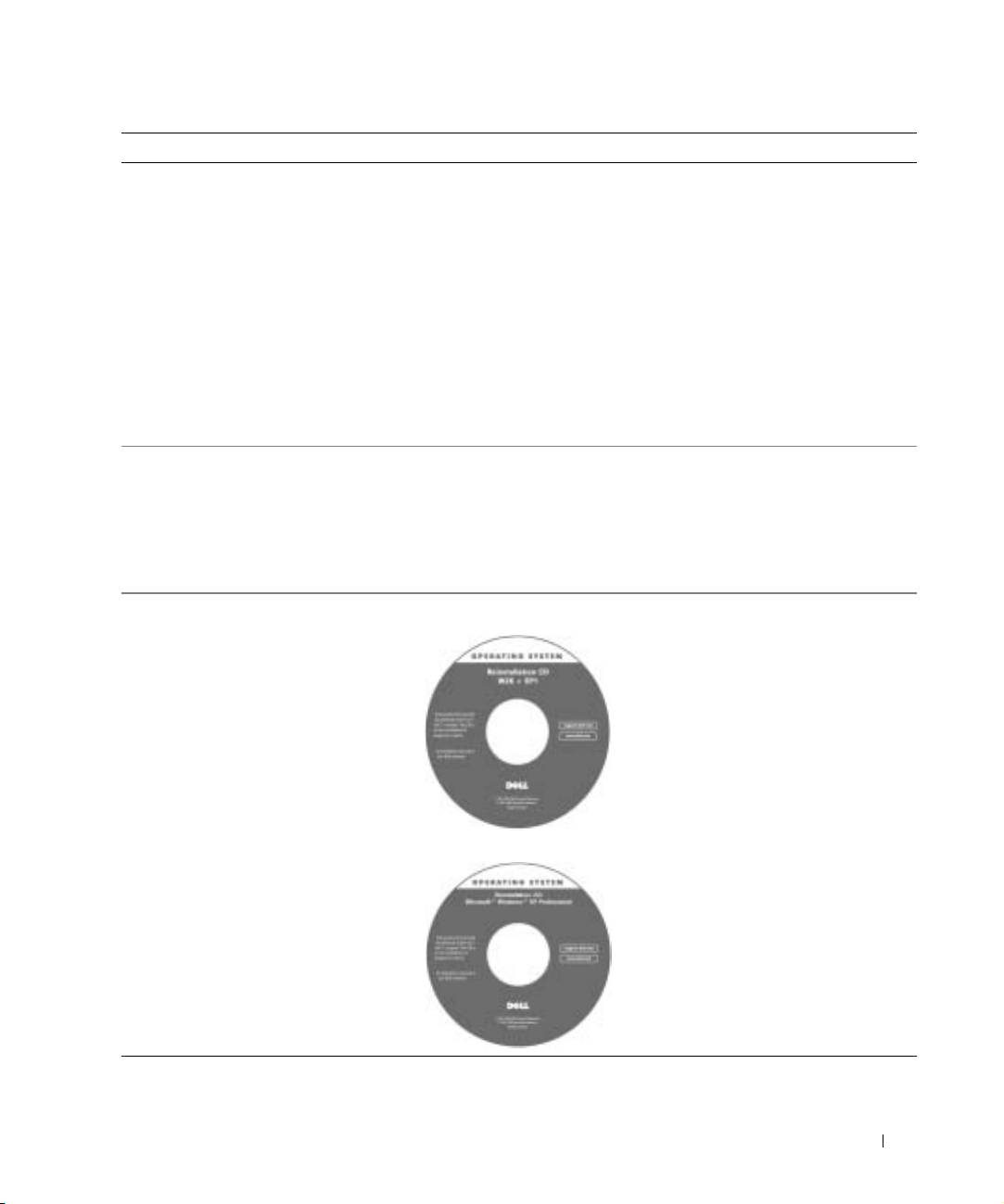
• How to reinstall my operating system Operating System CD
If you reinstall your operating system,
use the Drivers and Utilities CD to
reinstall drivers for the devices that came
with your computer.
The product key for your operating
system is located on your computer.
or
System Information Guide 13
