
Dell Latitude D800: Finding Information for Your Computer What are you looking for? Find It Here
Finding Information for Your Computer What are you looking for? Find It Here: Dell Latitude D800
Table of contents
- Notes, Notices, and Cautions Abbreviations and Acronyms
- Contents
- CAUTION: Safety Instructions General
- CAUTION: Safety Instructions (continued) Power
- CAUTION: Safety Instructions (continued) Battery
- CAUTION: Safety Instructions (continued) Air Travel EMC Instructions California Residents
- When Using Your Computer
- When Using Your Computer (continued) Ergonomic Computing Habits When Working Inside Your Computer
- When Using Your Computer (continued) Protecting Against Electrostatic Discharge
- Finding Information for Your Computer What are you looking for? Find It Here
- What are you looking for? Find It Here
- Setting Up Your Computer
- 4 Open the computer display and press the power button to turn on the computer.
- About Your Computer
- Front View
- Left Side View Right Side View
- Back View
- Bottom View
- Removing a Battery
- Installing a Battery Removing a Reserve Battery
- 3 Pull the reserve battery out of its compartment, and disconnect the cable from the connector.
- Installing a Reserve Battery Running the Dell Diagnostics
- Option Function
- Tab Function
- Regulatory Notices
Finding Information for Your Computer
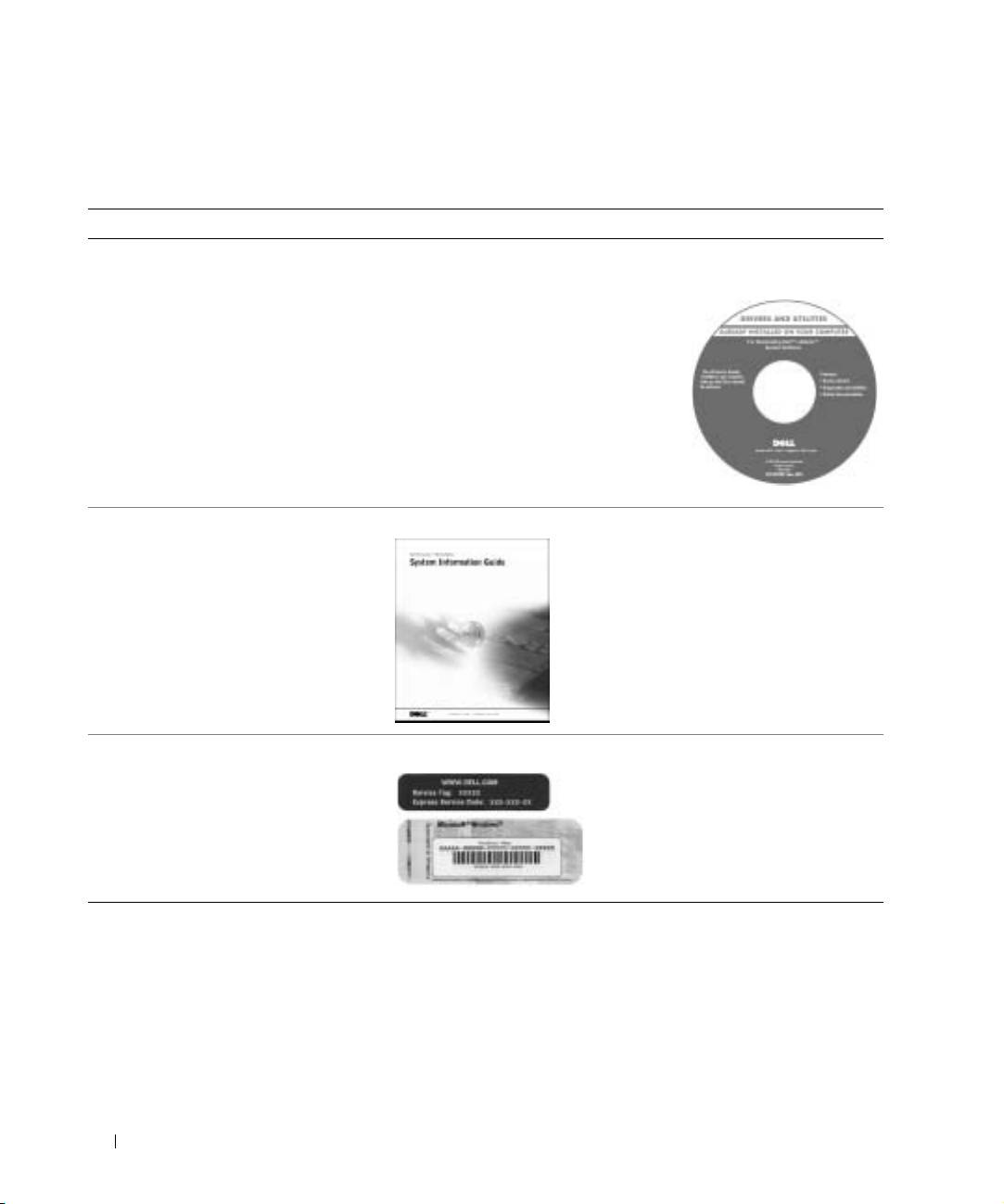
What are you looking for? Find It Here
• A diagnostic program for my computer
Drivers and Utilities CD (also known as the
• Drivers for my computer
ResourceCD)
• My computer documentation
Documentation and drivers are already
• My device documentation
installed on your computer when shipped
from Dell. You can use the CD to reinstall
drivers, run the Dell Diagnostics, or access
your documentation.
www.dell.com | support.dell.com
Readme files may be included on your CD
to provide last-minute updates about
technical changes to your computer or
advanced technical-reference material for
experienced users or technicians.
• How to set up my computer
Dell System Information Guide
• Warranty Information
• Express Service Code and Service Tag
Express Service Code and Product Key Label
®
®
• Microsoft
Windows
License Label
These labels are located on your
computer.
12 System Information Guide
