
Dell Latitude D800: Installing a Battery Removing a Reserve Battery
Installing a Battery Removing a Reserve Battery: Dell Latitude D800
Table of contents
- Notes, Notices, and Cautions Abbreviations and Acronyms
- Contents
- CAUTION: Safety Instructions General
- CAUTION: Safety Instructions (continued) Power
- CAUTION: Safety Instructions (continued) Battery
- CAUTION: Safety Instructions (continued) Air Travel EMC Instructions California Residents
- When Using Your Computer
- When Using Your Computer (continued) Ergonomic Computing Habits When Working Inside Your Computer
- When Using Your Computer (continued) Protecting Against Electrostatic Discharge
- Finding Information for Your Computer What are you looking for? Find It Here
- What are you looking for? Find It Here
- Setting Up Your Computer
- 4 Open the computer display and press the power button to turn on the computer.
- About Your Computer
- Front View
- Left Side View Right Side View
- Back View
- Bottom View
- Removing a Battery
- Installing a Battery Removing a Reserve Battery
- 3 Pull the reserve battery out of its compartment, and disconnect the cable from the connector.
- Installing a Reserve Battery Running the Dell Diagnostics
- Option Function
- Tab Function
- Regulatory Notices
Installing a Battery
Slide the battery into the bay and lower the battery until the latch release clicks.
For more information about installing the second battery, see "Using the Module Bay" in
your online User’s Guide.
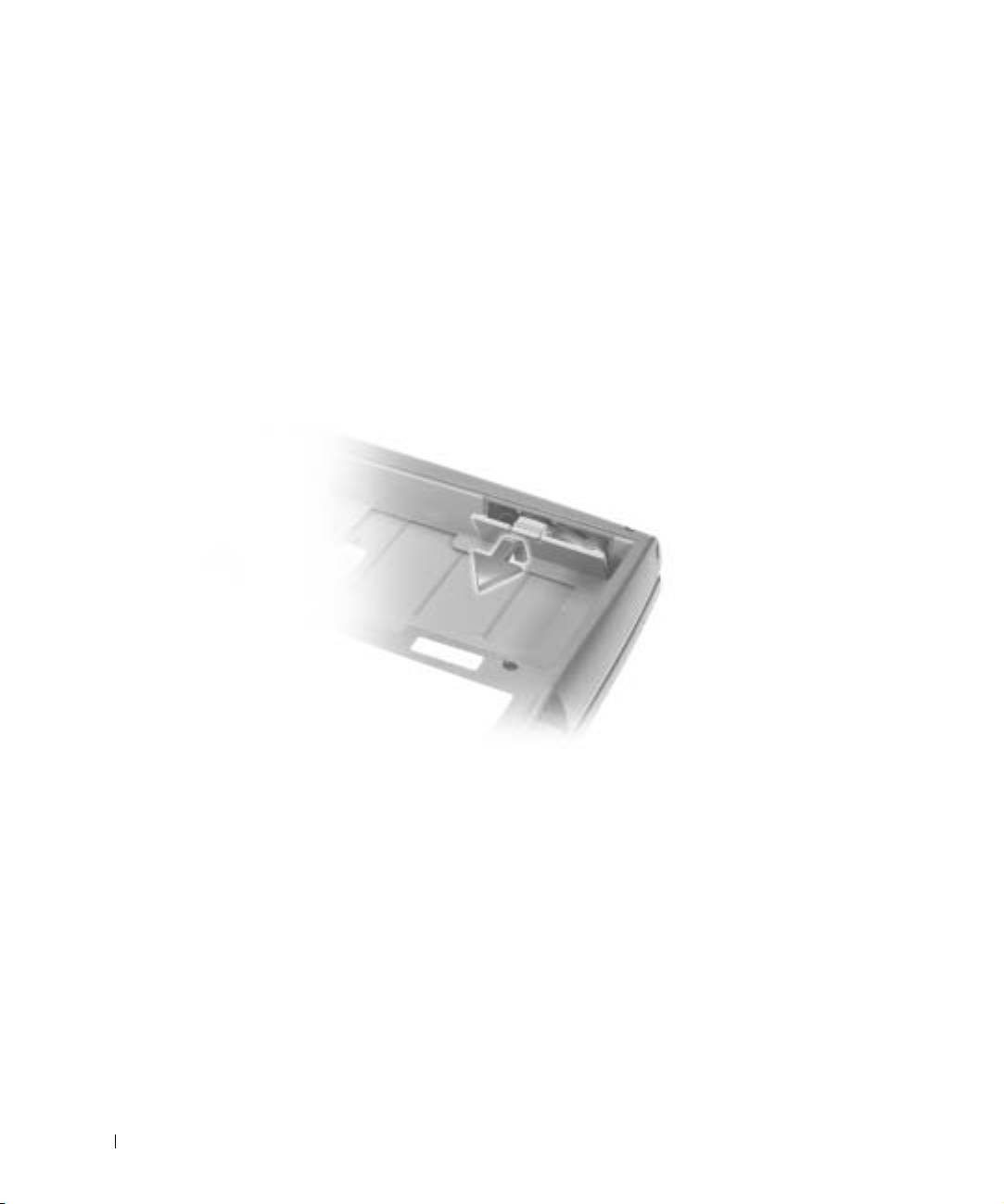
Removing a Reserve Battery
1 Remove the battery.
2 Remove the reserve battery cover.
www.dell.com | support.dell.com
22 System Information Guide
Top 10 manuals
100.00
NZXT HALE90 1000W99.99
Samsung SM-R38099.97
AEG BSB 18C99.97
Dell 2700W99.97
Smeg KSEC70X99.96
Beurer HDE 4099.96
Pyramida KH 50 v.299.96
MSI CSM-H81M-P3299.96
AEG HR 562799.95
Melissa 640-048