
Dell Latitude D420: Bottom View
Bottom View: Dell Latitude D420
Table of contents
- Notes, Notices, and Cautions Abbreviations and Acronyms For a complete list of abbreviations and acronyms, see the Glossary in your
- Contents
- Finding Information What Are You Looking For? Find It Here
- What Are You Looking For? Find It Here
- What Are You Looking For? Find It Here
- What Are You Looking For? Find It Here
- Setting Up Your Computer
- About Your Computer
- Front View
- Left View Right View Back View
- Bottom View
- Using a Battery Battery Performance
- Checking the Battery Charge
- Charging the Battery Replacing the Battery
- Storing a Battery
- Troubleshooting Lockups and Software Problems
- Other software problems BACK UP YOUR FILES IMMEDIATELY.
- Starting the Dell Diagnostics From Your Hard Drive Starting the Dell Diagnostics From the Drivers and Utilities CD
- Dell Diagnostics Main Menu
- Tab Function
- Index
- 24 Index
NOTE: The D420 has been optimally designed to be used with the slim Media Base for docking. However, it is
compatible with the D-Family D/Port and D/Dock. With the use of the D-Family D/Port and D/Dock, all ports can be
effectively utilized except for the 1394 port. If the use of this port is required, it is recommended that you utilize the
Media Base as your primary docking device.
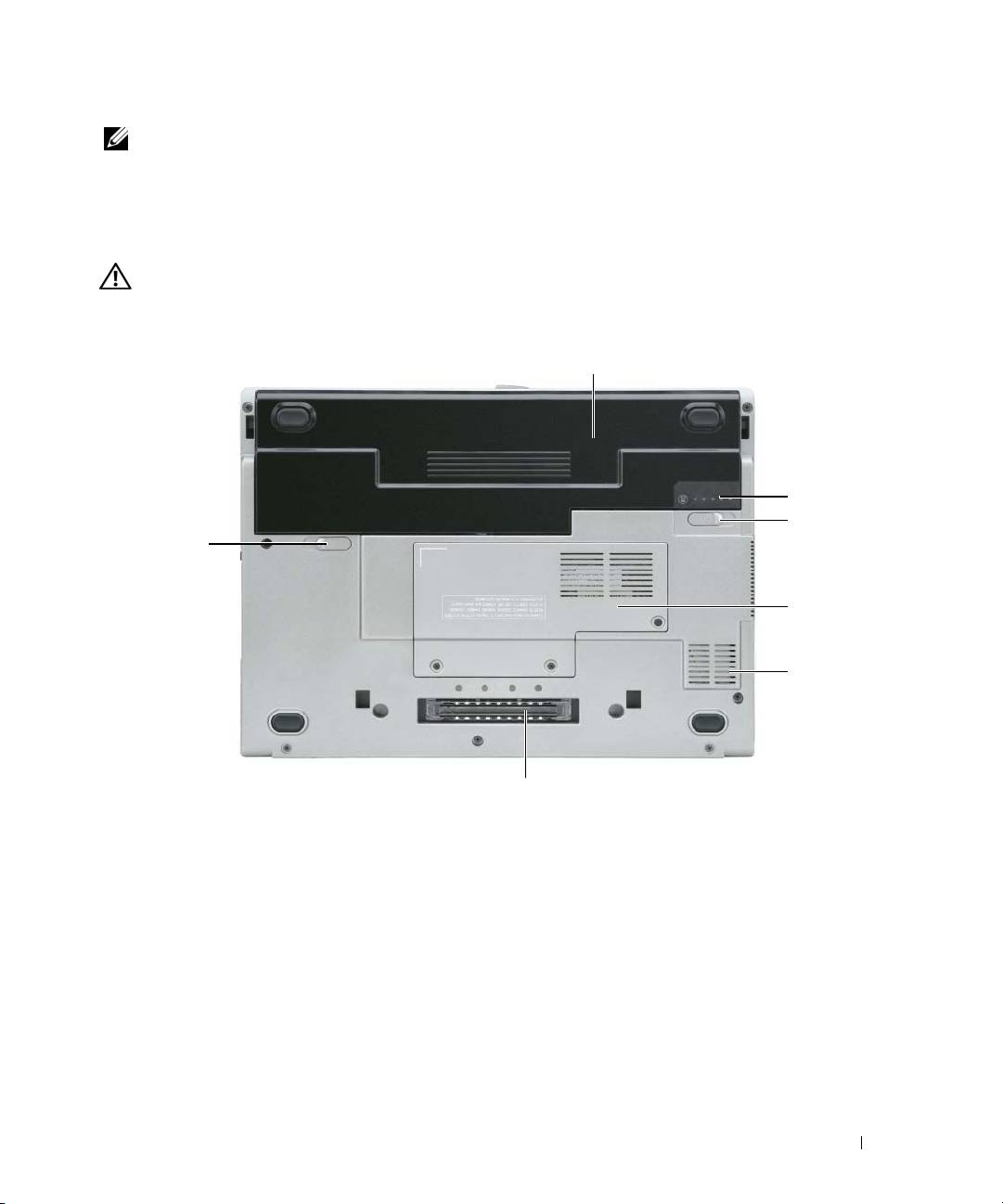
Bottom View
CAUTION: Do not block, push objects into, or allow dust to accumulate in the air vents. Do not store your computer
in a low-airflow environment, such as a closed briefcase, while it is running. Restricting the airflow can damage
the computer or cause a fire.
1
2
3
3
4
5
6
1 battery 3 battery-bay latch release (2) 5 air vent
2 battery charge gauge 4 memory module/WLAN
6 docking device slot
Mini-Card cover
Quick Reference Guide 13
