
Dell Precision M60: What are you looking for? Find It Here
What are you looking for? Find It Here: Dell Precision M60
Table of contents
- Notes, Notices, and Cautions Abbreviations and Acronyms
- Contents
- CAUTION: Safety Instructions General
- CAUTION: Safety Instructions (continued) Power
- CAUTION: Safety Instructions (continued) Battery
- CAUTION: Safety Instructions (continued) Air Travel EMC Instructions California Residents
- When Using Your Computer
- When Using Your Computer (continued) Ergonomic Computing Habits When Working Inside Your Computer
- When Using Your Computer (continued) Protecting Against Electrostatic Discharge Battery Disposal
- Finding Information for Your Computer What are you looking for? Find It Here
- What are you looking for? Find It Here
- What are you looking for? Find It Here Setting Up Your Computer 1 Unpack the accessories box. 2 Set aside the contents of the accessories box, which you will need to complete the setup of your computer.
- 3 Connect the AC adapter to the AC adapter connector on the computer and to the electrical outlet. 4 Open the computer display and press the power button to turn on the computer.
- About Your Computer
- Front View
- Left Side View Right Side View
- Back View
- Bottom View Removing a Battery
- Installing a Battery
- Removing a Reserve Battery
- Installing a Reserve Battery Running the Dell Diagnostics 1 Shut down the computer.
- 7 After the Dell Diagnostics loads and the Main Menu screen appears, click the button for the option you want.
- Option Function Tab Function 10 When you have finished running a test, close the screen to return to the Main Menu
- Regulatory Notices
What are you looking for? Find It Here
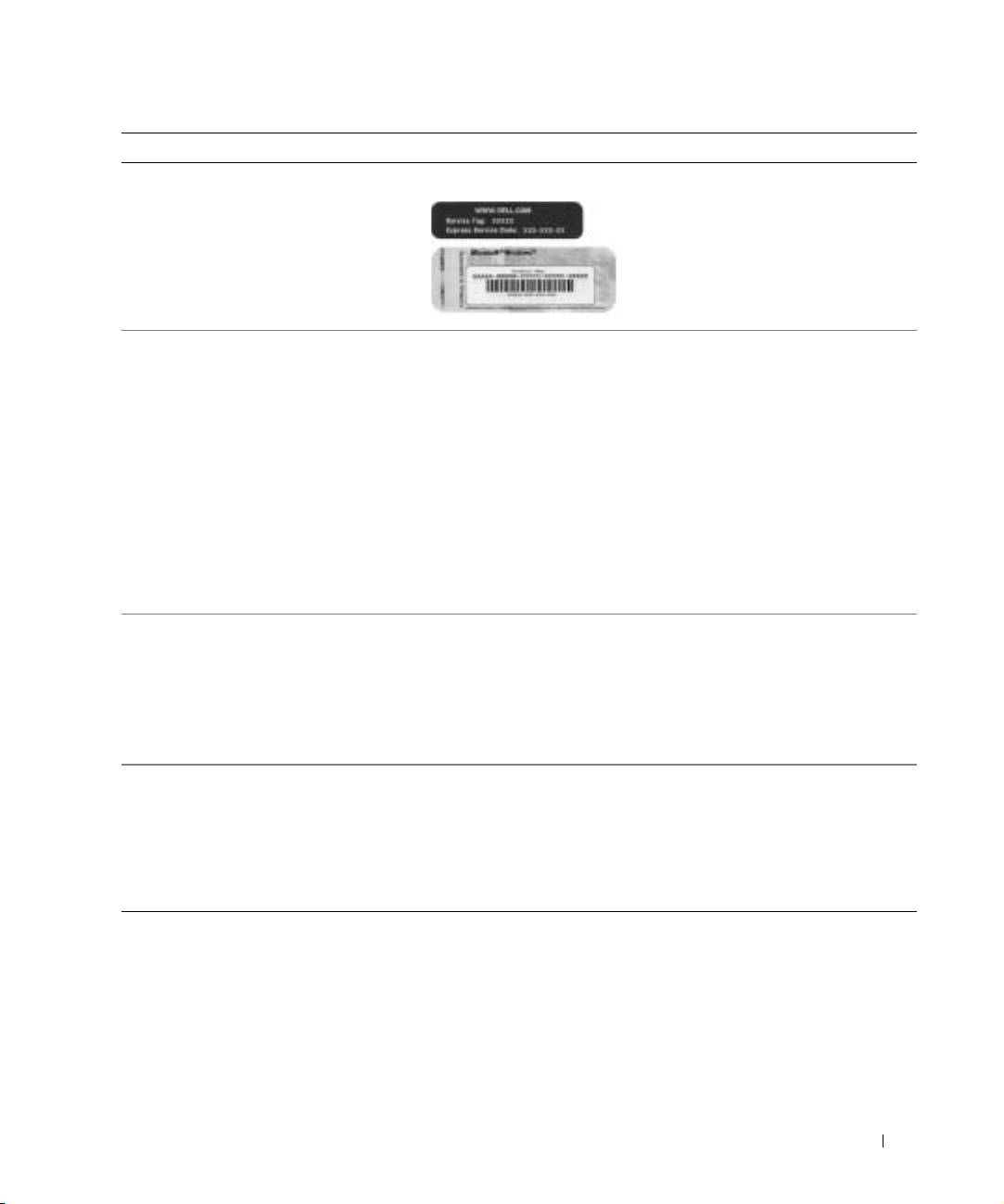
• Express Service Code and Service Tag
Express Service Code and Product Key Label
®
®
• Microsoft
Windows
License Label
These labels are located on your
computer.
• Latest drivers for my computer
Dell Support Website — support.dell.com
• Answers to technical service and
The Dell Support website provides several online tools, including:
support questions
• Solutions — Troubleshooting hints and tips, articles from
• Online discussions with other users
technicians, and online courses
and technical support
• Community Forum — Online discussion with other Dell customers
• Documentation for my computer
• Upgrades — Upgrade information for components, such as memory,
including the Service Manual
the hard drive, and the operating system
• Customer Care — Contact information, order status, warranty, and
repair information
• Downloads — Drivers, patches, and software updates
• Reference — Computer documentation, product specifications, and
white papers
• Service call status and support history
Dell Premier Support Website —
• Top technical issues for my computer
premiersupport.dell.com
• Frequently asked questions
The Dell Premier Support website is customized for corporate,
• File downloads
government, and education customers. This website may not be
available in all regions.
• Details on my computer configuration
• Service contract for my computer
• How to use Windows XP
Windows Help and Support Center
• Documentation for my computer
1 Click the Start button and click Help and Support.
• Documentation for devices (such as a
2 Type a word or phrase that describes your problem and click the
modem)
arrow icon.
3 Click the topic that describes your problem.
4 Follow the instructions on the screen.
System Information Guide 13
