
Dell Precision M60: Bottom View Removing a Battery
Bottom View Removing a Battery: Dell Precision M60
Table of contents
- Notes, Notices, and Cautions Abbreviations and Acronyms
- Contents
- CAUTION: Safety Instructions General
- CAUTION: Safety Instructions (continued) Power
- CAUTION: Safety Instructions (continued) Battery
- CAUTION: Safety Instructions (continued) Air Travel EMC Instructions California Residents
- When Using Your Computer
- When Using Your Computer (continued) Ergonomic Computing Habits When Working Inside Your Computer
- When Using Your Computer (continued) Protecting Against Electrostatic Discharge Battery Disposal
- Finding Information for Your Computer What are you looking for? Find It Here
- What are you looking for? Find It Here
- What are you looking for? Find It Here Setting Up Your Computer 1 Unpack the accessories box. 2 Set aside the contents of the accessories box, which you will need to complete the setup of your computer.
- 3 Connect the AC adapter to the AC adapter connector on the computer and to the electrical outlet. 4 Open the computer display and press the power button to turn on the computer.
- About Your Computer
- Front View
- Left Side View Right Side View
- Back View
- Bottom View Removing a Battery
- Installing a Battery
- Removing a Reserve Battery
- Installing a Reserve Battery Running the Dell Diagnostics 1 Shut down the computer.
- 7 After the Dell Diagnostics loads and the Main Menu screen appears, click the button for the option you want.
- Option Function Tab Function 10 When you have finished running a test, close the screen to return to the Main Menu
- Regulatory Notices
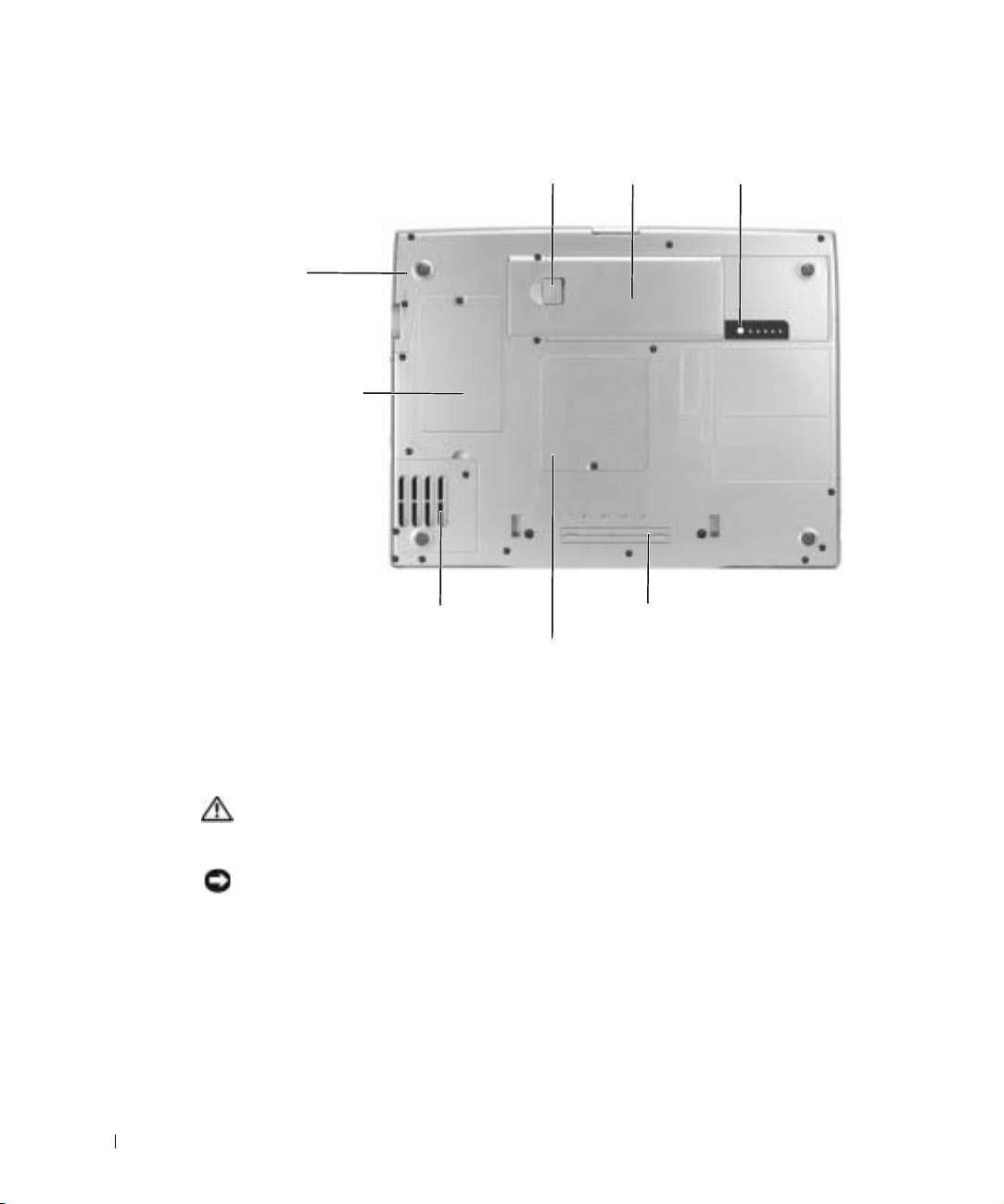
Bottom View
battery-bay latch release battery charge gauge
battery
hard drive
Mini PCI
card/modem cover
www.dell.com | support.euro.dell.com
fan
docking device slot
memory module cover
Removing a Battery
For more information about removing the second battery, see "Using the Module Bay" in
your online User’s Guide.
CAUTION: Before performing these procedures, read and follow the safety
instructions that begin on page 5, turn off the computer, disconnect it from the
electrical outlet, and disconnect the modem from the telephone wall jack.
NOTICE: If you choose to replace the battery with the computer in standby mode, you have up
to 90 seconds to complete the battery replacement before the computer shuts down and loses any
unsaved data.
1
Ensure that the computer is turned off, suspended in a power management mode, or
connected to an electrical outlet.
2 If the computer is connected to a docking device (docked), undock it.
See the documentation that came with your docking device for instructions.
20 System Information Guide
