
Dell Precision M4300: What Are You Looking For? Find It Here
What Are You Looking For? Find It Here: Dell Precision M4300
Table of contents
- Notes, Notices, and Cautions Abbreviations and Acronyms
- Contents
- Finding Information What Are You Looking For? Find It Here
- What Are You Looking For? Find It Here
- What Are You Looking For? Find It Here
- Setting Up Your Computer
- About Your Computer Front View
- Left View Right View
- Back View Bottom View
- Using a Battery Battery Performance
- Checking the Battery Charge Dell™ QuickSet Battery Meter Microsoft Windows Power Meter Charge Gauge Check the Battery Charge Check the Battery Health
- Low-Battery Warning Conserving Battery Power Power Management Modes Standby Mode
- Hibernate Mode
- Configuring Power Management Settings Charging the Battery Replacing the Battery
- To remove the battery: Storing a Battery
- Troubleshooting Lockups and Software Problems The computer does not start up The computer stops responding A program stops responding or crashes repeatedly A program is designed for an earlier Microsoft Windows operating system A solid blue screen appears
- Other software problems Dell Diagnostics When to Use the Dell Diagnostics
- Starting the Dell Diagnostics From Your Hard Drive Starting the Dell Diagnostics From the Drivers and Utilities Media
- Dell Diagnostics Main Menu Option Function Option Function
- 4 Tab Function
What Are You Looking For? Find It Here
®
®
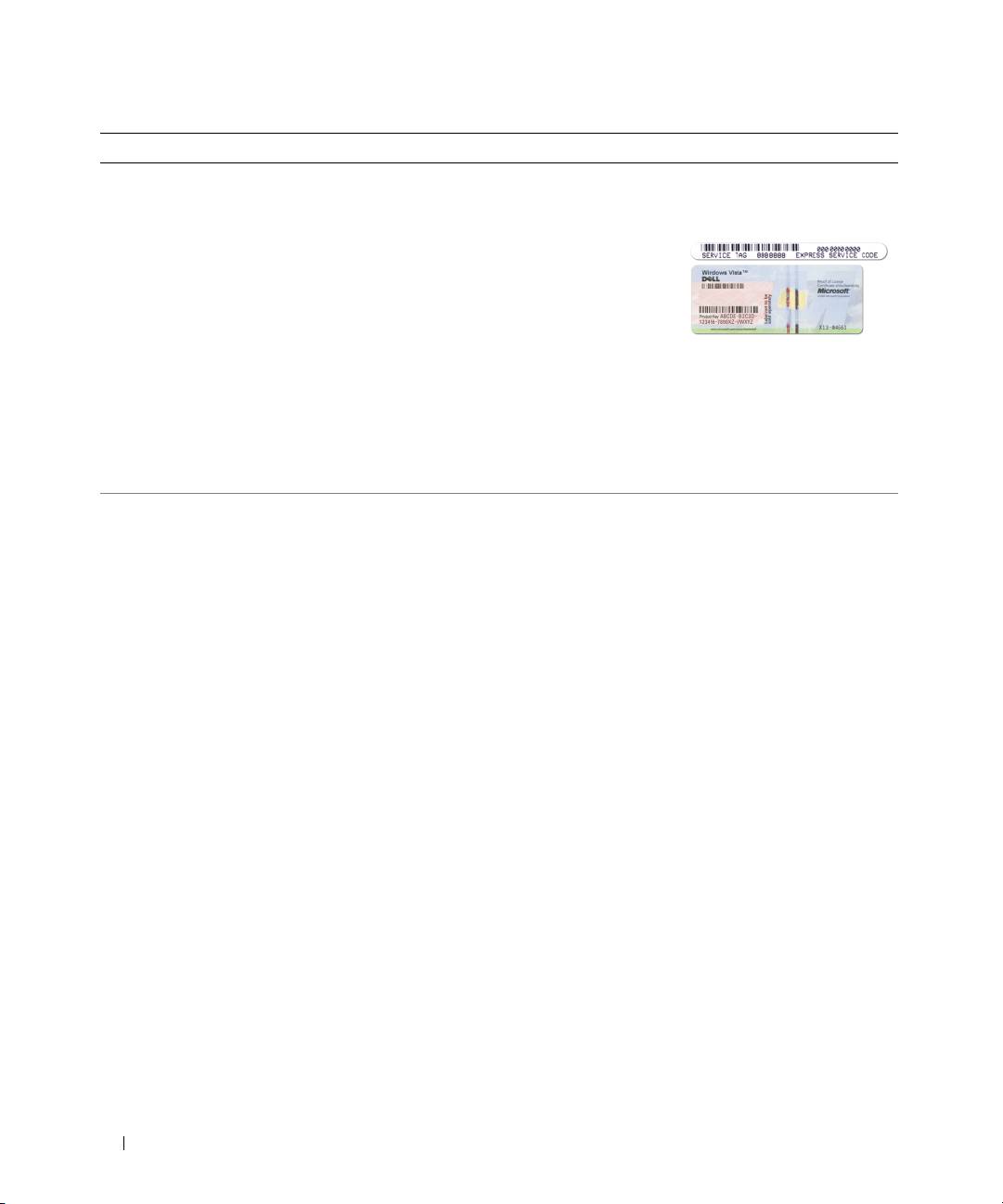
• Service Tag and Express Service Code
Service Tag and Microsoft
Windows
License
• Microsoft Windows License Label
These labels are located on your computer.
• Use the Service Tag to
identify your computer
when you use
support.dell.com
or
contact support.
• Enter the Express Service Code to direct your call when
contacting support.
NOTE: The Microsoft Windows License label has been
redesigned with a hole, or "security portal," as an increased
security measure.
• Solutions — Troubleshooting hints and tips, articles
Dell Support Website — support.dell.com
from technicians, online courses, and frequently
NOTE: Select your region or business segment to view the
asked questions
appropriate support site.
• Community — Online discussion with other Dell
customers
• Upgrades — Upgrade information for components,
such as memory, the hard drive, and the operating
system
• Customer Care — Contact information, service call
and order status, warranty, and repair information
• Service and support — Service call status and
support history, service contract, online discussions
with technical support
• Reference — Computer documentation, details on
my computer configuration, product specifications,
and white papers
• Downloads — Certified drivers, patches, and
software updates
• Notebook System Software (NSS) — If you reinstall
the operating system for your computer, you should
To download Notebook System Software:
also reinstall the NSS utility. NSS provides critical
1
Go to
support.dell.com
, select your region or business
updates for your operating system and support for
®
segment, and enter your Service Tag.
Dell™ 3.5-inch USB floppy drives, Intel
processors,
2
Select
Drivers & Downloads
and click
Go
.
optical drives, and USB devices. NSS is necessary for
correct operation of your Dell computer. The
3
Click your operating system and search for the keyword
software automatically detects your computer and
Notebook System Software
.
operating system and installs the updates appropriate
NOTE: The support.dell.com user interface may vary
for your configuration.
depending on your selections.
6 Quick Reference Guide
