
Dell Precision M20: Installing a Battery Storing a Battery
Installing a Battery Storing a Battery: Dell Precision M20
Table of contents
- Notes, Notices, and Cautions Abbreviations and Acronyms
- Contents
- Finding Information What Are You Looking For? Find It Here
- What Are You Looking For? Find It Here
- What Are You Looking For? Find It Here
- Setting Up Your Computer
- Battery Performance
- Checking the Battery Charge Dell™ QuickSet Battery Meter
- Microsoft Windows Power Meter Charge Gauge
- Health Gauge Low-Battery Warning
- Charging the Battery Removing a Battery
- Installing a Battery Storing a Battery
- About Your Computer Front View
- Left View
- Right View
- Back View
- Bottom View Solving Problems Notebook System Software
- Lockups and Software Problems The computer does not start up The computer stops responding A program stops responding A program crashes repeatedly
- A program is designed for an earlier Windows operating system A solid blue screen appears Other software problems
- Running the Dell Diagnostics When to Use the Dell Diagnostics Starting the Dell Diagnostics From Your Hard Drive
- Starting the Dell Diagnostics From the Drivers and Utilities CD
- Dell Diagnostics Main Menu
- Tab Function
- Index
- 28 Index
www.dell.com | support.dell.com
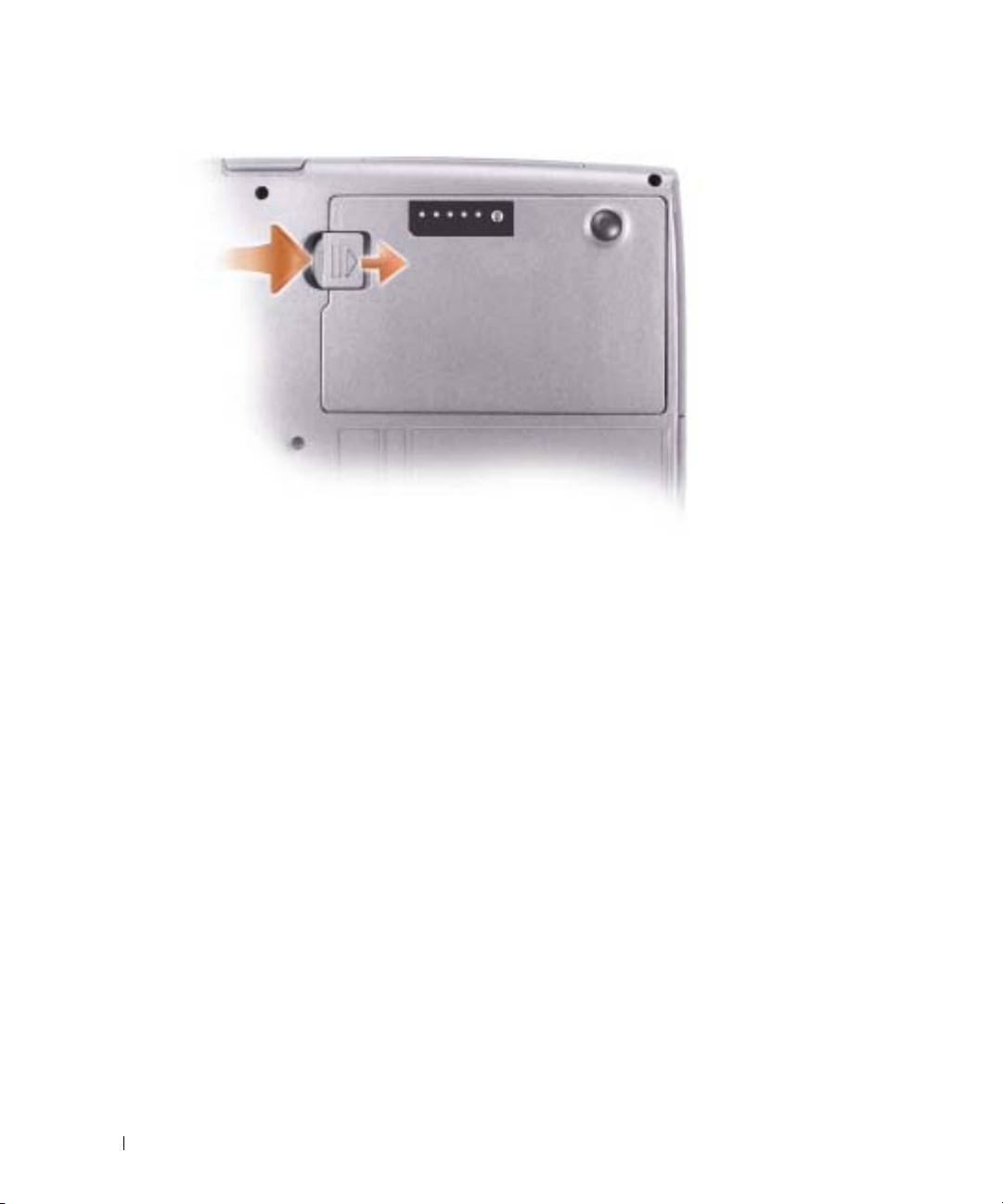
Installing a Battery
Slide the battery into the bay until the latch release clicks.
For information about installing the second battery, see your
User’s Guide
.
Storing a Battery
Remove the battery when you store your computer for an extended period of time. A battery
discharges during prolonged storage. After a long storage period, charge the battery fully before you
use it.
14 Dell Precision Mobile Workstation M20 Quick Reference Guide
Top 10 manuals
100.00
NZXT HALE90 1000W99.99
Samsung SM-R38099.97
AEG BSB 18C99.97
Dell 2700W99.97
Smeg KSEC70X99.96
Beurer HDE 4099.96
Pyramida KH 50 v.299.96
MSI CSM-H81M-P3299.96
AEG HR 562799.95
Melissa 640-048