
Dell Latitude D530: Storing a Battery Troubleshooting
Storing a Battery Troubleshooting: Dell Latitude D530
Table of contents
- Notes, Notices, and Cautions
- Contents
- Finding Information What Are You Looking For? Find It Here
- What Are You Looking For? Find It Here
- What Are You Looking For? Find It Here
- What Are You Looking For? Find It Here
- What Are You Looking For? Find It Here
- What Are You Looking For? Find It Here
- What Are You Looking For? Find It Here Setting Up Your Computer Transferring Information to a New Computer
- Microsoft Windows XP Running the Files and Settings Transfer Wizard With the Operating System Disc
- To copy data from the old computer: To transfer data to the new computer:
- Running the Files and Settings Transfer Wizard Without the Operating System Disc To create a wizard disk, use your new computer with Windows XP and perform the following steps: To copy data from the old computer:
- To transfer data to the new computer: Microsoft Windows Vista
- Turning Off Your Computer
- About Your Computer Front View
- Left Side View Right Side View
- Back View
- Bottom View
- Using a Battery Battery Performance
- Checking the Battery Charge Dell QuickSet Battery Meter Microsoft Windows Power Meter Charge Gauge
- Check the Battery Charge Check the Battery Health Low-Battery Warning
- Conserving Battery Power Power Management Modes Standby and Sleep Mode
- Hibernate Mode
- Configuring Power Management Settings Accessing Power Options Properties Windows XP Windows Vista Charging the Battery
- Replacing the Battery
- Storing a Battery Troubleshooting
- Lockups and Software Problems The computer does not start up The computer stops responding A program stops responding A program crashes repeatedly A program is designed for an earlier Windows operating system
- A solid blue screen appears Other software problems Dell Diagnostics
- When to Use the Dell Diagnostics Starting the Dell Diagnostics From Your Hard Drive
- Starting the Dell Diagnostics From the Optional Drivers and Utilities Disc
- Dell Diagnostics Main Menu Option Function Tab Function
- Tab Function
- Index
- 36 Index
- Index 37
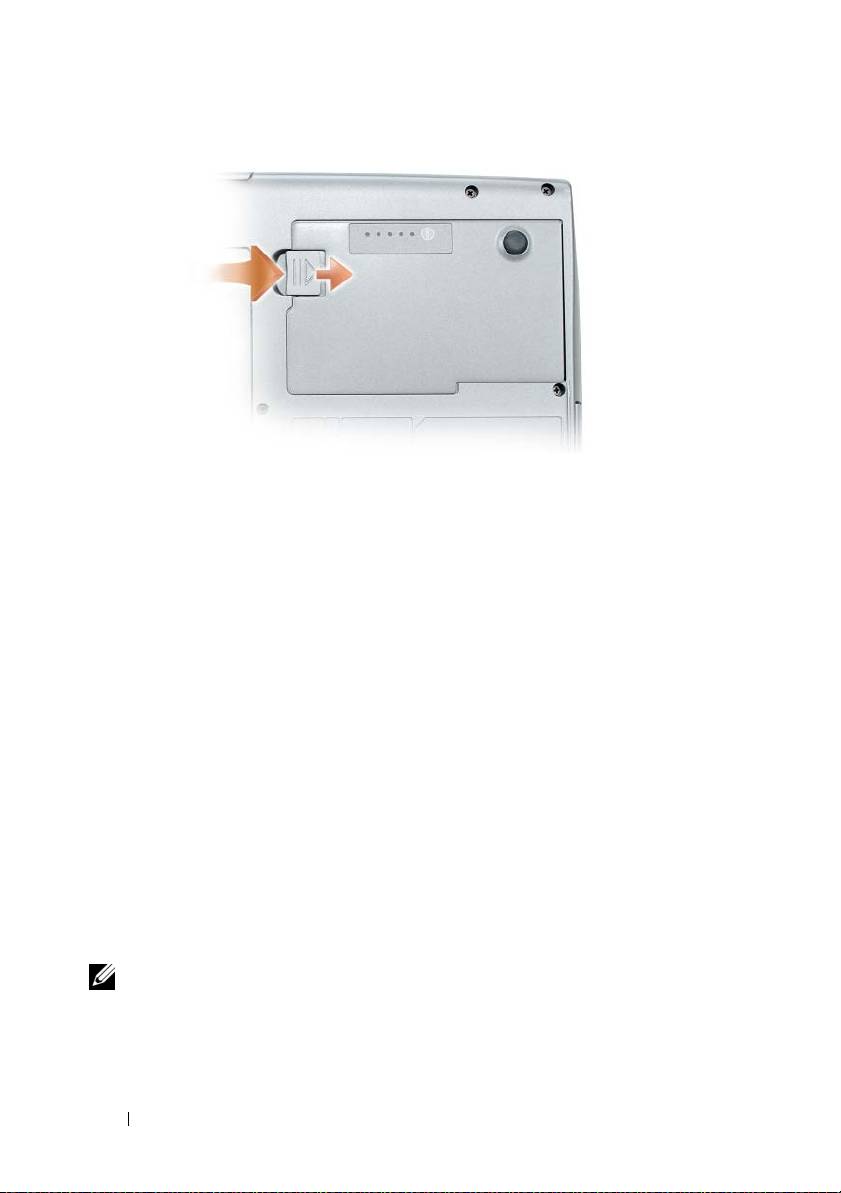
To replace the battery, follow the removal procedure in reverse order and press
down until the battery-bay latch release fully engages.
Storing a Battery
Remove the battery when you store your computer for an extended period of
time. A battery discharges during prolonged storage. After a long storage
period, recharge the battery fully (see "Charging the Battery" on page 26)
before you use it.
Troubleshooting
Follow these tips when you troubleshoot your computer:
• If you added or removed a part before the problem started, review the
installation procedures and ensure that the part is correctly installed.
• If a peripheral device does not work, ensure that the device is properly
connected.
• If an error message appears on the screen, write down the exact message.
This message may help support personnel diagnose and fix the problem(s).
• If an error message occurs in a program, see the program’s documentation.
NOTE: The procedures in this document were written for the Windows default
view, so they may not apply if you set your Dell computer to the Windows Classic
view.
28 Quick Reference Guide
