
Dell Latitude 120L: Storing a Battery Troubleshooting Lockups and Software Problems
Storing a Battery Troubleshooting Lockups and Software Problems: Dell Latitude 120L
Table of contents
- Notes, Notices, and Cautions Abbreviations and Acronyms
- Contents
- Finding Information What Are You Looking For? Find It Here
- What Are You Looking For? Find It Here
- What Are You Looking For? Find It Here
- Setting Up Your Computer
- About Your Computer Front View
- Left Side View Right Side View Back View
- Bottom View Using a Battery Battery Performance
- Checking the Battery Charge Dell™ QuickSet Battery Meter Microsoft Windows Power Meter
- Low-Battery Warning Conserving Battery Power Power Management Modes Standby Mode
- Hibernate Mode Configuring Power Management Settings
- Charging the Battery Replacing the Battery
- Storing a Battery Troubleshooting Lockups and Software Problems
- Other software problems
- BACK UP YOUR FILES IMMEDIATELY. Dell Diagnostics
- Starting the Dell Diagnostics From the Drivers and Utilities CD
- Dell Diagnostics Main Menu Option Function Tab Function
- Tab Function
- Index
- 24 Index
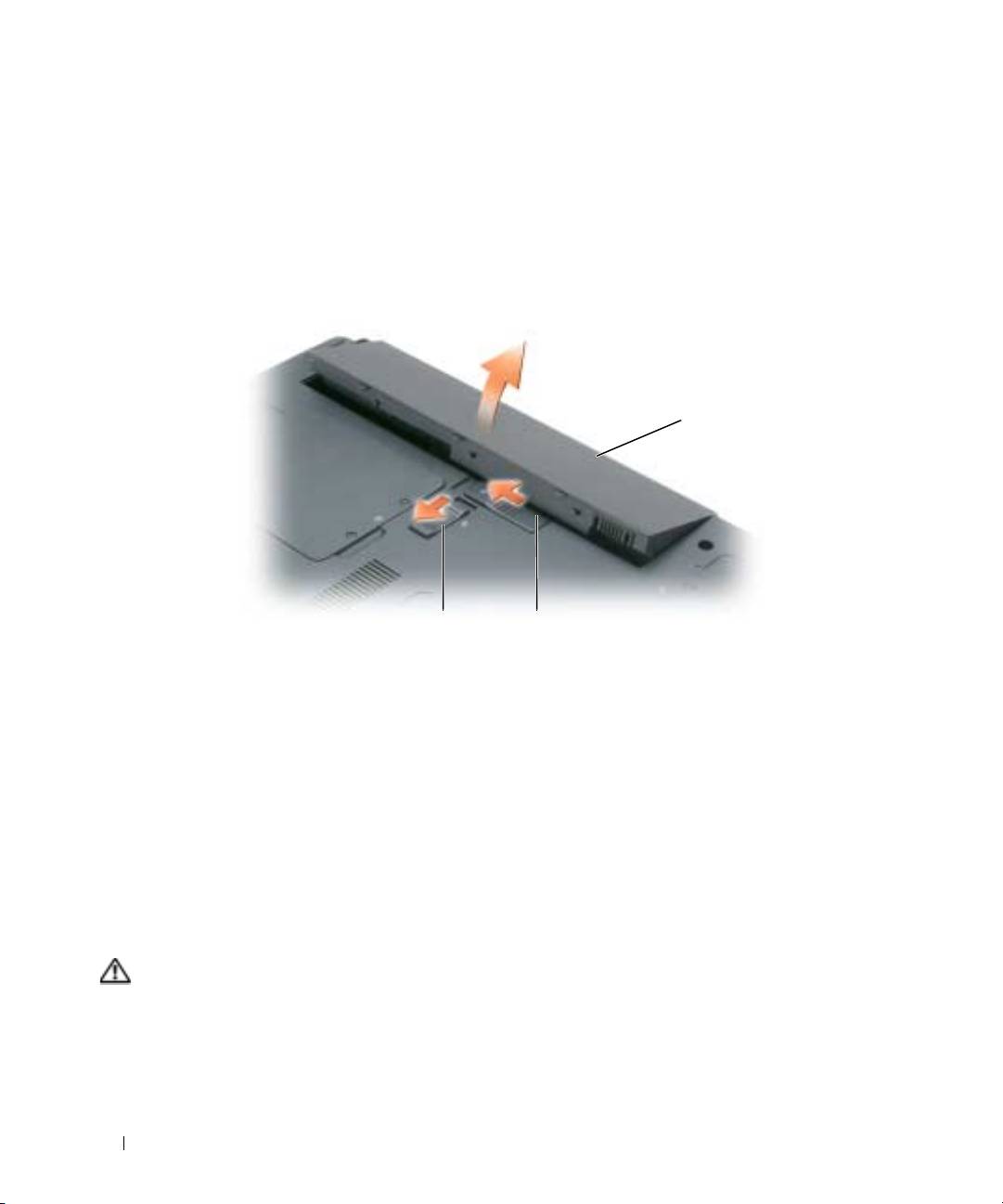
To remove the battery:
1
If the computer is connected to a docking device (docked), undock it. See the documentation that
came with your docking device for instructions.
2
Ensure that the computer is turned off.
3
Slide the battery-bay latch lock on the bottom of the computer away from the battery.
4
Slide and hold the battery-bay latch release, and then remove the battery from the bay.
1
3
2
1 battery 2 battery-bay latch release 3 battery-bay latch lock
To replace the battery, follow the removal procedure in reverse order.
Storing a Battery
Remove the battery when you store your computer for an extended period of time. A battery discharges
during prolonged storage. After a long storage period, recharge the battery (see "Charging the Battery" on
page 15) fully before you use it.
Troubleshooting
Lockups and Software Problems
CAUTION: Before you begin any of the procedures in this section, follow the safety instructions in the Product
Information Guide.
16 Quick Reference Guide
