
Dell Precision 690: Diagnostic Lights Power Problem Description Suggested Resolution Light
Diagnostic Lights Power Problem Description Suggested Resolution Light: Dell Precision 690
Table of contents
- Notes, Notices, and Cautions Abbreviations and Acronyms
- Contents
- Finding Information What Are You Looking For? Find It Here
- What Are You Looking For? Find It Here
- What Are You Looking For? Find It Here
- What Are You Looking For? Find It Here
- Setting Up Your Computer Connect the keyboard and the mouse. Connect the modem or the network cable.
- Connect the monitor.
- For single- and dual-monitor capable cards with a single connector
- For dual-monitor capable cards with one DVI connector and one VGA connector For dual-monitor capable cards with two DVI connectors
- Connect the speakers. Connect the power cables and turn on the computer and monitor.
- Install additional software or devices. About Your Computer
- Front View
- 6 IEEE 1394 connector Use the IEEE 1394 connector for high-speed data devices such as digital video
- 13 diagnostic lights (4) Use these lights to help you troubleshoot a computer problem based on the
- Back View
- Back Panel Connectors 4 USB 2.0 connectors (3) It is recommended that you use the front USB connectors for devices that you
- 13 serial connector Connect a serial device, such as a handheld device, to the serial port. If necessary,
- Inside View
- System Board Components
- 17 hard drive fan (FAN_HDD)
- Cable Colors Device Color Locating Your User’s Guide Removing the Computer Cover
- 1 2 3 4 5
- 6 7 8
- Computer Stand Attaching the Computer Stand 4
- 5 9
- Removing the Computer Stand Caring for Your Computer Solving Problems Troubleshooting Tips
- Resolving Software and Hardware Incompatibilities Using Microsoft Windows XP System Restore Creating a Restore Point Restoring the Computer to an Earlier Operating State
- Undoing the Last System Restore Enabling System Restore Using the Last Known Good Configuration
- Other Options to Help Resolve Additional Device or Software Conflicts Dell Diagnostics When to Use the Dell Diagnostics Starting the Dell Diagnostics From Your Hard Drive
- Starting the Dell Diagnostics From the Drivers and Utilities CD Before you start testing Beep Codes
- Code Cause
- Code Cause Error Messages Diagnostic Lights Diagnostic Light Codes Before POST Diagnostic Lights Power Problem Description Suggested Resolution Light
- Diagnostic Lights Power Problem Description Suggested Resolution Light
- Diagnostic Lights Power Problem Description Suggested Resolution Light
- Light Pattern Problem Description Suggested Resolution
- Light Pattern Problem Description Suggested Resolution
- Light Pattern Problem Description Suggested Resolution
- Light Pattern Problem Description Suggested Resolution
- Frequently Asked Questions How Do I... Solution Where to Find Additional Information
- Index
- 44 Index
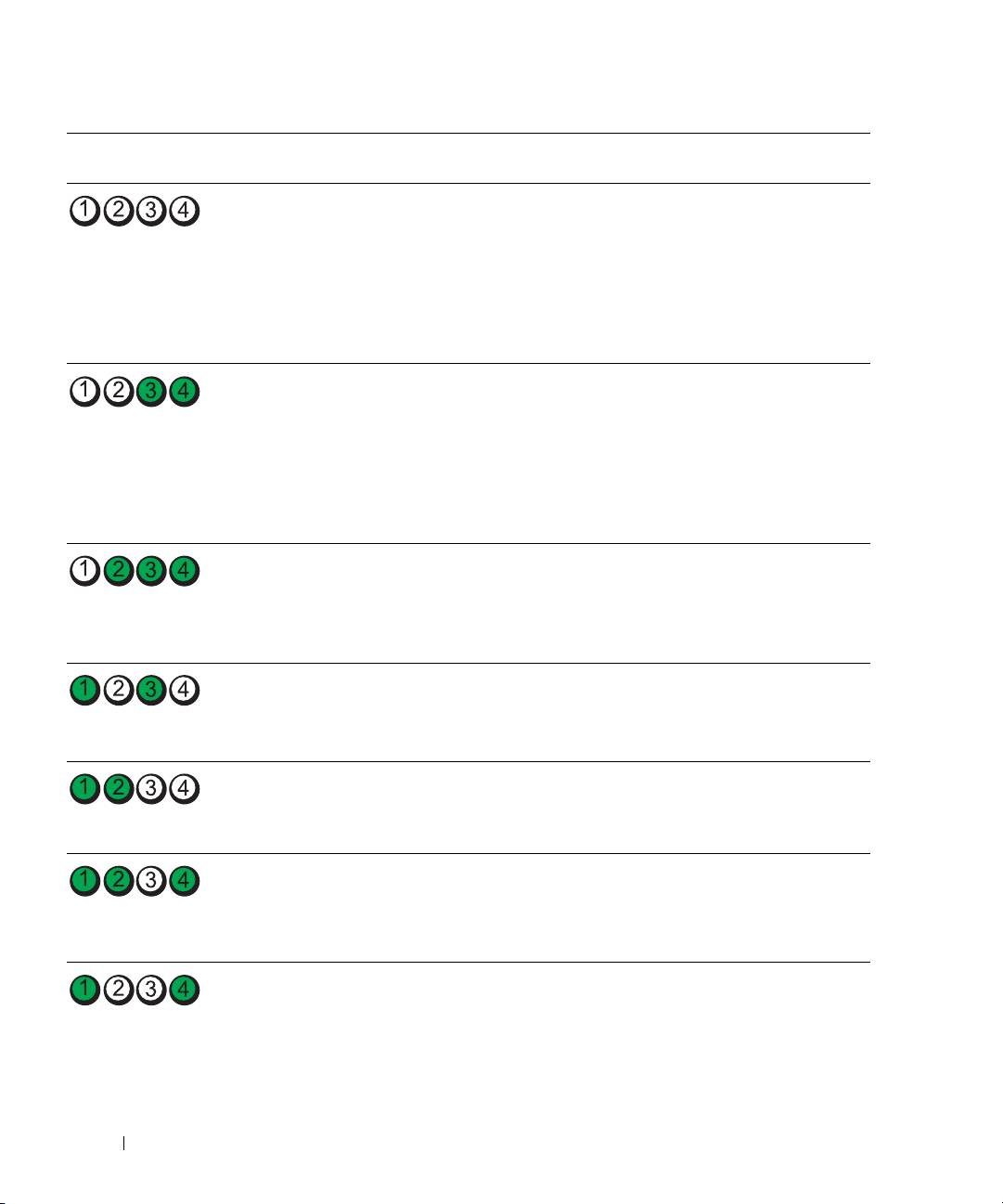
Diagnostic Lights Power
Problem Description Suggested Resolution
Light
blinking
The computer is in a reduced
Use one of the appropriate methods to "wake
green
power or "sleep" state.
up" the computer. See "Advanced Features" in
your User’s Guide.
If the problem is not resolved and you are trying
to wake the computer with a USB mouse or
keyboard, substitute the mouse or keyboard
with a working PS/2 mouse or keyboard and
then try to wake the computer.
blinking
The computer is in a reduced
Use one of the appropriate methods to "wake
green
power or "sleep" state.
up" the computer. See "Advanced Features" in
your User’s Guide.
If the problem is not resolved and you are trying
to wake the computer with a USB mouse or
keyboard, substitute the mouse or keyboard
with a working PS/2 mouse or keyboard and
then try to wake the computer.
amber The BIOS is not executing. Ensure that the processor is seated correctly and
restart the computer. See "Processor" in your
User’s Guide.
(blinking)
If the problem is still not resolved, contact Dell
for technical assistance.
blinking
A possible power supply
Perform the procedure in "Power Problems"
amber
or power cable failure has
in your User’s Guide.
occurred.
If the problem is still not resolved, contact Dell
(blinking)
for technical assistance.
amber A possible system board
Contact Dell for technical assistance.
failure has occurred.
(blinking)
amber A processor mismatch exists. Perform the procedure in "Processor Problems"
in your User’s Guide.
(blinking)
amber A possible failure has been
Verify that any required power cables are
detected in a plug-in
connected to the memory and graphics riser
component such as a graphics
cards.
(blinking)
riser card or memory riser
Perform the procedure in "Power Problems"
card.
in your User’s Guide.
36 Quick Reference Guide
