
Dell Latitude D510: Removing a Battery Installing a Battery Storing a Battery
Removing a Battery Installing a Battery Storing a Battery: Dell Latitude D510
Table of contents
- Notes, Notices, and Cautions Abbreviations and Acronyms
- Contents
- Finding Information What Are You Looking For? Find It Here
- What Are You Looking For? Find It Here
- What Are You Looking For? Find It Here
- What Are You Looking For? Find It Here
- Setting Up Your Computer
- Battery Performance
- Operating time is significantly reduced when you perform operations including, but not limited to, the following:
- Checking the Battery Charge Dell™ QuickSet Battery Meter Microsoft Windows Power Meter
- Charge Gauge Health Gauge
- Low-Battery Warning Charging the Battery
- Removing a Battery Installing a Battery Storing a Battery
- About Your Computer Front View
- Left View Right View
- Back View Bottom View
- Solving Problems Notebook System Software Lockups and Software Problems The computer does not start up The computer stops responding A program stops responding
- A program is designed for an earlier Windows operating system A solid blue screen appears Other software problems
- Running the Dell Diagnostics When to Use the Dell Diagnostics Starting the Dell Diagnostics From Your Hard Drive
- Starting the Dell Diagnostics From the Drivers and Utilities CD
- Dell Diagnostics Main Menu Option Function Tab Function
- Tab Function
- Index
- 26 Index
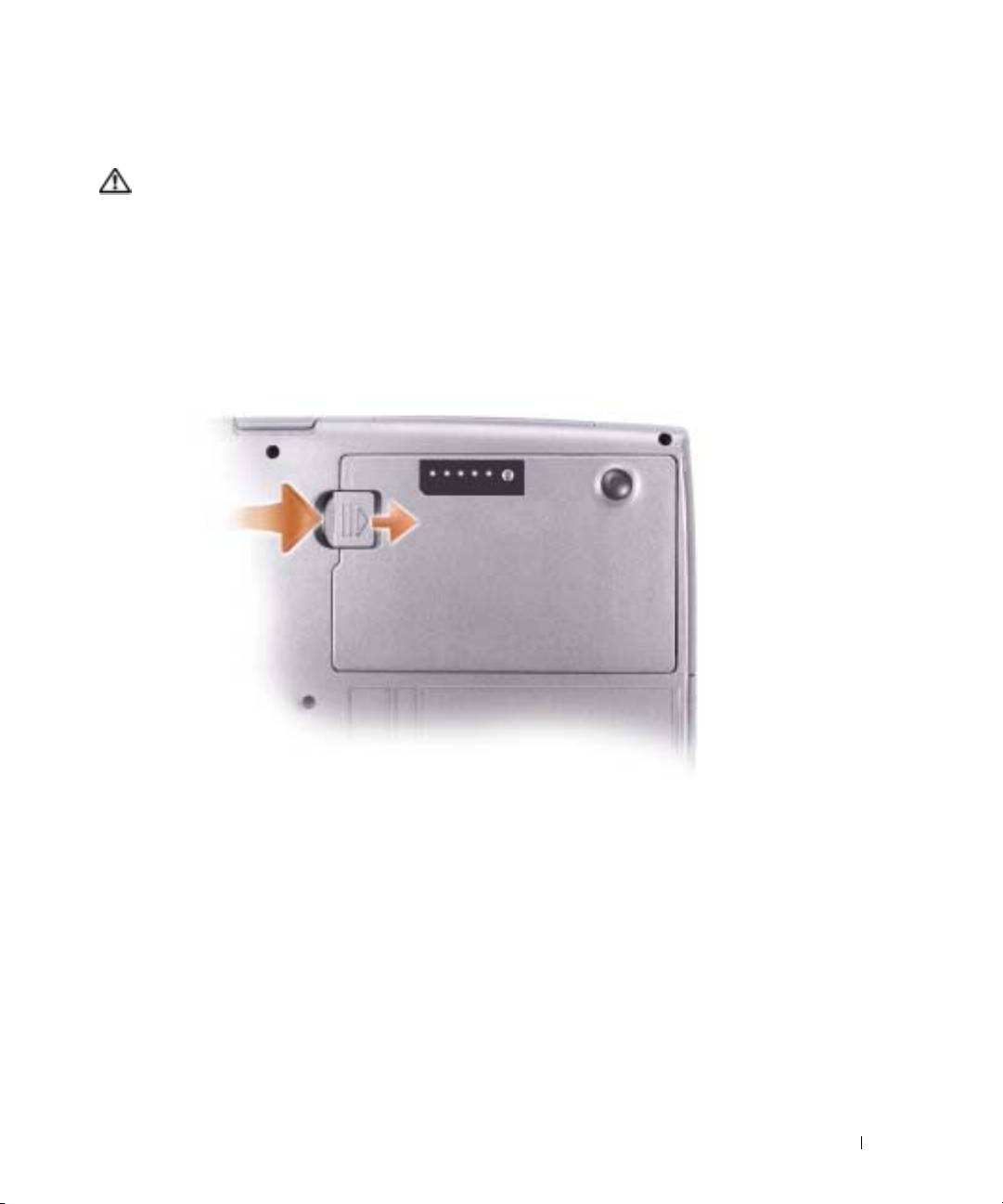
Removing a Battery
CAUTION: Before performing these procedures, disconnect the modem from the telephone wall jack.
For information about removing the second battery, see your
User’s Guide
.
1
Ensure that the computer is turned off, suspended in a power management mode
(Hibernation mode), or connected to an electrical outlet.
2
If the computer is connected to a docking device (docked), undock it. See the documentation
that came with your docking device for instructions.
3
Slide and hold the battery-bay (or module-bay) latch release on the bottom of the computer,
and then remove the battery from the bay.
Installing a Battery
Slide the battery into the bay until the latch release clicks.
For information about installing the second battery, see your
User’s Guide
.
Storing a Battery
Remove the battery when you store your computer for an extended period of time. A battery
discharges during prolonged storage. After a long storage period, charge the battery fully before
you use it.
Quick Reference Guide 15
