
Dell Latitude D510: Checking the Battery Charge Dell™ QuickSet Battery Meter Microsoft Windows Power Meter
Checking the Battery Charge Dell™ QuickSet Battery Meter Microsoft Windows Power Meter: Dell Latitude D510
Table of contents
- Notes, Notices, and Cautions Abbreviations and Acronyms
- Contents
- Finding Information What Are You Looking For? Find It Here
- What Are You Looking For? Find It Here
- What Are You Looking For? Find It Here
- What Are You Looking For? Find It Here
- Setting Up Your Computer
- Battery Performance
- Operating time is significantly reduced when you perform operations including, but not limited to, the following:
- Checking the Battery Charge Dell™ QuickSet Battery Meter Microsoft Windows Power Meter
- Charge Gauge Health Gauge
- Low-Battery Warning Charging the Battery
- Removing a Battery Installing a Battery Storing a Battery
- About Your Computer Front View
- Left View Right View
- Back View Bottom View
- Solving Problems Notebook System Software Lockups and Software Problems The computer does not start up The computer stops responding A program stops responding
- A program is designed for an earlier Windows operating system A solid blue screen appears Other software problems
- Running the Dell Diagnostics When to Use the Dell Diagnostics Starting the Dell Diagnostics From Your Hard Drive
- Starting the Dell Diagnostics From the Drivers and Utilities CD
- Dell Diagnostics Main Menu Option Function Tab Function
- Tab Function
- Index
- 26 Index
Checking the Battery Charge
®
®
The Dell QuickSet Battery Meter, the Microsoft
Windows
Power Meter
window and icon,
the battery charge gauge and health gauge, and the low-battery warning provide information on the
battery charge.
For more information about checking the charge on the second battery, see your
User’s Guide
.
Dell™ QuickSet Battery Meter
If Dell QuickSet is installed, press <Fn><F3> to display the QuickSet Battery Meter.
The
Battery Meter
window displays status, charge level, and charge completion time for the battery
in your computer.
www.dell.com | support.dell.com
NOTE: You can use your docking device to charge a computer battery. However, a battery in a docking
device does not power the docking device or computer.
In addition, when your computer is connected to a docking device (docked), the
Battery Meter
window includes a
Dock Battery
tab, which displays the charge level and current status of the
docking device battery.
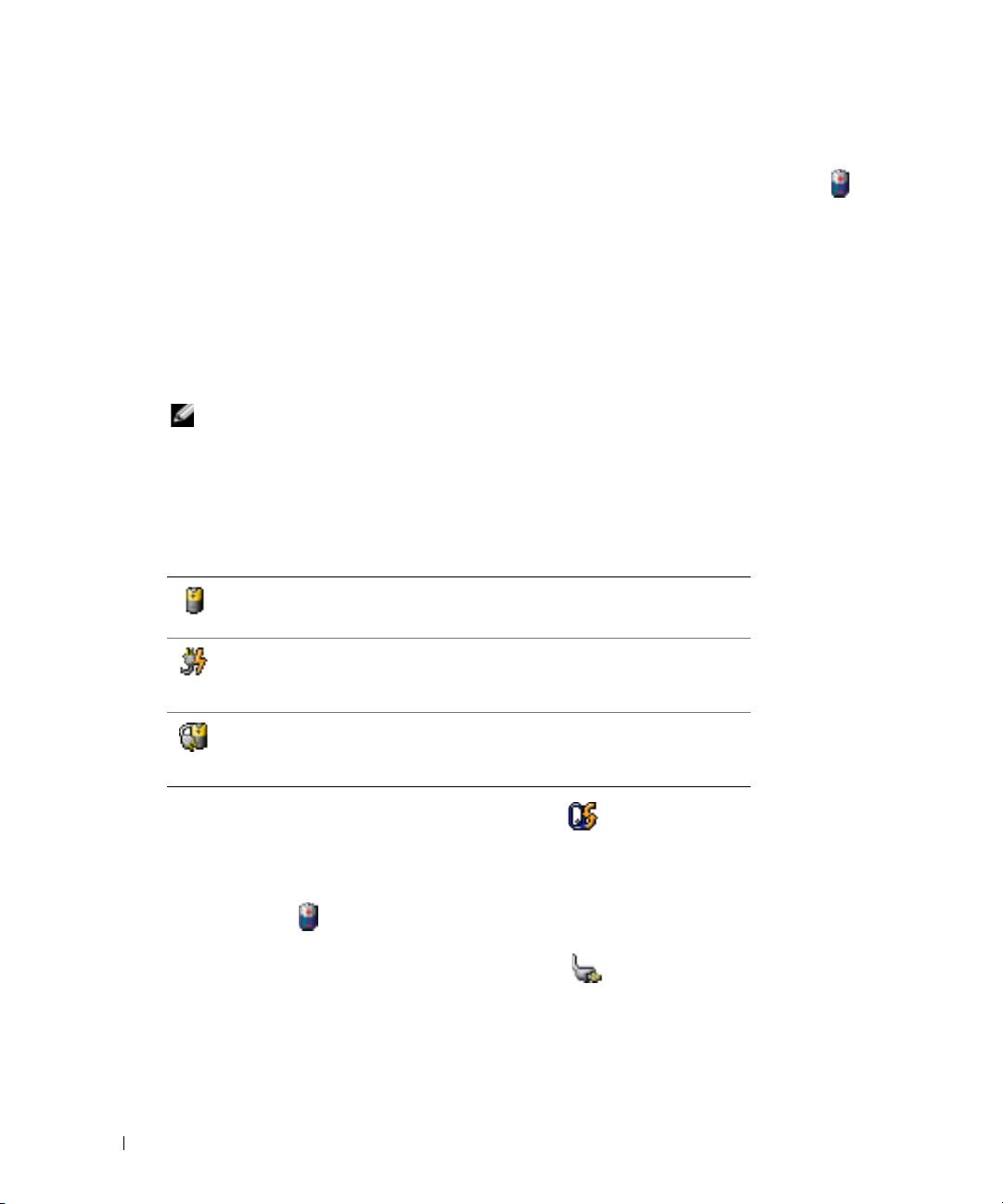
The following icons appear in the
Battery Meter
window:
• The computer or docking device is running on battery power.
• The battery is discharging or idle.
• The computer or docking device is connected to an electrical outlet and
running on AC power.
• The battery is charging.
• The computer or docking device is connected to an electrical outlet and
running on AC power.
• The battery is fully charged.
For more information about QuickSet, right-click the icon in the taskbar, and click
Help
.
®
®
Microsoft
Windows
Power Meter
The Windows Power Meter indicates the remaining battery charge. To check the Power Meter,
double-click the icon on the taskbar. For more information about the
Power Meter
tab, see
your
User’s Guide
.
If the computer is connected to an electrical outlet, a icon appears.
12 Quick Reference Guide
