
Dell Latitude D500: Removing a Battery
Removing a Battery: Dell Latitude D500
Table of contents
- Notes, Notices, and Cautions Abbreviations and Acronyms
- Contents
- CAUTION: Safety Instructions General
- CAUTION: Safety Instructions (continued) Power
- CAUTION: Safety Instructions (continued) Battery
- CAUTION: Safety Instructions (continued) Air Travel EMC Instructions
- When Using Your Computer
- When Using Your Computer (continued) Ergonomic Computing Habits When Working Inside Your Computer
- When Using Your Computer (continued) Protecting Against Electrostatic Discharge
- Finding Information for Your Computer What are you looking for? Find It Here
- What are you looking for? Find It Here
- Setting Up Your Computer
- System Information Guide 15
- About Your Computer Front View
- Left View Right View
- Back View
- Bottom View
- Removing a Battery
- Removing and Installing a Reserve Battery
- 22 System Information Guide
- Installing a Battery Running the Dell Diagnostics
- Option Function
- Option Function Tab Function
- Regulatory Notices
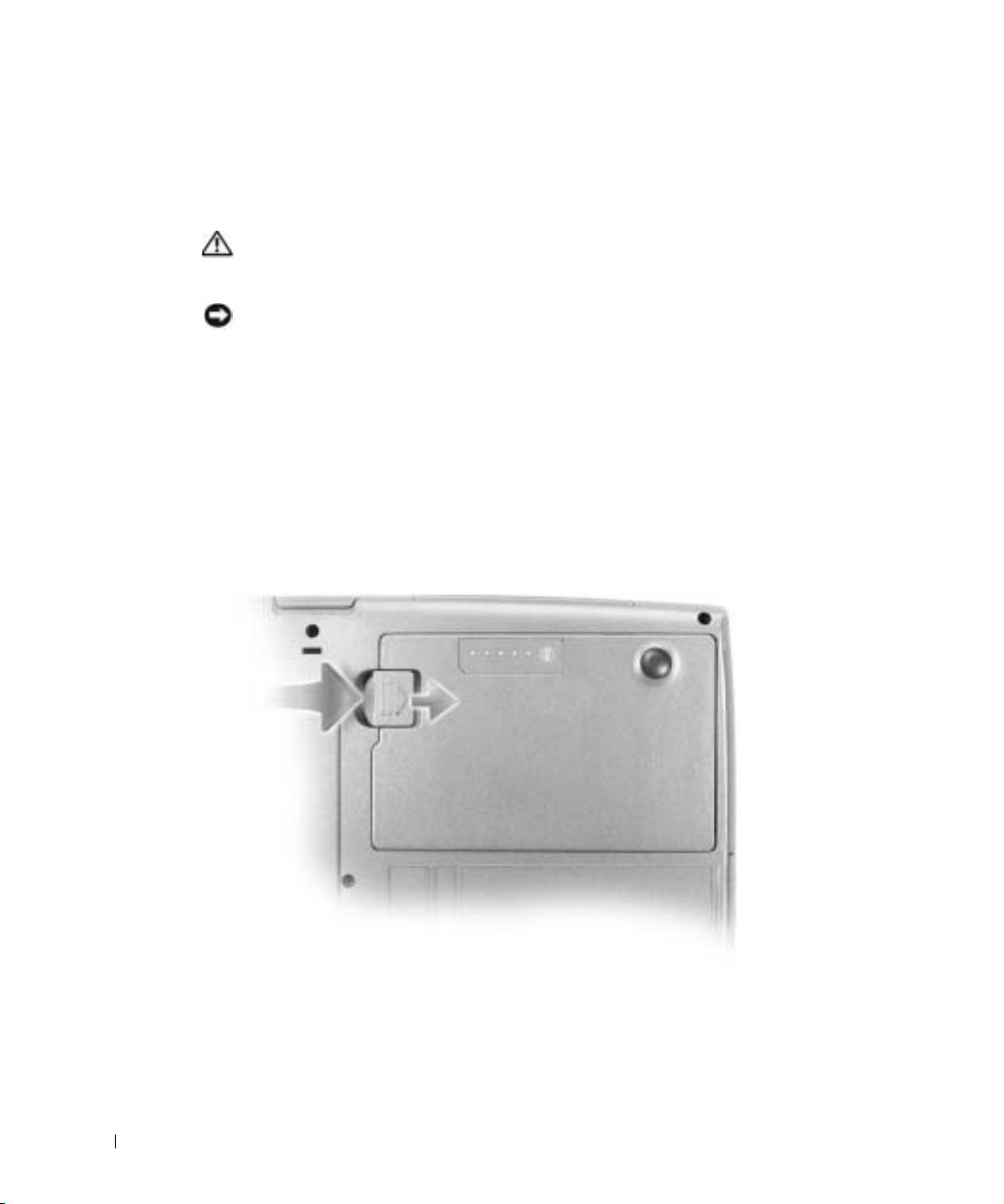
Removing a Battery
For more information about removing the second battery, see "Using the Module Bay" in
your online User’s Guide.
CAUTION: Before performing these procedures, turn off the computer,
disconnect it from the electrical outlet, and disconnect the modem from the
telephone wall jack.
NOTICE: If you choose to replace the battery with the computer in standby mode, you have up
to 90 seconds to complete the battery replacement before the computer shuts down and loses any
unsaved data.
1
Ensure that the computer is turned off, disconnected from an electrical outlet, and
disconnected from the telephone wall jack.
2 If the computer is connected to a docking device (docked), undock it. See the
www.dell.com | support.euro.dell.com
documentation that came with your docking device for instructions.
3 Slide and hold the battery-bay latch release on the bottom of the computer, and then
remove the battery from the bay.
20 System Information Guide
