
Dell Latitude D430: Docking Your Computer
Docking Your Computer: Dell Latitude D430
Table of contents
- Media Base Setup Guide
- Notes, Notices, and Cautions Abbreviations and Acronyms
- Contents
- CAUTION: Safety Instructions SAFETY: General Safety
- SAFETY: Power Safety Equipment Protection Instructions
- Protecting Against Electrostatic Discharge
- About Your Media Base Left View Right View
- Back View Connector Description
- Connector Description
- Top View
- Setting Up Your Media Base
- Securing the Media Base
- Docking Your Computer
- Undocking Your Computer 6
- 7 Lift the back of the computer up and slide the computer out towards the back of the
- Installing the Optical Drive
- Removing the Optical Drive Using External Drives
- Specifications
- Ports and Connectors
- Regulatory Notices
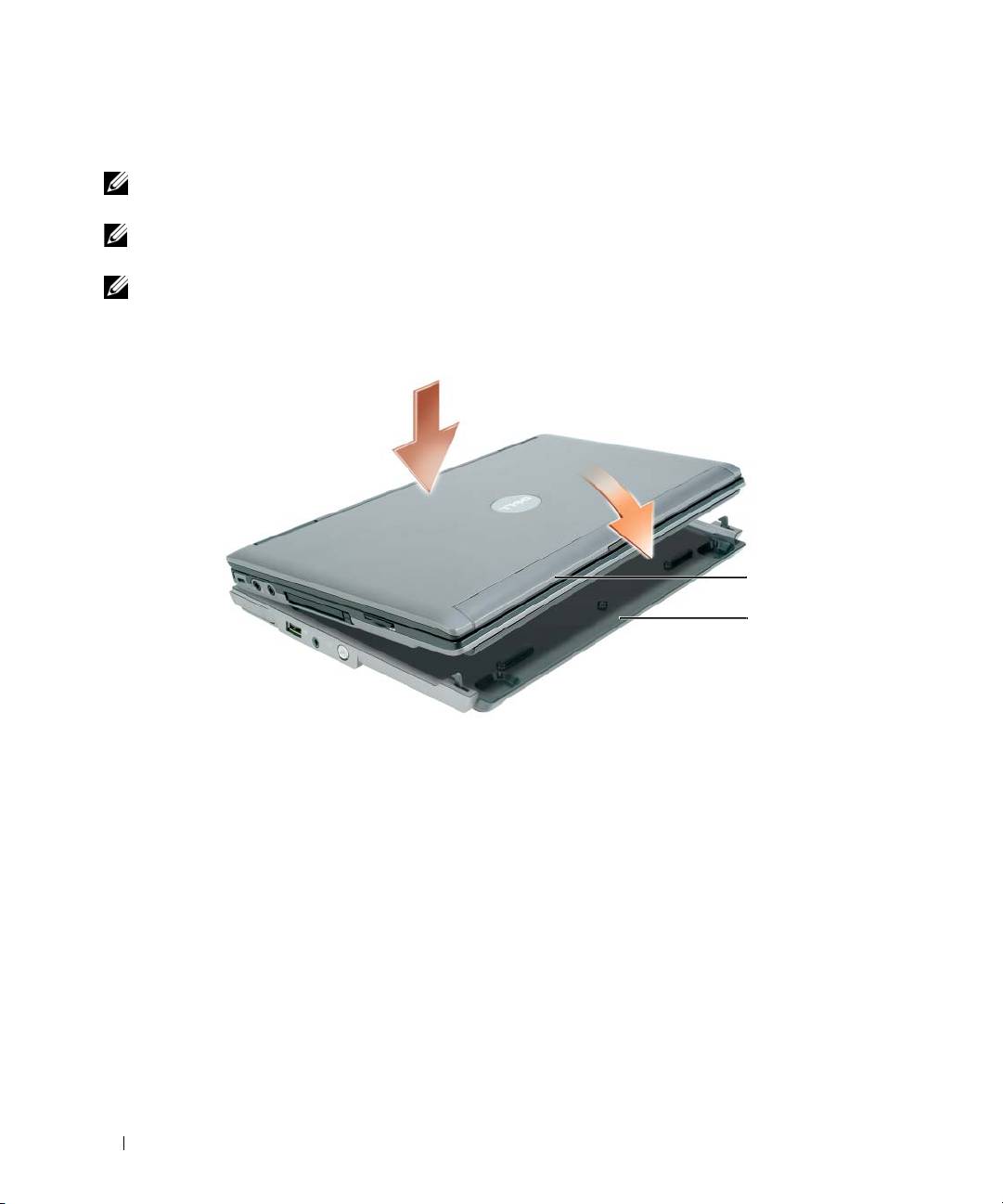
Docking Your Computer
NOTE: If you are docking your computer for the first time and have not completed the steps in "Setting Up Your
Media Base" on page 12, complete them before proceeding to the next step.
NOTE: After docking the computer for the first time, the computer battery or the computer AC adapter connection
can power the media base if the media base is not connected to an AC adapter.
NOTE: Your computer should be turned off only when you dock your computer for the first time.
1
Align the back of the computer with the back of the media base at approximately a 30 degree angle,
and lower the front of the computer onto the
media base
.
1
2
1 computer 2 media base
2
Gently press the computer onto the
media base
until it clicks and the computer is seated.
3
Turn on the computer.
The operating system recognizes the
media base
.
14 Media Base Setup Guide
