
Dell Latitude D430: About Your Media Base Left View Right View
About Your Media Base Left View Right View: Dell Latitude D430
Table of contents
- Media Base Setup Guide
- Notes, Notices, and Cautions Abbreviations and Acronyms
- Contents
- CAUTION: Safety Instructions SAFETY: General Safety
- SAFETY: Power Safety Equipment Protection Instructions
- Protecting Against Electrostatic Discharge
- About Your Media Base Left View Right View
- Back View Connector Description
- Connector Description
- Top View
- Setting Up Your Media Base
- Securing the Media Base
- Docking Your Computer
- Undocking Your Computer 6
- 7 Lift the back of the computer up and slide the computer out towards the back of the
- Installing the Optical Drive
- Removing the Optical Drive Using External Drives
- Specifications
- Ports and Connectors
- Regulatory Notices
About Your Media Base
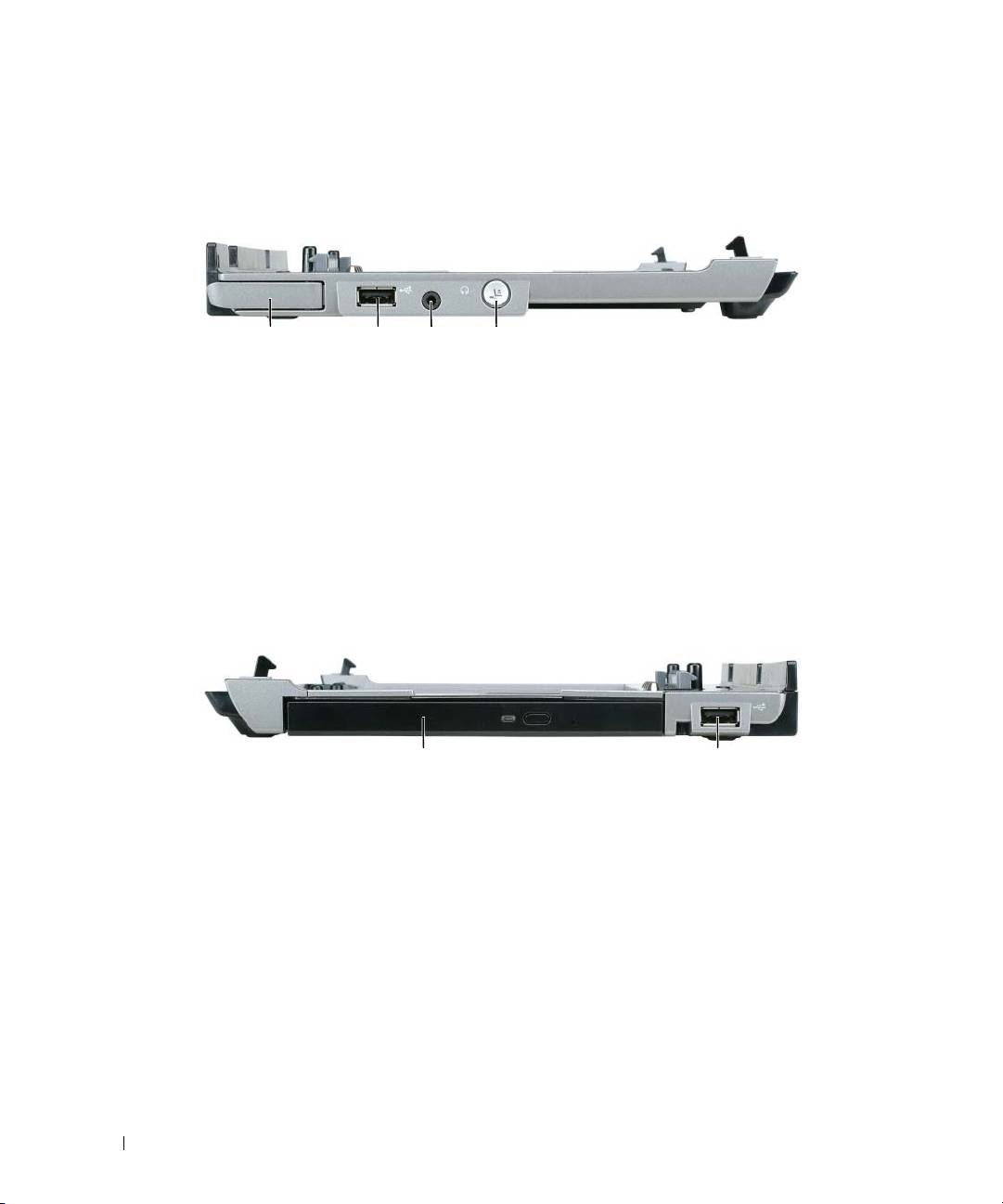
Left View
1 2 3 4
1 computer release lever 2 USB connector 3 audio connector
4 undock button
COMPUTER RELEASE LEVER — Releases the computer from the media base if the media base is not secured by an
antitheft device.
USB
CONNECTOR — The USB 2.0-compliant connector allows you to connect USB devices such as printers,
cameras, etc.
AUDIO CONNECTOR — Lets you connect headphones and speakers.
UNDOCK BUTTON — Lets you undock your computer when your computer is operating.
Right View
1 2
1 optical drive 2 USB connector
OPTICAL DRIVE — Allows you to use CD and DVD media.
USB
CONNECTOR — The USB 2.0-compliant connector allows you to connect USB devices such as printers,
cameras, etc.
8 Media Base Setup Guide
Top 10 manuals
100.00
NZXT HALE90 1000W99.99
Samsung SM-R38099.97
AEG BSB 18C99.97
Dell 2700W99.97
Smeg KSEC70X99.96
Beurer HDE 4099.96
Pyramida KH 50 v.299.96
MSI CSM-H81M-P3299.96
AEG HR 562799.95
Melissa 640-048