
Dell Latitude D830: What Are You Looking For? Find It Here
What Are You Looking For? Find It Here: Dell Latitude D830
Table of contents
- Notes, Notices, and Cautions Abbreviations and Acronyms
- Contents
- Finding Information What Are You Looking For? Find It Here
- What Are You Looking For? Find It Here
- What Are You Looking For? Find It Here
- What Are You Looking For? Find It Here
- Setting Up Your Computer
- About Your Computer Front View
- Left View Right View
- Back View Bottom View
- Using a Battery Battery Performance
- Checking the Battery Charge
- Check the Battery Health Low-Battery Warning Conserving Battery Power Power Management Modes Standby Mode
- Hibernate Mode
- Configuring Power Management Settings Charging the Battery Replacing the Battery
- Storing a Battery
- Troubleshooting Lockups and Software Problems
- Dell Diagnostics When to Use the Dell Diagnostics
- Starting the Dell Diagnostics From Your Hard Drive Starting the Dell Diagnostics From the Drivers and Utilities Media
- Dell Diagnostics Main Menu Option Function Option Function
- Tab Function
- Index
- 26 Index
What Are You Looking For? Find It Here
• How to remove and replace parts
Dell™ Latitude™ User’s Guide
• Specifications
Microsoft Windows Help and Support Center
• How to configure system settings
1
Click
Start
or
→
Help and Support
→
Dell User and
• How to troubleshoot and solve problems
System Guides
→
System Guides
.
2
Click the
User’s Guide
for your computer.
®
®
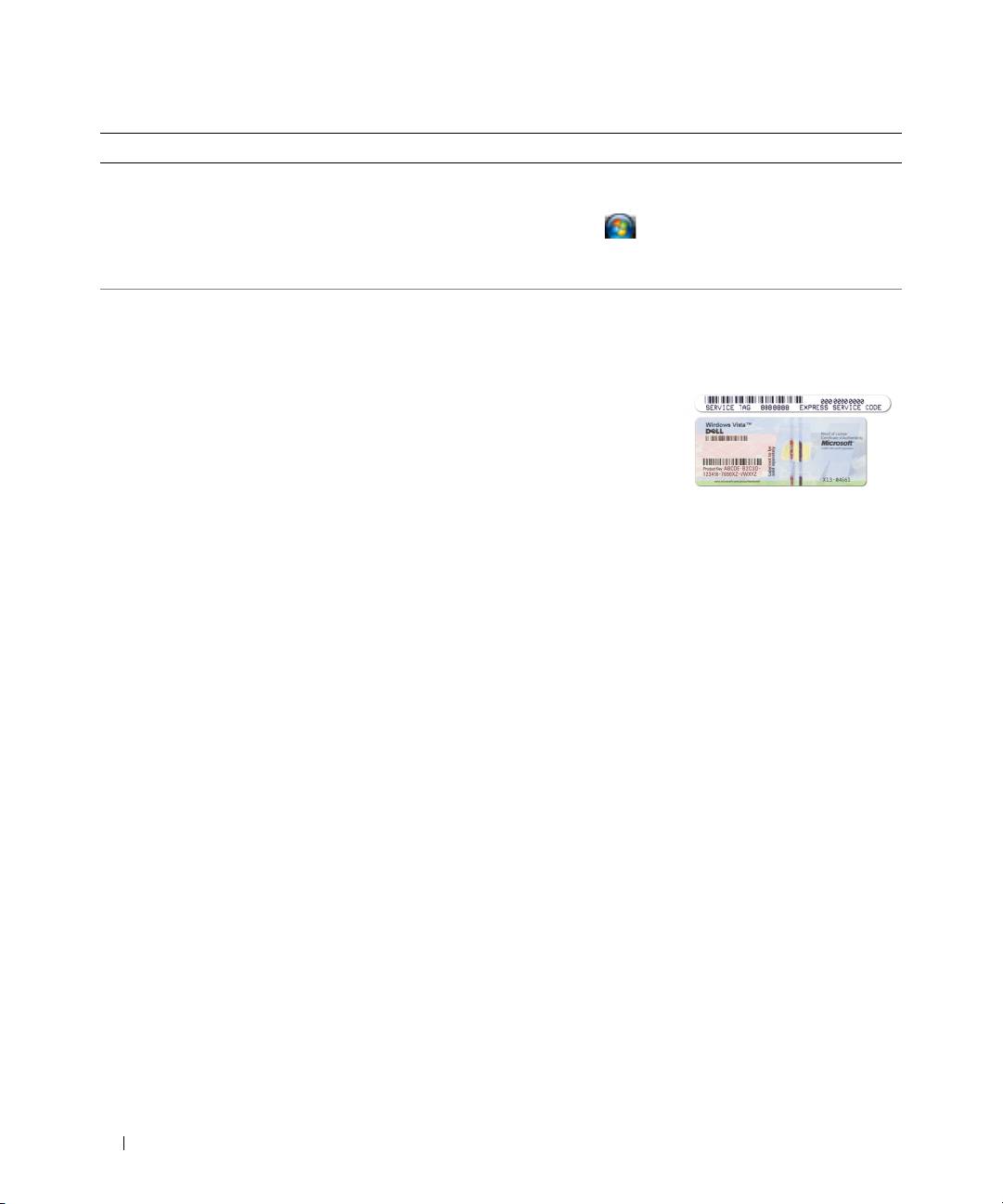
• Service Tag and Express Service Code
Service Tag and Microsoft
Windows
License
• Microsoft Windows License Label
These labels are located on your computer.
• Use the Service Tag to identify your computer when you
use
support.dell.com
or contact support.
• Enter the Express
Service Code to direct
your call when
contacting support.
NOTE: The Microsoft Windows License label has been
redesigned with a hole, or "security portal," as an increased
security measure.
6 Quick Reference Guide
